


Have you ever opened the WordPress Theme Customizer, looked at all those options, and felt completely overwhelmed?
There are dozens of settings for colors, fonts, and layouts, which can feel like too much when you’re just trying to make your site look good. You tweak a few things, but somehow your website ends up looking worse than when you started.
We’ve seen a lot of beginners run into this same problem, and the good news is that it’s easier to fix than you might think.
In this guide, we’ll walk you through how to use the WordPress Theme Customizer step by step so you can create a polished, user-friendly website without the confusion. We’ll also share a few tips that will save you hours of trial and error. 🙌
How to Access the WordPress Theme Customizer
The theme customizer is a default WordPress feature that allows you to control the appearance of your theme. It comes with all classic themes and includes a settings panel for site-wide controls like typography, header design, and more.
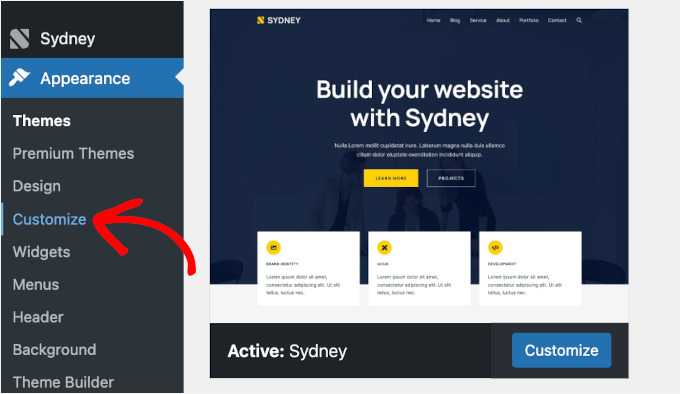
You can access it by logging in to your WordPress admin area. Then, go ahead and head over to Appearance » Customize from the left sidebar of your admin panel.
This will open the Customizer interface with your current theme.
🧐 Note: If you are using a block theme, then you won’t be able to access the customizer in the same way. Here’s how to fix the missing theme customizer in WordPress admin.
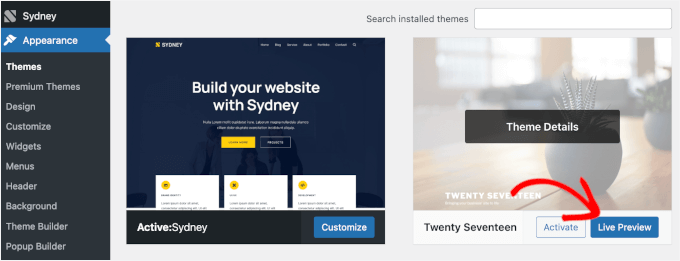
You can also use the WordPress theme customizer for any of your website’s installed themes, even if they are inactive. This feature lets you see a live preview of the theme and make changes before activating it.
To do that, you’ll need to head over to the Appearance » Themes page. Next, hover your mouse cursor over any installed theme and click on the ‘Live Preview’ button to open the WordPress theme customizer page.
How to Use the WordPress Theme Customizer
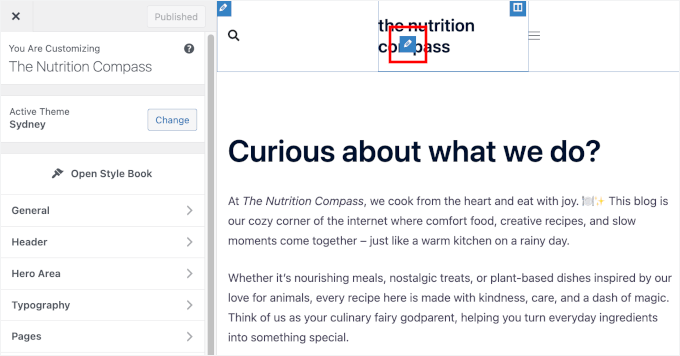
After opening the WordPress theme customizer, you’ll see all the customization settings on the left side of your screen. The live preview of your website will be displayed on the right side.
WordPress theme customizer comes with a set of default panels regardless of your theme.
You need to click on the individual panels to make changes to them. You can also click on any of the blue pencil icons on the right side of your screen to open the settings for that particular item.
☝ Note: Advanced WordPress themes will have additional setting panels for extra customization options (more on this later).
In the following sections, we’ll show you the default options available in the WordPress theme customizer, as well as share some customization tips and alternatives.
If you’re interested in a particular topic, you can click the link to skip ahead in the article:
- Site Identity Panel: Add Title, Logo, and Favicon
- WordPress Theme Customizer: Change Colors on Your Website
- Adding Navigation Menus in Theme Customizer
- Control Widgets on Your Website in Theme Customizer
- Homepage Settings Panel in Theme Customizer
- Additional CSS Panel for Adding Custom CSS
- Other Theme Customizer Options
- Preview Your Website in Different Screen Resolutions
- Publish, Save, or Schedule Your Customizer Settings
- Preview Different Themes Without Going Live
- Import or Export Theme Customizer Settings
- Bonus Tip: WordPress Theme Customizer Alternatives
- FAQs About Using the WordPress Theme Customizer
- Keep Exploring: Design and Customize Like a Pro
Ready? Let’s get started.
Site Identity Panel: Add Title, Logo, and Favicon
The ‘Site Identity’ panel in the WordPress theme customizer allows you to add or change your website’s title and tagline.
By default, WordPress adds ‘Just Another WordPress Site’ as the site tagline. We recommend changing it after installing WordPress on your site, but you can also keep it blank if you want.
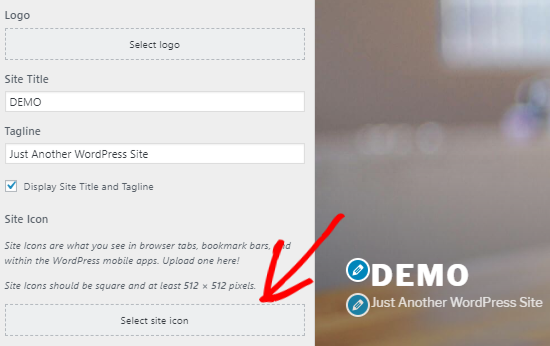
The ‘Site Identity’ panel in the WordPress theme customizer also allows you to add your site logo. Simply click on the Select logo option to upload your website logo.
Want to add a favicon to your site? You can do that by clicking on the ‘Select site icon’ option.
For detailed instructions, you can follow our guide on how to create and add a favicon to your site.
WordPress Theme Customizer: Change Colors on Your Website
The controls in the ‘Colors’ panel will mostly vary depending on the WordPress theme you’re using.
For example, the Sydney theme allows you to select a color scheme for your entire website in the Global Color options. It also lets you change the background, text, links, heading, form fields, and sidebar.
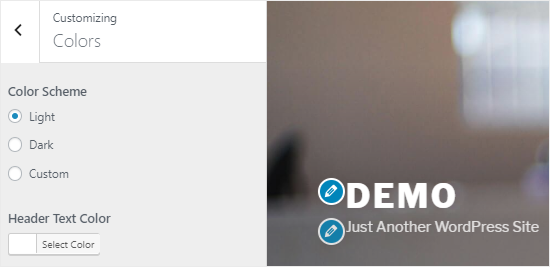
Other WordPress themes may have different color options, such as separate controls for header colors, navigation menus, buttons, or specific sections of the site.
Adding Navigation Menus in Theme Customizer
The ‘Menus’ panel allows you to create navigation menus and control their location on your website.
On this tab, you’ll find all existing WordPress menus that you’ve created previously. You can click on the ‘View All Locations’ button to check the available menu locations that your theme supports.
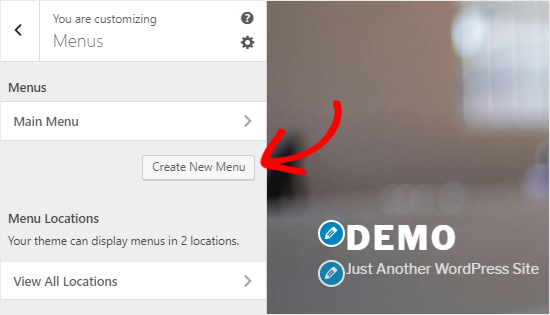
To create a new menu, you need to click on the ‘Create New Menu’ button.
After that, you will need to give your menu a name so you can easily manage it later. You can also select the menu location and click ‘Next’ to proceed.
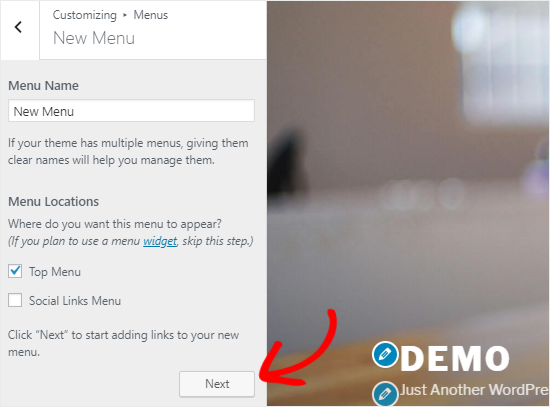
To add items to this menu, you’ll need to start by clicking the ‘Add Items’ button. This will open a new panel.
You can now add custom links, pages, posts, categories, and tags as menu items to the respective fields.
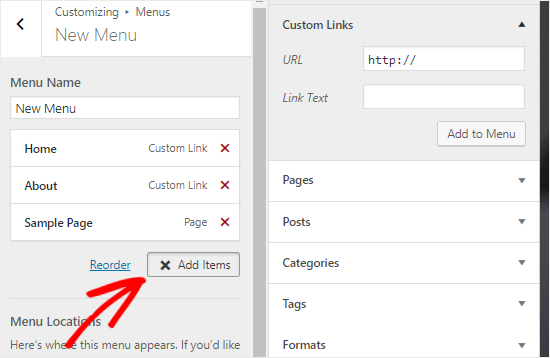
To reorder the items, you can click on the ‘Reorder’ link and then use the arrow icons to adjust the menu items.
Control Widgets on Your Website in Theme Customizer
The ‘Widgets’ panel allows you to add and manage the widgets on your site. Clicking on it will show you the different locations where you can add widgets.
And again, this will vary depending on the WordPress theme you’re using.
For example, the Sydney theme offers five widget locations, whereas the Twenty Nineteen theme comes with just one location.
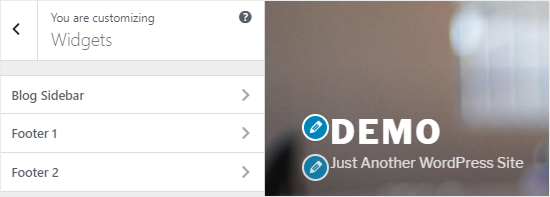
When you click on any of them, you’ll see the widgets you’ve previously added to that location.
To add a new widget, you can click the ‘Add a Widget’ button. This will open a new panel where you’ll see a list of all available widgets.
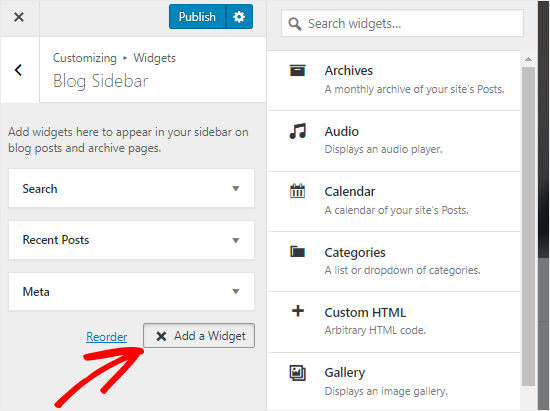
Then, you’ll need to click on the one that you want to add. You can also make changes to the newly added widgets and adjust their position by dragging them up or down.
Homepage Settings Panel in Theme Customizer
By default, WordPress displays the latest blog posts on your homepage.
However, most users prefer to use a custom homepage for business websites. This allows you to have a proper landing page that displays your products and services.
To use a custom home page, you’ll want to select the ‘A static page’ radio button on the ‘Homepage Settings’ panel.
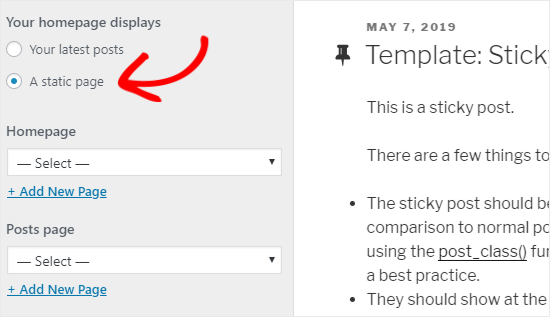
This will open up two new dropdown menus that you can use to select a page for your homepage and another for displaying your blog posts.
If you don’t have the pages on your site, you can create a new one by clicking on the ‘+ Add New Page’ link present below the dropdown menu. This will create a blank page with the name of your choice.
Additional CSS Panel for Adding Custom CSS
Do you want to add custom CSS code to style your website? You can do that in the ‘Additional CSS’ panel.
Intermediate and advanced WordPress users often customize their sites by adding CSS code directly to the style.css file of their theme. This method needs additional steps like having FTP access to your WordPress hosting, modifying theme files, etc.
An easier solution for beginners is to add your custom CSS code to the Additional CSS panel in the WordPress theme customizer. This will allow you to make changes to your site and see them live on the right side of your screen.
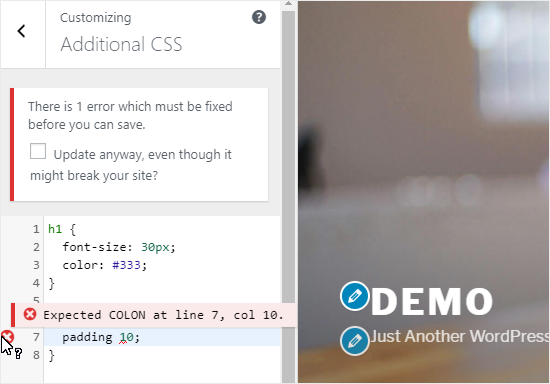
When you start writing some CSS code, WordPress will automatically suggest attributes to you based on the letters you type. It will also display error messages if you have not written a proper CSS statement.
☝ Note: If you want to customize your website without writing any code, keep reading. We will share three beginner-friendly options that will allow you to easily customize your theme and even create a custom WordPress theme.
Other Theme Customizer Options
Some free and premium themes offer more Theme Customizer options.
Depending on the theme you’re using, you may be able to change the font style, add a background image, change the layout, modify colors, add random header images, and much more.
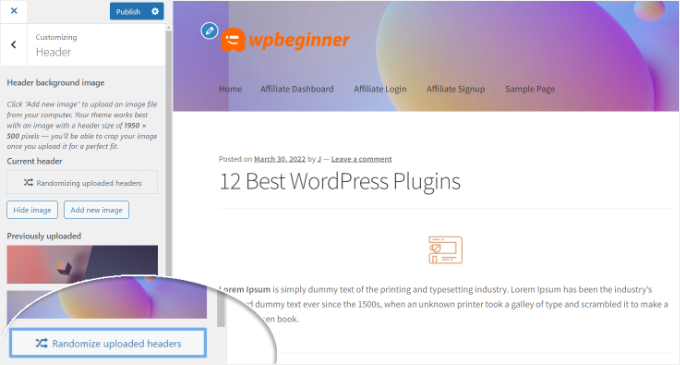
You can also add specific features to your theme customizer with the help of plugins.
For example, you can add custom fonts in WordPress using the Easy Google Fonts plugin.
Preview Your Website in Different Screen Resolutions
It’s important for every website owner to make sure that their website is mobile responsive and looks good on all screen sizes.
Thanks to the WordPress theme customizer, you can easily check how your website looks in different screen sizes.
At the bottom of the Theme Customizer panel, you’ll find three icons and the ‘Hide Controls’ link.
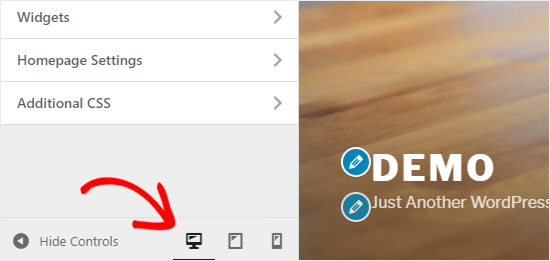
These icons allow you to test your site on different screen resolutions, like desktop, tablet, and mobile devices.
The ‘Hide Controls’ link is useful for hiding the WordPress Customizer panel so that you can view your site properly on a desktop.
Publish, Save, or Schedule Your Customizer Settings
Once you have made the necessary changes, you need to apply them to your site. Otherwise, all your hard work will be lost.
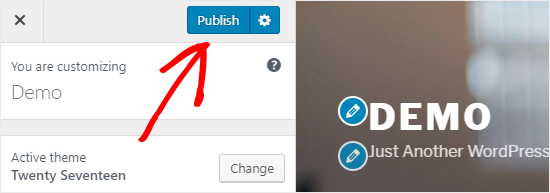
Go ahead and click on the ‘Publish’ button to apply the changes. Once the process is complete, you can click the close button at the top-left corner of your screen to exit the theme customizer.
What if you need more time to finalize your new WordPress design? In that case, you can save your new design as a draft and even share it with someone without giving them access to your admin area.
To do that, you’ll need to click on the gear icon right next to the ‘Publish’ button. This will open up the ‘Action’ panel.
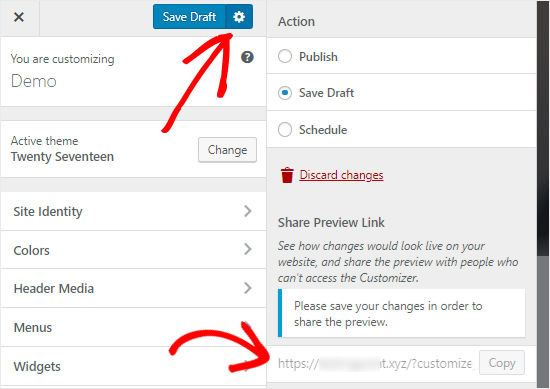
Here, you’ll find three options: ‘Publish,’ ‘Save Draft,’ and ‘Schedule.’
Simply select the ‘Save Draft’ radio button on the ‘Action’ panel. Then, go ahead and click the ‘Save Draft’ button to store your changes.
You can now copy the preview link and share it with others to get feedback.
The ‘Schedule’ option allows you to publish your changes on a specific date and time. For example, you can schedule your theme changes to go live at the time when you receive the least traffic.
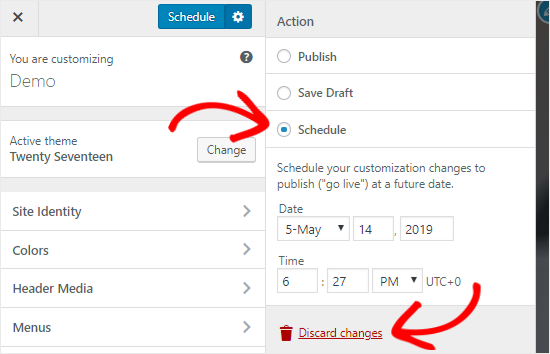
Lastly, if you want to reset the unpublished changes, then you can click on the ‘Discard changes’ link on the Action panel.
Preview Different Themes Without Going Live
There are times when you want to check how a new theme would look on your site. However, you don’t want to activate them on your live website.
In that case, you can open the WordPress Customizer to test new themes without going live.
In the Customizer panel, you’ll find the name of your active theme and the ‘Change’ button.
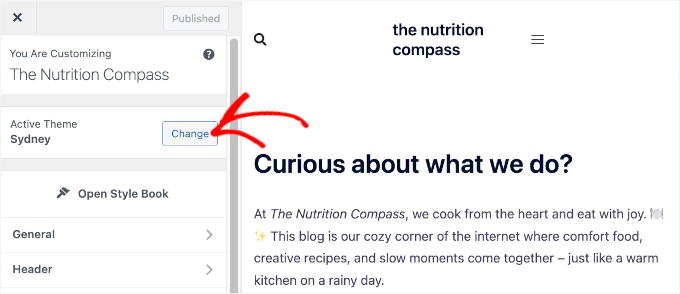
If you click that button, then WordPress will display all your installed themes on the right side of the page.
To check a particular theme, you need to click the ‘Live Preview’ button.
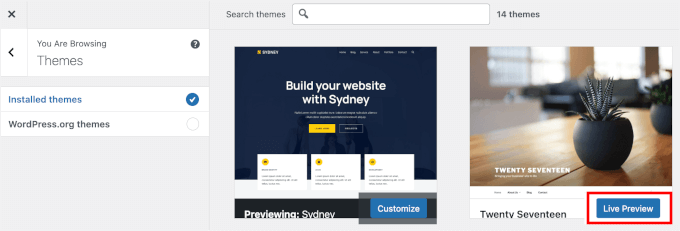
You can also preview themes from the WordPress Themes Repository.
To do that, you’ll need to select the ‘WordPress.org themes’ checkbox on the left panel. This will show themes from the WordPress.org directory.
Simply click on the ‘Install & Preview’ button to check the theme you like.
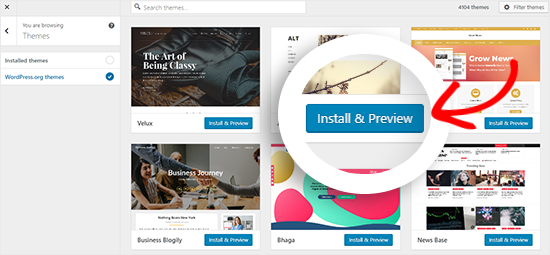
You can also filter the themes by clicking the ‘Filter Themes’ button at the top-right corner of your screen.
☝ Note: We recommend using a WordPress staging website to test new themes instead of using the customizer on a live site.
Import or Export Theme Customizer Settings
Did you know that you can import and export your theme customizer settings?
This is extremely helpful when you are making changes to your theme on your local server or a staging site. Instead of copying the settings manually to your live website, you can simply export the theme customizer settings to save you time.
For detailed instructions, you can follow our guide on how to import and export theme customizer settings in WordPress.
Bonus Tip: WordPress Theme Customizer Alternatives
Although WordPress Customizer allows you to make changes to your site, the number of controls will vary depending on the theme you’re using.
What if you like your theme but wish that it had extra customization options?
In that case, the best solution is to use one of the three customization plugins that work alongside the WordPress theme customizer.
SeedProd
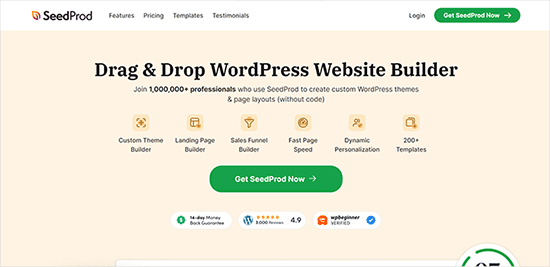
SeedProd is the best drag-and-drop page builder for WordPress. You can use SeedProd to easily create custom WordPress themes and page layouts without editing any code.
Some of our partner brands have used SeedProd to build their sites. Curious about our experience? Dive into our detailed SeedProd review for more insights.
SeedProd offers hundreds of pre-made page layouts for landing pages, sales pages, webinar registration pages, coming soon pages, maintenance mode pages, and much more.
Customization is easy with ready-made blocks like opt-in forms, social profiles, buttons, countdown timers, contact forms, and more.
You can also set color schemes, save font combinations, and reuse pages and page elements so that you don’t have to create them again.
Thrive Theme Builder
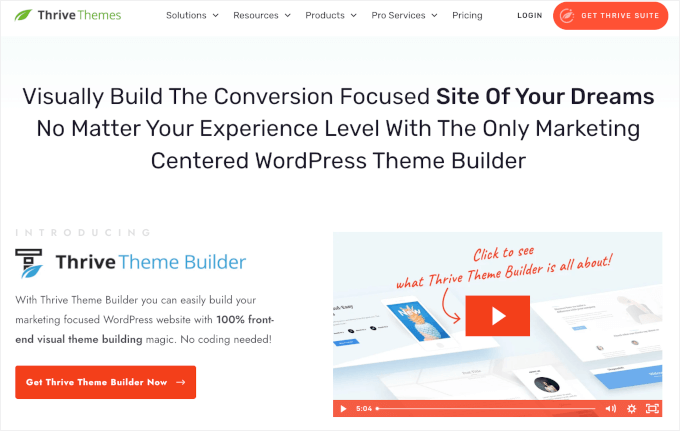
Thrive Theme Builder is another excellent drag-and-drop theme builder plugin for WordPress. You can use it to easily create a custom WordPress theme, no coding required.
It comes packaged with four different ready-made theme templates to get you started quickly. Each theme template includes a variety of pre-made pages that you can add to your site.
For an in-depth breakdown, you can head over to our full Thrive Themes Suite review.
With this plugin, you can edit each part of your theme, including the header, footer, blog posts, category pages, and more, simply by pointing and clicking.
Plus, there are 100+ design and site-building elements that you can quickly add to your theme by dragging and dropping them into place.
CSS Hero
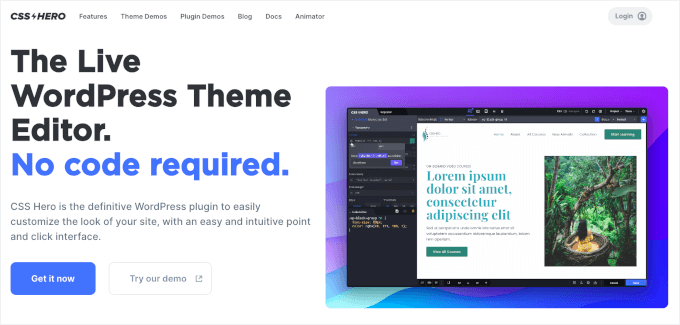
CSS Hero is a WordPress plugin that allows you to customize your site without writing a single line of CSS code. You have the freedom to style every element of your site without any hassle.
Do you want to customize the login page of your WordPress site? CSS Hero allows you to do that within a few minutes.
You can also edit and preview the changes on the front end to make sure that your design looks perfect on every device.
Beaver Builder
Beaver Builder is another one of the top page builders for WordPress. It allows you to build stunning pages for your site using a drag-and-drop interface.
The best part is that Beaver Builder works with almost every WordPress theme. This allows you to use it with your current theme. We’ve extensively tested it, and you can find out everything in our complete Beaver Builder review.
Beaver Builder supports the use of shortcodes and widgets. It also offers different types of modules that you can use to style your website easily. You can see our guide on how to create custom layouts in WordPress for detailed instructions.
FAQs About Using the WordPress Theme Customizer
Still have questions about getting the most out of the Theme Customizer? Here are some common ones we hear from WordPress users.
Can I customize every theme using the WordPress Theme Customizer?
Not every theme. Most WordPress themes still support the Theme Customizer and offer various design options. However, block-based themes that use Full Site Editing (FSE) rely on the Site Editor instead, and the Customizer won’t appear in those themes.
Will changing themes delete my Customizer settings?
Yes, it can. Customizer settings are usually theme-specific, so switching to a new theme may reset or remove those changes. To be safe, jot down your settings or use the import/export tool if your theme supports it.
What should I do if I can’t find the Theme Customizer in WordPress?
If you don’t see the Appearance » Customize option in your dashboard, you may be using a block-based (Full Site Editing) theme. These themes use the Site Editor, which you’ll find under Appearance » Editor. For more information, see our guide on how to fix the missing Theme Customizer in the WordPress dashboard.
How can I add extra customization options to my theme?
If your current theme feels too limited, you can try creating a child theme or using page builder plugins like SeedProd, Thrive Theme Builder, or CSS Hero. These tools offer more design control without touching any code.
Is it safe to make changes in the Theme Customizer on a live website?
Yes, it’s safe to make changes within the Theme Customizer because they won’t go live until you click ‘Publish.’ That said, if you’re planning major edits, it’s best to test them first in a staging environment to avoid disrupting your live site.
Keep Exploring: Design and Customize Like a Pro
We hope this guide helped you learn how to use WordPress Theme Customizer like a pro.
If you found this helpful, then you may also want to see our other guides on:
- How to Customize Your WordPress Theme
- How to Add a Parallax Effect to Any WordPress Theme
- How to Add Next / Previous Links in WordPress
- Ways to Create a Mobile-Friendly WordPress Site
- How to Find and Translate a Translation-Ready WordPress Theme
- Free vs Premium WordPress Themes
- Best Simple WordPress Themes You Should Try
- How to Test Your WordPress Theme Against the Latest Standards
If you liked this article, then please subscribe to our YouTube Channel for WordPress video tutorials. You can also find us on Twitter and Facebook.



Dayo Olobayo
This is so much easier than I thought it would be. I just changed the colors on my website using the customizer and it looks so much better already. I’m excited to play around with the other options and see what else I can customize. Thanks a lot!
Moinuddin Waheed
I have seen many premium themes come up with lots of things in customizer.
it feels like having control of the whole things of website right inside the customizer itself.
For instance if we look at Astra, it gives much control of look and feel from the customizer itself.
Is there any advantage of premium themes having much to do inside customizer in terms of speed of the website compared to those who does not give such control?
WPBeginner Support
The advantage is premium themes can sometimes have those controls while not all free themes have full customization options. For speed it depends on the design itself for determining if one theme is faster or not.
Admin
Moinuddin Waheed
I have used many premium themes and they have much more options in the customize panel itself.
At times it feels like having these options in customized is proof that the theme is Efficient and lightweight.
for instance Astra has a lot of options in its customizer.
I have a query though, adding additional css to customiser, does it add to main style.css and if so as mentioned, will updating the theme will override it?
WPBeginner Support
The additional CSS in the customizer is not stored in the style.css so you don’t need to worry about it when updating your theme.
Admin
Shelley
Could you please why “display site title and tagline” checkbox not show on my website?
WPBeginner Support
Your specific theme may not have styling for that at the moment so it would not offer the ability to hide the title and tagline by default.
Admin
Craig
Thank you for providing this information. I am completely new to website development and through some initial research, had learned of Elementor’s drag & drop page builder, however, I have also discovered a fairly hefty learning curve associated with customizing these themes which became a bit more confusing as there seemed to be three different areas where my customizations could be applied and I would find myself lost between what I should customize where. So Figuring out which customizations are best handled in which customizer fields is a very useful topic indeed!
WPBeginner Support
Thank you, glad you like our article
Admin
Leslie
I already have Divi for my theme needs (but haven’t really used it yet since I’m a total beginner and still building my website). Would the above info still be helpful for me or will I just be doing it all through Divi? Thanks!
WPBeginner Support
Using a theme like Divi you would likely want to follow their documentation for customizing but knowing the customizer is still helpful
Admin