


“Will I lose my Google rankings if I move my blog?” That’s the number one question we hear whenever someone’s thinking about making the switch from Blogger to WordPress.
We get it – but after helping countless bloggers make this transition, we can tell you with confidence: it’s absolutely possible to switch from Blogger to WordPress without sacrificing your Google rankings.
Over the years, we’ve refined the migration process to protect your SEO while upgrading to a more powerful blogging platform. Through trial and error, we’ve found out exactly what you need to do (and what to avoid!) to protect your hard-earned spot in Google’s search results.
In this guide, we’ll walk you through our proven method for moving from Blogger to WordPress. You’ll learn the very same techniques we’ve used to help countless bloggers like you upgrade their sites without sacrificing their visibility in search engines.
Why Move From Blogger to WordPress?
So, you’re currently using Blogger, a popular blogging platform created by Google that lets anyone start a free blog with their Google account.
It’s a great starting point for many, but a lot of beginners quickly realize that their free Blogger blog can feel a bit limited. You might find yourself wishing you could do more.
That’s where WordPress comes in. Unlike Blogger, WordPress.org gives you complete control over your website. It also allows you to add the necessary features to grow your blog and make money online. And when it comes to getting noticed on Google, WordPress.org lets you do all the important SEO tweaks to improve your rankings.
🌟 Want more information? We’ve put together a detailed side-by-side comparison of WordPress vs. Blogger, so you can see all the differences.
According to our research statistics, WordPress is the most popular website platform in the world and powers nearly 43% of all websites.
This means when you choose WordPress, you join millions of other successful websites. You’re choosing a platform that’s trusted by tons of people and is perfect for showcasing your content.
That said, there are two types of WordPress software, so it’s important to pick the right one.
First up is WordPress.com, which is a hosted website builder. With WordPress.com, you don’t need to find your own hosting plan and install the software yourself. Instead, you can choose a free plan or buy one of the available paid plans, and Automattic will host your website for you.
Then there’s WordPress.org, which is also known as self-hosted WordPress. We always recommend using WordPress.org because, unlike WordPress.com, you don’t need to pay for an expensive plan to be able to install plugins (think of them as add-ons for your new WordPress website!)
That being said, let’s take a look at how to properly move from Blogger to WordPress while preserving your Google search rankings and website traffic.
Here are all the steps we’ll be covering to make your move from Blogger to WordPress smooth and SEO-friendly:
- Step 1. Sign up for WordPress Hosting
- Step 2. Export Your Blogger Blog
- Step 3. Import Blogger to WordPress
- Step 4. Setting Up Permalinks
- Step 5. Set Up Redirects From Blogger to WordPress
- Step 6. Moving Other Content From Blogger to WordPress
- Step 7. Things to Do After Migrating From Blogger to WordPress
- Video Tutorial
Ready? Let’s get started.
Step 1: Sign Up for WordPress Hosting
To get started with WordPress, you will need a domain name and web hosting.
For a quick reminder, a domain name is your website’s address that people type to get to your blog, and web hosting is where your website files are stored. Both of these are a MUST-HAVE to create any type of blog or website.
With that said, we recommend using Bluehost. They are one of the largest hosting companies in the world, and they are an officially recommended WordPress hosting partner.
Because WPBeginner is the largest WordPress resource site, they have agreed to offer our readers a free domain name and a 70% discount on hosting. Basically, you can get started for just $2.99 per month.
If you would prefer to go with a Bluehost alternative, then we recommend using either SiteGround or Hostinger because both are excellent solutions (in fact, we use SiteGround to host WPBeginner!)
Once you have signed up for the WordPress hosting plan and set up your domain name, you can go ahead to the WordPress installation step.
If you sign up with Bluehost using our link above, then they will install WordPress for you automatically.
If you used a different WordPress hosting provider, then you need to install WordPress by following our ultimate guide on how to install WordPress.
After you have installed WordPress, it is time to move your content from Blogger to WordPress.
🧑💻 We heard you loud and clear! Because so many of you have been asking, we’re excited to announce that we’re now offering a completely FREE Blogger to WordPress migration service as part of our free WordPress blog setup! That’s right – one of our expert team members will handle everything for you, for free. You can literally make the move from Blogger to the powerful world of WordPress without any hassle or risk.
Our free Blogger migration service is perfect for smaller blogs with less than 1000 blog posts. If you have a larger Blogger site, don’t worry! We can still help with the migration, but it would be a paid service.
Step 1: Export Your Blogger Blog
The first thing you need to do is export your Blogger blog’s content. You can do this by visiting the Blogger website and logging into your account dashboard.
After that, go to the Settings page. Scroll down to the ‘Manage Blog’ section, and click the ‘Back up Content’ button.
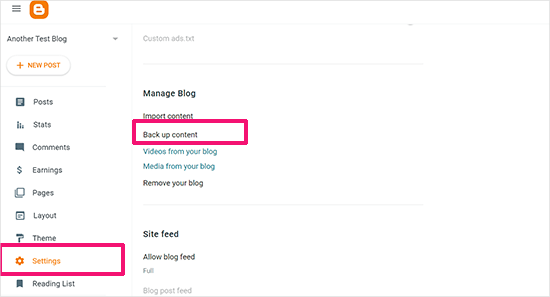
This will bring up a popup showing what exactly is included in the Blogger backup.
You need to click on the ‘Download’ button to continue.
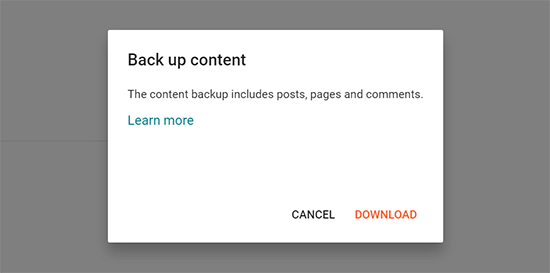
Your Blogger blog’s content will be downloaded to your computer in an XML file.
Once the download is complete, it is time to import your Blogger content into your WordPress site.
Step 2: Import Blogger to WordPress
To start importing your Blogger site into WordPress, log in to your WordPress admin area and visit Tools » Import.
On the Import page, go ahead and click on the ‘Install Now’ link below Blogger.
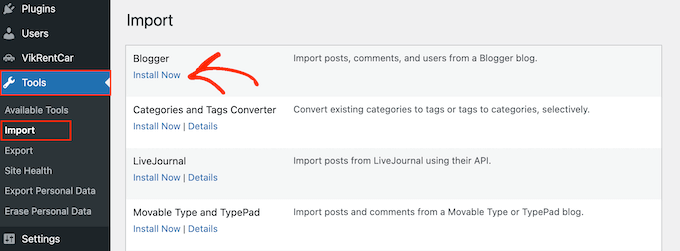
WordPress will now download and install the Blogger Importer plugin for you.
Once it has finished installing, you need to click on the ‘Run Importer’ link to continue.
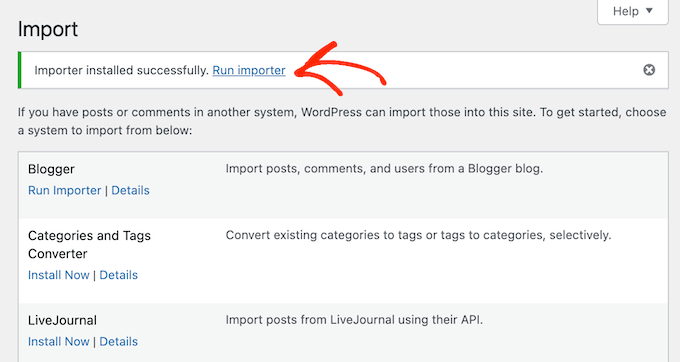
WordPress will ask you to upload the XML file on the Import Blogger screen. This is the file that you downloaded in Step 1.
Simply click the ‘Choose File’ button and upload the XML file you downloaded earlier.
Next, click on the ‘Upload file and import’ button to continue.
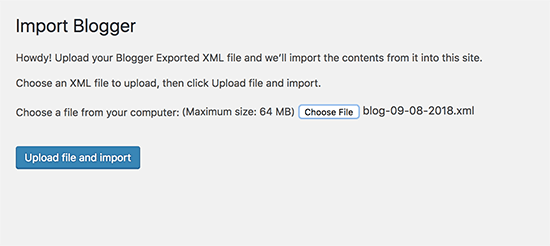
WordPress will now upload the import file. If your import file is too large, then you may see an error message.
In this case, you will need to increase your maximum file upload limit. If your file is small, then you won’t see any errors.
Next, you will be asked to assign posts to an author. If you have multiple authors on your Blogger blog, then you can create a new user account for each author. You can also assign these posts to existing authors on your WordPress website.
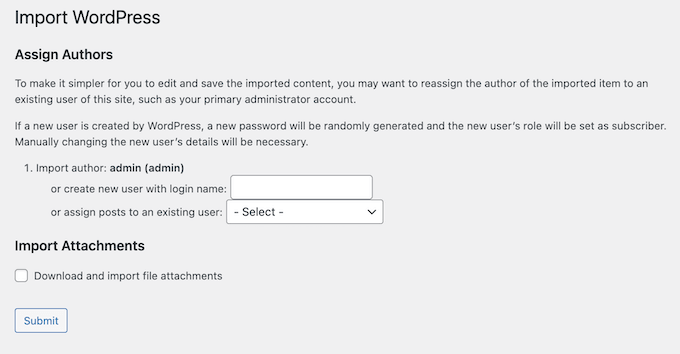
After making your selection, click on the ‘Submit’ button to continue.
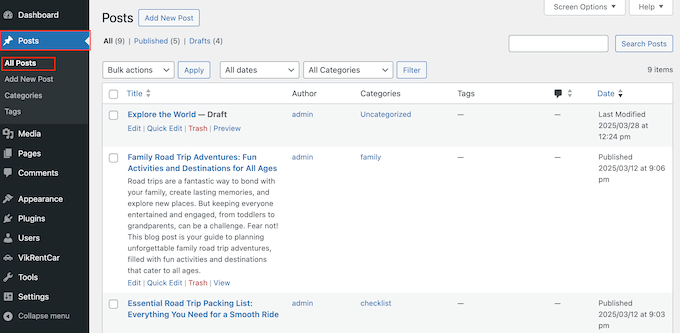
WordPress will import all content from the Blogger export file to your WordPress site. You can view the content by visiting the Posts » All Posts page.
Step 3: Setting Up Permalinks
Permalinks is the term used for the URL structure of individual pages. WordPress comes with a feature that allows you to set up an SEO-friendly URL structure.
Since you are importing content from Blogger, you need your URL structure to be as close to your old Blogger site’s URL structure as possible.
To set permalinks, you need to go to Settings » Permalinks in your WordPress dashboard and choose the ‘Custom Structure’ option.
After that, you need to add the following text in the box next to the custom structure field:
/%year%/%monthnum%/%postname%.html
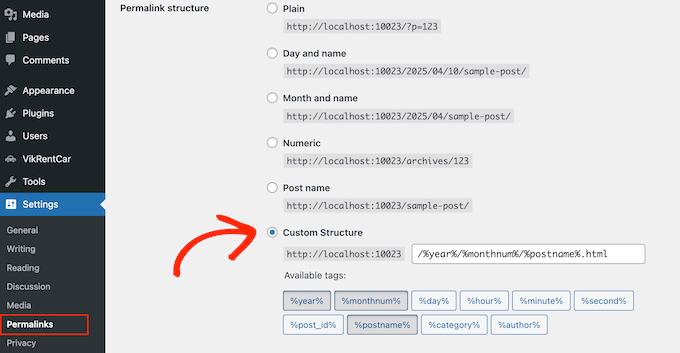
This permalink structure makes your blog post URLs similar to the URLs on your old Blogger blog.
However, sometimes your blog post URL, also known as a slug in WordPress, will not match the slugs used by Blogger.
To fix this, you will need to create and run a little code snippet.
We recommend adding this PHP code using the WPCode plugin. It is the safest way to add custom code to your WordPress website. For more details, please see our guide on how to copy and paste code snippets in WordPress.
add_action( 'init', 'wpb_update_slug' );

function wpb_update_slug() {
global $wpdb;
$result = $wpdb->get_results("SELECT post_id, meta_value FROM $wpdb->postmeta WHERE meta_key = 'blogger_permalink' ");
$wpdb->print_error();
foreach ($result as $row){
$slug = explode("/",$row->meta_value);
$slug = explode(".",$slug[3]);
$wpdb->query("UPDATE $wpdb->posts SET post_name ='$slug[0]' WHERE ID = '$row->post_id' ");
}
echo "DONE";

}
After saving the code, you just need to visit any page on your WordPress site to trigger this script. After the script has run, don’t forget to disable or delete it from your WPCode library because it only needs to run once.
Step 4: Set Up Redirects From Blogger to WordPress
The most important step in moving any website is to set up proper redirection so that you don’t lose any existing traffic or SEO rankings. You can see our ultimate WordPress SEO migration checklist for more details.
⚠️ If your Blogger blog has its own custom domain instead of blogspot.com, you may need to point your domain nameservers to your hosting provider. For instructions, please follow our tutorial on how to switch custom domain blogger blog to WordPress.
The crucial part of the redirection is to ensure that your users land on the same page on the new domain they were trying to access on the old site.
At the same time, you also need to ensure that search engines understand that your website is moved to this new location.
You need to install and activate the Blogger to WordPress Redirection plugin to do that. For more details, see our step-by-step guide on how to install a WordPress plugin.
Upon activation, you need to visit the Tools » Blogger to WordPress Redirection page and click on the ‘Start Configuration’ button.
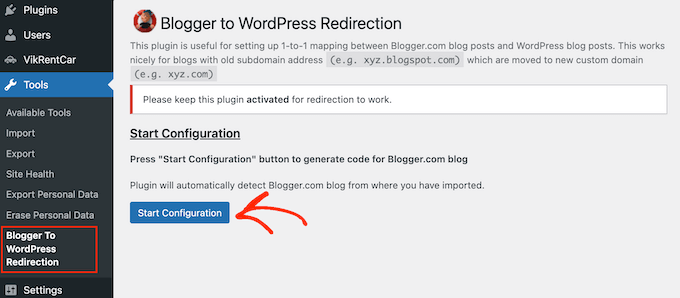
The plugin will now detect the URL of your Blogger blog and show you the option to get a redirection code. Go ahead and click on the ‘Get Code’ button next to your Blogger URL.
It will now generate a code snippet that you need to properly redirect users from your old Blogger blog to your new WordPress site.
Next, you need to log in to your Blogger dashboard and go to the ‘Themes’ page. Click on the dropdown arrow on the ‘Customize’ button next to your theme, and then select the ‘Edit HTML’ option.
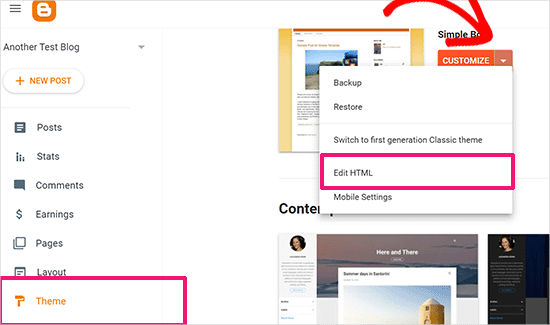
Blogger will now display the custom HTML code for your theme template. If you made any customizations to your Blogger theme, then you may want to copy the code and save it on your computer as a backup.
Otherwise, you can just go ahead and delete everything. After that, copy the code displayed by the plugin on your WordPress site and paste it into your Blogger theme editor.
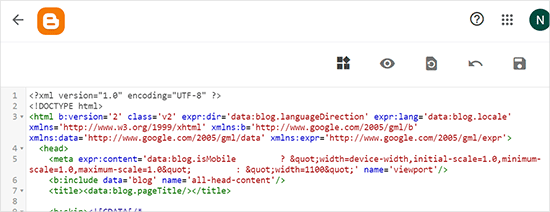
Don’t forget to click on the ‘Save theme’ button to store your changes.
Next, we need to set up redirects for mobile users.
You need to go back to the Themes page in your Blogger blog’s dashboard. This time you need to click on the gear button below the mobile preview of your blog.
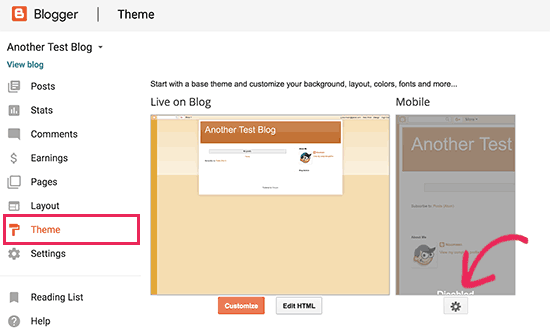
This will bring up a popup where you need to select the ‘No. Show desktop theme on mobile devices’ option.
Then, click on the ‘Save’ button.
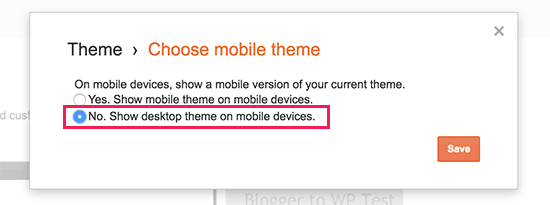
That’s all, your Blogger blog will now redirect all your blog visitors to your new WordPress blog.
Alternatively, you can also use All in One SEO (AIOSEO) to redirect posts and pages from Blogger to WordPress. The plugin offers a powerful redirection manager feature that lets you set up full site redirects to your new site.
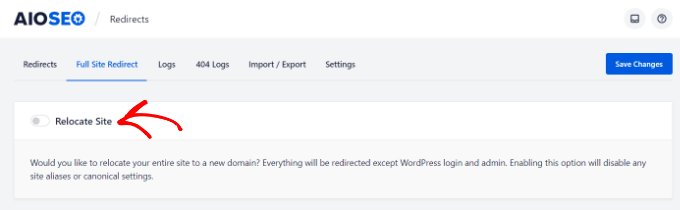
Plus, you can enable 404 error tracking and catch any broken links that may occur when moving your site to WordPress. This will help improve the user experience, and you won’t lose keyword rankings.
We use AIOSEO to manage all our WPBeginner pages and posts – and honestly? We’ve been blown away by the results. That’s why it’s our go-to recommendation for all of you.
To learn more about our experiences, check out our detailed AIOSEO review.
Step 5: Moving Other Content From Blogger to WordPress
In this step, we will move the remaining content from the old blog on Blogger to your new WordPress blog. This may require some manual work, depending on the settings/content of your blog.
1. Moving Pages From Blogger to WordPress
WordPress’s Blogger importer tool only imports Blogger posts and ignores pages.
To move your pages into WordPress, you will have to edit each page in your Blogger blog, copy its contents, and then manually create a page in WordPress.
To learn more about pages, see our article on the difference between posts vs. pages in WordPress.
Now, you will come across another issue. The Blogger pages have URLs that look like this:
http://example.blogspot.com/p/about-us.html
Your WordPress page URL will look like this:
http://example.com/about-us
To fix this, you will need to use the All in One SEO (AIOSEO) plugin. For instructions, please see our beginner’s guide on creating redirects in WordPress.
2. Widgets
Like Blogger, some WordPress themes also utilize widgets to add content to your blog’s sidebar.
To add widgets, you need to visit the Appearance » Widgets page in your WordPress dashboard and simply drag/drop widgets into the sidebars. For detailed instructions, see our guide on how to add and use widgets in Wordpress.
If you are looking for a specific widget you don’t see in WordPress by default, then you likely need a WordPress plugin. You can search WPBeginner’s best WordPress plugin category to find the functionality you want.
3. RSS Feeds
Search engines and users who subscribe to your blog posts via RSS feeds will still be able to find your blog. However, they will not get any new content.
To fix this, visit the Settings page under your Blogger account. Next, scroll down to the ‘Site feed’ section and click on ‘Post feed redirect URL’.
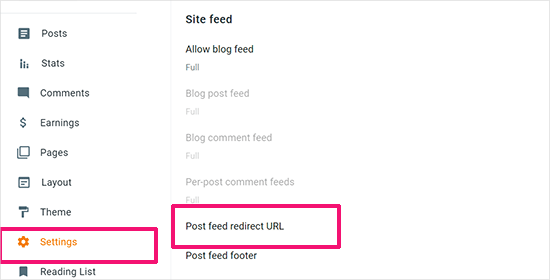
This will bring up a popup where you need to add the RSS feed URL of your WordPress website.
Your WordPress feed URL will look like this:
http://example.com/feed
Don’t forget to replace example.com with your own domain name.
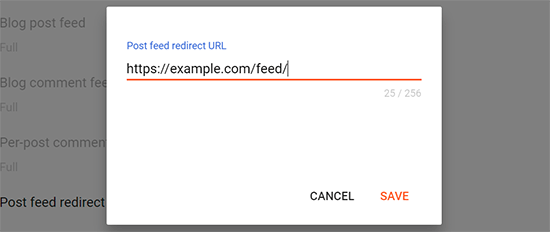
Click on the ‘Save’ button to add the URL and save your settings.
Step 6. Things to Do After Migrating From Blogger to WordPress
Now that you have successfully moved your Blogger blog to WordPress, let’s take a look at what else you can do to improve your blog.
We have created a checklist of the most important things you need to do after installing WordPress.
WordPress is quite easy to use. However, you’ll occasionally discover new things that you may need help with. This is where WPBeginner comes in.
WPBeginner is the largest free WordPress resource site in the world. We regularly publish tutorials and guides written specifically for bloggers and small businesses.
Here are some of the useful resources that you will find on WPBeginner (all of them are free):
- WPBeginner Blog – The central place for all our WordPress tutorials and guides.
- WPBeginner Dictionary – Our WordPress glossary is the best place to familiarize yourself with the WordPress lingo
- WPBeginner Videos – New WordPress users can start with these step-by-step videos to master WordPress.
- WPBeginner on YouTube – Need more video instructions? Subscribe to our YouTube channel with more than 291,000 subscribers and 50 Million+ views.
- WPBeginner Blueprint – Check out the plugins, tools, and services that we use on WPBeginner.
- WPBeginner Deals – Exclusive discounts on WordPress products and services for WPBeginner users.
Video Tutorial
We hope this article helped you switch from Blogger to WordPress without affecting your Google search rankings. You may also want to see our guide to which WordPress plan you should use or the most common WordPress myths debunked.
If you liked this article, then please subscribe to our YouTube Channel for WordPress video tutorials. You can also find us on Twitter and Facebook.





Nathan
If you do the swap from Blogger to self-hosted, are the existing pageviews being transferred over to the new website – or will you have to start from 0 all over again?
Stephan
Verz good this article but I have some problems.
I have AdSense on my website and as I have seen AdSense code and Google Analytics code were not imported from the blogger posts in the wordpress posts. What should I do? To edit again all the posts I have and add those two codes?
During the conversion of blogger to wordpress posts AdSense code and google analytics code are not taken?
WPBeginner Support
Hi Stephan,
Google Analytics works on domain names, so you will need to add a new Google Analytics profile to keep tracking traffic on your new WordPress site.
As for AdSense, Blogger accounts usually have hosted AdSense accounts. You will need to upgrade your AdSense account. Simply login to your AdSense dashboard and then go to My Ads and click on Other Products, click Upgrade now and complete the application form.
You will need to regenerate AdSense ads code and add them to your new WordPress site. See our guide on how to properly add Google AdSense in WordPress.
Admin
devendra
Now anyone visiting a post on your old Blogger blog will be redirected to the same post on your new WordPress site. ……
What is mean by this……..redirect on a single post only.
Petra
One question – when I move my content to Wordpress, do I delete my old blog in Blogger or not? Some say yes cause Google doesn’t like the same content on both pages (something like that), some say no cause all your pics are going to be deleted… I’m confused.. Do redirections even have sense if you delete your old blog? Confused again. Thank you for your answer! ☺
Khaliff Mogaji
Hi,
I have followed the instructions step by step but my blogger blog redirects to the homepage of my wordpress blog instead of it to redirect to the exact post on the wordpress site.
Min-Chi Hsieh
Hi,
Really appreciate for this article… But, I have one question needs your help…
I moved my blog to wordpress one year before and everything was good… But, when I changed the theme, I edited my functions.php as last time, it showed undefined index, pointed to this line “$blogger = $wp_query->query_vars[‘blogger’];”
Do you have any suggestion? Thanks~!!
WPBeginner Support
Hi Min-Chi Hsieh,
You can copy the redirect code from your old theme’s functions file and paste it in new theme.
Admin
Min-Chi Hsieh
Hi,
I did it… And it still showed the same note… Any suggestion?
Pengedar Shaklee Farha IbuCergas
hi, the function.php need to be added everytime we change the theme right? because every time i change the theme, it is gone.
WPBeginner Support
Hi Pengedar,
Yes, you will need to paste it in your active theme. If you will be switching themes a lot, then it would be best to create a site-specific plugin and then paste the code inside it.
Admin
Rajat Shankhdhar
Is it really necessary to set permalinks as moth/date in 301 redirect or it’s just looking the post same like in blogger
bethan arundel
Hi, I have an issue that when I go onto my blog spot now after following the steps it just has a big link in the middle of the page that when you click on it it goes to my new wordpress site, but it doesn’t automatically direct. Help would be much appreciated.
Hamid
I wanted to leave my site on .blogspot.com but i discovered some of the interlinks on my blogger blog are not redirecting to the right post on WordPress
Benny
I too encountered this problem.
What I did was I changed the permalink to custom and add
” /%year%/%monthnum%/%postname%.html
”
without quotes
Hope this helps!
Christine
Benny,
THANK YOU SOOOOOOOO MUCH for leaving this comment! I just went through the process on converting over from Blogger and ran into this very issue. I was wondering how the .html translated automatically over to wordpress and realized they didn’t at all! My links posts weren’t re-directing and now they are thanks to you!
Christine
Elisabeth Anggia
Hi dear,
Thank you so much. It works for me.
I keep coming to this place, because your tutorial is easy to follow even for a beginner like me.
Mariusz
Hi. Thanks for your tutorial.
Something strange happened to my blog. When I look on mobile version I see all posts from blogger. but on desktop version some posts are hidden. How can make them visible – can you help me? In WP admin I cannot see it as well…
Marianne
Hello! Thanks for the great tutorial. I set up the redirects and I think there is an issue with it redirecting to the www. vs without www. Do you know how to fix this?
Heather
I am having the same issue, have you found a way to fix this?
Lori
I’m going to use a theme on my wordpress site – do I integrate that before or after I transfer blogger site over.
WPBeginner Support
Hi Lori,
You can do that later. This will give you a clear idea of how your content looks when its imported and how you’d like to set it up.
Admin
udayvir singh
Thanks for great tutorial.
I have done almost all the job, but there s a problem, My all blogger posts are perfectly redirecting on proper WordPress url but blogger pages urls (www.example/p/pageurl/) are not not redirecting to right path (www.example/pageurl/).
Please help me..if there is any way to deal with the issue.
WPBeginner Support
Hi Udayvir,
Please take a look at our guide on how to setup redirects in WordPress.
Admin
Sin Yee
This article helps much! Have successfully migrate everything to the new hosting. Did the redirect too! Thank you so much!
abu sufian
I try to uplaod. xml file but after uploading its said all done! have a nice day! and redirected to my admin page. don’t ask author name. what can i do??
WPBeginner Support
You can also change author name manually. Go to Posts and click on the Screen Options button at the top. Select the number of posts you want to display on the page. You can display upto 999 posts at a time. After that click on the Check All checkbox to select all posts displayed on the page. Next, select Quick Edit option from the Bulk Actions drop down menu. This will show you a box where you can change the author name.
Admin
Anindra
Here is what I have:
Blog #1:
1. Hosted on hostgator.com
2. Custom domain registered through hostgator
3. Still active, but I’ve almost abandoned it
Blog #2:
1. Hosted on Blogger
2. Custom domain registered through blogger
3. Still active and I’m using it
I want to replace Blog #1 with Blog #2.
Questions:
1. Is it doable?
2. How?
WPBeginner Support
Hi Anindra,
Yes, it is doable. See the instructions in the article above.
Admin
Sharoon Qadeer
I have tried this but this not redirecting post. All links are redirected to homepage.
Adding code in functions.php shows a code in header and adding code in site-specific plugin it doesn’t work and neither doesn’t redirect to post
Steph
In your Permalink settings paste this code on the custom structure
/%year%/%monthnum%/%postname%.html
Jui Deb
Hello, If i migrate mu blog from blogger to WordPress than will it be copy paste for google?? As i will use same content in my blogger and WordPress blog if i migrate it from blogger to WordPress?
Dina
Hi,
Just wondering if this process will work if I’m transferring from a .blogspot.com to a .wordpress.com site. Not planning on self hosting just yet, but plan to in the future so I figure it’d be easier to switch to wordpress now.
Does this still work?
Dhiraj Kr Yadav
Hi its really helpfull video.I do have a question kindly help me out.I do have a blogger account and its verified from google now i created a blog on wordpress with same same but when i tried to verify my site by google its telling i cant verify it as i do have a blogspot account.kindly help me out.How can i verify my site from google.Kindly guide me and help me out.
with regards.
Dedrick Jordan
If you did not the video, it some pretty simple steps to take, just watch the video, and it shows you what u need to do, and you should be using WordPress.org big difference.
Rahul
Hi WP
Thanks for this informative post. I want to move my blogger custom domain blog to wordpress. I had purchased my domain name from GoDaddy and linked it with blogger after reading some tutorials. Can I follow the exact procedure in this post or there are some changes given that I use a custom domain name? Pls reply! Thanks
Chuks Amobi
Blogger images always have a long string of characters instead of the original image name. My question is, will the images be exported to WP with the same long string image name or the original image name?
Hans ganteng
Hi nice share guy, btw I have one question. Is it possible setting permalink on wordpress same with blogger So I dont need set redirect 301?
Example on WP blabla com/%month%/%date%/%postname%.html, I mean replacing slash (/) to .html ?
Thank you
Ernest
I like this tutorial and I am reading it with keen interest because I have a blogger site that is running on the blogger URL. Please I want to know if I can do the transfer with that URL or the site must be on custom domain, as recommended by other writers.
Lauren Alyce
Thanks for the information, it was very helpful. Just converted my blogger to WordPress today. I used a plugin that helped me generate the code for my blogger template called Blogger to WordPress so I didn’t have to make any changes to my themes function files on my own. This could be an option for the people that are getting errors.
Ernest
Dear Lauern, I think your comment makes sense to me since WPbeginner have not responded to my inquiry I decide to ask you this; can I do the migration with my blogger.com domain, or do I need a custom domain or my blogger site before going for the migration?
Please, anyone can respond to this question.
WPBeginner Support
Hi Ernest,
If you have a domain name like myblog.blogspot.com, then you can transfer your blog but not the domain name.
On the other hand if your blogger blog have a custom domain like example.com, then you can use that domain on your self-hosted WordPress.org site aswell.
Admin
Dedrick Jordan
I did watch the tutorial you would, have to buy a domain, when you are purchasing a self hosting for wp. But the domain is entirely free, on the other name the self hosting page is really cheap. So that means you could get a whole entire year for less then $60 dollars my man.. Hope the feedback helps
Poorna
Hi,
Thanks for the nice tutorial. Unfortunately, i had moved from blogger to WP before seeing this tutorial. The result is the formatting of content in old posts in blogger and pictures after migration has gone haywire. Is there anything that can be done to make it look good now? Your answer will be very helpful. Thanks in advance.
Emmanuel
I will really love if you fix the code we need to post in blogger because it showing some errors which make it not to save..
Hannah
This article and video is brilliant- thank you so much!
Quick questions, you mention in the video if you choose a new theme, you have to do that specific step again. If I purchase a new wordpress theme and install that, do I need to repeat that step? Or is that step only to be repeated if you change the blogger theme?
Thanks in advance,
Hannah
WPBeginner Support
Hi Hannah,
Glad you found the article helpful.
As for theme changes. If you add any code to WordPress theme files, then you need to save those changes elsewhere as well. If you update your theme or install a new theme then you can copy and paste to add that code to your new WordPress theme.
Admin
Elise
Hello,
I have followed the instructions above to transfer my blog to Bluehost as above, but now want to return to my old blog until I am ready to devote time to working on the Wordpress site.
How do I return to my old blog (which is now showing an error message?)
Thank you in advance,
Elise
WPBeginner Support
Hey Elise,
Simply login to your Blogger account and then switch your blogger theme from classic to any newer theme. This will restore your Blogger blog.
Admin
Elise
Brilliant, worked a charm. Thank you!
Carolyn
This is a great tutorial, but I have a couple of questions I hope you can help me with.
I have a blogger blog with it’s own domain name that I bought through Go Daddy.
I want to migrate to Wordpress, but I want to do it with a different domain name hosted by Bluehost.
Is there a way to do this without losing google rankings/pinterest links, etc?
WPBeginner Support
Hey Carolyn,
We will recommend you to first move your blog to the old domain name. You can point that domain to Bluehost as well.
Once you have moved your blog to the new location and everything is working fine, then you can easily setup permenant redirects. See our guide on how to how to move WordPress to a new domain without losing SEO
Admin
Carolyn
Thanks for your fast response! I want to make sure I understand your advice.
So as of now, my old blogger blog is still connected to my old domain name on Go Daddy.
And now I have a new domain name on bluehost with a theme set up. But I haven’t migrated any posts over.
Can I let my old domain name expire and not lose SEO?
What do I do next?
WPBeginner Support
Hi Carolyn,
You need to keep your old domain for as long as possible. After few months if you are satisfied that all your traffic is back to normal then you can let the old domain expire. However, keep in mind that anyone can then take over that domain name and they can copy your old content and start outranking your new domain name.
Cindy
Most of my old posts from blogger have a different address in wordpress. When I put in the page redirect code, it not only doesn’t redirect to the right page, but it goes to a Go Daddy page!! I DESPISE Go Daddy, so this is the worst of all worlds.
How do I add coding to the 2nd part of step 4 above to make pages with mismatched addresses just bounce to the homepage of the new blog?
I tried to just undo the page direct and leave it with the general redirect, but I’m still getting the Go Daddy page instead.
WPBeginner Support
Hi Cindy,
Seems like your domain is not properly setup yet. Domain name server changes take some time to propagate. Check your domain name settings to make sure that it is pointing to your WordPress hosting provider’s nameservers.
Admin
Cindy
It’s not a propagation issue. I’ve been using this domain for several years and I have NEVER done business with Go Daddy.
I undid all the site and page redirects and added a couple by hand. That’s not a realistic option though.
As I said, the redirect code recommended here fails because the post names don’t match between blogger and Wordpress. (WP mangled the names when I did the import two years ago.) That would be ok if the ones that don’t match would redirect to my WP homepage. Instead it tries to redirect the ones it can’t match up to the myblogname.com portion of the blogger address. I don’t use that name on WP because someone has been sitting on the regular URL for years. (I assume Go Daddy captures the page because the squatted address is registered through them. )
I just need code added to the redirect that tells the net “if you can’t find this post address, go to this page (my WP homepage) instead.”
Lynwood Thorson
Pretty! This has been an incredibly wonderful article. Many thanks for providing this info.
Ashutosh
Hi,
Thanks for the nice and detailed tutorial. I have a question on permalink part.
Blogger urls are like domain/year/month/postname and after migration I hope it will be same.
But what about the new post i will publish on WP? their URL will be also same or I can make like domain/postname?
please assist.
WPBeginner Support
Hey Ashutosh,
Your new posts will use the same URL structure you selected in Step 3 of the article. It will be the same you used on Blogger.
Admin
Maria Skatova
Hi, I am planning to move my blog from Blogger to WordPress and not sure how the migration works with images – does it import original photos from Blogger to WP media library and put them into year/month folders (as WordPress itself does)? Does it mark the photos as ‘attached’ to according posts?
Thank you very muck in advance
Vanita Sosa
Great blog! Do you have any suggestions for aspiring writers? I’m hoping to start my own website soon but I’m a little lost on everything. Would you suggest starting with a free platform like Wordpress or go for a paid option? There are so many options out there that I’m completely overwhelmed .. Any tips? Thank you!
WPBeginner Support
Hey Vanita,
We will recommend you to start with a self-hosted WordPress.org site. See our guide on how to start a WordPress blog for complete instructions.
Admin
Kimberly Dsouza
Hi,
I followed your tutorial and redirected my blogger (custom domain) blog to a new domain on WP and everything works fine.
However, when I tried the “change in address tool” in google webmaster, it says
“We couldn’t find any 301-redirect directives for your site”
The “fetch” data shows a “200 OK” response instead of 301 Moved Permanently!
So, how do i correctly do a 301 redirect?!
Lizet
I used your instructions to migrate my blog. I´ve been having so many problem (because I´m very ignorant on all this) and would like to start over again. Is there a way to restorer back my blog on blogger? I´ve call different companies in the country where I live to see if they can fix whatever the problem is with my blog on wordpress, but they don´t want to help me. So I thought if I can restorer my blogger, maybe they can do all the process from the beginning. Thanks for your help!
WPBeginner Support
Hey Lizet,
To restore your blogger blog. Login to the Blogger dashboard and then go to Theme section. Select an apply a new theme and your Blogger blog will be restored.
Admin
Andrea Restrepo
Hello.
I did redirect my blog and it is redirecting with no problems in a pc version but still going to the old blog in my android phone.
Could you please tell me if I need other code??
Sajid Khan
Hey Andrea,
You don’t need any other code just goto your blogger dashboard and then goto theme section. Goto mobile and click on no, show desktop version.
Kazumi
Thank you so much!
I had the same issue with mobile redirection too.
It was so easy but I couldn’t find out the solution!
Nicci
Thank you so much!!!!!!!!!!!!!!!
I used Code Snippets to add code in the functions php file (since I was a bit nervous to try myself) and it works!! Thank you!
tara
I tried to migrate my blogger blog to wordpress and I get this error once trying to import the file:
warning: reset() expects parameter 1 to be array, boolean given in /home2/susanpad/public_html/wp-content/plugins/blogger-importer/blogger-importer.php on line 696
I tried also to use blogger import extended plugin but it duplicates content and images are blurry. Also it doesn’t carry over the read more section.
Help!
Myle
Thanks for your reply. Seem to be getting some problem with importing Blogger posts into Wordpress. I have all the plugins installed on Blogger and Blogger Importer Extended. When I click on Tools–>Import –>Blogger–>Run Importer and go through the steps, then press import but it just shows a blank page with the word “Import” in the end. Then when I reload, it says “File is empty. Please upload something more substantial…” Tried a few times with different tweaks but still the same. Could it be the theme or anything wrong with my Wordpress ? Anywhere that will show how to solve this issue ?
Nwachukwu
@Myle try backing it up again from your blogger blog, make sure the file is also in the right format.
shahbaz khan
thanks for sharing such a good content.
If i write post after swith from blogger to wordpress then i will post on Blogger or wordpress?
my blogger site will close?
WPBeginner Support
Hi Shahbaz,
No, your Blogger site will still be there but will not be visible to users. You can still login to your Blogger account and see your content.
After you have switched you will post content on your new WordPress site.
Admin
Myle
Once I have imported my blog from Blogger to Wordpress, can I still create blog posts from Blogger and will it automatically reflect the latest posts in Wordpress ? Or from then onwards, I can only create new blog posts in Wordpress ?
WPBeginner Support
No, your blogger blog posts will not be synced to your new WordPress site.
Admin
Navin Rao
This was the best post on migrating from Blogger To Wordpress including the video tutorial…
Thanks for sharing… it helped
Navin Rao
chen
The most useful post i’ve read recentlay
Rob
Thanks! This is really helpful and much appreciated. I have subscribed to your youtube channel. Keep up the good work
Srikanth Eswaran
One query, does this article apply if my new domain name is the same one as what was pointing to Blogger earlier? for example if I had 123 dot com pointing to a blogger account, and I set up wordpress to also have the domain 123 dot com, would this redirect now work?
Please let me know.
Prashant
I’ve deleted all posts after running blogger imported, Now it’s not importing anything.