


“Will I lose my Google rankings if I move from Blogger to WordPress?” That’s the first question we hear from anyone thinking about making the switch.
We get it. However, after helping many bloggers make this move, we can say with confidence that you can switch from Blogger to WordPress without losing your Google rankings.
In this guide, we’ll show you the exact steps we use, from exporting your Blogger blog to setting up the redirects that protect your search traffic.
Quick Summary: Switching from Blogger to WordPress requires exporting your Blogger content, importing it into a self-hosted WordPress site, and redirecting the old URLs to your new site.
Estimated time: 1 to 2 hours for a small blog.
Tools: Free BtW Importer plugin and two short code snippets.
Cost: The migration costs nothing. You’ll still need to pay for hosting and a domain name.
WordPress.com vs. WordPress.org: What’s the Difference?
There are two types of WordPress, and this guide uses WordPress.org, also known as self-hosted WordPress. WordPress.com is a hosted service where you cannot install plugins on the free plan. You’ll need to upgrade to a paid plan to unlock plugins and follow this tutorial.
For a full breakdown, see our comparison of WordPress.com vs. WordPress.org.
That being said, let’s take a look at how to move from Blogger to WordPress while keeping your Google rankings and traffic. Here are the steps we’ll cover:
- Step 1: Sign Up for WordPress Hosting
- Step 2: Export Your Blogger Blog
- Step 3: Import Blogger to WordPress
- Step 4: Setting Up Permalinks
- Step 5: Set Up Redirects From Blogger to WordPress
- Step 6: Moving Other Content From Blogger to WordPress
- Step 7: Verify Your Migration in Google Search Console
- Step 8. Things to Do After Migrating From Blogger to WordPress
- Frequently Asked Questions About Switching From Blogger to WordPress
Step 1: Sign Up for WordPress Hosting
To get started with WordPress, you will need a domain name and web hosting. A domain name is your website’s address, and web hosting is where your website files live.
You can choose any WordPress hosting provider that you want, like Bluehost or Hostinger. Both are officially recommended WordPress hosting providers and offer a free domain name for the first year.
For this tutorial, we used Bluehost, which automatically installed WordPress when we signed up, so we were able to log into our new site right away.
Step 2: Export Your Blogger Blog
Now that your WordPress site is ready, the next step is to export your content from Blogger.
Log in to your Blogger account, pick your blog, and click Settings in the left menu. Scroll down to the ‘Manage blog’ section, click ‘Back up content’, and then click ‘Download’.
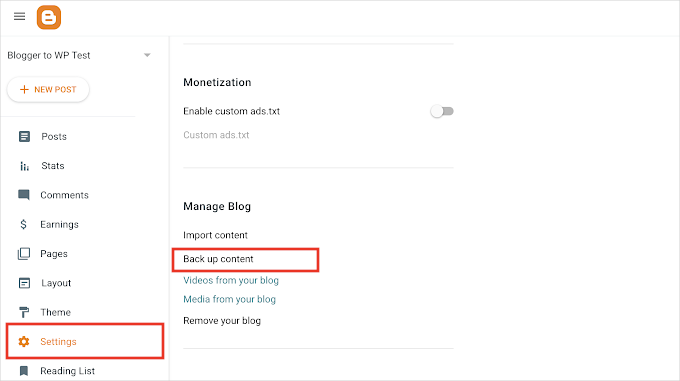
Blogger no longer downloads an XML file straight away. Instead, the Download button now opens Google Takeout, which is Google’s tool for downloading your data, with Blogger already selected.
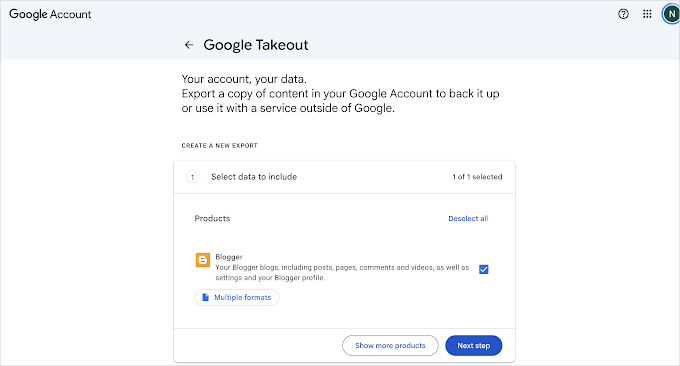
Click ‘Next step’, keep the default settings, and click ‘Create export’.
Google will email you when the export is ready, which usually takes a few minutes for a small blog.
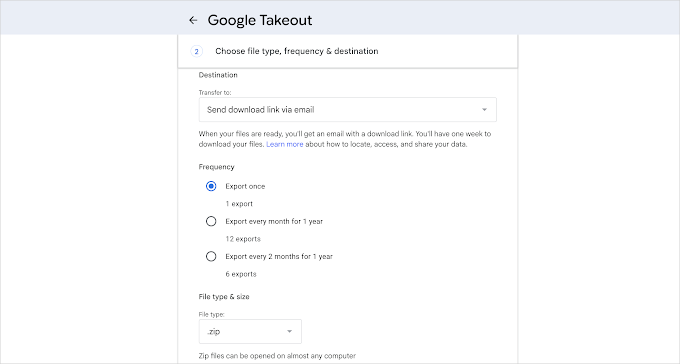
Click ‘Download archive’ in that email and save the .zip file to your computer.
Next, unzip the file. Open the Takeout folder, then Blogger, then Blogs, and then the folder with your blog’s name.
The file you need is called feed.atom. It holds your posts, pages, and comments.
If Takeout splits your export into more than one .zip file, check each one for a feed.atom file. You will import them one after another in the next step.
Note: Keep a copy of the whole archive in a safe place, like cloud storage or an external drive. It is your backup of the original blog. The Albums folder inside it holds every image you ever uploaded to Blogger, which we come back to in Step 6.
Step 3: Import Blogger to WordPress
With the feed.atom file on your computer, you can now import your content into WordPress.
WordPress comes with a default Blogger importer, available on the Tools » Import page in the admin area. However, that importer has been broken since July 2025. That is when Google moved Blogger backups into Google Takeout and changed the file format at the same time.
Luckily, there are alternative plugins you can use.
- BtW Importer – This is the plugin we’ll be using in this tutorial. It imports posts, pages, images, and even set up redirects. The downside is that it doesn’t import comments.
- Blogger Importer Extended – Imports posts, pages, images, and comments, but the free version is limited to 20 posts. You can use this if you have fewer posts or if you want to import comments.
First, install and activate the BtW Importer plugin. For more details, see our step-by-step guide on how to install a WordPress plugin.
Upon activation, click the new BtW Importer item in your WordPress admin menu. The page starts with a short list of things to know before you import.
Read it, then tick the ‘I’ve read and understood the information above’ box.
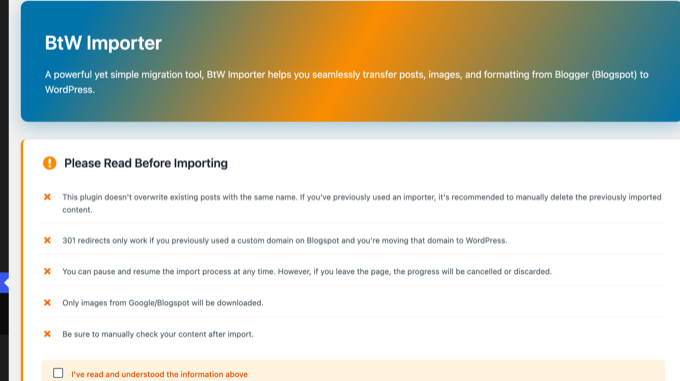
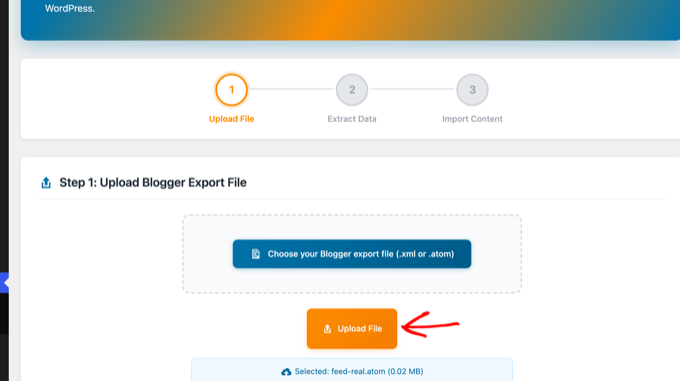
In Step 1, click the ‘Choose your Blogger export file’ button and select the feed.atom file. Then click the ‘Upload File’ button.
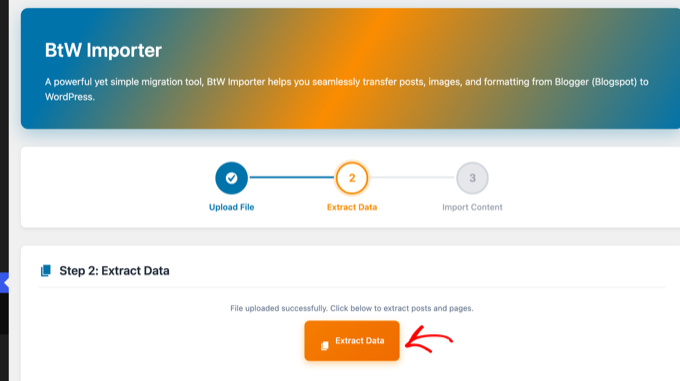
In Step 2, click the ‘Extract Data’ button. The plugin reads the file and counts your posts and pages.
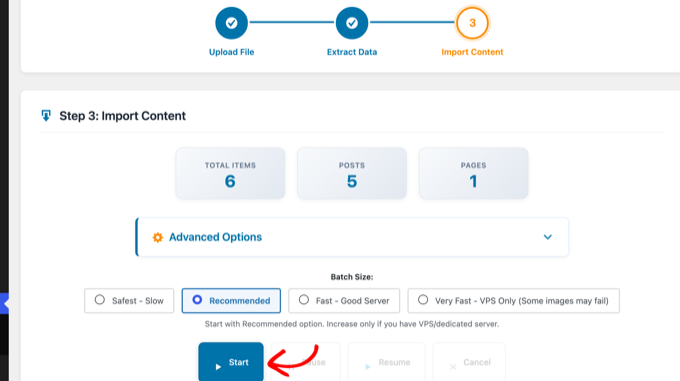
Step 3 shows how many items it found. The ‘Advanced Options’ panel lets you keep the original Blogger author for each post, and it has an experimental option to convert the old Blogger HTML into WordPress blocks.
We recommend leaving that option unchecked for your first run, because you can always convert posts to blocks later in the editor.
Leave the batch size on ‘Recommended’ and click the ‘Start’ button.
The plugin imports your posts and pages, downloads every image hosted on Google’s servers into your media library, and rewrites the image links inside your posts to the new copies.
It also records the old Blogger address of each post, which we use for the redirects in Step 5.
A progress log shows each item as it comes over, and you will see a ‘Congratulations!’ message when it finishes.
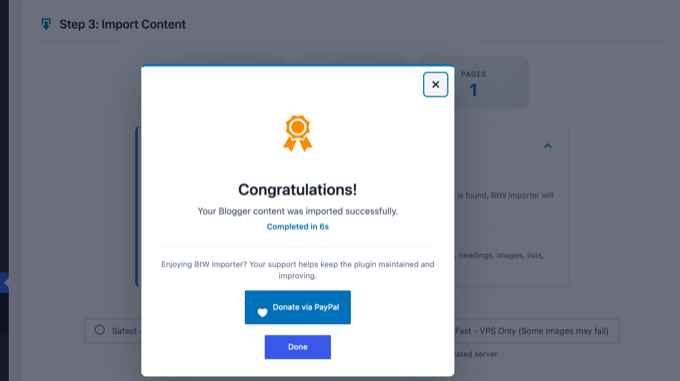
You can now check your content under Posts » All Posts and Pages » All Pages. Blogger labels become WordPress categories, drafts stay drafts, and the first image in each post becomes its featured image.
Step 4: Setting Up Permalinks
Now that your posts are in WordPress, let’s talk about their web addresses. Permalinks is the WordPress term for the URL structure of your posts and pages.
Blogger post URLs look like this: https://yourblog.blogspot.com/2026/08/post-title.html.
The BtW Importer plugin saved the old address of every post and page in a redirect map. Whenever a request for an old address reaches your WordPress site, the plugin sends it to the matching new post.
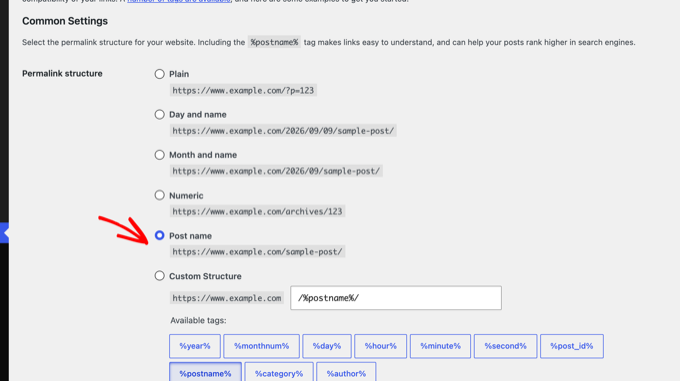
So keep WordPress’s default setting. Go to Settings » Permalinks and check that you have the ‘Post name’ option selected.
This setting gives you clean, SEO-friendly URLs like yourblog.com/post-title/.
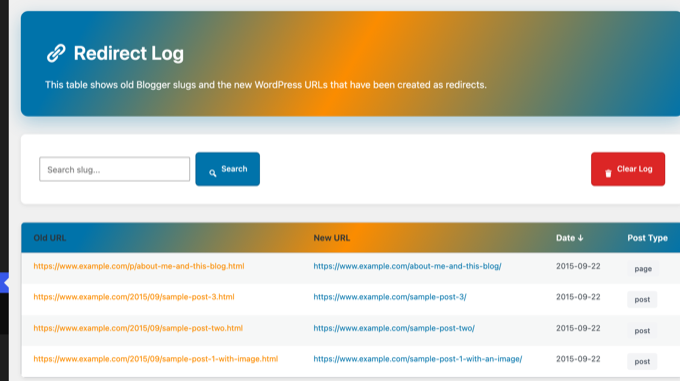
You can see the full list of old and new addresses under BtW Importer » Redirect Log. Every Blogger post and page should have a row here.
To test it, open one of the old addresses on your new domain, such as yourblog.com/2026/08/post-title.html. WordPress should send you straight to the new post.
In our test, the old post and page URLs all returned a 301 redirect to the right place.
This map only works for users that arrive at your WordPress domain. However, since your users and Google don’t know that you have moved, they will continue seeing your old Blogger blog until you finish Step 5.
Step 5: Set Up Redirects From Blogger to WordPress
Now that WordPress knows where every old address should go, it is time for the most important step of the whole migration, which is redirecting users and search engines like Google to your new WordPress site.
A redirect sends anyone who opens one of your old Blogger URLs to the same post on WordPress automatically.
It also sends a 301 status code, which is the code for a permanent redirect. This tells Google that the page has moved for good, so your rankings pass to the new address instead of starting from zero.
⚠️ If your Blogger blog has its own custom domain instead of blogspot.com, you may need to point your domain nameservers to your hosting provider. For instructions, please follow our tutorial on how to switch custom domain blogger blog to WordPress.
Blogger does not let you set up server redirects, so here is the workaround.
First, we add a small code snippet to your WordPress site. It receives the visitors that Blogger sends over, looks up the old address, and forwards them to the right post in WordPress.
Then, add a code snippet to your Blogger theme to send every visitor and search engine from your blogspot.com address to that snippet.
1. Add the Redirect Snippet to WordPress
We recommend adding the snippet with the free WPCode plugin, which is the safest way to add custom code to WordPress. For more details, see our guide on how to copy and paste code snippets in WordPress.
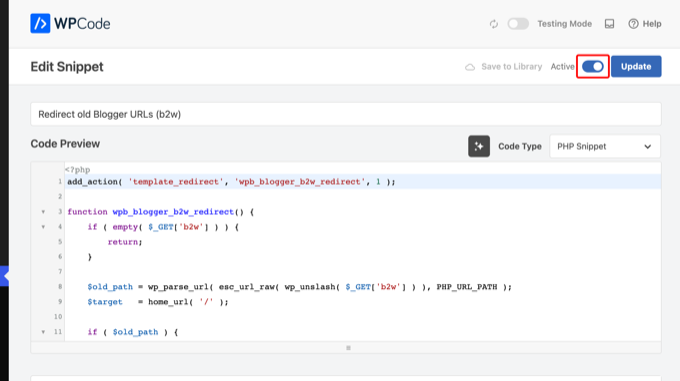
After installing WPCode, go to Code Snippets » + Add Snippet. Hover over ‘Add Your Custom Code (New Snippet)’ and click ‘Use snippet’.
Choose ‘PHP Snippet’ as the code type, give your snippet a name, and paste the following code:
add_action( 'template_redirect', 'wpb_blogger_b2w_redirect', 1 );

function wpb_blogger_b2w_redirect() {
	if ( empty( $_GET['b2w'] ) ) {
		return;
	}

	$old_path = wp_parse_url( esc_url_raw( wp_unslash( $_GET['b2w'] ) ), PHP_URL_PATH );
	$target   = home_url( '/' );

	if ( $old_path ) {
		$matches = get_posts( array(
			'post_type'           => array( 'post', 'page' ),
			'post_status'         => 'publish',
			'posts_per_page'      => 1,
			'ignore_sticky_posts' => true,
			'meta_key'            => '_old_permalink',
			'meta_value'          => $old_path,
		) );

		if ( $matches ) {
			$target = get_permalink( $matches[0] );
		}
	}

	wp_safe_redirect( $target, 301 );
	exit;
}
This code reads the old Blogger address that your Blogger theme will pass along, looks up the matching post or page that BtW Importer saved, and sends the visitor there with a 301 redirect. If nothing matches, it sends them to your homepage instead of a 404 error.
Below the code box, set the Insertion method to ‘Auto Insert’ and the Location to ‘Frontend Only’. Then switch the toggle at the top to Active and click the ‘Save Snippet’ button.
2. Replace Your Blogger Theme With the Redirect Code
Next, log in to your Blogger dashboard and go to the Theme page. Click the down arrow next to the ‘Customize’ button, and then select ‘Edit HTML’.
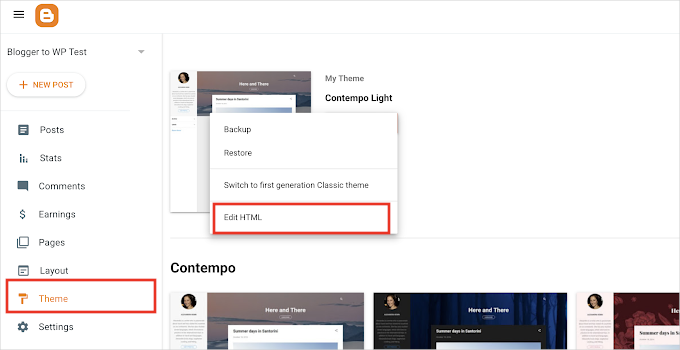
Blogger will now display the HTML code of your theme.
Before you delete anything, copy ALL of the existing Blogger theme HTML and save it to a text file on your computer as a backup.
Once you have backed up the original theme code, delete everything in the editor and paste the following code. Replace https://example.com with your new WordPress site’s address in all four places:
<?xml version="1.0" encoding="UTF-8" ?>
<!DOCTYPE html>
<html b:version='2' class='v2' expr:dir='data:blog.languageDirection' xmlns='http://www.w3.org/1999/xhtml' xmlns:b='http://www.google.com/2005/gml/b' xmlns:data='http://www.google.com/2005/gml/data' xmlns:expr='http://www.google.com/2005/gml/expr'>
<head>
<b:include data='blog' name='all-head-content'/>
<title><data:blog.pageTitle/></title>
<link expr:href='"https://example.com/?b2w=" + data:blog.url' rel='canonical'/>
<meta expr:content='"0;url=https://example.com/?b2w=" + data:blog.url' http-equiv='refresh'/>
<script type='text/javascript'>
//<![CDATA[
window.location.replace('https://example.com/?b2w=' + encodeURIComponent(window.location.href));
//]]>
</script>
<b:skin><![CDATA[
body { font-family: Arial, sans-serif; text-align: center; padding: 40px; }
]]></b:skin>
</head>
<body>
<b:section class='main' id='main' showaddelement='no'>
<b:widget id='Blog1' locked='true' title='Blog Posts' type='Blog' version='2'>
<b:includable id='main'>
<p>This blog has moved. <a expr:href='"https://example.com/?b2w=" + data:blog.url'>Click here if you are not redirected.</a></p>
</b:includable>
</b:widget>
</b:section>
</body>
</html>
This theme code does three things. It tells search engines that each old page has a new canonical address, uses a meta refresh tag to send them to that page, and redirects human visitors with a small script.
All three point at the WordPress snippet from the previous step, which then forwards to the exact post.
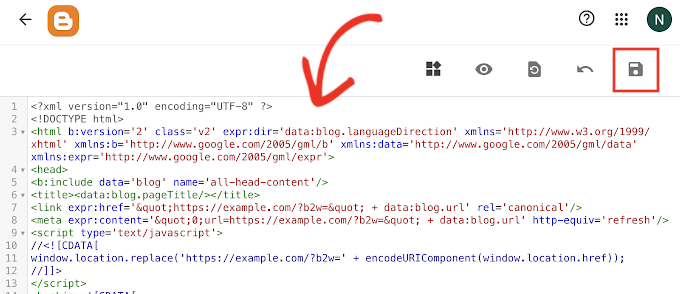
Don’t forget to click the ‘Save’ button to store your changes.
Older Blogger themes also serve a separate mobile version of your blog, and that version ignores the code you just pasted.
To turn it off, click the same down arrow next to the ‘Customize’ button and select ‘Mobile settings’.
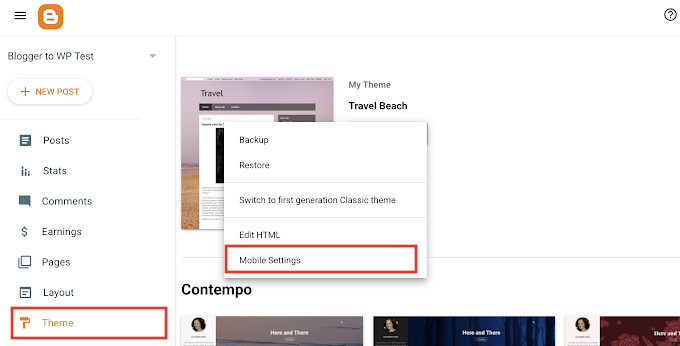
In the popup, choose the ‘Desktop’ option and click ‘Save’. If you don’t see ‘Mobile settings’, your theme is already responsive, and you can skip this.
Now test it. Open one of your old Blogger post URLs in a private browser window, and within a second you should land on the same post on your WordPress site.
3. Redirect Blogger’s ?m=1 Mobile URLs
When someone opens your Blogger blog on a phone, Blogger adds ?m=1 to the end of the address, and Google often indexes these mobile addresses alongside the normal ones.
In our tests, that small addition caused a real problem. WordPress uses m as its own parameter for date archives, so a request for yourblog.com/?m=1 or yourblog.com/post-title/?m=1 returns a 404 error page.
The fix is a second WPCode snippet that sends every ?m=1 and ?m=0 request to the clean URL with a 301 redirect. Create another PHP snippet in WPCode, just like you did above, and paste this code:
add_action( 'template_redirect', 'wpb_redirect_blogger_mobile_urls' );

function wpb_redirect_blogger_mobile_urls() {
	if ( ! isset( $_GET['m'] ) || ! in_array( $_GET['m'], array( '0', '1' ), true ) ) {
		return;
	}

	wp_safe_redirect( remove_query_arg( 'm' ), 301 );
	exit;
}
Scroll down a little and set the Location to ‘Frontend Only’, switch the snippet to Active, and click ‘Save Snippet’.
In our test, opening the homepage and a post URL with ?m=1 at the end both sent us straight to the clean URL.
Step 6: Moving Other Content From Blogger to WordPress
With your content moved and the redirects in place, it is time to check the pieces that need a manual touch. Below are five things to look at, and how to handle each one.
1. Pages
BtW Importer moves your Blogger pages, like About and Contact, into Pages » All Pages, and it redirects their old /p/ addresses too. Open each one to check the formatting, and add them to your WordPress theme’s navigation menus.
You might also want to check out our list of important pages every WordPress blog should have, so you don’t miss anything Blogger never had.
2. Widgets
Like Blogger, many WordPress themes use widgets to add content to your blog’s sidebar. To add them, visit the Appearance » Editor page for block themes and Appearance » Widgets page for classic themes.
For detailed instructions, see our guide on how to add and use widgets in WordPress.
If you are looking for a widget that WordPress does not have by default, then you likely need a plugin. WordPress has over 72,000 free plugins, so see our beginner’s guide on how to choose the right WordPress plugin.
3. RSS Feeds
People who follow your blog through RSS feeds will still be able to find your blog. However, they will not get any new content until you point the old feed to the new one.
To fix this, go to the Settings page in your Blogger dashboard. Scroll down to the ‘Site feed’ section and click ‘Post feed redirect URL’.
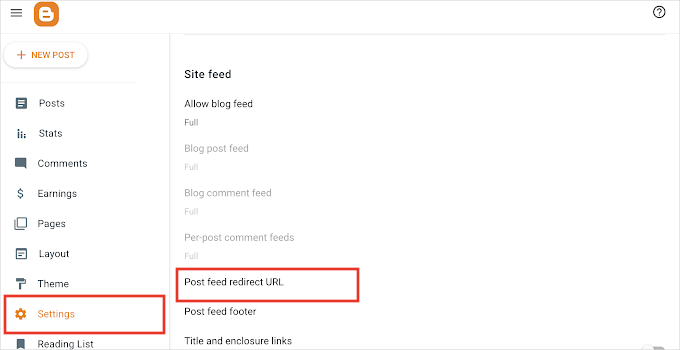
This will bring up a popup where you need to add the RSS feed URL of your WordPress website. Your WordPress feed URL will look like this:
http://example.com/feed
Don’t forget to replace example.com with your own domain name.
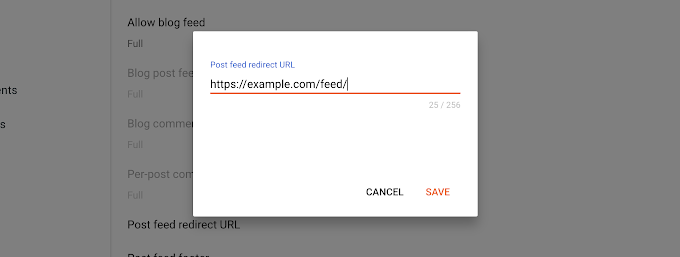
Click the ‘Save’ button to add the URL and save your settings.
4. Images
BtW Importer already downloaded the images that Google hosted for you into your media library and updated your posts to use them. Open Media » Library to see them.
If the plugin missed a few images, or you had images hosted elsewhere, our guide on how to import external images in WordPress shows a plugin that finds and downloads them.
The Google Takeout archive from Step 2 is your safety net. Its Albums folder contains a copy of every image you ever uploaded to Blogger, in original quality.
Step 7: Verify Your Migration in Google Search Console
Now that your content is in place, it is time to let Google know about the change. This step helps Google find your new site faster and protects your search rankings.
Here’s what you need to do:
- Add your new WordPress site to Google Search Console. If you haven’t already, follow our guide on how to add your WordPress site to Google Search Console.
- Submit your new XML sitemap. Submit your sitemap URL in Google Search Console so Google can discover all your new URLs. For step-by-step instructions, see our guide on how to create a sitemap in WordPress.
- Monitor your 404 errors. Over the next few weeks, keep an eye on the Pages report in Google Search Console to catch any 404 errors. If you spot broken URLs, set up additional redirects for them. You can do that with the free 404 to 301 redirect manager plugin.
- Install Google Analytics. To track your traffic with Google Analytics after the migration and make sure everything is working, we recommend installing MonsterInsights. For more information, see our guide on how to install Google Analytics in WordPress.
Step 8. Things to Do After Migrating From Blogger to WordPress
Your blog is now on WordPress, and your redirects protect your rankings. Three tasks are worth doing in your first week.
- Pick a fast theme. Your Blogger design does not transfer, so choose a lightweight theme that loads quickly on phones. Our list of the best free WordPress blog themes is a good place to start.
- Install the essential plugins. An SEO plugin, a contact form, and a backup plugin cover most blogs. See our list of must-have WordPress plugins.
- Set up backups. On Blogger, Google looks after your content. On WordPress, you are in charge, so pick one of the best WordPress backup plugins and schedule automatic backups.
Frequently Asked Questions About Switching From Blogger to WordPress
Is anyone still using Blogger?
Yes. Blogger is still online, and Google has not announced any plans to close it.
However, it only gets a few new features these days, and Google has now folded even its backup tool into Google Takeout.
Most bloggers who want to grow their blog move to WordPress because it’s easy to customize the appearance and extend its features.
What happens to my old Blogger blog after migration?
Your old Blogger blog will still exist after the migration. In fact, you need to keep it active, because the redirect code in your Blogger theme is what sends visitors to your new WordPress site.
Don’t delete your Blogger blog, as that would remove the redirects and cost you traffic.
We hope this article helped you switch from Blogger to WordPress without affecting your Google search rankings. You may also want to see our guide to which WordPress plan you should use or the most common WordPress myths debunked.
If you liked this article, then please subscribe to our YouTube Channel for WordPress video tutorials. You can also find us on Twitter and Facebook.



Tammara Garland
Hi,
SEO is of course a significant reason to relocate to WordPress.
I would prefer to not create the same permalink structure with migration, as I don’t want dates in the url.
Is there another way to deal with the concern regarding 404’s, since I don’t want the same urls with dates?
WPBeginner Support
You would need to create a 301 redirect from the old location to the new url to prevent the 404 errors
Admin
Tammara Garland
Thank you for your reply. I was just researching the WordPress 301 redirect plugin earlier today, and then saw your comment reply!
I was hoping to avoid directly editing the htaccess file myself, so hopefully the redirect plugin will work correctly. I’ll have to test it first with my site that has the fewest posts.
Thanks again.
Missy Zane
Is there a way to import my Blogger theme to WordPress? I love the way my Blogger pages look, but I’m not happy with them on WP.
WPBeginner Support
That would require custom development or you could take a look at page builder plugins to customize the look of your site.
Admin
Dzee A
I’ve tried all steps and everything run good
My site seems lost line-spacing on its all posts.. Like This :
ForExample
ForExample
Found it after the first subheading until the end post. And ONLY in Mobile (Dekstop seems normal)
What do i do to fix it? I have hunred posts so i think isnt possible to edit it manually
WPBeginner Support
You may want to reach out to your theme’s support to see if this is due to the style of your theme you are currently using.
Admin
Martin Sorro
Hi. After migrating from Blogger, only few images were copied to Wordpress Media Library.
Most the migrated posts at the new WP site display the original images, located / taken from Blogger servers. How to copy all of these to Wordpress?
WPBeginner Support
Did you get an All Done message after clicking the import button? If not you may need to run the import file again.
Admin
Douglas
Hello! I bought a domain in Godaddy. I have a custom domain with blogger. 1) how to migrate from the custom domain with blogger to WordPress? I don’t have wordpress account. during this migration procedure when install wordpress from Bluehost. wordpress account needed. I saw your video on youtube. please help me …. Thankyou
WPBeginner Support
Depending on where you purchased your domain, you would change your nameservers at that location to point to your hosting provider to see your WordPress site. You would create the WordPress login when installing the site or if you reach out to your host they can help you find your login information.
Admin
Genevieve
That was fantastic. It worked just like in the video. You helped me out so much. Thank you for these tutorials!
WPBeginner Support
You’re welcome, glad our guides could help
Admin
Ardi Ryanshah
I used to use custom permalink when published posts in blogger.
If i used the step 4 and migrated my blogger site to WP platform, would the posts be the same link as previous?
WPBeginner Support
Step 3 is where you would set the permalinks on the WordPress site for them to be the same as on Blogger
Admin
Rajib Roy
Yours is the best ever website for all WordPress tutorials. It is really helpful for beginners. God bless
WPBeginner Support
Thank you, glad our content is helpful
Admin
Sophie
Hello,
I just came across your article. I intend moving my self hosted blogger blog to wordpress but I have the following concerns.
1). Those steps you mentioned are pretty technical and I might get confused along the way as I am a tech newbie.
2) Can I manually copy and paste my articles to the new word press instead of going through all the steps mentioned above. Would visitors still find their way to the new site or would google restrict that?
3. I heard about wordpress and their security issues. How do I work my way around this? I don’t have the finance to pay extra for security.
What do you advise?
WPBeginner Support
You would only want to skip the steps in our article if you no longer want the traffic from your previous site. For security on WordPress, you would want to take a look at our article for steps you can take to mitigate any security concerns: https://www.wpbeginner.com/wordpress-security
Admin
Nitin
Hi, I used the same steps to redirect my blogger to wordpress site.
But my website traffic reduced almost 90%
How to ensure that traffic don’t descrease and it will take time to get the traffic and how much time it will take?
Please suggest.
WPBeginner Support
You would want to ensure all of your redirects are set up correctly as the most common reason for that issue.
Admin
Ogfunds blog
Please, would it affect my Google adsense when I migrate?
WPBeginner Support
As long as you are using the same domain, it shouldn’t affect your Adsense
Admin
Kaushik Kumar
My google adsense is enabled but not approved on my blogger, so after moving from blogger to wordpress is their is any problem with google adsense on wordpress after moving and Not show Add Site option in Google Adsense because my account is not approved.
WPBeginner Support
If you are not using ads then there shouldn’t be a problem.
Admin
Oskar
I am not sure what to do with categories and tags. when i tranfered all the categories became tags.
WPBeginner Support
You can swap your categories back to categories using the plugin here: https://www.wpbeginner.com/wp-tutorials/how-to-convert-wordpress-categories-to-custom-taxonomies/
Admin
Susan Flanagan
If I sign up for wordpress and use the free service to transfer my blogger posts over, can my Google+ posts be transferred for free as well?
WPBeginner Support
We do not offer to move Google+ posts at this time with our service.
Admin
Onome
I have done everything. The issue am having now is that my blog does not show pictures on my thumbnails. You only see pictures when you click on the post. Please how do i resolve that?
WPBeginner Support
You may want to ensure you have a featured image set: https://www.wpbeginner.com/beginners-guide/cover-image-vs-featured-image-in-wordpress/
If you do and it is not displaying then you would want to reach out to the support for the current theme you are using to ensure this is not a known issue with the theme.
Admin
sohag hossain
sir i migreat blogger to wordpress , now my post url at the end .html . but my wordpress page dose not work .when click about us its says error like that >>>>>Parse error: syntax error, unexpected ‘<' in /wp-content/themes/ribosome/page.php on line 19
how can i slove this
WPBeginner Support
You would want to reach out to your theme’s support for that specific error. Your theme is having trouble with its template for pages. If you can’t swap themes manually then you could use the method in our article: https://www.wpbeginner.com/beginners-guide/beginners-guide-to-troubleshooting-wordpress-errors-step-by-step/
Admin
Kiran
Recently I migrated my blogspot subdomain blog to WordPress but now both my old site and new WordPress site are indexed. Old blogspot URLs are not getting de indexed and when I do fetch as Google in search console for old site URLs it shows as complete status instead of redirected. Do we need to use change of address tool here even for blogspot to WordPress migration.??
WPBeginner Support
You may want to ensure the redirect in your theme is saved properly and do you mean the posts that are currently on your WordPress site are not showing as redirected?
Admin
Ianos
Thank you for the information it s very helpful moving the content from Blogger to WordPress can by easy. Thanks again.
WPBeginner Support
Glad our content could help
Admin
Cesar Crash
Hello,
I’d really like to migrate my custom domain BLogger to Wordpress.org.
To reasons concern me. The first one is that I know a site that the Google search links was sendig to other pages. He said his webmaster told it was attacked by hackers and it needed an antivurus.
The second one is that I know another one and I see problems a lot of times.
I feel secure on Blogger, I never have this issues, and to pay webmasters and antivirus seems expensive.
Is that really a matter of concerns?
Thank you.
WPBeginner Support
So long as you keep your site secure, they are not required they simply handle the trouble for you should they be required. You would want to take a look at our comparison article here: https://www.wpbeginner.com/opinion/wordpress-vs-blogger-which-one-is-better-pros-and-cons/
Admin
Imam
Dear Admin,
If the source of the image in the article still ini blogger or in the hosting of wordpress. Thanks.
WPBeginner Support
Different sections of the article have images of blogger and WordPress. The images with the dark sidebar on the left are the WordPress admin area.
Admin
Isabel
hi,
I want my old post redirect to newblog.com/name-of-the-post.
How can I do it?
In this tutorial yo use
startawpsite/2015/09/travel.html
But now yo have:
startawpsite/travel/
thanks a million!
WPBeginner Support
For changing the redirection like that you would want to look into a plugin such as redirection from our article: https://www.wpbeginner.com/beginners-guide/beginners-guide-to-creating-redirects-in-wordpress/
Admin
Isabel
Hi,
Can I do all this from blogger to wordpress even if my old blog is a nameofmyblog.blogspot.com?
WPBeginner Support
Yes, you can
Admin
ali
I got this error at the editor stage despite having tried your exact instructions after I tried to delete the coding. How do i fix that…please send the video
Error message” Something went wrong. Your change may not have been saved. Please try again. There is also a chance that you may need to manually fix and upload the file over FTP.”
WPBeginner Support
Hi Ali,
We are not sure at which stage of the transfer you noticed the error.
Admin
Abhinav
what to do if I have 2 blogger blogs and want to switch to wordpress and just keep both in one site.
WPBeginner Support
You would want to select the domain you want the sites to appear at and redirect the sites to that domain. If you have a second custom domain, if you speak to your hosting provider they normally have the option for a parked domain which redirects the posts to the other domain on your hosting account.
Admin
Thilanka De Silva
Blogger content migration was successful only for some posts. In some posts images were completely missing or small images sizes . and in some posts original images came in. Please help to fix this issue
muideen samuel
the blogger riderection plugin refuse to work on my blog and i tried using the script provided in the post it only redirecting to my homepage and not post page pls help with ewhat to do
Shelley
I moved my Blogger/blogspot blog to a new url (with a .com) and I now have a self hosted Wordpress.org blog. Google analytics worked fine and I thought Google adsense would be fine after I copied the code to my website. Then I just got a “no reply” email from Adsense saying they denied me because:
…”Blogger, your hosted site was not available or not found (removed) at the time of the review…” I thought I followed all the directions to add the .com website to the Google Adsense account I already had on blogger. My adsense account was active for FOUR years and now I am denied? What can I do? Thanks!
Gourav Negi
If we shift our website from blogger to wordpress then how many months old will be recorded by google
Pedro Martins
Hi,
I moved a blog from blogger to wordpress but i didn´t done (yet) the redirects. But my problem is another. I got all the articles in the new wordpress blog but i lost the number of visualizations. How can i recover them?
Thanks!
Monica Njoku
what happens if one has moved to wordpress wrongly from blogger and has lost seo and ranking? I am currently having that problem. After moving my blog from blogger to wordpress I discovered I no longer get views from google because google no longer index my articles. I returned to blogger again and the case is still the same. Please I need help.
Dinara Tengri
Thank you so much for this guide! I just successfully moved my book blog from Blogger to Wordpress. Worked like a charm.
Julie
Hi!
I wondered where the ‘blogger_permalink’ meta key is set? The redirection is not working for my site and when I imported the posts from blogger, there was no such custom field as ‘blogger_permalink’ set in the database.
Also, what about label and category pages? They don’t get redirected either way :/
Is there any other way to redirect the posts correctly?
Thanks a lot!
Chandan Shrivastava
As instructed in your article, I purchased hosting and change name server. After changed nameserver my web is not seen so i contact my hosting service provider. In replied, they instructed me that I upload index files and content files to see the web.
Q1. My web is designed in blogger whereat content file and index file is available.
Q2. Without upload index file and content file, should i install wordpress for migration from blogger.
Q3. Is it necessary to upload index file and content file before installation of wordpress ?
Richard
Thanks for this post…
I just moved my content on .com to .net, now my question is, will this tutorial work too?
I’ll like traffic from achoolnaija.com to go to schoolnaija.net as well.
I’ll also like the users to be direct to the exact post they’re looking for
WPBeginner Support
Hi Richard,
If your .com domain is a blogger blog, then yes you can use this tutorial. Otherwise, if you are moving a WordPress site, then take a look at how to how to move WordPress to new domain.
Admin
Ucharis
This works quite well on the descktop site what about the mobile site, because it doesn’t redirect to the new website if you click on the post using a mobile phone?
Emily Bloomquist
UCHARIS – Did you figure out the mobile redirection? I am having the same problem. Everything on the desktop seems fine but the mobile redirection gives a 404.
WPBeginner – Thank you for writing this guide for us.
Chris Hall
Well, it works generally, except for individual post redirects from blogger to WP. After three days of chat with WP support, this problem is still not resolved.
Narang
This post should be updated it is a very crucial post because if anything goes wrong than the whole hard work will get wasted. Plz update this.
Sumit Kumar Gogawat
Hmmm. Good Article
Can we import all post and pages in local host directory from blogger.
I was try to import blogger blog backup to local host through wamp but it is not working. Will you help in this issue
Jonas
This tutorial worked great – however I have a few pages on my blogger site that have been imported fine, but the redirects don’t work for them.
I only get “Page not found” on the old address.
Any ideas how to fix the redirects for pages as well?
Thanks!
Jonas
Timpec
am still finding some difficulties. when i open a post from my old blogger website it will only land me to my wordpress home page instead of the particular post. pls help. i havent learnt how to add the function.php
Torben
Hello,
I have a few questions.
I have a huge blogger file and I have problems to split this one into smaller chunks. I have not found a way to split this file. So the workaround I used is, I converted this Blogger XML file to a WordPress XML file (WXR).
1. Then I used the WXR splitter to split the file. This works fine, but the images which are in the post content are not downloaded to WP and replaced by the WP url. The images inside the post content still link to blogspot. Is this correct?
2. Does this also happen when I use the Blogger Importer instead the WordPress importer? Are all images linked still to Blogspot after importing?
3. How can I split that Blogger file to smaller chunks on a Mac?
Would be great if somebody can help.
johnson
please how did you convert xml to wxr
Harish Joshi
What will happen if I change the URL structure. i.e. I mean I want to remove date from the new wordpress blog. Doea it effect my SEO ?
Alvin Uchenna
Please can i permanently delete my blogger blog after moving successfully ?
Johny rsca
My google adsense is enabled on my blogger, so after moving from blogger to wordpress is their is any problem with google adsense on wordpress after moving.
Aditya
When I am trying to import content from blogger to WP, only 100 posts are imported while I have 400 posts. Please suggest what can I do. Thank you!
Jeffrey
I have done a wrong step which I did not set the permalinks correctly. Now it does not redirect directly to the post correspond to Wordpress.
In such cases, is there any way which I can redirect all the posts in my blogger to the landing page of my wordpress website ?
Jenna Howard
These directions were great! I found I did have to make one change in the example.com replacement of my site by also attaching /blog/ following my domain so the click was actually going to the blog instead of the site but wow. This was super easy!
Heidi K.
Hi!
I would have a question about this. I tried to do this redirection (step 4) but it says that there’s a XML error in this line :
What should I do with this?
Victor ifeolajuwon
Please help, I recently moved from blogger to WordPress, and since then have been unable to import my blogger posts to WordPress, when I try importing them on WordPress, I get errors like, this URL those not exist or has been permanently moved or something or it will just keep loading like for ever .. Please help! Please it’s very urgent.
Victor ifeolajuwon
What happens if I delete my blogger account, will it affect all what I have moved to WordPress, thanks
Maria
Looks like step 6 is not required anymore with the newest version. the images came over when I imported the posts