


“Will I lose my Google rankings if I move from Blogger to WordPress?” That’s the first question we hear from anyone thinking about making the switch.
We get it. However, after helping many bloggers make this move, we can say with confidence that you can switch from Blogger to WordPress without losing your Google rankings.
In this guide, we’ll show you the exact steps we use, from exporting your Blogger blog to setting up the redirects that protect your search traffic.
Quick Summary: Switching from Blogger to WordPress requires exporting your Blogger content, importing it into a self-hosted WordPress site, and redirecting the old URLs to your new site.
Estimated time: 1 to 2 hours for a small blog.
Tools: Free BtW Importer plugin and two short code snippets.
Cost: The migration costs nothing. You’ll still need to pay for hosting and a domain name.
WordPress.com vs. WordPress.org: What’s the Difference?
There are two types of WordPress, and this guide uses WordPress.org, also known as self-hosted WordPress. WordPress.com is a hosted service where you cannot install plugins on the free plan. You’ll need to upgrade to a paid plan to unlock plugins and follow this tutorial.
For a full breakdown, see our comparison of WordPress.com vs. WordPress.org.
That being said, let’s take a look at how to move from Blogger to WordPress while keeping your Google rankings and traffic. Here are the steps we’ll cover:
- Step 1: Sign Up for WordPress Hosting
- Step 2: Export Your Blogger Blog
- Step 3: Import Blogger to WordPress
- Step 4: Setting Up Permalinks
- Step 5: Set Up Redirects From Blogger to WordPress
- Step 6: Moving Other Content From Blogger to WordPress
- Step 7: Verify Your Migration in Google Search Console
- Step 8. Things to Do After Migrating From Blogger to WordPress
- Frequently Asked Questions About Switching From Blogger to WordPress
Step 1: Sign Up for WordPress Hosting
To get started with WordPress, you will need a domain name and web hosting. A domain name is your website’s address, and web hosting is where your website files live.
You can choose any WordPress hosting provider that you want, like Bluehost or Hostinger. Both are officially recommended WordPress hosting providers and offer a free domain name for the first year.
For this tutorial, we used Bluehost, which automatically installed WordPress when we signed up, so we were able to log into our new site right away.
Step 2: Export Your Blogger Blog
Now that your WordPress site is ready, the next step is to export your content from Blogger.
Log in to your Blogger account, pick your blog, and click Settings in the left menu. Scroll down to the ‘Manage blog’ section, click ‘Back up content’, and then click ‘Download’.
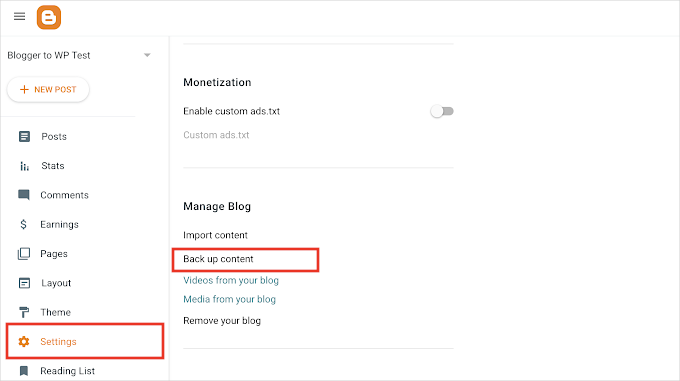
Blogger no longer downloads an XML file straight away. Instead, the Download button now opens Google Takeout, which is Google’s tool for downloading your data, with Blogger already selected.
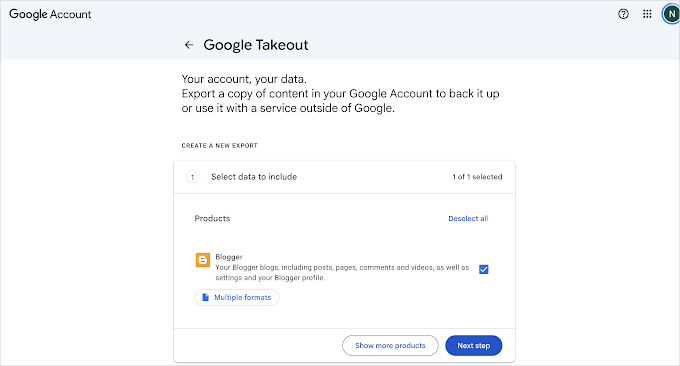
Click ‘Next step’, keep the default settings, and click ‘Create export’.
Google will email you when the export is ready, which usually takes a few minutes for a small blog.
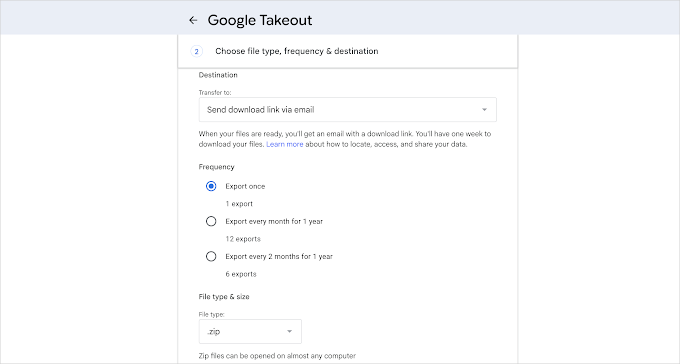
Click ‘Download archive’ in that email and save the .zip file to your computer.
Next, unzip the file. Open the Takeout folder, then Blogger, then Blogs, and then the folder with your blog’s name.
The file you need is called feed.atom. It holds your posts, pages, and comments.
If Takeout splits your export into more than one .zip file, check each one for a feed.atom file. You will import them one after another in the next step.
Note: Keep a copy of the whole archive in a safe place, like cloud storage or an external drive. It is your backup of the original blog. The Albums folder inside it holds every image you ever uploaded to Blogger, which we come back to in Step 6.
Step 3: Import Blogger to WordPress
With the feed.atom file on your computer, you can now import your content into WordPress.
WordPress comes with a default Blogger importer, available on the Tools » Import page in the admin area. However, that importer has been broken since July 2025. That is when Google moved Blogger backups into Google Takeout and changed the file format at the same time.
Luckily, there are alternative plugins you can use.
- BtW Importer – This is the plugin we’ll be using in this tutorial. It imports posts, pages, images, and even set up redirects. The downside is that it doesn’t import comments.
- Blogger Importer Extended – Imports posts, pages, images, and comments, but the free version is limited to 20 posts. You can use this if you have fewer posts or if you want to import comments.
First, install and activate the BtW Importer plugin. For more details, see our step-by-step guide on how to install a WordPress plugin.
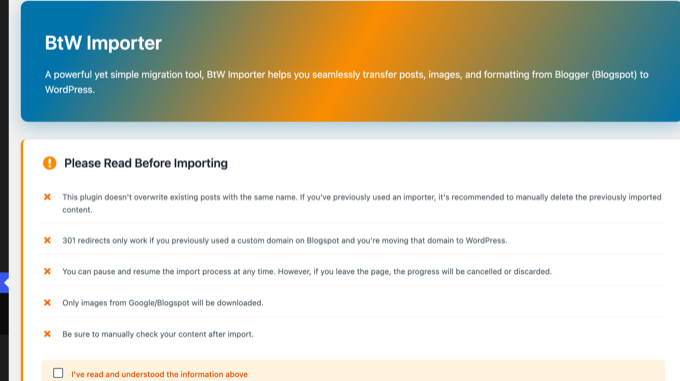
Upon activation, click the new BtW Importer item in your WordPress admin menu. The page starts with a short list of things to know before you import.
Read it, then tick the ‘I’ve read and understood the information above’ box.
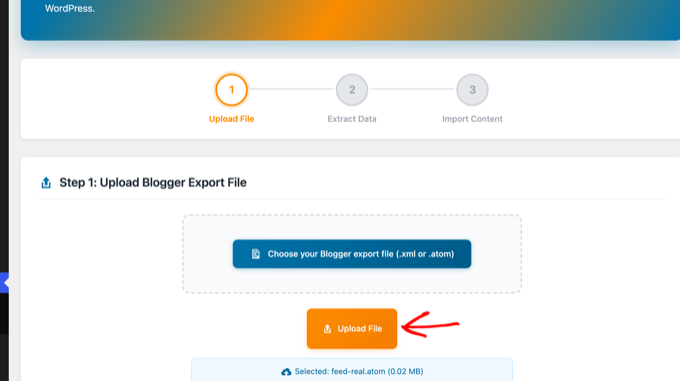
In Step 1, click the ‘Choose your Blogger export file’ button and select the feed.atom file. Then click the ‘Upload File’ button.
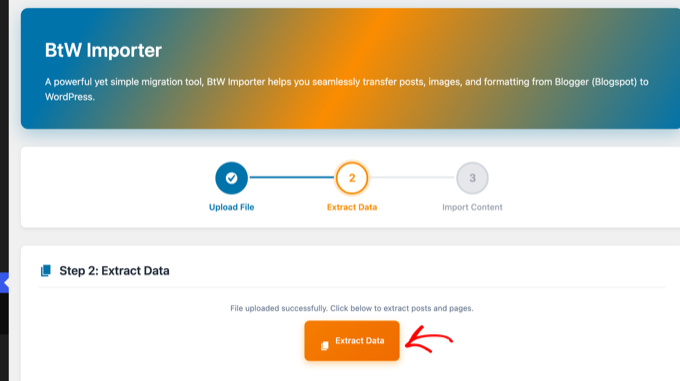
In Step 2, click the ‘Extract Data’ button. The plugin reads the file and counts your posts and pages.
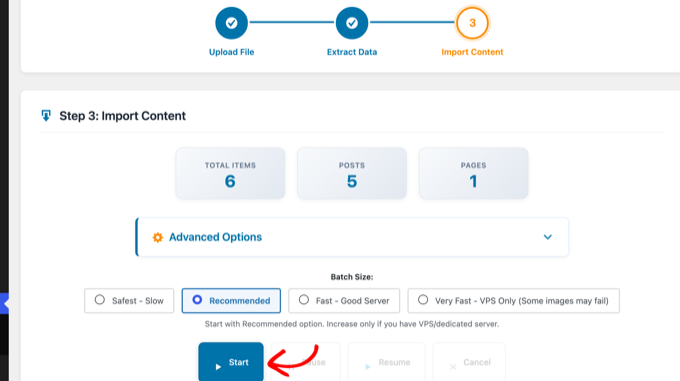
Step 3 shows how many items it found. The ‘Advanced Options’ panel lets you keep the original Blogger author for each post, and it has an experimental option to convert the old Blogger HTML into WordPress blocks.
We recommend leaving that option unchecked for your first run, because you can always convert posts to blocks later in the editor.
Leave the batch size on ‘Recommended’ and click the ‘Start’ button.
The plugin imports your posts and pages, downloads every image hosted on Google’s servers into your media library, and rewrites the image links inside your posts to the new copies.
It also records the old Blogger address of each post, which we use for the redirects in Step 5.
A progress log shows each item as it comes over, and you will see a ‘Congratulations!’ message when it finishes.
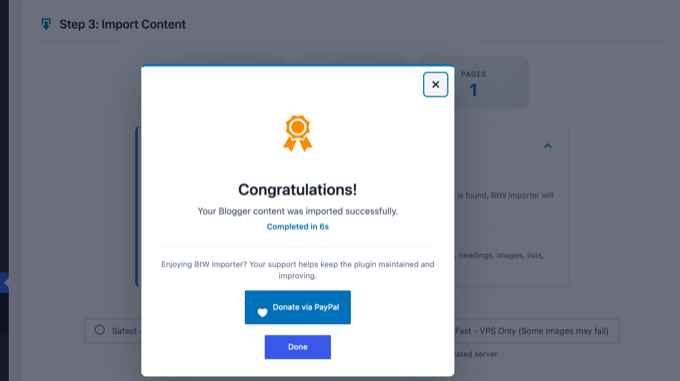
You can now check your content under Posts » All Posts and Pages » All Pages. Blogger labels become WordPress categories, drafts stay drafts, and the first image in each post becomes its featured image.
Step 4: Setting Up Permalinks
Now that your posts are in WordPress, let’s talk about their web addresses. Permalinks is the WordPress term for the URL structure of your posts and pages.
Blogger post URLs look like this: https://yourblog.blogspot.com/2026/08/post-title.html.
The BtW Importer plugin saved the old address of every post and page in a redirect map. Whenever a request for an old address reaches your WordPress site, the plugin sends it to the matching new post.
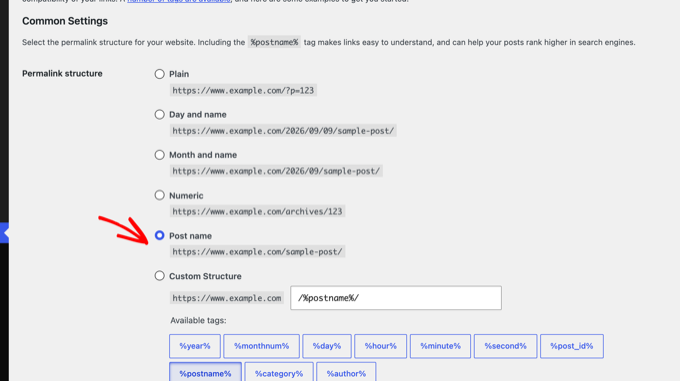
So keep WordPress’s default setting. Go to Settings » Permalinks and check that you have the ‘Post name’ option selected.
This setting gives you clean, SEO-friendly URLs like yourblog.com/post-title/.
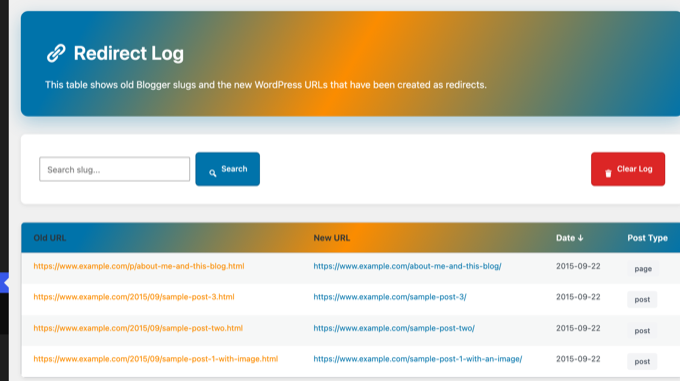
You can see the full list of old and new addresses under BtW Importer » Redirect Log. Every Blogger post and page should have a row here.
To test it, open one of the old addresses on your new domain, such as yourblog.com/2026/08/post-title.html. WordPress should send you straight to the new post.
In our test, the old post and page URLs all returned a 301 redirect to the right place.
This map only works for users that arrive at your WordPress domain. However, since your users and Google don’t know that you have moved, they will continue seeing your old Blogger blog until you finish Step 5.
Step 5: Set Up Redirects From Blogger to WordPress
Now that WordPress knows where every old address should go, it is time for the most important step of the whole migration, which is redirecting users and search engines like Google to your new WordPress site.
A redirect sends anyone who opens one of your old Blogger URLs to the same post on WordPress automatically.
It also sends a 301 status code, which is the code for a permanent redirect. This tells Google that the page has moved for good, so your rankings pass to the new address instead of starting from zero.
⚠️ If your Blogger blog has its own custom domain instead of blogspot.com, you may need to point your domain nameservers to your hosting provider. For instructions, please follow our tutorial on how to switch custom domain blogger blog to WordPress.
Blogger does not let you set up server redirects, so here is the workaround.
First, we add a small code snippet to your WordPress site. It receives the visitors that Blogger sends over, looks up the old address, and forwards them to the right post in WordPress.
Then, add a code snippet to your Blogger theme to send every visitor and search engine from your blogspot.com address to that snippet.
1. Add the Redirect Snippet to WordPress
We recommend adding the snippet with the free WPCode plugin, which is the safest way to add custom code to WordPress. For more details, see our guide on how to copy and paste code snippets in WordPress.
After installing WPCode, go to Code Snippets » + Add Snippet. Hover over ‘Add Your Custom Code (New Snippet)’ and click ‘Use snippet’.
Choose ‘PHP Snippet’ as the code type, give your snippet a name, and paste the following code:
add_action( 'template_redirect', 'wpb_blogger_b2w_redirect', 1 );

function wpb_blogger_b2w_redirect() {
	if ( empty( $_GET['b2w'] ) ) {
		return;
	}

	$old_path = wp_parse_url( esc_url_raw( wp_unslash( $_GET['b2w'] ) ), PHP_URL_PATH );
	$target   = home_url( '/' );

	if ( $old_path ) {
		$matches = get_posts( array(
			'post_type'           => array( 'post', 'page' ),
			'post_status'         => 'publish',
			'posts_per_page'      => 1,
			'ignore_sticky_posts' => true,
			'meta_key'            => '_old_permalink',
			'meta_value'          => $old_path,
		) );

		if ( $matches ) {
			$target = get_permalink( $matches[0] );
		}
	}

	wp_safe_redirect( $target, 301 );
	exit;
}
This code reads the old Blogger address that your Blogger theme will pass along, looks up the matching post or page that BtW Importer saved, and sends the visitor there with a 301 redirect. If nothing matches, it sends them to your homepage instead of a 404 error.
Below the code box, set the Insertion method to ‘Auto Insert’ and the Location to ‘Frontend Only’. Then switch the toggle at the top to Active and click the ‘Save Snippet’ button.
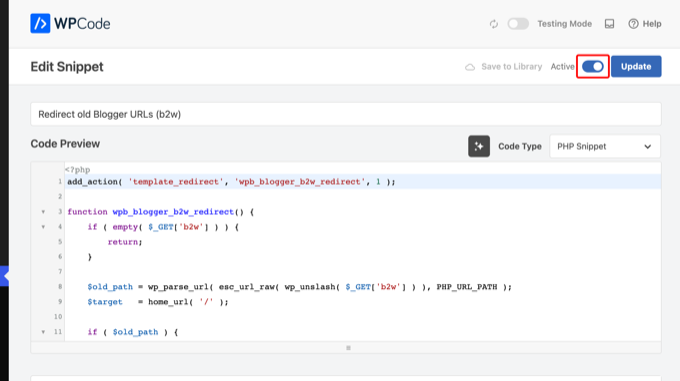
2. Replace Your Blogger Theme With the Redirect Code
Next, log in to your Blogger dashboard and go to the Theme page. Click the down arrow next to the ‘Customize’ button, and then select ‘Edit HTML’.
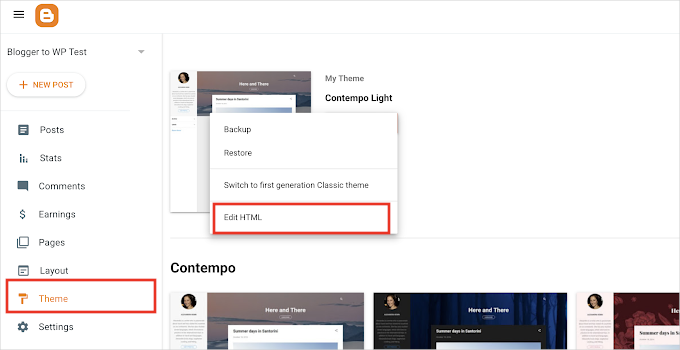
Blogger will now display the HTML code of your theme.
Before you delete anything, copy ALL of the existing Blogger theme HTML and save it to a text file on your computer as a backup.
Once you have backed up the original theme code, delete everything in the editor and paste the following code. Replace https://example.com with your new WordPress site’s address in all four places:
<?xml version="1.0" encoding="UTF-8" ?>
<!DOCTYPE html>
<html b:version='2' class='v2' expr:dir='data:blog.languageDirection' xmlns='http://www.w3.org/1999/xhtml' xmlns:b='http://www.google.com/2005/gml/b' xmlns:data='http://www.google.com/2005/gml/data' xmlns:expr='http://www.google.com/2005/gml/expr'>
<head>
<b:include data='blog' name='all-head-content'/>
<title><data:blog.pageTitle/></title>
<link expr:href='"https://example.com/?b2w=" + data:blog.url' rel='canonical'/>
<meta expr:content='"0;url=https://example.com/?b2w=" + data:blog.url' http-equiv='refresh'/>
<script type='text/javascript'>
//<![CDATA[
window.location.replace('https://example.com/?b2w=' + encodeURIComponent(window.location.href));
//]]>
</script>
<b:skin><![CDATA[
body { font-family: Arial, sans-serif; text-align: center; padding: 40px; }
]]></b:skin>
</head>
<body>
<b:section class='main' id='main' showaddelement='no'>
<b:widget id='Blog1' locked='true' title='Blog Posts' type='Blog' version='2'>
<b:includable id='main'>
<p>This blog has moved. <a expr:href='"https://example.com/?b2w=" + data:blog.url'>Click here if you are not redirected.</a></p>
</b:includable>
</b:widget>
</b:section>
</body>
</html>
This theme code does three things. It tells search engines that each old page has a new canonical address, uses a meta refresh tag to send them to that page, and redirects human visitors with a small script.
All three point at the WordPress snippet from the previous step, which then forwards to the exact post.
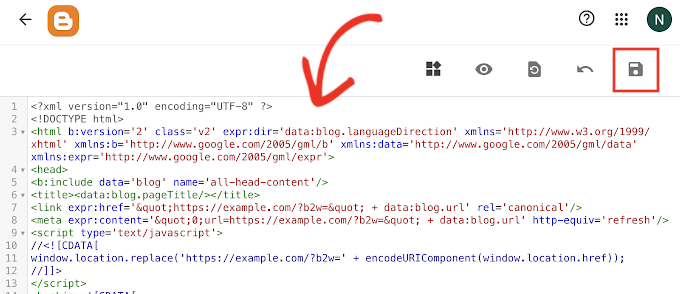
Don’t forget to click the ‘Save’ button to store your changes.
Older Blogger themes also serve a separate mobile version of your blog, and that version ignores the code you just pasted.
To turn it off, click the same down arrow next to the ‘Customize’ button and select ‘Mobile settings’.
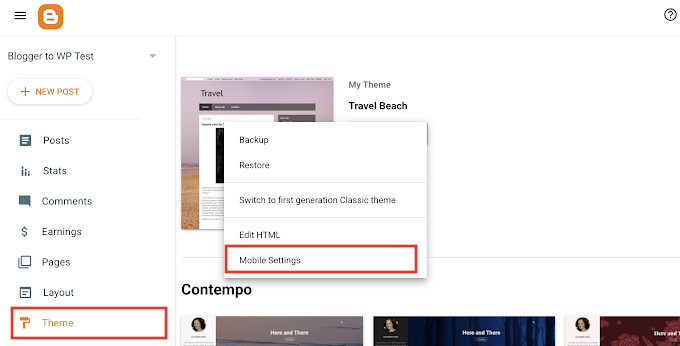
In the popup, choose the ‘Desktop’ option and click ‘Save’. If you don’t see ‘Mobile settings’, your theme is already responsive, and you can skip this.
Now test it. Open one of your old Blogger post URLs in a private browser window, and within a second you should land on the same post on your WordPress site.
3. Redirect Blogger’s ?m=1 Mobile URLs
When someone opens your Blogger blog on a phone, Blogger adds ?m=1 to the end of the address, and Google often indexes these mobile addresses alongside the normal ones.
In our tests, that small addition caused a real problem. WordPress uses m as its own parameter for date archives, so a request for yourblog.com/?m=1 or yourblog.com/post-title/?m=1 returns a 404 error page.
The fix is a second WPCode snippet that sends every ?m=1 and ?m=0 request to the clean URL with a 301 redirect. Create another PHP snippet in WPCode, just like you did above, and paste this code:
add_action( 'template_redirect', 'wpb_redirect_blogger_mobile_urls' );

function wpb_redirect_blogger_mobile_urls() {
	if ( ! isset( $_GET['m'] ) || ! in_array( $_GET['m'], array( '0', '1' ), true ) ) {
		return;
	}

	wp_safe_redirect( remove_query_arg( 'm' ), 301 );
	exit;
}
Scroll down a little and set the Location to ‘Frontend Only’, switch the snippet to Active, and click ‘Save Snippet’.
In our test, opening the homepage and a post URL with ?m=1 at the end both sent us straight to the clean URL.
Step 6: Moving Other Content From Blogger to WordPress
With your content moved and the redirects in place, it is time to check the pieces that need a manual touch. Below are five things to look at, and how to handle each one.
1. Pages
BtW Importer moves your Blogger pages, like About and Contact, into Pages » All Pages, and it redirects their old /p/ addresses too. Open each one to check the formatting, and add them to your WordPress theme’s navigation menus.
You might also want to check out our list of important pages every WordPress blog should have, so you don’t miss anything Blogger never had.
2. Widgets
Like Blogger, many WordPress themes use widgets to add content to your blog’s sidebar. To add them, visit the Appearance » Editor page for block themes and Appearance » Widgets page for classic themes.
For detailed instructions, see our guide on how to add and use widgets in WordPress.
If you are looking for a widget that WordPress does not have by default, then you likely need a plugin. WordPress has over 72,000 free plugins, so see our beginner’s guide on how to choose the right WordPress plugin.
3. RSS Feeds
People who follow your blog through RSS feeds will still be able to find your blog. However, they will not get any new content until you point the old feed to the new one.
To fix this, go to the Settings page in your Blogger dashboard. Scroll down to the ‘Site feed’ section and click ‘Post feed redirect URL’.
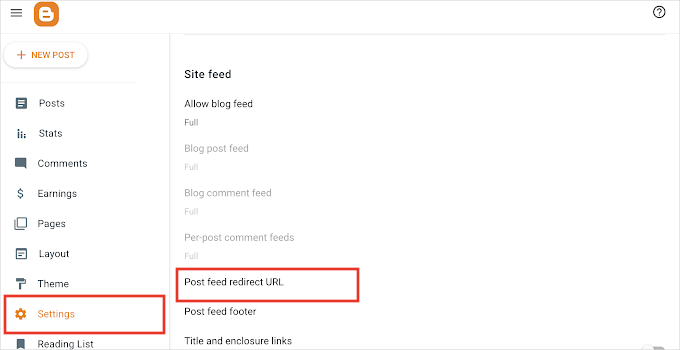
This will bring up a popup where you need to add the RSS feed URL of your WordPress website. Your WordPress feed URL will look like this:
http://example.com/feed
Don’t forget to replace example.com with your own domain name.
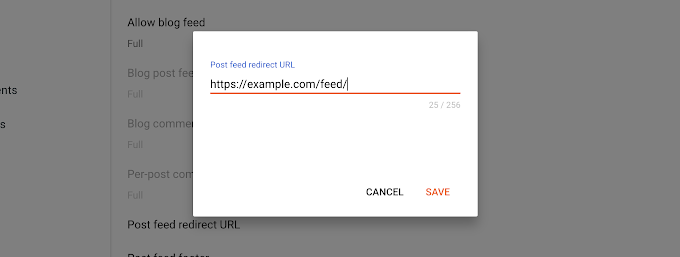
Click the ‘Save’ button to add the URL and save your settings.
4. Images
BtW Importer already downloaded the images that Google hosted for you into your media library and updated your posts to use them. Open Media » Library to see them.
If the plugin missed a few images, or you had images hosted elsewhere, our guide on how to import external images in WordPress shows a plugin that finds and downloads them.
The Google Takeout archive from Step 2 is your safety net. Its Albums folder contains a copy of every image you ever uploaded to Blogger, in original quality.
Step 7: Verify Your Migration in Google Search Console
Now that your content is in place, it is time to let Google know about the change. This step helps Google find your new site faster and protects your search rankings.
Here’s what you need to do:
- Add your new WordPress site to Google Search Console. If you haven’t already, follow our guide on how to add your WordPress site to Google Search Console.
- Submit your new XML sitemap. Submit your sitemap URL in Google Search Console so Google can discover all your new URLs. For step-by-step instructions, see our guide on how to create a sitemap in WordPress.
- Monitor your 404 errors. Over the next few weeks, keep an eye on the Pages report in Google Search Console to catch any 404 errors. If you spot broken URLs, set up additional redirects for them. You can do that with the free 404 to 301 redirect manager plugin.
- Install Google Analytics. To track your traffic with Google Analytics after the migration and make sure everything is working, we recommend installing MonsterInsights. For more information, see our guide on how to install Google Analytics in WordPress.
Step 8. Things to Do After Migrating From Blogger to WordPress
Your blog is now on WordPress, and your redirects protect your rankings. Three tasks are worth doing in your first week.
- Pick a fast theme. Your Blogger design does not transfer, so choose a lightweight theme that loads quickly on phones. Our list of the best free WordPress blog themes is a good place to start.
- Install the essential plugins. An SEO plugin, a contact form, and a backup plugin cover most blogs. See our list of must-have WordPress plugins.
- Set up backups. On Blogger, Google looks after your content. On WordPress, you are in charge, so pick one of the best WordPress backup plugins and schedule automatic backups.
Frequently Asked Questions About Switching From Blogger to WordPress
Is anyone still using Blogger?
Yes. Blogger is still online, and Google has not announced any plans to close it.
However, it only gets a few new features these days, and Google has now folded even its backup tool into Google Takeout.
Most bloggers who want to grow their blog move to WordPress because it’s easy to customize the appearance and extend its features.
What happens to my old Blogger blog after migration?
Your old Blogger blog will still exist after the migration. In fact, you need to keep it active, because the redirect code in your Blogger theme is what sends visitors to your new WordPress site.
Don’t delete your Blogger blog, as that would remove the redirects and cost you traffic.
We hope this article helped you switch from Blogger to WordPress without affecting your Google search rankings. You may also want to see our guide to which WordPress plan you should use or the most common WordPress myths debunked.
If you liked this article, then please subscribe to our YouTube Channel for WordPress video tutorials. You can also find us on Twitter and Facebook.


Bf
I have a related question. I’m starting a new blog and I’m using the Example.wordpress.com url for now. If I get more hits, then I’ll buy the domain example.com… if I do that, will I lose my rankings? because example.worpdress.com/example1 will now be example.com/example1
?
I hope this makes sense and thanks for your help!
WPBeginner Support
Please see our guide on the difference between self hosted WordPress.org vs free WordPress.com blog.
Admin
Rubina Ladjanszky
Thank you very much for this detailed description. I could manage to do this with my blogger site, now it is functioning on word press. However, I have a question. What happens to my Google Search Console account? I mean as the posts from the old blog are redirected to the new site on wordpress, how will this all show on Search Console? Do I have to add my new domain to search console as a new site was created or just should I stick to monitoring the old blog or both? I hope you see my point.
rose
hi guys,
Ive been importing my blog into my wp website,
however, the message said…
Sorry, there has been an error.
File is empty. Please upload something more substantial. This error could also be caused by uploads being disabled in your php.ini or by post_max_size being defined as smaller than upload_max_filesize in php.ini.
what can i do to correct this?
hope all the help I can get please…
sincerely,
rose
WPBeginner Support
Hi Rose,
Try uploading an image file by visiting Media » Add New page. If you can upload an image file, then this could mean something else is wrong. However, if you cannot upload an image file, then please see our guide on how to increase the maximum file upload size in WordPress.
Admin
rose
Hi wpbeginner support,
^_^ thank you for your response and help!
I finished transferring my blogger posts in wp website via blogger import extended plug in (basically all my posts was transferred to my wordpress, is it suppose to be that way?)
should my next step is to redirect my readers from blogger to wordpress through plugin 301 (redirection)?
thanks so much for your help ^_^
sincerely,
rose!
daniela
I am having issues to the redirect from one to exact post on my wordpress. Does anyone have any suggestions. Really need the help
Suzana
Hy,
i have set redirections from blogspot to my new website on wordpress and everything went very well. All my posts are redirected.
There is only one thing and i can not figure out what have i done wrong. After a week, google indexed new titles which are on wordpress, but not links of new domain. I have check google temporary memory and it looks that google thinks that my new wordpress site is on blogspot link. I have checked server header response and it gives me 200 response for blogspot link and not 301 response. When i click on blogspot link, it redirects me on new domain but header response is 200. Can you help me?
Gautam Nagraj
Hello WPBeginner Team,
Excellent write-up, thanks for this article
One question I want to ask you and that is
Is it beneficial to migrate from blogger to WordPress in the terms of AdSense or Affiliates
I mean can we boost our adsense earnings by this migration?
The role of WordPress in adsense earnings?
WPBeginner Support
Hi Gautam,
We are not sure about Adsense earnings. However, having a self-hosted blog allows you the flexibility to grow your blog with limitless possibilities. You can diversify your blog’s revenue sources and will be able to explore many other ways to monetize your content.
Admin
Paras Sidhu
Hi there, I have a question about website redirection. I moved from Blogger Custom Domain to Wordpress.
I put that code in functions.php file but links weren’t redirecting. I had changed permalink too. The reason maybe is Blogger shorts the post name like if a post name is “A B C D E F G H”, blogger changes to “A B C D E” in url however Wordpress doesn’t. So is there any solution? Am I doing wrong anything?
So I am using Smart 404 for now which redirects most of wrong urls to correct one.
Thank you very much for your help.
Tarun Singh
I have got these warnings after running importer. Can somebody please help me?
reset() expects parameter 1 to be array, boolean given in /srv/users/serverpilot/apps/imtswp/public/wp-content/plugins/blogger-importer/blogger-importer.php on line 700
DAVID NWACHUKWU
Is the file your importing more than 2MB? I think that’s a potential cause of the error problem.
Nicole
Hi, I transfered my blog from Blogspot to wordpress 4 years ago. How long do I need to keep the redirection plugin in place you think?
I’m trying to cut back on plugins you see.
Jessica
We used this article to switch from blogger to WP over a year ago. Everything went well, but now I’m cleaning up plugins. Do I need to keep the Blogger 301 Redirect plugin active and installed? Or can I delete it now that everything’s done?
WPBeginner Support
Check your Google Analytics reports to see if you are still getting visitors from blogger. If you are then, there is no harm in keeping the plugin activated. If there are not many users coming from blogger anymore, then you can safely turn it off.
Admin
Cecilia
Can you PLEASE clarify…are we supposed to also install a Blogger 301 Redirect Plugin or if we simply follow the indicated steps without the plugin everything will work?? Jessica what did you do?
Benneth
Hi @wpbeginner support, you have written a wonderful article. I own a job portal site on blogger and am already using a custom domain name on my site. Please is there a way out for me? Considering that am already using a custom domain name registered with godaddy. Please i need your assistance thanks
WPBeginner Support
Hi Benneth,
Yes you can point your custom domain to your self hosted WordPress site.
Admin
Gary Gramp
I am regular reader, how are you everybody? This post posted at this web page is really good.
Shanda
I recently made the switch from blogger to WordPress. Thanks to your tutorial, it appears to have gone well! I did notice recently though that the redirect does not work while mobile. While on my desktop if I click a Pinterest link that I had previously created, it will redirect to my new WordPress site, but once mobile, it is still taking people to my blogger site. Any tips for fixing this? Thanks!
Cathis
Thanks for the guide – works perfectly!
Nikhil Kapoor
My google adsense account is active on blogspot. Do i have to apply for adsense again or it can also be exported to wordpress????
WPBeginner Support
Hi Nikhil,
You can use the same Adsense account on as many websites as you want.
Admin
Narendra Singh
When I shift my blog to wordpress it done nicely but what I notice that on my each blog there is a image first and then blog is starting and when i am editing this post it is not showing the images in the edit mode.
Please suggest
CARLA
HELLO I am stuck I keep getting this error
Have you ever heard of this?
Invalid argument supplied for foreach() in /home/welcomet1/public_html/wp-content/plugins/blogger-importer/blogger-importer.php on line 227
Kira Langolf
Thanks! Your guide was so easy to complete!
ravi
missing export blog option for the latest version. now how can i migrate blogger posts to wordpress
Jamie Foster
Great instructions. Thanks so much!
One problem. My posts redirected like a champ. However, a page did not.
thoughts?
stephanie
Hi! I just recently switched from blogger to wordpress and truly appreciate your site for all its helpful information. I’ve used it quite a bit! I’m at this point now of setting the redirects. I did all of the steps above but when you click on an old link (from blogger), it takes you to my “new” WP site but it’s a 404 page. Not a 301. Why is it not working and how come it doesn’t take them directly to the correct post? I thought that was what this tut was for -no? Any help is greatly appreciated. Thanks.
Sumit Kumar
I switch from wordpress to blogger but it was terrible for me. I want again to switch on blogger. Will you please help me to switching from wordpress to blogger with all data. Also please switch domain name from wordpress to blogger.
Thans
Raihan
This post have good information and a list of all the activity with good explanation. I started a blog years ago and stopped after maybe a year. I purchased a domain and I still own it. Now I’m ready to start blogging again and have decided to go with WordPress instead. However, the entire design is crap.
Raihan
I’m heavily considering making the switch to WordPress. However, I already have a custom domain name purchased and in use.
I figured it out with the help of another tutorial.
chittara
Thanks for the wonderful post.it helped me a lot.
but i am facing problem in finding” functions.php” in my wordpress personal plan. Where it will be?
Ewan
Hi, after following the steps redirection is working properly but I have the following notice appearing at the top of the page:
Notice: Undefined index: blogger in /home/sites/mywebsite.co.uk/public_html/wp-content/themes/mytheme/functions.php on line 417
Line 417 is:
$blogger = $wp_query->query_vars[‘blogger’];
Any advice on how to get rid of this message?
Reg
Hi, I tried pasting the codes but I get this error whenever i try to put it under functions:
Notice: Undefined index: blogger in /home2/username/public_html/wp-content/themes/tracks/functions.php on line 12
Any idea?
Foxx
Hello~
I have the same issue.
Can someone fix this problem?
Brona
This has been very helpful in understanding what I need to do, but sadly, it looks like WP have removed the permalink tab in settings.
I’ve got this far
but unless I can take all my links with me, I wont be changing my other blogs to wp. I need/want all the links.
Is there some other way to find the permalink option?
Blogger also allowed me to easily change code when I needed to…where is the tab to do this on wp?
Many thanks Brona
WPBeginner Support
Please see our guide on the difference between self hosted WordPress.org vs free WordPress.com blog.
Admin
Meric
Hi,
I follow the all steps you mention above. It’s great explanation. I have just one problem regarding to my indexed pages on google. If you use mobile web then link is
but if you use from desktop (which is works)
How I can canonicalize first one to second one ?
Regards
Anjerico
Hi WPBeginner team. I’m trying to migrate from blogger to Wordpress. I already looked at the description of the blogger importer.And it says there that it cannot import the theme/template from blogger to Wordpress. I know it’s kind of silly to ask, but is there a way that this limitation could be overcome? Such that when I’m migrating from blogger to Wordpress, the template is also migrated?
Thank you.
WPBeginner Support
Hey Anjerico,
Unfortunately, this will not be possible. Blogger and WordPress use totally different templating systems. However, if you know enough HTML and CSS then you can try to replicate the looks of your old blogger website in a WordPress theme. You can also hire professionals who can transform a WordPress theme to look similar to your old blogger blog.
Admin
Anjerico
I see.
Thank you for answering my question.
Tamás
Hello,
It’s a great video. My problem is only that I changed the URL structure from 2015/05/post-name to
post-name.
Is there any sollution for this case?
Tamás
Any suggestion?
Jaga
Hi WPBeginner team , I have migrated from Blogger to WP, One week later, I was shocked to find it is redirected to some other website. I found it in Google in sight speed test.
anonymous
can move from blogger to WordPress using WordPress sub-domain ?
Munna Hossain
Blogger is one of the best blogging platforms. But sooner or later you need to migrate from blogger to WordPress. If you want to build your authority on your blog then WordPress is the best choice. But I think blogger is better for the newbies who just starting. Your article will be helpful for those who want to shift from blogger to WordPress. Thanks for your article.
Anupriya
Help me!!!!! I successfully migrated from blogger to wordpress, but i am facing problem in finding” functions.php” Where is it????
yvonne
Hi,
Thank you for the article it helped me to complete my migration. However, all of my images didn’t come over and my pages didn’t come over. I’ve tried multiple plugins for my images including what you suggeted and have come to the conclusion I will just have to insert them manually. But, I really do need my pages and I didn’t see anything in your article referencing pages. Also, Any ideas since the Blogger Importer plugin specifically says it does not import pages?
Dora
Hi, thank you for the great video!
I have the same issue. Post texts are imported successfully, but not the photos.
Do you have any suggestion for that?
Janis
Well, the redirection doesnt work
Dont know if the problem is in the blogger code or WP code.
Shakil Ilyas
i am facing: my file size is 14.5 MB
Import Blogger
Sorry, there has been an error.
File is empty. Please upload something more substantial. This error could also be caused by uploads being disabled in your php.ini or by post_max_size being defined as smaller than upload_max_filesize in php.ini.
Shakil Ilyas
i cant save my template in html the code is incorrect show in ..
how i attached file .. i want to show you
Dawn
I successfully moved my Blogger site to Wordpress, redirect, everything is working! Except that some posts point successfully to their Wordpress counterpart, some just redirect to my main page! I have no idea why some worked and some didn’t…is there a way to fix this?
Kimberly Dsouza
I’d like to know the same. In my case most of the original links redirect to my main page and not to the actual post!
Have you figured it out?
Yvonne
I started a blog years ago and stopped after maybe a year. I purchased a domain and I still own it. Now I’m ready to start blogging again and have decided to go with Wordpress instead. However, the entire design is crap. Therefore, my question to you is, when I migrate from Blogger to Wordpress using your guide won’t that same design come over? If so, does that mean my initial step after getting a web host be to pick a them and install to Wordpress or do I do that after I move from Blogger to Wordpress? I want to keep the post. But, definitely not the design! I love this article and found it incredibly informative.
Mohini
Thanks for this detailed article. Helped me to rectify some issues smoothly. Still, I couldn’t paste redirection code snippet to WordPress. Can you please help me?
I am getting this warning:
“Warning: Cannot modify header information – headers already sent by (output started at /home/username/public_html/wp-content/plugins/mysitename-plugin/mysitename-plugin.php:44) in /home/username/public_html/wp-content/plugins/wpclef/includes/lib/wp-session/class-wp-session.php on line 130”
I removed the code seeing error still got the same warning. Site plug in is deactivated now.
I don’t have clef activated yet.
Thanks for all the help and extremely helpful site for WP beginners.
Ansley
I’m heavily considering making the switch to WordPress. However, I already have a custom domain name purchased and in use. Do I just skip the first section about purchasing a self hosted domain, or do I have to switch domain hosts? My current domain name is through easyDNS. (PS they kind of suck – not user friendly at all!)
Thanks!
deni
why images can’t be export too ?
all image in our blogpost not included when i export to wordpress? just text without images.
Angel
Much appreciate for this detailed tutorial. I’ve redirected all my articles to my new wordpress site and it looks awesome!
Thanks!!
Karo
Hello Angel,
I’m glad to hear the steps worked for you. At my end it seems I am getting something wrong. I followed the steps and imported my blog. And when I click on View Blog on Blogger it goes to my new Wordpress blog which is good. However when I click on a post from Blogger it gives me a ‘page not found’ on the Wordpress blog. I can’t seem to figure out what I am missing. Shouldn’t the post be redirecting to the one on the Wordpress blog? If you can guess what’s causing this I’ll appreciate it.
WPBeginner Support
Try updating permalinks in WordPress. Simply go to Settings > Permalink page and click on the save changes button without making any changes.
Admin
Karo
Thanks. But everything is working fine now. I figured it out with the help of another tutorial.
Danielle
I did everything you said, step by step and I have no photos in my posts anymore? Help!!
Ewan
Hi,
Thanks for the very helpful guide. I’m wondering if there is a way to do this while maintaining a more SEO friendly URL structure within wordpress. I want my blogspot posts to redirect properly, but I’d like them to redirect to example.com/my-blog-post rather than example.com/2016/09/my-blog-post. I think perhaps a change could be made to the PHP code added to functions.php to make this work but I’m not sure how.
Any thoughts?
Jen at Tie Dye Diva
Thank you! I can’t say how many times I came back to this page in the last week and followed it step by step, very clear instructions! I noticed that the redirect doesn’t work from my iphone though it works beautifully from laptop – mobile still goes to my blogspot. Is there something more I need to do to get it to work on mobile?
WPBeginner Support
In your blogger dashboard visit the Template page for your blog.
If you have switched to the classic template then you will see a button to Upgrade template. Click on this button and Blogspot will start using the new template format. It will show you a preview of how your site will look on Desktop and how it will look on mobile.
Under the mobile column, click on the gear icon. This will bring up a popup. Select ‘No. Show desktop template on mobile devices’ option and then click on the save button.
Now start following the instructions from Step 4 in this article.
Admin
Jen at Tie Dye Diva
You’re the best!
Arjun
What about Google search links of my website. Will they land exactly where they are supposed to reach. Won’t users get 404 error.
And what if blogger url structure doesn’t match in wordpress. Since I have manually configured the urls in my blogger blog.
Justine Putterman
This saved my life!!! I was so lost trying to figure out how to move from blogger to wordpress and this tutorial made everything so easy! I followed along with the video step by step. Thank you so much!!
WPBeginner Support
We are glad you found it helpful
Don’t forget to follow us on Twitter for useful WordPress tips and tricks.
Admin
Sid Balachandran
I’m clutching at straws here, so hoping that you can help.
The Blogger xml file was about 42Mb – so I had BlueHost increase it to 64Mb. But ever since that happened, when I run the Blogger Import tool, the upload goes to 100% alright. However, the next step – where you get to choose the authors – that never appears. All I get is the heading that says ‘Import Blogger’. I’ve tried on different browsers, different laptops – no go.
And I can’t move forward. Spoke to Bluehost, who said they’ll look into it, but no go since that.
I tried a smaller test xml file form an old blogger id that I had, and that uploads fine. So I reckon it has something to do with the time out or something. But of course, I’m not sure.
Do you have any suggestions?
Would really appreciate some help, if you could spare the time.
WPBeginner Support
BlueHost increased your maximum file upload size. You also need to increase php memory limit allowing php to run processes for longer duration.
Admin