


“Will I lose my Google rankings if I move from Blogger to WordPress?” That’s the first question we hear from anyone thinking about making the switch.
We get it. However, after helping many bloggers make this move, we can say with confidence that you can switch from Blogger to WordPress without losing your Google rankings.
In this guide, we’ll show you the exact steps we use, from exporting your Blogger blog to setting up the redirects that protect your search traffic.
Quick Summary: Switching from Blogger to WordPress requires exporting your Blogger content, importing it into a self-hosted WordPress site, and redirecting the old URLs to your new site.
Estimated time: 1 to 2 hours for a small blog.
Tools: Free BtW Importer plugin and two short code snippets.
Cost: The migration costs nothing. You’ll still need to pay for hosting and a domain name.
WordPress.com vs. WordPress.org: What’s the Difference?
There are two types of WordPress, and this guide uses WordPress.org, also known as self-hosted WordPress. WordPress.com is a hosted service where you cannot install plugins on the free plan. You’ll need to upgrade to a paid plan to unlock plugins and follow this tutorial.
For a full breakdown, see our comparison of WordPress.com vs. WordPress.org.
That being said, let’s take a look at how to move from Blogger to WordPress while keeping your Google rankings and traffic. Here are the steps we’ll cover:
- Step 1: Sign Up for WordPress Hosting
- Step 2: Export Your Blogger Blog
- Step 3: Import Blogger to WordPress
- Step 4: Setting Up Permalinks
- Step 5: Set Up Redirects From Blogger to WordPress
- Step 6: Moving Other Content From Blogger to WordPress
- Step 7: Verify Your Migration in Google Search Console
- Step 8. Things to Do After Migrating From Blogger to WordPress
- Frequently Asked Questions About Switching From Blogger to WordPress
Step 1: Sign Up for WordPress Hosting
To get started with WordPress, you will need a domain name and web hosting. A domain name is your website’s address, and web hosting is where your website files live.
You can choose any WordPress hosting provider that you want, like Bluehost or Hostinger. Both are officially recommended WordPress hosting providers and offer a free domain name for the first year.
For this tutorial, we used Bluehost, which automatically installed WordPress when we signed up, so we were able to log into our new site right away.
Step 2: Export Your Blogger Blog
Now that your WordPress site is ready, the next step is to export your content from Blogger.
Log in to your Blogger account, pick your blog, and click Settings in the left menu. Scroll down to the ‘Manage blog’ section, click ‘Back up content’, and then click ‘Download’.
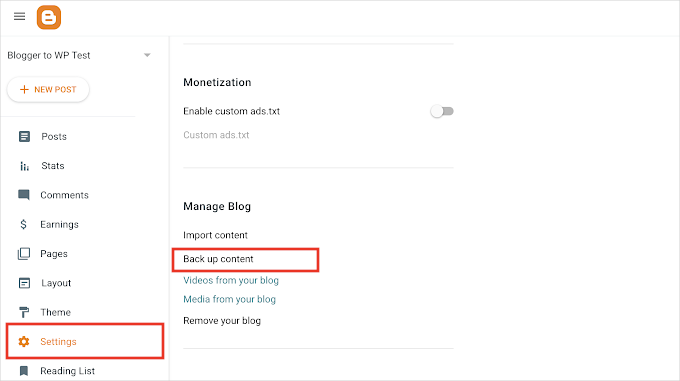
Blogger no longer downloads an XML file straight away. Instead, the Download button now opens Google Takeout, which is Google’s tool for downloading your data, with Blogger already selected.
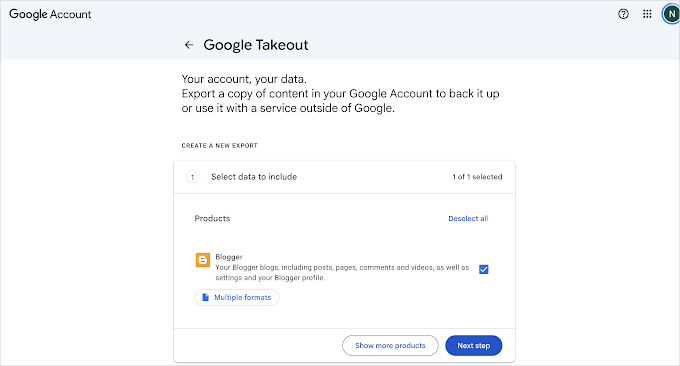
Click ‘Next step’, keep the default settings, and click ‘Create export’.
Google will email you when the export is ready, which usually takes a few minutes for a small blog.
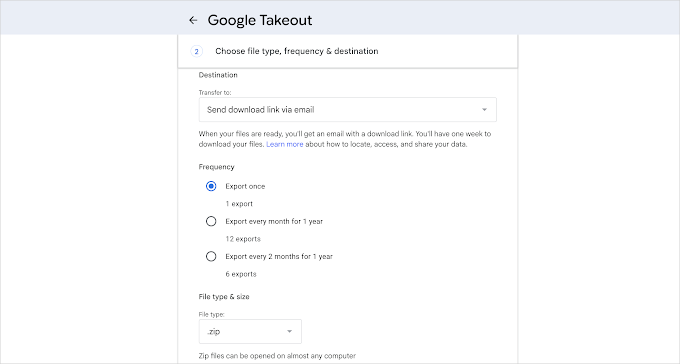
Click ‘Download archive’ in that email and save the .zip file to your computer.
Next, unzip the file. Open the Takeout folder, then Blogger, then Blogs, and then the folder with your blog’s name.
The file you need is called feed.atom. It holds your posts, pages, and comments.
If Takeout splits your export into more than one .zip file, check each one for a feed.atom file. You will import them one after another in the next step.
Note: Keep a copy of the whole archive in a safe place, like cloud storage or an external drive. It is your backup of the original blog. The Albums folder inside it holds every image you ever uploaded to Blogger, which we come back to in Step 6.
Step 3: Import Blogger to WordPress
With the feed.atom file on your computer, you can now import your content into WordPress.
WordPress comes with a default Blogger importer, available on the Tools » Import page in the admin area. However, that importer has been broken since July 2025. That is when Google moved Blogger backups into Google Takeout and changed the file format at the same time.
Luckily, there are alternative plugins you can use.
- BtW Importer – This is the plugin we’ll be using in this tutorial. It imports posts, pages, images, and even set up redirects. The downside is that it doesn’t import comments.
- Blogger Importer Extended – Imports posts, pages, images, and comments, but the free version is limited to 20 posts. You can use this if you have fewer posts or if you want to import comments.
First, install and activate the BtW Importer plugin. For more details, see our step-by-step guide on how to install a WordPress plugin.
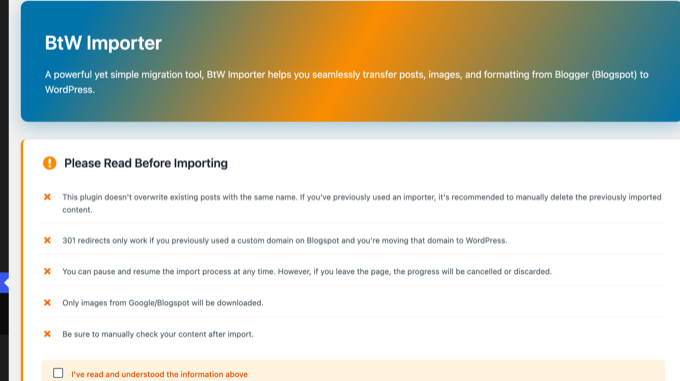
Upon activation, click the new BtW Importer item in your WordPress admin menu. The page starts with a short list of things to know before you import.
Read it, then tick the ‘I’ve read and understood the information above’ box.
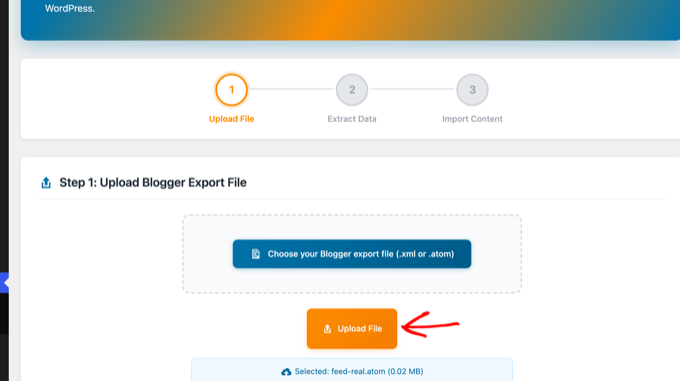
In Step 1, click the ‘Choose your Blogger export file’ button and select the feed.atom file. Then click the ‘Upload File’ button.
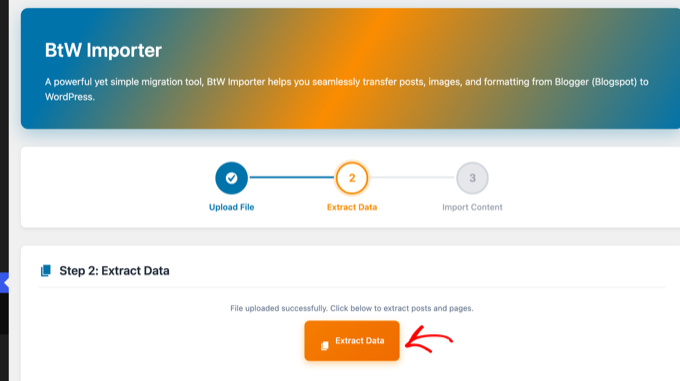
In Step 2, click the ‘Extract Data’ button. The plugin reads the file and counts your posts and pages.
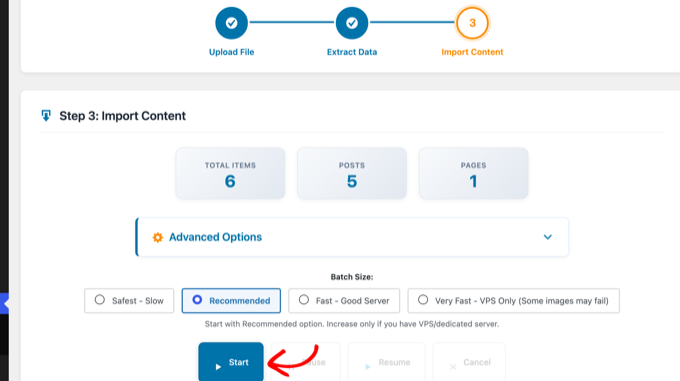
Step 3 shows how many items it found. The ‘Advanced Options’ panel lets you keep the original Blogger author for each post, and it has an experimental option to convert the old Blogger HTML into WordPress blocks.
We recommend leaving that option unchecked for your first run, because you can always convert posts to blocks later in the editor.
Leave the batch size on ‘Recommended’ and click the ‘Start’ button.
The plugin imports your posts and pages, downloads every image hosted on Google’s servers into your media library, and rewrites the image links inside your posts to the new copies.
It also records the old Blogger address of each post, which we use for the redirects in Step 5.
A progress log shows each item as it comes over, and you will see a ‘Congratulations!’ message when it finishes.
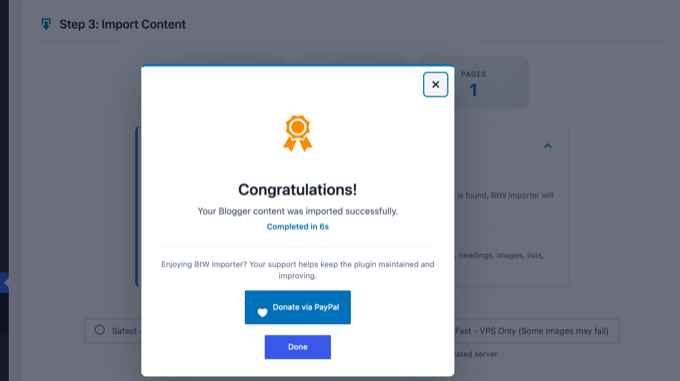
You can now check your content under Posts » All Posts and Pages » All Pages. Blogger labels become WordPress categories, drafts stay drafts, and the first image in each post becomes its featured image.
Step 4: Setting Up Permalinks
Now that your posts are in WordPress, let’s talk about their web addresses. Permalinks is the WordPress term for the URL structure of your posts and pages.
Blogger post URLs look like this: https://yourblog.blogspot.com/2026/08/post-title.html.
The BtW Importer plugin saved the old address of every post and page in a redirect map. Whenever a request for an old address reaches your WordPress site, the plugin sends it to the matching new post.
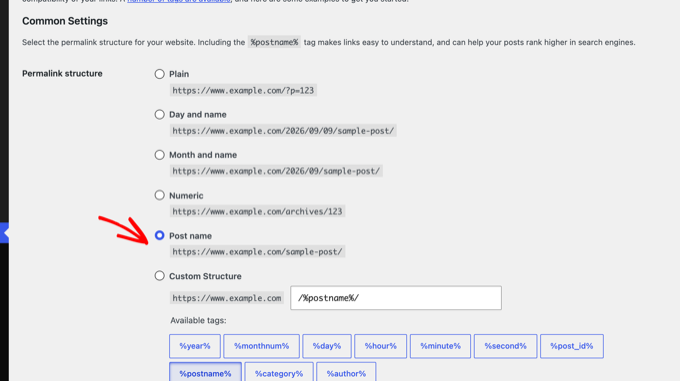
So keep WordPress’s default setting. Go to Settings » Permalinks and check that you have the ‘Post name’ option selected.
This setting gives you clean, SEO-friendly URLs like yourblog.com/post-title/.
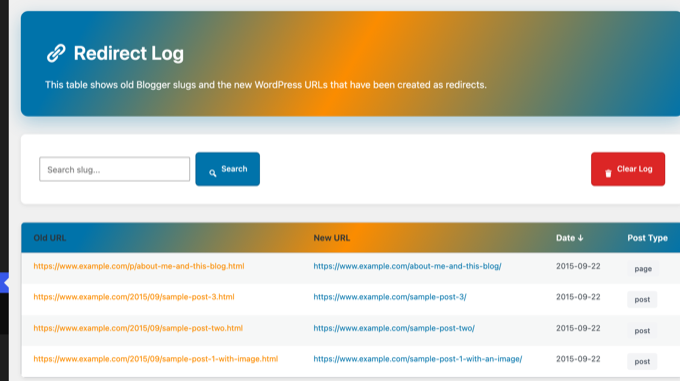
You can see the full list of old and new addresses under BtW Importer » Redirect Log. Every Blogger post and page should have a row here.
To test it, open one of the old addresses on your new domain, such as yourblog.com/2026/08/post-title.html. WordPress should send you straight to the new post.
In our test, the old post and page URLs all returned a 301 redirect to the right place.
This map only works for users that arrive at your WordPress domain. However, since your users and Google don’t know that you have moved, they will continue seeing your old Blogger blog until you finish Step 5.
Step 5: Set Up Redirects From Blogger to WordPress
Now that WordPress knows where every old address should go, it is time for the most important step of the whole migration, which is redirecting users and search engines like Google to your new WordPress site.
A redirect sends anyone who opens one of your old Blogger URLs to the same post on WordPress automatically.
It also sends a 301 status code, which is the code for a permanent redirect. This tells Google that the page has moved for good, so your rankings pass to the new address instead of starting from zero.
⚠️ If your Blogger blog has its own custom domain instead of blogspot.com, you may need to point your domain nameservers to your hosting provider. For instructions, please follow our tutorial on how to switch custom domain blogger blog to WordPress.
Blogger does not let you set up server redirects, so here is the workaround.
First, we add a small code snippet to your WordPress site. It receives the visitors that Blogger sends over, looks up the old address, and forwards them to the right post in WordPress.
Then, add a code snippet to your Blogger theme to send every visitor and search engine from your blogspot.com address to that snippet.
1. Add the Redirect Snippet to WordPress
We recommend adding the snippet with the free WPCode plugin, which is the safest way to add custom code to WordPress. For more details, see our guide on how to copy and paste code snippets in WordPress.
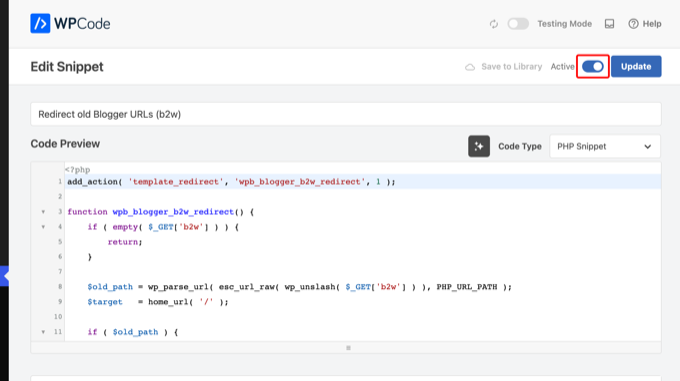
After installing WPCode, go to Code Snippets » + Add Snippet. Hover over ‘Add Your Custom Code (New Snippet)’ and click ‘Use snippet’.
Choose ‘PHP Snippet’ as the code type, give your snippet a name, and paste the following code:
add_action( 'template_redirect', 'wpb_blogger_b2w_redirect', 1 );

function wpb_blogger_b2w_redirect() {
	if ( empty( $_GET['b2w'] ) ) {
		return;
	}

	$old_path = wp_parse_url( esc_url_raw( wp_unslash( $_GET['b2w'] ) ), PHP_URL_PATH );
	$target   = home_url( '/' );

	if ( $old_path ) {
		$matches = get_posts( array(
			'post_type'           => array( 'post', 'page' ),
			'post_status'         => 'publish',
			'posts_per_page'      => 1,
			'ignore_sticky_posts' => true,
			'meta_key'            => '_old_permalink',
			'meta_value'          => $old_path,
		) );

		if ( $matches ) {
			$target = get_permalink( $matches[0] );
		}
	}

	wp_safe_redirect( $target, 301 );
	exit;
}
This code reads the old Blogger address that your Blogger theme will pass along, looks up the matching post or page that BtW Importer saved, and sends the visitor there with a 301 redirect. If nothing matches, it sends them to your homepage instead of a 404 error.
Below the code box, set the Insertion method to ‘Auto Insert’ and the Location to ‘Frontend Only’. Then switch the toggle at the top to Active and click the ‘Save Snippet’ button.
2. Replace Your Blogger Theme With the Redirect Code
Next, log in to your Blogger dashboard and go to the Theme page. Click the down arrow next to the ‘Customize’ button, and then select ‘Edit HTML’.
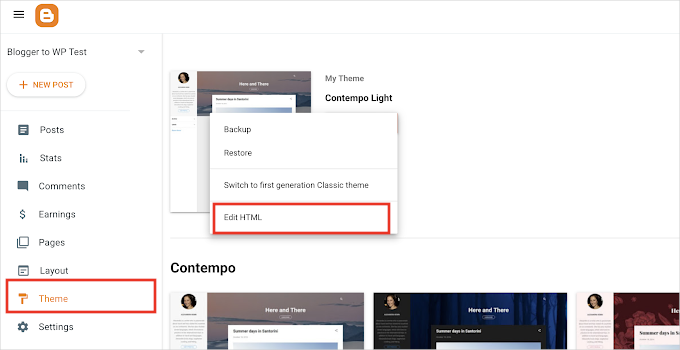
Blogger will now display the HTML code of your theme.
Before you delete anything, copy ALL of the existing Blogger theme HTML and save it to a text file on your computer as a backup.
Once you have backed up the original theme code, delete everything in the editor and paste the following code. Replace https://example.com with your new WordPress site’s address in all four places:
<?xml version="1.0" encoding="UTF-8" ?>
<!DOCTYPE html>
<html b:version='2' class='v2' expr:dir='data:blog.languageDirection' xmlns='http://www.w3.org/1999/xhtml' xmlns:b='http://www.google.com/2005/gml/b' xmlns:data='http://www.google.com/2005/gml/data' xmlns:expr='http://www.google.com/2005/gml/expr'>
<head>
<b:include data='blog' name='all-head-content'/>
<title><data:blog.pageTitle/></title>
<link expr:href='"https://example.com/?b2w=" + data:blog.url' rel='canonical'/>
<meta expr:content='"0;url=https://example.com/?b2w=" + data:blog.url' http-equiv='refresh'/>
<script type='text/javascript'>
//<![CDATA[
window.location.replace('https://example.com/?b2w=' + encodeURIComponent(window.location.href));
//]]>
</script>
<b:skin><![CDATA[
body { font-family: Arial, sans-serif; text-align: center; padding: 40px; }
]]></b:skin>
</head>
<body>
<b:section class='main' id='main' showaddelement='no'>
<b:widget id='Blog1' locked='true' title='Blog Posts' type='Blog' version='2'>
<b:includable id='main'>
<p>This blog has moved. <a expr:href='"https://example.com/?b2w=" + data:blog.url'>Click here if you are not redirected.</a></p>
</b:includable>
</b:widget>
</b:section>
</body>
</html>
This theme code does three things. It tells search engines that each old page has a new canonical address, uses a meta refresh tag to send them to that page, and redirects human visitors with a small script.
All three point at the WordPress snippet from the previous step, which then forwards to the exact post.
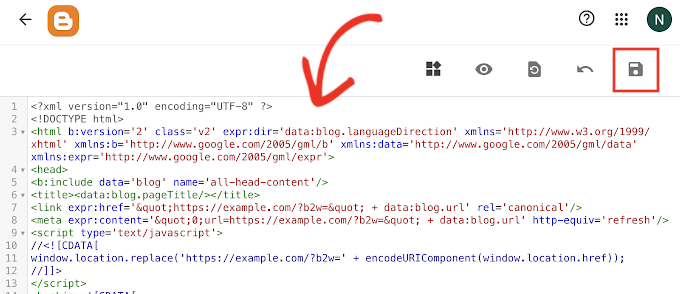
Don’t forget to click the ‘Save’ button to store your changes.
Older Blogger themes also serve a separate mobile version of your blog, and that version ignores the code you just pasted.
To turn it off, click the same down arrow next to the ‘Customize’ button and select ‘Mobile settings’.
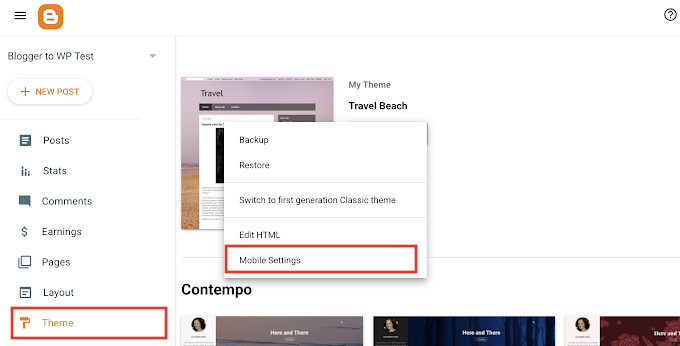
In the popup, choose the ‘Desktop’ option and click ‘Save’. If you don’t see ‘Mobile settings’, your theme is already responsive, and you can skip this.
Now test it. Open one of your old Blogger post URLs in a private browser window, and within a second you should land on the same post on your WordPress site.
3. Redirect Blogger’s ?m=1 Mobile URLs
When someone opens your Blogger blog on a phone, Blogger adds ?m=1 to the end of the address, and Google often indexes these mobile addresses alongside the normal ones.
In our tests, that small addition caused a real problem. WordPress uses m as its own parameter for date archives, so a request for yourblog.com/?m=1 or yourblog.com/post-title/?m=1 returns a 404 error page.
The fix is a second WPCode snippet that sends every ?m=1 and ?m=0 request to the clean URL with a 301 redirect. Create another PHP snippet in WPCode, just like you did above, and paste this code:
add_action( 'template_redirect', 'wpb_redirect_blogger_mobile_urls' );

function wpb_redirect_blogger_mobile_urls() {
	if ( ! isset( $_GET['m'] ) || ! in_array( $_GET['m'], array( '0', '1' ), true ) ) {
		return;
	}

	wp_safe_redirect( remove_query_arg( 'm' ), 301 );
	exit;
}
Scroll down a little and set the Location to ‘Frontend Only’, switch the snippet to Active, and click ‘Save Snippet’.
In our test, opening the homepage and a post URL with ?m=1 at the end both sent us straight to the clean URL.
Step 6: Moving Other Content From Blogger to WordPress
With your content moved and the redirects in place, it is time to check the pieces that need a manual touch. Below are five things to look at, and how to handle each one.
1. Pages
BtW Importer moves your Blogger pages, like About and Contact, into Pages » All Pages, and it redirects their old /p/ addresses too. Open each one to check the formatting, and add them to your WordPress theme’s navigation menus.
You might also want to check out our list of important pages every WordPress blog should have, so you don’t miss anything Blogger never had.
2. Widgets
Like Blogger, many WordPress themes use widgets to add content to your blog’s sidebar. To add them, visit the Appearance » Editor page for block themes and Appearance » Widgets page for classic themes.
For detailed instructions, see our guide on how to add and use widgets in WordPress.
If you are looking for a widget that WordPress does not have by default, then you likely need a plugin. WordPress has over 72,000 free plugins, so see our beginner’s guide on how to choose the right WordPress plugin.
3. RSS Feeds
People who follow your blog through RSS feeds will still be able to find your blog. However, they will not get any new content until you point the old feed to the new one.
To fix this, go to the Settings page in your Blogger dashboard. Scroll down to the ‘Site feed’ section and click ‘Post feed redirect URL’.
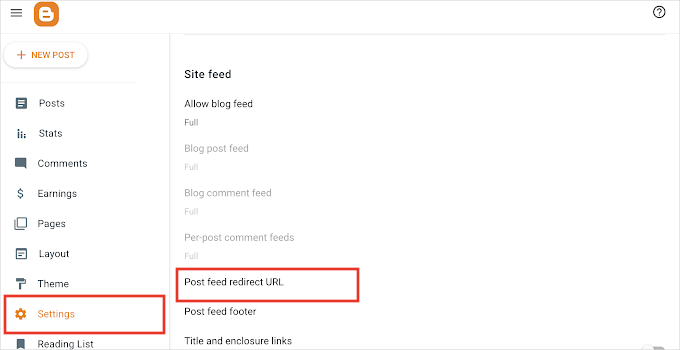
This will bring up a popup where you need to add the RSS feed URL of your WordPress website. Your WordPress feed URL will look like this:
http://example.com/feed
Don’t forget to replace example.com with your own domain name.
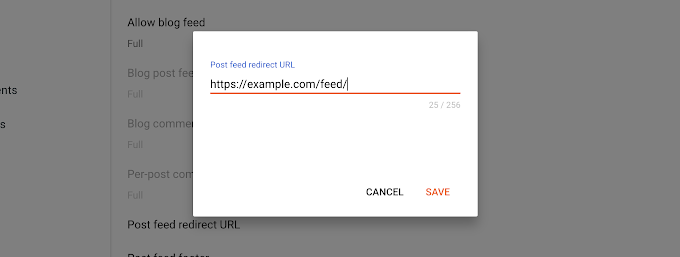
Click the ‘Save’ button to add the URL and save your settings.
4. Images
BtW Importer already downloaded the images that Google hosted for you into your media library and updated your posts to use them. Open Media » Library to see them.
If the plugin missed a few images, or you had images hosted elsewhere, our guide on how to import external images in WordPress shows a plugin that finds and downloads them.
The Google Takeout archive from Step 2 is your safety net. Its Albums folder contains a copy of every image you ever uploaded to Blogger, in original quality.
Step 7: Verify Your Migration in Google Search Console
Now that your content is in place, it is time to let Google know about the change. This step helps Google find your new site faster and protects your search rankings.
Here’s what you need to do:
- Add your new WordPress site to Google Search Console. If you haven’t already, follow our guide on how to add your WordPress site to Google Search Console.
- Submit your new XML sitemap. Submit your sitemap URL in Google Search Console so Google can discover all your new URLs. For step-by-step instructions, see our guide on how to create a sitemap in WordPress.
- Monitor your 404 errors. Over the next few weeks, keep an eye on the Pages report in Google Search Console to catch any 404 errors. If you spot broken URLs, set up additional redirects for them. You can do that with the free 404 to 301 redirect manager plugin.
- Install Google Analytics. To track your traffic with Google Analytics after the migration and make sure everything is working, we recommend installing MonsterInsights. For more information, see our guide on how to install Google Analytics in WordPress.
Step 8. Things to Do After Migrating From Blogger to WordPress
Your blog is now on WordPress, and your redirects protect your rankings. Three tasks are worth doing in your first week.
- Pick a fast theme. Your Blogger design does not transfer, so choose a lightweight theme that loads quickly on phones. Our list of the best free WordPress blog themes is a good place to start.
- Install the essential plugins. An SEO plugin, a contact form, and a backup plugin cover most blogs. See our list of must-have WordPress plugins.
- Set up backups. On Blogger, Google looks after your content. On WordPress, you are in charge, so pick one of the best WordPress backup plugins and schedule automatic backups.
Frequently Asked Questions About Switching From Blogger to WordPress
Is anyone still using Blogger?
Yes. Blogger is still online, and Google has not announced any plans to close it.
However, it only gets a few new features these days, and Google has now folded even its backup tool into Google Takeout.
Most bloggers who want to grow their blog move to WordPress because it’s easy to customize the appearance and extend its features.
What happens to my old Blogger blog after migration?
Your old Blogger blog will still exist after the migration. In fact, you need to keep it active, because the redirect code in your Blogger theme is what sends visitors to your new WordPress site.
Don’t delete your Blogger blog, as that would remove the redirects and cost you traffic.
We hope this article helped you switch from Blogger to WordPress without affecting your Google search rankings. You may also want to see our guide to which WordPress plan you should use or the most common WordPress myths debunked.
If you liked this article, then please subscribe to our YouTube Channel for WordPress video tutorials. You can also find us on Twitter and Facebook.


Emily Cowe
Hey! This was a great tutorial, but I have 1 question – is it required to change the permalink structure on WordPress to redirect the links? I am migrating from Blogger to an existing Wordpress site with existing articles, so I don’t really want to change the current permalink structure if I don’t have to. Thanks
Sunny
I migrated my website 2 years ago. Can I deactivate the plugins (Blogger to wp and All in one wp migration) now?
Isack Godlaison
I have done everything as you guide and able to move my site to wordpress successful. The only issue i face is the post redirections works perfect on desktop but doesn’t work on mobile, can you help me fix this? Thanks
Chandu
I’ve almost 1300 posts in by Blogger blog and when I try to import all my posts to my Wordpress site by following all the given instructions, Happens nothing. not a single post getting imported. Can any one suggest me a solution.
WPBeginner Support
You would first want to check in your media library to see if the images are being imported and if they are you would want to run the import again as it is likely timing out and when you run the import again it should skip what has already been imported.
Admin
Kishan sarvaiya
Thank you very much for this detailed and doubt solving guide.
Now i habe just 3 questions.
1. Can i delete the “blogger importer” pkugin after importing content?
2. Can i delete “blogger to wordpress” plugin after pasting the code in blogger provided by this plugin.
3. After migrating to wordpress, should we delete the blogger blog from blogger. Com? (i jave custom domain on blogger).
Thank you very very much…
WPBeginner Support
The plugin is to help with redirects from the blogspot URL, if you disable the plugin then those redirects can break. Your other redirects should be fine with how the plugin is currently set up.
Admin
dema
Great Post, well done BUT
I have problem. Tried your script but when I go to an old posting I just get redirected to my first page, not to the post.
WPBeginner Support
You would want to ensure you followed all steps under ‘step 4 Setup Redirects from Blogger to WordPress’ for your redirects to work properly.
Admin
Hope Linus
Please i moved from blogger to wordpress but the links are shared while i was on blogger are not opening, they are showing error 404.
Please what will i do
WPBeginner Support
You would want to ensure you set up redirects under step 4
Admin
Aman Pathak
Hey Editorial Staff
In this post you told to change WordPress permalink structure to near blogger permalink structure.
But it doesn’t require for seo because blogger to WordPress redirect plugin will redirect old post url(permalink) to new post url(any permalink structure)
I have also tried this and i want that you guys should update this post
WPBeginner Support
Thank you for letting us know about that update to the redirection plugin.
Admin
Favour
Please when migrating to WordPress, will the blogger theme also be moved. Or I will have to get a new WordPress theme?
WPBeginner Support
You would need a new theme on the WordPress site.
Admin
Tanaaz
Hi! I’ve already migrated from Blogger to WordPress thanks to your tutorial. But I’m planning to apply for Adsense, so if I delete or unpublish my old blogger blog, does that mean all the redirects will stop and whatever content has been imported will also be deleted? Even though it was uploaded externally.
Just wondering, would be great if you could help me out with this! Thank you!
WPBeginner Support
You would want to check with the plugin’s support for questions like this. You shouldn’t lose content on the WordPress.org site but there may be trouble with redirects.
Admin
Fabian George
Thanks for this article. My blog is hosted by blogger and a custom domain pointing at it from Goddady for almost 2yrs and two months. Is it possible to use same domain name or I should fresh one from bluehost?
Please I need help to on this urgent
WPBeginner Support
Yes, you can use the same domain.
Admin
Emily Sego
Can I delete the Blogger importer plugin from my WordPress website? The plugin hasn’t been updated in 4 years, and I’m wondering if it’s interfering with the functionality of my other plugins…..
WPBeginner Support
You only need to have the importer during the import of files. After that, you can remove the plugin. The plugin should not be affecting your site as it should only run during the import process.
Admin
Rehbar ansari
If I will take my website from Blogger to WordPress, then I have to add it back to Google Search Console.
WPBeginner Support
You would want to re-add your meta tag for search console to your site to ensure it stays verified.
Admin
Siddiq
Hi. Followed all these steps and successfully migrated to wordpress from blogger but there is an issue of 404 error.
If I clicked on some of my page from google search results or elsewhere it results to 404 error.
Please what can I do to solve this. Thank you
WPBeginner Support
You would want to ensure you set up your redirects properly for the search results but for the 404 on the site itself, you would want to take a look at our guide below:
https://www.wpbeginner.com/wp-tutorials/how-to-fix-wordpress-posts-returning-404-error/
Admin
Oluwafemi
I have few post on my blogspot (I started 6 months ago) and I intends migrating to WordPress, Should I just open a WordPress acct and copy and paste my articles into it. Or should I follow up with the process you put up there?.
WPBeginner Support
That would depend on your personal preference more than what would be best.
Admin
naveen
I’ve tried to upload my XML file several times and it never works. I’m always sent to a screen that says ‘Import Blogger’ with a submit button and submit button only..No import author or any other messages., and then
‘All done. Have fun!
Remember to update the passwords and roles of imported users.’
WPBeginner Support
You may want to try downloading the file again in case it is an error with the original file you’ve downloaded.
Admin
Payal Rathore
hey! thankyou for sharing this. I have successfully migrated my blog but what after that how to link google search console to my new domain.
WPBeginner Support
For connecting your WordPress site to Google’s search console you would want to take a look at our article below:
https://www.wpbeginner.com/beginners-guide/how-to-add-your-wordpress-site-to-google-webmaster-tools/
Admin
Kamaljeet Kaur
I successfully migrated from blogger to WordPress. everything is working fine, But for some posts, the comment section is not visible( display comment option is already enabled) but in other posts comment section is visible. I already did lots of research on it but nothing is working.
WPBeginner Support
You would want to ensure on those specific posts that you haven’t disabled comments.
Admin
Elochi
Thank you so much for this wonderful article, it was very helpful and I have successfully moved my blog to WordPress.
Thanks for all the information you provided here.
Do have a nice day buddy.
WPBeginner Support
Glad our guide was helpful
Admin
Karen Ann
Hi, Thank you so much for all this helpful information. I have a simple question.
So if you don’t have any Google standing yet nor any subscribers would you then just copy and paste all of your blog posts over and skip the other part or is it best to complete the whole procedure as described? Also, when I was watching the video I didn’t see any point where the person chose their theme. Don’t you need to do that before you transfer posts over? Thank you!
WPBeginner Support
If you are not worried about your site or your current ranking then you certainly can copy your content over if you wanted rather than following our guide.
There is a default theme installed that you can change, you don’t need to select your theme before transferring but it can be helpful.
Admin
Rakesh Verma
Thank for this great information. I have successfully migrated my blog from blogger to Wordpress.
WPBeginner Support
Glad our guide was helpful
Admin
Kamaljeet Kaur
Hii, I successfully migrated from blogger to WordPress. I have 117 posts that i imported into WordPress. I m getting error 404 on all post. Please help me how can i resolve this issue.
WPBeginner Support
For that error, we would recommend taking a look at our guide below:
https://www.wpbeginner.com/wp-tutorials/how-to-fix-wordpress-posts-returning-404-error/
Admin
Kamaljeet Kaur
I am using custom domain on blogger. Do i have to firstly redirct back to blogspot.com for migration. And Do i have to register again for google analytics and search console..
WPBeginner Support
You do not need to point your site back to the blogspot URL, you would want to move the required codes over but you do not need to register again.
Admin
Nicole
I am successfully transfered to Wordpress from Blogger thanks to your instructions! I do have a question though – do I tell Google to no longer track my old blog posts over at all Blogger (via their privacy settings)? (That way that the old blogger blog doesn’t come up in the search engine?)
WPBeginner Support
The redirects you set up would handle that for you
Admin
venkat
This is what I’ve been met with when trying to import my Blogger blog …
– tools > import > Blogger Run Importer > Choose File > Upload file and import
– it loads at the bottom of my screen by % then once it’s complete all it displays is a button that says “Submit”. No other text.
– then all it says is “All done. Have fun! Remember to update the passwords and roles of imported users.” and nothing has changed. I can’t find my blog posts anywhere.
WPBeginner Support
You may want to try recreating the backup file to ensure there weren’t any issues with the creation of the file from Blogger’s end
Admin
swe
Hi! This is an amazing one and a very good problem solver. Thanks in advance. And I have a question…if I transfer from blogger to WordPress…will I lose my total views (for eg. xxK views) from my blog that I got only from blogger?
WPBeginner Support
It would depend on where you mean. If you mean on your site’s analytics then you would keep that.
Admin
Navas PT
Import Blogger:
My XML file size is 48 mb, but here in my Maximum size: 32 MB to upload in wordpress? How to increase? we need to change the hosting plan ?
WPBeginner Support
For changing your upload limit, you would want to take a look and follow our guide below:
https://www.wpbeginner.com/wp-tutorials/how-to-increase-the-maximum-file-upload-size-in-wordpress/
Admin
Ahmed Parbes
Thanks for your post. But i am new on wp. I used blogger for a long time and i published 399 articles on it. When i want to import all blogger posts on wordpress. Its said that Sorry, there has been an error. File is empty. Please upload something more substantial.
But i have a right file and upload it.
Please give me a idea that how can i rid from it?
WPBeginner Support
It is hard to say, if the file is correct, you would want to try increasing the file upload size. We have a guide on how to do this below:
https://www.wpbeginner.com/wp-tutorials/how-to-increase-the-maximum-file-upload-size-in-wordpress/
Admin
revti
hello, thanks for the information. but tell me that do i need to buy a web hosting for wordpress …i have already buyed a domain and currently working on blogger where blogger provides free webhosting .
WPBeginner Support
Yes, you would need hosting for your site.
Admin
Jen Allen
Once I customize my permalinks, I get this message: Remove write access on web.config file now! What do I need to do to the web.config file to prevent over write?
WPBeginner Support
That is normally a permissions error. You can try resaving your permalinks, otherwise, you would want to reach out to your hosting provider for assistance.
Admin
Paul
Pls I would prefer to not create the same permalink structure with migration, as I don’t want dates in the url.
Is there another way to deal with the concern regarding 404’s, since I don’t want the same urls with dates?. I need only: mysite.com/post-link-here
WPBeginner Support
You would need to manually create the redirects for each post to do what it sounds like you’re wanting.
Admin
Abragam M
while importing the blogger content of file size 31MB, after uploading 100%, it shows an error, There has been a critical error on your website. Please check your site admin email inbox for instructions.”
WPBeginner Support
For that error, you would want to take a look at our guide below:
https://www.wpbeginner.com/wp-tutorials/how-to-fix-the-wordpress-white-screen-of-death/
Admin
Blogone
Is there an issue with the functions.php code. Using the Wordpress editor, it won’t let me save citing issues in the code.
WPBeginner Support
If the error is WordPress can’t safely test the code then you can use your host’s file manager or FTP to get around that. We have a guide on FTP below and the error is WordPress attempting to warn users to be cautious about adding code to files through the WordPress editor.
https://www.wpbeginner.com/beginners-guide/how-to-use-ftp-to-upload-files-to-wordpress-for-beginners/
Admin
TutorialsMate
I am thinking to move my blogger site on Wordpress. But I have a question on my mind. Assume, I followed the entire tutorial and set up everything as given. In this way, we set our link as “www.domain.com/year/month/abc”. if I set this structure on Wordpress, will my future posts will follow the same structure or I can manage future post URL in this way- “www.domain.com/abc” ?
WPBeginner Support
If you change the url structure to remove the date you would manually need to create redirects for all of your current posts sadly.
Admin
Shivani Pahadiya
Thank you for this.
Then overall can I say that it will be all okay in future if I am starting a blog on blogger and I will not face any issues further in terms of transfer everything from blogger to Wordpress?
WPBeginner Support
It would depend on what you add and if Blogger changes what is possible to export sadly.
Admin
RAMEEZ REZA
I’m a beginner in blogging platform. Till now my website have been seen yet approx 2k, and now after knowledge of some bedrock of Blogger I want to migrate my Blog into WordPress. My query is that can I loose all the 2k views data while I migrate to WordPress?
Please help me out.
WPBeginner Support
It would depend on what you mean, you shouldn’t have to worry about your previous views and as long as you set up the redirect you shouldn’t lose visitors.
Admin
Kartik Satija
Excellent article guys. Followed all the easy step by step instructions and was able to easily switch from Blogger to Wordpress. Have also been able to setup redirects thanks to you guys. Really appreciate the detailed and well written article. More power to you guys !
Thanks again.
WPBeginner Support
You’re welcome, glad our guide was helpful
Admin
saba ijaz
Hi.I just came across your posts and this is amazing .
I have just started writing blogs on blogger and as i have just write few articles so yet not my adsence account is approved .
So,If i move to wordpress and i don’t export my blogger post to wordpress rather if i rewrite same posts on wordpress then is there any issue or we can do ?
WPBeginner Support
There shouldn’t be an issue, you should be able to transfer your content.
Admin
kharishma
Can I do this if I already own a domain name via Google and my blog is on blogger? If yes, do I follow the same process or I need to do something additional? Thanks in advance!
WPBeginner Support
You would follow the same procedure and you would need to change where your domain is pointing once you have the new site set up.
Admin
Komal
How to change where my domain is pointing once the new site is set up? Thanks in advance
WPBeginner Support
You would either need to change your DNS or your nameservers where you purchased your domain.
Kamlesh Kumar
I followed all these steps, but now I am facing a problem and if I click on my blogger’s post, then there will be an error of 404. How to stop this 404 eroor so that if someone clicks on the blogger’s post, it gets redirected to the wordpree.
WPBeginner Support
You would want to double-check that you followed all of the steps in step 4 as the most likely culprit for this
Admin
Shoumya Chowdhury
Hi, I want to move to wordpress. I am now using blogger. If I change the permalink structure like blogger then what will happen to my future posts that I will write on wordpress? will they also show dates in them? please let me know.
WPBeginner Support
If you maintain the same permalink structure then they would include the date in the url.
Admin
Technical Panditji
Thanks for share information, now I will try
WPBeginner Support
You’re welcome, feel free to reach out should you run into any issues
Admin
Navin
Thankyou syed for this awesome post
WPBeginner Support
You’re welcome
Admin
harsh soam
when I moved blogger to WordPress and take backup from blogger. will my all page also moves to WordPress or not?
WPBeginner Support
Your pages from Blogger should also be moved
Admin
Akshay
I moved my blog from Blogger to WordPress WITHOUT changing the domain. Is there any need to do the procedure after step 5? ( I don’t need my old pages)
WPBeginner Support
You don’t need the old content that you don’t want to include on your site so you don’t need to worry about that
Admin
Zarina
Hi,
I tried to follow the step for Permalinks and added the code on my child theme’s function.php.
But now ‘DONE’ is every page even after i removed the code from functions.php.
Please help! Thank you in advance.
WPBeginner Support
You may want to try clearing any caching plugin or hosting side caching that could be causing that.
Admin
Philips
I was using Blogger platform before.
Now I moved to WordPress.
All my posts now appear on my WordPress blog.
If I share the links of my posts anywhere it’s works well and redirects to my WordPress blog.
But if you search my contents in Google and you click my URL, it will show: Oops… 404 error.
How can I solve this issue pls ?
WPBeginner Support
You would want to request Google recrawls your site to update the urls. We have an article on how to request a recrawl here: https://www.wpbeginner.com/wp-tutorials/how-to-ask-google-to-recrawl-urls-of-your-wordpress-site/
Admin
PHILIPS
Okay. Thanks alot. I thought of that idea too but wasn’t sure. I will do just that.
Lauren Packer
i get to import then it just says “submit” not assign authors or anyting! help!!
WPBeginner Support
You may want to try to reimport the content to see if that fixes the issue.
Admin
Priyanka Mor
I have swithced from blogger to wordpress but im finding wp against my website name
earlier it was just – sitename.com now after switch its showing sitename.com/wp
how do i change it to old website name only
WPBeginner Support
That is normally due to where WordPress was installed, you would want to take a look at our article here: https://www.wpbeginner.com/wp-tutorials/how-to-get-rid-of-wordpress-from-your-wordpress-site-url/
Admin
Glory
Hi, when I paste the redirection code in blogger, I receive this error message “Whoops, that’s an error! (bX-hyocte)”. Please help!
WPBeginner Support
There are a few possible reasons for that error, you would want to start by clearing your browser cache to make sure that is not a temporary error.
Admin