


Ever worry that visitors want to reach out but don’t know how?
A contact form hidden on one WordPress page is easy to miss. Potential customers might leave without asking a question, sharing feedback, or making a purchase. This can lead to missed opportunities and a less-than-friendly user experience.
The good news is there’s a simple fix: adding a floating contact form that follows your visitors as they browse. That way, they can get in touch anytime without hunting for it.
It’s an easy way to boost engagement and build trust, without being intrusive. Even better, you don’t need any coding skills. With the right plugins, you can set one up in just a few clicks.
In this guide, we’ll walk you through three quick methods to add a floating contact form to your WordPress site.
What Is a Floating Contact Form and Why Use It?
A floating contact form stays on the screen, such as the bottom corner or side panel, as visitors browse through a WordPress website. It typically appears as a small button or icon that expands into a full form when clicked or hovered over.
Here are some benefits of using a floating contact form on your WordPress site:
- Accessibility. Since the form floats and stays fixed, site visitors can access it from any web page at any point.
- Minimal intrusion. Unlike popups that can interrupt the user experience, floating forms are typically less disruptive while still being noticeable.
- Call to action. A floating form’s constant presence gently reminds users to engage, which helps increase conversions.
As a website owner, you can use a floating contact form for customer support, sales inquiries, and feedback collection.
By letting visitors get help instantly as they browse, ask questions without leaving the page, and share suggestions anytime, you create a smoother and more enjoyable user experience.
In our experience, adding a floating form significantly improves engagement because visitors never have to search for a contact page.
Luckily, WordPress makes it easy to add a floating contact form in a variety of ways. In the following sections, we’ll walk you through three simple methods to set one up.
- Method 1: Creating a Floating Contact Form in WordPress Using UserFeedback (Easy)
- Method 2: Creating a Floating Contact Form in WordPress Using WPForms and OptinMonster (Most Customizable)
- Method 3: Creating a Floating Contact Button in WordPress Using a Free Plugin
- Alternative Method: Use a Chatbot on Your Website
- FAQs About Floating Contact Forms in WordPress
- Additional Resources on WordPress Forms
Let’s get started!
Method 1: Creating a Floating Contact Form in WordPress Using UserFeedback
If you want to create a simple floating contact form with straightforward customization options, this method is for you.
UserFeedback is the best WordPress feedback plugin that can help you create customizable feedback forms, floating contact forms, and pop-up surveys. It comes with built-in templates and questions, including for website experience and eCommerce store survey forms.
By using UserFeedback, you can improve your website based on actual user input, boost customer satisfaction, and address any issues promptly.
🛑 Before we start: Although the tool is called UserFeedback, it’s perfect for contact forms because it allows you to capture names and email addresses directly from a floating widget, without writing any code.
Its default slide-out design makes it a perfectly lightweight and unobtrusive way to add a contact form without needing complex popup configurations.
At WPBeginner, we’ve actually used UserFeedback on our own websites and had a great experience with it. For more information about the plugin, feel free to check out our complete UserFeedback review.
First, let’s install and activate the UserFeedback plugin. If you don’t know how to install a plugin, you can follow our guide on how to install a WordPress plugin.
📝 Note: Feel free to start with the free version of UserFeedback to see how it works. But in this tutorial, we are going to use UserFeedback Pro, which gives you access to more templates, extra question types, targeting options, and other premium features.
Once you have UserFeedback activated on your website, you can start creating your first survey form.
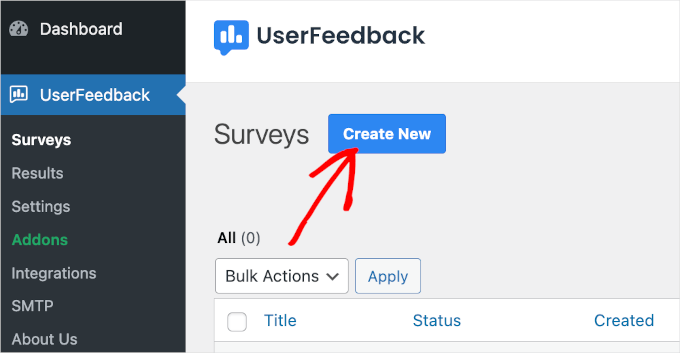
From your WordPress dashboard, navigate to UserFeedback » Surveys » Create New.
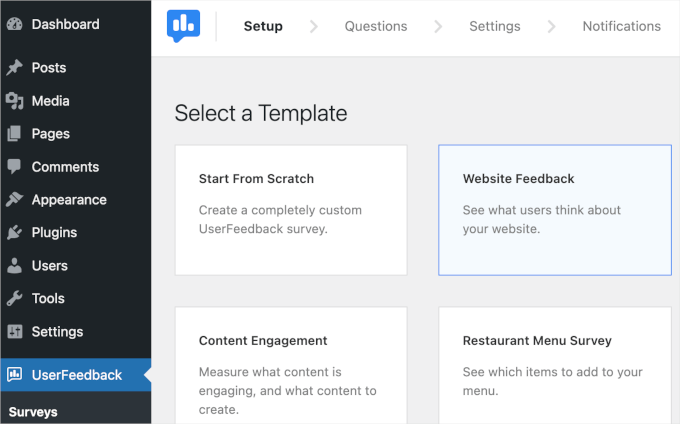
Once you do this, you’ll get to the ‘Setup’ section.
With UserFeedback, you can start with a blank page with the ‘Start from Scratch’ option or use a pre-made template. In this guide, we’ll use the ‘Website Feedback’ template.
To choose the template, simply click on it.
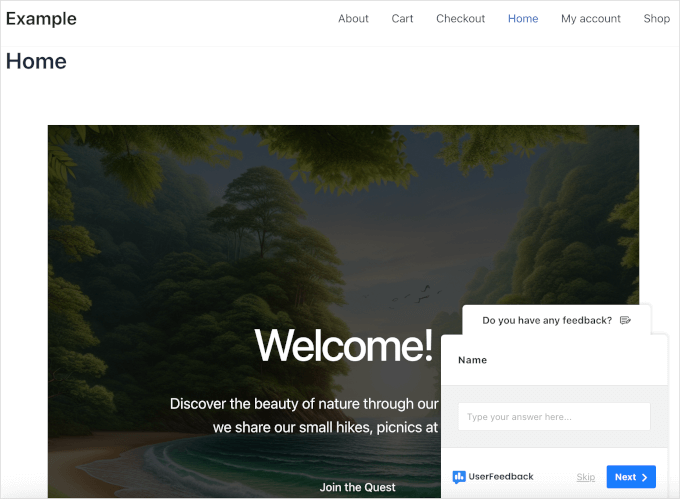
Next, let’s edit the copy. In this example, we’re changing the ‘Website Feedback’ label to ‘Do you have any feedback?’.
Then, you might want to click on the ‘Question Type’ dropdown to choose how visitors can answer this question. In this example, we’ll go with ‘Single Text Field’.
After that, you can change the question into ‘Name’.
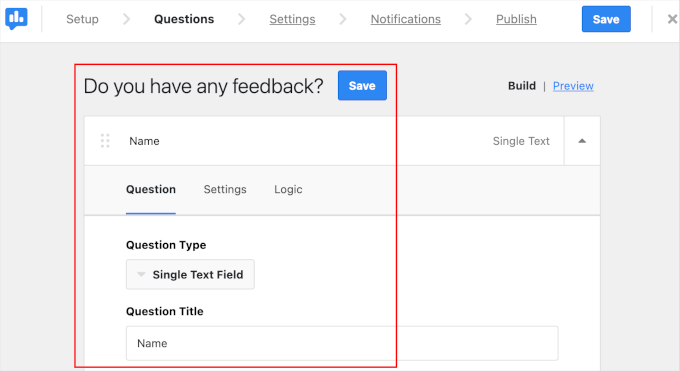
Now, you’ll need another question field for the user’s email address.
You can scroll down a bit and click the ‘Add Question’ button.
Once you do that, go ahead and set up your question type and title as you did in the previous step.
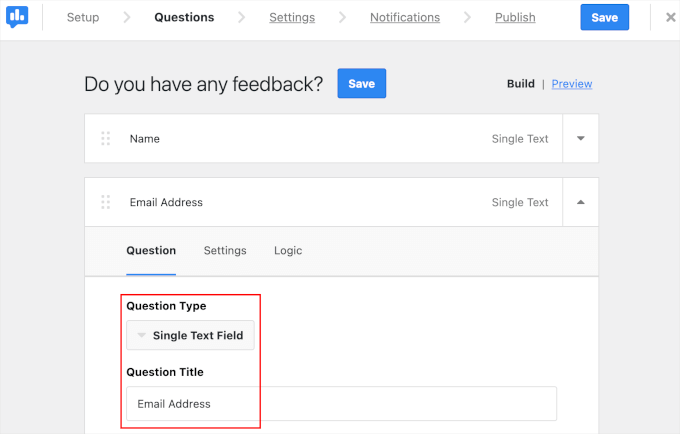
The next step is configuring the form’s settings.
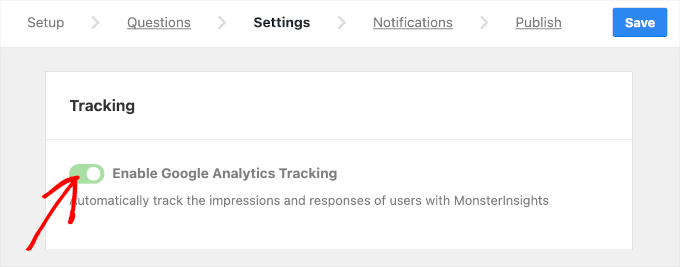
In the ‘Settings’ tab, you can activate tracking for your form views and responses using Google Analytics and MonsterInsights.
Simply toggle on ‘Enable Google Analytics Tracking’ to use the feature.
📝 Note: If you want to learn more about using Google Analytics for tracking, you can read our guide on how to set up Google Analytics goals for your WordPress site.
After that, you might want to scroll down the tab to configure targeting and behavior.
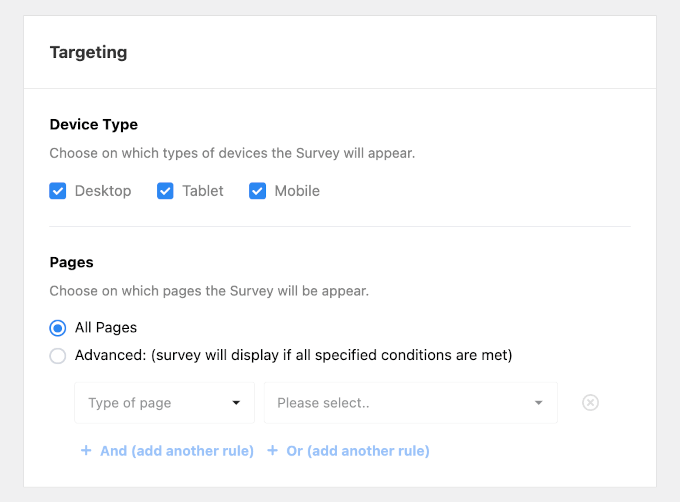
In the ‘Targeting’ section, you can choose the device type and the web page that will display your survey form.
The device type options include desktop, tablet, and mobile. If you want the form to display on all those devices, you can select all three.
Then, you can choose all the pages you want to display the floating form. We recommend picking the ‘All Pages’ option so visitors can access your form anywhere on your website.
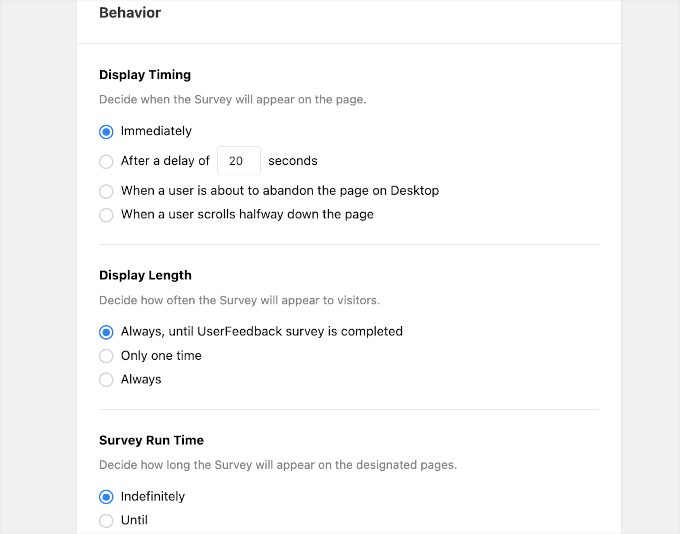
Once done, let’s scroll down and configure the form’s behavior. Here, you’ll set:
- Display Timing. Pick when your form will appear on your pages.
- Display Length. Define how often your form will be shown to visitors.
- Survey Run Time. Specify how long your form will appear on the designated pages.
Here’s our setup for your reference: ‘Display Timing: Immediately,’ ‘Display Length: Always, until the UserFeedback survey is completed,’ and ‘Survey Run Time: Indefinitely.’
Now, you’re ready to move on to the next step.
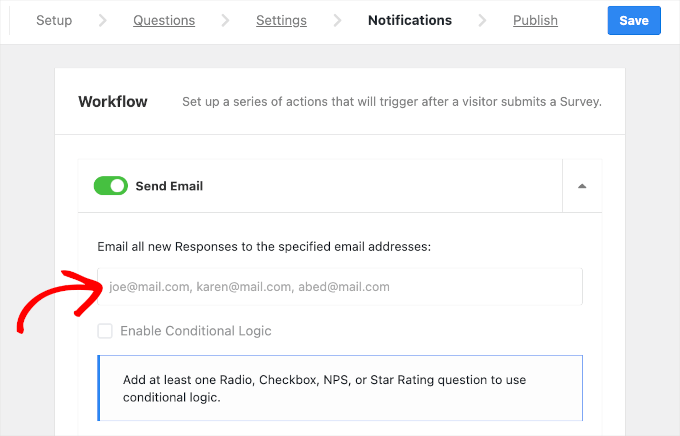
In the ‘Notifications’ tab, you’ll enter the email address that will receive form submission notifications.
You can add multiple recipients, but you’ll need to make sure to use a comma to separate each of them, like john@example.com,jane@example.com. Be sure not to add spaces after the commas, as this can sometimes cause email delivery errors.
Finally, you might want to spare some time to check your form one last time before finalizing it.
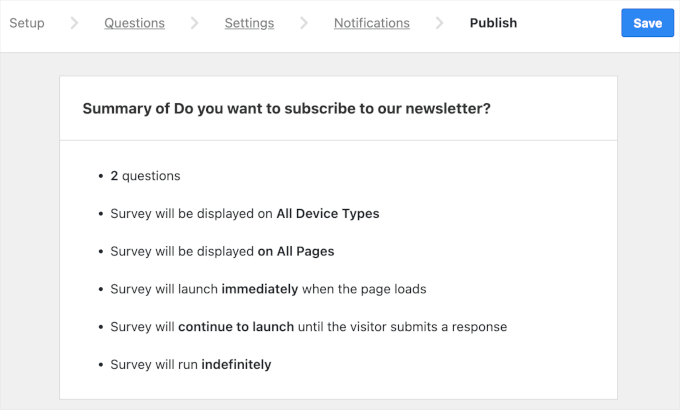
On the top part of the ‘Publish’ tab, you’ll see ‘Summary of Website Feedback’. You can go through the bullet points one by one to see if your form’s configurations are correct.
If everything looks good, you can scroll down to the ‘Publish’ section.
There, you can change the status from ‘Draft’ to ‘Publish’.
Alternatively, you can schedule a launch by toggling on the ‘Schedule for Later’ option and defining the date and time.
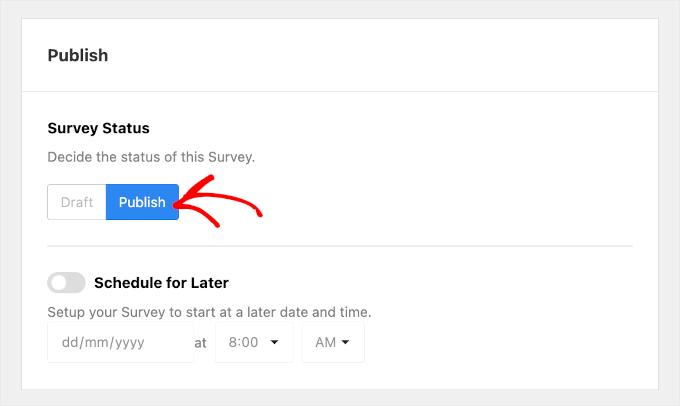
Once done, simply click ‘Save and Publish’ to display your form.
And that’s it!
You’ve successfully displayed a floating contact form on your WordPress website using UserFeedback.
Method 2: Creating a Floating Contact Form in WordPress Using WPForms and OptinMonster
If you want more design control over your floating contact form, then this is the method for you. We will use WPForms to create the form and OptinMonster to make it float on your WordPress site.
WPForms is the best contact form builder for WordPress with a simple drag-and-drop interface. With over 2,000 templates and AI-powered tools, you can create a WordPress form in just a few clicks.
At WPBeginner, we use WPForms to collect users’ contacts, feedback, and migration requests. Learn why we love this plugin in our detailed WPForms review.
To create forms with WPForms, the first thing you’ll need to do is install and activate the plugin on your website. If you need further help, you can read our guide on how to install a WordPress plugin.
📝 Note: You can use the free version of WPForms for this tutorial. If you need more advanced features, WPForms Pro gives you access to the full template library, advanced fields, and smart conditional logic, among others.
Upon activation, you can navigate to WPForms » Add New from your WordPress dashboard.
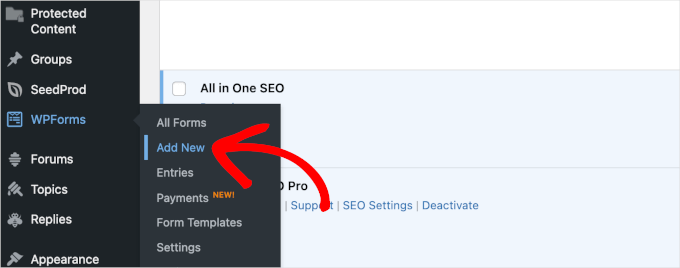
This will redirect you to the form builder’s interface.
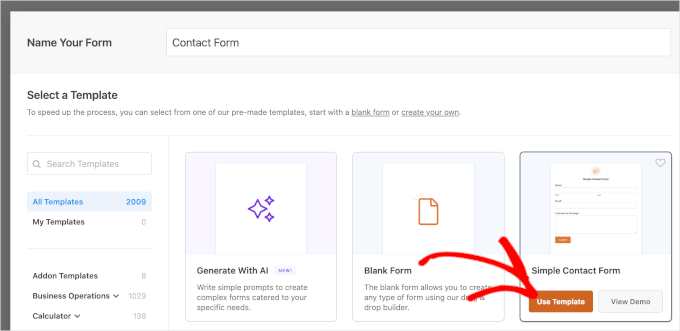
There, all you need to do is type in your form name and select a template. In this example, let’s create a contact form and name it ‘Contact Form’.
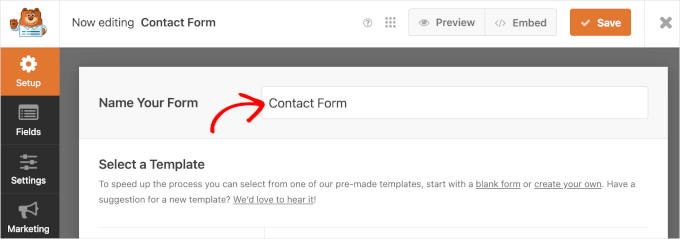
After naming your form, you can scroll down the panel to build your form with AI or select a template.
if you have the Pro license, WPForms AI helps you create forms quickly. All you have to do is describe what you need. Instead of adding fields manually, the AI does it for you in seconds.
Whether you need a simple user registration form, an interactive job application form, or a detailed survey, WPForms AI makes the process fast.
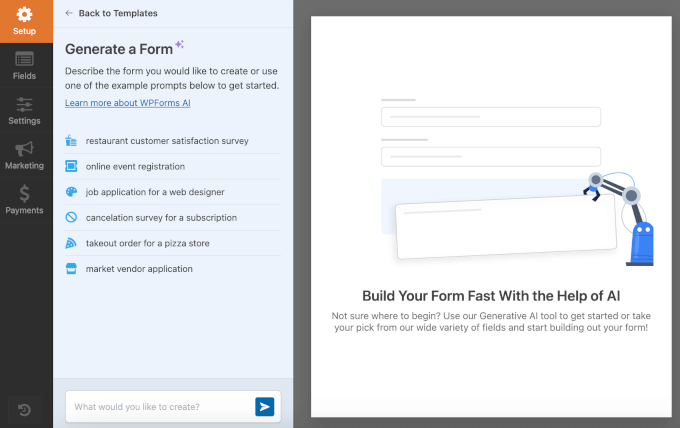
In this guide, though, we’re going to use the ‘Simple Contact Form’ template.
To start building, you can hover over the template box and click ‘Use Template’.
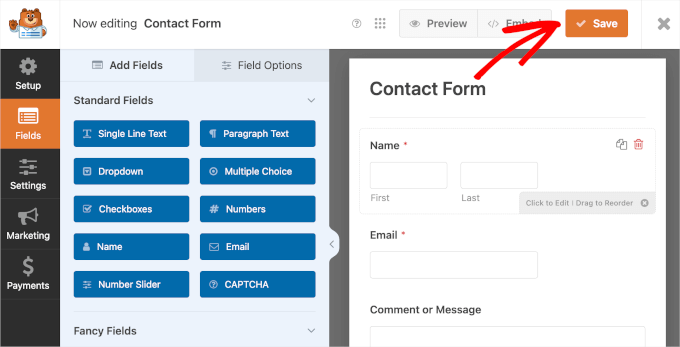
This will redirect you to the form builder’s ‘Fields’ panel.
From here, you might want to review your contact form and adjust the pre-made content. If everything looks good already, you can go ahead and click the ‘Save’ button.
For detailed instructions, feel free to see our step-by-step guide on how to create a contact form.
Once you’ve finished creating your form, it’s time to adjust its settings so it shows as a floating form.
For this, you’ll need to install OptinMonster, the best lead generation plugin for WordPress.
The tool can help you create and manage campaigns to convert visitors into subscribers and paying customers. You can check out our detailed guide on how to build an email list with OptinMonster.
At WPBeginner, we use OptinMonster to promote special deals through popups and header banners. See our full OptinMonster review to learn more about this software.

📝 Note: You can use the free version of OptinMonster to follow this tutorial. However, OptinMonster Pro unlocks the full template library and advanced targeting features like exit-intent popups.
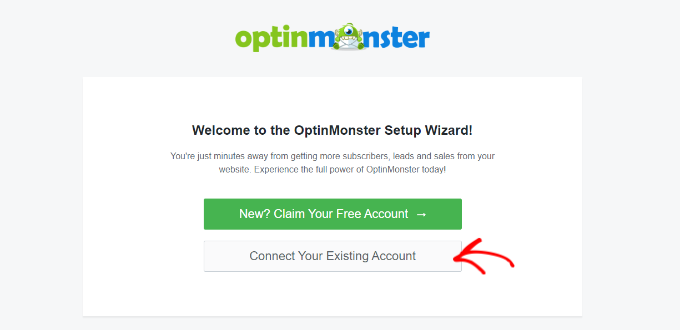
Upon activation, you can click on the ‘OptinMonster’ menu item from your WordPress dashboard.
You’ll then see the welcome screen, where you can click ‘Connect Your Existing Account’ to get started with the plugin.
A new window will open, and here, you can click ‘Connect to WordPress’.
OptinMonster will then ask for your account details to complete the process.

Once verified, you’re all set up to create your first campaign.
To get started, simply navigate to OptinMonster » Campaigns from your WordPress admin area.
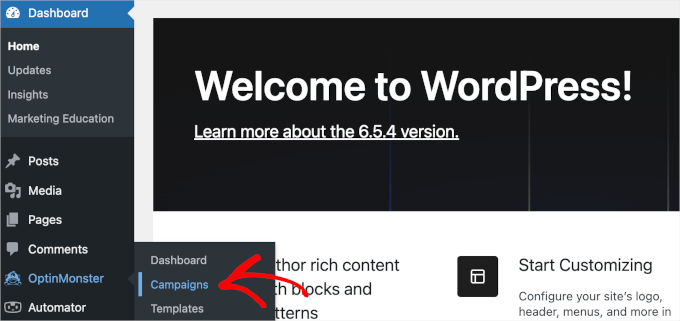
Once inside ‘Campaigns,’ you’re ready to create and set up your floating form.
To get started, simply click the ‘Create Your First Campaign’ button.
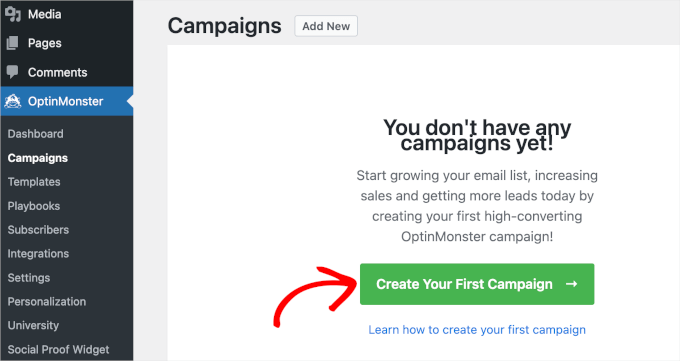
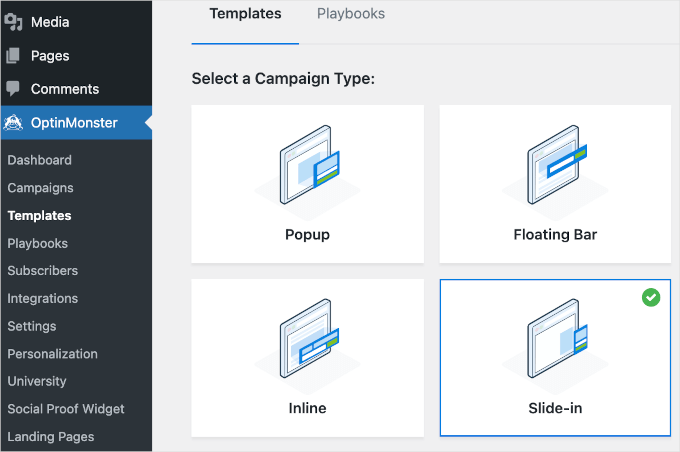
Now, it’s time to select a campaign type.
OptinMonster has various campaign types, including a floating bar.
While it might sound like the perfect campaign type, a floating bar doesn’t have enough vertical space to display multiple form fields comfortably. So, you’d want to use it for other cases like announcing sales promotions or sharing coupon codes.
If you want to learn more about using a floating bar, we recommend checking out our guide on creating a sticky floating footer bar in WordPress.
To keep your design neat, you can go with ‘Slide-in’ as your campaign type for adding your WPForms contact form.
A floating slide-in will stay at the bottom right corner of the user’s screen. This allows visitors to fill out the WPForms contact form directly on the page without being redirected, creating a frictionless user experience.
You can simply click the campaign type to use it.
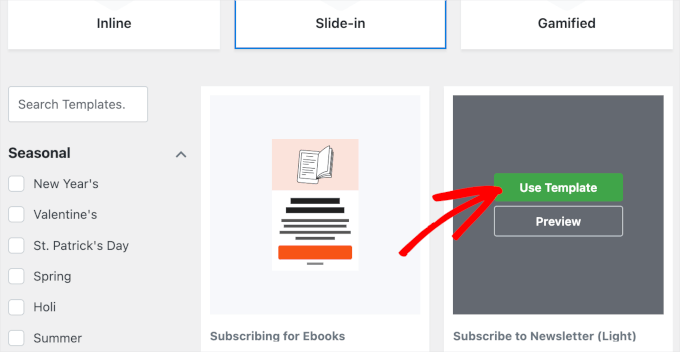
Then, let’s scroll down the panel and select a template.
To use a template, simply hover over the template block and click ‘Use Template’. Here, we’re choosing ‘Subscribe to Newsletter (Light)’.
Once you’ve picked your campaign type and template, a pop-up window will appear.
You’ll just need to give your campaign a name. In this example, we will name our campaign ‘Floating Contact Form’.
After deciding on the name, you can click ‘Start Building’.
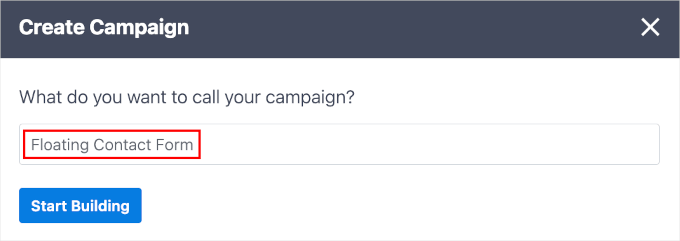
OptinMonster will then redirect you to the campaign builder.
The campaign building interface has two sections. The left side contains all the features you can add to your campaign, and the right side is the live preview.
For more information, you can see our tutorial on how to add a slide-out contact form in WordPress.
To add your WPForms contact form, you can scroll down the left panel to locate the WPForms block.
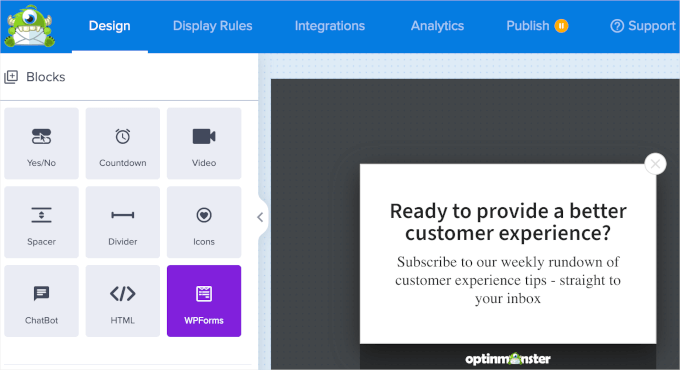
Once you’ve found it, simply drag and drop the WPForms block to the live preview in the right panel.
Then, you’ll see a ‘Form Selection’ dropdown. You can click on it and then choose ‘Contact Form’. The block in the live preview will then load the form’s shortcode.
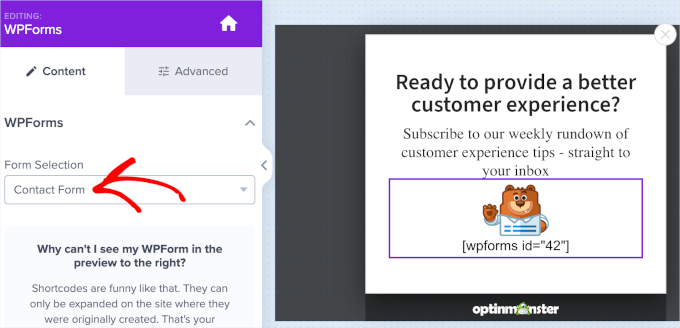
🧑💻 Expert Tip: Don’t worry if you see a shortcode instead of the actual form in the campaign builder. This is normal, and WordPress will automatically convert this code into the final contact form once published.
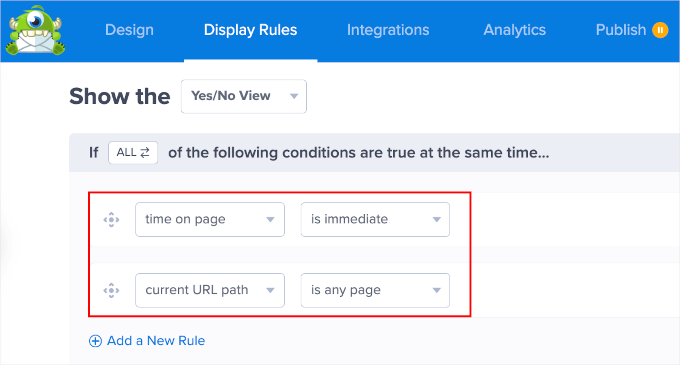
After that, you might want to move to the ‘Display Rules’ tab. This tab is where you can set the floating contact form display timing and pages.
To ensure that your form floats and stays fixed from the first second, we recommend setting the first two dropdowns to ‘time on page’ and ‘is immediate’.
Then, to display the form on all pages, you can set the following dropdowns as ‘current URL path’ and ‘any page’.
Once done, you can head to the ‘Publish’ tab.
On this tab, the first thing you have to do is to change your campaign’s publish status to ‘Publish’ or ‘Schedule’.
The next step is to use the ‘Live Site Inspector’ feature to test how your campaign looks on your web page. To do this, simply type your site’s URL into the text box and click ‘Test.’
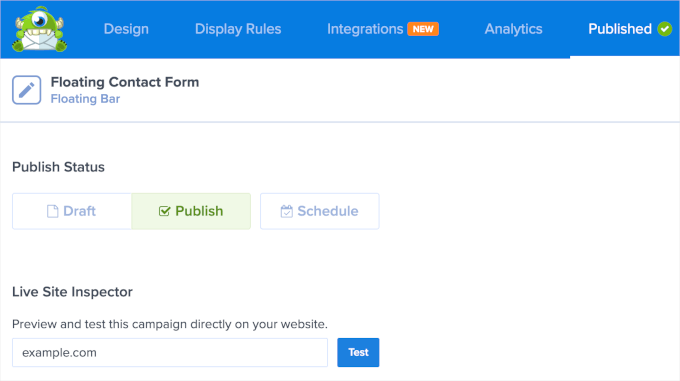
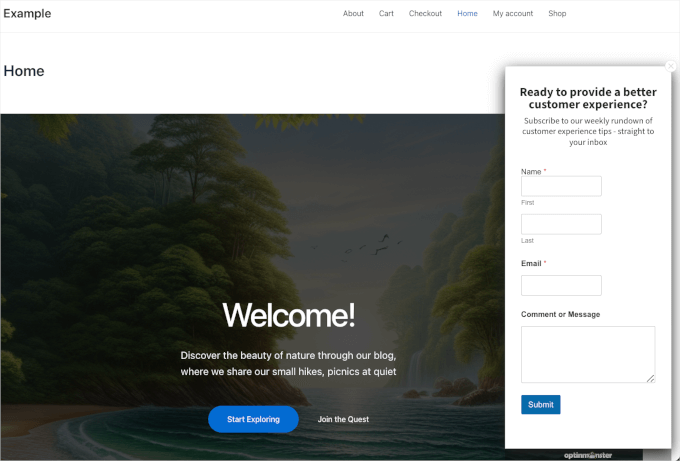
This will redirect you to a new tab.
If everything looks the way you want it, you can go back to the OptinMonster campaign builder and save your campaign.
There you have it! You’ve successfully created a floating contact form using WPForms and OptinMonster.
Method 3: Creating a Floating Contact Button in WordPress Using a Free Plugin
This method lets you display a floating icon that redirects to your contact form page. While it does not display form fields in a popup like the previous methods, it serves as a highly visible, free alternative that directs users straight to the contact page.
Several free plugins allow you to add floating contact icons to your WordPress site. Some popular options include Simple Floating Menu and Float Menu. These plugins typically require you to embed a URL into their settings.
In this tutorial, we will demonstrate how to do this using Simple Floating Menu. If you need help installing the plugin, you can read our guide on how to install a WordPress plugin.
To use this method, you will first need a standard contact page on your site. If you haven’t created one yet, check out our guide on how to create a contact form in WordPress before moving forward.
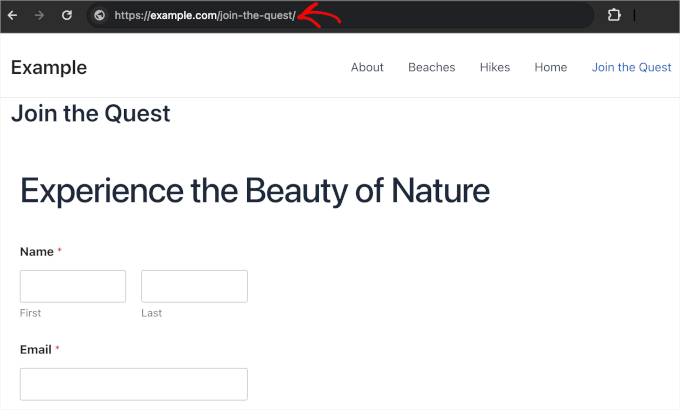
Once your page is ready, before accessing the Simple Floating Menu plugin’s settings area, let’s copy the page URL where you display your contact form.
To do this, navigate to the page in question and copy the URL from the URL bar.
Now, you can open Simple Floating Menu from your WordPress dashboard.
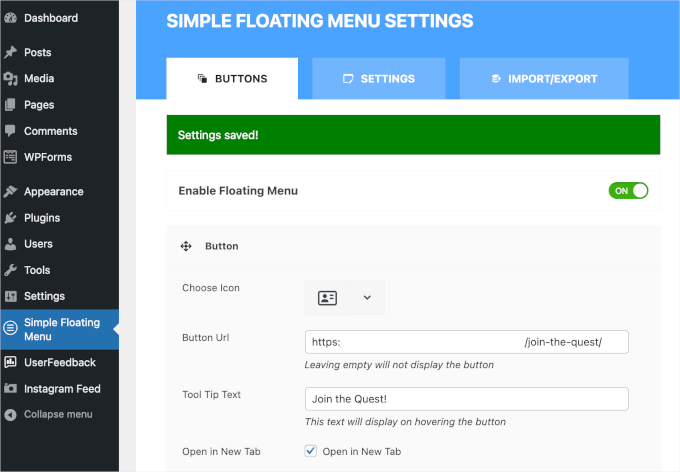
Once you’re in the plugin’s settings area, you’ll want to enable the floating form icon. You can do this by switching on the ‘Enable Floating Menu’ slider. It will then turn from grey to green or from off to on.
Then, go ahead and find the ‘Button URL’ field to paste the URL into.
Once you’ve entered the button URL, you should see a notification if your settings are successfully saved.
By now, your floating icon should be live on your WordPress website. However, you can further customize the button’s position and appearance.
Above the ‘Button URL’ field, you can change the default icon to something more relevant. This plugin offers dozens of icon options, so if you ever feel stuck, it’s a good idea to use the filter feature.
‘Tool Tip Text‘ will appear when site visitors hover over the floating icon. We recommend filling this field out to give visitors context on where the icon will take them.
Then, if you want to redirect visitors to a new page after clicking the icon, simply tick the checkbox on the ‘Open in New Tab’ field.
You can edit the floating icon’s colors by scrolling down the screen. Feel free to be creative with the background, icon, and hover effect colors as long as they match your brand or website personality.
When you’re done, go ahead and click ‘Save Settings’.
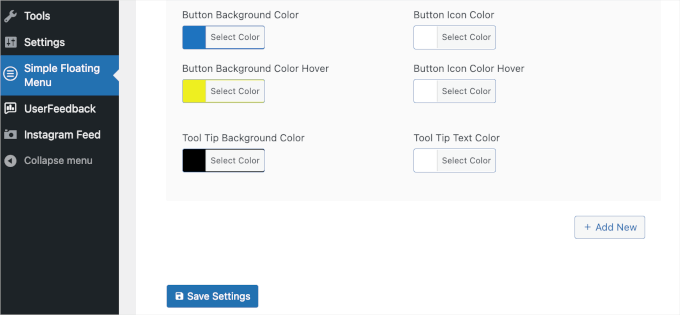
Next, you can move to the ‘Settings’ tab for more customization features.
On this tab, you can choose where you want the form to appear on your site, such as top left, middle right, or bottom right.
There are also button orientation settings. You can pick vertical or horizontal.
You might want to change the button style, too. The default shape is a rectangle, but you can opt for a round, a triangle, or even a star.
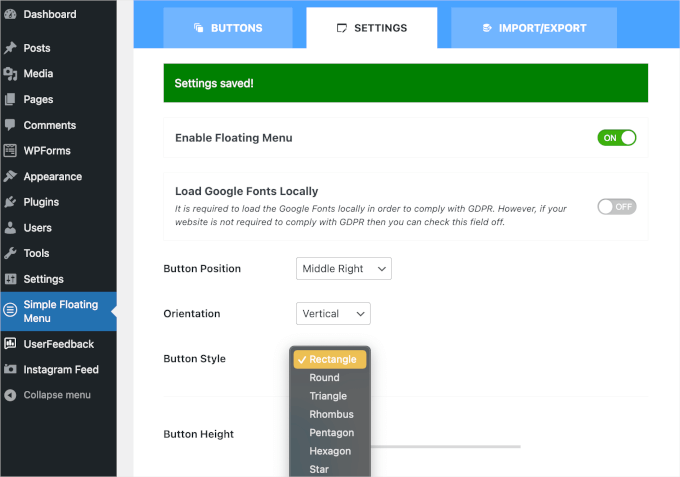
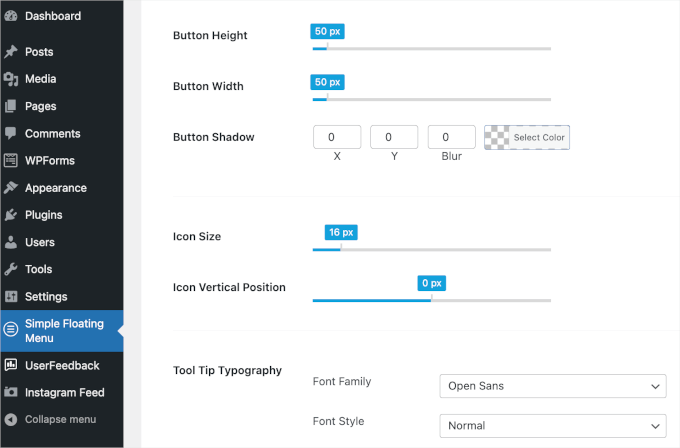
You can find more customization settings in the panel. Feel free to adjust your floating icon’s size, shadow styles, typography, and more to make it more unique.
Once done, all that’s left to do is save so you don’t lose your progress.
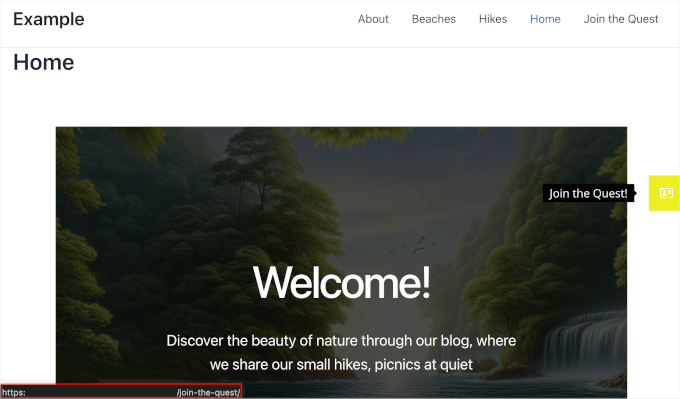
Now, you can go ahead and see how the floating icon looks on your website.
Here’s what our floating icon looks like for your reference:
Alternative Method: Use a Chatbot on Your Website
A floating contact form is a great way to allow visitors to reach you, but it is typically asynchronous. Meaning that visitors leave a message and wait for an email back.
If you want to provide immediate, real-time responses to your users, then it could be worth installing a chatbot instead.
A chatbot can be AI-powered or handled directly by your support team.
For example, a tool like ChatBot can source information from your website and help center to provide AI-powered responses immediately to your visitors, handling up to 80% of routine questions instantly to boost engagement.

For details on how to set this up, you can see our tutorial on how to add a chatbot in WordPress. And to learn more about the software, see our full ChatBot review.
FAQs About Floating Contact Forms in WordPress
Here are answers to the most common questions about setting up and customizing floating contact forms.
What’s the best plugin for creating a floating contact form?
If you’re looking for a straightforward, all-in-one solution, UserFeedback is a great choice. It’s designed for easy setup and customization, making it ideal for simple floating forms without any coding.
For more control over your form’s appearance and behavior, consider combining WPForms with OptinMonster.
WPForms offers a user-friendly drag-and-drop builder with over 2,000 templates and lots of AI tools. OptinMonster adds advanced targeting options and design flexibility, enabling you to display your form exactly when and where you want.
Can I customize the design of my floating contact form?
Absolutely. All three methods allow for customization. You can customize colors, text, and positioning to align with your site’s branding.
OptinMonster takes customization a step further, offering advanced design options and targeting rules. This means you can fine-tune every detail of your floating form campaign to match your specific needs.
Will a floating contact form slow down my website?
Not at all. The plugins featured in this guide are well-coded and optimized for performance. They load asynchronously, making sure they don’t block your page’s main content from loading. This helps maintain a fast and smooth user experience on your site.
Additional Resources on WordPress Forms
We hope this guide helped you add a floating contact form to your site. Now that it’s set up, you may want to check out these other helpful articles to get even more out of your forms:
- How to Embed Forms in WordPress
- How to Customize and Style Your WordPress Forms
- How to Create More Interactive Forms in WordPress
- The Ultimate Guide to Using WordPress Forms
- Best Online Form Builders (Expert Picks)
If you liked this article, then please subscribe to our YouTube Channel for WordPress video tutorials. You can also find us on Twitter and Facebook.


Moinuddin Waheed
I was asked by one of my clients to make a floating contact form but I couldn’t make one at that time.
I tried to find a solution but to no avail.
Thanks for this tutorial guide that I can make floating contact form with ease.
Users prefer this type of forms because it creates minimal or no hindrance in users experience.
Just by hovering over or clicking through, the form expands and one can easily fill out the details.
I am already using wpforms and optin monster, so this combination will work wonders.
Jiří Vaněk
Having contacts in the right and clearly visible place is crucial for all website owners. If a user sees the contact information immediately, there’s a high chance they will use the contact form. I was very interested in the possibility of using WP Forms together with OptinMonster. Since I have both plugins, it’s the best way for me to achieve this. I’ve created both the form and the floating window and it works great. I still don’t know how to customize the appearance of the form using CSS, but I’m sure I’ll find it on the WP Forms website. Thanks for the guide