


Thinking about installing WordPress on Amazon Web Services (AWS) can feel intimidating. We’ve been there, looking at a platform that seems built exclusively for expert developers.
It’s easy to worry about the complexity and potential costs. But AWS is also a powerful cloud platform that anyone can use to launch a highly scalable website.
We’ve used AWS for projects that needed more power than traditional hosting could offer. It gives you access to the same powerful infrastructure used by major companies around the world.
In this guide, we’ll walk you through the entire process step by step. Our goal is to make setting up WordPress on AWS straightforward, even if it’s your first time.
In a Hurry? Here’s the Summary:
- Method 1 (Manual Install): This guide shows you how to install WordPress on AWS using Lightsail. It’s a powerful but technical method best for advanced users who want full server control.
- Method 2 (Easier Alternative): This method recommends using a managed hosting provider like SiteGround. It offers the power of a cloud platform (Google Cloud) without the technical complexity, making it ideal for beginners.
📝 Note: If you are just starting a website, then we recommend using one of the easier solutions from our guide on how to install WordPress.
What Is AWS?
Amazon Web Services (AWS) is a comprehensive cloud computing platform that provides on-demand services like web hosting, data storage, and developer tools.
Instead of using a traditional web host with fixed resources, AWS lets you create your own custom hosting environment in the cloud. It is trusted by businesses of all sizes, from small startups to global companies.
Why Install WordPress on AWS?
Based on our experience with high-traffic projects, installing WordPress on AWS provides a level of scalability that many traditional hosts can’t match. When you need more speed, flexibility, and reliability, AWS gives you the tools to build exactly what you need.
That said, AWS isn’t the perfect fit for every situation. Here’s a quick look at the pros and cons to help you decide if it’s right for you.
Pros of Using AWS for WordPress
- Scalability: Easily handle traffic spikes by using tools like AWS Auto Scaling to automatically adjust resources.
- Flexibility: Customize your hosting environment with the exact operating system, memory, and storage you want.
- Performance: Take advantage of Amazon’s global network of fast servers and powerful cloud resources.
- Pay-as-you-go pricing: Only pay for the resources you actually use, with no fixed monthly cost.
Cons of Using AWS for WordPress
- Learning curve: AWS isn’t beginner-friendly, and setting it up can be complicated at first.
- Maintenance required: You’re responsible for managing updates, backups, and security settings.
- Costs can add up: Without careful management, AWS usage fees can become expensive over time.
Now that you know the pros and cons, let’s walk through how to install WordPress on AWS.
We have split this article into two parts. The first is a manual, technical process. The second is an easier alternative that uses a managed hosting solution on a similar cloud infrastructure.
You can use the quick links below to jump to the method you want to use:
- Method 1: Manually Install WordPress on Amazon Web Services (Advanced Users)
- What Is Lightsail?
- Lightsail vs EC2: Why We Recommend Lightsail for WordPress
- Pricing for AWS Lightsail
- Step 1: Create a VPS Instance with WordPress Installed
- Step 2: Retrieve WordPress Admin Username and Password
- Step 3: Log in to The WordPress Admin Area on AWS
- Step 4: Adding a Domain Name to Your AWS VPS
- Method 2: An Easier Alternative to AWS (Managed Cloud Hosting)
- Essential Next Steps for Your New Site
- Additional Resources for Installing WordPress
- Frequently Asked Questions About Installing WordPress on AWS
Method 1: Manually Install WordPress on Amazon Web Services (Advanced Users)
Heads Up: This manual method requires you to manage all server tasks, including security configurations, software updates, and website backups. If you are not comfortable with server administration, we strongly recommend using the easier alternative in Method 2.
First, visit the Amazon Web Services website. You can create a free account, but you will need to enter your credit card information. Amazon verifies your identity by temporarily charging $1 to your card.
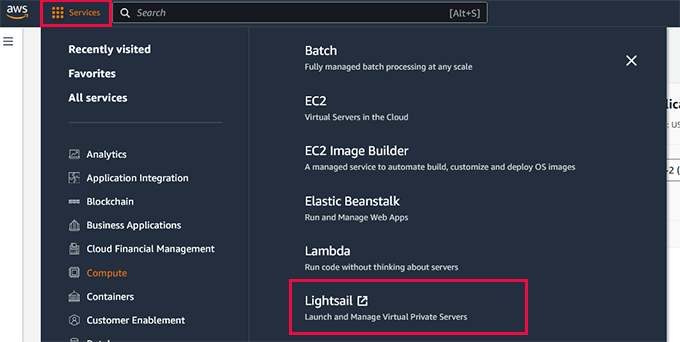
Once your account is verified, log in to your AWS console and click on the ‘Services’ menu. Under the Compute section, select ‘Lightsail’ to continue.
What Is Lightsail?
Lightsail is a service provided by Amazon Web Services to make launching a VPS (Virtual Private Server) easier. It bundles core AWS services, including computing, storage, and DNS, into a user-friendly package with a simple interface and fixed monthly pricing.
Lightsail vs EC2: Why We Recommend Lightsail for WordPress
When setting up WordPress on AWS, you have two main options: Lightsail or EC2. While both can host a WordPress site, Lightsail is much simpler and more beginner-friendly, which is why we recommend it for most users.
Lightsail packages everything you need into an easy-to-use dashboard. It handles many technical details automatically, so you can focus on getting your website online without getting stuck in complicated server settings.
| Feature | Lightsail | EC2 |
|---|---|---|
| Ease of Use | Very beginner-friendly with a simple setup | Advanced; requires technical knowledge |
| Setup Time | Quick guided setup | Complex manual setup required |
| Built-in WordPress | Yes, pre-configured | No, manual installation required |
| Billing | Flat monthly pricing | Pay-as-you-go with multiple separate charges |
| Best For | Small to medium websites, beginners | Large custom apps, experienced developers |
If you’re new to cloud hosting or just want to get your WordPress site up and running quickly, Lightsail is the easier choice. That’s what we’ll be using in this tutorial.
Pricing for AWS Lightsail
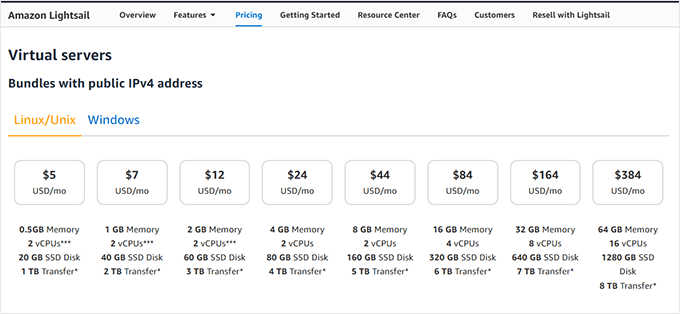
AWS Lightsail offers a free trial that lets you test the service for three months. After that, you’ll pay a flat monthly rate based on the hosting configuration you choose.
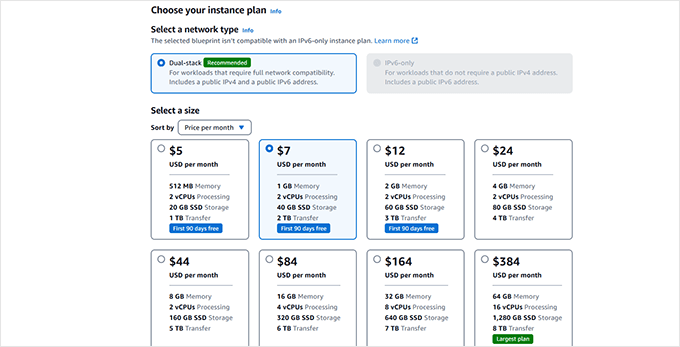
Pricing starts at just $5 per month and goes up as you add more memory, storage, or bandwidth. For running a small WordPress site smoothly, we recommend starting with at least the $5 per month plan.
It gives you enough resources to handle regular website traffic, and you can always upgrade later if your site grows.
Now that you know why we’re using Lightsail and how the pricing works, let’s launch your WordPress website on AWS.
Step 1: Create a VPS Instance with WordPress Installed
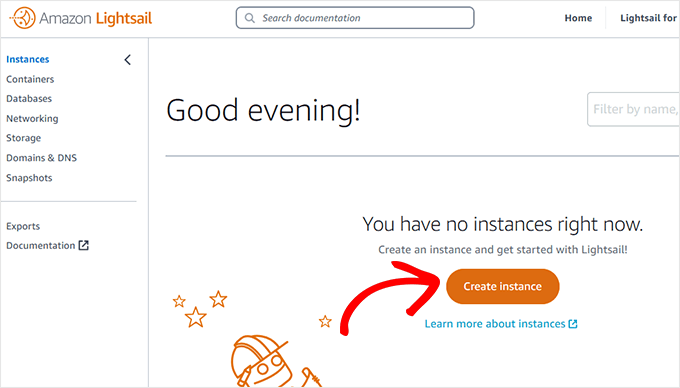
From the Lightsail dashboard, click the ‘Create instance’ button to configure your settings.
You will be asked to choose a region for your VPS instance. You will see several geographical locations to choose from.
Tip 💡: We recommend choosing a location where your target audience is located. This reduces server latency and will boost your WordPress website speed and performance.
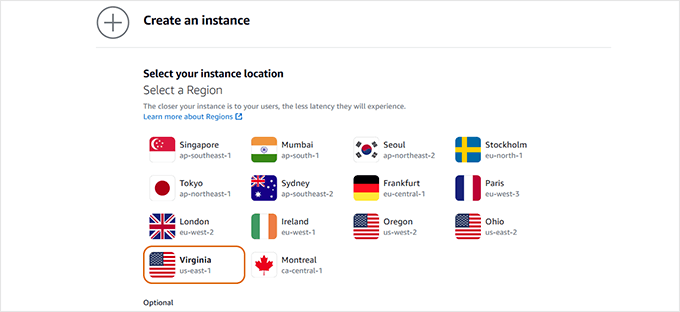
After selecting your region, scroll down to configure the instance image.
First, select Linux/Unix as your platform. Then, under the ‘Select a blueprint’ option, click on WordPress.
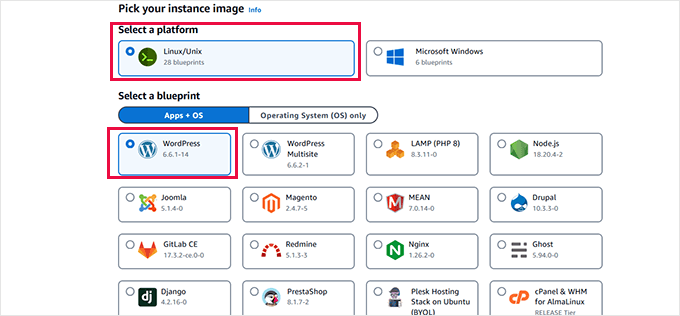
Next, scroll down to the ‘Choose your instance plan’ section.
From here, you need to select the size of your server. We recommend starting with at least 1GB of memory. This gives WordPress plenty of resources to perform even under peak traffic.
Finally, enter a name for the AWS VPS instance. This can be anything that helps you identify the server.
After that, click the ‘Create instance’ button.
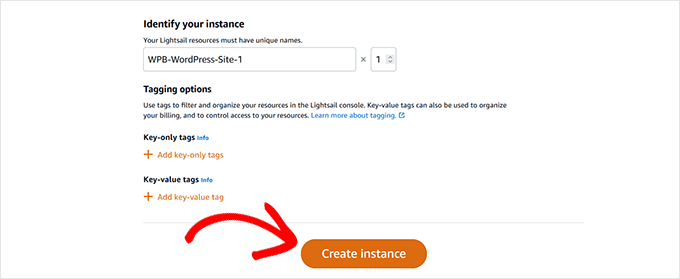
AWS will now create a VPS server instance with WordPress pre-installed.
Once your instance is ready, click on the three-dot menu and select ‘Manage.’
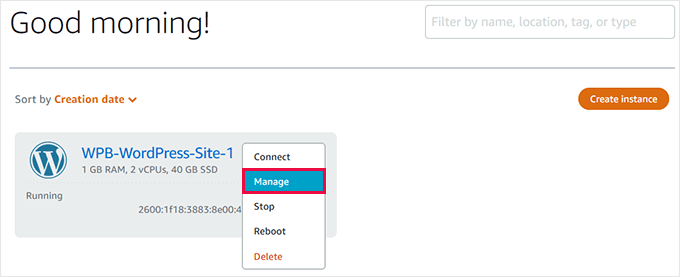
Step 2: Retrieve WordPress Admin Username and Password
Your VPS instance management area is the control center for your server. From here, you can reboot, stop, and manage your WordPress website.
On the management page, you will see a button for ‘Access WordPress Admin’. Before you click it, you need to find your default username and password.
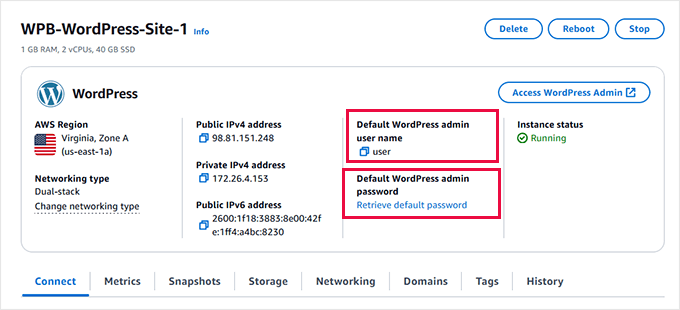
Your username is listed under ‘Default WordPress admin username’. Click to copy it and paste it into a safe place like a text editor.
Below that, click the ‘Retrieve default password’ link.
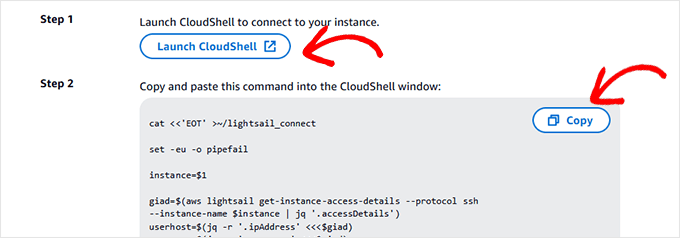
This shows two steps to get your password. For step 1, click ‘Launch Cloudshell’ to open a command-line window at the bottom of your screen.
Note: The command in step 2 references ‘Bitnami’. Bitnami is a service that packages the WordPress installation for Lightsail, which is why its name appears in the password file location.
For step 2, copy the code provided and paste it into the CloudShell command line window.
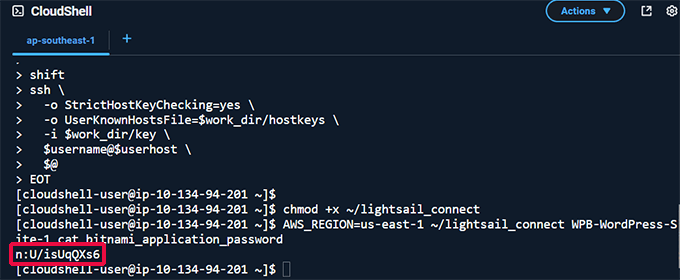
The script will display your WordPress password right after the bitnami_application_password text.
Copy the password and save it in a text editor. You can now close the CloudShell window.
Step 3: Log in to The WordPress Admin Area on AWS
Scroll back to the top of your instance management dashboard and click the ‘Access WordPress Admin’ button.
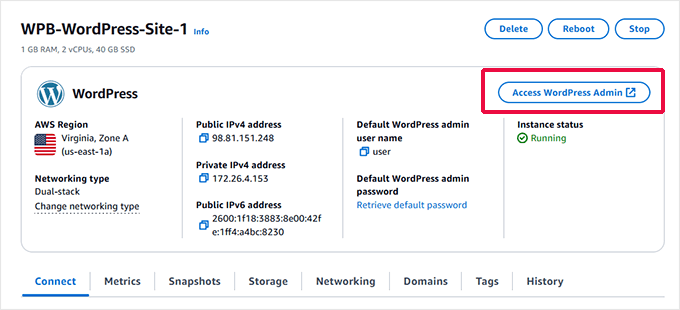
A popup will show the login URL for your WordPress admin area.
Since you don’t have a domain name yet, you will access it using its public IP address.
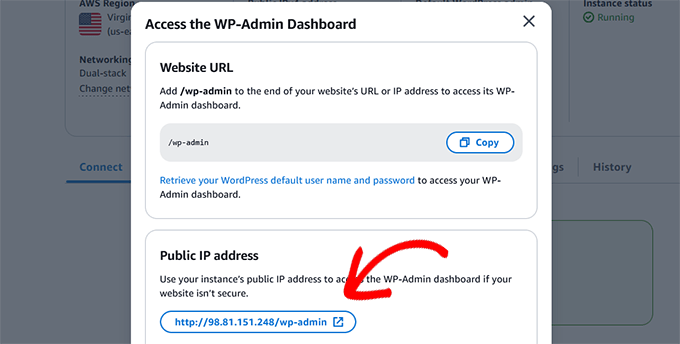
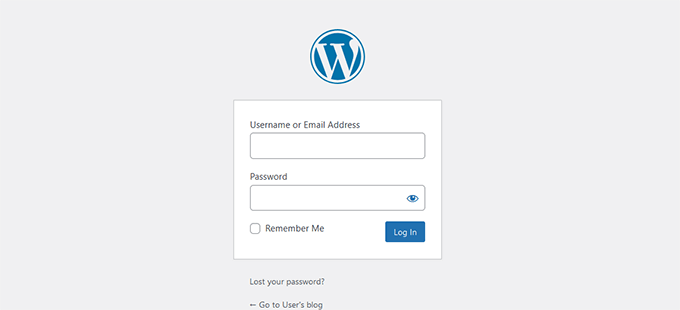
This will open the WordPress login screen in a new tab.
Enter the default admin username and password you retrieved earlier.
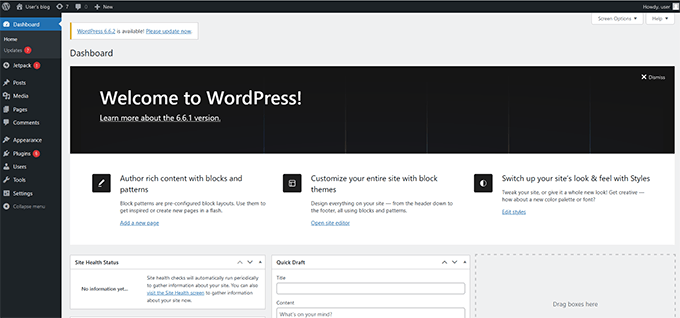
Once logged in, you will see the WordPress admin dashboard.
Note: AWS does not automatically update WordPress or plugins, so you may need to install some updates. Here is our guide on how to safely install WordPress updates.
Step 4: Adding a Domain Name to Your AWS VPS
Your AWS VPS instance currently uses a public IP address. To make your site publicly available, you need to connect a domain name.
While Amazon offers its own domain registration service (Route 53), using a dedicated third-party domain registrar is often easier for beginners.
We recommend Network Solutions. They offer competitive prices and easy domain management tools. You can use our Network Solutions coupon with the promo code NAMEBOY at checkout to get up to 67% off.
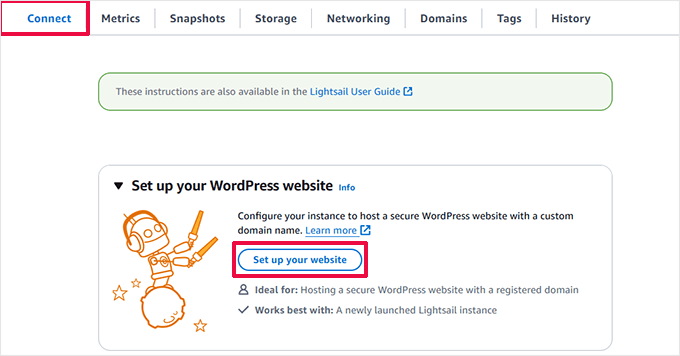
Once you have a domain, return to the ‘Connect’ tab in your VPS instance management area and click the ‘Set up your website’ button.
In the setup wizard, select a third-party domain.
Then, you need to enter your custom domain name.
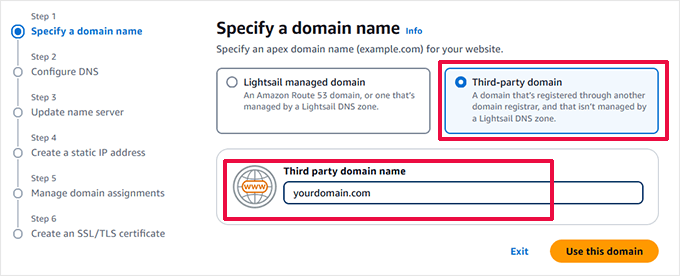
Click ‘Use this domain’ to continue.
On the next screen, choose ‘Lightsail DNS Zone’ to manage your domain settings.
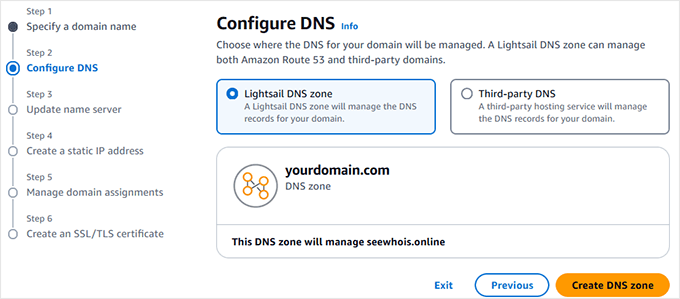
Click ‘Create DNS zone’ to continue.
The setup wizard will now show you DNS nameserver values.
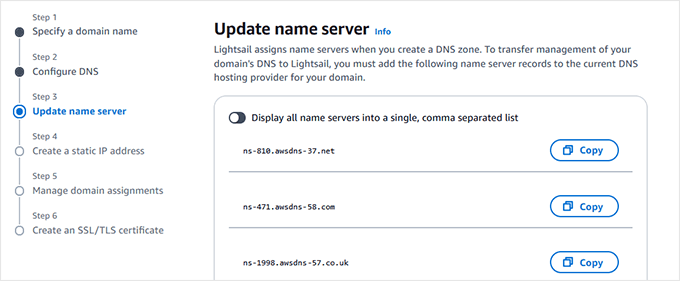
You need to log in to your domain registrar’s account to update the name servers there. See our guide on how to change DNS nameservers for detailed instructions.
Once you have updated the nameservers, return to the setup wizard and click ‘Continue’.
Note ⏲️: Nameserver changes can take up to 24 hours to be updated across the internet.
In the next step, enter a name for your static IP. This helps you identify the IP address later.
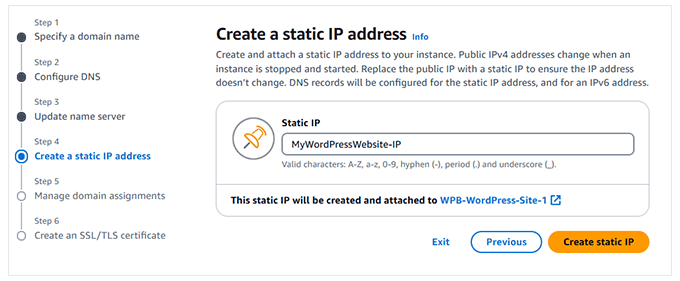
Click ‘Create static IP’ to continue.
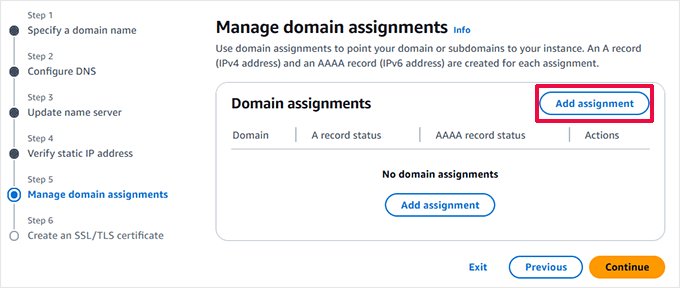
You will then be asked to assign your domain to the VPS instance. Click the ‘Add assignment’ button.
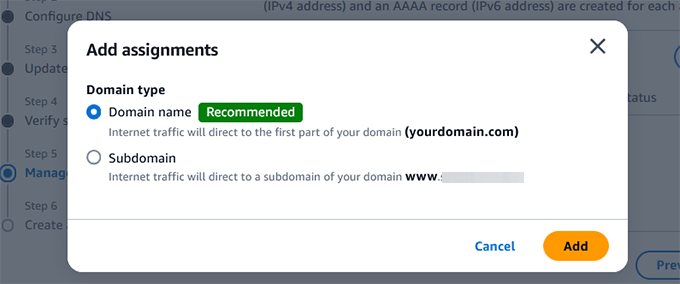
In the popup, select your root domain name.
Then, you need to click ‘Add’.
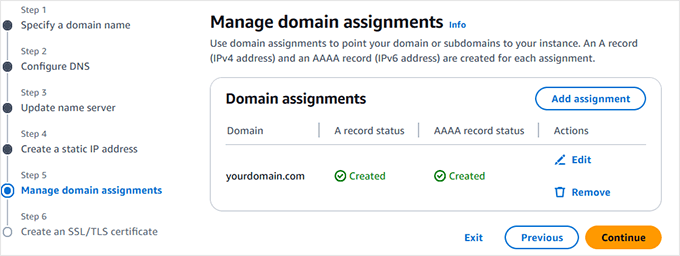
The wizard will now point your domain to your VPS instance.
Click ‘Continue’ to proceed.
In the final step, select your domain to install a free SSL certificate.
Enter your email address to agree to Let’s Encrypt’s privacy policy.
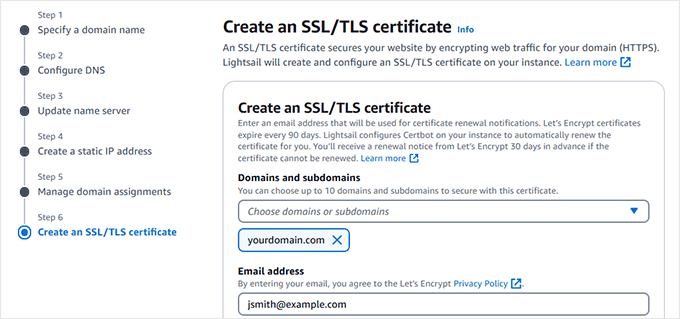
Next, authorize Lightsail to install the SSL certificate for you.
Click ‘Create certificate’ to move forward.
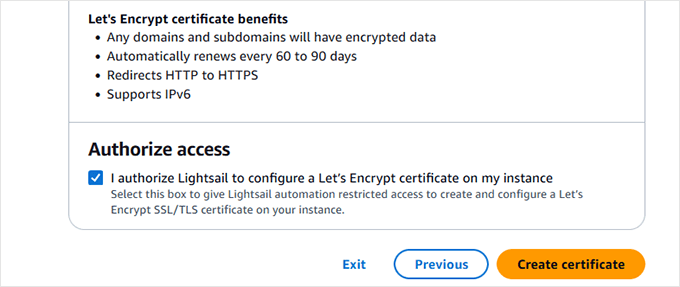
The setup wizard will now add an SSL certificate to your website.
You will be returned to the manage instance page, where you can see your website’s setup status.
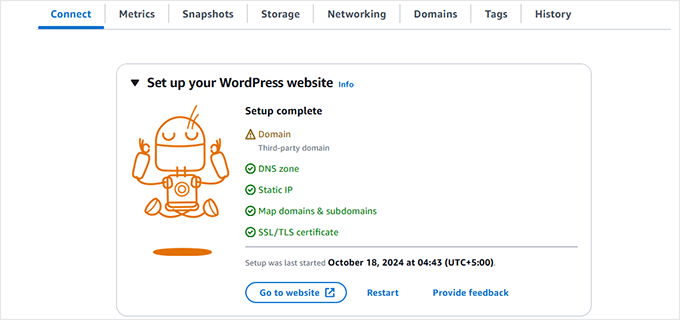
Note: SSL Certificate and domain nameserver settings can take a while to take effect.
You can now log in to your WordPress site using your custom domain name:
https://yourdomain.com/wp-admin
Don’t forget to replace yourdomain.com with your own domain name.
Congratulations, you have successfully installed WordPress on Amazon Web Services.
Method 2: An Easier Alternative to AWS (Managed Cloud Hosting)
The cloud computing infrastructure provided by Amazon Web Services is a pay-as-you-go solution. This means that traffic spikes can significantly increase your hosting bill. You will also still be responsible for managing your own services, which is just extra work.
An easier way to use WordPress on cloud platforms without any hassle is by using a managed WordPress hosting provider.
We recommend using SiteGround. It is a managed WordPress hosting provider that uses Google Cloud Platform.
When it comes to performance, Google Cloud and Amazon AWS are neck and neck. However, we found that SiteGround’s additional tweaks to their Google Cloud servers give much better performance. It was one of the reasons we switched WPBeginner to SiteGround.
Many of our other partner companies are also hosted on SiteGround. To learn more, see our full SiteGround review.
Other alternatives you may want to consider include Bluehost Cloud and WordPress.com (Business and Commerce plans).
Essential Next Steps for Your New Site
Now that your WordPress site is running on AWS, it’s time to set it up for success.
Here are a few essential plugins we recommend for every new website:
- All in One SEO: To optimize your website for search engines and attract more visitors, installing an SEO plugin is a must. All in One SEO helps you with XML sitemaps, on-page analysis, and schema markup.
- WPForms: Every website needs a contact form. WPForms is the easiest drag-and-drop form builder for creating contact forms, surveys, and more.
- Duplicator: Since you are responsible for your own backups on AWS, a reliable backup plugin is critical. Duplicator makes it easy to create scheduled backups of your entire website.
Additional Resources for Installing WordPress
If you want to explore even more ways to install and set up WordPress, we’ve got you covered.
Here are a few extra tutorials that can help you with different hosting setups, local installations, and language options:
- How to Install WordPress – Complete WordPress Installation Tutorial
- How to Install WordPress in a Subdirectory (Step by Step)
- How to Install WordPress on a Windows Computer
- How to Install WordPress Locally on Mac
- How to Install WordPress in Other Languages
Frequently Asked Questions About Installing WordPress on AWS
How much does it cost to run WordPress on AWS?
The cost varies based on your usage. Using AWS Lightsail, you can start with a plan for as little as $5 per month. However, costs can increase with traffic and the use of other AWS services. It’s important to monitor your usage to avoid unexpected bills.
Is AWS good for WordPress beginners?
Generally, AWS is not recommended for absolute beginners due to its complexity. Services like Lightsail make it easier, but you are still responsible for server maintenance, security, and backups. A managed WordPress host is a much better starting point for beginners.
What is the difference between AWS Lightsail and EC2?
EC2 (Elastic Compute Cloud) offers granular control over every aspect of your server environment, making it powerful but complex. Lightsail is a simplified service that bundles EC2 resources (like computing and storage) with a user-friendly interface and fixed pricing, making it much easier to launch a simple application like WordPress.
We hope this article helped you learn how to install WordPress on Amazon Web Services. You may also want to see our ultimate guide on improving WordPress speed and performance or our expert picks of the fastest WordPress hosting.
If you liked this article, then please subscribe to our YouTube Channel for WordPress video tutorials. You can also find us on Twitter and Facebook.


sanskruti
Is it possible to link a pre-existing website(created on wordpress) with AWS?
WPBeginner Support
You would use this method to install WordPress and transfer your content over. You can see our guide on how to transfer your content below:
https://www.wpbeginner.com/wp-tutorials/how-to-move-wordpress-to-a-new-host-or-server-with-no-downtime/
Admin
Nancy Melucci
Just a head’s up – the new interface for EC2 makes it a lot harder to find the system log to recover the password. Fortunately, there’s a toggle button. So I toggled to the old interface.
WPBeginner Support
Thank you for sharing that information for those looking for that
Admin
Gordon Taylor
Thank you so much for this excellent guide. I now have my first Wordpress site up on AWS.
WPBeginner Support
Glad our guide was helpful
Admin
Rahul Veerwal
This was amazing. Thank you so much for the detailed guidance. I was able to setup in under 10 mins.
WPBeginner Support
You’re welcome, glad our guide could help
Admin
AJ
Hello thank you for the article. I currently have AWS subscription and services. I also have a website that is already being hosted and it is not WP.
I now want to install a WP website to replace the current site.
Do I just use the same installation instructions above? Or is there a different process.
Another question: if I want the designer to install for me, should I create a different AWS log in for them to use? Or
WPBeginner Support
You would need to remove the old site and then you can follow this guide. It may be a good idea to give your designer their own login information should access need to be removed at a later date.
Admin
kenny
WOW!! What an excellent article. Very thorough, painless and easy to follow.
I also wanted to let you know that your Pagely link in (Method 2. Using Amazon Web Services via Managed WordPress Hosting) goes to the Pagely website but it pops up with a 404. Just wanted to let you guys know that so you can possibly fix that if you’d like.
WPBeginner Support
Thanks for letting us know, we’ll be sure to look into that
Admin
Majed Ahmed
Thank you so much but i have one important question
When i installed my wordpress site
I already have theme ok ? from where can i upload the theme please ?
Sorry for my bad english
WPBeginner Support
For installing a theme, if that is what you’re looking to do, you would want to take a look at our guide here: https://www.wpbeginner.com/beginners-guide/how-to-install-a-wordpress-theme/
Admin
Yaya JATTA
What a well documented step by step process laid out simply for any lay man to follow and get the same result as an expert will.
Thank you!, I landed on the right page will be sure to join your youtube channel.
WPBeginner Support
Glad our article was helpful
Admin
Nigel
Incredibly useful page. Thanks for posting this. Took me 15 minutes to set up 2 Wordpress sites. Brilliant.
WPBeginner Support
Glad our guide could help
Admin
Vikas Goyal
I installed wordpress as guided in the step by step process in this article.
Everything is working fine except for the backend login page.
The password that is given in instance log is not working.
Kindly help
WPBeginner Support
Don’t forget to exclude the quotes in the password when entering it and it is case sensitive. Otherwise, you would need to use the command line and reset your password using the Bitnami documentation method.
Admin
Kevin
One of the best walkt hroughs of this complex setup i have seen. Thanks!
WPBeginner Support
Hey Kevin,
We are glad you found it helpful. Don’t forget to join us on Twitter for more WordPress tips and tutorials.
Admin
Jay
Great article and instructions. I did this about a year ago and have been very happy with the service. I have a small personal website that was free for the first year and now $10 per month.
“As you may have noticed that setting up a custom WordPress install on Amazon web services is a very technical and complicated process.”
You should at least state that ‘very technical’ is subjective. You should also at least mention the advantages of having a VPS versus a managed hosting service.
Mahesh
Really Thanks a lot
Ahmed
Thanks for the explanation. Well explained
Andy
Great article. Thanks a lot for detail explination.