


Every successful WooCommerce store owner we know has one thing in common: they track everything. They know which products are doing well, where their customers are coming from, and which marketing efforts are actually paying off.
Without that kind of insight, it’s hard to know what’s working and even harder to grow with confidence.
That said, if you’re unfamiliar with Google Analytics or how to connect it with WooCommerce, setting up customer tracking can be a real challenge. This is where MonsterInsights comes in!
In this guide, we’ll show you how to enable customer tracking in WooCommerce with Google Analytics. That way, you can start making data-backed decisions and set your store up for long-term success. 🌱
Why Enable Customer Tracking in WooCommerce with Google Analytics?
Google Analytics lets you see where your visitors are coming from and what they do on your website. In other words, it helps you track your website traffic sources and user engagement.
For eCommerce platforms, Google Analytics offers an improved eCommerce-specific tracking feature. This allows you to better understand users’ shopping and checkout behavior.
Plus, you can see which products perform the best and track your WooCommerce store’s sales performance.
By default, WooCommerce lets customers choose between creating an account and checking out as a guest. While guest checkout makes the process quicker for first-time buyers, creating an account has long-term benefits:
- It allows customers to save their shipping and billing details for future purchases.
- It helps you deliver a more personalized shopping experience based on their browsing and order history.
Now, imagine if you could track logged-in customers using their user IDs in Google Analytics, while still respecting privacy laws like GDPR and CCPA. Wouldn’t it be great to see exactly how they moved through your site before making a purchase?
That kind of insight is incredibly valuable. It helps you better understand customer behavior, improve the shopping experience, and ultimately boost your sales.
In the following sections, we’ll take a look at how to easily enable customer tracking in WooCommerce. Here are quick links that you can use to jump ahead to any section:
- Set up eCommerce Tracking in WordPress with Google Analytics
- Enable User Journey Addon in MonsterInsights
- Enable User ID Tracking in Google Analytics
- View Customer Tracking Reports in Google Analytics
- Step 5: Match Customer Tracking with Their WordPress Accounts
- Bonus Tip: Analyze Customer Behavior for Better Conversions
- FAQs: Enable Customer Tracking in WooCommerce in GA
- Additional Resources: More Tips for Your WooCommerce Store
Let’s get started!
Step 1: Set up eCommerce Tracking in WordPress with Google Analytics
The best way to set up WooCommerce customer tracking in Google Analytics is by using MonsterInsights. It is the best analytics solution for WordPress and helps you set up tracking without editing code.
At WPBeginner, we’re big fans of MonsterInsights, which helps us easily track buttons, forms, referral links, and more. For more information, see our complete MonsterInsights review.
If you use the native method for tracking WooCommerce conversions, then you’ll need to edit the tracking code, use Google Tag Manager, or both. This can be tricky for beginners, and the slightest mistake can mess up your analytics data.
The MonsterInsights plugin offers:
- An eCommerce add-on that automatically detects WooCommerce and starts tracking customer behavior in Google Analytics.
- A Customer Journey add-on that allows you to see users’ behavior before they make a purchase.
📝 Note: You will need to be on the ‘Pro’ plan to access the eCommerce and User Journey addons, which we will use for this tutorial. There is MonsterInsights Lite, but do note that it does not include these advanced tracking features.
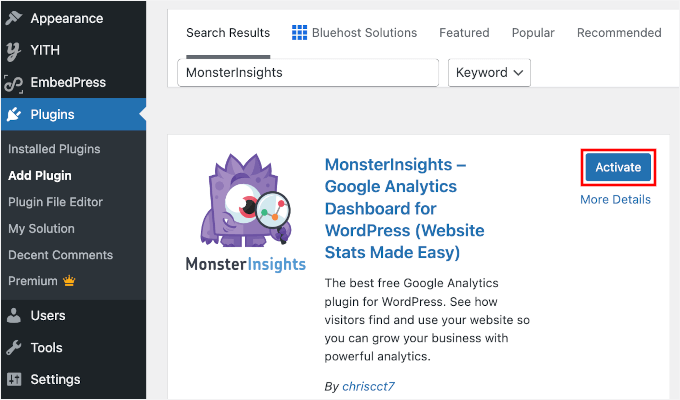
First, you will need to install and activate the MonsterInsights plugin.
In your WordPress admin area, go to Plugins » Add New.

Next, use the search bar to quickly find the plugin.
In the search result, click ‘Install Now’ and then ‘Activate.’
For more details, see our step-by-step guide on how to install a WordPress plugin.
Upon activation, you will see the welcome screen and the setup wizard. Simply click the ‘Launch the Wizard’ button and follow the on-screen instructions.

For detailed instructions, see our article on how to install Google Analytics in WordPress.
Install the MonsterInsights eCommerce Addon
Once you’ve configured Google Analytics on your website, the next step is to install the eCommerce addon.
The addon automatically sets up eCommerce tracking on your WordPress website and detects your WooCommerce store.
First, you need to visit the Insights » Addons page from your WordPress dashboard and navigate to the ‘eCommerce’ addon. Simply click the ‘Install’ button, and the addon will automatically activate.
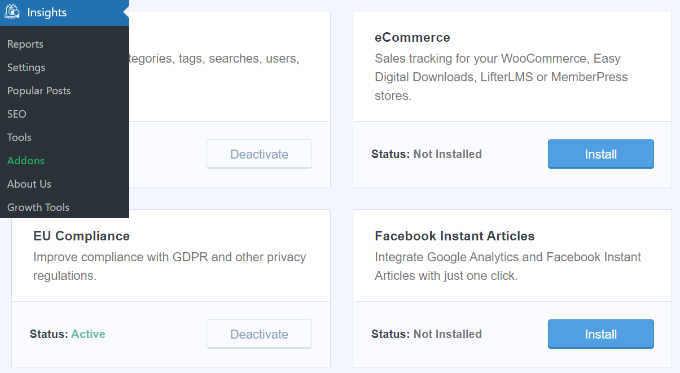
That’s it – MonsterInsights will take care of the rest once the addon is active.
For more details, please see our guide on how to set up WooCommerce conversion tracking.
Step 2: Enable User Journey Addon in MonsterInsights
Now that you’ve set up WooCommerce tracking in Google Analytics, the next step is to enable the MonsterInsights Customer Journey addon.
The addon will allow you to see the steps a customer takes before making a purchase in WooCommerce. Plus, it also shows the time it took at each step, the pages a user visited, and more.
First, you’ll need to go to Insights » Addons from your WordPress admin panel. Next, navigate to the User Journey addon and click the ‘Install’ button.
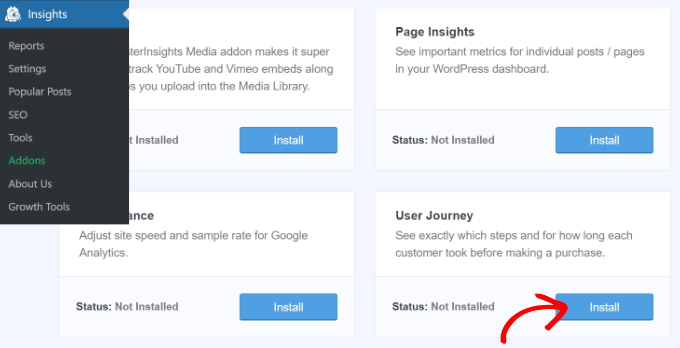
The addon will automatically activate and start tracking your WooCommerce customer’s journey.
Next, you can go to WooCommerce » Orders from your WordPress dashboard to view the path your customers took when purchasing a product.
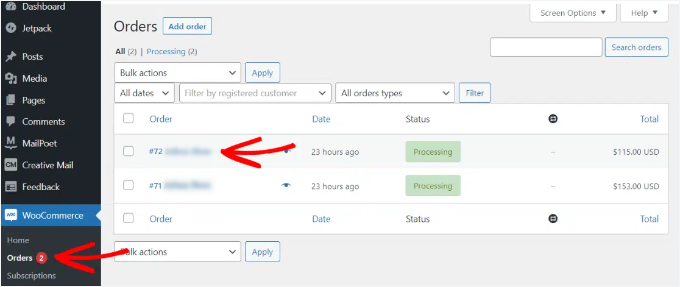
After that, click on the order for which you’d like to see the user journey.
On the next screen, you’ll see a customer’s path before buying the product. You can view the pages they visited, where they clicked, and how much time they spent on each.
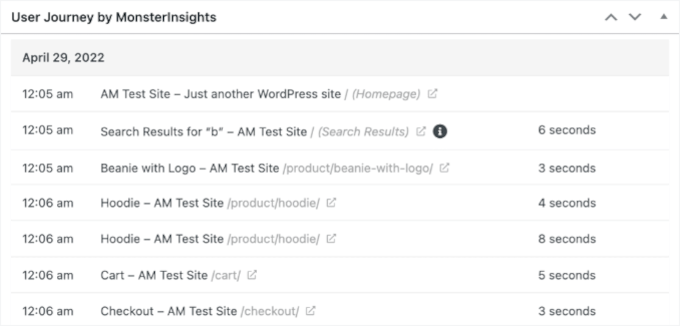
This is really useful information to better understand your customers. You can see which product categories are performing the best and where customers exit your store during the purchase process.
Using these data, you can then fix these issues and optimize your site for more conversions, such as simplifying your checkout flow, improving product descriptions, or adding more trust signals, like reviews and guarantees.
Step 3: Enable User ID Tracking in Google Analytics
While MonsterInsights makes it easy to track customers in your WooCommerce store, it also allows you to track WordPress user IDs in Google Analytics. This can provide deeper insights into how individual users interact with your site.
A WordPress user ID is a unique identifier that WordPress assigns to every user on your website. MonsterInsights can pass this ID to Google Analytics so you can analyze behavior for logged-in customers over time.
📝 Note: If you previously used Universal Analytics (UA), you may be familiar with the terms ‘Client ID’ and ‘App Instance ID.’
Google Analytics 4 uses something called an ‘App Instance ID’ or ‘User ID’ to identify unique visitors. This allows the system to recognize the same person even if they visit from different devices.
Do remember that enhanced eCommerce tracking will enable eCommerce reporting features for your WooCommerce store. However, it does not enable per-user tracking by default — you need to configure User ID tracking separately, as we’ll show in this section.
Let’s take a look at how you can enable user ID tracking in Google Analytics 4.
Enabling Customer Tracking in Google Analytics 4
To start, you’ll need to go to the ‘Admin’ settings from your GA4 dashboard and click the ‘Reporting Identity’ option under the ‘Property’ column.
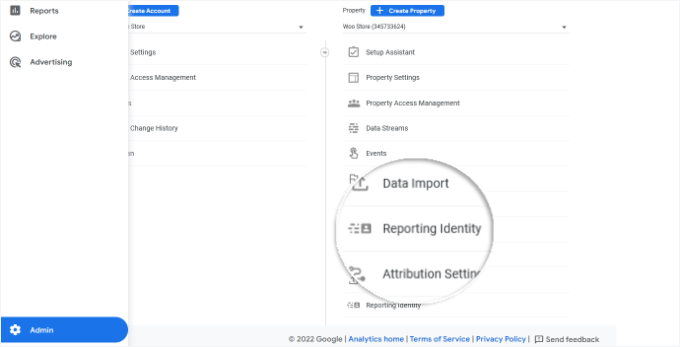
On the next screen, you will need to select a way to identify users on your online store.
GA4 uses multiple ways to identify customers. These include user ID, Google signals, device ID, and modeled data. For this tutorial, we’ll select the ‘Observed’ option and click the ‘Save’ button.
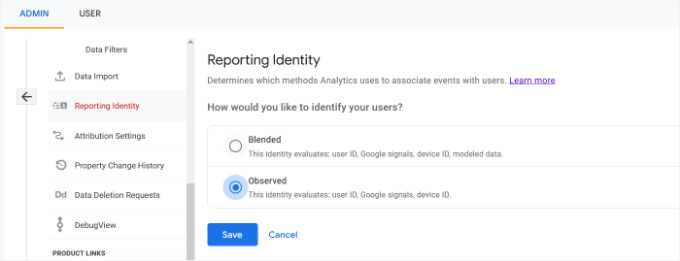
Once saved, GA4 needs some time to process this change. It may take 24–48 hours for data to start appearing in your reports.
Step 4: View Customer Tracking Reports in Google Analytics
Now that everything is set up, Google Analytics will start tracking all your website customers. It will also be able to track logged-in users with their unique WordPress user ID, as long as they are signed into their account when browsing your store.
You can view GA4 eCommerce and user data for your WooCommerce store by going to the ‘Explore’ tab from the menu on your left.
Under Explorations, you’ll see different report templates. Simply click the existing ‘User explorer’ report.
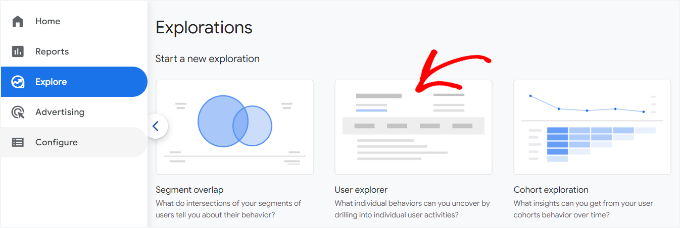
Next, you’ll see the ‘User explorer’ report in Google Analytics 4.
One thing you’ll notice is that ‘Client ID’ (used in Universal Analytics) is replaced with the ‘App instance ID’ in GA4.
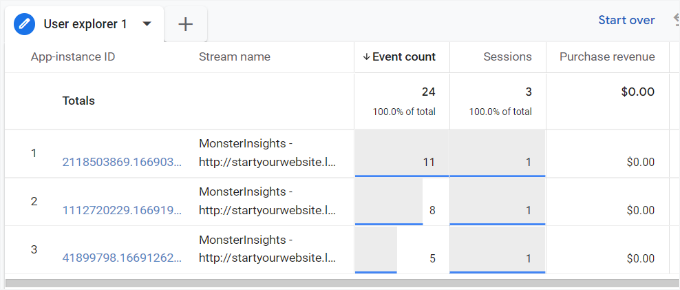
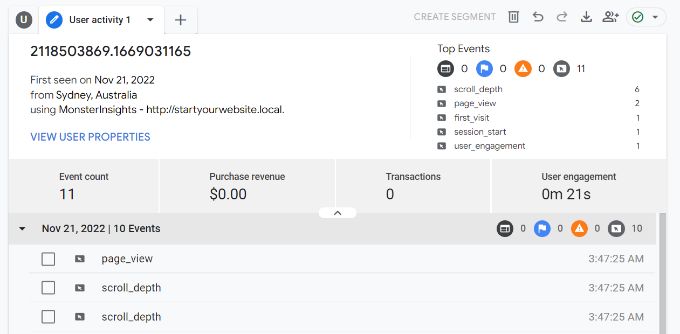
You can click on any of the app instance IDs to view more details.
For example, the report shows the total number of GA events that were triggered, the user’s location, the time stamp for each event, and more.
Step 5: Match Customer Tracking with Their WordPress Accounts
Now that you’ve identified users in Google Analytics, you can match them with WordPress accounts. This will help you know who this customer is and how you can create personalized offers, emails, or shopping experiences for them.
First, you need to note down the customer ID you see in your Google Analytics User-ID reporting view.
After that, go to your WordPress website’s admin area and click on the ‘Users’ menu. It will show you a list of all users on your WordPress site.
Next, you can click the ‘Edit’ link below any username in the list.
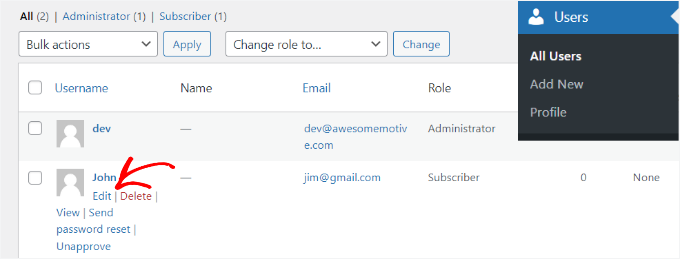
WordPress will now open the user profile for you.
If you look in your browser’s address bar, you will see the ‘user_id’ parameter in the URL.
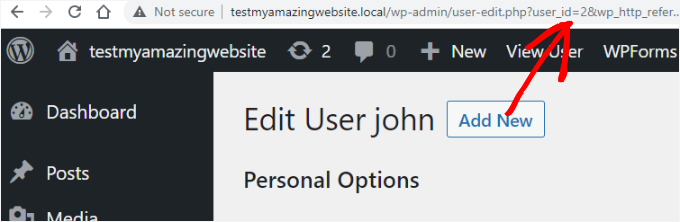
Next, you need to replace the value next to user_id with the one you copied from your Google Analytics report and press the Enter key on your keyboard.j
WordPress will now load the user profile associated with that particular User ID. You now have the customer’s name, username, email address, and social media information. You can also track their orders, product views, cart activity, and more.
🛑 Important Privacy Tip: While you can view this data in WordPress, never upload Personally Identifiable Information (like names or email addresses) directly into Google Analytics, as this violates their Terms of Service.
See our guide on how to keep Personally Identifiable Information out of Google Analytics to set this up.
Bonus Tip: Analyze Customer Behavior for Better Conversions
Now that you’ve set up customer tracking, you’ll start to collect lots of useful data about how people are shopping on your site over time.
Here’s how you can use that info to make your store even better:
- Find Popular Products and Pages: Look at which products or categories get the most visits. Then, you might want to highlight popular products more on your site or run special deals, like a buy one, get one free offer.
- Reduce Cart Abandonment: If people add things to their cart but leave without buying, that’s called cart abandonment. Look at where people are dropping off in the checkout process because maybe the checkout is too complicated or the price isn’t clear.
- Personalize Shopping Experience: Use customer behavior data to make customers feel special and boost sales. For example, if someone has bought from you before, you can offer them a discount. You can also recommend products based on their past purchases.
- Make Your Store Mobile-Friendly: Many people shop on their phones, so your site should work well on smaller screens. Check if your pages load quickly and if browsing and buying products is easy. If shoppers are having trouble, they might leave before buying.
By using customer behavior data to make improvements, you’ll create a smoother shopping experience that keeps people coming back and boosts sales over time.
FAQs: Enable Customer Tracking in WooCommerce in GA
Still have questions before getting started? Here are some common ones we hear from WooCommerce store owners just like you.
Why should I enable customer tracking in WooCommerce?
Enabling customer tracking helps you understand how visitors interact with your WooCommerce store, from browsing to checkout. These insights let you see what’s working, spot drop-off points, and make smarter decisions to grow your sales.
Is Google Analytics free to use with WooCommerce?
Yes, Google Analytics is completely free. You can use it to track customer behavior, traffic sources, sales conversions, and more.
However, setting it up and navigating the reports can be a bit tricky. That’s where a tool like MonsterInsights comes in handy. It offers a beginner-friendly setup and shows your most important WooCommerce metrics right inside your WordPress dashboard.
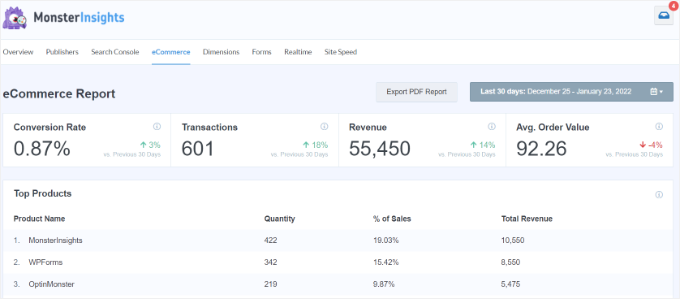
There’s a free MonsterInsights version available, and the paid plan unlocks even more powerful tracking features.
What if I’m new to Google Analytics?
No worries! Google Analytics can feel overwhelming at first, but you’re definitely not alone. Plus, tools like MonsterInsights make the setup and reporting process much easier, especially for WordPress beginners.
How long does it take to set up customer tracking in WooCommerce?
If you’re using MonsterInsights, setup usually takes 10–15 minutes. Their onboarding wizard makes it easy to connect your WooCommerce store to Google Analytics, even if you’re a beginner.
Can I track logged-in users in WooCommerce?
Yes. By enabling User ID tracking in Google Analytics, you can see how logged-in customers interact with your store over multiple sessions and devices. This helps you improve the user experience and better understand your returning customers.
Additional Resources: More Tips for Your WooCommerce Store
We hope this article helped you learn how to enable customer tracking in WooCommerce with Google Analytics. Next, you may also want to see our articles on:
- Best Free WooCommerce Plugins for Your Online Store
- How to Add a Wishlist to Your WooCommerce Store
- How to Add a Free Shipping Bar in WooCommerce
- How to Create a WooCommerce Popup to Increase Sales
- How to Create a WooCommerce Contest to Boost Loyalty and Engagement
If you liked this article, then please subscribe to our YouTube Channel for WordPress video tutorials. You can also find us on Twitter and Facebook.




Mrteesurez
I appreciate the you for covering this important topic, tracking customer behavior in WooCommerce is such a powerful tool for any online store. The points you’ve highlighted about the benefits of customer accounts and tracking user IDs in Google Analytics are spot on. When I started tracking logged-in users and analyzing their paths before making a purchase, it was a game-changer. I could see which products were getting the most attention and which pages were leading to the highest conversions. This insight allowed me to tweak the user experience, offering more personalized recommendations and streamlining the checkout process. As a result, my sales saw a noticeable boost. It’s definitely worth the effort to dive deeper into your customer data to enhance their shopping experience and ultimately drive more sales.
Ralph
Wow, this looks like a really powerful tool for analyzing customers behaviours. With such knowledge we can optimize a website and level up our conversions!
Adrian
Great Article as always