


You’ve spent hours creating premium content for your WordPress site. But when visitors reach your password-protected pages, they are often greeted by a clunky default form that looks outdated.
This can cause potential customers to leave because the page doesn’t reflect your brand or build trust.
We get it. This is one of those small WordPress details that can quietly impact your business.
From our experience managing membership sites, even simple customizations to the password page can improve the user experience and help with conversions.
That’s why we put together this guide. Let’s learn how to customize a password-protected page in WordPress that actually looks good, fits your brand, and keeps visitors engaged. 🧑💻
📝 Key Takeaways. We’ll show you two ways to password-protect a WordPress page:
- Method 1 (CSS Hero): Style the default WordPress password form.
- Method 2 (SeedProd): Create a custom, branded password page.
Why Customize Password-Protected Pages in WordPress?
In WordPress, a password-protected page is a security feature that locks specific content visibility. It needs users to enter a secret key before access is granted.
But the default design often looks outdated and unprofessional. And since consistent branding is proven to build user trust, a generic form can hurt your engagement.
If you want to create a post or page on your WordPress blog that should only be visible to selected clients or members, you can lock it using the password protection feature.
Similarly, if you’re creating a new WordPress website and don’t want everyone to view it, then using a password-protected page makes sense.
However, the default password-protected page design is very basic and not attractive. Here’s a preview of what it looks like:
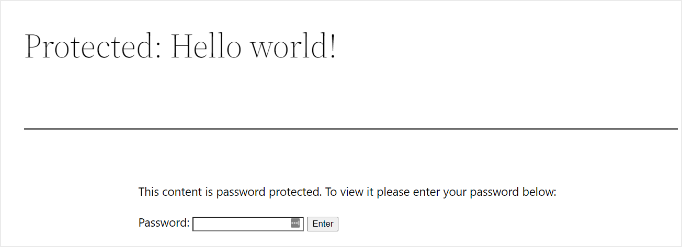
Customizing the password-protected page allows you to change its design and layout. This helps make your page more engaging, and you can match it to your brand for a more professional look and better user experience.
In the following sections, we’ll show you how to enable password protection in WordPress. We’ll also share different ways to customize a specific page, your entire site, and different sections.
Here’s a quick overview of all the topics we’ll cover:
- How to Password-Protect a Page in WordPress
- Method 1: Customize Default Password-Protected Design Using CSS Hero
- Method 2: Customize a Specific Password-Protected Page Using SeedProd
- Bonus Tips: More Custom Password-Protected Page Use Cases
- FAQs: Customizing Password-Protected Pages in WordPress
- Additional Guides About Content Protection and Site Security
Ready to revamp your password-protected page design? Let’s get started!
How to Password-Protect a Page in WordPress
Before we show you how to customize a WordPress page, you should know that WordPress has built-in settings to password-protect your pages and posts.
All you have to do is edit a page or add a new one.
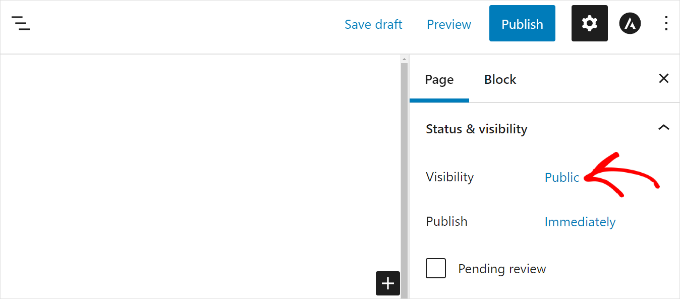
Once you’re in the WordPress content editor, go ahead and click the ‘Public’ option under ‘Status & visibility’ in the settings panel on your right.
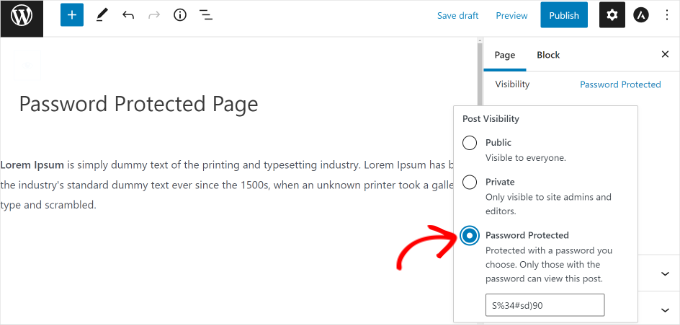
Next, you’ll see different ‘Post Visibility’ options.
Simply select the ‘Password Protected’ option and enter a password for your page.
Now, go ahead and click ‘Update’ or ‘Publish.’
You can now visit your website and see the password-protected page in action.
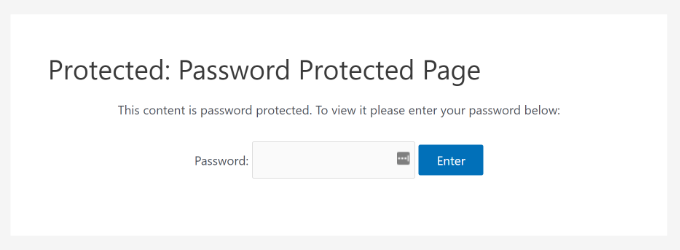
Now, let’s see how you can customize your default password-protected page.
Method 1: Customize Default Password-Protected Design Using CSS Hero
When you enable password protection from your WordPress content editor, the page uses your site’s theme for styling.
To customize the page, you can simply use a tool like CSS Hero. This allows you to style the default WordPress form to match your theme, rather than creating a completely new page from scratch.
We’ve extensively tested it, and you can find out everything in our CSS Hero review.
First, you’ll need a CSS Hero account. On the CSS Hero website, you can click ‘Get it Now,’ choose a plan that suits your needs, and complete the signup process.
Once complete, log in to your CSS Hero account to access your plugin’s zip file and license key. You can then download the file and store the license key somewhere safe, like a password manager.
Now, you can install and activate the CSS Hero plugin.
In your WordPress admin dashboard, go to Plugins » Add Plugin.

Next, let’s click the Upload Plugin button to open the file uploader.
Click the ‘Choose File’ button to upload your CSS Hero zip file and click ‘Install Now.’
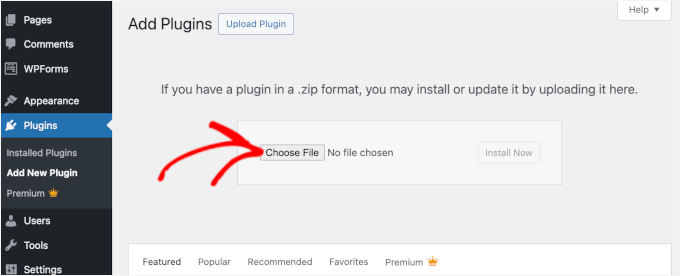
Upon installation, don’t forget to click the ‘Activate’ button to enable it on your WordPress site. For more details, please see our guide on how to install a WordPress plugin.
After activation, the CSS hero option will be added to the WordPress admin bar at the top. Go ahead and click the ‘Customize with CSS Hero’ option.

This will launch the CSS Hero visual builder, where you can edit and customize your page.
To start, you need to make sure you are viewing the password form. If you are logged in, you might see the page content instead. You can use CSS Hero’s tools to switch the view to ‘Logged Out’ mode, or simply click on the password form elements if they are visible.
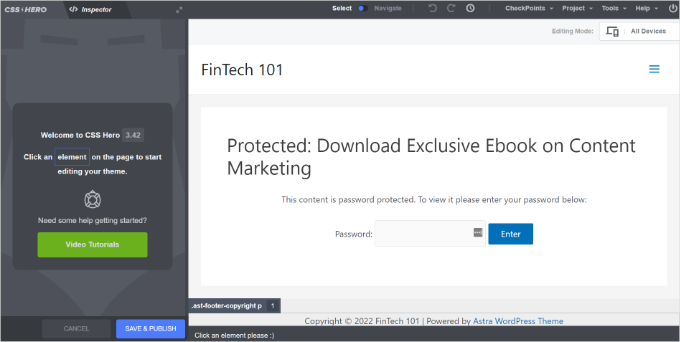
Next, you can change the background colors, add a background image, use a different font, edit spacing, and more from the panel on your left.
For example, let’s go to the ‘Background’ tab and add a gradient background color. We’ll also change the color of the box where users need to type in the password and the color of the ‘Enter’ button.
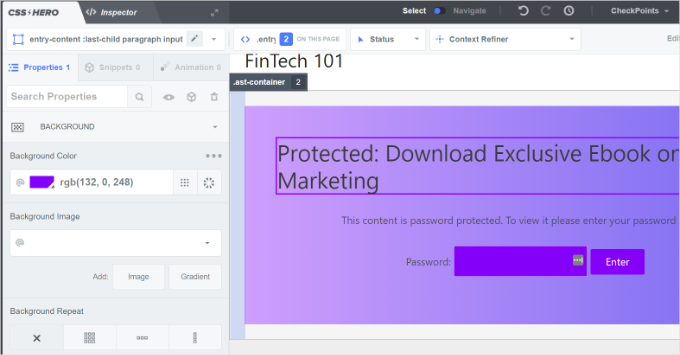
Besides that, you can add a border around the main heading on the page by going to the Borders tab.
Simply choose a border width, color, style, and any other changes you like.
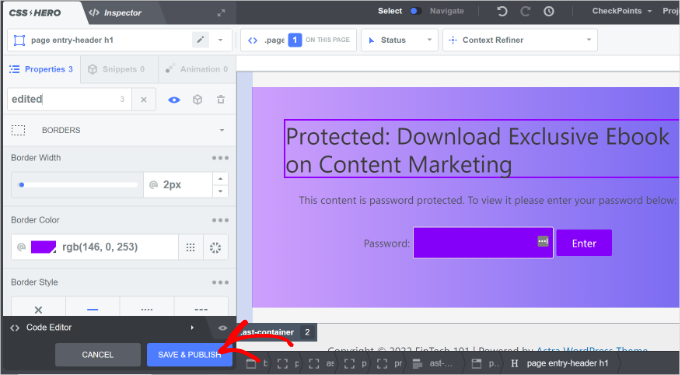
Once you’ve finished customizing, remember to click the ‘Save & Publish’ button at the bottom.
You can now visit your website to see the customized default password-protected page.
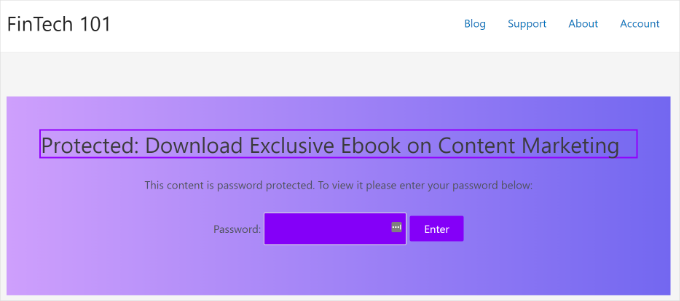
The drawback of using CSS Hero is that it doesn’t offer the flexibility and advanced customization options that a landing page builder offers.
For instance, you can’t add elements like contact forms, social media buttons, opt-in forms, or countdown timers.
With that in mind, let’s see how you can use a landing page builder to customize specific password-protected pages in WordPress.
Method 2: Customize a Specific Password-Protected Page Using SeedProd
Customizing a specific password-protected page is easiest with SeedProd, the best website and page builder for WordPress.
We have used SeedProd ourselves to build custom landing pages and even entire themes, and we absolutely love it. If you want to learn more about what it can do, take a look at our detailed SeedProd review.
To start, you can go to the SeedProd website to create an account. Simply click the ‘Get SeedProd Now’ button, pick a plan, and follow the on-screen instructions to complete signup.
📝 Note: For this tutorial, we’ll use the SeedProd Pro version. While SeedProd Lite allows you to lock your entire site with a Coming Soon page, you will need the Pro version to use the Access Controls required to password-protect specific pages.
Upon registration, you’ll get your own SeedProd dashboard. Here, you can find your plugin’s zip file and license key.
Now, let’s install and activate the SeedProd plugin.
In your WordPress admin area, go to Plugins » Add New Plugin. Then, you can use the search bar to quickly find the plugin and click ‘Install Now’ on the search result.
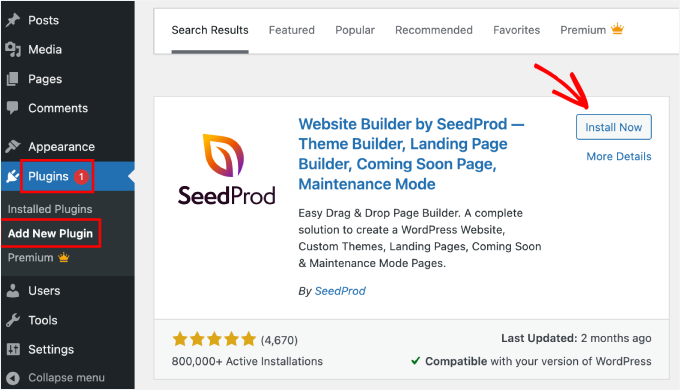
Don’t forget to click the ‘Activate’ button to complete the process. If you need help, please see our guide on how to install a WordPress plugin.
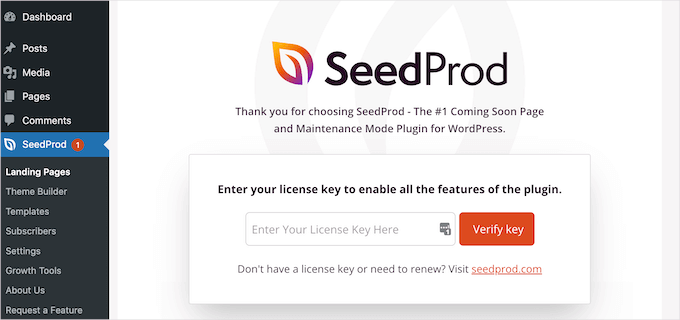
Upon activation, you’ll see SeedProd’s welcome screen in your WordPress dashboard.
From here, you’ll need to enter the license key and click the ‘Verify Key’ button to activate SeedProd Pro. Your license key is in your SeedProd account area.
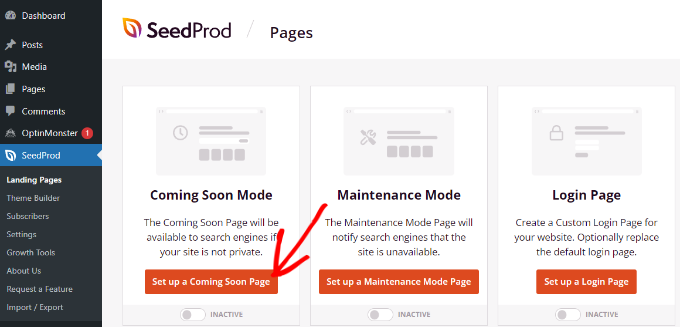
After that, let’s head over to SeedProd » Landing Pages from your WordPress dashboard and add a new custom password-protected landing page.
Later in this article, we’ll show you how to choose which pages are password-protected. You can password-protect your entire site or only specific pages.
We’ll use a coming soon page as our example. We are using it as a ‘gatekeeper’ or overlay that intercepts visitors on specific pages. But these customization techniques work for any password-protected content on your WordPress site.
To start, simply click the ‘Set up a Coming Soon Page’ button.
📝 Note: If you use this method, you should ensure the WordPress visibility for that specific page is set to ‘Public’ (not Password Protected), otherwise your users might have to enter two different passwords.
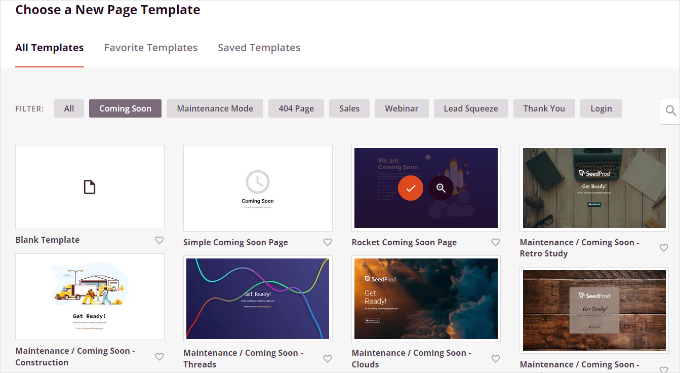
On the next screen, SeedProd will show you different page templates so you can quickly customize them.
Go ahead and hover over any template you want to use and click the orange checkmark button.
After selecting a template, SeedProd will open a popup window titled ‘Enter your new page details.’
You just need to select a page name and URL slug, and then simply click the ‘Save and Start Editing the Page’ button.
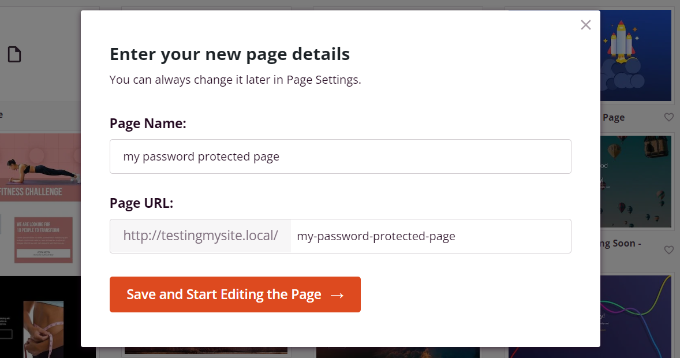
This will launch the SeedProd drag-and-drop page builder.
Here, you can customize your password-protected landing page and add different elements like text, images, buttons, and more.
SeedProd also offers advanced blocks like an opt-in form, contact form, countdown timer, progress bar, social sharing options, and more.
To add an element, drag any block from the menu on your left and drop it onto the template to the right. Then, customize the element by clicking on it and adjusting the options that appear.
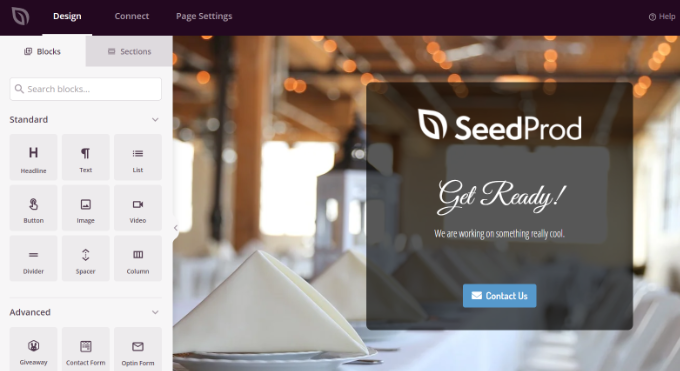
This is also how SeedProd allows you to add a password form to the front end of your page to protect your content.
First, you can add a ‘Custom HTML’ block in the SeedProd builder. Simply drag and drop the Custom HTML block onto the template.
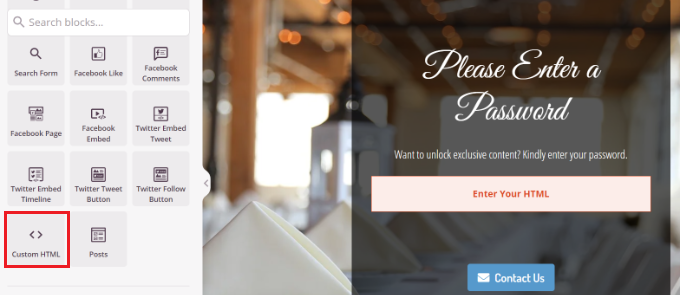
Next, you can click on the ‘Custom HTML’ block.’
From here, you’ll want to enter the [seed_bypass_form]shortcode in the ‘Custom Code’ field. This specific shortcode is what renders the actual password input box and submit button that the visitor will see.
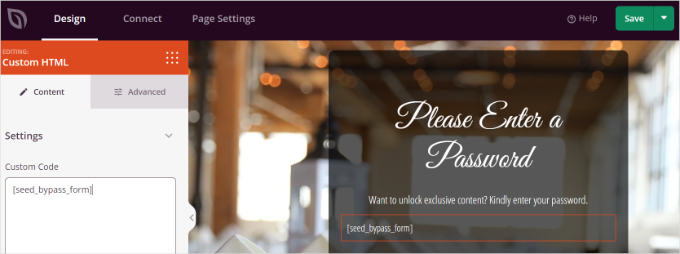
Don’t forget to click the ‘Save’ button when you’re done. And that’s it!
Now, SeedProd also integrates with different email marketing services.
You can add a contact form to your landing page and connect an email marketing tool to build your email list and stay in touch with users.
Simply go to the ‘Connect’ tab in the landing page builder and select your email marketing service.
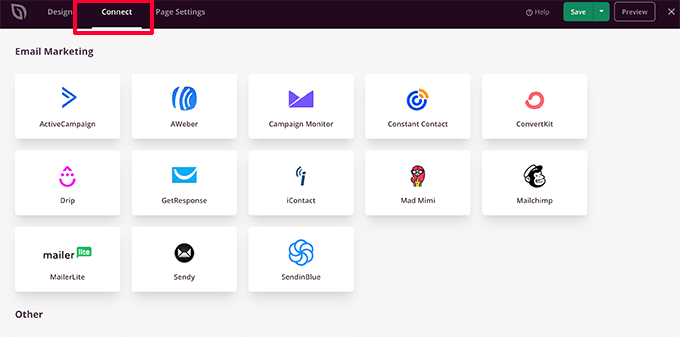
For details, see our guide on how to set up a beautiful Coming Soon page with SeedProd.
Setting Up Password Protection For Specific Pages in SeedProd
After creating a custom coming soon page that uses the [seed_bypass_form] shortcode, the next step is to set up password protection on specific pages using SeedProd.
To start, you can go to the ‘Page Settings’ tab in the SeedProd builder and click on ‘Access Control’ settings.
After that, simply enter your desired password in the field labeled ‘Bypass URL’. Even though it’s called a “URL,” this text works as the password visitors need to see the content.
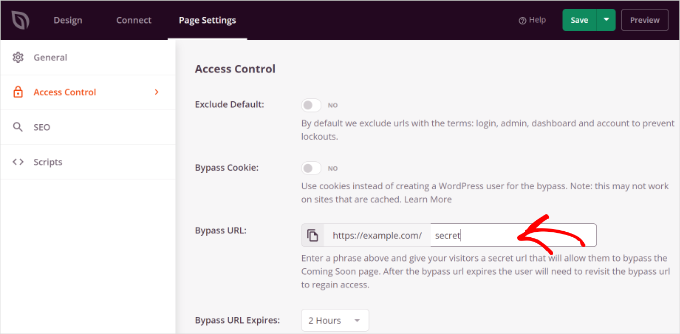
You can also share a direct link with this phrase, like yourwebsite.com/page/?bypass=secret, so clients can open the page without typing the password.
SeedProd lets you exclude specific URLs from your sites, such as admin, login, dashboard, and account. This ensures that site owners don’t get locked out of their sites.
Now, you’ll need to choose which URLs will be password-protected.
Simply scroll down to the ‘Include/Exclude URLs’ section under the ‘Access Control’ settings. After that, select the ‘Include URLs’ option and then enter the specific pages you’d like to restrict.
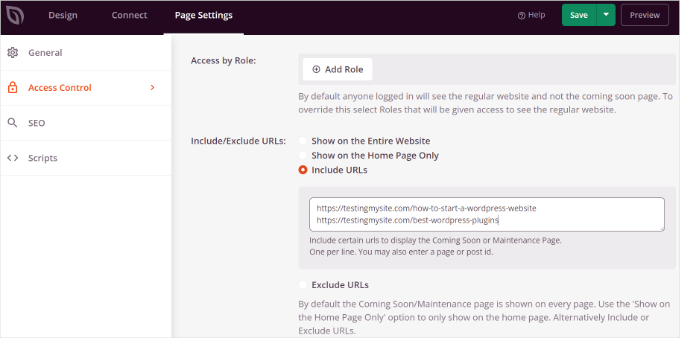
When you’re done, simply click the ‘Save’ button at the top.
Next, you can go to the ‘General’ settings under the ‘Page Settings’ tab and change the Page Status from ‘Draft’ to ‘Publish.’ This saves and publishes your design template, but the protection won’t be active until you toggle ‘Coming Soon Mode’ in the final step.
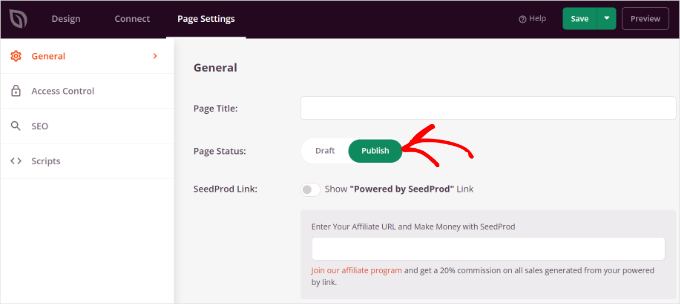
From here, you can close the landing page builder and head to SeedProd » Landing Pages from your WordPress admin panel.
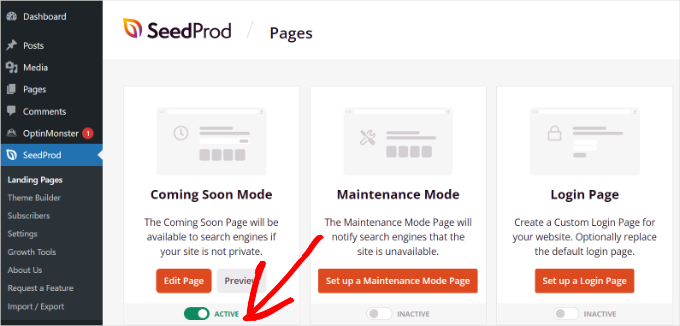
Then, let’s click the toggle under ‘Coming Soon Mode’ to activate your custom password-protected page.
That’s all!
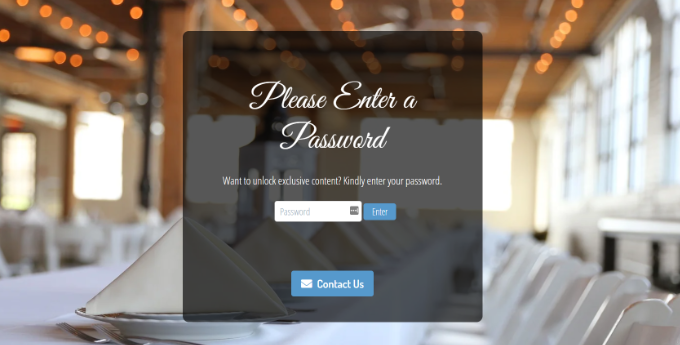
You’ve successfully created a custom password-protected landing page that will only appear on specific pages in WordPress.
Simply visit those pages on your website to see the customized password-protected page in action.
Bonus Tips: More Custom Password-Protected Page Use Cases
Want to explore more ways to use password protection on your WordPress site? Here are 2 tips to level up your site’s password-protected page.
Tip 1: Create a Custom Password-Protected Page for the Entire Website
Using SeedProd, you can also display your password-protected page on every page of your website. This way, users will need to enter a password to gain access to any of your content.
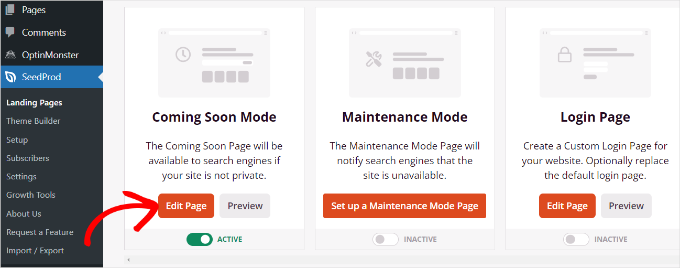
First, you can go to SeedProd » Landing Pages from your WordPress dashboard. Then, click the ‘Edit Page’ button in the ‘Coming Soon Mode’ panel.
Next, you’ll want to head over to the ‘Page Settings’ tab at the top and go to ‘Access Control’ settings.
After that, you can scroll down to the ‘Include/Exclude URLs’ section and select the ‘Show on the Entire Website’ option.
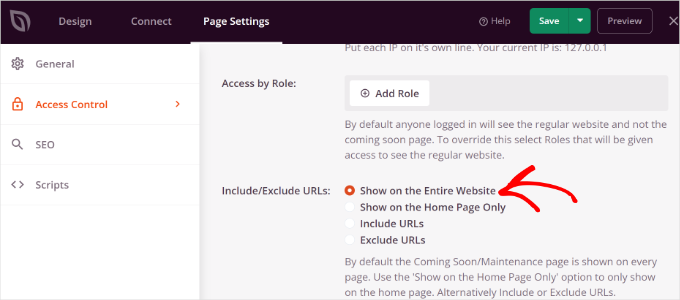
Once you’ve made the changes, go ahead and click the ‘Save’ button at the top. SeedProd will then show the custom password-protected page on your entire website.
Tip 2: Create a Membership-Protected Section in WordPress
You can also restrict different website sections based on membership levels.
Unlike the previous methods, which use a single shared password that anyone can share with others, this method requires users to register and log in with their own unique accounts. This offers much higher security and control.
The best way to restrict different parts of your website is by using MemberPress, the best WordPress membership plugin. It lets you create multiple membership levels to password-protect your content.
We even use it for our video membership site, so we can vouch for how great it is. You can get more information about the tool in our full MemberPress review.
Now, MemberPress allows you to set up different rules so users can only access content based on their membership level. For more details, please see our guide on creating a WordPress membership site.
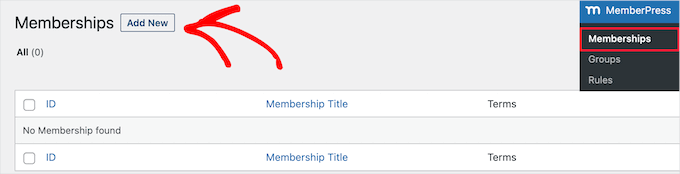
To start, you’ll first need to add memberships to your website. Simply go to MemberPress » Memberships from your WordPress dashboard and click the ‘Add New’ button.
After that, you can enter a name for your membership level, add a description, and set a price.
You can also change the billing type from one-time to recurring, as well as edit the membership to be lifetime or expire after a certain time period. You can also offer a free trial.
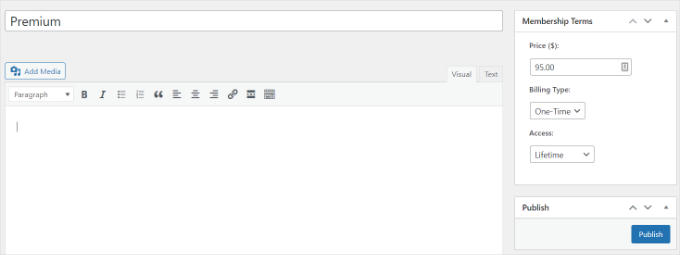
Don’t forget to click the ‘Publish’ button when you’re done.
Next, you can go to MemberPress » Rules from your WordPress dashboard and click the ‘Add New’ button.
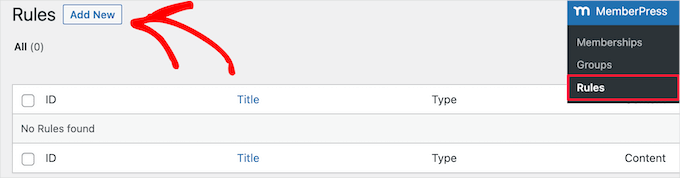
From here, you can click the dropdown menu under the ‘Protected Content’ option.
MemberPress offers lots of options to protect your content, whether that is a single page or all of your WordPress pages. For this tutorial, we’ll password-protect a single page.
So, let’s choose the ‘A Single Page’ option from the dropdown menu and enter the title of the page.
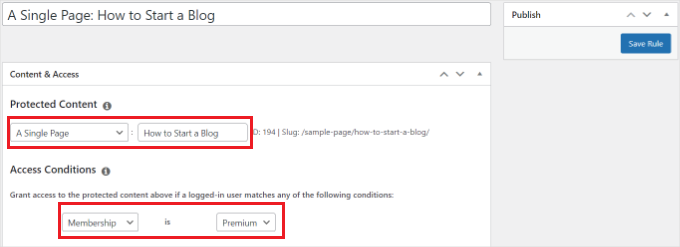
Next, you’ll need to set up the Access Conditions and configure who can view the restricted page. MemberPress lets you protect content based on membership level, WordPress user role, capability, and individual members.
Let’s set ‘Membership’ to ‘Premium’ from the dropdown menus for this tutorial. This way, only premium members will be able to access the page. You can add more conditions and allow more than 1 membership level to view the page.
When you’re done, don’t forget to click the ‘Save Rule’ button.
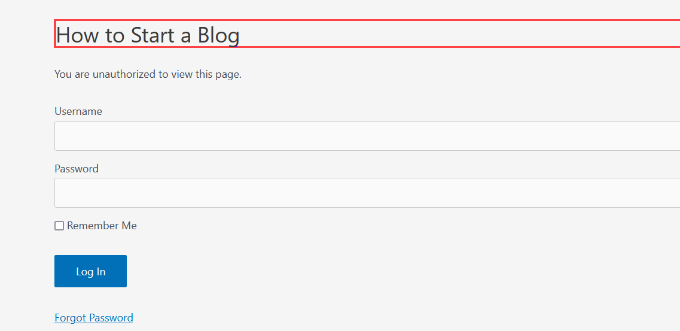
You can then visit your website to see the password-protected page in action. Members will now have to sign in to their accounts to view the content of the page.
Want to do more? Here are cool use cases you can do with MemberPress:
- Setting up passwords for your videos or offering group memberships for corporate teams.
- Creating a password to give subscribers access to a paid newsletter and more.
- Adding a password for your WordPress forms.
FAQs: Customizing Password-Protected Pages in WordPress
Still have questions about customizing password-protected pages in WordPress? Here are some common ones we get – along with quick, clear answers to help you out.
What is the difference between a password-protected and a private page?
A password-protected page can be viewed by anyone who has the correct password. A private page is only visible to logged-in users on your site, like Administrators and Editors.
Will customizing the password page slow down my site?
If you use a well-coded plugin like SeedProd, it should not have a noticeable impact on your site’s speed. SeedProd is optimized for performance.
However, be mindful of adding large, unoptimized images or complex scripts, which can affect load times. Always follow best practices for optimizing images for the web.
Can search engines index my password-protected content?
No, search engines cannot index the content protected by the password. However, please note that the ‘Page Title’ may still be visible in search results, often with a “Protected:” prefix. Ensure you do not put sensitive information directly in the page title.
Can I use the same password for multiple pages?
Yes, you can use the same password for several different pages in WordPress. However, for better security and management, a plugin like MemberPress is a much better solution for controlling access to different groups of content.
Additional Guides About Content Protection and Site Security
We hope this article helped you learn how to customize a password-protected page in WordPress. If you’re interested in exploring more ways to secure your website, you may find these guides helpful:
- How to Hide Password-Protected Posts From WordPress Loop
- How to Show Excerpt of a Password-Protected Post in WordPress
- Ways to Protect Content in WordPress
- How to Create a Paywall in WordPress (with Preview Options)
- Best WordPress Content Protection Plugins
If you liked this article, then please subscribe to our YouTube Channel for WordPress video tutorials. You can also find us on Twitter and Facebook.




Jiří Vaněk
I have several articles protected by a password for paying Patreon users, and I must admit that my design isn’t very good. Your guide with SeedProd caught my attention because I already use it, and seeing how great such a page can look in your screenshots makes me a bit embarrassed that I didn’t do it earlier. Thanks for the valuable guide, as it was bothering me that the password-protected page didn’t match my website’s design and wasn’t aesthetically pleasing at all.
WPBeginner Support
Glad our guide was helpful
Admin
Maurice
Hi,
When I follow the instructions for a password protected page… and logout.
Then open in an other browser the url-link to that page, I do fill in the password but then also pops up an Admin login? So I can not share these pages…
How can that be?
Thank you.
WPBeginner Support
We would recommend checking that your site is not in coming soon or a membership site that would require a user to view the content as that is the most common reason for that issue.
Admin