


If you’re trying to use regular blog posts for everything – product listings, testimonials, portfolio items – you’ve probably noticed how quickly things become a confusing mess.
We’ve been there too. At WPBeginner, we use custom post types for things like our Deals and Glossary sections so they stay separate from our regular blog articles.
The fix is simple: custom post types.
Custom post types let you create dedicated sections for all your content. That means products, testimonials, or portfolios can each have their own layout and structure, completely separate from your regular blog posts and pages.
In this guide, we’ll show you two methods to create custom post types. This way, you can choose the one that fits your comfort level and get your content neatly organized today. 🗂️
What Is a Custom Post Type in WordPress?
A custom post type is a content type you can create in WordPress that’s different from regular posts and pages. It allows you to organize and display unique kinds of content, like portfolios, products, or movie reviews, in a more structured way.
Think of it like having organized filing cabinets for different types of content instead of throwing everything into one drawer.
Before we dive deeper into custom post types, it helps to understand that WordPress uses post types to tell different content apart. While “post” and “page” are the most common types, it actually includes a few others by default:
- Post – for blog entries
- Page – for static content like an About or a Contact page
- Attachment – for media files
- Revision – for content drafts and edits
- Nav Menu – for menu items
Custom post types let you create dedicated sections of your WordPress website for specific kinds of content.
Let’s say you run a movie review website. Then, you would probably want to create a ‘movie reviews’ post type. On a portfolio site, you might create a Projects post type. Whereas an eCommerce site would benefit from a Products post type.
📝 Insider Note: At WPBeginner, we actually use custom post types, too. We use it for our Deals and Glossary sections to keep them separate from our blog articles.
Then, each custom post type can have its own layout, custom fields, and even its own custom category or tags structure. This makes your site more organized and user-friendly.
Plus, many popular WordPress plugins use custom post types to store data on your WordPress website. The following are a few top plugins that use custom post types:
- WooCommerce adds a ‘product’ post type to your online store
- WPForms creates a ‘wpforms’ post type to store all your forms
- MemberPress adds a ‘memberpressproduct’ custom post type
Do I Need to Create Custom Post Types?
Before you start creating custom post types on your WordPress site, it’s important to evaluate your needs. Often, you can achieve the same results with a normal post or page.
If you are not sure whether your site needs custom post types, then refer to our guide on when you need a custom post type or taxonomy in WordPress.
With that in mind, let’s take a look at how to easily create custom post types in WordPress for your own site. We’ll show you two methods and also cover some ways to display custom post types on your WordPress website:
- Method 1: Creating a Custom Post Type Manually Using WPCode (More Flexible)
- Method 2: Creating a Custom Post Type With a Plugin (No Coding Required)
- Bonus Tips: Displaying Custom Post Types on Your Site
- Frequently Asked Questions (FAQs): WordPress Custom Post Types
- Video Tutorial – How to Create Custom Post Types in WordPress
- More Guides on WordPress Post and Page Management
Ready? Let’s get started.
Method 1: Creating a Custom Post Type Manually Using WPCode
Creating a custom post type normally requires you to add code to your theme’s functions.php file. However, we don’t recommend this to anyone but advanced users because even a slight mistake can break your site. Also, if you update your theme, then the code will be erased.
Instead of editing theme files directly, we’ll show you how to safely add the code using WPCode – the best plugin for adding custom code to your WordPress website.
With WPCode, you can add custom snippets and activate a lot of features from its built-in, pre-configured code library. In other words, it can replace many dedicated or single-use plugins you may have installed.
Explore all the features we’ve tested in our detailed WPCode review.
📝 Note: The free version of WPCode works well for this tutorial. However, if you want to unlock advanced features like custom code scheduling and full revision history, you’ll need WPCode Pro.
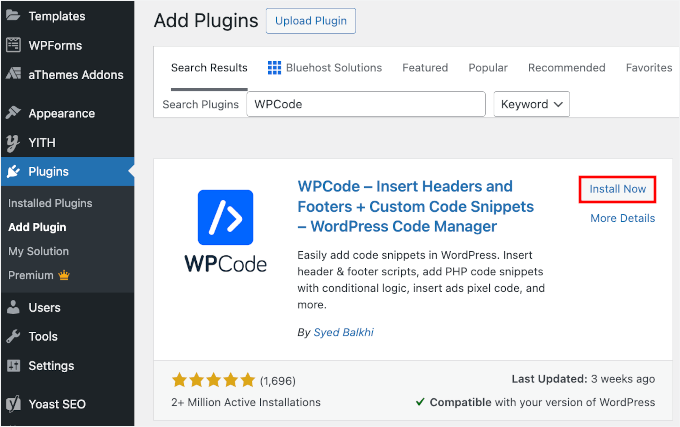
First, you will need to install and activate the free WPCode plugin by going to Plugins » Add New. In your WordPress dashboard.

On the next screen, use the search bar to find the WPCode plugin.
Simply click ‘Install Now,’ and then ‘Activate’ to enable it on your site.
For detailed instructions, check out our step-by-step guide on how to install a WordPress plugin.
Once activated, let’s head over to Code Snippets » Add Snippet.
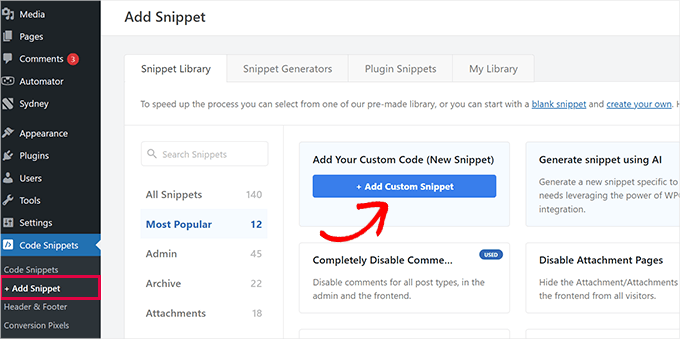
Then, you’ll want to hover your mouse over ‘Add Your Custom Code (New Snippet)’ and then click ‘+ Add Custom Snippet.’
On the popup that appears, select ‘PHP Snippet’ as the code type from the list of options.
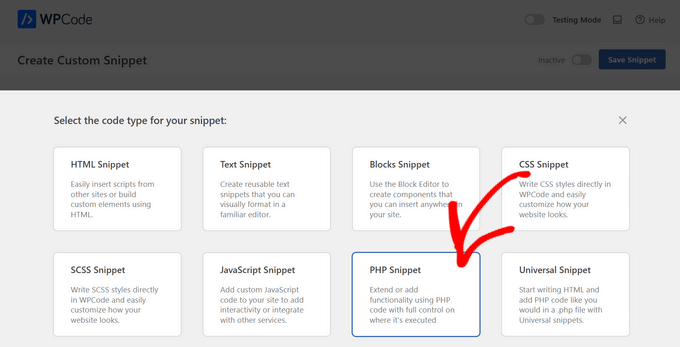
This will open the ‘Create Custom Snippet’ page.
Now, you can add the code snippet title, which can be anything to help you remember what the code is for.
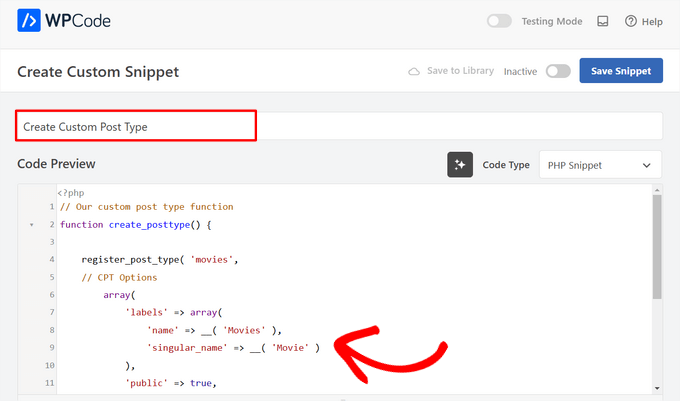
After that, simply paste the following code into the ‘Code Preview’ area.
This code creates a basic custom post type called ‘Movies’ that will appear in your admin sidebar and work with any WordPress theme.
// Our custom post type function
function create_posttype() {

    register_post_type( 'movies',
    // CPT Options
        array(
            'labels' => array(
                'name' => __( 'Movies' ),
                'singular_name' => __( 'Movie' )
            ),
            'public' => true,
            'has_archive' => true,
            'rewrite' => array('slug' => 'movies'),
            'show_in_rest' => true,

        )
    );
}
// Hooking up our function to theme setup
add_action( 'init', 'create_posttype' );
If you just want a basic custom post type, then simply replace the movies slug and the Movies label with your own CPT slug and name. Then, click the ‘Update’ button in WPCode.
However, if you want even more options for your custom post type, you should use the following code instead of the one above.
The code below adds many more options to the ‘Movies’ custom post type, such as support for revisions, featured images, and custom fields, as well as associating the custom post type with a custom taxonomy called ‘genres.’
☝ Important: Do not combine these two snippets, or WordPress will give you an error because both snippets register the same custom post type. We recommend creating a whole new snippet using WPCode for each additional post type you want to register.
/* * Creating a function to create our CPT */ function custom_post_type() { // Set UI labels for Custom Post Type $labels = array( 'name' => _x( 'Movies', 'Post Type General Name', 'your-theme-textdomain' ), 'singular_name' => _x( 'Movie', 'Post Type Singular Name', 'your-theme-textdomain' ), 'menu_name' => __( 'Movies', 'your-theme-textdomain' ), 'parent_item_colon' => __( 'Parent Movie', 'your-theme-textdomain' ), 'all_items' => __( 'All Movies', 'your-theme-textdomain' ), 'view_item' => __( 'View Movie', 'your-theme-textdomain' ), 'add_new_item' => __( 'Add New Movie', 'your-theme-textdomain' ), 'add_new' => __( 'Add New', 'your-theme-textdomain' ), 'edit_item' => __( 'Edit Movie', 'your-theme-textdomain' ), 'update_item' => __( 'Update Movie', 'your-theme-textdomain' ), 'search_items' => __( 'Search Movie', 'your-theme-textdomain' ), 'not_found' => __( 'Not Found', 'your-theme-textdomain' ), 'not_found_in_trash' => __( 'Not found in Trash', 'your-theme-textdomain' ), ); // Set other options for Custom Post Type $args = array( 'label' => __( 'movies', 'your-theme-textdomain' ), 'description' => __( 'Movie news and reviews', 'your-theme-textdomain' ), 'labels' => $labels, // Features this CPT supports in Post Editor 'supports' => array( 'title', 'editor', 'excerpt', 'author', 'thumbnail', 'comments', 'revisions', 'custom-fields', ), // You can associate this CPT with a taxonomy or custom taxonomy. 'taxonomies' => array( 'genres' ), /* A hierarchical CPT is like Pages and can have * Parent and child items. A non-hierarchical CPT * is like Posts. */ 'hierarchical' => false, 'public' => true, 'show_ui' => true, 'show_in_menu' => true, 'show_in_nav_menus' => true, 'show_in_admin_bar' => true, 'menu_position' => 5, 'can_export' => true, 'has_archive' => true, 'exclude_from_search' => false, 'publicly_queryable' => true, 'capability_type' => 'post', 'show_in_rest' => true, ); // Registering your Custom Post Type register_post_type( 'movies', $args ); } /* Hook into the 'init' action so that the function * Containing our post type registration is not * unnecessarily executed. */ add_action( 'init', 'custom_post_type', 0 );
You may notice the part where we have set the hierarchical value to false. If you would like your custom post type to behave like pages rather than posts, then you can set this value to true.
Another thing to notice is the repeated usage of the your-theme-textdomain string. This is called the ‘text domain.’ If your theme is translation-ready and you want your custom post types to be translated, then you will need to use the text domain defined by your theme.
You can find your theme’s text domain inside style.css file in your theme directory or by going to Appearance » Theme File Editor in your admin panel. The text domain will be mentioned in the header of the file.
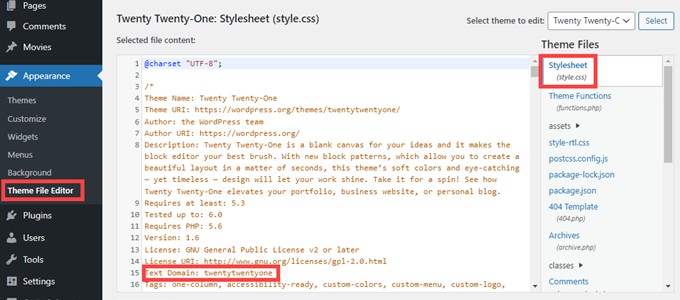
Simply replace your-theme-textdomain with your own theme’s ‘Text Domain,’ exactly as it appears in your theme’s style.css header.
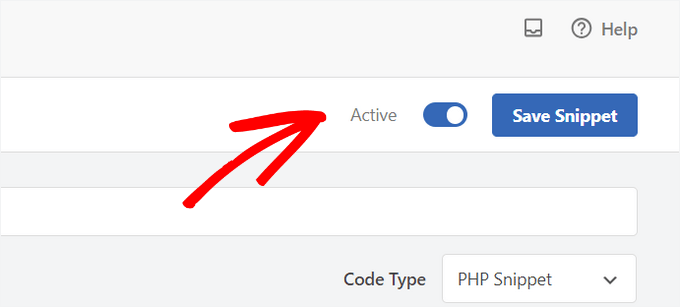
Once you’re happy with the changes, simply switch the toggle from ‘Inactive’ to ‘Active’ at the top of the page.
Lastly, click the ‘Save Snippet’ button, and WPCode will handle the rest.
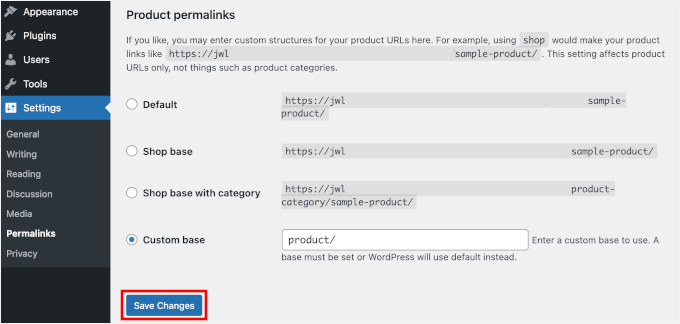
🛑 Important: After adding this code, you may go to Settings » Permalinks and simply click the ‘Save Changes’ button to update your permalink structure.
This helps WordPress recognize the changes and prevents broken links.
Method 2: Creating a Custom Post Type With a Plugin
Another easy way to create a custom post type in WordPress is by using a plugin. This method is recommended for beginners because it is safe and super easy.
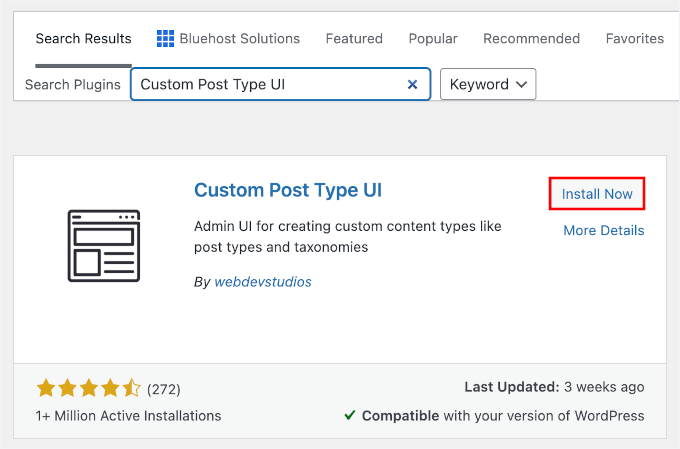
The first thing you need to do is install and activate the Custom Post Type UI plugin.
In your WordPress dashboard, go to Plugins » Add New.
Then, you can use the search bar to look for the Custom Post Type UI plugin.
Click ‘Install Now,’ and once it’s installed, click ‘Activate.’
For more details, see our step-by-step guide on how to install a WordPress plugin.
Upon activation, you need to go to CPT UI » Add / Edit Post Types to create a new custom post type. You should be on the ‘Add New Post Type’ tab.
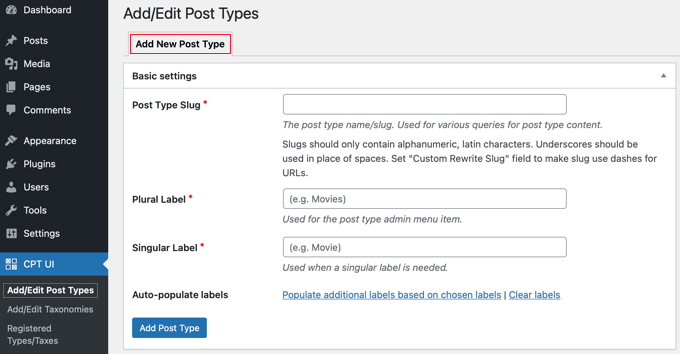
In this area, you’ll need to provide a slug for your custom post type, such as ‘movies.’ This slug will be used in the URL and in WordPress queries, so it can only contain letters and numbers.
Below the slug field, you need to provide the plural and singular names for your custom post type.
If you like, you can click on the link that says, ‘Populate additional labels based on chosen labels.’ This will automatically fill in the additional label fields below and will usually save you time.
You can now scroll down to the ‘Additional Labels’ section. If you didn’t click the link we mentioned, you will need to provide a description for your post type and change labels.
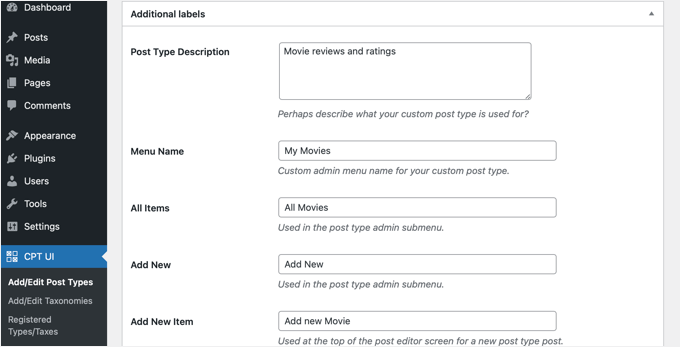
These labels will be used throughout the WordPress user interface when you are managing content in that particular post type.
Next comes the post type settings.
From here, you can set up different attributes for your post type. Each option comes with a brief description explaining what it does.
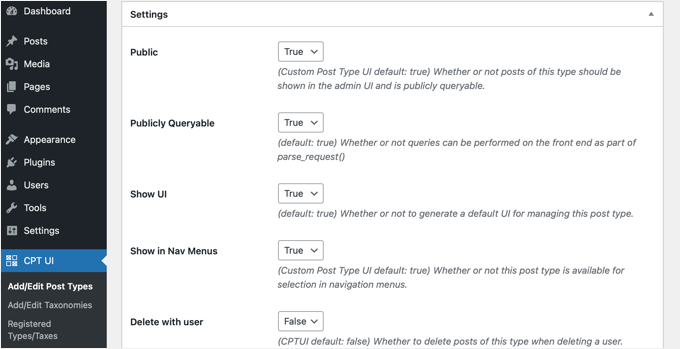
For instance, you can choose not to make a post type hierarchical like pages or sort chronological posts in reverse.
Below the general settings, you will see the option to select which editing features this post type would support. Simply check the options that you want to be included.
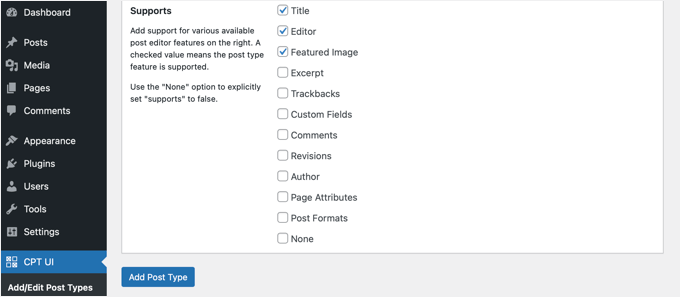
Finally, click on the ‘Add Post Type’ button to save and create your custom post type.
That’s all, you have successfully created your custom post type!
However, before you start adding content, there is one more step.
You must go to Settings » Permalinks and simply click the ‘Save Changes’ button. This flushes your rewrite rules and ensures your new custom post type links work correctly without 404 errors.
Bonus Tips: Displaying Custom Post Types on Your Site
WordPress comes with built-in support for displaying your custom post types. Once you have added a few items to your new custom post type, it’s time to display them on your website.
There are a few methods that you can use, and each one has its own benefits.
Displaying Custom Post Types Using the Default Archive Template
First, you can simply go to Appearance » Menus and add a custom link to your menu. This custom link is the link to your custom post type.
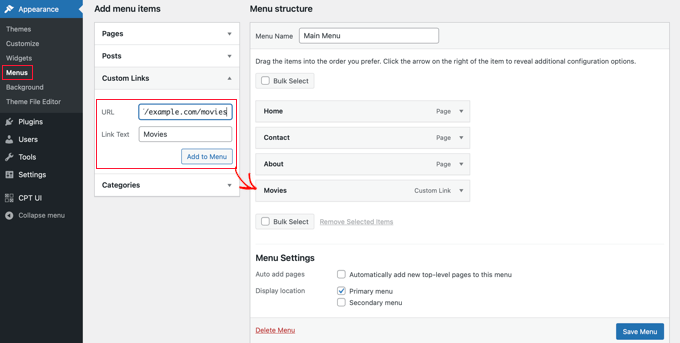
🧑💻 Pro Tip: If you don’t see your new custom post type listed in the left-hand column, check the ‘Screen Options’ tab at the very top of the page and make sure the box next to your post type is checked.
If you are using SEO-friendly permalinks, then your custom post type’s URL will most likely be something like this:
http://example.com/movies
If you are not using SEO-friendly permalinks, then your custom post type URL will be something like this:
http://example.com/?post_type=movies
Don’t forget to replace ‘example.com’ with your own domain name and ‘movies’ with your custom post type name.
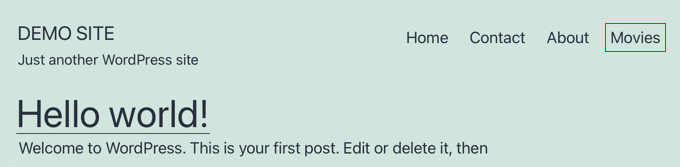
You can then save your menu and visit the front end of your website. You will see the new menu item you added, and when you click on it, it will display your custom post type’s archive page using the archive.php template file in your theme.
Creating Custom Post Type Templates
If you don’t like the appearance of the archive page for your custom post type, then you can use a dedicated template for custom post type archives.
All you need to do is create a new file in your theme directory and name it archive-movies.php. This template will control how the list of all your movies looks. Just make sure you replace ‘movies’ with the name of your custom post type.
Similarly, you can create a custom template for the single entry display of your post type (the page people see when they click on a specific movie). To do that, you need to create single-movies.php in your theme directory.
To get started, you can copy the contents of your theme’s archive.php file into the archive-movies.php template and then modify it to meet your needs.
Now, whenever the archive page for your custom post type is accessed, this template will be used to display it.
Similarly, you can create a custom template for the single-entry display of your post type. To do that you need to create single-movies.php in your theme directory. Don’t forget to replace ‘movies’ with the name of your custom post type.
You can get started by copying the contents of your theme’s single.php template into the single-movies.php template and then modifying it to meet your needs.
To learn more, see our guide on how to create custom single post templates in WordPress.
Displaying Custom Post Types on the Front Page
One advantage of using custom post types is that they keep your custom content types separate from your regular posts. However, you can display custom post types on your website’s front page if you like.
Simply add this code as a new snippet using the free WPCode plugin.
Please see the section of this article on manually adding code for detailed instructions.
add_action( 'pre_get_posts', 'add_my_post_types_to_query' );

function add_my_post_types_to_query( $query ) {
    if ( is_home() && $query->is_main_query() )
        $query->set( 'post_type', array( 'post', 'movies' ) );
    return $query;
}
Don’t forget to replace ‘movies’ with your custom post type.
Querying Custom Post Types
If you are familiar with coding and would like to run loop queries in your templates, then here is how to do that. By querying the database, you can retrieve items from a custom post type.
You will need to copy the following code snippet into the template where you wish to display the custom post type.
<?php
$args = array( 'post_type' => 'movies', 'posts_per_page' => 10 );
$the_query = new WP_Query( $args );
?>
<?php if ( $the_query->have_posts() ) : ?>
<?php while ( $the_query->have_posts() ) : $the_query->the_post(); ?>
<h2><?php the_title(); ?></h2>
<div class="entry-content">
<?php the_content(); ?>
</div>
<?php endwhile;
wp_reset_postdata(); ?>
<?php else:  ?>
<p><?php _e( 'Sorry, no posts matched your criteria.' ); ?></p>
<?php endif; ?>
This code defines the post type and number of posts per page in the arguments for our new WP_Query class. It then runs the query, retrieves the posts, and displays them inside the loop.
Don’t forget to place this inside an appropriate template file, such as archive-movies.php or a custom page template, depending on where you want the list to appear.
Displaying Custom Post Types in Widgets
You will notice that WordPress has a default widget to display recent posts, but it does not allow you to choose a custom post type.
What if you wanted to display the latest entries from your newly created post type in a widget? Luckily, there is an easy way to do this.
The first thing you need to do is install and activate the Custom Post Type Widgets plugin. From your WordPress dashboard, navigate to Plugins » Add New.
📝 Note: You may see a warning that this plugin hasn’t been updated recently. We’ve tested it on our own site, and it still works well. If you’re unsure, you can check out our opinion on whether it’s safe to use an outdated plugin.
Next, go ahead and use the search bar to find the plugin.
Click ‘Install Now,’ and once the installation is complete, click ‘Activate.’
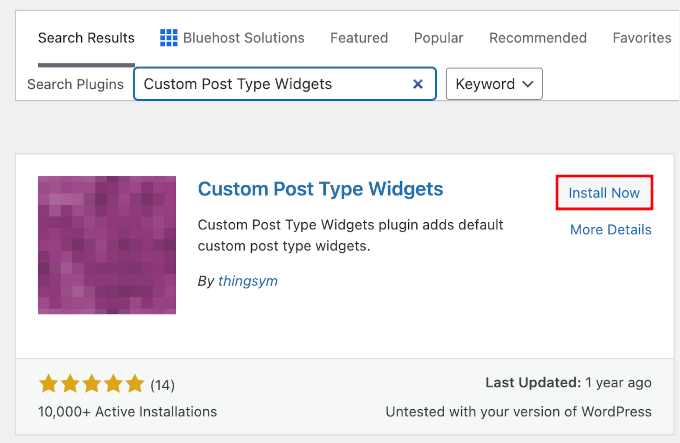
For more details, see our step-by-step guide on how to install a WordPress plugin.
Upon activation, simply go to Appearance » Widgets.
If you are using the modern block-based widget screen, click the ‘+’ add block button and search for ‘Recent Posts (Custom Post Type)’ to add it to your sidebar. If you are using Classic Widgets, you can simply drag and drop the widget into place.
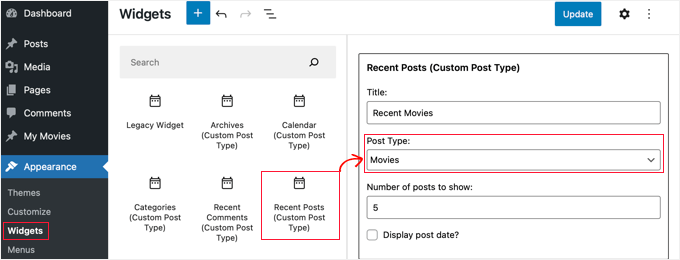
This widget allows you to show recent posts from any post type. You need to select your custom post type from the ‘Post Type’ dropdown and select the options you want.
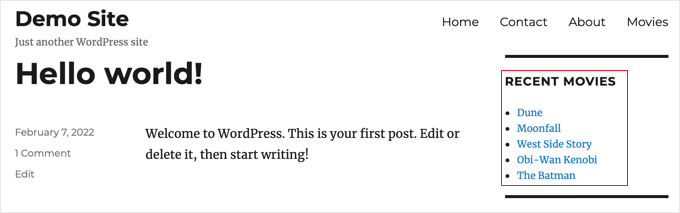
After that, make sure you click the ‘Update’ button at the top of the screen and then visit your website to see the widget in action.
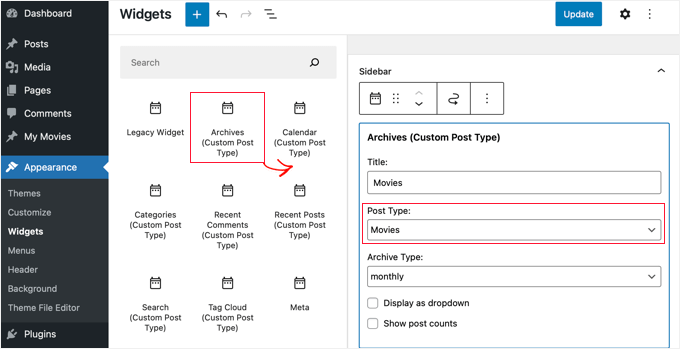
The plugin also provides custom post type widgets that display archives, a calendar, categories, recent comments, search, and a tag cloud.
So, feel free to explore and choose the one you need.
🧑💻 Pro Tip: If you’re using a block theme, you don’t need widgets. You can go to Appearance » Editor and use the ‘Query Loop’ block to visually display your custom post types anywhere on your site.
Frequently Asked Questions (FAQs): WordPress Custom Post Types
Here are some of the most common questions we get asked about creating custom post types in WordPress.
What is the difference between a custom post type and a category?
A custom post type is for creating a brand-new type of content, while a category is for grouping existing content. For example, ‘Book Reviews’ would be a custom post type. ‘Fiction’ and ‘Non-Fiction’ would be categories to organize those book reviews.
Will deleting a custom post type also delete all its content?
No, the content is not deleted from your database, but it will become hidden and inaccessible. To make the posts visible again, you would need to re-register the custom post type with the exact same name.
We always recommend making a full WordPress backup before removing post types.
How do I add custom fields to my custom post type?
You can easily add custom fields to add more structured information to your post types, like adding a ‘Director’ field to a ‘Movies’ post type. You can do this with code or use a popular plugin like Advanced Custom Fields (ACF) for a user-friendly interface.
Video Tutorial – How to Create Custom Post Types in WordPress
Before you go, be sure to check out our video tutorial for how to create custom post types in WordPress.
More Guides on WordPress Post and Page Management
We hope this tutorial helped you learn how to create custom post types in WordPress. Next, you may also want to learn:
- How to Add Custom Post Status for Blog Posts in WordPress
- How to Include Custom Post Types in WordPress Search Results
- How to Create a Child Page in WordPress
- Important Pages that Every WordPress Blog Should Have
- Most Useful WordPress Custom Post Types Tutorials
If you liked this article, then please subscribe to our YouTube Channel for WordPress video tutorials. You can also find us on Twitter and Facebook.




R Davies
You have a syntax error in your second (more detailed) example, code does not work in latest Wordpress 7.4.3
) Warning: call_user_func_array() expects parameter 1 to be a valid callback, function ‘custom_post_type’ not found or invalid function name
Any chance of an update / correction?
WPBeginner Support
Hi R Davies,
We checked and it worked perfectly.
Admin
Archit
Is the comma at the end if the supports array (in the options for the custom post type) deliberate?
Robert Stuart
On line 31? Yes, that’s normal PHP code.
“The comma after the last array element is optional and can be omitted. This is usually done for single-line arrays, i.e. array(1, 2) is preferred over array(1, 2, ). For multi-line arrays on the other hand the trailing comma is commonly used, as it allows easier addition of new elements at the end.”
saurabh
How to enable ‘Post Settings’ in Custom_Post_type (using Custom Post Type UI Plugin)?
Arias
Hello, I have been having problems with this plugin.
It has disabled the option to create categories and tags,
I have been looking for an example to place them manually but I still have not found anything.
I am trying to undo if with this method I can fix the problem but I would greatly appreciate your help.
stormonster
In your $args array, on the ‘taxonomies’ index, add ‘category’ and ‘post_tag’.
That should do the trick.
John D
Way too much coding. Wordpress need to keep things more simple.
Ilija
This is why I use my own CMS where I can create new post types in a fraction of a second directly through cms itself. Without any coding, unfortunately big agencies want Wordpress developers and have to learn it, seems so complicated..
Sarah A
Hi, i’ve succeded to display group of CPT with a specific design in a pop-up when you click on a image like the first one But it opens a new page and when you click out of the pop-up to quit you don’t return to the homepage, and i don’t want that. I want all on the homepage.
I’ve put the code of the CPT to display as the pop-up on “single-chg_projet.php” and open and close the pop-up with javascript. I’ve already tried to put all the code of single-chg_projet.php on the index, but it display nothing. Or i may be failed somewhere. Please help me. Thanks
Ghulam Mustafa
Hi,
Thanks for the great code. Just a minor correction to the code. The endwhile; statement is missing before else: statement in the Querying Custom Post Types section =)
Tony Peterson
THIS! Please update your code to reflect this syntax error as it caused me a bit of heartache until I found Ghulam’s comment. It’s working now.
Arkanum
Yes! True. It’s miss befire wp_reset_postdate();
The cycle while does not end
Azamat
Typo: “When doi I need a custom post type?”
WPBeginner Support
Thanks for notifying us We have updated the article.
Admin
Jhon
hey, can you guide me in the process of making a custom glossary like you have on your site?
WPBeginner Support
We use a custom fields and a custom template to display Glossary terms.
Admin
Anil Reddy
I want to create list type for posts in the category page for my website
david ben oren
how do i clone a post type which has a speicifc table in it, i need to create a seperate post type for other tables.
betty
How do I add a custom field to a Post Type?
WPBeginner Support
Please see our guide WordPress Custom Fields 101.
Admin
Megan
I’ve downloaded the plugin and want to add two custom post types. 1. Fanfiction for all of my writings and 2. Fanart for all of my art.
For Fanfiction – I want the ability to link chapters together into a story and be able to upload chapters to a story as I write them.
For Fanart – I’d like to have the focus be on an image (obviously) with a description underneath it
Is this article what I need or this something completely different?
Thanks,
Megan
Zubair Abbas
Hi,
I simply copied the code to my site’s functions.php. The new post type is visible in the dashboard but when I try to see a post after publishing it, a blank page appears. Later I realised that even the default posts are not opening.
When I remove the code from functions.php everything works fine again.
Please help
Thanks,
Zubair Abbas
Jouke Nienhuis
If you see a blank page, it often means that you forgot a character. The fact that you see the posts if you delete your custom code, confirms that you have a typo. Check for semi-colons ” ; ” and the opening and closing brackets.
To see exactly where you made a mistake, you could edit the wp-config file. Look for ERROR REPORTING and set this value to true. After that test again and there you get an error and a line with the omission.
Alex
I have created the CPT and is working beautifully, but Google cannot find it even after updating sitemaps, using SEO plugins or fetching on Google Webmaster Tools. Any thoughts on why is that happening?
WPBeginner Support
It takes Google sometime to start showing new content in search results. Just to be on safe side, check your SEO plugin settings to make sure you are not blocking indexing of your CPTs or CPT archive pages.
Admin
Amunet
Creating Custom Post Type can be easy especially with a plugin. The real trick is to show them on the page. Usually you need quite advanced custom development or theme specific plugins like that for Avada.
Unfortunately there is no universal way to display CPT in WordPress.
WPBeginner Support
Actually, there are straight forward and standard ways to display CPTs in WordPress. We have mentioned one in the article above.
Admin
Jouke Nienhuis
Like the author said, but I will repeat the answer.
In a nutshell create a link in your navigation menu
Advanced answer in a nutshell: create an archive page and a single page
Chuck
Great article. How can you modify single post CPT post info based on the custom taxonomy? For instance:
Date | Author | Series | Book | Topic
This is easy to write but I want to figure out how to display a modified post info if one the missing taxonomy of Series, like:
Date | Author | Book | Topic
Otherwise the default post info displays as:
Date | Author | | Book | Topic
borahan
I want to diplay specific category posts for current user in page. How can i do it?
Moazam Ali
Dear,
Thanks for the post. I want to make a library of ebooks and want to use custom post type and portfolio to show the thumbnails of books in front end. Can you please guide how i can do that?
Sharon Wallace
Hello All,
This is a great plugin. I’m trying to get the taxonomy to show on the page. I created one called Presenters. You can see it here.
How can I make that happen?
Thank you
WPBeginner Support
Please take a look at how to create custom taxonomies in WordPress. Hope this answers your question.
Admin
Sharon Wallace
Hello,
Thank you for your response. It still isn’t working but you’ve pointed me in the right direction. I will continue to play with it.
Have a wonderful day.
Dave S.
Hi,
I have created a form (using ArForms plugin) which I need it to be turned into a Post-Type. Do you have any suggestions as to how to accomplish this please?
Thank you.
Mark Greenway
Thanks for this, exactly what I needed to know to help me get to grips with custom post types.
Mark.
shashik
Thanks dear..it’s very useful..
Graham
Thank you! Just what I was looking for. It’s amazing how many times I find wordpress work-arounds and then forget how I do them and keep having to come back.
Much appreciated!
Ram
Very useful! Thank you….
MELAS
Dear,
I don’t have a lot of knowledge about coding. How can I see on the specific page theses Custom post types and taxonomies?
Thanks in advance!
MELAS
Mike Ritter
Is there an error? Shouldn’t the function be `create_post_type`?
WPBeginner Support
No mike, it is not a core function. You can define this function anyway you want.
Admin
Vera
Hello,
Thank yo for this beautiful tutorial.
I have gone and done everything as you said.
Two things I do not understand:
1.
You have specified taxonomy “genre”. Where is that set up? What if I want to make the actual genres underneath that? How do I make them? Where do I see them?
2.
I would like to make the menu links to the “Movies” and underneath – sublinks to “Genres”. I can see the “Movies” in the Menu section, each post, like pages. Don’t really need that, but I won’t mind. How to see the “Genres” in there?
Thank you,
Vera
WPBeginner Support
Seems like you have successfully created your custom post type, i.e. Movies. The next step is to create custom taxonomy, Genres. A taxonomy is a way to sort content in WordPress. Categories and tags are two default taxonomies that come built in with WordPress and are by default associated with ‘Posts’. Please see our tutorial on how to create custom taxonomies in WordPress. Follow the instructions in that tutorial to create your custom taxonomy Genres and associate it with the post type movies. Your custom taxonomy will appear below the Movies menu in WordPress admin area.
Admin
Hamed 3daJoo
I do All Of This but when i want to public a post by this post type my post types redirects to main page (i Just coppied your code without any changes)
for example i write this post with Movies post type
please help me ilove post type but i can’t use it correctly
Ciprian
Have you tried re-saving the permalinks structure?
Cheers!
Aaron
Excellent post! Thanks for the content.. helped a lot.
antonio
hi i’m trying to add the snippet of code fort the post type movie… i copied it into functions.php but when i refresh the page nothing is shown. i’m using the twenty fourteen theme… what can be wrong?
ashish shestha
How to display Csutom post type in front End??
Fahd
Hi, Custom post types on my wordpress website were working fine from last 2 years. But what happend is when I change the title of post and click update it save other changes too. But if I keep the post title same and make changes in the post, it doesn’t save it. Any recommendations please?
WPBeginner Staff
Please check out this tutorial on how to show/hide text in WordPress posts with toggle effect.
Arup Ghosh
Thanks for the info.
Arup Ghosh
I want to create a custom post type coupons with reveal coupon option and the code will link to the store url, can you tell me how can I do that. I don’t have much knowledge about coding.
Isaías Subero
Great articule. How can I add icons to custom post types on the wordpress back-end just like it is shown on the picture?
Jouke Nienhuis
it is one of the arguments ($args) when defining the custom post type.
Add ‘menu-icon’ => ‘dashicons-cart’ to the $args list.
WordPress uses built-in dashicons, but you can also use your own icons.
More information on this link:
Johan
Hi, the excerpt and the custom fields data is not displaying in the front end… any idea of why this is happening?
Bill Querry
I forgot to mention, prreferably via code for my functions.php file since that’s where the curernet CPT are defined.
Bill Querry
I am looking at a way to add categories to some existing custom post types. Anyone able to point me in the right direction?
Jouke Nienhuis
You can add new taxonomies to an existing Post Type (custom or not) just by filling in the right post-type when you write the function to create it. Category is just a taxonomy name which includes all posts with a category.
If you want to make a new category, just click on category on the menu and create a new one.
Examples of categories are Boats if your post is about boats or planes if your post is about planes. More categories is also possible, just select or add them in the right sidecolumn when you are writing your new post or editing one.
A post type is not attached or linked to a specific category, a post is.
Robey Lawrence
I just tried to use the snippet under
Querying Custom Post Types,
and figured out it needs a before the reset.
YassinZ
Thanks for the clean handy article
I just want to use the text editor in the custom post
so that I can use html tags,
Yassin
thanks for such an awesome clear tutorial
but I’m faceing a problem in displaying the CPT I’m using SEO friendly permalinks when I direct to may website/movies the CPT are duplicated
Aris Giavris
Very useful! Thank you.
I would like to add to every tag of my posts one of the following signs: +, -, +/-. May I?
If so, then I would like to have the choice to represent the signed tags as follow: all the +tags, all the -tags, all the +/-tags.
I think I am questioning a lot of things.
Placid
Hi,
I am having a hard time implementing a custom post type correctly. I have searched for a solution for a long time but couldn’t find any. Here’s what I did:
1. Freshly installed WordPress in my local wamp server (enabled apache rewrite_module first).
2. Using default theme (twenty fourteen). No plugins installed.
3. Changed permalinks to “Post name”
4. In the plugins folder, created a folder named pr_custom_posts and inside that, created a file named pr_custom_posts.php. In the file I created a custom post type. The code is as follows:
register_post_type();
//flush_rewrite_rules();
}
public function register_post_type () {
$args = array(
‘labels’ => array (
‘name’ => ‘Movies’,
‘singular_name’ => ‘Movie’,
‘add_new’ => ‘Add New Movie’,
‘add_new_item’ => ‘Add New Movie’,
‘edit_item’ => ‘Edit Movie’,
‘new_item’ => ‘Add New Movie’,
‘view_item’ => ‘View Movie’,
‘search_items’ => ‘Search Movies’,
‘not_found’ => ‘No Movies Found’,
‘not_found_in_trash’ => ‘No Movies Found in Trash’
),
‘query_var’ => ‘movies’,
‘rewrite’ => array (
‘slug’ => ‘movies/’,
‘with_front’=> false
),
‘public’ => true,
‘publicly_queryable’ => true,
‘has_archive’ => true,
‘menu_position’ => 10,
‘menu_icon’ => admin_url().’/images/media-button-video.gif’,
‘supports’ => array (
‘title’,
‘thumbnail’,
‘editor’
)
);
register_post_type(‘jw_movie’, $args);
//flush_rewrite_rules();
}
}
add_action(‘init’, function() {
new PR_Movies_Custom_Post();
//flush_rewrite_rules();
});
?>
The Good Thing: The CPT is showing in my admin panel and I can add and view movies there.
THE PROBLEM: I cannot preview the movies in the front end (By clicking the “view” in the CPT in admin panel). It shows in the front end only when I set permalink to default (http://localhost/wp02/?p=123).
What I have tried:
1. Go to permalink, keep permalink settings to “Post name” and Save changes.
2. Use flush_rewrite_rules() in several places (one by one) in my code. Please see the commented out parts in the code above.
3. Created a menu item as:
URL: http://localhost/wp02/movies
Navigation Label: Movies
This creates a menu item in the front end but shows “Not Found” when “Movies” link is clicked.
This is driving me crazy. Can anyone please help on this? I would really appreciate.
kikilin
I was going crazy too with the same “Not Found” issue, until I tried this: go to Settings > Permalinks and then re-save your settings. I had switched my setting to Default, and then changed it to Post Name (for my project’s needs). After that, links were working as expected.
WPBeginner Staff
Yes sure we will try to make a video tutorial soon. Please subscribe to our YouTube Channel to stay updated.
rehan
Helpfull tutorials and posts thanks
ceslava
Another easy way is just duplicate the archive.php and rename it to archive-movies.php and the same for single.php -> single-movies.php
Then you can make tweaks to the php files for your theme.
Best regards
Mladen Gradev
lol the plugin looks super useful, thanks.
Achilles Khalil
Very hard to display. please can you make a video tutorial ?
Mik
Hi, I’ve been reading and following your posts for so long now, you are amazing, and targeting those missing stuff of beginners… Thank you.
Davide De Maestri
This plugin should be okay, but after every upgrade they’ve got some bug. Due to exporting field, or while migrating from local to remote etc… So It’s better to hand-write the code and put into functions.php