


Adding live chat to WordPress is a simple way to make your website feel more helpful and welcoming.
A small chat box lets visitors reach out in real time—almost like sending a quick text—so they can get answers without waiting for an email.
This kind of instant support works well for all types of websites, whether you’re sharing content, selling products, or offering services.
And the best part is that you can get started for free without needing any technical skills.
In this guide, I’ll walk you through two easy ways to add live chat to your website. I’ll also share when it makes sense to choose each method so you can pick what works best for your site.

💡Quick Answer: How to Add Live Chat in WordPress Easily
If you want a fast overview before diving into the full tutorial, here’s how the two methods compare:
- Method 1: WPChat – Connect Visitors to Their Favorite Messaging Apps: Perfect if you want your visitors to start a chat on your site but continue it in WhatsApp, Messenger, or Telegram. It’s ideal for small sites, blogs, or businesses that want fast, convenient real-time communication.
- Method 2: LiveChat – Full-Featured Live Chat Software (Premium): This is great for larger sites or businesses with an in-house team ready to respond to visitors. It lets you fully customize the chat widget, add canned responses, and handle multiple agents.
Why Use Live Chat on Your WordPress Site?
Adding live chat to your WordPress site makes it easy to help visitors right when they need it. It’s a simple way to improve communication, provide support, and make your website feel more personal and trustworthy.
I’ve seen firsthand how powerful live chat can be. All of our partner brands use it because it instantly connects them with visitors, answers questions quickly, and even helps increase sales.
Here’s why it’s worth adding live chat to your site:
- Quick Support For Visitors: Answer questions in real time instead of making them wait for an email reply.
- Increase Trust And Credibility: A live chat box shows your visitors that someone is always available to help.
- Boost Sales And Conversions: Visitors are more likely to purchase when they can get answers immediately.
- Save Time: Handle multiple conversations at once, so you don’t have to spend hours on phone calls or emails.
- Understand Your Audience: Learn what your visitors need and improve your website, products, or services.
Now, let’s take a look at how to easily add a live chat in WordPress. You can use the links below to jump to the method you’re interested in:
- Method 1: Add Live Chat with WPChat – Let Visitors Continue in Their Favorite Messaging App (Free)
- Method 2: Add Live Chat with LiveChat Inc. – Full Chat Experience Without Redirecting to Messaging Apps (Premium Solution)
- Bonus: Get Professional Live Chat Support Without Hiring Staff
- 🌟More Ways to Help Visitors on Your Website
- Frequently Asked Questions About Adding Live Chat to WordPress
Method 1: Add Live Chat with WPChat – Let Visitors Continue in Their Favorite Messaging App (Free)
🥇Best for: Small business owners, bloggers, and anyone who wants to provide instant support using messaging apps like WhatsApp, Telegram, Facebook Messenger, and Instagram.
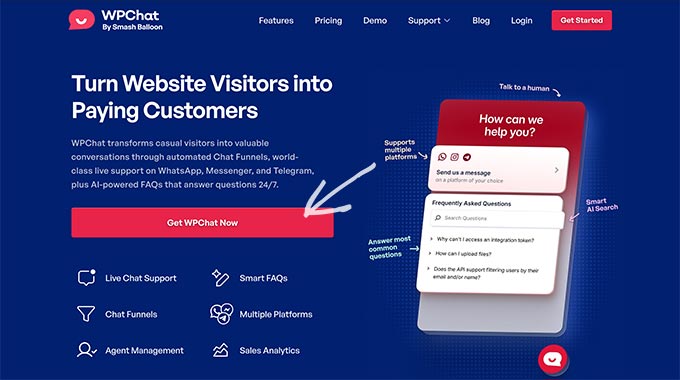
The easiest way to add live chat to your WordPress site is by using WPChat. It acts as a bridge between your site and apps like WhatsApp.
It’s a free chat plugin that lets visitors start a conversation on your website, then seamlessly move the chat to WhatsApp, Telegram, Facebook Messenger, or Instagram. This means they don’t have to stay on your website, and you can provide faster, more convenient support.
I’ve thoroughly tested WPChat on multiple sites, and its free version is more than enough for most beginners.
If you want a deeper look at its features, please check out our detailed WPChat review.
Step 1: Install And Activate WPChat
First, you need to install and activate the free WPChat plugin.
If this is your first time, don’t worry, because I’ve got you covered. Just take a look at our step-by-step guide on installing a WordPress plugin to get started.
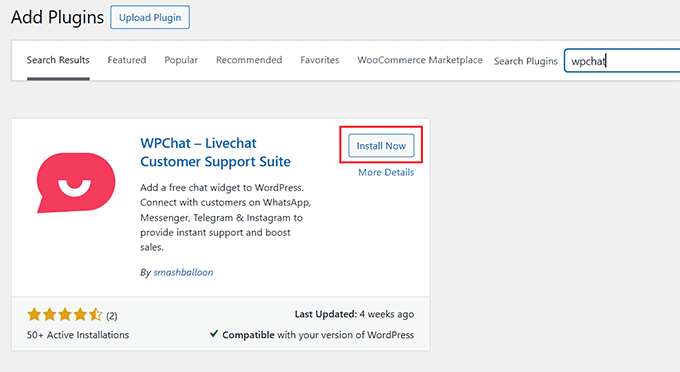
📌Note: The free version of WPChat has everything you need to add live chat to your WordPress site.
However, if you want advanced features like visibility controls, customizable brand colors, analytics, and more, then you can upgrade to WPChat Pro.
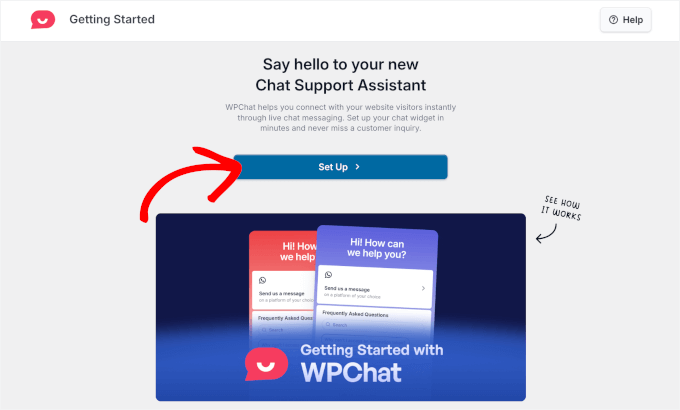
Upon activation, you’ll be taken to a new screen, where you need to click the ‘Set Up’ button to launch the setup wizard.
Step 2: Complete the WPChat Setup
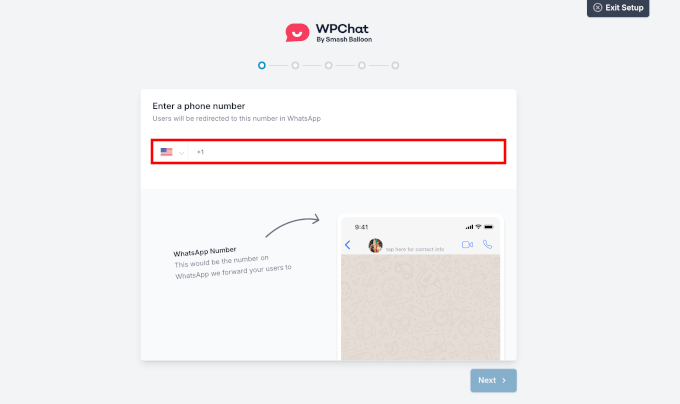
The first thing you’ll need to do is enter your business phone number. Make sure it’s the number registered with your WhatsApp account, including the correct country code—this is where all messages from visitors will be sent.
And if you prefer other channels like Messenger, you can configure those platforms as well in the next steps.
Once that’s done, click ‘Next’ to continue.
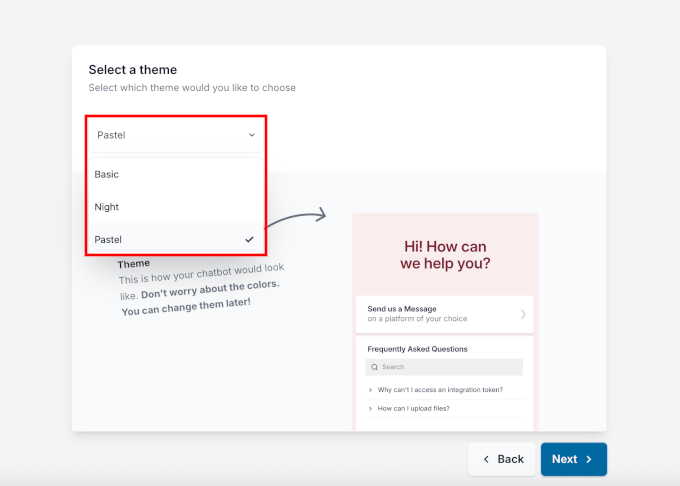
After that, you can choose a theme for your chat box. WPChat offers three styles to fit different website designs:
- Basic for a clean, simple look
- Night for darker, modern sites
- Pastel for a soft, friendly appearance
I usually recommend picking a style that matches your existing website colors. Don’t worry because you can always switch it later if you want to try something different.
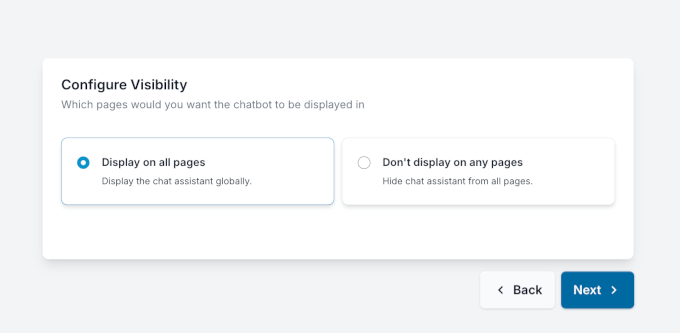
Then, set where your chat button will appear on your site. With the free version, you can either display it on all pages or hide it completely.
💡 Pro Tip: Want more control over where the live chat widget appears on your site? With WPChat Pro, you can choose to show or hide your live chat widget on specific pages, categories, tags, or custom post types.
Here, select the ‘Display on all pages’ option, so visitors can reach you no matter where they are on your site.
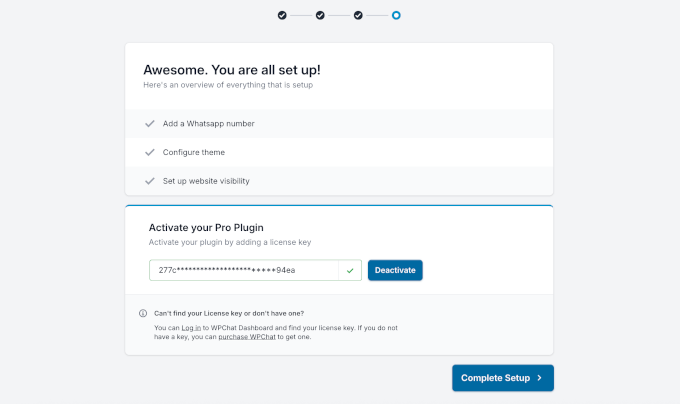
Finally, review all your settings to make sure everything looks correct.
If you’ve upgraded to WPChat Pro, you can also enter your license key here. When you’re ready, click ‘Complete Setup,’ and your live chat will be ready to start connecting with visitors.
Step 3: Customize the Look of Your Live Chat Widget
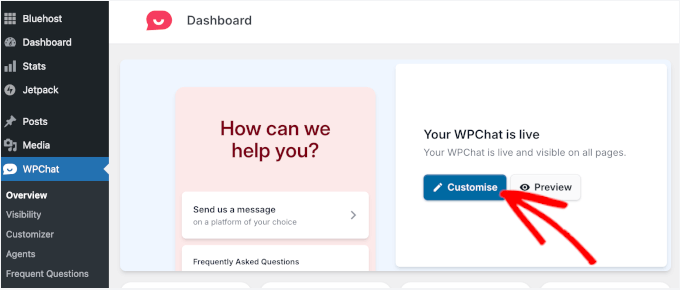
Once you finish the initial setup, WPChat takes you straight to your dashboard.
From here, you can personalize your chat widget to fit your brand. Just click the ‘Customise’ button to open the Chat Assistant Editor.
On the left side, you’ll see all the design options—theme, color palette, header text, icon, assistant avatar, and more.
Any changes you make will appear instantly in the live preview on the right, so you can see exactly how it will look to your visitors.
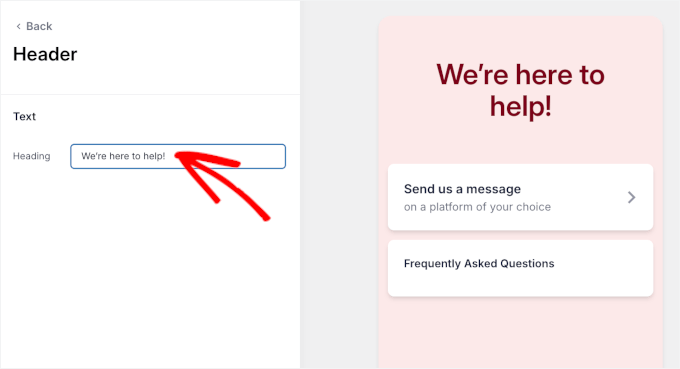
For example, you can update the header text, which is the first message visitors see when they hover over the chat widget. Just type in your new message and click ‘Save.’
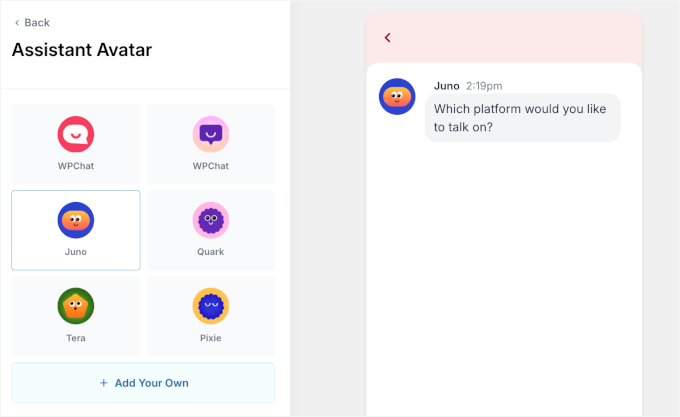
You can also customize the assistant avatar, which is the little guide that pops up when visitors open the chat.
For that, click ‘Assistant Avatar’ from the menu and pick one from the collection of pre-built options. Don’t forget to hit ‘Save’ once you’ve chosen your favorite.
When you’re done making customizations, click the ‘Close Editor’ button.
Note: With the free version of WPChat, the customization options are limited. If you want to remove the WPChat branding, upload a custom assistant avatar, set custom colors, and more, you’ll need to upgrade to the premium version of WPChat.
Step 4: Configure Your Live Chat Agent
Next, customize the profile for your default live chat agent. Personalizing your chat with a friendly appearance shows visitors there’s a real person ready to help, instantly building trust.
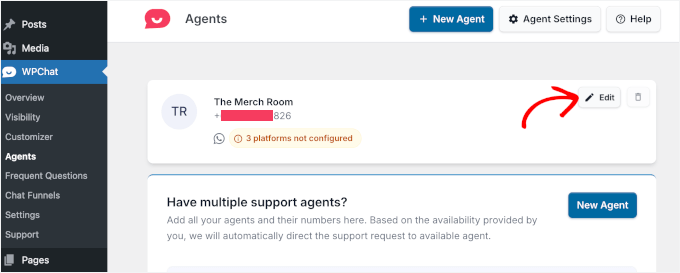
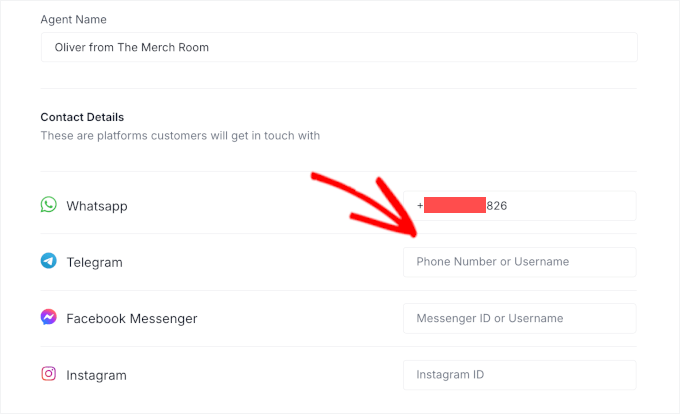
To do this, go to WPChat » Agents from your WordPress dashboard and click ‘Edit’ next to your default agent.
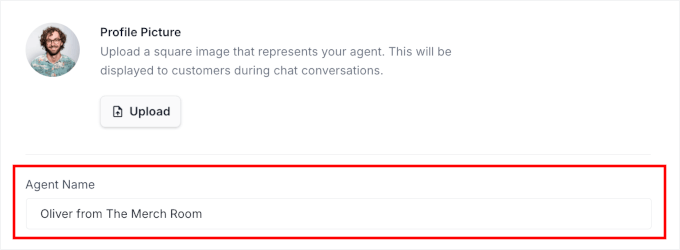
Here, you can upload a profile picture, add a name, and even include contact details for other messaging services like Telegram, Facebook Messenger, and Instagram.
This gives visitors multiple ways to reach you, not just WhatsApp.
💡 Pro Tip: With WPChat Pro, you can add multiple chat agents to represent each person on your team. You can even set custom working hours so your chats are only routed to available agents.
Once you’ve set everything up, click ‘Save Changes’ to finish configuring your agent.
Step 5: Set Up FAQs to Save Time
Once your WPChat widget is live, I highly recommend adding a Frequently Asked Questions (FAQ) section. This lets you answer your visitors’ most common questions instantly, right inside the chat widget, without them having to wait for a response.
For a business site, it’s perfect for questions about services, operating hours, pricing, or how to get in touch.
On the free plan, you can add up to 10 FAQs, which is usually enough to cover the most common visitor questions. If you upgrade to WPChat Pro, you can create unlimited FAQs, which is especially useful for businesses with multiple services or locations.
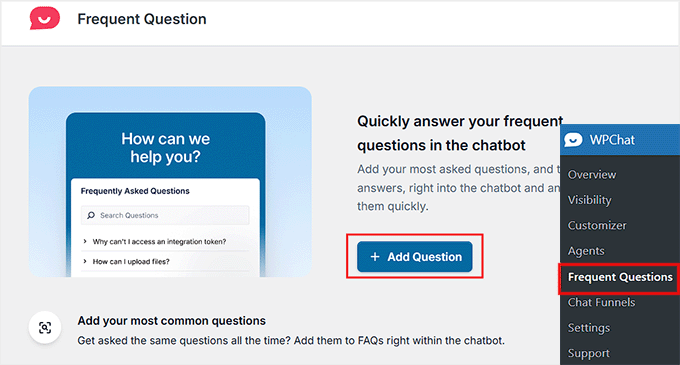
To create a new FAQ, go to WPChat » Frequent Questions and click ‘Add Question.’
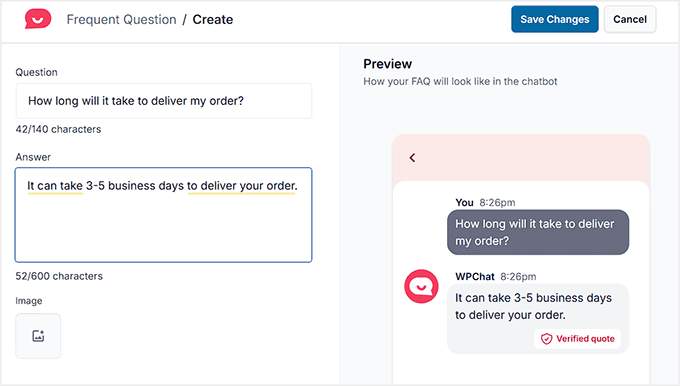
You’ll now see fields to enter your question and answer. I recommend keeping your questions short (up to 140 characters) and your answers clear and concise (up to 600 characters).
You can even attach an image if it helps explain your answer better. Once you’re done, click ‘Save Changes’ to publish it.
Step 6: See Your Live Chat in Action
That’s it! Your WPChat widget is now live, and you can visit your WordPress site to see it in action.
When a visitor clicks the chat button, they can choose the messaging app they want to use. If they’re on their phone, WPChat will open a new conversation in their preferred app.
On a computer, it will open in the web version of the messaging app or the social media website.

This makes it easy for visitors to reach you on the platform they already use, giving them a smooth, convenient experience while letting you provide real-time support.
Method 2: Add Live Chat with LiveChat Inc. – Full Chat Experience Without Redirecting to Messaging Apps (Premium Solution)
🥈Best For: Larger business sites, online stores, or any website where you want professional live chat directly on your site without sending visitors to external messaging apps.
Another way to add live chat to WordPress is by using LiveChat Inc. It’s one of the best live chat solutions out there, offering advanced features and a fully on-site chat experience.
I’ve also personally tested it on my own test site and found it to be really powerful. It lets you add canned responses, fully customize your live chat widget, and manage chats efficiently—all without touching a single line of code.

While this is a premium tool, it does offer a generous 30-day free trial. This lets you get started and test all the features without paying right away. Plus, you can use our LiveChat coupon code to get a discount.
That’s why I recommend LiveChat for larger business sites or online stores that need advanced features and a fully integrated, on-site chat experience.
If you want to learn more about our experience with the tool, take a look at our LiveChat review.
Step 1: Create a LiveChat Account
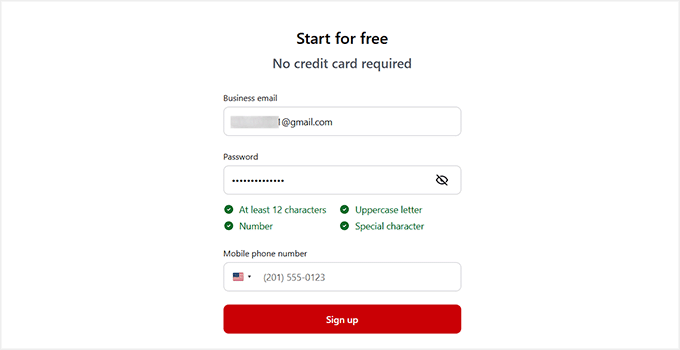
To get started, visit the LiveChat website and enter your business email, then click ‘Sign Up Free.’
On the next screen, create a password, add your phone number, and click the ‘Sign Up’ button.
Upon account creation, LiveChat will ask for your name and your website’s URL.
Adding your website lets LiveChat verify your site and automatically customize the chat widget to match your brand.
This way, the chat window will look polished and professional right from the start.
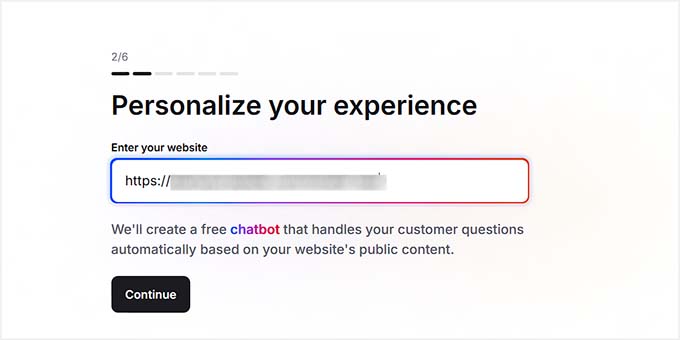
After entering your website URL, click ‘Continue,’ and you’ll be guided through the setup wizard.
Here, you can select your company size, invite team members, and tweak your account settings to your liking.
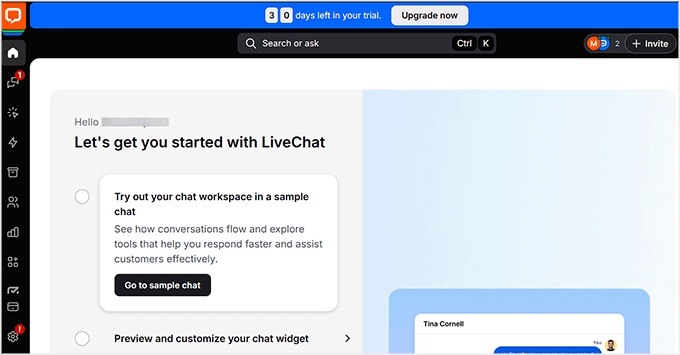
Once the wizard is complete, you’ll be taken to your LiveChat dashboard. Your account is now ready, and you can move on to customizing your chat widget.
Step 2: Customize Your Live Chat
To get started, select the ‘Customize’ tab in the left column to personalize your chat widget’s appearance and behavior.
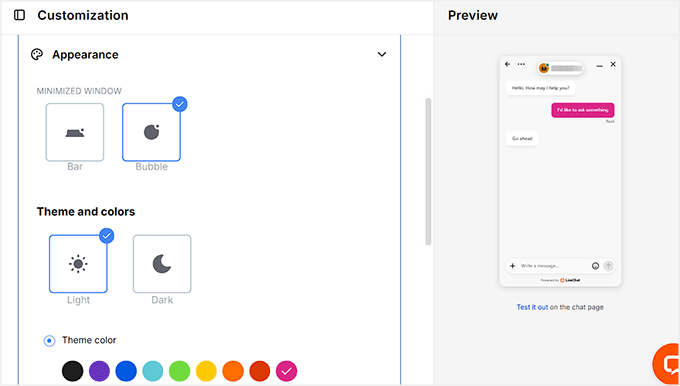
I recommend beginning with the widget’s look.
You can choose the minimized window style, pick a color scheme, and watch your changes in real time in the preview. This makes it easy to match the chat widget with your site’s branding.
Next, expand the ‘Position’ tab on the same screen.
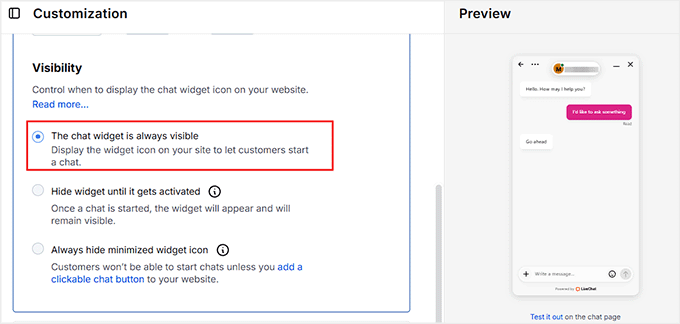
Here, you can decide where the chat widget appears on your site, including which side of the screen it sits on and how far from the edges. I suggest keeping the widget always visible.
This ensures visitors can start a chat at any time, which helps reduce abandoned messages and keeps potential customers engaged.
Hiding the widget or only showing it after an action can make it harder for new visitors to reach you.
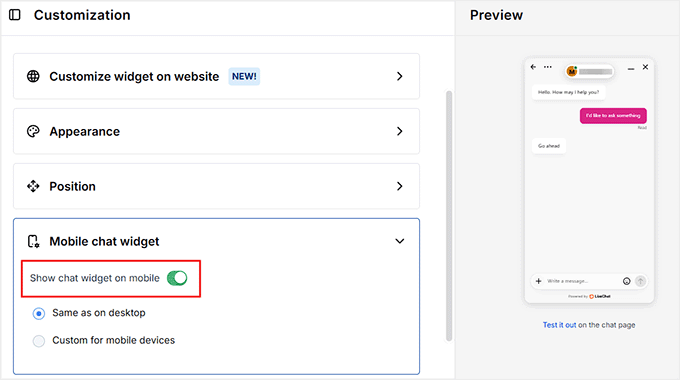
Then, go to the ‘Mobile Chat Widget’ tab. Toggle it ON to show the chat widget for mobile users.
I highly suggest keeping this enabled since most visitors are likely browsing from their phones. You can either use the same widget for mobile or create a custom version specifically for mobile devices.
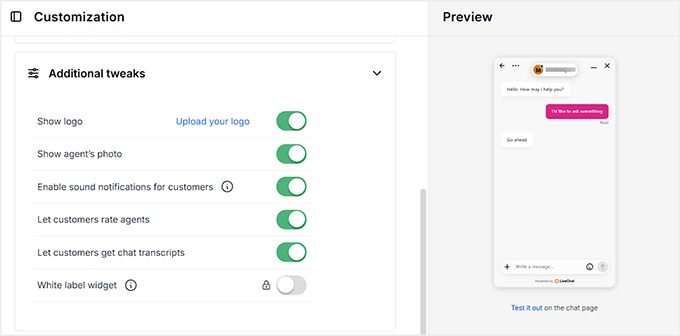
Finally, scroll down to ‘Additional tweaks.’
Here, you can choose to display your company logo, show the agent’s photo for a personal touch, enable sound notifications, allow chat transcripts for follow-ups, and let visitors rate agents for feedback.
Once you’ve customized everything, don’t forget to click the ‘Save Changes’ button to store your settings.
Step 3: Set Up Canned Responses
Before adding the live chat widget to your website, you should also set up canned responses. These are pre-written replies to common questions your visitors might ask, such as service details, operating hours, or general information about your business.
Adding canned responses saves your team time, keeps answers consistent, and lets customers get instant replies without waiting.
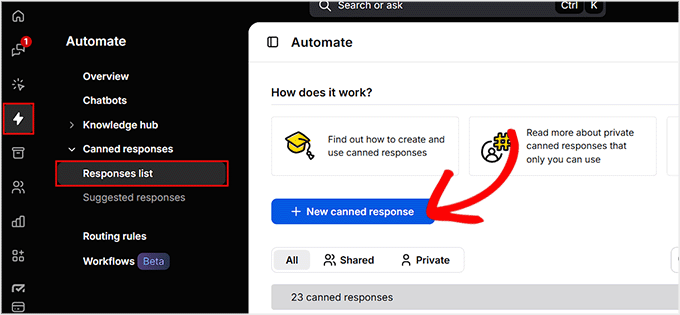
To add them, click the ‘Automate’ icon in the left-hand menu of your LiveChat dashboard. Then go to Canned Responses » Responses List.
Here, you can either browse existing responses or create your own by clicking ‘+ New Canned Response.’
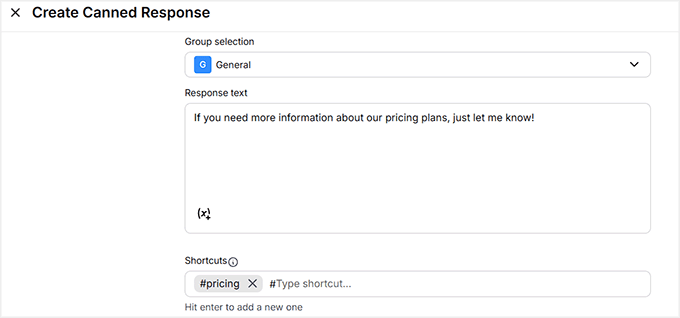
In the editor, type your response and assign a shortcut if you want. This makes it easy to reply quickly during live chats without retyping the same information repeatedly.
Once you’ve added your responses, click ‘Save Changes’ to store them. Your canned responses are now ready to help you provide fast, professional support to every visitor.
Step 4: Invite Team Members to Provide Live Chat Support
Once you’re happy with your chat widget’s appearance and settings, the next step is to invite agents to your LiveChat account. Agents are the team members who will respond to customer chats and provide support in real time.
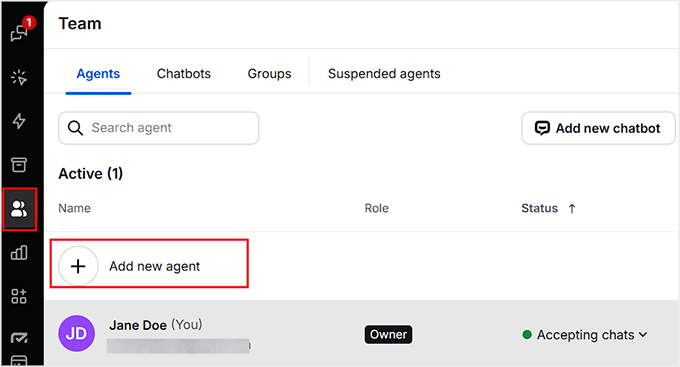
To add agents, click the ‘Team’ icon in your LiveChat dashboard and then the ‘+’ button next to ‘Add New Agent.’
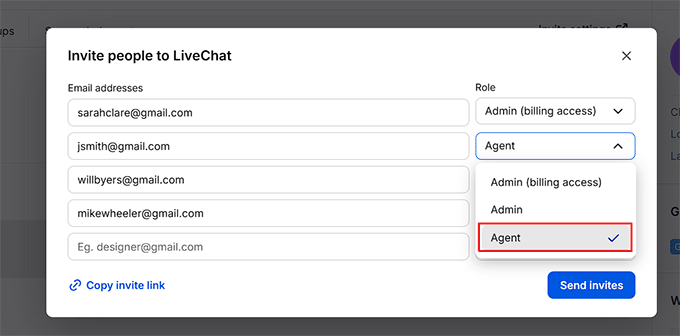
A popup will appear where you can enter your teammates’ email addresses and choose their level of access.
You can add someone as an agent, giving them limited control to handle chats, or as an administrator, which provides complete access to your LiveChat account.
After filling in the details, just click the ‘Send Invites’ button. Your team members will receive an email invitation, and once they accept, they’ll be ready to start helping your customers right away.
Step 5: Add the LiveChat Widget to Your WordPress Website
Now that your LiveChat chat widget is ready, the next step is to connect it to your WordPress website. To do this, install the free LiveChat – Live Chat Plugin for WP Websites.
If you’re unsure of how to do that, just follow the steps in our guide on installing a WordPress plugin, and you’ll be sorted.
Once the plugin is active, you’ll see a ‘Connect LiveChat’ button on your screen.
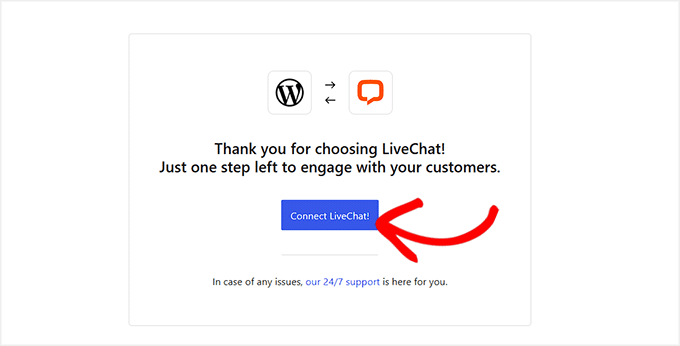
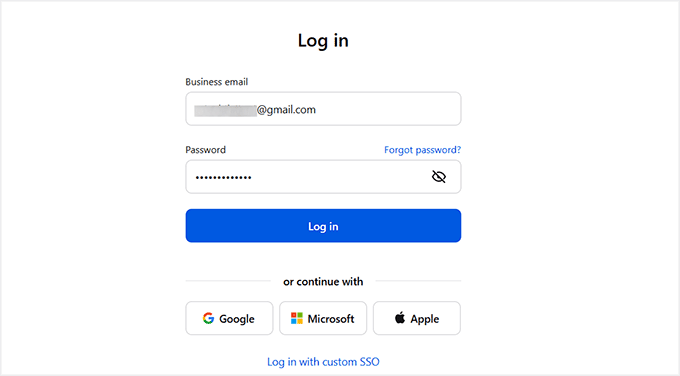
Click it, and you’ll be taken to the LiveChat website to log in and authorize the connection.
After logging in, you’ll be redirected back to your WordPress dashboard, and your LiveChat account will be fully connected.
The great part is that the live chat widget is added automatically to your website—no coding or customization is required.
Once connected, it will appear on all pages, ready for visitors to start chatting instantly.

💡Expert Tip: If you’re running an online store, LiveChat also offers a specialized free plugin for WooCommerce. Most of the setup process is very similar, and it integrates seamlessly with your store.
If you want step-by-step instructions, check out our dedicated tutorial on adding LiveChat to your WooCommerce store.
Bonus: Get Professional Live Chat Support Without Hiring Staff
Adding live chat to your WordPress site with WPChat or LiveChat is simple, but having trained agents respond in real time can take your support to the next level. Even the best chat tools work best when skilled people are behind them.
That’s when I recommend LTVPlus, a managed live chat service for online businesses. While it’s a bit more expensive than handling chats yourself, it ensures your visitors always receive fast, professional responses—24/7.

LTVPlus provides skilled live chat agents who can manage both support and sales, letting you grow your business without hiring a full in-house team.
By combining WPChat or LiveChat with LTVPlus, you can offer real-time support directly on your website and create a more professional, engaging experience for your visitors.
We’ve personally used LiveChat with LTVPlus on our OptinMonster site and seen it help increase conversions, so I highly recommend it if you want a hands-off, high-quality live chat solution.
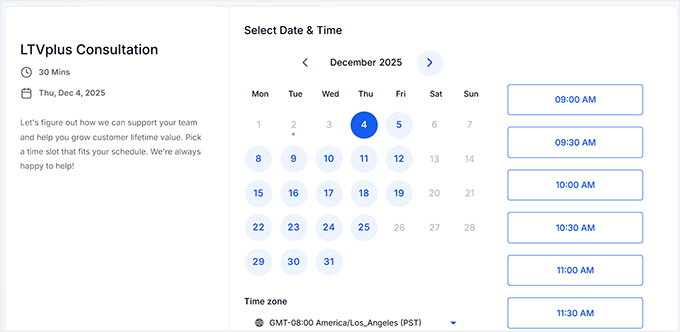
If you’re interested, just go to their website and click the ‘Start Hiring’ button. You can then book a consultation to see how their agents can support your business.
🌟More Ways to Help Visitors on Your Website
Live chat is a powerful tool, but it’s just one way to assist visitors in real time. I’ve seen that most successful websites combine live chat with a few other strategies to make their sites even more helpful and user-friendly.
Here are some tips to help you improve the customer experience and boost conversions:
- Help Center or Knowledge Base: Create a section on your site with articles, tutorials, and FAQs. This lets visitors find answers on their own, reducing repetitive questions and making it easier for them to get help quickly.
- Contact Forms: Even with live chat, some visitors prefer submitting detailed requests via a form. Plugins like WPForms make it easy to create simple, customizable contact forms.
- Email Assistance: Offer a dedicated email for questions that need longer responses or attachments. Make it easy to find on your website.
- Ticketing System: For larger websites, a ticketing system helps organize requests and ensures nothing gets missed. This is especially useful if you have multiple team members assisting visitors.
- Chatbots: AI-powered chatbots can provide instant answers to common questions, even when live agents aren’t available.
Combining these tools with live chat creates a complete system to help your visitors. Whether they want to chat, browse helpful articles, or submit a request, your site has a solution ready.
Frequently Asked Questions About Adding Live Chat to WordPress
After walking through both methods and bonus tips, I know many readers still have a few questions.
Below, I’ve answered some of the most common questions about adding live chat to your WordPress site, choosing the right plugin, and getting the most out of your chat widget.
How do I add LiveChat in WordPress?
You can add LiveChat by installing the LiveChat – Live Chat Plugin for WordPress. Once connected to your account, the chat widget appears automatically, no coding needed.
How do I add a free ChatBot to my WordPress website?
You can use ChatBot.com to add a chatbot to your website. Install the plugin, activate it, and follow the setup wizard to get started.
If you’re interested, check out our step-by-step tutorial on adding a chatbot to WordPress.
How to make a chat room for free?
Free chat rooms can be created using a plugin like Simple Ajax Chat. It allows you to add a simple, self-hosted chat room to any page, post, or widget-ready area for free.
Plus, you can restrict access to logged-in users or even create a chat room that’s completely open to the public. To get started, check out our guide on how to add chat rooms in WordPress.
What is the best free live chat for a small business?
For small businesses, WPChat is a strong free option. It’s easy to set up, integrates with popular messaging apps, and works well for handling basic inquiries.
Is Google Chat free for business?
Google Chat is free to use with personal Google accounts, but for business features and full Google Workspace integration, a paid plan is required.
I hope this tutorial helped you learn how to easily add live chat in WordPress. You may also want to see our list of the best bookkeeping services for your online business and our WordPress tutorial on how to add a chatbot in WordPress.
If you liked this article, then please subscribe to our YouTube Channel for WordPress video tutorials. You can also find us on Twitter and Facebook.




Ayush
Can we add chat feature if we have a localhost WordPress
WPBeginner Support
You would want to reach out to the support for the plugin for if they’re currently offering localhost support but for the moment they would not work on a local installation.
Admin
Ayokunnumi
This Website has been a good learning platform in my Wordpress Development. Thumbs up
WPBeginner Support
Glad our content has been helpful
Admin
Abdul Jabber
Thanks for your exclusive post. I want implement chating option without using any plugin if have any tutorial in this issue please send me the link. I will be happy.
mohan
hi in firebug i am finding remove marin-buttom space its showing path inline:1,
but i am trying find the original path can u guide me
Girish
Trying to add private chat on my site but failed. Please help.
Prince
Hello admin… I’m a great fan of wpbeginner.. I’ve searched your website and can’t find this … But, how do I display related post as u do in ur footer after comments..
WPBeginner Support
Please our tutorial on how to show related posts with thumbnails without using a plugin
Admin
Sangie Nativus
Guest chat access is a great way to get spam. I’ve been looking forever for a chat plugin for WP that uses the same user database. Some let ANYONE join the chat and others require all visitors to register on an external website AND charge you a monthly fee to do so.
Lame :E
I hope Chat Room will deliver exactly what I need. Simple live chat for my users =)
analyzes
Chat option 1: – is good ONLY if users are registered on your blog. It has NO options for guests at all. (87.8% of people will NOT register at a website just to ask a question or comment) – statistics
Chat option 2: WP and IRC are not good bedfellows. Anyone that’s been in the IRC world for even a short period of time knows how to use the vulnerabilities of WP (i’ll not post here, but easily found) to pull any users IP (even the admin) from the WP via IRC
Chat option 3: Adding a skype button, is akin to adding a facebook button , yahoo messenger button etc.. and has no place in “adding chat to wordpress” at all. (its not adding chat to wordpress) You may as well tell them to just type – add me on skype! and post their user name.
Chat option 4: See answer to chat option 3. Twitter is NOT chat for wordpress, nor is it part, able to be integrated, or otherwise remotely on subject yet again.
This entire blog post “how to add chat into wordpress” – even by title is misleading at best. I would remove options 2 – 4. (especially the IRC option for noobs, you’re just opening a new user up to vulnerabilities they have no idea how to patch) And clarifying that option 1 is only for registered users.
A link to your post (and my comment) has been supplied on our vulnerability site, i’ll be interested to see how your post changes if at all.
toodles
WPBeginner Support
Thanks for your time to analyze our post.
1. We did mention in the article that the first option will only work for registered users.
2. Our second option uses Kiwiirc which is actually web app. We don’t think that it makes a WordPress site vulnerable.
Admin