


Want to build trust with your website visitors? One of the easiest ways is by showing your Twitter (X) follower count. But if you’ve tried adding it to your WordPress site, you’ll notice that most social media widgets are bulky, slow down your site, and don’t look great.
The good news? You don’t need those heavy widgets.
After working with hundreds of WordPress sites, we’ve found a clean, simple way to add your X follower count as text. One that actually works well with your site’s design instead of cluttering it. ✨
In this guide, we’ll walk you through how to display Twitter followers count as text in WordPress – step by step.
Why Display Twitter Followers Count as Text in WordPress?
Showing your Twitter (X) follower count as text builds trust with your visitors right away. When people see that others follow you, they’re more likely to view your business as credible and see you as an expert in your niche.
It’s a common form of social proof. Many popular blogs, influencers, and big-brand WordPress sites proudly show how many people follow them on social media.
Now, many of the best social media plugins allow you to show the total follower count in embedded feeds, buttons, banners, and more.
However, sometimes, you may want to show the number as plain text. This gives you the freedom to add the follower count to your blog posts, footer, or anywhere else on your WordPress website.
With that in mind, we will show you how to display your Twitter follower count as text in WordPress. Here’s a quick overview of all the steps we will cover:
✏️ Quick note: As Twitter is now called X, we will refer to it as X in the following sections.
Let’s get started.
Step 1: Get an X API Key and Secret
To get your follower count, you will need to access the X API by creating an API Key and Secret.
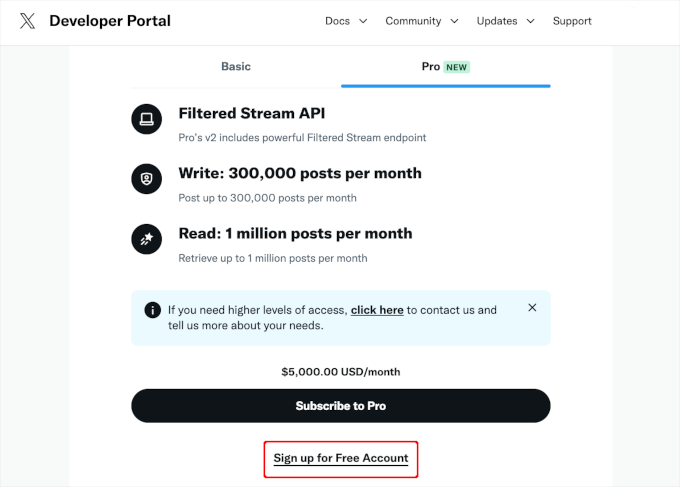
First, head over to the X Developers Portal and then click on ‘Sign up for Free Account.’
You can now type in some information about how you plan to use the X API.
It’s a good idea to provide as much detail as possible, as X will review this information and may delete your account if they don’t understand how you are using their API.
After that, don’t forget to read the terms and conditions. If you are happy to continue, go ahead and click on the ‘Submit’ button.

You will now see the Developer Portal.
In the left-hand menu, simply click to expand the ‘Projects & Apps’ section. Then, select ‘Overview’ to see the ready-to-use project app.
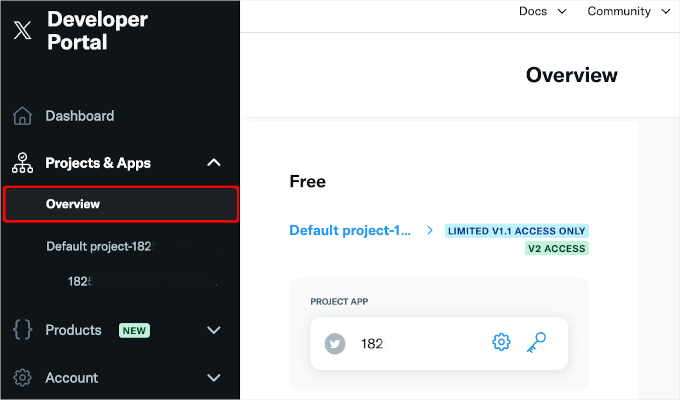
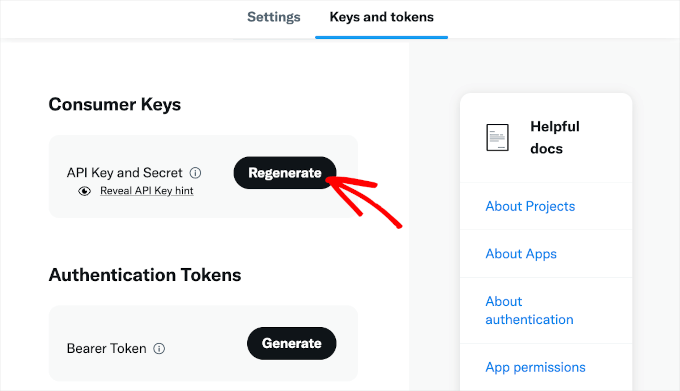
Let’s click the key button to access your API Key and Secret, then the ‘Reveal API Key’ button.
X will now show an API key and API Secret. This is the only time you will see this information, so make sure to store it somewhere safe – we recommend using a password manager for extra security. 🔐
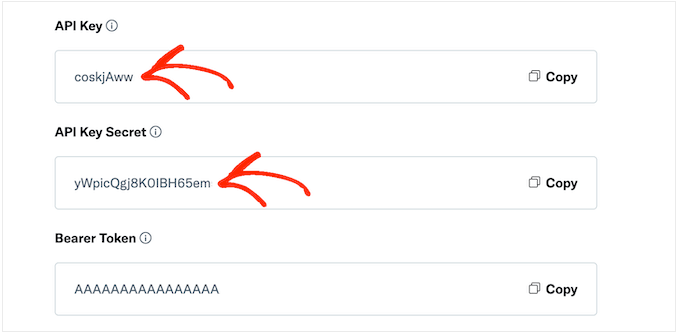
If you ever misplace the API Key Secret, you’ll need to regenerate it, which will then invalidate the previous one.
Simply click the ‘Regenerate’ button to create a new API Key and Secret.
Step 2: Add Custom Code to Your WordPress Website
The easiest way to add the X follower count to your site is by using PHP code.
For security reasons, WordPress doesn’t allow you to add PHP code directly to your pages and posts, but it does allow shortcodes. This means you can create a custom shortcode and then link it to your PHP code.
The easiest way to add custom shortcodes in WordPress is by using WPCode. This plugin allows you to create as many shortcodes as you want and then link them to different sections of PHP code.
Some of our partner websites use WPCode to add custom code snippets. They love how it simplifies code management, reduces errors, and keeps their sites organized.
Check out our full WPCode review for more insights about the plugin.
The first thing you need to do is install and activate the free WPCode plugin. For more details, you can see our step-by-step guide on how to install a WordPress plugin.
Upon activation, let’s head over to Code Snippets » Add Snippet.
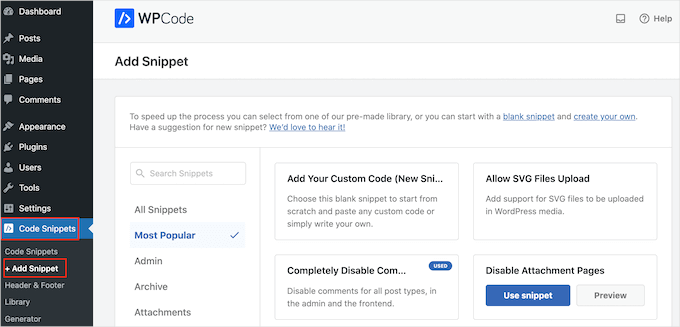
Here, you’ll see all the ready-made snippets you can add to your website. These include snippets that allow you to completely disable WordPress comments, upload files that WordPress doesn’t support by default, and more.
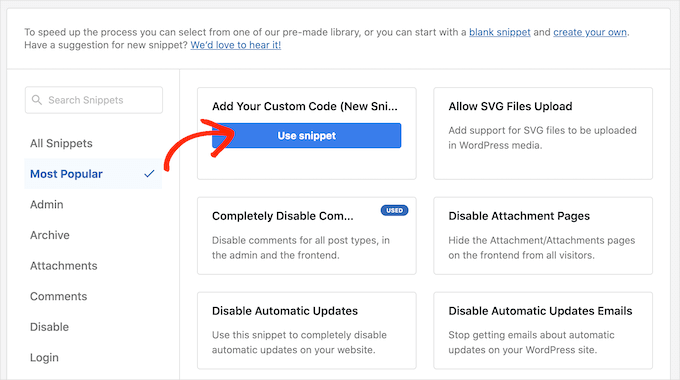
Since you are creating a new snippet, you’ll want to hover your mouse over ‘Add Your Custom Code (New Snippet)’ and click on ‘Use snippet.’
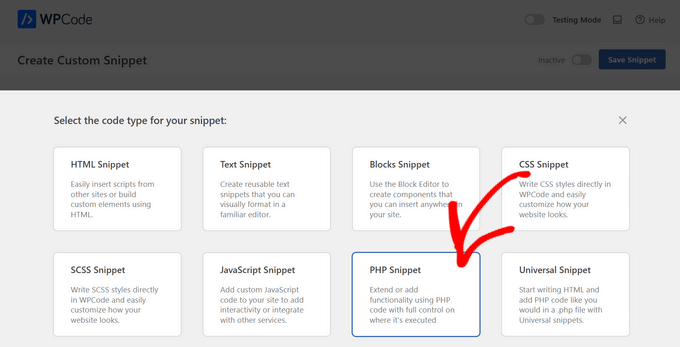
In the popup that appears, you’ll need to choose a code type.
For this tutorial, you can select ‘PHP Snippet.’
You will now see the code snippet editor.
Here, the first thing to do is type in a title for the custom code snippet. This can be anything that helps you refer to the snippet in the WordPress dashboard.
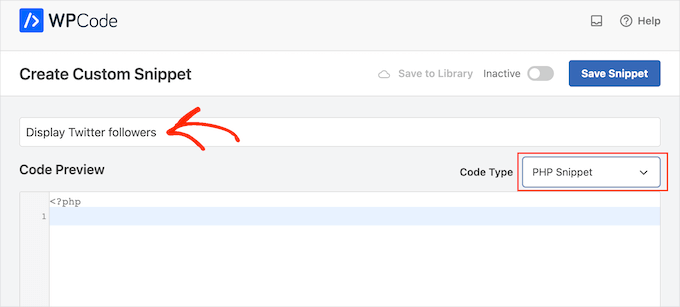
In the code editor, simply paste the following PHP code:
/**
 * Fetches the X (Twitter) follower count and caches it.
 *
 * @param string $screenName The X handle to fetch followers for.
 * @return int|string The number of followers or the last known count on error.
 */
function wpb_get_twitter_followers($screenName = 'wpbeginner') {
    // Your X API credentials from your developer account.
    // Replace with your actual keys.
    $apiKey    = 'YOUR_API_KEY';
    $apiKeySecret = 'YOUR_API_KEY_SECRET';

    // Get the follower count from a temporary cache to speed up your site.
    $numberOfFollowers = get_transient('wpb_twitter_followers');

    // If the cache is empty or expired, fetch new data from the API.
    if (false === $numberOfFollowers) {

        // Prepare credentials for authentication.
        $credentials = base64_encode( $apiKey . ':' . $apiKeySecret );

        // Make a request to the X API for an authentication token.
        $auth_response = wp_remote_post('https://api.twitter.com/oauth2/token', array(
            'method'      => 'POST',
            'httpversion' => '1.1',
            'blocking'    => true,
            'headers'     => array(
                'Authorization' => 'Basic ' . $credentials,
                'Content-Type'  => 'application/x-www-form-urlencoded;charset=UTF-8',
            ),
            'body'        => array( 'grant_type' => 'client_credentials' ),
        ));

        $keys = json_decode(wp_remote_retrieve_body($auth_response));

        // If we have a valid token, proceed to get follower count.
        if (isset($keys->access_token)) {
            $token = $keys->access_token;

            // Now, make the request for user data using the token.
            $api_url = "https://api.twitter.com/1.1/users/show.json?screen_name=$screenName";
            $data_response = wp_remote_get($api_url, array(
                'httpversion' => '1.1',
                'blocking'    => true,
                'headers'     => array(
                    'Authorization' => "Bearer $token",
                ),
            ));

            if (!is_wp_error($data_response)) {
                $followers = json_decode(wp_remote_retrieve_body($data_response));
                if (isset($followers->followers_count)) {
                    $numberOfFollowers = $followers->followers_count;
                    // Cache the result for 1 hour and save a fallback option.
                    set_transient('wpb_twitter_followers', $numberOfFollowers, 1 * HOUR_IN_SECONDS);
                    update_option('wpb_twitter_followers_fallback', $numberOfFollowers);
                }
            }
        }
    }

    // If the API call fails for any reason, use the last successfully saved count.
    if (false === $numberOfFollowers) {
        return get_option('wpb_twitter_followers_fallback', 0);
    }

    return $numberOfFollowers;
}

/**
 * Creates the WordPress shortcode [x_followers].
 */
function wpb_x_followers_shortcode_function() {
    // Change 'wpbeginner' to your X username.
    $count = wpb_get_twitter_followers('wpbeginner');

    // Make sure we have a number before formatting it for display.
    if (is_numeric($count)) {
        return number_format_i18n($count);
    }

    return ''; // Return nothing if there's an error.
}
add_shortcode('x_followers', 'wpb_x_followers_shortcode_function');
?>
Now, you need to replace the placeholder API credentials in the code with the ones you just saved from the X Developer Portal.
Find these lines:
    $apiKey    = 'YOUR_API_KEY';
    $apiKeySecret = 'YOUR_API_KEY_SECRET';
Replace 'YOUR_API_KEY' and 'YOUR_API_KEY_SECRET' with your actual keys.
Next, find this line inside the wpb_x_followers_shortcode_function:
$count = wpb_get_twitter_followers('wpbeginner');
You’ll need to replace 'wpbeginner' with the X username you want to display followers for. This can be any public X account.
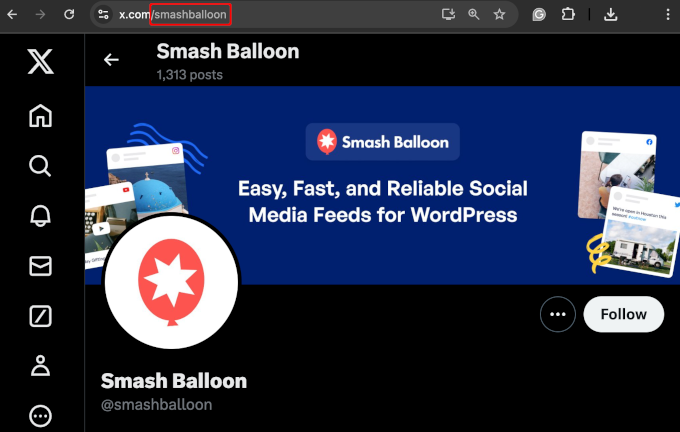
To get the X username, simply open the X profile in a new tab.
You will find the username in the URL and in the profile header:
With that done, you can switch back to the WPCode editor page.
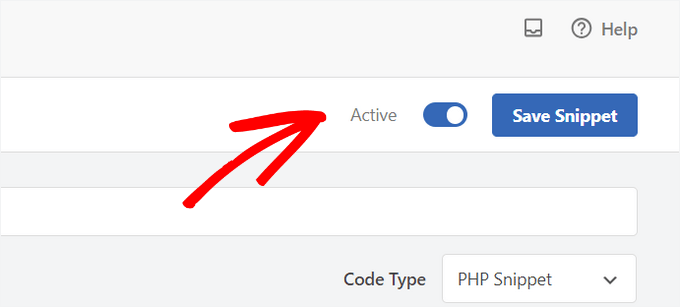
Here, simply click on the ‘Inactive’ toggle so that it changes to ‘Active.’
You can then go ahead and click on the ‘Save snippet’ button.
This code automatically creates a custom shortcode for you: [x_followers].
You can now add this shortcode anywhere on your site to display the follower count as social proof.
To use it, simply edit any page, post, or widget area where you want to show the count.
In the block editor, simply click on the ‘+’ button and type in ‘Shortcode.’ When it appears, you can then select the ‘Shortcode’ block to add it to the page or post.
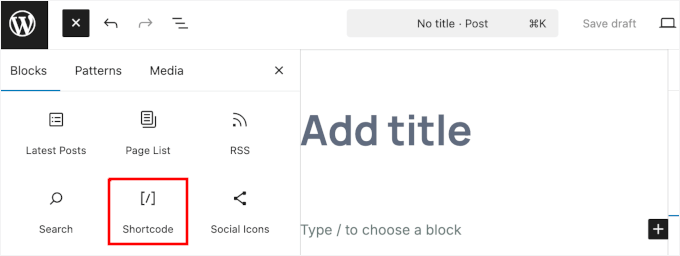
Simply paste the [x_followers] shortcode into the Shortcode block.
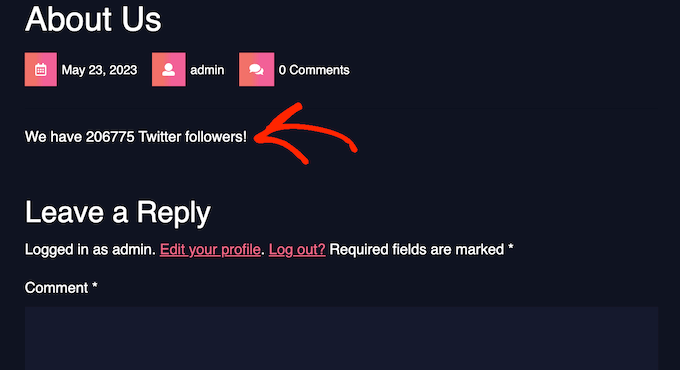
Do note that the shortcode only displays the number. So, you’ll want to add some context around it. For example, you can write “We have [x_followers] Twitter followers!”

For more information on how to place the shortcode, please see our guide on how to add a shortcode in WordPress.
When you are happy with how the page is set up, you can make the follower count live by clicking on either the ‘Update’ or ‘Publish’ button.
Now, if you visit your WordPress website, you will see the follower count live:
Bonus Tip: More X Tricks!
Now that you’ve learned how to display your Twitter (or X) follower count on your WordPress site, it’s a good idea to optimize your X marketing further.
Add X Share and Retweet Buttons
Adding X share and retweet buttons to your site can really help boost your traffic and reach. With over 217 million users on X every month, it’s a great place to promote your content.

These buttons make it easy for users to share your posts, so you can reach new people beyond your followers. This not only brings more visitors to your blog but also shows others that your content is trusted and liked, which can make your brand look more credible.
To do this, you’ll want to check out our guide on how to add Twitter share and retweet buttons.
Promote Your X Page Using a Popup
Then, you can boost your X profile visibility and gain more followers by promoting your page with a popup.
OptinMonster makes it easy to create popups that grab attention without being intrusive. It’s one of the most powerful lead generation software out there, and it lets you design beautiful popups that ask visitors to follow you on X.
At WPBeginner, we rely on OptinMonster for all our popups, slide-ins, and floating bars. Its smart targeting rules let us show the right message to the right person, which has been key to growing our social media followers and email list.
For more details, read our full OptinMonster review.
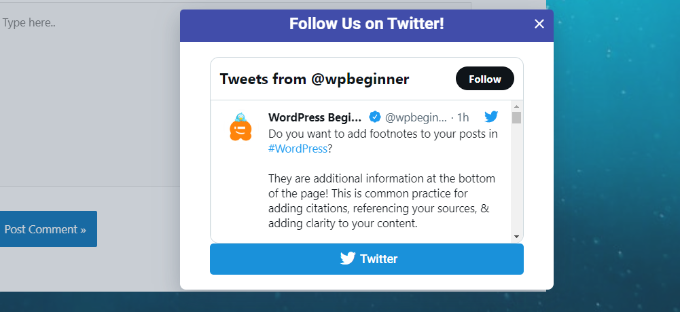
And for a step-by-step guide, please see how to promote your Twitter page in WordPress with a popup.
Beyond social media popups, OptinMonster can also help you build an email list, offer content upgrades, display contact forms, and more.
FAQs: Display X Follower Count as Text
How often will the follower count update with this method?
The method in this guide uses a caching system that updates the follower count about once per hour. This keeps the number reasonably up-to-date without slowing down your site with constant requests to the X API.
Will adding this custom code slow down my website?
No. This approach is lightweight. By showing the count as plain text and using caching, it avoids the performance issues that often come with heavy social media plugins or widgets.
What’s the best way to add a full Twitter feed to my site?
If you want more than just the count, the easiest option is a plugin. We recommend Smash Balloon, as it lets you embed interactive, customizable Twitter (X) feeds without touching any code.
Further Reading: Social Media Guides for WordPress Users
We hope this tutorial helped you learn how to display your Twitter follower count as text in WordPress. Next up, you may also want to read these guides:
- Best Twitter Plugins for WordPress
- How to Create a Custom Instagram Photo Feed in WordPress
- How to Add a Pinterest “Pin It” Button in WordPress
- How to Display Social Media Followers Count in WordPress
- How to Run a Social Media Contest to Grow Your Site
- The Complete Social Media Cheat Sheet for WordPress
If you liked this article, then please subscribe to our YouTube Channel for WordPress video tutorials. You can also find us on Twitter and Facebook.


Jiří Vaněk
I’ve also set up a Twitter account for my website to increase its reach. It might be nice to use this article and display the numbers in the posts. Perhaps, as part of marketing, it might encourage some readers to also join as followers. It could enhance the integration with social media and improve website traffic.
venky
Hi used the same code in my site..but its not showing the follower counter of the twitter pages
pls help me out ..
Noraly
update: after having one last look I saw I hadn’t activated the access token. So now it does show up, only way at the bottom of my sidebar. How do I move it up to a more logical place? Preferably within the text widget at the top, so I can include it with all my other social media links. Thank you!
Noraly
Hi all, hope you are still monitoring comments, since it’s an older article. I have copied the code in functions.php, replaced the key and secret (left the ‘ ‘ intact, was I meant to do that?). Then I copied the other bit in sidebar.php. Replaced the yourscreenname with my twittername. This doesn’t make it show up in the sidebar though. Should I do something with a text widget in the sidebar, where I want it to show up? Just putting the last line of code in a sidebarwidget doesn’t seem to be the trick. Would appreciate your help. Thanks!
WPBeginner Staff
Yes with a few changes you can use it with any PHP application.
Jitendra
Can i use it in other PHP application? I mean any other application which is not WP.
arun
It is not working for me.
I have added that code into sidebar template , then i replaced consumer key and secret key with screen name. Still it is not working
This is my page url
WPBeginner Support
Arun it seems like you resolved the issue, when we visited your webpage it was showing the correct twitter follower count in plain text.
Admin
Nic Granleese
Hi,
Can you tell me if this code works for multiple twitter users.
I’m trying to make a table with different users on a site with their respective twitter follow count.
When I tried it seems to display only one twitter user’s count, which I assume is because user one get’s cached, and then the second, third, and n users just display the same result.
Nic
WPBeginner Support
Yes you got that right.
Admin
Thomas
I’ve got the same problem.
When I ask for the follower count of three different accounts and display it on a page, it displays the same number three times. The number it displays is the exact follower count of the first account.
Do you know how to fix this? :/
Thanks in advance.
Thomas
Julian Lara
Its possible to get a comma in the number like 140,029. Because actually show like 140029.
rayuribe
works great!
but…
It is possible add the result of this script to this other >
http://lineshjose.com/blog/how-to-display-facebook-fans-count-as-text-in-wordpress-site/
and show the total? (facebook_fans+twitter_fans=total_fans)
jahirul
Would you please share the code of follower count of yours? the function and the activation code, please.
Nazar
This doesn’t work for me.
I’ve replaced $consumerKey and $consumerSecret as well as made the Access level to “Read and write” but nothing is happening
irfan
Hey hi,
Such a great post.
I have ask a question for you I use twiiter user link (https://twitter.com/screen_name) when i use this link show followers its that possible?
Any one,
Thank Advance
Alvin
Hello,
we get this error
Fatal error: Call to undefined function get_option() in line 17
line 17 is this
$token = get_option(‘cfTwitterToken’);
Matt
Hi,
Dreamweaver tells me this line is invalid:
$api_url = “https://api.twitter.com/1.1/users/show.json?screen_name=$screenName“;
So I’ve updated it to:
$api_url = ‘https://api.twitter.com/1.1/users/show.json?screen_name=$screenName’;
But the twitter count just says 0 (I have over 1,200).
Any suggestions?
Thanks!
Matt
Malcom Miles
Wrapped this tutorial along with the “Wordpress Site Specific Plugin” tutorial and worked like a charm.
Many thanks! :3
jahirul
would you give me the code or the link of your plugin please.
Tyler
I’ve tried doing this atleast 10 times and can’t get it to work. Is it up-to-date?
Editorial Staff
Yes this code was recently updated, and it works fine for us.
Admin
jahirul
Does it work in localhost with net connection?
Zulhilmi Zainudin
How about to display Facebook Fans & Google+ Followers in text?
Chandra
Thanks for this code. I used this in my site but after sometime, I tested with an addition of follower but that count is not being updated. It still shows old count. Is something missing ? Thanks.
Chandra
Ah, it updated after an hour or so…
regnar
A little demo would be great.
Editorial Staff
It will show the count as text. For example: if you have 100 followers, then it will output 100. Not sure what you expected in the demo.
Admin