


We have all seen it happen. You upload a photo from your phone, only to find a generic name like IMG_5432.JPG in your WordPress media library.
While it seems like a small detail, these unhelpful names hurt your image SEO. While search engines are getting smarter at recognizing images, they still rely heavily on file names and alt text to understand the context and rank your content.
At WPBeginner, we manage thousands of media files, so we know that organized file names are vital for good rankings and a smooth workflow. Unfortunately, WordPress does not let you easily change a filename after upload.
In this guide, we will show you exactly how to rename images and media files in WordPress without breaking your links.

Here’s a quick look at everything we will cover in this guide. You can use the links below to jump to the section that interests you most.
- Why Rename Images and Media File Names in WordPress?
- How to Easily Rename Images and Media Files Using a Plugin
- Frequently Asked Questions About Renaming Media Files
- Learn More Ways to Manage Your WordPress Files
Why Rename Images and Media File Names in WordPress?
Many popular search engines let users search for images. This means that interesting, helpful, or eye-catching images can often increase your blog traffic.
However, search engines need to understand what your images are about so they can show them to the right people at the right time.
Here at WPBeginner, correctly naming our image files is a required step in our internal publishing checklist. Our editorial team ensures every image has a descriptive, hyphenated name before it gets uploaded, which makes a real difference in our image search traffic.
Using meaningful file names is a big part of image SEO. For example, a file name like new-york-skyline.jpg gives search engines more context than DSC00789.jpg.
This is where a complete SEO toolkit becomes essential. We use All in One SEO (AIOSEO) on our websites to manage everything from meta tags to image alt text, ensuring our content is fully optimized.
While WordPress lets you change the image caption and alt tag, it doesn’t let you change the file name after uploading.
This is a problem if you want to add newly discovered keywords to your images, accidentally used an unhelpful file name, or are uploading files directly from your phone.
Having said that, let’s take a look at how to easily rename images and media files in your WordPress blog.
How to Easily Rename Images and Media Files Using a Plugin
The easiest way to rename media files in WordPress is by using Phoenix Media Rename. This plugin allows you to rename media files without leaving the WordPress admin area.
The plugin will also update the file name for any images you’ve uploaded in posts or pages. This can save you a lot of time and effort.
You might be tempted to rename the file manually using FTP or your hosting file manager. However, this will break your images. When you change the name on the server, the WordPress database still looks for the old filename, resulting in a broken link error.
The first thing you need to do is install and activate Phoenix Media Rename. For more details, see our step-by-step guide on how to install a WordPress plugin.
Upon activation, simply go to Media » Library. If the library shows the grid view, then you’ll need to switch to the list view by clicking on the list icon.
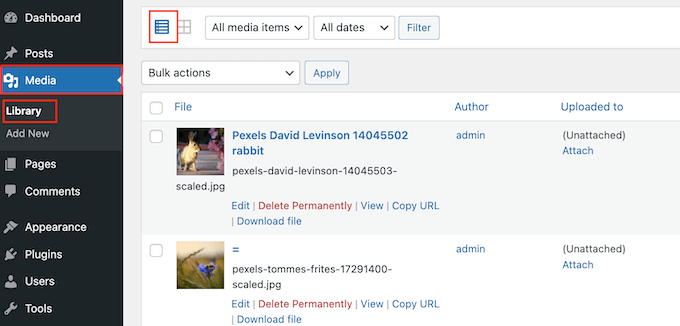
WordPress will now show more information about each media file, including its name.
Simply hover your mouse over the image you want to rename on your WordPress website, and then click on the ‘Edit’ link when it appears.
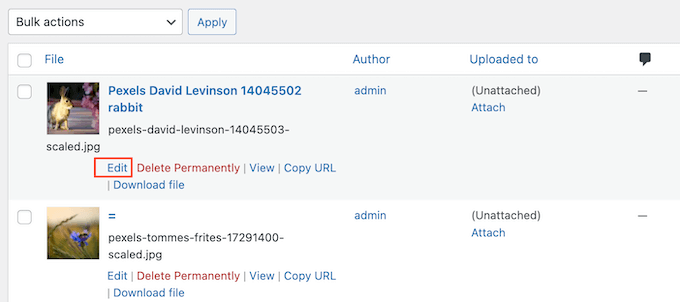
This will open the image in your WordPress media edit screen. From here, you can optimize your images by changing the image alt text, caption, and more.
Scroll down to the bottom, and you’ll see a new ‘Filename’ field.
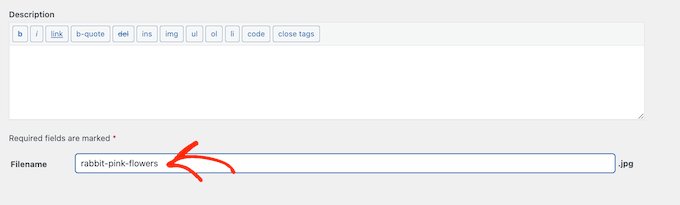
This is where you can change the file name. We recommend using a meaningful name that describes the image and adding any relevant keywords. It’s also a good idea to use all lowercase letters and add dashes in between words.
After that, simply click on the ‘Update’ button to save your changes. You will also see that the file name part of your file URL has also been changed.
Frequently Asked Questions About Renaming Media Files
Here are some of the most common questions we get from readers about renaming images and other media files in WordPress.
Will renaming an image break my existing posts?
No, not if you use the plugin method we showed above. The Phoenix Media Rename plugin automatically finds every instance where the old filename is used in your posts and pages and updates it with the new one. This ensures your images won’t appear broken.
However, if you were to rename the file manually using an FTP client or from your hosting file manager, it would break the image link on your site. This is why using a dedicated plugin is the safest approach.
What is the best format for image filenames for SEO?
The best practice is to create descriptive, keyword-rich filenames. For example, instead of IMG_1234.jpg, a much better name would be how-to-rename-images-in-wordpress.png.
Always use lowercase letters and separate words with hyphens (-), not underscores (_). This makes the URL cleaner and easier for both users and search engines to understand.
Can I rename multiple image files at once?
The Phoenix Media Rename plugin lets you change filenames one by one from the media library. While some premium plugins may offer bulk renaming features, we find that renaming files individually allows for more specific and effective SEO for each image.
Learn More Ways to Manage Your WordPress Files
Besides renaming file names, here are more ways you can organize your files in the media library:
- How to Organize WordPress Files in Media Library Folders
- How to Add Categories and Tags to WordPress Media Library
- How to Clean Up Your WordPress Media Library
- How to Easily Organize Media Uploads by Users in WordPress
- Great WordPress Plugins for Managing Images (Updated)
- How to Change the Default Media Upload Location in WordPress
We hope this article helped you learn how to easily rename images and media files in WordPress. You may also want to see our guide on how to add Instagram-like photo filters in WordPress and our expert picks for the best WordPress slider plugins.
If you liked this article, then please subscribe to our YouTube Channel for WordPress video tutorials. You can also find us on Twitter and Facebook.




Dennis Muthomi
Hi, you mentioned that descriptive file names can improve image SEO.
I was wondering, do image attributes like the alt text and caption also help search engines understand the content of images?
WPBeginner Support
Yes those help search engines as well as your site visitors understand the content of the images
Admin
Jiří Vaněk
I am now going to clean out the media folder in a similar way. What do you think is the best method for image names. Is it worth naming the pictures, for example, using key words, or writing a description of what is in the picture?
WPBeginner Support
For the moment it would be better to have a descriptive name instead of trying to use keywords.
Admin
Jiří Vaněk
Thanks for the advice, because until now I’ve been doing exactly the opposite and using only keywords.
Maryam Ali
I use the Phonix Media Rename plugin for changing the file name of images. But, this plugin is not changing the link of the image. The image link still has the old file name. Is there, any problem with the canonical tag OR now there is duplication of image files on the website?
WPBeginner Support
If you are concerned with redirects the Phoenix Media Rename plugin works with the Redirection plugin to create redirects for the changed images.
Admin
Andrew J Schaeffer
No more filename box to rename images. Gotta use a plugin and/or the hard-way (taking images down from media library, rename, and put them back in).
WPBeginner Support
Thank you for pointing that out
Admin
Tasha
Is renaming the image after they are uploaded going to break any links that are out there to the images? Will autoredirects be set up?
WPBeginner Support
Using the plugin method should handle the redirects for you.
Admin
karma
Thank you for your post.
Since I haven’t tried it yet, I wonder what happen if I rename the file directly from inside the cpanel File Manager.
WPBeginner Support
Issues pop up when updating your file names through that method as it wouldn’t update on WordPress’ end.
Admin
Edward L
After changing the image Filename using the Phoenix Media Rename plugin, I notice the “/new name text.jpg” of the “File URL” automatically changes to match the new Filename. However, I also notice the “Permalink” URL still remains the same (the end text still has the old Filename included; in other words, “/old name text.jpg”). I suppose this it to not “lose” the placement of the image in the site.
Am I understanding this correctly? Should I just leave the Permalink as it is?
WPBeginner Support
Your understanding is correct for the URL of the file and you should leave it as it is at the moment.
Admin
Edward L
Thanks for your help on this, and for your site in general.
Sahed Ibnay Alam
when move cursor in image, My images have a terrible naming structure and it is very distracting to the user to see “IMG_1234.JPG”.
is there is any solution to remove this
WPBeginner Support
If it is not the name of the image then you would want to check the image’s alt text and caption for where that would be.
Admin
Jes
Hi, Will renaming the images using a plugin, then compress after will return the images’ name to original? Thanks!
WPBeginner Support
You would need to check with the support for the plugin you’re planning to use if their plugin works that way.
Admin
Frank Martire
Couldn’t I just change the name of the file on my desktop, upload it to my media file and replace current image with new image with new title? (file name)
WPBeginner Support
That would be another option if you know all of the locations the file is on your site.
Admin
Frank Martire
hello and thanks for the response, you actually made me realize how issues can arise. Changing a pic and not updating all the file locations.
In my case I think its easy, im changing my hero pic and logo. These are controlled by my theme and I hope will update the new url once I replace the images.
WPBeginner Support
You’re welcome! if it is in only those locations then you should be fine
Mark Covell
Fantastic had Phoenix Media Rename downloaded for a while as got a client who insists to not rename their images before uploading so was looking for a solution. I installed it on a test site and couldn’t figure it out as it doesn’t mention anywhere about switching to the list view ! Your post just stopped me buying Media File Renamer Pro ! So thanks for that.
Best Wishes.
Mark
WPBeginner Support
You’re welcome, glad we could clear up how to use the plugin
Admin
Balaka
Thanks for this article.
Question about the Phoenix Media Rename plugin:
Once I’ve replaced the filenames, do I need to keep the plugin active? Or is it fine to use it to rename files, then deactivate?
Cheers!
WPBeginner Support
You may want to double-check with the plugin’s support but at the moment it is fine to remove the plugin after renaming the files.
Admin
Radu
Hello to all!
I am working on a project made in wordpress and I am stuck on this part:
When a author post a new article and attach an image like image.jpg, and other author posts another article with the same image name image.jpg, the second article will be owerwrited by the first name on that image.jpg (from the first post)…
The question is: ,if there is a way to prevent that automatically, in functions php, js(ajax), etc…??
I am facing with this for one week (technically speaking) ….
Any info. will be appreciated…
WPBeginner Support
It would depend on the tool you’re using to change the image name, you would want to reach out to the plugin’s support for preventing overwriting.
Admin
Radu
Hey, thanks for the answer.
In the meanwhile, i did it with js, renaming the file before uploading.
Sherylin Thompson
Hello. Why is it that I’m not seeing the filename field at the bottom of the WordPress media edit screen? Thanks for your help.
WPBeginner Support
There are a few possible reasons, you may want to check the top right for another possible location for the file name
Admin
Enrique
Hi, WPBeginner,
Will this also update the permalinks or just the file names?
Thanks!
WPBeginner Support
It would depend on the method you are using, currently, the first method would change the permalink for the image and update it where the image is placed on your site.
Admin
Tahir Musharraf
The replace image option is not available? what should I do
WPBeginner Support
It would depend on the method you are using. If you reach out to the plugin’s support they should be able to assist.
Admin
Creo Fredmacs
Very detailed. You never disappoint WPBeginner.
WPBeginner Support
Thank you, glad you’ve found our content helpful
Admin