


Nothing ruins a productive day quite like opening your WordPress dashboard and finding it full of spam comments.
A lot of site owners try to clean them up one by one, but that’s slow, frustrating, and completely unnecessary. On top of that, spam comments can slow down your site and make things feel messy for real visitors.
At WPBeginner, we get thousands of comments every day — and yes, some of those are spam. Over time, we’ve found the fastest and most reliable ways to clean them up in bulk and keep our comment section under control.
In this guide, we’ll show you how to batch delete spam comments in WordPress. We’ll also share how to set up better protection so you won’t have to deal with this as often. 🛡️

TL;DR: To bulk-delete spam comments in WordPress, you can use the built-in Comments screen for smaller cleanups or a plugin like WP Bulk Delete if you’re dealing with thousands of spam entries. Pair this with tools like Akismet and Thrive Comments to reduce spam going forward and keep your comment section easy to manage.
Why You Need to Deal With Comment Spam in WordPress
Comment spam can harm your WordPress site by damaging your reputation, cluttering discussions, and even putting visitors at risk if spam links lead to unsafe websites. That’s why it’s important to actively moderate and remove spam comments instead of letting them pile up.
This type of spam usually comes from malicious actors who try to boost their websites’ search rankings and trick visitors by commenting on your content.
Thousands of spam comments are generated by computer programs called spambots, while others come from real people. They are usually off-topic, badly written, and include links to other websites.
If you don’t moderate the comment section and let the spam comments go live, then they can harm your site’s reputation. People might think your site is low-quality and full of spam.
Plus, if any of the links in these comments lead to harmful stuff like viruses, search engines might label your site as unsafe. So, it’s crucial to actively handle and stop comment spam to keep your WordPress site trustworthy.
You can remove spam by following our list of vital tips and tools to combat comment spam in WordPress.
However, even if you do everything right, it’s still difficult to stop all spam. This means you will still need to manually delete unwanted messages in the WordPress dashboard.
With that in mind, let’s look at how to batch-delete spam comments in WordPress. You can use these quick links to skip to a specific method:
- Method 1: Batch-Delete Spam in the WordPress Comments Page (No Plugin)
- Method 2: Bulk-Delete Massive Amounts of Spam With a Plugin (Faster)
- Bonus: Manage Your Comments With Akismet and Thrive Comments
- More Bonuses: Boost WordPress Comments with Thrive Comments
- FAQs: Bulk-Delete Spam Comments in WordPress
- Additional Resources to Improve WordPress Comments
Let’s get started.
Method 1: Batch-Delete Spam in the WordPress Comments Page
The first method for bulk-deleting spam comments in WordPress is to go to the ‘Comments’ page in the admin area.

Here, you can delete multiple comments at once using the bulk action feature.
Simply check the box next to each unwanted message, and then select ‘Move to Trash’ from the ‘Bulk Actions’ dropdown.
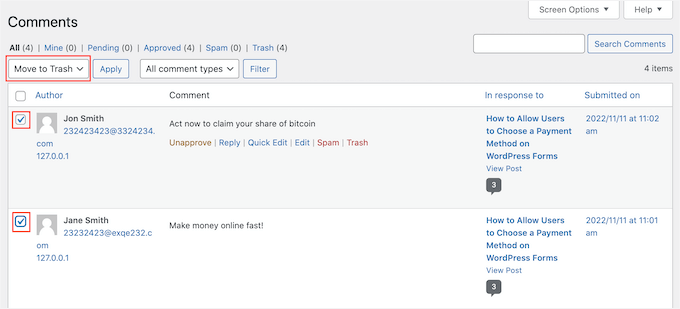
Then, just click on ‘Apply’ to remove these comments.
This action will permanently delete all spam comments from your WordPress database. It may take a few seconds, depending on how many comments you have.
For most websites, this is the best way to remove a few spam comments at once. However, if you have thousands of spam comments (for example, if a spambot attacked your site), clicking this button might cause your server to time out or crash before it finishes.
If you have a massive amount of spam to delete, we recommend using Method 2 instead.
Method 2: Bulk-Delete Massive Amounts of Spam With a Plugin
Another easy way to bulk-delete all WordPress comments that are spam is by using the WP Bulk Delete plugin.
The free version of this plugin lets you bulk-delete WordPress comments based on status, so you can easily remove all messages that are flagged as Pending, Spam, or Trash.
Just be aware that this plugin permanently deletes comments. If you check the wrong box and remove a comment by accident, then that content is lost forever. With that in mind, it’s smart to back up your WordPress website using a plugin such as Duplicator Pro before continuing.
The first thing you need to do is install and activate the WP Bulk Delete plugin.
From your WordPress dashboard, go to Plugins » Add New Plugin.

Next, you can use the search bar to look for the plugin.
Once you find it, click the ‘Install Now’ button and then ‘Activate.’
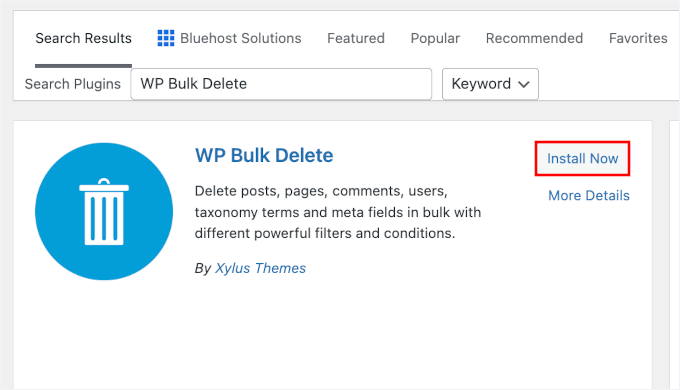
If you need help, see our step-by-step guide on how to install a WordPress plugin.
With that done, go to WP Bulk Delete » Delete Comments from your admin dashboard. You can now check the comment category that you want to delete, such as pending comments, spam comments, trash comments, or approved comments.
For example, you will usually want to delete all comments that are marked as Spam.
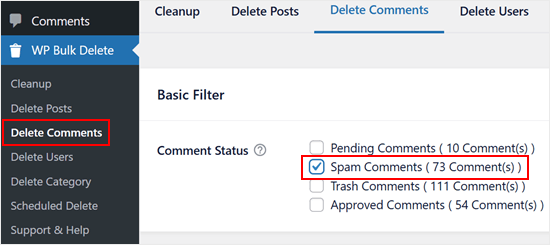
If you have just reviewed your Pending queue and approved all genuine comments, then you might want to delete the Pending comments, too.
After checking the box, scroll to the bottom of the page. In the ‘Limit’ field, you can specify the maximum number of comments to remove in one go, which can be useful if you have dozens of comments to delete.
Finally, click on ‘Delete Comments.’
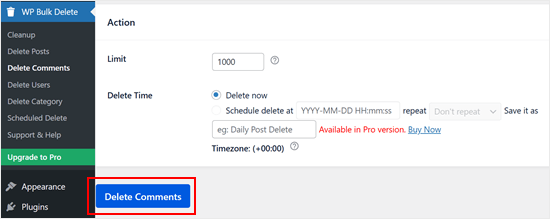
WP Bulk Delete will then permanently delete all of these comments in WordPress in bulk.
Bonus: Manage Your Comments With Akismet and Thrive Comments
If you want to keep your WordPress blog‘s comment section safe from spam, then we recommend using Akismet.
This anti-spam plugin automatically filters spam comments so you don’t have to moderate them manually. Do note that it often comes pre-installed with WordPress, but you will need to activate it.
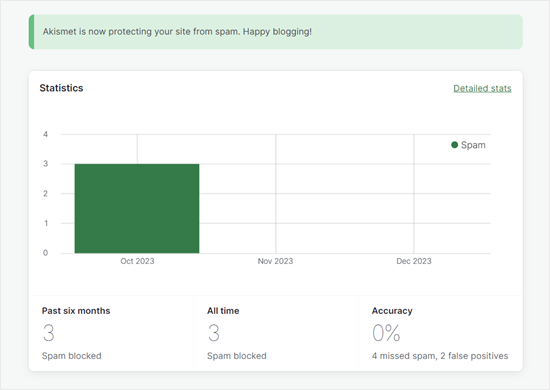
Besides Akismet, we also recommend installing Thrive Comments.
This comment plugin comes with moderation tools to make managing your comments section much easier.
For example, you can assign certain user roles to moderate comments so that you can share the responsibility among your team members. Plus, you can delegate comments to certain users if you think they are more suited to respond to the messages.
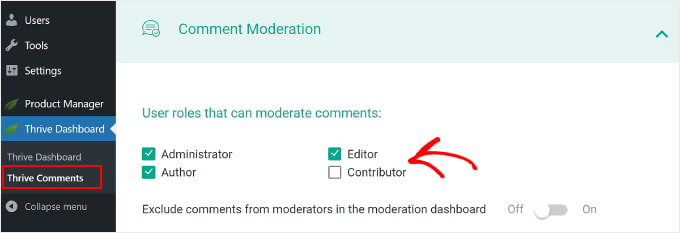
Another thing Thrive Comments can do is remove the default website URL field from your comment form. This is a space often used to insert malicious links, so deleting it can prevent that.
For details, see our complete Thrive Themes Suite review, which includes a dedicated section on Thrive Comments.
More Bonuses: Boost WordPress Comments with Thrive Comments
Want to improve your comments even further? Thrive Comments makes it easy to turn your comment section into an engaging community space.
You can add like and dislike buttons to allow your actual visitors to help with moderation by “liking” helpful comments and “disliking” bad ones.
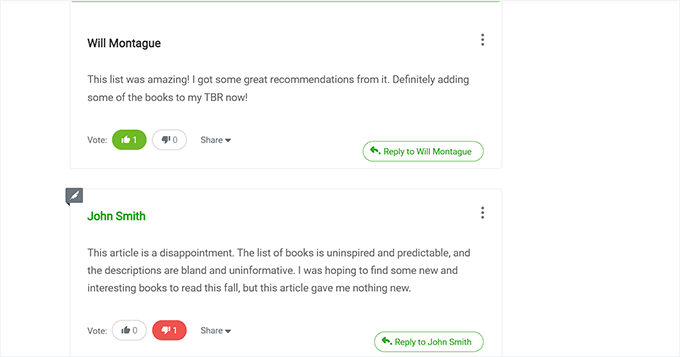
This helps quality comments rise to the top, while spammy or irrelevant comments get buried automatically. For more details, check out our guide on how to allow users to like or dislike comments.
You can also add a simple user ranking system, which rewards frequent commenters with badges or points. This adds a gamified element that motivates users to keep coming back.
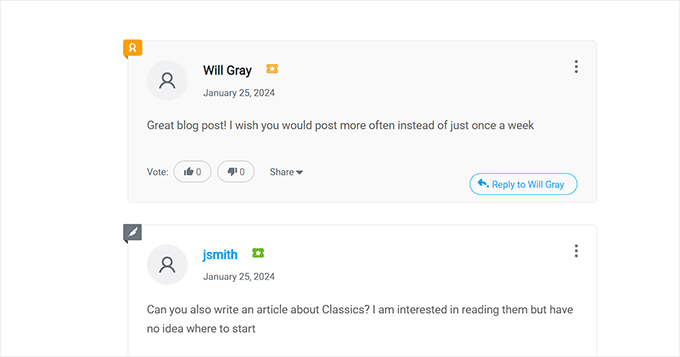
For step-by-step instructions, see our guide on how to add a simple user ranking system for WordPress comments.
Another powerful feature is the ability to feature or bury comments. It allows you to highlight great contributions at the top or pushes spammy or unhelpful ones to the bottom.
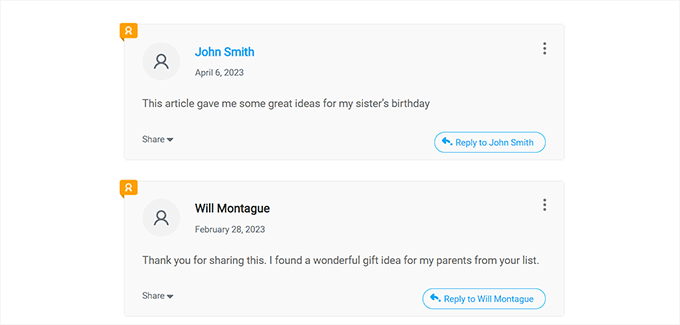
For more information, refer to our guide on how to feature or bury comments in WordPress.
FAQs: Bulk-Delete Spam Comments in WordPress
Now that you know how to clean up spam comments in bulk, let’s answer some common questions users have when managing WordPress comments.
How often should I delete spam comments?
By default, WordPress automatically deletes spam comments after 15 days. However, if you are getting thousands of spam comments daily, we recommend emptying the spam folder manually once a week to keep your database size smaller.
What happens if I accidentally delete a real comment?
If you’re deleting comments in bulk, there’s a chance you might remove a real one by mistake. To stay safe, it’s a good idea to back up your site regularly. You can use plugins like Duplicator to create reliable backups.
Can I back up my WordPress site automatically?
Yes! Backup plugins like Duplicator Pro and UpdraftPlus let you set up automatic backups, so you don’t have to do it manually.
Are there plugins that stop spam comments completely?
No plugin can block 100% of spam, but tools like Akismet do a great job of filtering out most unwanted comments.
Additional Resources to Improve WordPress Comments
We hope this tutorial helped you learn how to easily bulk-delete spam comments in WordPress.
Next up, you may also want to check out our guides on:
- Best WordPress Comment Plugins
- How to Get More Comments on Your WordPress Site
- How to Let Users Post Anonymous Comments in WordPress
- How to Let Users Edit Their Comments in WordPress
- How to Add Custom Fields to Comment Forms in WordPress
- How to Allow Users to Report Inappropriate Comments in WordPress
- How to Fix ‘Comments Are Closed’ in WordPress
- Beginner’s Guide on How to Moderate Comments in WordPress
If you liked this article, then please subscribe to our YouTube Channel for WordPress video tutorials. You can also find us on Twitter and Facebook.



Andrew Knyte
Thank you – this post was a life saver!! You rock!!
WPBeginner Support
You’re welcome! Glad we could help make this simple to solve
Admin
kzain
This post is a game-changer for managing comments on my WordPress site. I especially appreciate the comparison between the built-in method and the WP Bulk Delete plugin. For occasional spam comments, the admin panel works fine. But for those inevitable waves of spam, the plugin will be my new best friend. Thanks, WPBeginner for this time-saving tip!
WPBeginner Support
You’re welcome!
Admin
Dayo Olobayo
I’ve tried several methods to manage spam comments but this one is by far the most efficient. The WP Bulk Delete plugin is easy to use and has saved me a lot of time. Even more better is that it can be integrated with other plugins to enhance its functionality.
Jacy Boy
Thanks a bunch. Just saved us a ton of time!!!
WPBeginner Support
Glad our article was helpful!
Admin
Tim Pettiford
Good advice. My problem is slightly different. The comments I need to delete are located in the “feedback” area and are not marked as spam. There are over 13,000 that contain spam, I have manually deleted 2,000 but would like a way to bulk delete them. The majority are tied to two specific posts.
My question is: Are they linked to the posts making it possible to delete the post, therefore, deleting the feedback/comments?
Lindsay Dick
Hey, did you ever find a solution to this. I’m having the same problem
Jennifer Lalo
This plug-in just saved me from manually deleting 2,000+ comments. Thank you very much — worked like a charm.
Debbie Takara Shelor
Thank you SO much for this help. I’ve been using Akismet, but didn’t have captcha going. I suddenly realized that I had 65,000 spam comments and whenever I tried to empty spam, it crashed everything. I’m running your recommended plugin right now! I had already tried deleting 20 comments at a time. Wow that would have taken forever. Thanks again!
Chris Hazel
I’ve been using WordPress for the last six months and had no problems running any feature or understanding it closely, but spam comments was really getting on my nerves. Initially I decided to ignore the piling comments, only to discover later that they amounted to a few thousands.
That is when I searched the internet to find out how I could remove all
the spam.
What really scared me was the time it would take to delete so many comments – I then installed the CAPTCHA and was relieved to see the spam folder empty in just one click.