


The first time I added product filters to my WooCommerce store, it was a disaster. They looked like they were designed in 1999, confused my customers more than they helped, and worst of all, broke my checkout page. I had to take them down within hours.
But I knew my store needed filters. When you have hundreds of products, customers look for a way to narrow down their choices quickly. Without proper filtering, they get overwhelmed and leave, taking their money with them.
So I rolled up my sleeves and tested every major WooCommerce filtering solution I could find. After weeks of testing, I found the best plugins: easy to set up, beautiful to look at, and most importantly, they help customers find (and buy) what they need.
In this guide, I’ll share how I set up my WooCommerce product filters so you can stop losing leads as well.
🧑💻 TL;DR: This guide walks you through two ways to add product filters in WooCommerce. WPFilters is great if you want modern, Amazon-style filters. Filter Everything is a simple, free option if you only need basic filtering.
Why Add WooCommerce Product Filters?
Product filters make it easier for shoppers to find exactly what they’re looking for. Instead of scrolling through long product lists, they can narrow results by price, size, color, rating, and more — in just a few clicks.
This matters because poor navigation often leads to cart abandonment and lost sales. When visitors can’t find what they need quickly, many of them leave without buying anything.
Plus, adding filters to your WooCommerce store can cut your bounce rates significantly. Customers spend more time browsing and actually complete their purchases.
Adding product filters helps improve both the shopping experience and your store’s performance. Here’s how:
- ⏱️ Save your customers’ time – Shoppers can narrow hundreds of products down to a few good matches in seconds, which makes browsing faster and less frustrating.
- 📈 Increase sales – When customers find the right product quickly, they’re more likely to add it to their cart and finish the checkout process.
- 🧑💻 Increase dwell time – Clear filters keep visitors exploring your store instead of leaving to look elsewhere.
- 📱 Improve mobile shopping – Filters make it much easier for mobile users to browse your catalog without endless scrolling on a small screen.
- 🌟 Build customer confidence – A clean, well-organized store shows you care about the shopping experience, which helps build trust in your brand.
With that in mind, I’ll walk you through how to add WooCommerce product filters. Here’s everything I’ll cover in this guide:
🛑 Important: Product filters rely on Product Attributes. Make sure you have actually added attributes like Size, Color, or Price to your products in WooCommerce. If you haven’t done this yet, then see our guide on adding product tags, attributes, and categories.
Method 1: Add an Amazon-style WooCommerce Product Filter (Recommended)
WPFilters is the best WooCommerce filter plugin – it’s beginner-friendly and looks great right out of the box. You don’t need to be a developer to set it up, and it gives your store clean, Amazon-style filters that make it easier for customers to find what they’re looking for.
Plus, it works beautifully with any WooCommerce theme, making it a safe choice no matter which theme you’re using.
For more insights into this tool, see our detailed WPFilters review.
Step 1: Install and Activate WPFilters
To get started with product filtering, you’ll need to install WPFilters.
First, you’ll need to sign up for a WPFilters account on the SearchWP website. SearchWP is the company behind WPFilters, and they offer reliable support if you ever need help.
Click the Get WPFilters Now button, choose a plan, and follow the steps to complete checkout.

💡 Note: SearchWP is a premium plugin that gives you full control over how search works on your WordPress site, including filtering features through WPFilters. There’s also a free plugin called SearchWP Live AJAX Search that lets you add live search results.
Once you’ve signed up, log in to your account dashboard and download the plugin ZIP file. You’ll find it in your account downloads area.
Now you’re ready to install and activate the plugin. In your WordPress admin dashboard, go to Plugins » Add Plugin.

On the next screen, click ‘Upload Plugin’ to open the file uploader.
Then click the ‘Choose File’ button, select the zip file on your local computer, and click ‘Install Now.’
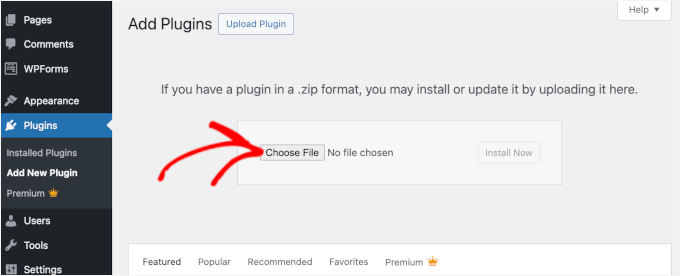
Don’t forget to click ‘Activate’ to complete the installation process. If you need help, see our beginner’s guide on how to install a WordPress plugin.
After activation, WPFilters will automatically launch a setup wizard to help you get started. Go ahead and click the ‘Let’s Get Started’ button.
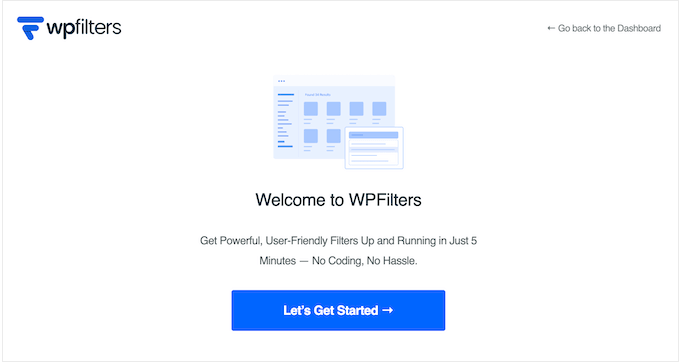
This wizard will then walk you through the basic configuration and connect the plugin to your WooCommerce store.
Simply follow the on-screen prompts in the setup wizard. The process takes just a minute or two and makes sure everything is set up correctly for your store.
Step 2: Create a New Filter Element for Your WooCommerce Products
Now that WPFilters is installed, it’s time to create your first filter element. A filter element is simply one filtering option customers can use, such as filtering by color or size.
To get started, navigate to WPFilters » Elements in your WordPress admin dashboard. Then click the ‘Add New’ button at the top of the page.
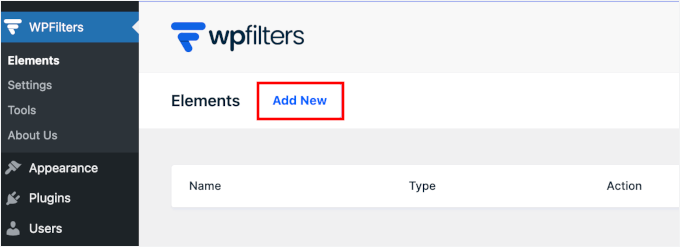
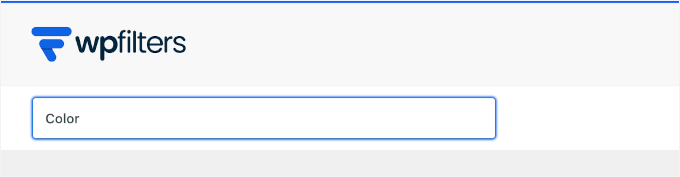
First, you’ll need to enter a name for your filter.
This name is just for your reference in the admin area. But I recommend choosing something descriptive like “Color” or “Filter” for easier organization.
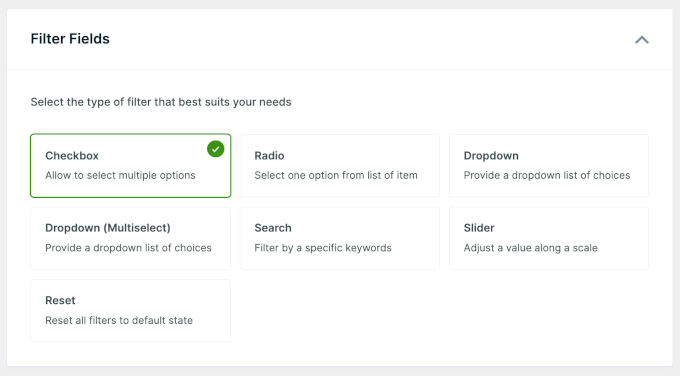
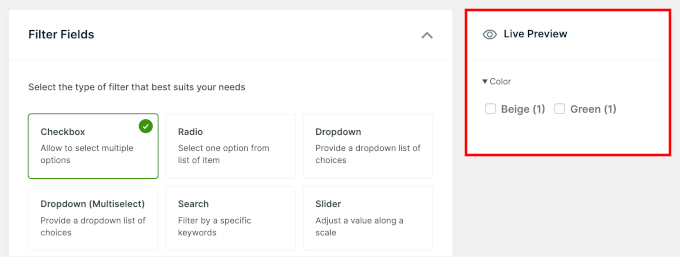
Next, you’ll choose the filter field type that determines how customers will interact with this filter.
WPFilters offers several options:
- Checkbox – Let customers select multiple options at once
- Radio – Allow only one selection at a time
- Dropdown – Show options in a dropdown menu to save space
- Dropdown (Multi Select) – The type of dropdown that allows multiple selections
- Search – Add a search box for customers to type what they’re looking for
- Slider – Perfect for price ranges or numeric values
- Reset – Add a button to clear all selected filters
For most product attributes, such as color, size, or brand, I recommend using the checkbox option. It’s the easiest way for customers to use and lets them combine multiple selections.
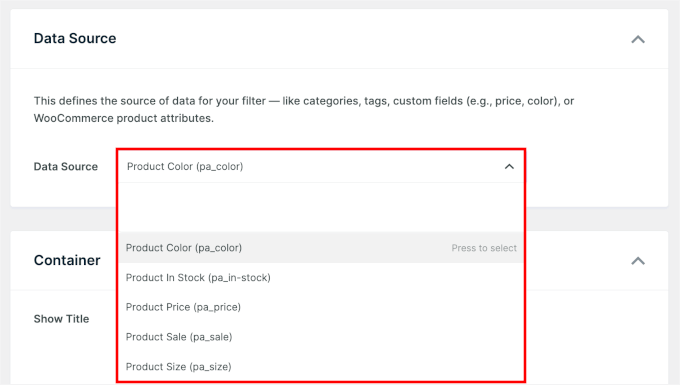
After choosing your filter type, you’ll need to add a data source. This tells WPFilters which product information to filter by, such as product categories, tags, or custom attributes.
Click the data source dropdown and select the attribute you want to filter. If you’ve set up product attributes in WooCommerce, they’ll appear in this list.
Step 3: Customize Your WooCommerce Product Filter
With your filter element created, you can now customize how it looks and behaves on your store. WPFilters gives you several options to make the filter match your brand and improve the user experience.
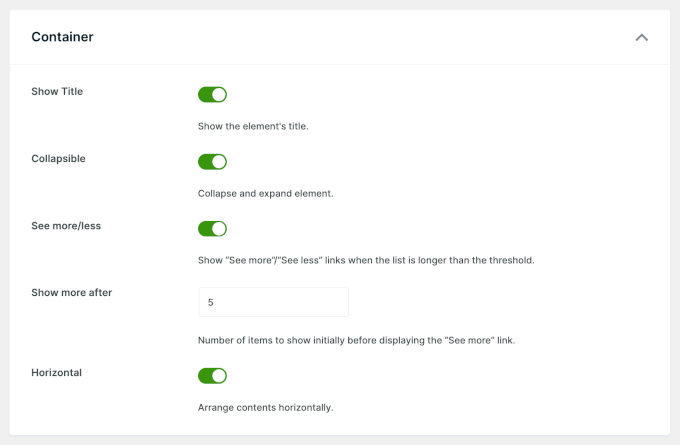
You can start by adjusting the settings in the ‘Container’ section, where you can:
- Show Title – To display or hide the filter name above the options.
- Collapsible – Useful if you have multiple filters on one page. Customers can expand or collapse each filter to keep the layout clean.
- See more/less – Limit the number of options shown at first and let customers expand the list if they want to see more. This helps prevent long filter lists from taking over the page.
- Horizontal – Display filter options in a row instead of a column. This works well for simple filters with just a few choices, like sizes.
Here’s how I adjust my ‘Container’ settings:
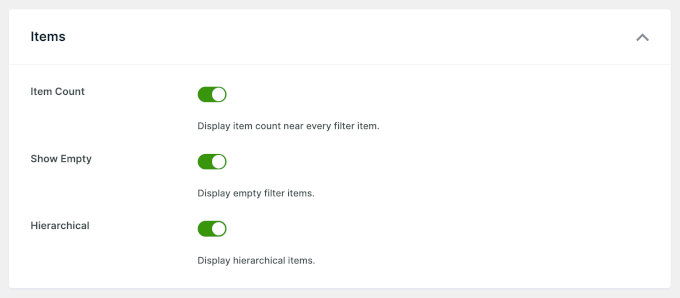
Next, head to the Item settings section.
- Item Count – Shows how many products match each option. For example, customers will see Blue (15) or Red (8), so they know what’s available before clicking.
- Empty – Hides options with no matching products, which keeps your filters clean and avoids dead ends.
- Hierarchical – Groups related options together, letting customers drill down from a main category into subcategories, making it perfect for larger stores.
Once you’ve adjusted these settings, click ‘Save Changes’ to store your configuration.
WPFilters will then update the live preview inside this builder.
If something doesn’t look quite right, you can go back and adjust the settings until it’s perfect.
Step 4: Embed the Filter in Your Store
Now that your filter is ready, it’s time to add it to your online store. WPFilters gives you flexible options for where you want to display your filters.
You can add filters directly to your shop page where customers browse products, or place them in your sidebar for easy access on any page.
Let me show you both methods so you can choose the one that works best for your store.
Option 1: Display Product Attribute Filter on WooCommerce Shop Page
If you are using a Block Theme (like Divi or Twenty Twenty-Five), you can simply open your Shop page in the Site Editor and drag the Filter block into place.
💡 Note: If you are using a Classic theme, you usually cannot edit the Shop page layout directly because WooCommerce controls it. For Classic themes, I highly recommend adding the filter widget to your sidebar instead (see Option 2).
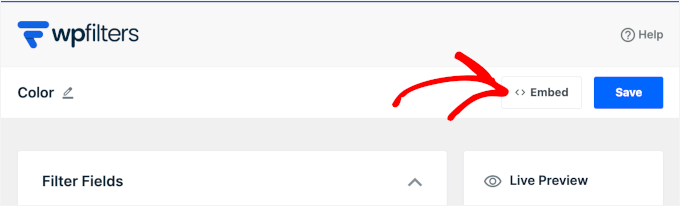
First, in the WPFilters visual builder, click the ‘Embed’ button.
Then select the Gutenberg Block method from the available options.
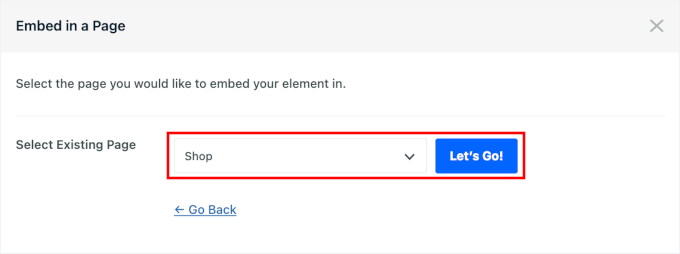
Next, you’ll choose whether to create a new page or select an existing one.
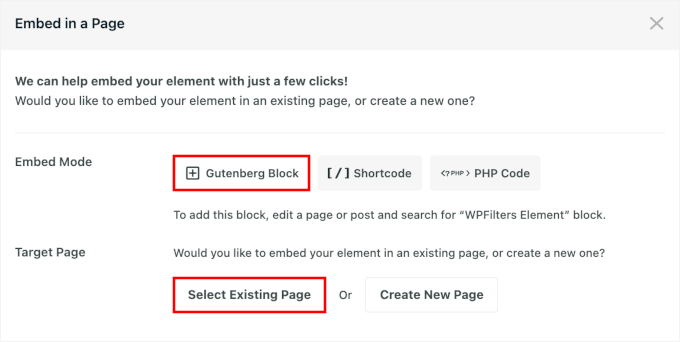
If you already have a shop page set up, simply select it from the dropdown menu.
Hit ‘Let’s Go!’
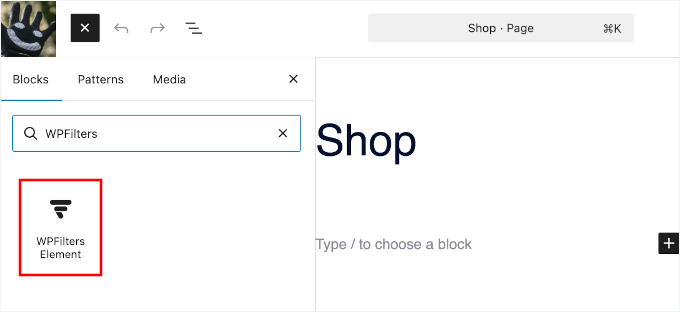
The visual builder will then open your shop page in the block editor.
Then, simply click the ‘+’ icon to add a WPFilters Element block.
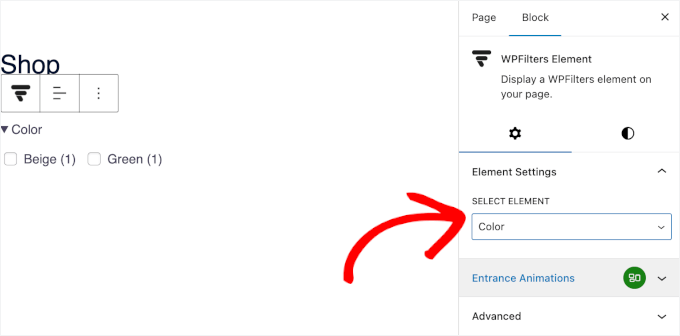
From the block settings panel, select the filter element you just created.
You’ll see it appear instantly in your content editor.
You can repeat this process for all the WPFilters elements you created.
When done, click ‘Save Changes’ or ‘Update’ to publish your filter.
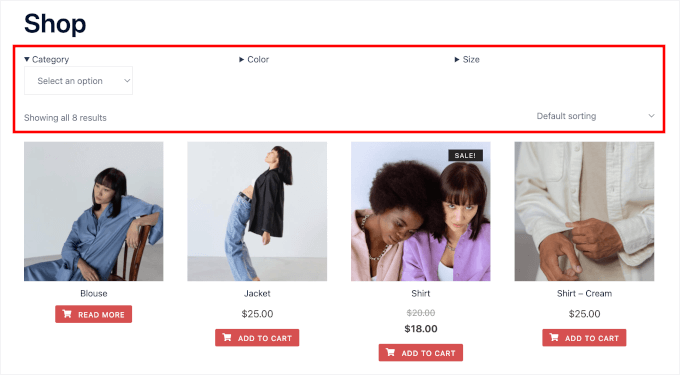
That’s it – your WPFilters product filter is now live on your shop page and ready for customers to use:
Option 2: Display Product Attribute Filter in the Sidebar
Adding filters to your sidebar is another great option, especially if you want them visible across multiple pages. The sidebar keeps your filters accessible without taking up space in your main content area.
To add a filter to your sidebar, navigate to Appearance » Widgets in your admin area. This opens the widget customizer, where you can manage your sidebar content.
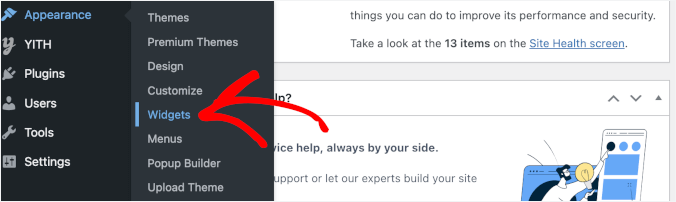
💡 Note: If you don’t see the Widgets menu, you are likely using a Block theme. In that case, please use Option 1 to edit your site template directly.
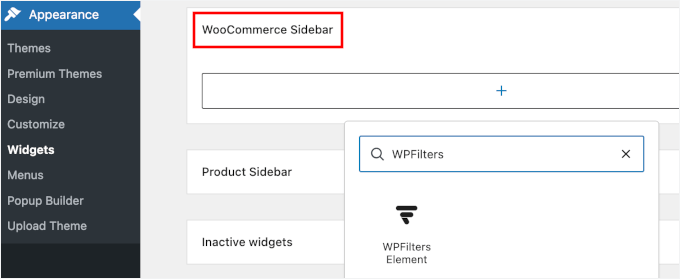
From here, you can look for the WooCommerce Sidebar in the list of available widget areas. Click on it to expand the sidebar and see what widgets are currently there.
Next, click the plus icon to add a new widget, then add the WPFilters Element widget.
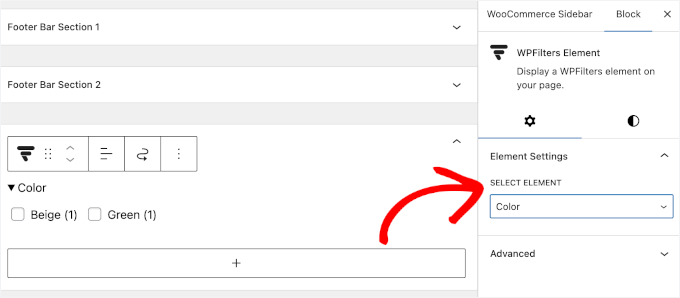
In the Element Settings panel that appears, select your filter from the dropdown menu.
You can add multiple filter widgets to give customers several filtering options.
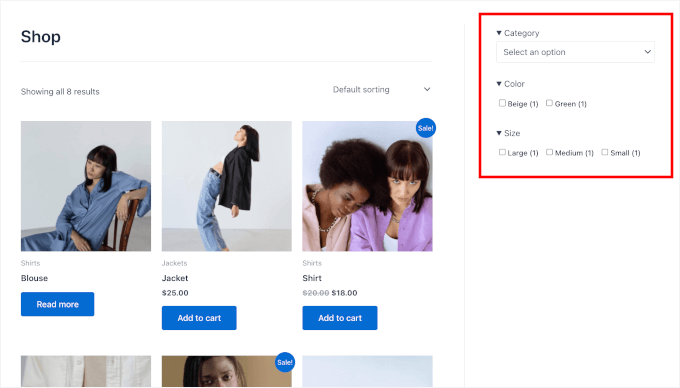
Once you’ve selected your filter, click ‘Update’ or ‘Publish’ to save your sidebar changes.
Your filter will now appear on all WooCommerce pages that display this sidebar:
Step 5: Test Your WooCommerce Product Filter
Before you’re done, take a few minutes to test your filters. Open your store in an incognito window so you see it the same way your customers do.
Try different filter combinations to make sure the results update correctly. For example, select ‘Green’ and check that only matching products appear.
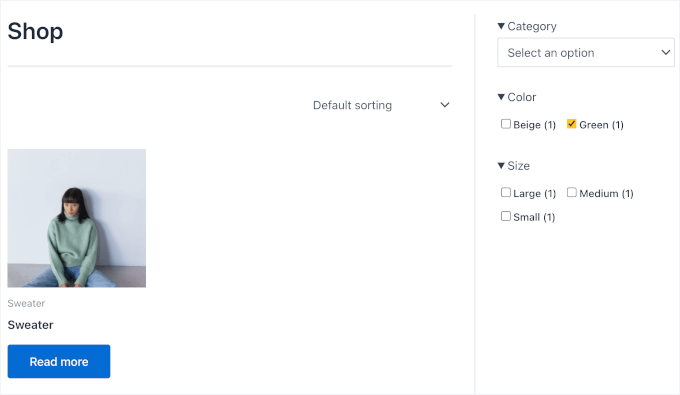
It’s also a good idea to test each attribute you added to ensure the filtering logic works smoothly. Pay attention to the product counts next to each option, as well. They should change as you apply or remove filters.
If something looks off, then double-check your product attributes in WooCommerce. Once everything works smoothly, your filters are ready, and shopping on your store just got a lot easier.
Method 2: Add a Simple WooCommerce Product Filter (Free Method)
If you’re looking for a simpler alternative to WPFilters, then Filter Everything is a good option. I picked this plugin because it’s lightweight and offers a free version with all the important filtering features.
Do note that Filter Everything works and looks better on Classic themes. It doesn’t support blocks, so you’ll need to use a shortcode, which is typically less flexible.
Step 1: Install and Configure the Plugin
First, go to Plugins » Add Plugin in your WordPress admin area.
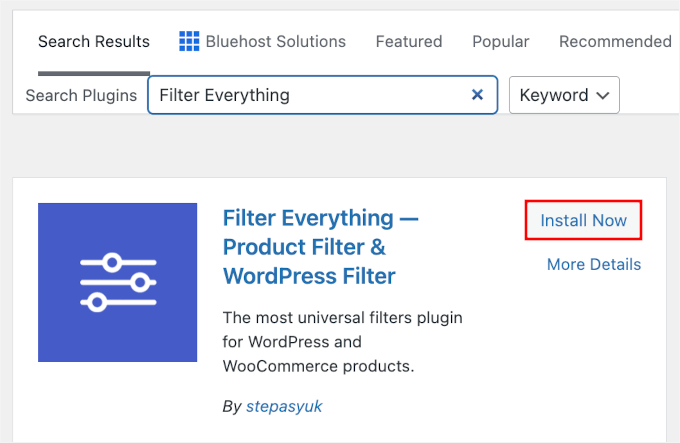
On the next screen, use the search bar to quickly find the Filter Everything plugin.
Then, click ‘Install Now’ and ‘Activate’ in the search results to complete the process.
For help, see our guide on how to install a WordPress plugin.
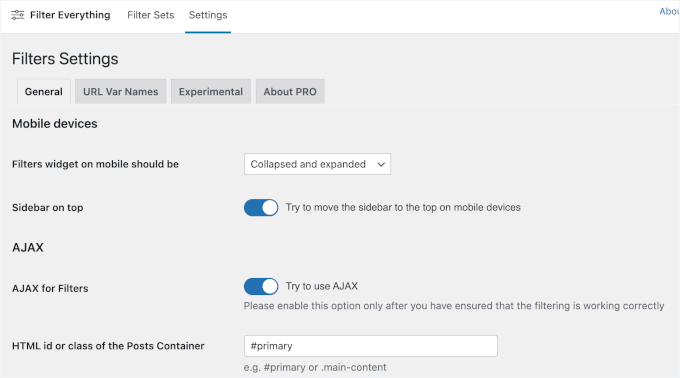
After activation, navigate to Filter Everything » Settings to configure a few important options. These settings control how your filters behave on the front end of your store.
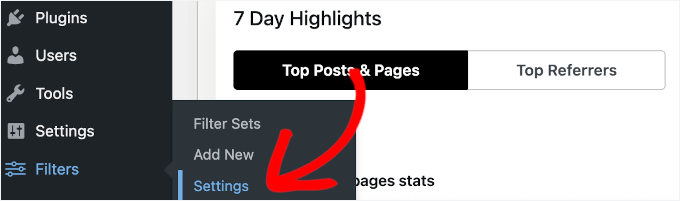
First, you can configure the mobile behavior and AJAX settings:
- Mobile devices – Choose whether filters are collapsed on mobile or displayed as on desktop. I recommend keeping them collapsed and moving them to the top, so they’re easier to find and don’t take up too much space on smaller screens.
- AJAX – Choose whether filters update results instantly or reload the page after each selection. You’ll want to enable this so products update instantly without the whole page reloading, creating a faster shopping experience.
You’ll also see ‘HTML ID or class of the Posts Container.’ This tells the plugin which part of the page should update when filters are applied. It’s set to #primary by default, and in most cases, you can safely leave it as is.
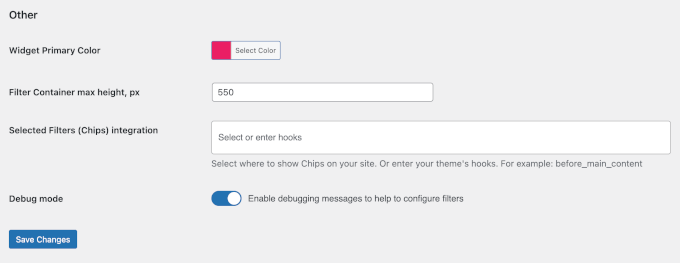
Finally, head to the ‘Other’ section to fine-tune a few visual and advanced options:
- Widget Primary Color – It affects filter buttons and checkboxes, so pick a color that matches your brand’s color scheme.
- Filter Container max height, px – Sets a maximum height for the filter area. If the list gets too long, it becomes scrollable instead of pushing the page down.
- Selected Filters (Chips) integration – Lets you show active filters as small “chips.” You can choose where they appear by adding a location name, such as
before_main_content. - Debug mode – Shows helpful messages if something isn’t working, which can be useful while setting things up.
Here’s what it looks like on my screen:
Once you’ve adjusted these settings, click ‘Save Changes’ to store your configuration.
Step 2: Create a Filter Set
Now it’s time to create a filter set, which is simply a group of multiple filters that work together. For example, you might have filters for categories, colors, and sizes in a single set.
Go to Filter Everything » Filter Sets in your WordPress dashboard. This is where you’ll organize and manage all your product filters.
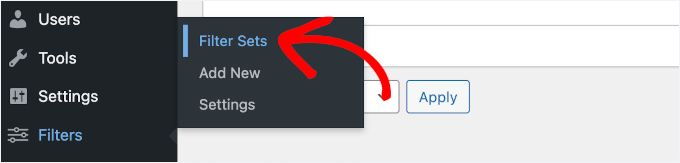
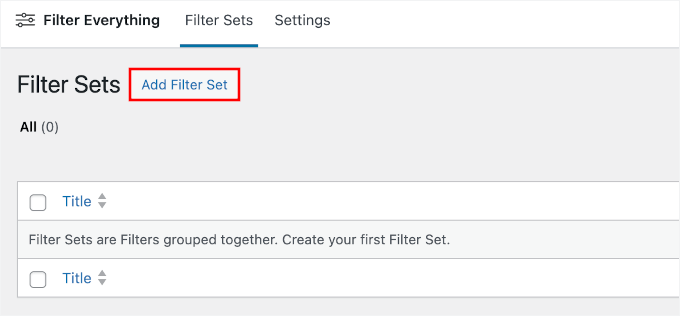
This will take you to the filter set builder.
Click the ‘Add New Filter Set’ button to start building your first set.
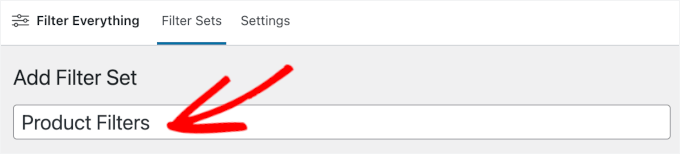
Next, you can give it a descriptive name.
This is for your reference only, but I recommend using a descriptive name, like “Product Filters” or simply “Filters,” for easier organization.
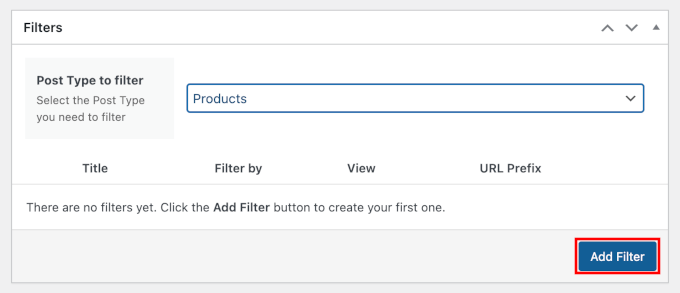
Next, choose the post type you want to filter – pages, posts, products, or custom post types.
Since you’re working with WooCommerce products, select ‘Product’ from the dropdown and click ‘Add Filter.’
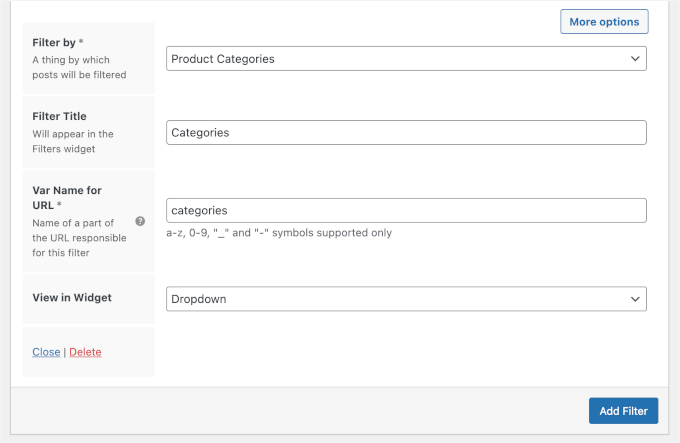
Now you’ll set up your first individual filter within this set:
- Filter By – choose ‘Product Categories’ from the dropdown menu. This tells the plugin to filter your products based on their assigned categories.
- Filter Title – Use something like Categories or Product Categories, whatever fits your store best.
- Var Name for URL – this field is filled in automatically with something like
categories. It helps create clean, SEO-friendly URLs when customers use your filters. - View in Widget – a dropdown works well for categories since products can belong to many categories, and it also makes subcategories easier to spot.
💡 Note: Filter Everything offers several display options depending on your plan:
- Checkboxes
- Range sliders
- Lists
- Search fields
- Rating
- Dropdown menus
You can pick the style that best fits your store’s design and your customers’ needs.
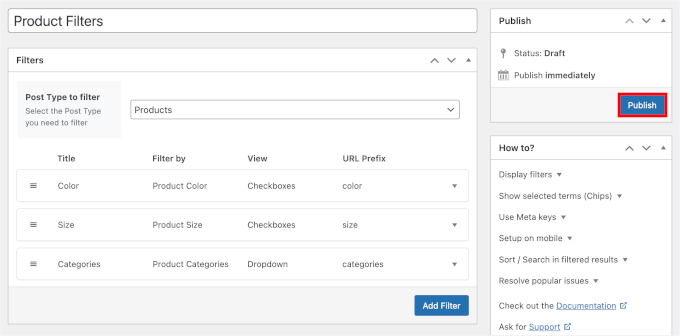
You can add more filters to this set by clicking ‘Add Filter’ again. I recommend adding filters for price, color, size, or any other product attributes your store uses.
Once you’ve added all the filters you need, click ‘Publish’ to make your filter set active.
Step 3: Add Filters to Your WooCommerce Store
With your filter set created, you’re ready to display it on your WooCommerce store. Filter Everything gives you flexible options for where to place your filters.
Let me show you how to add filters directly to your sidebar for easy access, or to your shop page content using Gutenberg blocks.
Option 1: Display Simple Product Filter in the Sidebar
Adding filters to your sidebar is quick and works great if you want them visible across multiple WooCommerce pages. The sidebar keeps your filters accessible without taking up prime content space.
Navigate to Appearance » Widgets in your WordPress dashboard. This opens the widget customizer where you manage all your sidebar content.
💡 Note: If you don’t see this menu, you are likely using a modern Block theme and should use the Editor method (Option 2) instead.
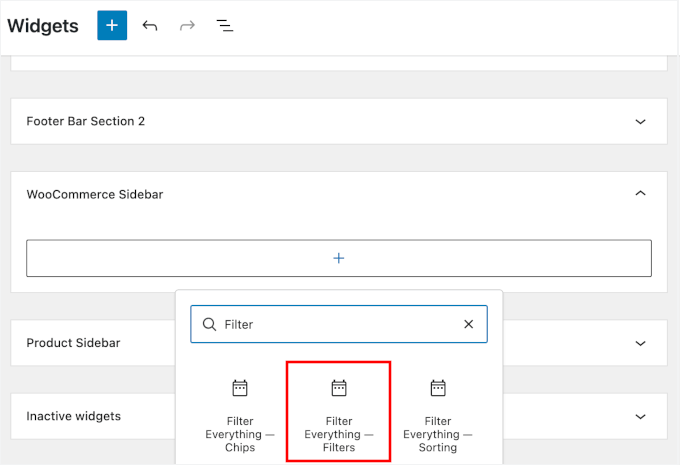
In the widgets panel, search for your WooCommerce sidebar area.
Then click the ‘+’ button to add the Filter Everything – Filter widget.
The widget settings will open automatically. Then, you can choose what to display:
- Title – Shows the filter title at the top of the widget.
- The number of posts found – Displays how many products match the selected filters.
- Selected terms (Chips) – Shows the active filters as small chips, so customers can see what’s applied at a glance.
- Horizontal layout – Displays the filters in a row instead of a column, which works well for compact layouts.
Here’s what you’ll see on the screen:
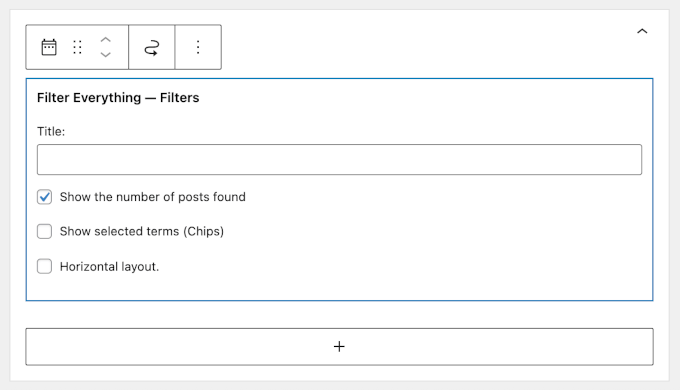
You can play around with these settings to fit your store design.
When you’re done, go ahead and click ‘Update’ to publish your widget.
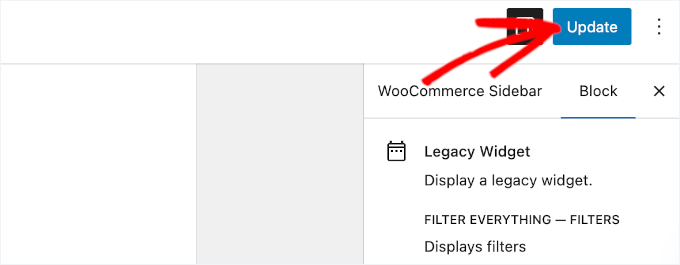
That’s it!
Your filters will now appear in the sidebar on all pages that display this sidebar area.
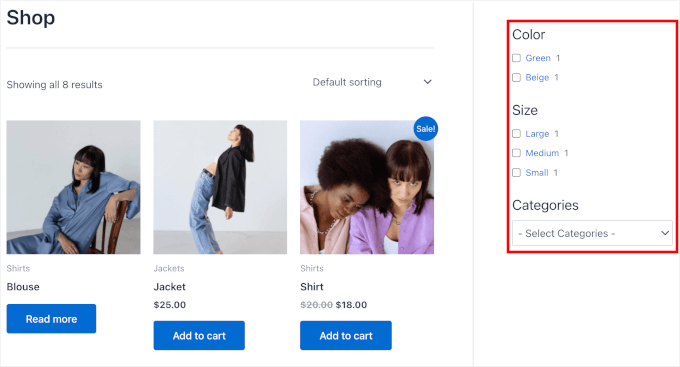
Option 2: Display Simple Product Filter on WooCommerce Shop Page
To add filters directly to your shop page, you’ll use the [fe_widget] shortcode inside the Gutenberg editor.
If you have more than 1 product set, though, you’ll need to add its ID in that shortcode, for example, [fe_widget id="123"]. You can find this ID number listed next to your set name on the Filter Everything » Filter Sets page.
To add your product filter, navigate to Pages » All Pages to open your shop page in the block editor.
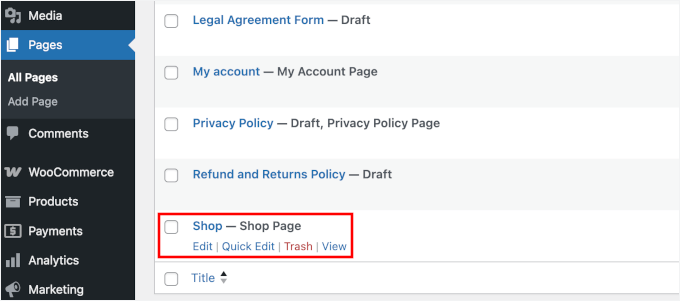
🧑💻 Pro Tip: If you’re not sure which page is your shop page, check under WooCommerce » Settings » Products.
In the Gutenberg editor, paste the shortcode you copied earlier into a regular paragraph block.
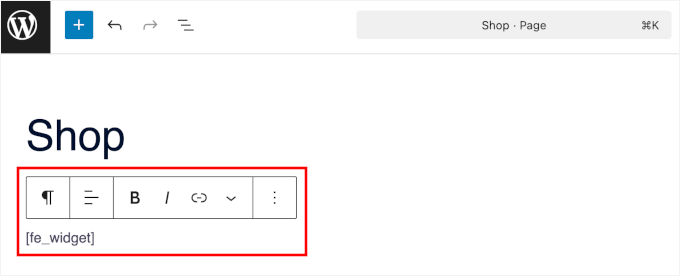
If you want to see how it looks, simply preview your page. They should appear exactly where you placed the shortcode block.
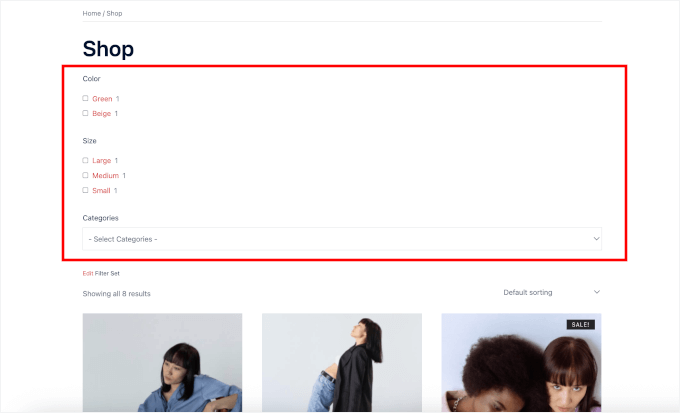
Once you’re happy with the placement, click ‘Update’ or ‘Publish’ to save your changes.
Your product filters are now live on your shop page:
Bonus Tip: Add Smart WooCommerce Product Search
Now that you’ve added product filters, there’s one more feature that can take your online store‘s navigation to the next level: smart product search.
While filters help customers browse by specific attributes, a smart product search bar lets them type exactly what they’re looking for. This combination gives shoppers the flexibility to find products however they prefer.
Smart WooCommerce product search goes beyond WordPress’s basic search. It understands product attributes, categories, SKUs, and even partial matches to show relevant results quickly.
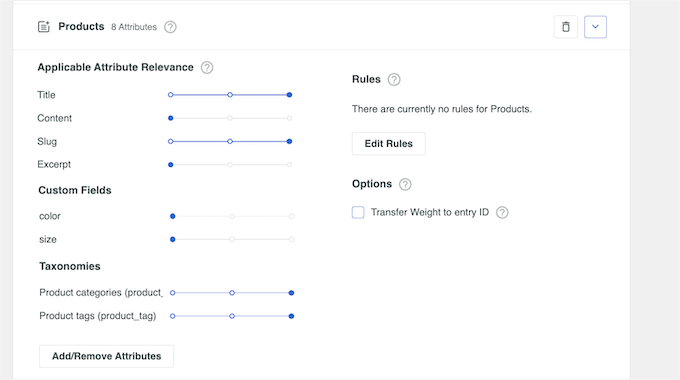
For example, if someone searches for “blue sneakers,” a smart search will show all blue-colored shoes in your sneaker category. A regular WordPress search might miss products if the exact phrase isn’t in the title.
Adding both filters and smart search means you’re covering all your bases. Your customers can shop however they feel comfortable, which means more completed purchases for you.
To set this up, check out our detailed guide on how to make a smart WooCommerce product search. It walks you through the entire process step by step.
FAQs About Setting Up WooCommerce Product Filters
If you still have questions about using product filters in WooCommerce, these quick answers should help.
Is there a reliable and FAST plugin for product filtering?
Yes, WPFilters is one of the most reliable and fastest plugins for WooCommerce product filtering. It’s built specifically for speed and uses AJAX technology to update results without reloading the page, keeping your store running smoothly.
Best free product filter for WooCommerce?
The free version of Filter Everything is a good option. It supports basic filters like categories, prices, and attributes without slowing down your site. The only downside is that it works best on classic themes.
How to filter WooCommerce products by custom attributes?
First, you’ll need to create your attributes in Products » Attributes and assign them to your products. Then, use a WooCommerce filter plugin like WPFilters to display those attributes as filters on your shop page.
How to create a WooCommerce shop page with multiple filters?
You can add multiple filter widgets to your shop sidebar, or use a product filter plugin that lets you combine filters like price, category, rating, and attributes in one panel.
What is the product filter code in WooCommerce?
WooCommerce doesn’t include a single shortcode for advanced filters. Most filtering features come from widgets or plugins, which generate their own shortcodes or blocks that you can place anywhere on your site.
Next Steps to Complete Your WooCommerce Store Setup
Now that your WooCommerce product filters are set up, you may want to check out these related guides to improve your WooCommerce store even further:
- Ultimate WooCommerce SEO Guide
- How to Customize WooCommerce Product Pages
- How to Sell Product Bundles in WooCommerce
- How to Easily Create Post-Purchase Surveys in WooCommerce
- Best Product Grid Plugins for WooCommerce
If you liked this article, then please subscribe to our YouTube Channel for WordPress video tutorials. You can also find us on Twitter and Facebook.




Jiří Vaněk
When I first saw WooCommerce, it was very difficult for me to navigate and set anything up. Product filters were a requirement that almost everyone who was considering an online shop had. And it doesn’t matter what kind of products it is—whether it’s clothing or construction materials. Product filters are simply desired for an online shop, and I was stressed because I didn’t really know how to implement them in WooCommerce. Thanks to this article, I learned how to do it, and now I finally have the skill that everyone was asking me for. I can check it off my to-do list of things I still need to learn about WooCommerce. It was a happy day when I found this website because I came here as a beginner and am leaving with so much that I have learned.