


Instead of stuffing all your ideas into one long post, breaking them up into a series lets you dive deep into a topic and keep things exciting for your readers.
This is called a post series, and it’s a great way to keep your audience engaged and excited to come back for the next part.
By linking related posts together, you create a guided path that walks readers through the topic step‑by‑step. It makes your content easier to navigate, especially when you’re covering complex topics that would otherwise feel overwhelming in a single article.
We’ve done this with topics like WordPress SEO, security, performance, and maintenance. And honestly, it’s been perfect for sharing lots of helpful info without overwhelming anyone.
In this article, we will show you how to efficiently manage post series in WordPress. With a few simple tips, you’ll keep your content organized and your audience hooked from Part 1! 🧑💻
Why Publish a Post Series in WordPress?
Publishing a post series helps you explain complex topics more clearly by breaking them into smaller, easier-to-follow parts instead of cramming everything into one long post.
If you’re covering an in-depth topic on your WordPress website, a series lets readers learn step by step without feeling overwhelmed.
For example, our ultimate guide to speed up WordPress is actually a roundup of a series of posts we published on different ways to improve your site’s performance.
When you write a big series of posts like that, it can be tough to help your readers navigate the series and find all the information in the right order.
One option is to add a note at the beginning of each post saying it’s part of a series, then list the other posts at the bottom. But this quickly becomes tedious because you have to go back and update every single past post whenever you publish a new one.
Another solution would be creating a custom taxonomy called “Series.” While this works, it requires extra setup and maintenance, such as creating custom template files. You would also have to manage the archive pages yourself whenever you change or expand the series.
Luckily, there is a WordPress plugin that will help you manage a series of articles automatically and keep everything in order. We’ll show you the step‑by‑step process, and here’s everything we’ll cover in this article:
Let’s get started.
How to Efficiently Manage Post Series in WordPress
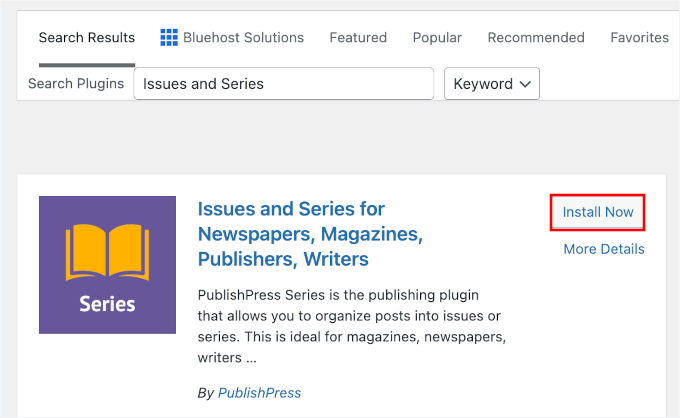
The first thing you need to do is install and activate the Issues and Series plugin. You can start by heading over to Plugins » Add Plugin in your WordPress admin area.

💡 Note: There is a premium PublishPress version available with more advanced features, but for this tutorial, we’ll use the free plugin.
On the next page, use the search box to quickly find the plugin.
Once you find the plugin, click the ‘Install Now’ button followed by ‘Activate’.
For more details, see our step-by-step guide on how to install a WordPress plugin.
As soon as the plugin is activated, you can create new series and add posts to them.
Creating a New Series
To create your first series, you’ll need to head over to the Posts » Manage Series page in your WordPress admin area.
This screen looks similar to the page used for adding categories. However, unlike categories, which organize posts by topic, this page allows you to organize posts into a specific sequential order, like Part 1, Part 2, and so on.
Once there, you will see the ‘Manage Series’ table.
Since you’ve just activated the plugin, there’s nothing to show in the table yet. Instead, you’ll see an ‘Add New Series’ button. Go ahead and click it to get started creating your first series.
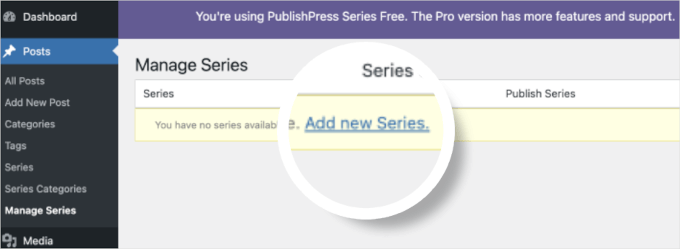
This will open the series editor.
Here, you’ll need to type a name, slug, and description for the series. We recommend choosing a clear, descriptive name so readers instantly understand what the series is about.
When you’re finished, don’t forget to click the ‘Add New Series’ button at the bottom of the page to store your changes.
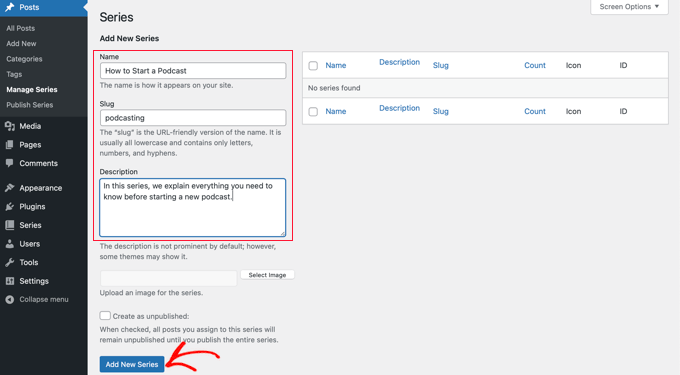
You’ll notice that the new series has been added to the list on the left. You can always come back here later to edit the series name, description, or settings as your content grows.
Adding Posts to the Series
Now, you can add some blog posts to the series. To start, simply create a new post or edit an old one.
In the settings panel on the right of the screen, you’ll notice a new section called ‘Series.’ To add this post to the series you just created, simply click the button to the left of the series name.
In the settings panel on the right side of the content editor, make sure you are in the Post tab. Here, you will notice a new box called ‘Series.’ To add this post to the series you just created, simply check the box next to the series name.
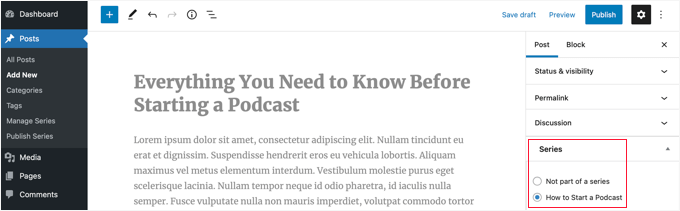
Make sure you click the ‘Publish’ or ‘Update’ button at the top of the page to push the post live as part of the series.
Now, it’s time to add any other existing posts to the series. And as you continue to write new articles, simply repeat this step to add them to the series.
Customizing the Order of Posts in the Series
By default, your articles will be displayed in the order you add them to the series.
However, you can customize the post order by visiting the Posts » Publish Series page in your WordPress admin area. This is where you’ll be able to rearrange posts inside each series without editing them individually.
In the table, you will see all the series you have created. The columns show how many articles have been published, unpublished, and scheduled.
You’ll also see quick links to update the post order, publish or unpublish all posts in a series, and view the series on the front end. This makes bulk management much easier.
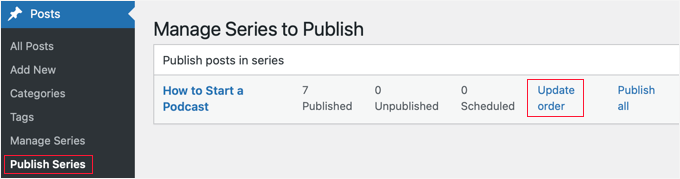
To change the order of the posts, you’ll need to click the ‘Update order’ link. You will then see a list of all the posts in that series.
You can reorder the articles by dragging the post names up or down the list. When you move a post, the ‘Current Part’ number will be updated automatically to reflect the new order.
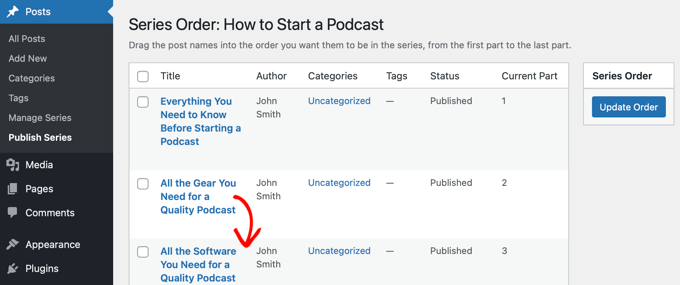
When you’re happy with the order of the posts, make sure you click the ‘Update Order’ button to store your settings.
Previewing Your Post Series
Now, you can visit your WordPress blog to see how your new post series looks on the front end. Simply view a post that is part of the series to check that the series information and navigation are displaying correctly.
Depending on your settings, you should see a box at the top or bottom of the article indicating that the post is part of a series. You will also see a list of all other posts in the series, allowing users to easily navigate between them.
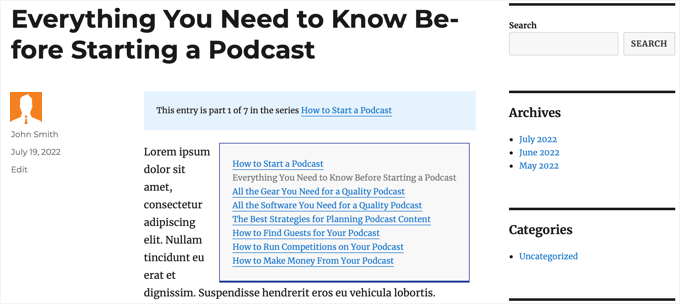
Plus, you will find links at the bottom of the article to navigate to the next and previous articles in the series.
Bonus Tip: How to Add a ‘Read More’ Label in WordPress
Adding a ‘Read More’ label to your blog series gives your readers a sneak peek into your content, without showing the full post on your blog page. This teaser can encourage them to click through and keep reading.
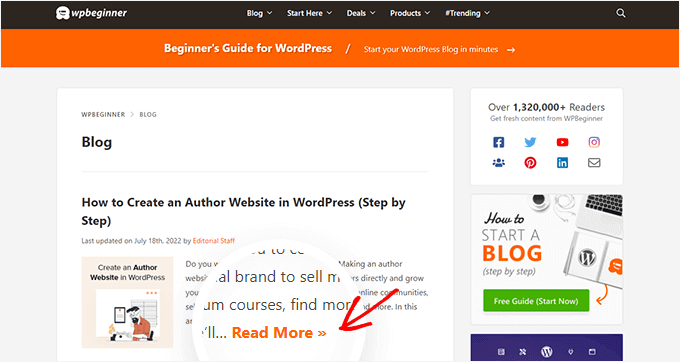
With the built-in More block in WordPress, you can easily insert a preview break that shows an excerpt on your blog page, followed by a clickable ‘Read More’ link.
It’s a simple yet effective way to improve readability and boost engagement across your post series.
For detailed instructions, you can see our guide on how to use the More block in WordPress.
FAQs: How to Manage Post Series in WordPress
At WPBeginner, we’ve published hundreds of articles as part of different series over the years. Here are some of the most common questions we get about creating and managing post series in WordPress.
Can I use WordPress categories or tags to create a post series?
While you could use categories or tags, they are designed to group content by topic, not by reading order. They don’t provide the “Part 1, Part 2” navigation and automatic linking that make a chronological series easy for readers to follow.
A dedicated plugin handles all the organization for you, which is much more efficient and user-friendly.
Will creating a post series hurt my website’s SEO?
No, a post series can actually boost your SEO when done correctly. It helps establish your site as an authority on a topic by covering it in great detail.
Properly linking the posts together also strengthens your internal linking structure. This helps search engines understand your content better and can keep users on your site longer. We use a tool like All in One SEO to ensure all our content is optimized.
How many articles should I include in a single series?
A series can be as short as two or three posts or as long as ten or more. The goal is to break your topic into logical parts that are easy for the reader to digest.
The key is to focus on the natural flow of the subject rather than a specific post count. And don’t be afraid to expand the series later if you discover new subtopics your audience needs help with.
Keep Reading: WordPress Page and Post Guides
We hope this tutorial helped you learn how to efficiently manage post series in WordPress. If you found this helpful, then you may also want to learn:
- Best Related Posts Plugins for WordPress
- How to Display Your WordPress Posts in a Grid Layout
- How to Display Estimated Post Reading Time in Your WordPress Posts
- How to Automatically Tag Your WordPress Posts and Save Time
- How to Show Visited Posts in WordPress (Beginner’s Guide)
If you liked this article, then please subscribe to our YouTube Channel for WordPress video tutorials. You can also find us on Twitter and Facebook.




Dennis Muthomi
I have one tiny advise that is very helpful: I’ve found that combining this series approach with internal linking strategies can really boost SEO.
For example, using a tool like MonsterInsights to see which posts in the series get the most engagement can help you optimize the content order and identify areas to improve.
Jiří Vaněk
That’s great. I have several series, and until now, I’ve had to manually update each original post to add a link to the next article whenever a new installment was released. It was time-consuming and often frustrating. This changes the game, making it so much simpler. I’ll definitely use this plugin for my next series of articles.
Toni H
What happens to the series if a plugin is no longer maintained? I would have to find/replace/set-up all the series again.
Pradipa
Is there a way to display the post series box manually? Something like post_list_box()? There is an option to turn of automatic insertion of post series box but there is no explanation if we can display that somewhere else. That’s frustrating.
Mathilde
Too bad.. I tried using this plugin and it has corrupted my RSS, resulting in multiple posts not being added to Bloglovin for example. I tried to contact the support forum and no response. Removed…
Anonymous
This plug-in hasn’t been updated in almost a year, it’s also not coded for PHP 5.4, so if you’re trying to do some things like filtering posts in the back end, you get the error “Warning: Illegal string offset ‘context’ in /orgSeries-taxonomy.php on line 381”.
DJ
Great post. I’m downloading this plugin right now. It should come in handy for my blog because I love series posts.
Darren
Thanks for the review of Organize Series! Really appreciate it and great site
Editorial Staff
Hey Darren, thank you for creating such a good plugin.
Admin
Mike Schinkel
Just downloaded and checked out this plugin. It’s pretty well done and I can definitely see how it will be useful.
One thing I was sad to see was that it adds a wp_orgSeriesIcons table to the database even though the developer could have easily used the taxonomy system to associate between the series taxonomy term and the post attachment used for the icon. Unnecessary tables are usually deal killers for me because of the future maintenance issues they can cause for someone like me who often deals with WordPress at the database level.
Usually when a plugin violates what I consider to be a best practice like this (i.e. don’t add tables unless absolutely required) it means I forgo the plugin and build my own of fork there. I would be happy to contribute the fixed code back, but it’s really hard to do that on WordPress.org vs. forking and sending pull requests on GitHiub. Shame.
Darren
Hey Mike, yeah I agree with you, I’m not a fan of adding custom tables either unless REALLY necessary. I first started organize series way back when images weren’t attached as post-attachments, hence the extra table. It’s kind of been a niggling thing for me but I just haven’t had the time to fix it (because I can’t just fix it, I also have to provide a way for existing users to move their images over to the post-attachments).
About your idea about contributing back. I actually have plans to put Organize Series up on github sometime in the near future (definitely before Christmas). You aren’t the only one who has wanted to contribute!
Mike Schinkel
Hi Darren,
Thanks for your comments; I appreciate your follow up.
I can definitely understand/relate to the fact that your initial development was prior to the newer functionality being available in WordPress; really glad to hear that in fact. I see so many people using unnecessary custom tables in WordPress in newer plugins that I’m getting kind of jaded. But there is always the reality of legacy to recognize.
Also glad to hear you are going to move to GitHub. If I have time I’d love to make the changes for you to get rid of the extra table although I don’t know if I’d have the time to test the conversion functionality to make sure it works perfect as that could be rather time consuming, especially for someone who doesn’t have any data sets to work with.
But if you want the dev help let me know when you are on GitHub. You can reach me via http://about.me/mikeschinkel.
-Mike
Darren
Thanks Mike! Organize Series (and Organize Series Publisher) are now on github (for anyone who is interested…)
Brad Dalton
I use Justin Tadlocks Series plugin.
Very simple.
I did test the plugin you have reviewed here but was disappointed.
I’ll try it again if you think its the best.
This is what happened when i installed it locally
Fatal error: Cannot redeclare in_series() (previously declared in C:\Users\brad\Desktop\WordPress\iwpserver\htdocs\wordpress\wp-content\plugins\series\template-tags.php:112) in C:\Users\brad\Desktop\WordPress\iwpserver\htdocs\wordpress\wp-content\plugins\organize-series\orgSeries-template-tags.php on line 603
Editorial Staff
Brad, Justin’s plugin hasn’t been updated in a while, so we didn’t bother trying it out. The error that you got is not something that most folks will see. Mainly because you are not supposed to use the two plugin together. You have two plugins doing similar things. Naming issues can happen. Although it can be avoided if both plugins just use their own classes. But anyways, I would recommend you trying this on a fresh install and giving it a fair chance
Admin
Jason Pelker
Warning: there is an addon to this plugin for custom post types that has a few bugs in it. Specially, this addon a) doesn’t display correctly: http://organizeseries.com/2012/organize-series-cpt-support-changelog/ and more surprisingly, b) the entire system doesn’t work when network activated in Multisite.
There are also smaller bugs, as well, including a false update nag and the < symbol accidentally inserted into the page template.
I've found the developer to not be very helpful, either, even though these addons are commercial ($5-$20). Despite being notified of these multisite bugs over a month ago, he has yet to correct the code or issue any kind of solution.
Sadly, I'd recommend staying away from this plugin for the time being.
Darren
Jason, sorry you didn’t find me to be very helpful when I tried to respond to your comments as soon as I could even though I “thought” I made it clear on my site that I price the addons relatively low so users who don’t need support can get them. For more in depth support I do provide a Basic Support package that provides access to private support forums and more troubleshooting.
Regarding not getting anything out the door for multisite (months ago? check the dates on the comments in the post you linked) – WordPress multisite is a complicated system and its not just a couple lines that I’d have to modify in my plugin (and all the addons) to work well with multi-site. I just haven’t had the time to invest in that kind of development at the moment. Sorry to disappoint, but I don’t recall making any promises that it would work on multi-site…
Jason Pelker
Since most of these bugs seem to be associated with Multisite (the exception being the “<" symbol added to the page titles), you may want to clearly state on your site that the paid addons do not work correctly with Multisite and that you have no plans on adding this functionality.