


You want to refresh your content, but you’re scared of breaking what’s already working. We know this problem all too well because WordPress doesn’t allow you to edit a live page without affecting it.
That’s when we discovered a simple trick: duplicating pages and posts. You get an exact copy to work on, and your live page stays untouched. Once the new content is finished, you can just update it. It’s what we do here at WPBeginner to easily update our guides.
If you want to learn how to do this, keep reading. We’ll walk you through how to duplicate a WordPress page or post in just one click.
When to Clone or Duplicate a Page/Post in WordPress?
Sometimes, you may need to quickly copy a WordPress page or post with all its settings. For example, you may want to reuse the design from a successful landing page or extend existing content into a whole new post.
One option is to manually CTRL + C and CTRL + V the page’s content into a new draft. However, this won’t copy the featured image, post settings, and other important metadata of your custom page. This means you will need to manually add this information, which takes time and effort.
That said, let’s see how you can duplicate WordPress pages or posts with a single click.
We’ll show you 2 different methods, and you can use the links below to jump straight to the method you prefer:
Method 1: How to Duplicate a WordPress Post or Page With Duplicate Post by AIOSEO (Recommended)
The best way to duplicate a page or post in a single click is by using the free Duplicate Post by AIOSEO plugin. It makes an exact copy of your original post or page, including the content, title, featured image, date, metadata, and more.
Plus, it comes with advanced features like bulk duplicate posts, scheduled revisions, and the ability to choose exactly what gets duplicated.
To get started, you need to install and activate the Duplicate Post by AIOSEO plugin. For step-by-step instructions, see our tutorial on how to install a WordPress plugin.
Once the plugin is activated, head over to Posts » All Posts if you want to duplicate a post, or go to Pages » All Pages if you want to duplicate a page.
From there, hover over the post or page that you want to duplicate and click either ‘Clone’ or ‘Add Revision.’
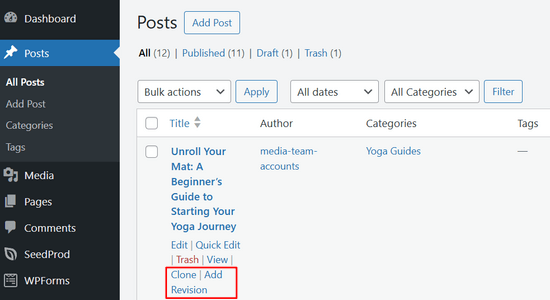
The ‘Clone’ option creates an exact copy of the page or post. This option is best for creating a new post or page that’s similar to an existing one, creating templates for future posts or pages, or creating backups of posts and pages.
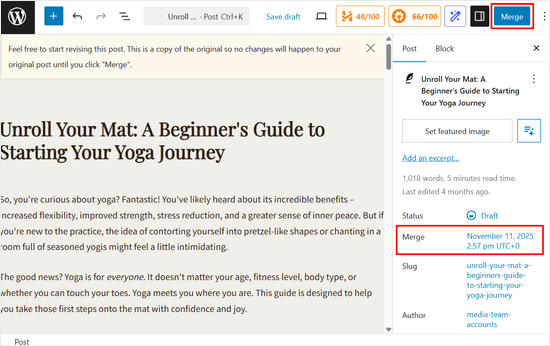
On the other hand, ‘Add Revision’ creates a separate copy of your post that you can safely edit without affecting the live version.
This is perfect when you want to update existing content behind the scenes. You can make all your changes in the revision copy, review them, and then merge the new content with the live post when it’s ready.
You can even schedule revisions in advance, so your updated version automatically goes live on a specific date and time.
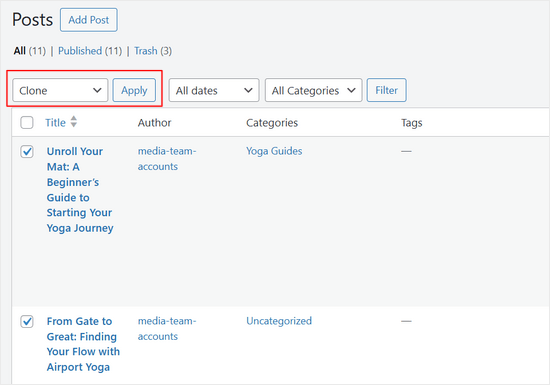
If you want to duplicate multiple posts or pages at the same time, you can check the box next to each post or page you want to copy.
Then, simply open the dropdown box that shows ‘Bulk Actions’ by default.
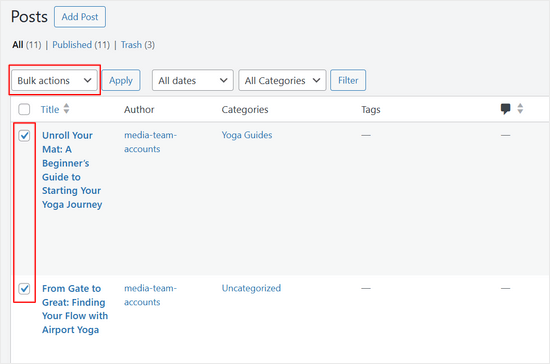
In the dropdown menu, select either ‘Clone’ or ‘Add Revision.’
After that, simply click the ‘Apply’ button.
How to Customize the Duplicate Post by AIOSEO Settings
The Duplicate Post by AIOSEO plugin works seamlessly out of the box, allowing you to duplicate posts and pages in just one click. But, you can also configure additional settings to customize how duplication works on your site.
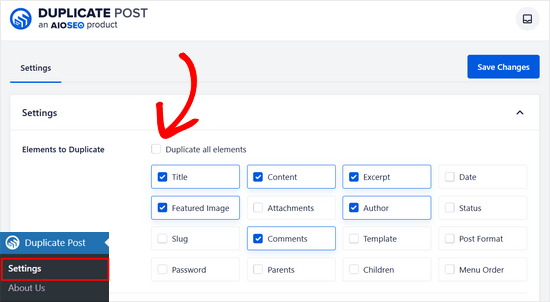
To customize the settings, go to Duplicate Post » Settings from the WordPress admin dashboard.
At the top of the page, you’ll see a list of elements that can be duplicated. By default, the ‘Duplicate all elements’ option is selected, which copies every part of your post or page automatically.
If you prefer more control, simply uncheck that option. You can then choose exactly which elements to copy, such as the content, title, author, comments, or featured image, by checking the boxes next to each option.
When you scroll down the page, you can also tell the plugin which fields to ignore. For example, if you have a WooCommerce store, you may have meta fields for price, size, or color that you don’t want to be copied over.
Simply type the meta field into the search bar and hit enter to add it to the list of fields to ignore.
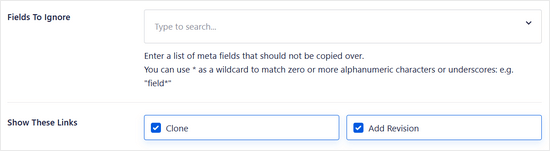
You can also choose which duplicate links you want to show on your WordPress site. By default, both ‘Clone’ and ‘Add Revision’ are displayed. But, you can uncheck either option if you only want to display one of them.
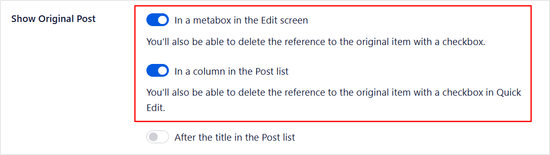
In the next section, you’ll find options to configure how the original post is handled. By default, the ‘After the title in the Post list’ option is enabled.
We recommend enabling the ‘In a metabox in the Edit screen’ and ‘In a column in the Post list’ settings. These options allow you to easily remove the reference to the original post from either the edit screen or the quick edit view in your post list.
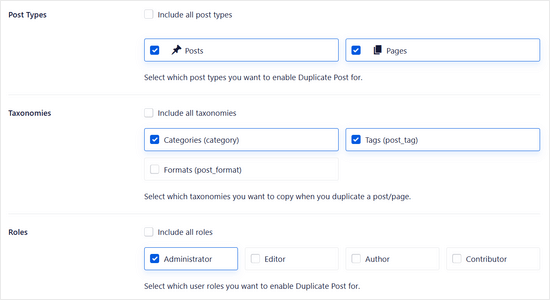
Below that, you can also choose which post types can be duplicated and which taxonomies you want to copy when you make a duplicate.
In addition, you can select which user roles can create duplicates. For example, if you manage a multi-author WordPress blog, then authors may need the clone page or post feature.
Simply check or uncheck the roles you want to enable the Duplicate Post plugin for.
Another thing we suggest you do is add a title prefix and/or suffix to your duplicated posts. This way, it is easier to identify which one is the original and which one is the copy.
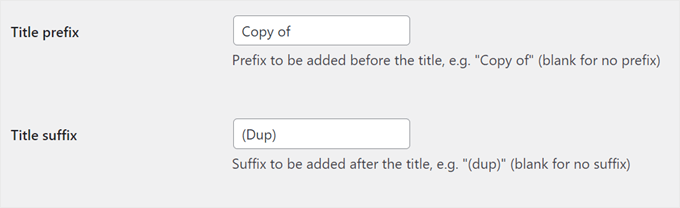
By default, the plugin adds the title prefix ‘Copy of’ to your duplicated posts. If you want to change the title prefix and/or add a title suffix, simply type it into the fields provided.
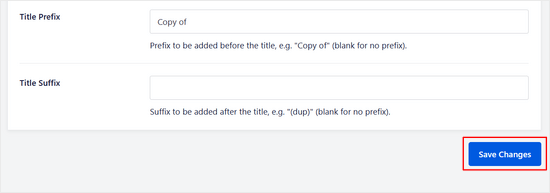
Once you’ve configured the settings how you want them, don’t forget to hit the ‘Save Changes’ button.
Method 2: How to Duplicate a WordPress Post or Page With Yoast Duplicate Post
Another way to copy a page or post and all its settings is by using Yoast Duplicate Post. This plugin allows you to copy pages or posts’ content and settings into new drafts.
First, you will need to install and activate the plugin. If you need help, then please see our guide on how to install a WordPress plugin.
Upon activation, go to Posts » All Posts or Pages » All Pages, depending on the content you want to duplicate from your WordPress website.
Here, simply hover over the original page or post you want to copy and select either ‘Clone,’ ‘New Draft,’ or ‘Rewrite & Republish.’
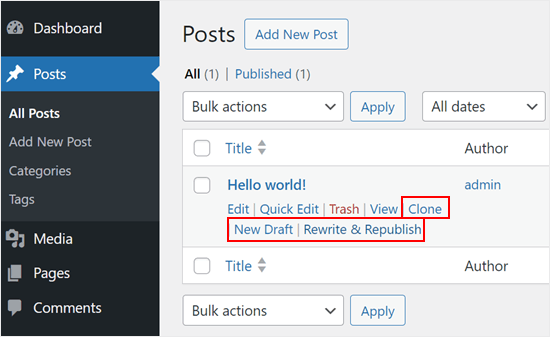
‘Clone’ duplicates the existing page or post but doesn’t open it in the WordPress content editor.
Meanwhile, ‘New Draft’ duplicates the post and opens the copy in the content editor so you can start working on it right away.
Lastly, ‘Rewrite & Republish’ duplicates the post and opens the copy in the content editor. Then, when you click ‘Publish’ in the Gutenberg editor, WordPress will replace the original post with the newly updated version.
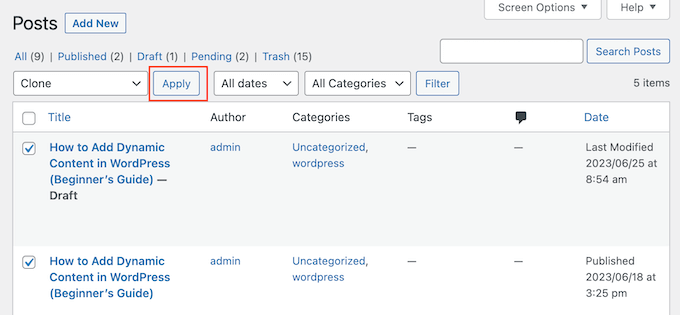
You can duplicate pages and posts from your WordPress site at once using the bulk edit feature.
Simply check the box next to each page or post you want to copy, and then open the dropdown menu that shows ‘Bulk Actions’ by default.
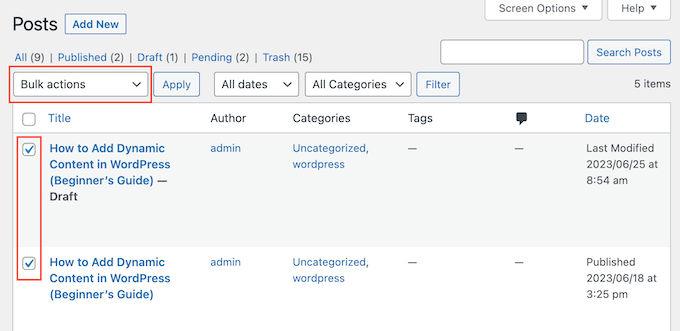
In the dropdown menu, select either ‘Clone’ or ‘Rewrite & Republish.’
After that, just click on ‘Apply.’
How to Customize the Duplicate Post Plugin Settings
The Yoast Duplicate Post plugin works out of the box and supports posts and pages by default. However, you can configure it to duplicate custom post types or change the elements it copies when creating a duplicate.
To configure the plugin’s settings, go to Settings » Duplicate Post.
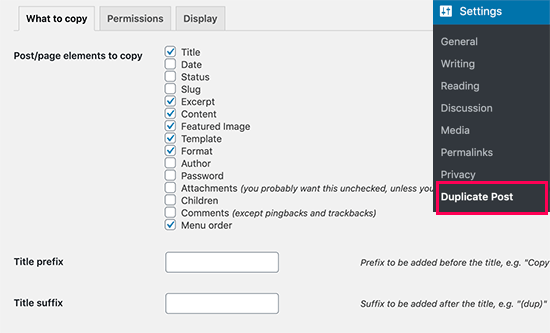
You will now see all the content that Yoast Duplicate Post can copy, such as title, excerpt, and attachments. Simply check and uncheck the boxes, depending on the page and post elements you want to copy.
You can also add a title prefix and/or suffix to your duplicated drafts. The prefix or suffix you enter will be applied to the posts or pages you duplicated using the ‘New Draft’ option.
Next, select the ‘Permissions’ tab.
By default, administrators and editors can duplicate posts. You can check and uncheck these boxes, depending on the user roles who need to duplicate posts.
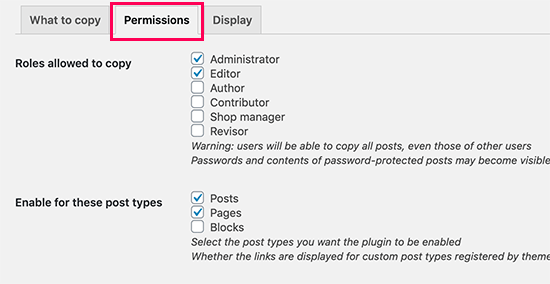
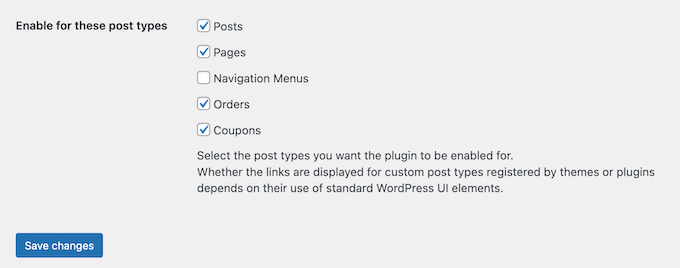
If you use custom post types, then these will appear next to ‘Enable for these post types.’ Simply check the box next to each custom post type you want to copy.
If you use WooCommerce for your eCommerce site, then you will also have the option to duplicate WooCommerce ‘Orders’ and ‘Coupons.’
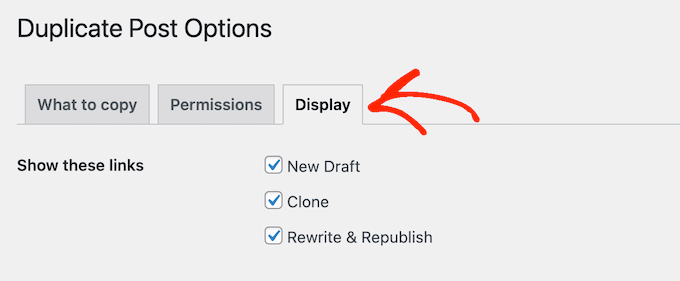
Finally, click on the ‘Display’ tab and choose where you want to show the duplicate links on your WordPress blog.
By default, the plugin adds ‘New Draft,’ ‘Clone,’ and ‘Rewrite & Republish’ links to your WordPress dashboard. But you can disable some options if they make things more confusing for you.
Also, you can simply check or uncheck the boxes in the ‘Show links in’ section.
This is to add or remove these links from the post list, edit screen (block editor), and more.
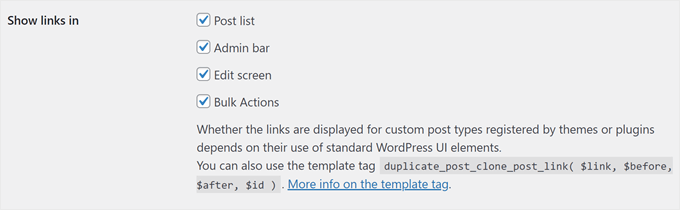
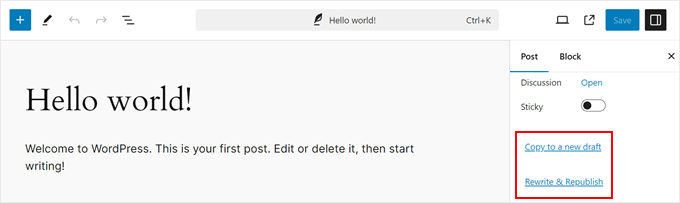
Besides adding the duplicate settings in the post list screen and bulk actions, we recommend enabling them in the block editor. This way, you and your authors can easily duplicate a post without having to exit the edit screen.
Here’s what the settings look like in the block editor:
Scrolling down, you can configure the settings for the original post.
Again, we suggest enabling the ‘In a metabox in the Edit screen’ and ‘In a column in the Post list’ settings. Both will let you delete the reference to the original item through the edit screen and the quick edit settings on the post list page.
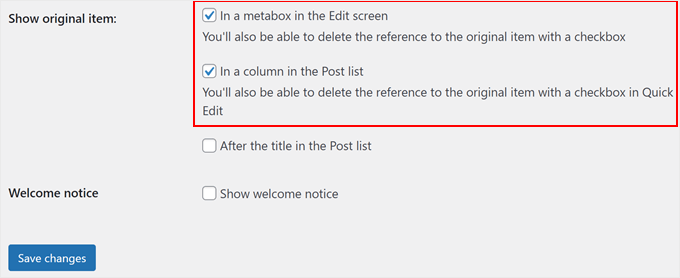
When you are happy with how the plugin is set up, click on the ‘Save changes’ button to store your settings.
Video Tutorial
If you don’t enjoy written instructions, check out our video tutorial on how to duplicate a WordPress post or page:
Additional Resources for Managing WordPress Posts and Pages
We hope this article helped you learn how to easily duplicate a WordPress page or post. For more tips and tricks to manage your posts and pages, check out these guides:
- Best Related Posts Plugins for WordPress (Compared)
- How to Avoid Duplicate Post Display with Multiple Loops in WordPress
- How to Prevent Duplicate Post Titles in WordPress
- How to Create a Child Page in WordPress (The Easy Way)
- Most Useful WordPress Custom Post Types Tutorials
- How to Better Manage WordPress Pages with Nested Pages
- How to Unpublish a WordPress Page
If you liked this article, then please subscribe to our YouTube Channel for WordPress video tutorials. You can also find us on Twitter and Facebook.





Dennis Muthomi
THis is what I was looking For!
I’ve often struggled with updating live pages, fearing I might break something. The Yoast Duplicate Post plugin seems like the perfect solution. I particularly appreciate the tip about adding a title prefix or suffix to duplicated drafts – that’ll definitely help me stay organized.
Thanks WPBeginner!
Kevin
It seems the plugin you refer to has changed names and is now called Yoast Duplicate Post by the same author of the plugin in the video, Enrico Battocchi. To confuse matters, there is a plugin called Duplicate Post by someone else.
You may want to clarify this in the text to you readers.
All the best and thanks!
WPBeginner Support
Thank you for letting us know!
Admin
Dayo Olobayo
I’ve been struggling with manually copying and pasting content from one page to another and it’s always a pain to remember to transfer over all the metadata too. This Duplicate Post plugin sounds like a real time-saver. I can’t wait to try out it.
Adrian
This is the only cloning plugin that would duplicate the home page without changing anything.
John Rowe
It seems that this or a similar plugin used to also allow for the migration of a post or page to another website however I don’t see plugins that migrate only pages or posts, they all seem to promote the migration of whole websites (Not what I want.) What am I missing?
WPBeginner Support
If you only want to move posts or pages to a new site, you should be able to use the default exporter under Tools>Export and then use the WordPress importer on the site you want the content on under Tools>Import.
Admin
Jiří Vaněk
Thank you for the guide. Thanks to it, I can give myself one page as a template for other articles and then duplicate other content from it. Cool.
Muhammad Hammad
I only want to copy the design layout of the page and change the content. Is that possible with this plugin? Please advise.
WPBeginner Support
If it is a page currently on your own site it should be able to do that.
Admin
Ashlee
How do you copy an entire Wordpress website?
I have an existing website and am wanting to create a another that’ll look like the existing site but have different content.
WPBeginner Support
For something like that, you could transfer the site using the steps from our guide below and use your new domain instead of your current domain.
https://www.wpbeginner.com/wp-tutorials/how-to-move-wordpress-to-a-new-host-or-server-with-no-downtime/
Admin
Dan
Hope you can help, is there a way to have the clone/copy page auto update content when changed on the original page? For example, I have removed an image from the original page but it still appears on the copy page but I’d like that to copy page to remain an exact replica. Thanks.
WPBeginner Support
We do not have a recommendation for how to do that at the moment.
Admin
Dean
Assuming I use the clone option, will allow me to edit those elements that I left unchecked in the copy section? Specifically I’m interested in being able to edit the extract.
WPBeginner Support
You would want to copy the elements you want to modify on the new site.
Admin
Linda
Sounds wonderful. Can I use it to clone a page from my stage site to our live site? I am sure hoping so!
Thank you for your help,
Linda
WPBeginner Support
For that, you would want to use the export tool under Tools>Export and then you should be able to specify a single post
Admin
Linda
Thanks, Support. Appreciate your reply (so quickly, too!) and suggestion. A follow up question: to do the cloning, should I have the plugin installed on both stage and live sites? Hope this isn’t a dumb question!
WPBeginner Support
If you are moving the content from a staging site you wouldn’t need to worry about using the plugin from this article. This plugin is for creating a duplicate post/page on the same site.
Linda
Just to tell support that I now understand how to get my content moved to the live site. Apologies for getting confused about your advice to use ‘export’ not this plugin. Thanks for your help … and your patience!!
Angelous Acheayang
Wow this super awesome. Thanks for this wonderful article
WPBeginner Support
Glad you liked our article
Admin
Nicole
Very easy to follow and it works … makes a change!
WPBeginner Support
Glad our recommendation was able to help
Admin
Jim Stauffer
Thanks so much for this. It makes my previous podcast episode post a template for the next one.
WPBeginner Support
Glad our recommendation was able to help
Admin
Martha M.
This post was very helpful and with the great video included, I was able to duplicate the page that I needed to add info to.
Now, I need to make that duplicate page the main page and do not know how to do that.
I tried changing the name, but it hyphenated the ending of the URL and the whole page is now gone from the website. I also messaged you on your FB page.
WPBeginner Support
If you wanted to update the page without changing the url, you would want to take a look at our article here: https://www.wpbeginner.com/plugins/how-to-properly-update-live-published-posts-in-wordpress/
Admin
Robin
Thank you for this post–It was just what I needed! I went from I wonder how I can….to duplicating a post in a matter of minutes!
WPBeginner Support
Glad our article could help
Admin
Val
Is there a way to copy a post and paste it in Word, for eg, so you can save the wording for use elsewhere?
Paul
Great Thanks for your work on this. It helpt me great. I,m a beginner with wordpress and try to figure it al out I,m trying to work whit Elementor also great but this whas missing.
Joe
Once the duplicate is edited, how do you then replace the original that is live?
It seems like it would be a lot of steps.
– Rename the duplicate to match the original.
– go into the customize settings
– go into menu
– create a new menu item, pointing it to the new edited version.
– delete the menu item pointing to the original version.
etc…
Is that about right?
Is there a simpler way?
Trish Mears
Thanks for the info. What I want to be able to do is rename the Duplicate/Clone page, so it is found in Searches (and at the bottom on my website). Can you give me some guidance please.
radra
how can I duplicate a page to an existing page.
(the existing page will be overwritten)
John
Fast, easy, exactly as described. Worked like a charm…Thanks
Wordpress4.9.1
Andrea
After you’ve used the plugin, is it safe to uninstall?
WPBeginner Support
Hi Andrea,
Yes, you can uninstall the plugin after you have duplicated the content you needed.
Admin
Anne
Very easy to follow and helpful video. Thank you!
Mary S.
Thank you. A very quick and helpful solution.
Awontis
That’s why is WordPress the most used platform!
Luke Cavanagh
Thanks for sharing. Really like the site redesign.
Naveen
Love the new change in the look of the blog… appreciate …
WPBeginner Support
Hi Naveen, thanks for the feedback.
Admin