


Running a WooCommerce store isn’t just about selling great products. You also need smart promotions to grow your business.
I’ve worked with many store owners who fall into the same trap: relying on basic discount codes that reduce profits without encouraging long-term sales.
That’s why I started testing more strategic coupon tools. After trying dozens of options, I keep coming back to Advanced Coupons and FunnelKit. These tools make it easy to create targeted promotions that boost the average order value and build real customer loyalty.
In this guide, I’ll show you how to use them to create high-performing coupons—even if you’re not a marketing expert.

💡Key Takeaways: Creating Smart Coupons in WooCommerce
In a hurry? Here are the 6 ways to create smart coupons in WooCommerce:
- BOGO (Buy One Get One): Increases average order value by giving a free item only when purchasing specific products.
- URL Coupons (Auto-Apply): Applies the discount automatically via a link, removing friction for the user.
- Pre-Scheduled: Sets coupons to start and stop automatically for holidays or flash sales.
- Free Gifts: Automatically adds a bonus item to the cart when a spending threshold is met.
- Shipping Discounts: Strategically removes shipping costs to recover abandoned carts.
- Dynamic Coupons: Generates unique, one-time codes via email automation (using FunnelKit) to prevent coupon abuse.
Why Basic Coupons Don’t Cut It (And What to Do Instead)
Most WooCommerce store owners start with simple discount codes — things like 10% off, free shipping, or $5 off your next order.
And while those might help you land a few early sales, they are not a long-term growth strategy.
Here’s the issue: basic coupons often attract bargain hunters who may never come back. You’re offering discounts without getting anything meaningful in return, which leads to no larger orders, no repeat business, and no customer loyalty.
Smart coupons fix that. Instead of blanket discounts, they let you reward specific behaviors that actually grow your business. You can:
- Encourage higher spending (e.g., “Get $20 off when you spend $100”).
- Recover abandoned carts with targeted, time-sensitive offers.
- Automatically reward loyal customers after multiple purchases.
- Offer product-specific deals or BOGO offers to move inventory.
- Run flash sales that feel personalized and timely.
It’s not about giving bigger discounts — it’s about giving the right offer to the right person at the right moment.
Best of all, tools like Advanced Coupons and FunnelKit make this easy to set up. You don’t need to hire a developer or create complicated workflows since everything can be managed from your WordPress dashboard with just a few clicks.
Having said that, let’s take a look at how to easily create smart coupons in WooCommerce. You can use the links below to jump to the method of your choice.
- How to Create Smart Coupons With Advanced Coupons
- Create a Buy One Get One Free Coupon in WooCommerce
- Create a URL Coupon (Auto-Apply) in WooCommerce
- Create a Pre-Scheduled Coupon in WooCommerce
- Create a Free Gift Coupon in WooCommerce
- Create a Shipping Discount Coupon in WooCommerce
- How to Send Dynamic Coupons With FunnelKit
- 🎁Bonus: Promote Your Coupons in WooCommerce
- Frequently Asked Questions About WooCommerce Coupons
Expert Tip: If you need some help setting up your WooCommerce store first, then please see our ultimate WooCommerce tutorial for beginners.
How to Create Smart Coupons With Advanced Coupons
The best way to create smart coupons in WooCommerce is by using Advanced Coupons.
After using it across multiple WooCommerce stores, I have found it to be the best WordPress coupon code plugin. It lets you create all kinds of coupons, rewards, and discounts to get more sales.
For details, see my Advanced Coupons review.
First, you’ll need to install and activate the Advanced Coupons plugin. For more details, see our step-by-step guide on how to install a WordPress plugin.
🚨Note: The plugin has a free version that you can use to create most of the coupons. However, you will need the pro plan for some of the coupon types, like offering free gifts, shipping overrides, and one-click apply.
Upon activation, head over to the Coupons » License page from the WordPress dashboard and enter your license key.
You can get this information from your account on the Advanced Coupons website.
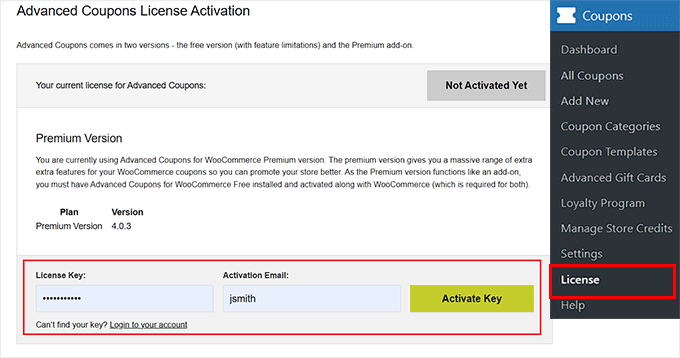
You’ll also need to enter your ‘Activation Email,’ which is the email address you used when you purchased Advanced Coupons. Once you’ve done that, click the ‘Activate Key’ button.
Now, you’re ready to create a smart coupon. To get started, visit the Marketing » Coupons page and click the ‘Add new coupon’ button.

This will take you to a new screen, where you have to add a title for your coupon.
Keep in mind that this name won’t be shown to users and is only for your identification. I recommend using short, clear titles that describe the reward.
For example, use something like FREESHIPPING for a free shipping deal or BOGOFREE for a buy-one-get-one offer. The goal is to make it obvious what the coupon does at a glance.

You can also add a brief description to remind yourself (and your team) what the coupon is for. This is helpful if you plan to run multiple campaigns.
Once you have done that, you can create different smart coupons according to your preference.
Create a Buy One Get One Free Coupon in WooCommerce
With Advanced Coupons, you can create all kinds of BOGO (Buy One, Get One) offers to drive more sales. Most people think of BOGO as ‘Buy one, get one free,’ but you’re not limited to that.
You can also offer variations like ‘Buy one, get one 50% off’ or ‘Buy two, get one free’.
BOGO coupons are especially effective at:
- Encouraging first-time customers to make a purchase.
- Motivating repeat customers to come back.
- Increasing the number of items per order.
They work a lot like cross-selling and upselling in WooCommerce by getting shoppers to add more to their cart in exchange for a better deal.
That means a higher average order value and more revenue without needing more traffic.
To create a BOGO coupon, scroll to the ‘Coupon Data’ section and make sure the ‘General’ tab is selected. Then, open the ‘Discount type’ dropdown menu and select ‘Buy X Get X Deal (BOGO).’
Next, in the ‘Force Apply’ dropdown, make sure to select ‘Disable.’ This means the coupon won’t be automatically applied, and your customer will need to manually enter the code at checkout.
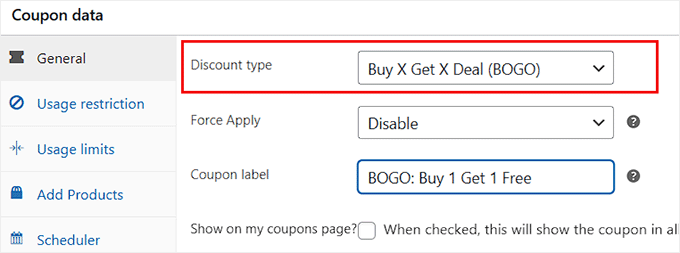
Alternatively, you could select ‘Enable’ if you want the BOGO deal to apply automatically once the trigger products are in the cart. This is a great option for store-wide promotions.
After that, set the ‘Coupon Label’ to something relevant and eye-catching. This is what customers will see in their cart once the coupon is applied, so keep it short, clear, and easy to remember.
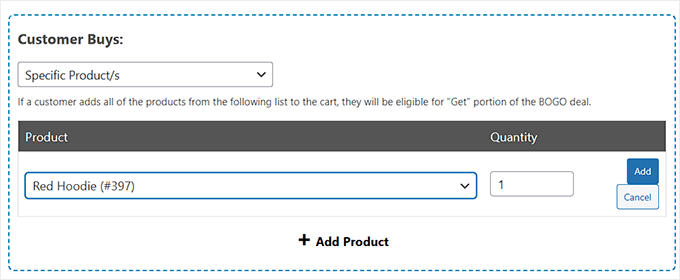
Now, scroll down to the ‘Customer Buys’ section to choose the specific product, product combination, or product category that will trigger the deal.
After that, choose the WooCommerce product you want the deal to apply to from the ‘Add Product’ section. You can also set a quantity requirement here.
This means the coupon will only be triggered if the customer adds that specific number of items to their cart.
For example, in the following image, I am creating a BOGO offer that’s triggered every time a shopper adds 1 red hoodie.
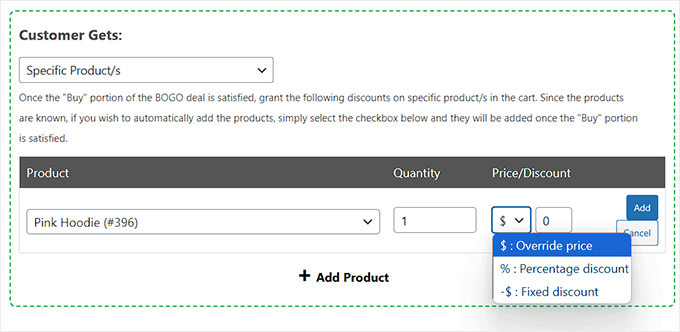
In the ‘Customer Gets’ section, you’ll need to pick the product that customers will get for free or at a discounted price.
To set up the deal, start by selecting ‘Specific Product/s’ from the dropdown menu.
Then, add the product you want to offer as part of the deal, and set the quantity the customer will receive. After that, you can choose how the discount is applied:
- Enter a percentage discount (e.g., 50% off),
- OR select ‘Override Price’ to offer the product for free or at a custom price.
💡Expert Tip: BOGO coupons tend to be most effective when you offer an item that’s related to the product being purchased. To maximize profit, I recommend choosing a low-cost, high-margin product as the free gift.
For example, if you sell winter clothes, then you might offer a free pair of gloves with every hat purchased.
You can now configure some additional settings to fine-tune the BOGO offer. For details, check out my guide on how to create Buy One Get One coupons in WooCommerce.
Once you are done, don’t forget to click the ‘Publish’ button to make your changes live.
Create a URL Coupon (Auto-Apply) in WooCommerce
When you send out a coupon code in an email newsletter or social post, there’s one problem: not everyone knows how to use it.
Some customers might get confused or frustrated trying to figure out where to enter the code, especially if they’re on a mobile device. This friction can easily lead to abandoned carts and lost sales.
Even when customers do know what to do, typing out a long, complicated code on a phone isn’t exactly a smooth experience.
Wouldn’t it be easier if they could just click a link and have the coupon applied automatically? That’s exactly what auto-apply URLs do.
With Advanced Coupons, you can generate a special link that instantly applies the coupon to the customer’s cart. Just share the link in an email, on social media, or even on your website, and shoppers are good to go.
To start, simply open the ‘Discount type’ dropdown and choose the kind of discount you want to create, such as a percentage discount.
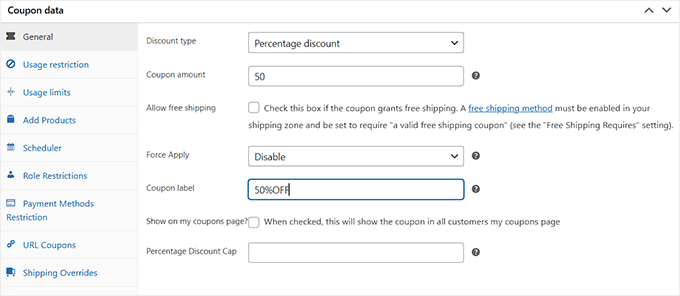
Now you will need to make the coupon live to get the URL, so click the ‘Publish’ button.
After that, switch to the ‘URL Coupons’ tab, where you’ll find the coupon code URL. This is the special link you can add to any newsletter, social media post, or even a blog article.
When a user clicks it, the discount will be automatically applied to their cart. The coupon is stored in the user’s session, so the discount remains applied even if they browse other pages before checking out.
You can also customize the link from here using the ‘Code URL Override’ box. This is handy if you’re sharing the coupon on social media or want a cleaner, branded link.
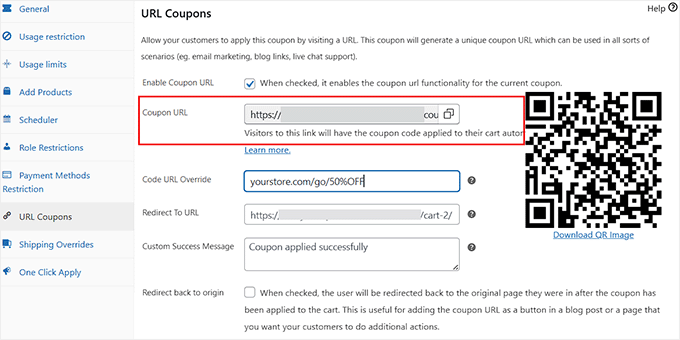
For example, instead of a long default URL, you could create something like:
yourstore.com/go/freeshipping
It’s simple, memorable, and looks great when shared. For more information, please see my guide on how to create URL coupons in WooCommerce.
Create a Pre-Scheduled Coupon in WooCommerce
If you run multiple sales throughout the year, then I recommend scheduling your coupons in advance.
For example, at the start of the year, you can pre-schedule your Spring Sale, Summer Promotion, and Black Friday deals — all in one go.
Advanced Coupons will automatically activate each coupon at the right time and disable it once the holiday sale ends, meaning no last-minute scrambling or missed deadlines.
This also works great if you collaborate with affiliate partners. You can share coupon codes with them early, giving them plenty of time to prepare their campaigns and promote the deal to their audience effectively.
To schedule a coupon, create the code as normal in the Marketing » Coupons » Add New screen. Then, click on the ‘Scheduler’ tab and check the ‘Date Range Schedules’ box.

Next, enter the date and time when you want the coupon to go live in the ‘Coupon start date’ field. After that, use the ‘Coupon expiry date’ field to set when the coupon will stop working.
💡Expert Tip: By default, the coupon will activate at 12:00 AM on your start date. It will expire at the very end of the day before the chosen expiry date. For example, if you set the expiry date to July 30, the coupon will stop working at 11:59:59 PM on July 29.
Remember, Advanced Coupons uses the timezone you’ve set in your main WordPress settings. If you need help adjusting your site’s date and time settings, then see my guide on how to change the date and time format in WordPress.
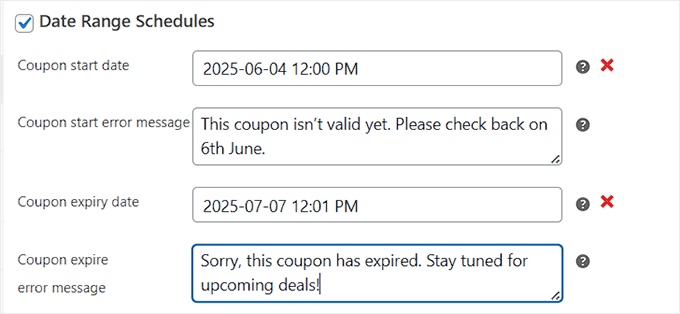
Then, you can use the ‘Coupon Start Error Message’ field to enter the message customers will see if they try to use the coupon before it becomes active. This is a polite way to let them know the deal isn’t available yet.
You can also add a ‘Coupon Expire Error Message’ to show when customers try to use the coupon after it has expired. This message informs them that the offer has ended.
After that, you can leave the rest of the settings as they are or configure them according to your liking. For more in-depth instructions, see my tutorial on how to schedule a coupon in WooCommerce.
Create a Free Gift Coupon in WooCommerce
Offering a free gift is a great way to surprise and delight your shoppers. Not only does it make customers feel appreciated, but it also encourages them to come back, helping you build long-term loyalty.
I have seen many WooCommerce stores give away a free gift when customers spend a certain amount. This tactic often increases the average order value. Others offer a gift when someone buys a specific product, which is a great way to cross-promote related items or introduce a new product.
For example, you could give away older or discontinued stock to clear out inventory, or offer a sample of a new item to generate buzz.
To create a free gift coupon, head over to the ‘Add Products’ tab in the Coupon Data section. Here, click on the ‘+ Add Product’ button.
🚨Note: The Add Product section is a Pro feature in Advanced Coupons. If you’re not using the Pro version, this section will be locked.

This will open a search field where you can type the name of the product you want to offer as a free gift. When the correct product appears, simply click on it to select it.
Next, look for the dropdown under the ‘Price/Discount’ heading and choose ‘$: Override price’.
In the box next to it, either type 0 or leave it blank. This tells WooCommerce to offer the product completely free.
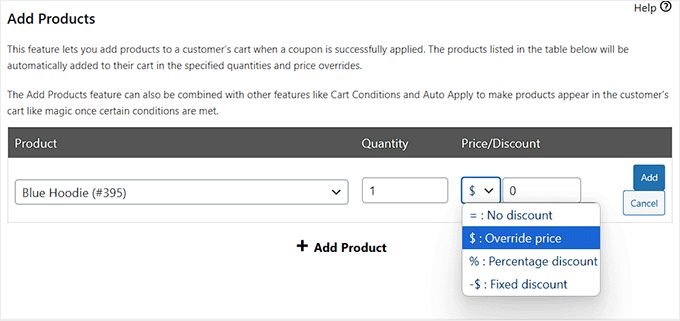
You can now click the ‘Publish’ button to store your changes. For more details, please see my tutorial on how to create a free gift coupon in WooCommerce.
Create a Shipping Discount Coupon in WooCommerce
Offering free or discounted shipping is one of the most effective ways to reduce cart abandonment. It removes one of the biggest pain points for online shoppers — unexpected costs at checkout.
If you’re running special promotions or want to reward loyal customers, a shipping discount can be the extra push they need to complete their purchase.
With the Advanced Coupons plugin, you can easily create shipping coupons that apply automatically or with a simple code.
To get started, head to the Coupon Data box and set the Discount type to ‘Fixed cart discount’ from the dropdown. Then, enter 0 into the Coupon amount field.
This tells WooCommerce that the coupon doesn’t apply to the cart total. Since you are using this coupon only to trigger the free shipping rule, you don’t want to discount the product prices.
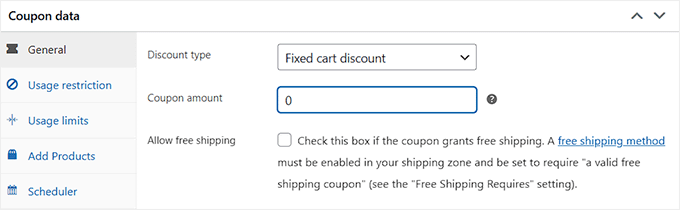
Next, click on the Shipping Overrides tab on the left-hand menu, and select the ‘+ Add Shipping Override’ option.
🚨Note: The Shipping Overrides feature will be locked if you are using the free plan since it’s a pro feature.
This will reveal new settings that allow you to configure how the shipping discount works. First, use the ‘Shipping Zone’ dropdown to choose the area where this coupon will be available.
If that zone includes multiple shipping methods, you’ll also see a ‘Shipping Methods’ dropdown. From there, select the specific method the discount should apply to, like flat rate or local pickup.
Now it’s time to choose the discount type. If you want to offer a percentage off shipping, like 50% off, then choose ‘Percentage discount’ from the dropdown.
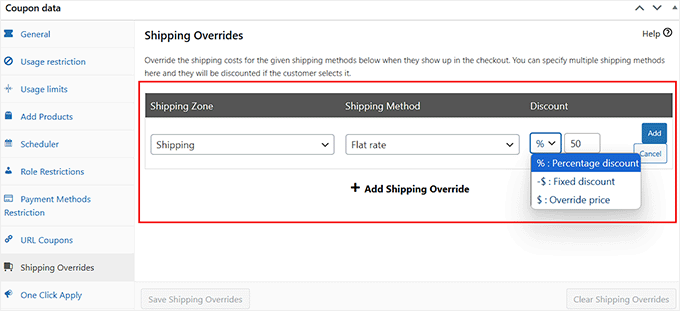
Alternatively, if you want to offer a fixed shipping price or even free shipping, then select ‘Override price’ and type 0 into the box beside it.
This will set the shipping cost to zero when the coupon is applied. Once you’re happy with the settings, click on ‘Save Shipping Overrides’ to make the changes live.
For step-by-step instructions, see my tutorial on how to offer a shipping discount in WooCommerce.
How to Send Dynamic Coupons With FunnelKit
Creating coupons is just the start — sending them to the right people at the perfect time is the next step to getting more sales.
FunnelKit makes this easy by letting you set up automations that generate and send dynamic coupons to your WooCommerce customers.
A dynamic coupon is a personalized, one-time-use code that’s generated automatically for each customer. It’s more secure, prevents your codes from leaking to coupon scraping sites, and gives your promotions a more personal touch.
First, you need to install and activate the FunnelKit Automations plugin. For details, see my tutorial on how to install a WordPress plugin.
🚨Note: I’ll be using FunnelKit’s Customer Win Back premade automation template, which sends dynamic coupons to existing customers to encourage them to return.
To use this feature, you’ll need the FunnelKit Pro plan. Even so, you’ll also need to install the free version of FunnelKit first, as it acts as the base plugin.
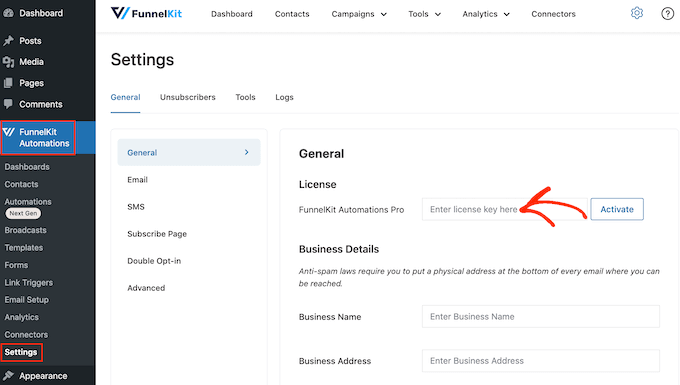
Upon activation, head over to the FunnelKit Automation » Settings page to enter your license key.
You can get this information from your account on the FunnelKit website.
Then, head to the FunnelKit Automations » Automations page in the WordPress dashboard, and click on the ‘Add New Automation’ button.
This will take you to a new screen, where you will see all the premade templates. Simply, switch to the WooCommerce tab and select the ‘Customer WinBack Campaign (With Coupon)’ option.
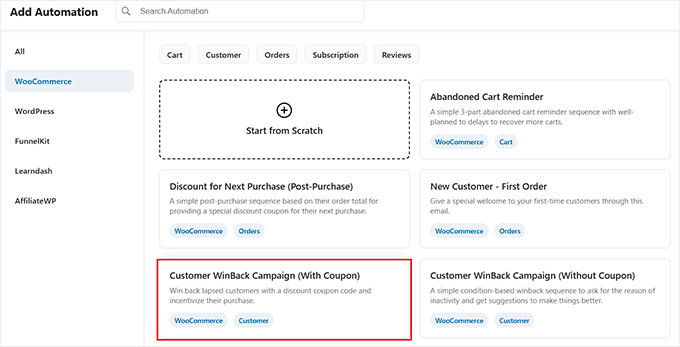
Once you do that, you will be able to see a preview of the automated workflow. From here, click the ‘Import Recipe’ button.
Next, add a name for your automation and click ‘Create.’
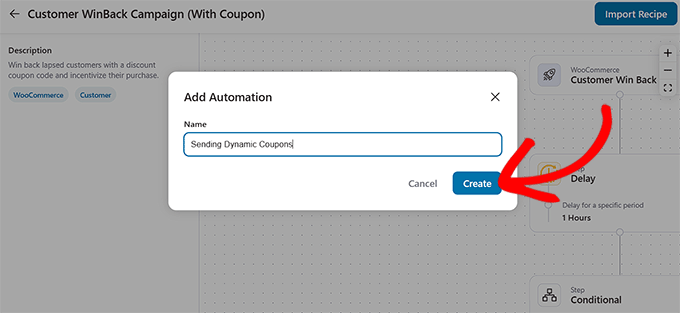
This will open the FunnelKit automation builder, where you’ll see that the entire workflow for sending dynamic coupons has already been created.
In this workflow, the system scans your database daily at 10:00 AM. It looks for customers whose last order was between 180 and 365 days ago.
If the ‘Total Spent’ by that customer was greater than $100, they’ll be sent an email with a dynamic coupon for 15% off. If their revenue is less than $100, they’ll receive a dynamic coupon for 10% off instead.
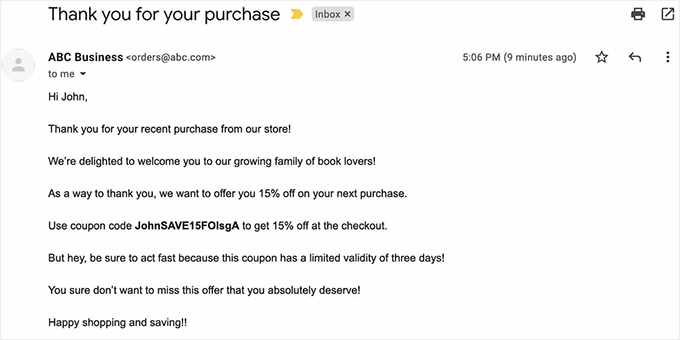
Keep in mind that FunnelKit creates all coupons to be dynamic, which means each coupon is personalized with the customer’s name and is unique to them.
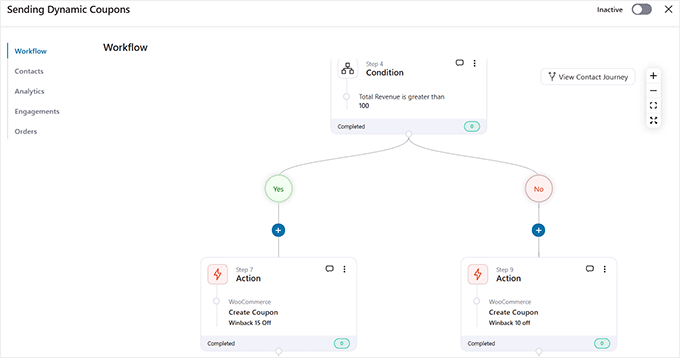
This is the default automation setup, but you can easily change the settings, conditions, and actions to fit your store’s needs.
To customize, simply click on the action you want to change. This will open a prompt where you can adjust the settings to your preferences.
For instance, you can change the discount type, modify the action that triggers the automation, remove or adjust delays, and much more.
To learn more about working with the FunnelKit automation builder, check out my tutorial on how to send automated coupons in WordPress to bring back customers.

Once you’re done, just toggle the automation from inactive to active.
Now your customers will start receiving dynamic coupons via email. Here’s a preview of what that looks like.
🎁Bonus: Promote Your Coupons in WooCommerce
Creating a coupon is only step one. If your customers don’t know about your deal, they won’t use it, and that means missed sales and opportunities.
To get the most out of your WooCommerce coupons, you’ll want to actively promote them across your website, email marketing, and social channels. Here are some smart ways to do that:
- Add a Site-Wide Notification Bar: Use a floating bar at the top of your website to highlight your active coupon. This is the first thing most visitors see — and it’s a great way to grab attention without being intrusive.
- Promote at Checkout: Display your coupon near the cart or checkout pages. This encourages shoppers to complete their purchase by applying the discount before they abandon the cart.
- Use Popups and Slide-ins: With tools like OptinMonster, you can trigger popups to show coupons when a visitor is about to leave your site or has spent a certain amount of time browsing. This can be the final nudge they need to make a purchase.
- Send Coupons in Email Campaigns: Send out promotional emails with coupon codes or auto-apply links. You can use tools like FunnelKit, Omnisend, or MailPoet to automate this and target the right segment of users, like new customers or cart abandoners.
- Use Countdown Timers: Show a countdown timer in your popup to build urgency. This triggers FOMO and encourages quick action before the deal expires.
- Gamify It With a Spin-to-Win Wheel: If you’ve created multiple smart coupons, you can make things fun by letting customers spin a wheel to unlock a random discount.
By promoting your coupons in the right places, you make it easier for customers to say yes to your offer.
Whether you’re running a seasonal campaign or trying to win back inactive shoppers, a well-promoted coupon can help drive more sales and build stronger customer relationships.
Frequently Asked Questions About WooCommerce Coupons
Here are some questions that our readers have frequently asked about creating WooCommerce coupons:
How do I create multiple coupons in WooCommerce?
You can create multiple coupons natively by repeating the “Add Coupon” process for each one, but this is slow. For efficiency, I recommend using a plugin like Advanced Coupons to generate thousands of unique codes in bulk with just a few clicks.
Can ChatGPT generate discount codes?
No, ChatGPT cannot create functional coupon codes inside your WooCommerce dashboard. It can only generate text ideas for coupon names (like “SAVE20”). You must still manually input these codes into WooCommerce or use a plugin to generate the actual logic.
What is the best coupon frequency?
Most experts recommend running sales quarterly or during major holidays (like Black Friday). Running sales too often can train customers to wait for a discount, which devalues your brand. Strategic scarcity often leads to better profits.
Do coupon codes expire?
Yes, coupon codes expire if you set an “Expiry date” in the coupon’s General settings tab. I strongly recommend adding expiration dates to create a sense of urgency (FOMO), which encourages customers to buy sooner.
How do I create bulk coupons in WooCommerce?
To create bulk coupons, you need a plugin like Advanced Coupons that supports “Virtual Coupons” or bulk generation. By default, WooCommerce only lets you make one coupon at a time. A bulk generator tool allows you to create thousands of unique codes for email marketing instantly.
What is the best coupon plugin for WooCommerce?
Advanced Coupons is the best plugin because it adds features WooCommerce lacks, like BOGO deals, cart conditions, and loyalty programs. It is the most comprehensive tool for creating smart, profitable promotions without needing custom code.
What is a bulk discount?
A bulk discount applies a lower price per unit when a customer buys a specific large quantity (e.g., “Buy 10, save 20%”). This strategy encourages customers to purchase larger volumes at once, increasing your average order value.
I hope this article helped you learn how to create smart coupons in WooCommerce. You might also like my ultimate guide to WooCommerce SEO and my step-by-step tutorial on how to create a WooCommerce popup to increase sales.
If you liked this article, then please subscribe to our YouTube Channel for WordPress video tutorials. You can also find us on Twitter and Facebook.



Mrteesurez
I am really impressed with this plugin and how it works. It is featured rich and offers exciting options. That “buy on and get one for free” is a great feature. Also the auto applied coupon will make it faster for users to buy products as user doesn’t not need to remember any coupon code at the checkout page.