


When you’re trying to boost sales in WooCommerce, “buy one get one” deals are one of the quickest ways to get results. In our own testing, “BOGO” offers consistently outperform regular percentage discounts.
The problem is that most store owners find them tricky to set up. We ran into the same issue when we first started experimenting with different promotion tools.
After trying several approaches, we found that Advanced Coupons gives you the easiest and most reliable way to run BOGO deals in WooCommerce.
In this guide, we’ll walk you through how to create a simple and effective BOGO offer on your store, step by step.
💡Quick Answer: Add a BOGO Offer in WooCommerce
The best and most reliable way to create a ‘Buy One Get One’ offer is by using the Advanced Coupons plugin. It gives you full control over your BOGO deals.
Here’s a quick overview of the process:
- Install and activate the free Advanced Coupons plugin along with the premium addon.
- Navigate to Marketing » Coupons and create a new coupon code.
- Under ‘Coupon Data’, change the ‘Discount type’ to ‘Buy X Get X Deal (BOGO)’.
- Set the conditions for what the customer buys and what they get in return.
- Publish the coupon and promote it on your store.
Why and When to Offer BOGO Deals in WooCommerce?
BOGO deals offer customers a discount if they buy a particular product. They’re an a great way to get more sales on your online store and often increase the average order value.
In our experience testing different strategies, BOGO offers can help you achieve several key goals:
- Increase Sales and Order Value: They encourage shoppers to buy more items to get the deal, which often boosts the average order value and even recovers abandoned cart sales.
- Clear Out Old Inventory: Many online stores use BOGO deals to sell older products or inventory they no longer want to stock.
- Recover Abandoned Carts: You can offer a BOGO discount to shoppers who have left items in their cart, giving them a great reason to complete their purchase.
- Build Customer Loyalty: Compared to the rising cost of paid advertising, BOGO discounts can be a more affordable way to build a loyal customer base.
Just be aware that BOGO doesn’t always mean giving the customer a free product. You can also offer a big discount on the second item, such as “Buy One Get One 50% off” or a “Buy 2 Get 1 Free” deal.
That being said, let’s take a look at how to easily add ‘buy one get one’ offers to your WooCommerce store.
How to Create a Buy One Get One Offer in WooCommerce
The easiest way to add a ‘buy one get one’ offer in WooCommerce is by using Advanced Coupons.
Upon testing, we found it to be the best WooCommerce coupon code plugin that allows you to easily create coupons and deals for your eCommerce store, including BOGO coupons.
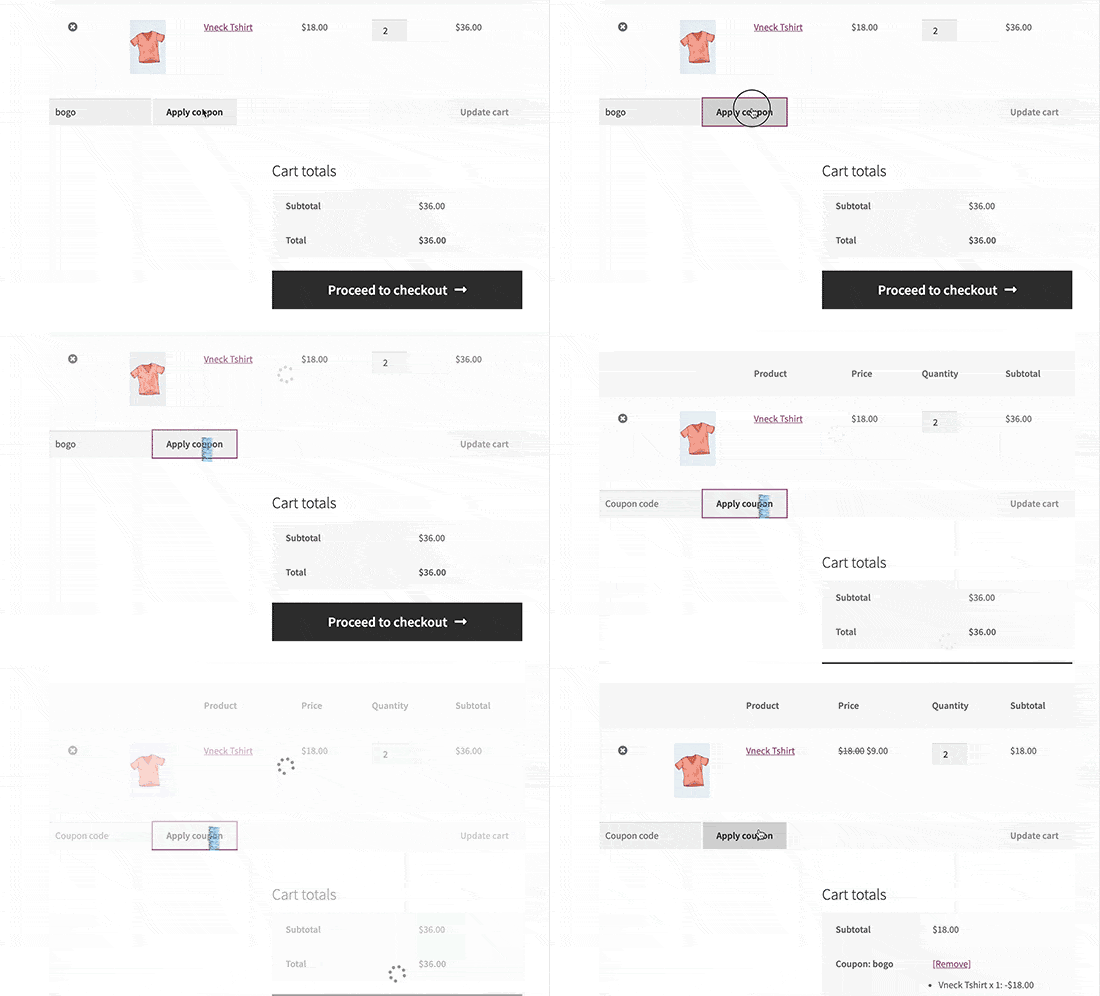
For example, here’s what a ‘buy one get one for free’ coupon looks like:
For more information, see our Advanced Coupons review.
Step 1: Install And Activate The Advanced Coupons Plugin
First, you’ll need to install and activate both the free Advanced Coupons plugin and the premium Advanced Coupons addon.
The free plugin provides the basic coupon features, but the premium addon is what unlocks advanced deals like BOGO offers. For detailed instructions, see our guide on how to install a WordPress plugin.
Upon activation, head over to Coupons » License.
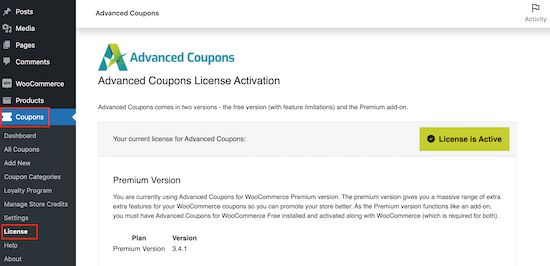
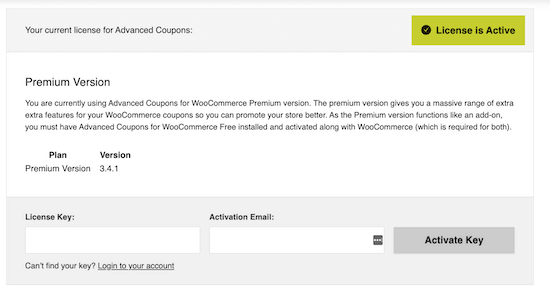
You can now enter your license key and the email address you used to purchase Advanced Coupons. You can find this information in your account on the Advanced Coupons website.
Once you’ve done that, click on ‘Activate Key.’
Step 2: Create a New Coupon
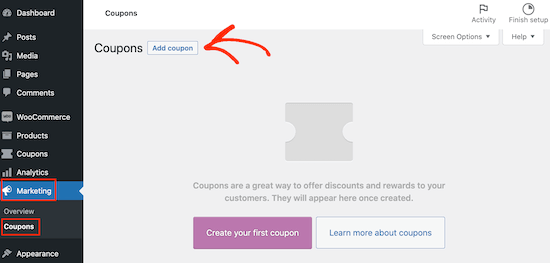
To create a BOGO deal, go to the Marketing » Coupons page.
Here, click on the Add Coupon button.
Step 3: Set Up the Coupon Code
On the next screen, you need to provide a title for your WooCommerce coupon.
This will also become the actual coupon that customers will use to claim their free gift, so it’s a good idea to use something that’s easy for shoppers to remember and type. You may also want to use something that describes your offer, such as ‘BOGODEAL’ or ‘BOGO50%.’
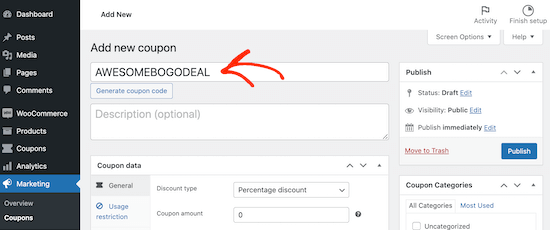
If you don’t want to create your own code, then you can click on the ‘Generate coupon code’ button. This will create a code using a random string of letters and numbers.
However, this can make the BOGO coupon harder to remember and more difficult to type. With that being said, it’s a good idea to type out your own coupon code.
Step 4: Select the BOGO Discount Type
Next, scroll down to the ‘Coupon Data’ section. If it isn’t already selected, then select the ‘General’ tab.
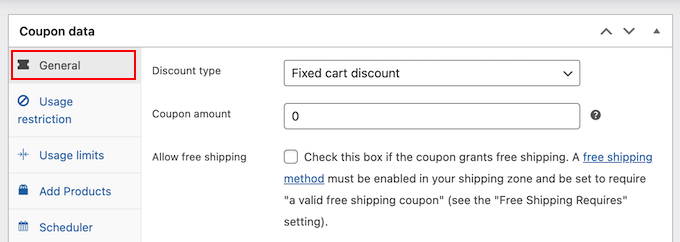
Here, you can create all kinds of coupon codes, including free gift discounts, shipping discount coupons, and more.
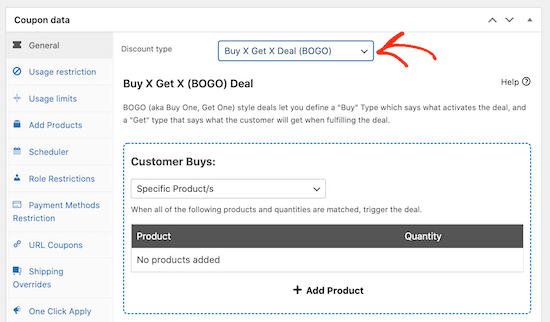
To create a BOGO coupon, go ahead and open the ‘Discount type’ dropdown, then choose ‘Buy X Get X Deal (BOGO).’
Step 5: Configure the BOGO Conditions
In the ‘Customer Buys’ section you can create a range of different BOGO deals by setting up specific triggers. In this way, you can trigger the deal automatically when the customer adds one or more products to their cart.
You can use any of the following triggers:
- Specific Product: This is perfect for simple, straightforward deals on a single product. For example, buy product X, get product Y for half price.
- Any Combination of Products: You can use this for products that have variations or deals that apply to multiple products. For example, ‘buy either product X or Y, and get product Z for free.’
- Product Categories: This allows you to create deals for an entire product category. For example, ‘buy any of our ebooks, and get 10% off a second ebook.’
- Any Product: The customer can claim a BOGO discount for any product. For example, ‘buy any product today, and get the second for free.’
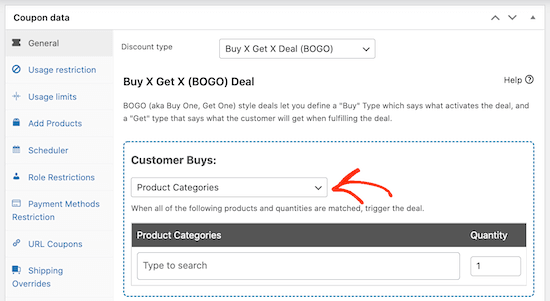
After choosing the trigger type, you’ll need to select the products that will trigger the deal.
Simply click ‘Add Product’ and then choose the product(s) that you want to use.
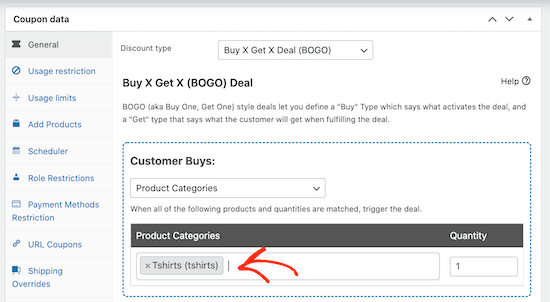
You can select more than one product or category. For example, the customer might need to buy 2 products from the ‘T-Shirts’ category, before they can get the 3rd t-shirt for free.
It’s important to note that the second product doesn’t necessarily have to be free. You could make the second t-shirt 50% off, or offer a $10 discount.
With that done, you’ll need to select which product the customer gets for free, or at a discounted price. This could be the same product as before, a different product, or even an entire product category.
In the ‘Customer Gets’ section, repeat the same steps to choose the product or products that the customer will get as part of the BOGO discount.
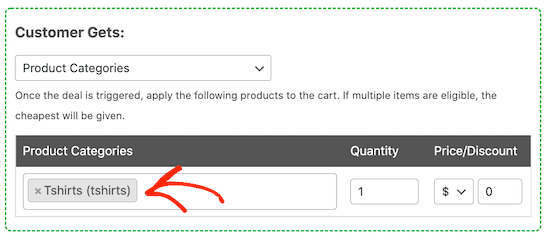
If you choose a specific product, then that product will be added to the customer’s shopping cart automatically.
If you set the dropdown to ‘Any Combination of Products,’ ‘Product Categories’ or ‘Any Products’ then the customer will need to choose an eligible product from your store and add it to their shopping cart.
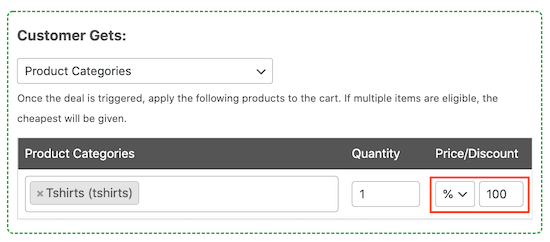
If you want to offer the BOGO item at a discount rather than for free, then you can use the dropdowns beneath the ‘Price/Discount’ heading.
Here, you can create a percentage or a fixed discount.
Step 6: Configure Additional Settings
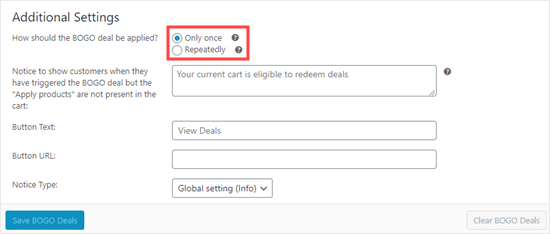
Under ‘Additional Settings’, choose whether the customer can only use this coupon once, or whether they can use it multiple times.
Reusable coupon codes can generate more sales but they’ll also reduce your profit margins.
You can also write a helpful notice for your customers. This message appears if a shopper triggers the deal but doesn’t add the free or discounted product to their cart.
To create this reminder, just type your text into the ‘Notice shown when BOGO…’ field.
For example, you could write: “Great news! You’ve unlocked a Buy One, Get One Free deal. Just add the second item to your cart to claim it.”
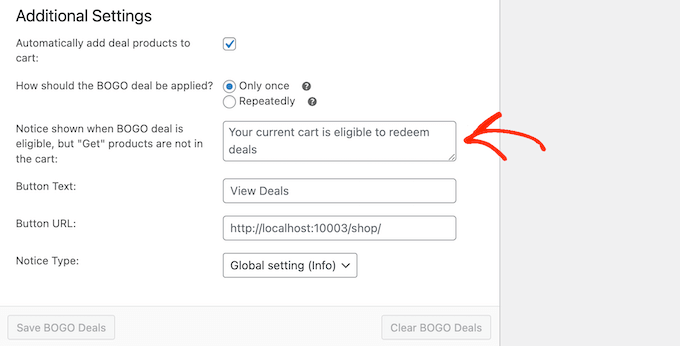
When you’re happy with how the BOGO deal is set up, don’t forget to click on the ‘Save BOGO Deals’ button.
Step 7 (Optional): Schedule the Coupon’s Start and End Dates
You can often increase conversions using FOMO. With that being said, you may want to add a time limit to your BOGO offer, which encourages customers to act now in order to claim their ‘buy one get one’ discount.
You can schedule all your coupons using Advanced Coupons. Simply create the coupon following the same process described above.
Then, click on the ‘Scheduler’ tab and check the ‘Date Range Schedules’ box.
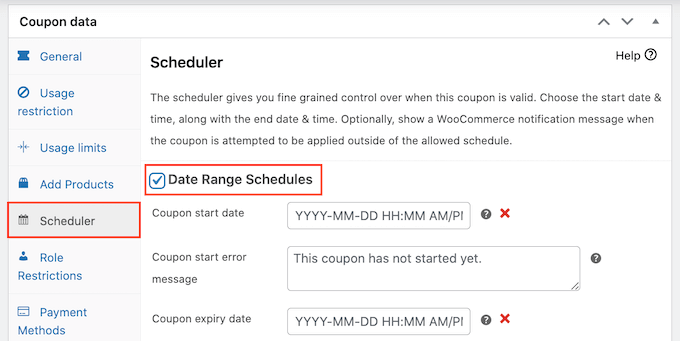
In ‘Coupon start date,’ go ahead and type in the date and time when the coupon will go live.
Then, use the ‘Coupon expiry date’ to specify the date and time when customers will no longer be able to use the BOGO coupon.
For more detailed instructions, please see our guide on how to schedule coupons.
Video Tutorial
If you prefer a video walkthrough, we have a complete tutorial you can watch below.
🎁 Bonus: How to Promote Your BOGO Deal in WooCommerce
Now you’ve created a ‘buy one get one’ coupon, the next step is to promote that coupon across your online marketplace so shoppers can find it, and use it.
The easiest way to do this is by using OptinMonster. It is the best lead generation tool on the market and allows you to easily convert website visitors into paying customers.
We have used it at WPBeginner to promote our newsletter and have had an excellent experience. For more details about the tool, see our OptinMonster review.
It comes with beautiful lightbox popups where you can show your coupon codes. You can even use OptinMonster’s smart page targeting features to show the coupon on specific products only.
For example, if a customer is looking at a T-shirt, then OptinMonster can open a popup with a ‘buy one get one free’ code for that product.
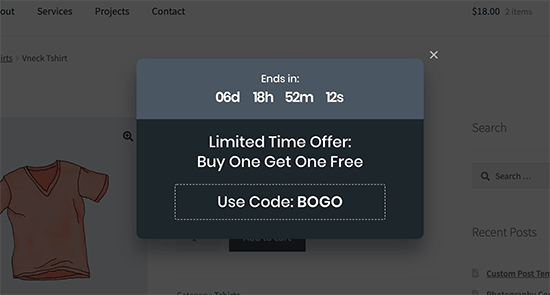
For details, please see our tutorial on how to create a coupon popup in WordPress.
In addition to that, OptinMonster offers many other campaign types to promote your BOGO deals, including:
- Floating bars that stick to the top or bottom of the page.
- Countdown timers to create a sense of urgency.
- In-line optins that you can place within your content.
- Slide-in popups that appear from the corner of the screen.
No matter how you promote your BOGO offer, it’s a good idea to monitor how visitors are using your coupon codes. You can then use this insight to fine-tune all your future promotions to get even better results.
For more details, see our guide on how to set up WooCommerce conversion tracking.
Frequently Asked Questions About BOGO Deals in WooCommerce
Here are some common questions that our readers ask about BOGO and other deals:
Can I create a BOGO deal in WooCommerce without a plugin?
No, the default coupon system in WooCommerce does not support the complex logic needed for true BOGO deals.
You can create basic discount codes (like $10 off or 20% off), but you cannot set up a rule where buying one specific product automatically makes another one free or discounted. This is why a specialized plugin like Advanced Coupons is necessary.
Does a BOGO deal automatically add the free product to the cart?
It depends on how you set up the deal in Advanced Coupons. If your offer is for a specific, single product (e.g., “Buy this t-shirt, get the same t-shirt free”), the plugin will automatically add the free item to the cart.
However, if the deal applies to a category or any product, the customer will need to add the second item to their cart manually to receive the discount.
How can I run a BOGO promotion without losing money?
To ensure profitability, it’s important to be strategic. We recommend choosing products with higher profit margins for your BOGO sales. Another effective strategy is to use the offer to clear out old inventory that you want to move quickly.
Finally, always set a clear start and end date for the promotion to create urgency and control its financial impact.
Can I create a BOGO deal for products with different variations (like size or color)?
Yes, absolutely. When configuring the BOGO deal, you can select specific product variations as either the trigger or the reward.
For even more flexibility, you can use the ‘Product Categories’ trigger. For instance, you could create a deal like “Buy any item from our ‘Hoodies’ category and get any item from our ‘T-Shirts’ category for 50% off.”
We hope this article helped you learn how to create a WooCommerce BOGO ‘Buy One Get One’ free offer. You can also go through our guide on how to make a smart WooCommerce product search and the best WooCommerce points and rewards plugins.
If you liked this article, then please subscribe to our YouTube Channel for WordPress video tutorials. You can also find us on Twitter and Facebook.




Have a question or suggestion? Please leave a comment to start the discussion.