


Allowing users to upload images on WordPress shouldn’t be hard. But permission errors, file size limits, and security concerns often get in the way.
If you want to let users contribute safely, whether you’re running a photo contest or collecting user-submitted content, the easiest solution is to add an image upload form. That way, people can submit images without needing full admin access.
At WPBeginner, we’ve tested several tools, and WPForms makes this process the simplest. Many of our readers and business partners have also set up image uploads with this plugin, and it’s quick and easy – no coding needed.
In this guide, we’ll show you how to let users upload images safely on your WordPress site. There’s also a video tutorial if you prefer following along step by step. 🧑💻

Why Allow Users to Safely Upload Images in WordPress?
If you run a multi-author blog, an easy way to let users contribute images is by adding them as authors on your website. But giving users full access to the WordPress admin isn’t always ideal, especially for one-time scenarios. That’s where an image upload form can help.
An image upload form can be especially useful when you only need users to upload images temporarily or for a specific purpose. For example:
- Guest posts: Let contributors upload images for a single article without giving them ongoing access.
- Product reviews: Allow customers to share photos of products they’ve purchased.
- Photo contests: Collect entries safely from multiple users without exposing your site’s backend.
- Event galleries: Enable attendees to submit images from conferences, workshops, or meetups to display in an image gallery.
- User-submitted content: Let your community contribute images to testimonials, forums, or showcase pages.
Luckily, there are several WordPress plugins that let users upload images without compromising your website security or giving them access to the WordPress admin area.
With that in mind, let’s take a look at some easy ways to allow users to upload images in WordPress. You can use the quick links below to jump to the method you want to use:
- Method 1: Let Users Upload Images Using a File Upload Form
- Method 2: Allow Users to Upload Images as Guest Authors
- Bonus Method: Allow Users to Upload Photos for a Contest
- FAQ: How to Allow Users to Upload Images on a WordPress Site
- Video Tutorial: Allow Users to Upload Images on a WordPress Site
- Next Steps for Using Images and Other Media Files in WordPress
Let’s get started.
Method 1: Let Users Upload Images Using a File Upload Form
This method is perfect if you want users to upload an image or other files, like job applications, cover letters, or verification documents.
You can easily create a file upload form that collects the user’s name, email address, uploaded file, and an optional message.
For this method, we’ll be using WPForms, the best WordPress form builder plugin. It comes with a built-in file upload field and makes the whole process quick and beginner-friendly.
At WPBeginner, we use WPForms for everything from our contact and website migration forms to our annual reader survey. We’ve seen firsthand how flexible it is for handling user data securely, including forms with image upload fields.
For more information about the plugin, please see our complete WPForms review.
Now, let’s create a WPForms account to start creating your image upload form. On the WPForms website, click the ‘Get WPForms Now’ button, select a plan, and follow the on-screen instructions to complete checkout.

💡 Note: For this tutorial, you will need the WPForms Basic plan or above to add an image upload field. That said, you can use WPForms Lite to create simple contact forms on your WordPress site.
With that done, you’ll have your own WPForms dashboard, where you can find your WPForms Basic (or higher) zip file and license key.
Now, you will need to install and activate the WPForms plugin. In your WordPress admin area, go to Plugins » Add New Plugin.

Then, you can simply search for WPForms using the search feature to quickly find it.
Once you’ve found it, click ‘Install Now’ and ‘Activate’ to complete the installation process.
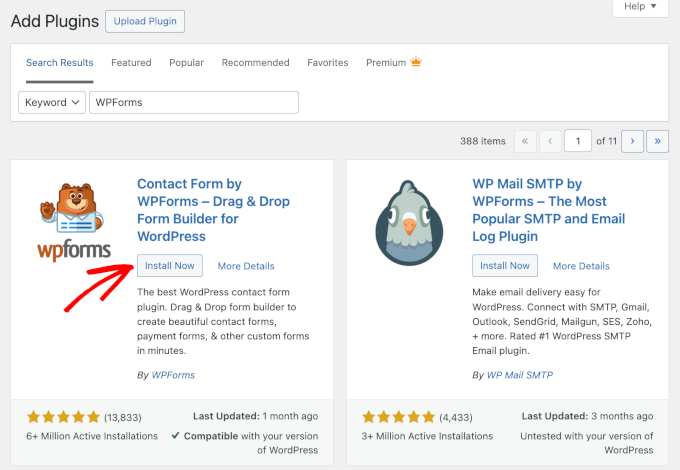
For more details, see our step-by-step guide on how to install a WordPress plugin.
Upon activation, you need to visit the WPForms » Settings page in your WordPress dashboard to enter your license key.
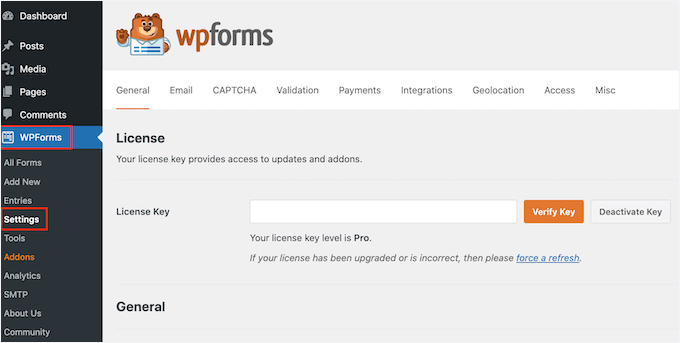
You can find your license key in your account area on the WPForms site in the ‘Downloads’ tab.
With that done, go to WPForms » Add New to create your form.
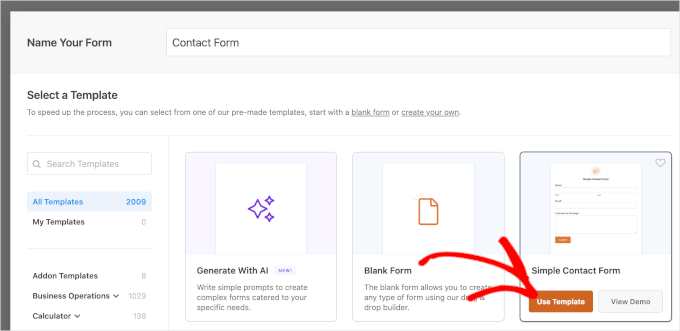
On the ‘Setup’ page, you can name your form in the ‘Name Your Form’ field. This is for your reference only, but make sure to use a clear name for easier organization.
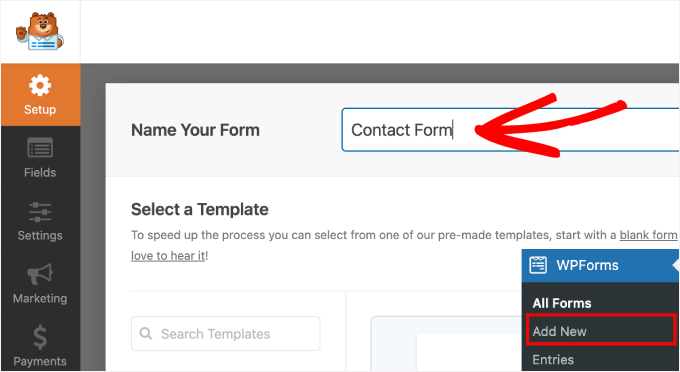
Then, you’ll see that WPForms lets you create your forms using a blank canvas, WPForms AI, and ready-to-use templates.
Let’s say you want to use the AI form builder. Then, you can hover over the ‘Generate With AI’ box and click ‘Generate Form.’
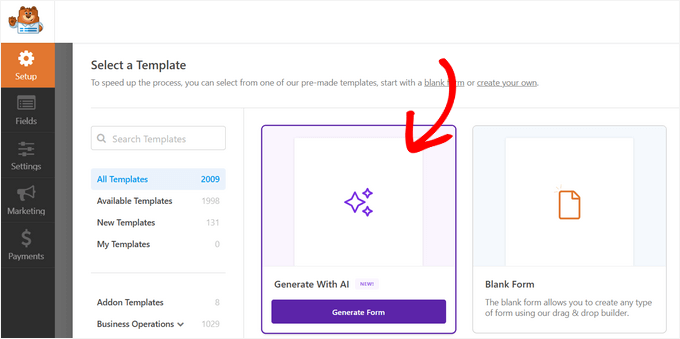
On the next screen, all you have to do is write a simple prompt. Alternatively, you can choose from the available prompt examples, if relevant.
The AI tool will then generate the form for you, just like that!

If you want to use one of the templates, just hover over it and click ‘Use Template’.
WPForms has more than 2,000 ready-made templates. You can always use the search feature to narrow down your options.
For example, here, we’re going to use the ‘Simple Contact Form.’
This will take you to the drag-and-drop form builder.
On your left, you can see all the fields you can add to your form. And on your right, you have the live preview.
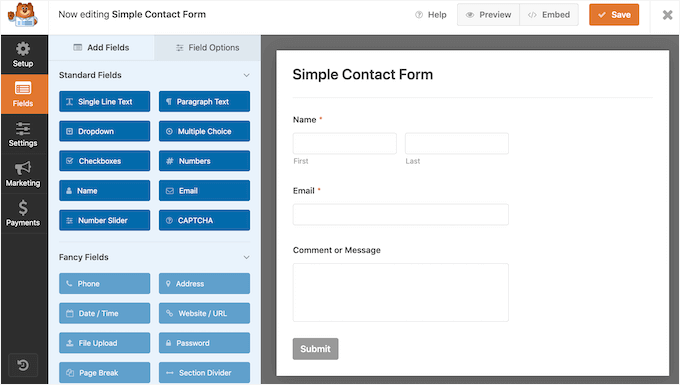
Next, let’s drag and drop a ‘File Upload’ field onto your form.
You can find this field by scrolling down to the ‘Fancy Fields’ section on the left-hand panel.
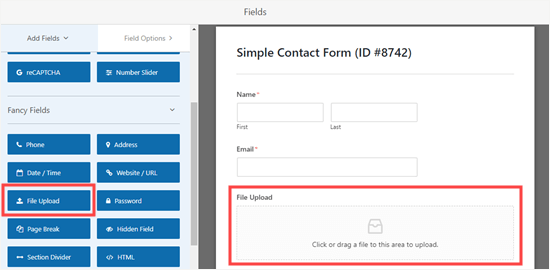
Once added, click on the ‘File Upload’ field on your form to edit it.
Next, you can change the name of this field (its label) to ‘Your Photograph’ and specify which image file extensions are allowed. For example, you can limit uploads to JPG/JPEG, PNG, and GIF files.
💡 Editor’s Note: By default, WordPress only allows certain image file types to be uploaded. For instance, users won’t be able to upload .svg images or .zip files unless you explicitly add them to the allowed list.
We’re going to explain how to do that in a moment. For now, let’s continue tweaking our field settings.
After that, let’s set a file size limit.
We recommend setting the maximum file size to around 5 MB to help you save disk space on your WordPress hosting account. Plus, this makes sure user uploads don’t slow down your site.
Then don’t forget to check the ‘Required’ box so the user can’t submit the form until they’ve uploaded an image.
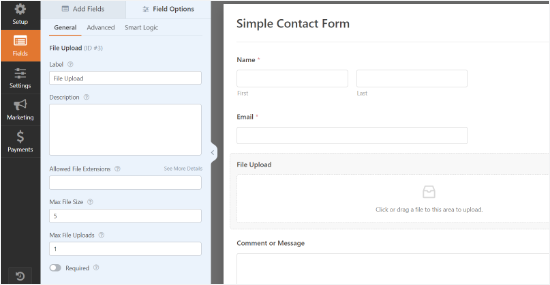
You can also set further options for this field by clicking the ‘Advanced’ tab.
Here, you can choose the style of your upload field. It defaults to a ‘Modern’ drag-and-drop field. If you want, you can replace it with a ‘Classic’ field.
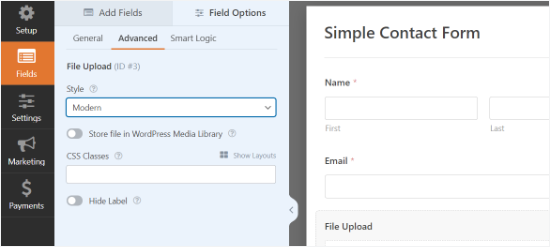
Additionally, you can choose to store the image in the WordPress Media Library by switching on the toggle. This is a good idea if you are going to collate your submitted images for a blog post or similar.
Once you’re satisfied with your form, click ‘Save’ and then exit the form builder.
Adding Your Image Upload Form in WordPress
Next, you need to embed your form into a WordPress post or page and accept user-submitted images. WPForms makes it super easy to add your forms anywhere on your website.
Simply edit the post or page where you want to add the image upload form. In the WordPress content editor, you need to add the WPForms block to your content area.

After that, you need to select the form you created earlier from the dropdown menu. WPForms will display a preview of your form inside the content area.
You can now save your post or page and view it live to see your image upload form in action.
Allowing Additional File Types to Be Uploaded
Sometimes, your users might see this error when trying to upload a file, even when you’ve allowed that file type in your upload field’s settings:
Sorry, this file type is not permitted for security reasons
This happens because WordPress only allows certain file types by default. The easiest way to allow more file types is to use a companion plugin.
We recommend the File Upload Types plugin from WPForms. Once you’ve installed the plugin in WordPress and activated it, go to Settings » File Upload Types.
You can then pick file types from the list that you want to allow, or you can add custom file types.
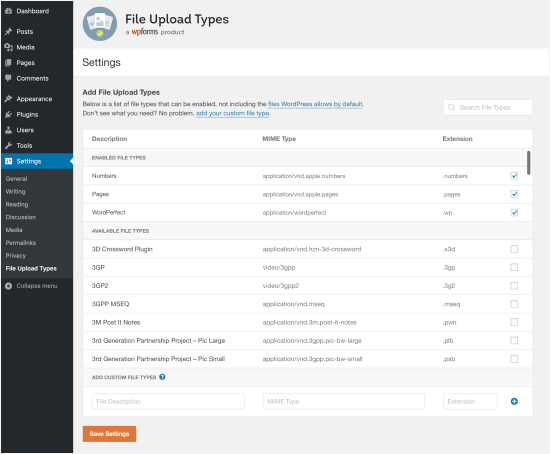
Note that the list doesn’t include the types that WordPress already allows by default.
If you’re only looking to allow SVG image uploads, you can use the free WPCode plugin instead. You can learn more in our guide on how to add SVG image files in WordPress.
💡 Editor’s Note: SVG files contain code, which can pose a security risk if you allow the public to upload them. We recommend only allowing SVG uploads from trusted users or using a plugin that sanitizes the files.
Method 2: Allow Users to Upload Images as Guest Authors
A key reason to let users upload images is when collecting guest post submissions. You could also use a very similar method for other user-generated content, like testimonials.
First, you will need a WPForms account. On their website, simply click the ‘Get WPForms Now’ button to start. Then, you can select a plan and complete the checkout process.
💡 Note: For this method, you will need the WPForms Pro plan or higher because it includes the ‘Post Submissions’ addon. That said, there’s WPForms Lite if you want to try it out first.
Now, you can install and activate the WPForms plugin in your WordPress site. For more details, see our step-by-step guide on how to install a WordPress plugin.
After activating the plugin, you need to visit the WPForms » Settings page in your WordPress dashboard to enter your license key. You can find your license key under the ‘Downloads’ tab of your account on the WPForms site.
This is what you’ll see when you enter the license key on your site:
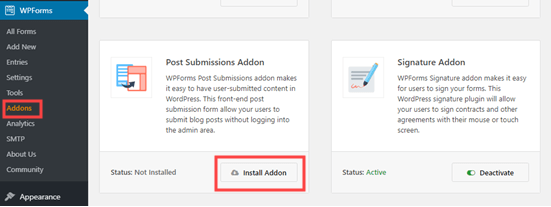
Next, go to WPForms » Addons to install the Post Submission Addon.
Click the ‘Install Addon’ button. It will automatically install and activate
Now, you can start building your guest post submission form.
Go to WPForms » Add New, then scroll down to find the Blog Post Submissions Form.
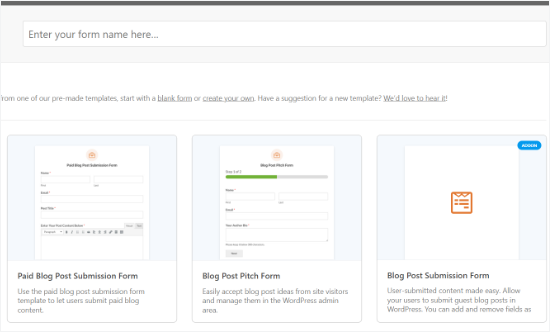
Click on it, and your new form will be created. It will have default fields for the guest author’s details, as well as the post’s proposed title, featured image, content, post excerpt, and category.
You can add more fields (sections of your form) if you want.
For instance, you might want to add a ‘Website / URL’ field where the author can enter the URL of their own WordPress blog or portfolio.
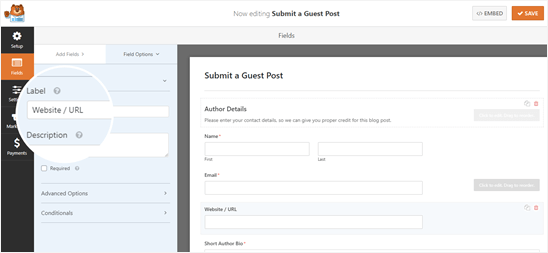
To change the label on a field or any text on the form, just click on it.
For instance, you can click the ‘Featured Image’ box and change the ‘Description’ to specify your preferred featured image size.

Files uploaded through the preset ‘Featured Image’ field are stored in your WordPress Media Library by default.
You can toggle this option on and off by clicking on the ‘Advanced Options’ dropdown for the field.
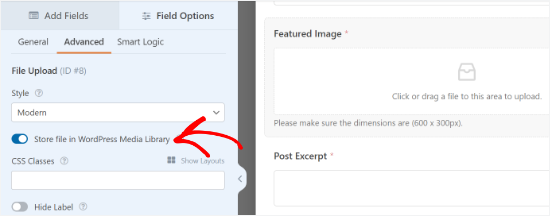
🧑💻 Expert Tip: The ‘Post Submissions’ field automatically adds images to your Media Library. However, if you add a separate ‘File Upload’ field to this form, it will not store files in the Media Library by default.
You will need to enable that setting manually, as we showed in Method 1.
If you want, you can also allow users to upload two or more files through the same field. For instance, you might want users to only upload PNG files.
You can also enter a maximum file size in MB. If you want, you can allow users to upload 2 or more files.
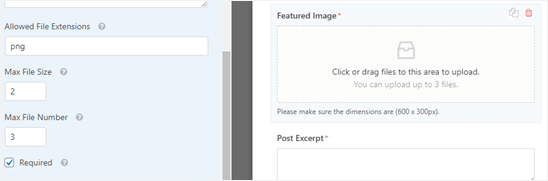
The ‘Modern’ upload field (the default) allows users to drag and drop files.
If you prefer, you can change it to a ‘Classic’ field under advanced options. Note that this only allows users to upload a single file.
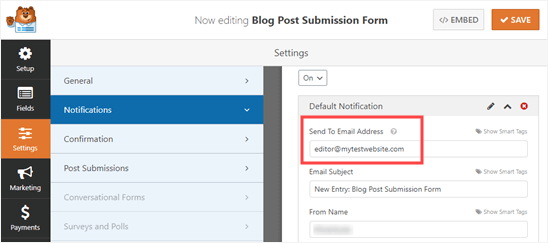
Once you’ve got all the fields you want on your form, go to the ‘Settings’ tab. You may want to change details under ‘Notifications’ here.
For instance, if your guest posts go to an editor, you’ll want their address in the ‘Send to Email Address’ box.
You might also want to change the confirmation message that a user sees after submitting the form. You can do this under Settings » Confirmation.
Once you are happy with your form, just click the ‘Save’ button at the top of the screen.
Adding the Guest Post Submission Form to Your Site
You can add your form to your site in any post or page. You might want to create a new page specifically for guest post submissions.
If you are using the Gutenberg (block) editor, simply click the (+) icon to create a new block. Then, select the ‘WPForms’ block to add to the editor.
Next, you’ll see a WPForms dropdown. Select your form from the list, and it will be added to your post.

🧑💻 Expert Tip: If you are still using the Classic editor, then you’ll see an ‘Add Form’ button next to ‘Add Media’ instead. Click this to get a dropdown list of your forms. Select the one you want, then click ‘Add Form’ to put it into your post.
You can use the ‘File Upload’ field in any form you create, of course. That means you can use the above method for any type of user-generated content you’d like to collect.
Bonus Method: Allow Users to Upload Photos for a Contest
While a file upload form allows users to upload images, it may not be the best solution if you’re running a full photo contest.
That’s because WPForms is a form builder, not a contest plugin. It doesn’t come with features like selecting winners, viral sharing, etc.
That’s where RafflePress comes in. It’s the best WordPress giveaway plugin that lets you create viral contests to grow your traffic and social media followers.

You can use it to design a contest widget that lets users upload photos but also incentivizes sharing and other engagement actions to grow your following.
We actually use RafflePress to run our annual WPBeginner birthday giveaway. It’s helped us grow our email list, increase social shares, and boost overall site engagement – all while keeping everything easy to manage from our WordPress dashboard.
Explore all its features in our full RafflePress review.

We have created a detailed guide on how to create a photo contest in WordPress with RafflePress that you can follow for more details.
FAQ: How to Allow Users to Upload Images on a WordPress Site
If you’re setting up image uploads on your site, these quick answers will help you troubleshoot common questions and get everything working smoothly.
Why is WordPress not allowing users to upload images?
By default, WordPress restricts file uploads to certain user roles (like administrators and editors) for security reasons. To allow regular visitors to upload files without creating an account, you’ll need to use a frontend form plugin like WPForms.
What is the website where guests can upload photos?
You don’t need a separate third‑party website. You can create your own upload page on your WordPress site using a plugin like WPForms and let guests upload photos directly there.
How do I add an image upload button in WordPress?
You can add one using a form plugin like WPForms. Just create a form, drag in the File Upload field, and embed the form on any page. Visitors can then upload images directly through that button.
How do I make a URL link for photos?
Once a user uploads an image and it is stored in your Media Library, you can click on the image to find the ‘File URL’. You can then copy and paste this link anywhere you need.
What is the maximum image size upload for WordPress?
The maximum image upload size depends on your web hosting configuration. Many sites fall somewhere between 2 MB and 64 MB. You can also set a lower maximum file size inside your form settings to control performance and storage usage.
Video Tutorial: Allow Users to Upload Images on a WordPress Site
Before you go, don’t miss our video tutorial for how to allow users to upload images on a WordPress site:
Next Steps for Using Images and Other Media Files in WordPress
We hope this article has helped you learn how to allow users to upload images on a WordPress site.
If you found this helpful, you may also want to see our other guides on:
- How to Create a Photo Gallery with Albums in WordPress
- How to Easily Create a Responsive Slider in WordPress
- How to Add Image Choices in WordPress Forms
- How to Fix Featured Image Not Showing in WordPress
- Beginner’s Guide to WordPress Image Sizes (+ Best Practices)
If you liked this article, then please subscribe to our YouTube Channel for WordPress video tutorials. You can also find us on Twitter and Facebook.





Juri
Helllo, exist plugin to check images licence? Thank you.
WPBeginner Support
We do not have a recommended plugin for that specific purpose at this time.
Admin