


Writing blog posts should be easy, but retyping the same sections over and over makes it frustrating. Believe me, I experienced this firsthand in my early days at WPBeginner.
Whether it’s introductions, call-to-actions, or FAQs, the process eats up valuable time. Using content templates in WordPress can fix that.
Today, my team and I use a reusable CTA block as a template to speed up our content workflows. This helps us maintain consistency while saving time on repetitive formatting. But there are tons of other ways you can fast-track your content creation process with templates.
Want to know how? In this guide, I’ll walk you through how to add content templates in the WordPress post editor — no coding required.
💡Quick Answer: How to Add Content Templates in WordPress
You can add content templates in WordPress using the built-in “Patterns” feature.
This allows you to save any group of blocks as either a synced (global) or unsynced (starter) template, which you can then insert into any post or page to speed up your workflow.
I’m going to cover a lot of useful information in this post. Here’s a preview if you’re curious:
Feel free to use the links above to skip ahead.
Why Use Content Templates in WordPress?
Content templates are a powerful way to streamline your writing workflow and maintain consistency across your site. Instead of recreating the same layout or sections over and over, you can save pre-designed blocks and insert them with just a few clicks.
Instead of manually reformatting every article, templates allow you to save and reuse pre-designed blocks and insert them with just a few clicks. Here’s how they help:
- Save Time & Stay Productive: Skip the repetitive formatting and jump straight into writing.
- Maintain Consistency: Keep your site’s structure, branding, and voice aligned, especially helpful for multi-author blogs.
- Reduce Errors: Predefined templates make it easy to include important elements without missing a step.
- Adapt and Scale Easily: As your content strategy evolves, templates can be updated or reused across different post types.
Next, let’s talk in more detail about what you can do with content templates.
What Can You Do With Content Templates?
By setting up content templates, you gain more control over your writing process. Here’s what you can achieve:
- Create and Customize Unlimited Templates: Build layouts for any type of post or page.
- Manage Templates Inside WordPress: No third-party tools needed; everything lives in your dashboard.
- Update and Reuse Templates Anytime: Make changes as your content needs shift.
- Insert Templates Quickly: Just a few clicks or a keyboard command, and you can add your templates in the block editor, no tab switching required.
- Collaborate With Ease: Shared templates ensure everyone follows a consistent format.
- Migrate Without Losing Layouts: Templates stay with your site if you change hosts.
Of course, this is just a starting point—there are endless ways you can use content templates to speed up your workflow.
When Should You Use Content Templates?
Still unsure if templates are right for you? Think about how often you reuse similar content structures—like intros, CTAs, or review layouts.
Here are a few scenarios where content templates can be super helpful:
- Structured Content: Perfect for posts like how-to guides, case studies, or product reviews.
- Recurring Sections: Use templates for CTAs, author bios, disclaimers, or FAQs.
- Multi-Author Teams: Standardized templates keep tone, format, and branding consistent.
- Conversion-Focused Pages: For landing pages or sales copy, templates ensure a polished, goal-driven
Having said that, let’s take a look at how to easily add content templates in WordPress.
How to Add Content Templates in the WordPress Post Editor
WordPress makes it easy to create and reuse content templates using the Patterns feature. This feature evolved from what used to be called Reusable Blocks.
Patterns let you save any block or group of blocks to reuse later. They come in two types: synced and unsynced.
Synced patterns are global templates. When you update one, the changes apply everywhere you’ve used it on your site. This is how the old Reusable Blocks worked.
Unsynced patterns are starter layouts. You can insert them as a starting point and then edit them freely inside each post without changing the original saved template.
Instead of manually copying and pasting content from old posts, you can create a template once and reuse it whenever needed.
Step 1: Design Your Content Template
To create a content template, simply open a page or post in the WordPress block editor. Once you are there, open the block menu and start adding blocks to create a template.
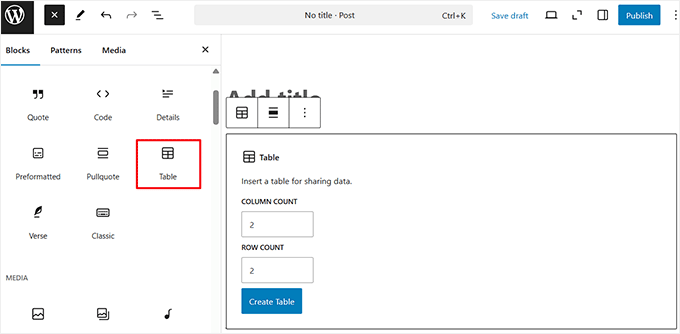
For example, if you want to create a template for comparing different products, you can use the Table block to structure your data neatly.
This way, you can quickly insert a pre-formatted comparison table into any post without rebuilding it from scratch.
Once you do that, you can also customize the appearance of the table using the ‘Styles’ section of your block settings:
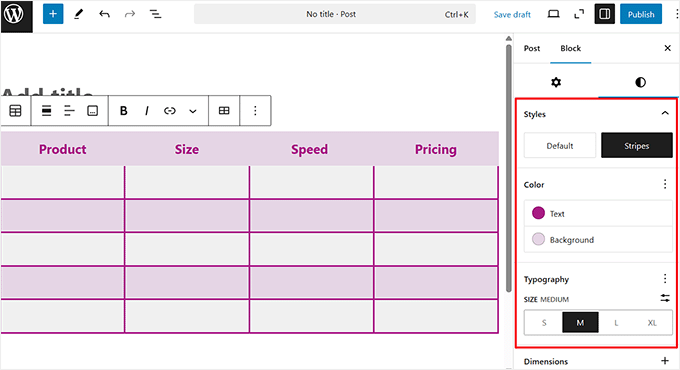
With just a few clicks, you can change the text color, background color, typography, and so much more.
Step 2: Properly Save Your Content Template
After you have designed your template, click the three-dot menu button in the block toolbar.
This will open up a dropdown menu, where you will need to select the ‘Create Pattern’ option.

A popup will now appear on your screen where you can name your template anything you want. I suggest naming it something descriptive so it’s easier to find later.
I also highly recommend you pick a category when saving your content template. This will be especially useful if you create a large library of reusable content designs.
When you select the ‘Categories’ field you will see some default options, like ‘About,’ ‘Buttons, ‘Call to action,’ and more.
But if you don’t see a category that describes your design, you can always just create a new one and hit enter.
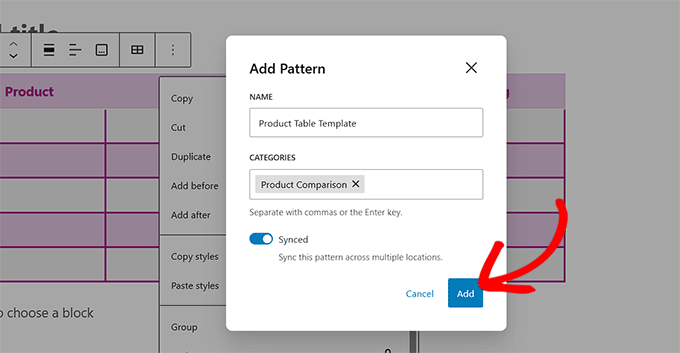
Now the most important choice here is the ‘Synced’ toggle.
If you turn it on, it will create a global pattern. This means that upon editing the pattern, the changes will automatically update everywhere the pattern is used.
To create a standard template, keep the toggle off. You can insert it and edit it freely in any post without affecting the original saved version or any other post where it’s used.
Upon making your choice, simply click the ‘Add’ button. You have now successfully created a reusable template for your post editor.
Step 3: Use Your Content Template
To add this template to any post or page, simply click the ‘Add Block’ button to open the block menu and switch to the ‘Patterns’ tab.
Here, you will see a list of all your default and custom Patterns categories. Now, click on the category that you selected or created for your reusable template.
Keep in mind that if you didn’t select any category for your block, then your pattern will be stored in the ‘Uncategorized’ tab.
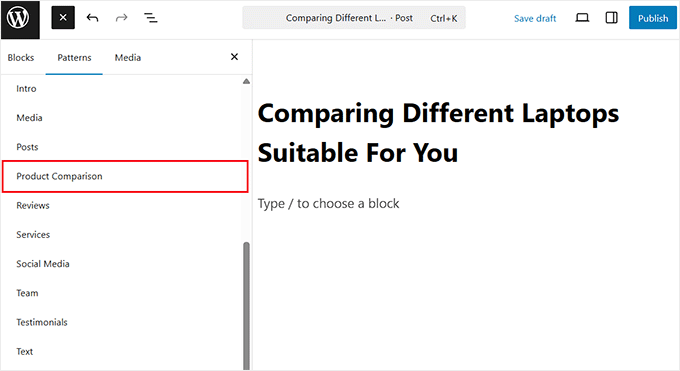
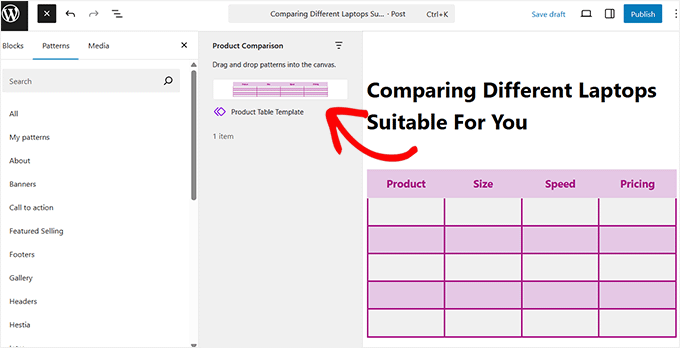
Once you choose a suitable category, a new panel will open beside the block menu, listing all the patterns saved in it.
From here, select the template you created to add it to your post or page.
If the method above feels a bit complex, you can also insert your content template using the slash keyboard command right inside the WordPress editor.
Just click into a blank paragraph block and type ‘/’ followed by the name of the pattern or block you want to insert.
For example, if you’ve saved a pattern called ‘Product Table Template,’ you can type in/product table, and WordPress will automatically suggest matching blocks or patterns you can insert with a single click.
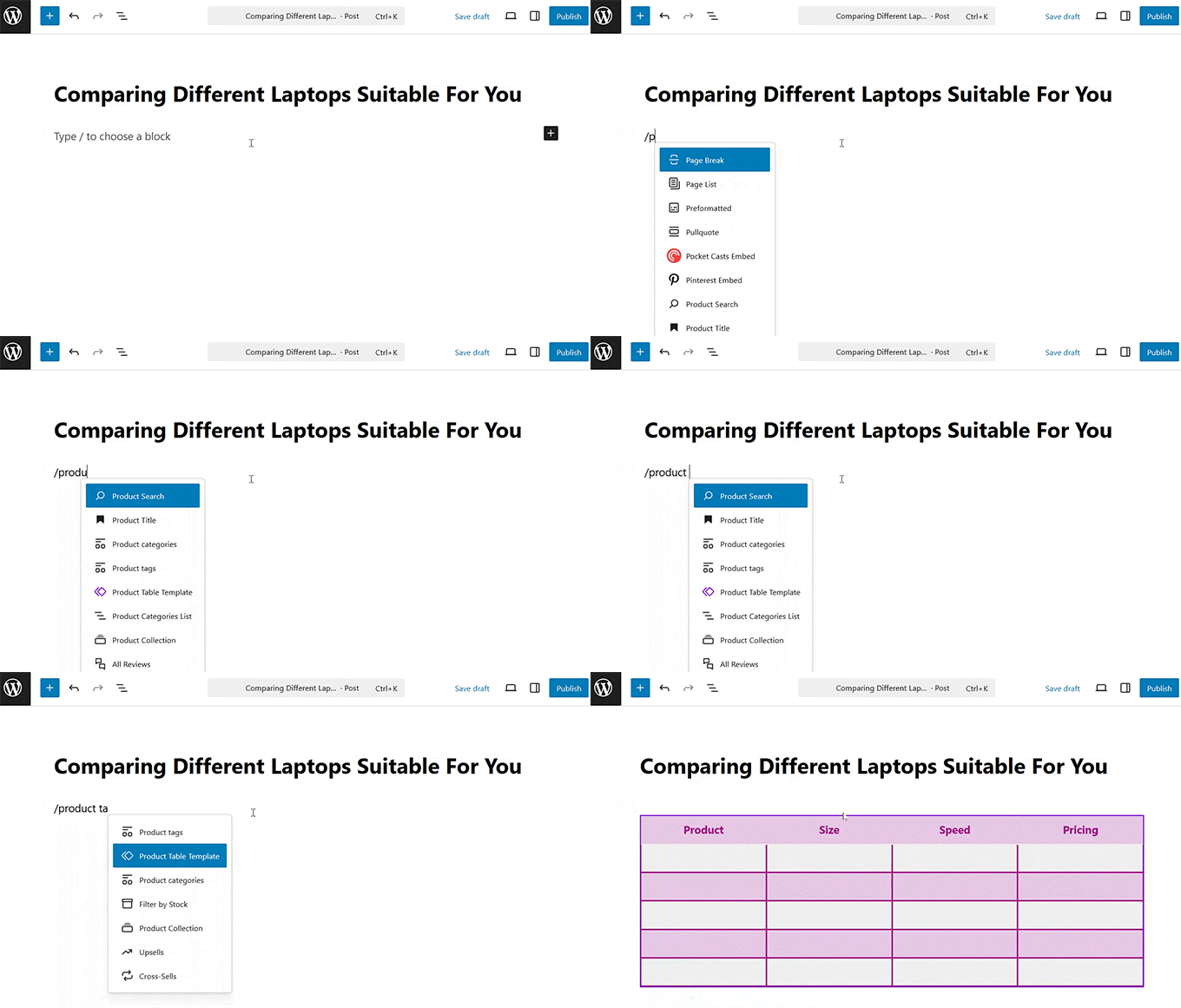
This shortcut is super useful when you are in the middle of writing and want to drop in a reusable layout without breaking your focus.
I regularly use this trick when inserting our reusable CTA block—it saves me time and keeps everything consistent.
Step 4: Edit Your Content Template
How you edit a pattern depends on whether you saved it as synced or unsynced.
If you inserted an unsynced pattern, you can edit it just like any other group of blocks. Your changes will only apply to the post you are currently working on.
However, if you inserted a synced pattern (a global block), any changes you make will update everywhere it’s used across your site. This is great for consistency, but sometimes you might want to customize it for just one specific post.
To do that, you need to detach it from the original global pattern. This converts it into regular, independent blocks that you can edit freely without affecting the saved version.
Simply select the pattern, click the three-dot icon in the block toolbar, and choose the ‘Detach’ option.
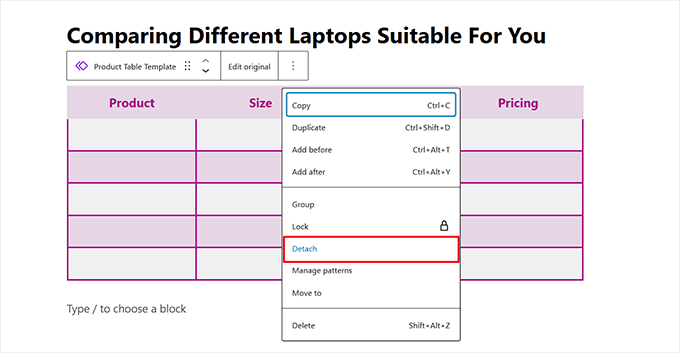
Now you can safely customize the content for that page only.
Keep in mind that if you fail to do so, any changes you make will automatically update everywhere the pattern is used. This could unintentionally alter multiple posts at once.
Step 5: Manage Your Content Templates
After creating and using your content templates, you might want to change their organization to further streamline your workflow.
WordPress makes it easy to manage everything in one place, whether you want to delete old patterns, export templates to use on another site, or import new ones.
To do this, visit the Appearance » Editor » Patterns page from the WordPress dashboard.
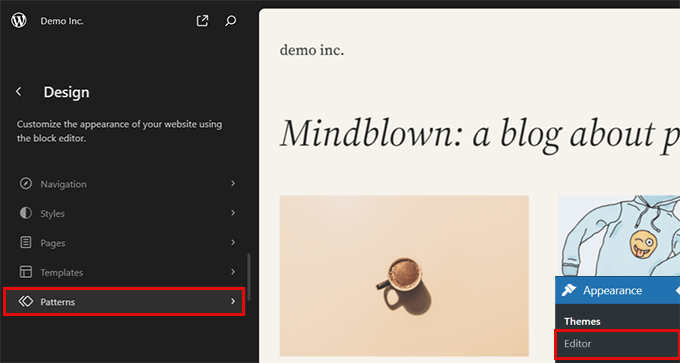
This will take you to a new screen. From there, you can click on any category on the left to view the patterns saved under it. You can also click on any pattern to open and edit it.
If you want more options, click the three-dot menu next to a pattern to duplicate, export, or delete it. This gives you full control over how you manage and reuse your content templates.
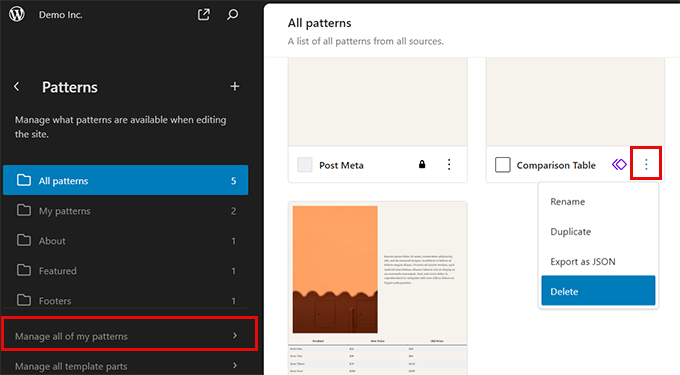
Keep in mind that the method above applies to managing patterns in a block theme. If you’re using a classic theme or a different setup, your interface may look slightly different.
For more in-depth instructions, see our tutorial on how to use WordPress block patterns.
Frequently Asked Questions About Content Templates
Here are some common questions I get asked about using patterns as content templates in WordPress.
When should I use a synced pattern versus an unsynced one?
Use a synced pattern when you need the content to be identical everywhere it appears. This is perfect for call-to-action boxes, author bios, or disclosure statements. If you update the original, every instance updates automatically.
Use an unsynced pattern as a starting layout that you plan to customize each time. This is ideal for structured posts like product reviews, how-to guides, or listicles where the format is the same but the content is different.
Can I use my saved patterns on another WordPress site?
Yes, you can. From the pattern management screen (Appearance » Editor » Patterns), you can click the three-dot menu next to any pattern and choose ‘Export as JSON’.
You can then import this JSON file into another WordPress site to use the same template there.
What happens to my patterns if I change my WordPress theme?
Your saved patterns will not be affected. The Patterns feature is part of WordPress core, not your theme. All the patterns you create are stored in your website’s database and will be available even after you switch to a new theme.
What is the main difference between Patterns and the old Reusable Blocks?
Patterns are the modern, more flexible version of Reusable Blocks. The old Reusable Blocks behaved exactly like today’s “synced patterns” — updating one updated them all.
The new Patterns feature improves on this by giving you the choice between synced and unsynced, making them useful for a wider range of tasks.
Bonus: More Ways to Use Templates in WordPress
Once you have mastered content templates, you can take things further by customizing different parts of your website.
Whether you are designing landing pages, email templates, or even selling digital templates, these guides will help you streamline your workflow:
- How to Add Beautiful Email Templates in WordPress
- Best Landing Page Templates for WordPress
- How to Create Category Templates in WordPress (Easy Methods)
- How to Create Custom Single Post Templates in WordPress
- Best SeedProd Site Kits and Templates (Expert Pick)
We hope this article helped you add content templates in the WordPress post editor. You may also want to see our list of tips for mastering the WordPress visual editor and our beginner’s guide on how to add a blog post checklist to the WordPress editor.
If you liked this article, then please subscribe to our YouTube Channel for WordPress video tutorials. You can also find us on Twitter and Facebook.




Rish
I use Page Builder from Site Origin and they have clone posts / pages which works great for me.
Irfan Uygur
Very nice and informative article
I’ve been looking for this feature for months
One question though: if I use this template say for 10 posts and then later update/change the content will those post’s will be automatically updated ?
Let’s say I made a table with background color yellow and used it in 10 posts
If I change my mind later and change the background color to pink will the background color of the 10 posts change to pink as well ?
WPBeginner Support
When creating your template you can check the option to add template as shortcode. Now when you insert the template into a post, it will simply add the shortcode. You can edit and make changes to your template and those will be reflected on all posts where you have inserted the template as shortcode.
Admin
Mike
Why don’t they supply sample data with themes? I’ve been looking for a certain theme, 3 columns, a slider, drop down menu and a few other things. I’ve found a few but when I download and activate them, all I see is Hello World in my newly set up WP.
I’ve tried importing data but it’s never worked for me. Something always goes wrong, it’s not at all user friendly for novices. I finally found a theme that has Wp files and the sample data. It sets p WP with the sample data for the theme. It’s not rocket science. I just want a head start on setting up my WP with a theme other than Hello World.
I’m learning Wp from a couple of books and in a few months will be building my own themes for myself, but in the meantime, why can’t I get sample data easily.
WPBeginner Support
Please see our guide on how to add dummy content for theme development in WordPress.
Admin