


When I added my first podcast episode to WordPress, my main goal was to keep visitors on my website to listen. Many beginners want this same setup but worry that large audio files will slow down their pages.
Luckily, sharing music, interviews, or sound bites with your audience doesn’t need a technical background. WordPress makes it simple to build a listening experience right into your posts.
I have personally tested multiple tools to find the most reliable ways to embed players and create playlists. You can use default features, paste links from Spotify, or install a dedicated audio plugin.
In this guide, I will show you exactly how to add audio files to WordPress. I will also share the best formats to use so your website stays incredibly fast.
Here’s what I’ll be covering in this tutorial. You can click on the quick links to jump straight to a specific section.
- Why Add Audio Files to Your WordPress Site?
- How to Add One Audio File in WordPress
- How to Embed a Playlist From Spotify or SoundCloud (Easiest)
- How to Add an Audio Playlist Using a Plugin (More Features)
- How to Edit Audio File Details (Metadata)
- Audio Accessibility: Why Transcripts Are Important
- Bonus: How to Sell Your Audio Files in WordPress
- Frequently Asked Questions About Adding Audio Files in WordPress
- Additional Resources for Adding Audio in WordPress
Why Add Audio Files to Your WordPress Site?
Adding sound can really help you connect with your visitors and get more people to your site. Here’s why it’s a great idea:
- If you have a podcast, then putting episodes on your site is a must for your listeners.
- Musicians can share samples of their songs easily.
- Even for regular blog posts, you can offer an audio version. This is perfect for people who like to listen while doing other things.
Audio makes your content more engaging and easier for everyone to use. This can make people stay longer on your site and become regular visitors. It’s a simple way to add something extra to your website.
Which Audio Formats Work in WordPress?
WordPress uses a modern player that works well on computers, tablets, and phones. It supports the most common audio formats. Here are the main ones:
- MP3: This is the most common audio type online. It offers good sound without making files too big. For the best balance of quality and fast loading times, try to save your MP3 files at a bitrate of 128kbps. For the best results on all devices, MP3 is your top pick.
- OGG: This is a free option that works well instead of MP3. Most web browsers support it.
- WAV: This format offers the highest sound quality because it’s uncompressed. However, this results in very large file sizes, which can make your website load slowly.
If a page takes too long to load, then visitors are likely to leave, so it’s best to avoid using WAV files unless absolutely necessary.
Where Should You Store Your Audio Files?
Before you put your audio files on your site, you need to decide where they will live. This choice really affects how fast your website is and how many people can listen at once.
You have two main options:
- Self-Hosting: Uploading files directly to your WordPress site.
- Third-Party Hosting: Using a special service just for audio, like SoundCloud.
When a visitor comes to your site, your server sends them the files they need, like text and images. This uses up a certain amount of your hosting plan’s bandwidth. Because audio files are much larger than text, they use up a lot more bandwidth each time someone plays them.
To help you understand the impact, I’ve created a quick comparison table that breaks down the key differences.
| Self-Hosting (Uploading to WordPress) | Third-Party Hosting (e.g. SoundCloud) | |
| Performance | Can slow down your website significantly as audio files consume a lot of server bandwidth. | Your website remains fast because the audio is served from specialized servers built for streaming. |
| Scalability | Poor. A spike in listeners can lead to high hosting costs or even get your site suspended. | Excellent. Built to handle large audiences and traffic spikes without any issues. |
| Control | You have 100% control and ownership of the files in your Media Library. | The service manages the technical aspects, but you still own your content and can embed it anywhere. |
| Best For | A small number of very short audio clips on a site with low traffic. | Podcasters, musicians, or anyone serious about publishing audio content regularly. |
My simple advice: If you have more than just a few short sound clips, then you should use a third-party audio hosting service. I’ve seen many websites become super slow because a popular podcast was hosted on a regular website server.
Using a good audio hosting service is the best way to make sure your listeners have a smooth experience and your website stays fast.
How to Add One Audio File in WordPress
Adding a single audio track to your post or page is super easy with the WordPress block editor. You just need to use the Audio block.
First, you can open the post or page where you want to add the audio. Then, click the ‘+’ button to add a new block.
Next, find the Audio block and drag it to your page.
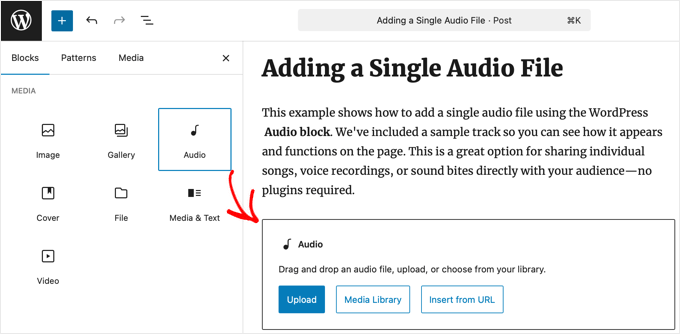
The block gives you three choices. You can ‘Upload’ a new file from your computer, choose one from your ‘Media Library’, or ‘Insert from URL’ if your file is stored somewhere else online.
After you pick your audio file, WordPress will automatically put a simple player on your page.
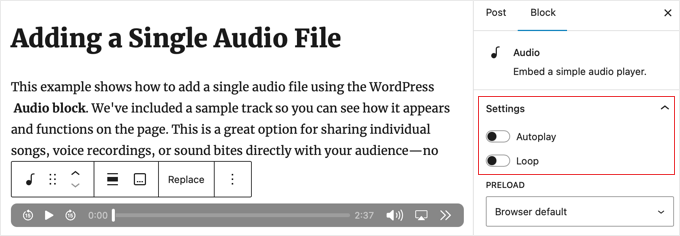
You can see more settings on the right side in the block panel. Here, you can turn on ‘Autoplay’ (but it’s often annoying for visitors, so I don’t recommend it) or ‘Loop’ (to make the track play over and over).
If you would like more detailed instructions on adding a sound file to your website, see my guide on how to add MP3 audio files in WordPress.
How to Embed a Playlist From Spotify or SoundCloud (Easiest)
Want to show many songs or podcast episodes at once? An audio playlist is perfect!
The easiest way to do this is by embedding a playlist directly from popular services like Spotify or SoundCloud. You simply paste a link, and WordPress automatically turns it into a working audio player on your page thanks to a built-in feature called ‘oEmbed.’
oEmbed automatically recognizes links from supported services and turns a simple URL into a working audio player on your page.
First, you need to get the share link. Just go to Spotify, SoundCloud, or another service you use and find the playlist you want to share, then copy its ‘share’ link.
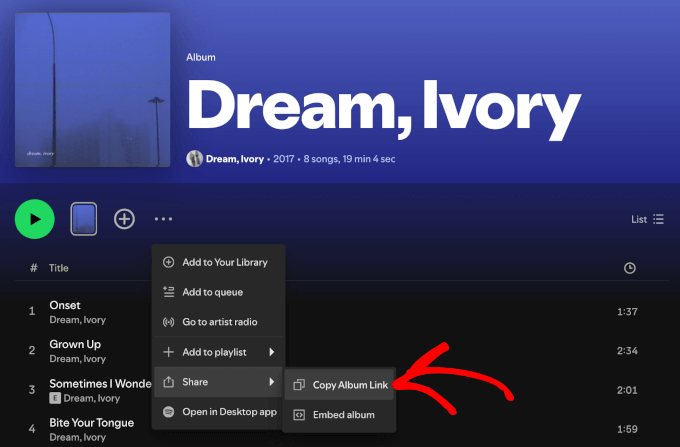
Depending on the platform, you can normally copy share links from playlists, artists, albums, and even single audio files.
Next, you can paste that link into a new Paragraph block in the WordPress editor. For supported services like Spotify and SoundCloud, WordPress will automatically recognize the link and create the player for you. This oEmbed method is super quick.
Try not to add too many embedded players on a single page. Loading lots of external players from Spotify or SoundCloud at once can slow down your website’s loading speed.
Note: For other platforms like Apple Podcasts, you will need to copy an ’embed code’ (iframe) from their website instead of just the share link.
You can learn more in these tutorials:
- How to Embed Spotify in WordPress
- How to Embed SoundCloud in your WordPress Posts by using oEmbed
- How to Embed Apple Podcasts in WordPress
- Best Podcast Hosting Compared (Many Are Free)
How to Add an Audio Playlist Using a Plugin (More Features)
For the most control over how your playlist looks and what it does, using a special audio player plugin is the way to go. This is especially true if you are hosting your audio files on your own site. Plugins give you a modern, professional player with lots of options.
My favorite free plugin for creating clean playlists from your own files is AudioIgniter. It’s easy to use and helps you build great-looking playlists quickly.
First, you need to install the free AudioIgniter plugin. If you need help, then you can check out my guide on how to install a WordPress plugin.
After you activate it, you’ll see a new ‘Playlists’ item in your WordPress dashboard. Go to Playlists » Add New Playlist and give your playlist a title so you can find it later.
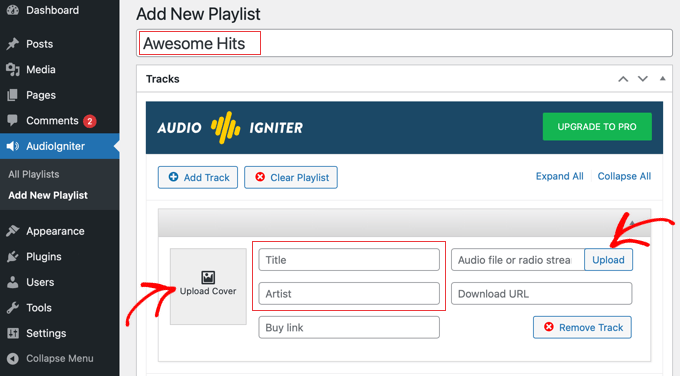
Next, you can add your tracks by clicking the ‘Add Track’ button. This will open your Media Library, where you can upload new audio files or pick ones you’ve already uploaded.
Once your tracks are selected, you can drag and drop them to change their order. AudioIgniter will automatically grab details like the artist and song title if you set them up earlier.
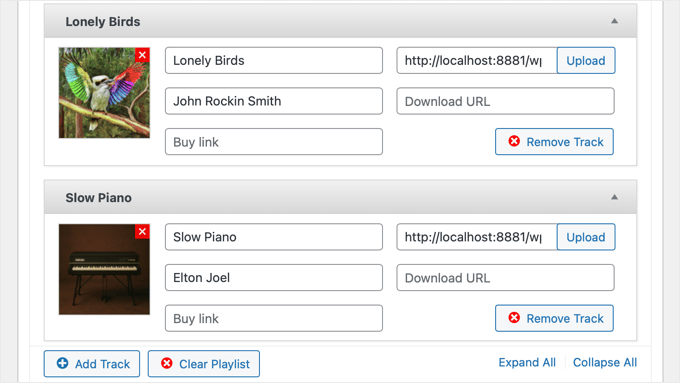
If you sell your audio, then you can even add a link for visitors to buy each track. This is a great way to make money online blogging with WordPress.
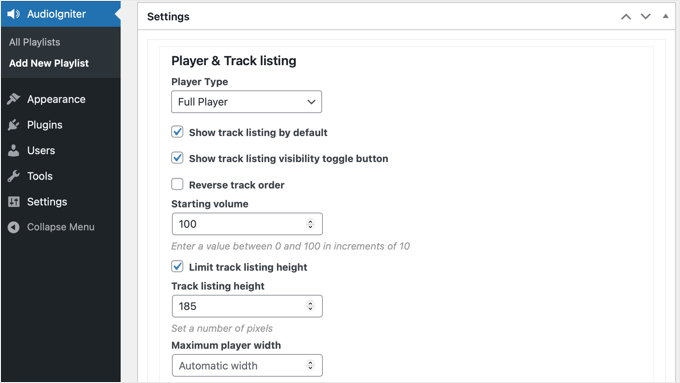
Under the ‘Player Settings’ section, you can change how your player looks and acts. Feel free to play around with these options to make the player match your website’s style.
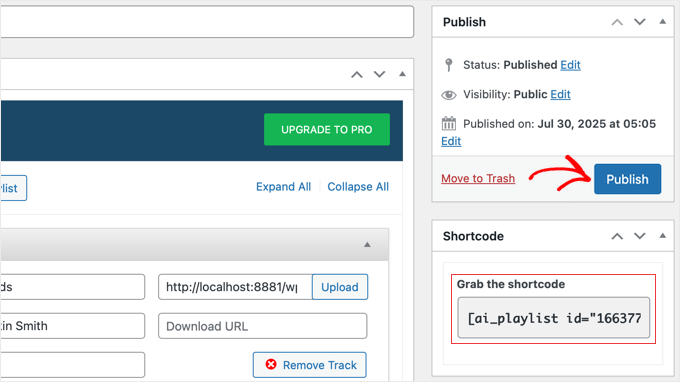
When you’re happy with your playlist, just click the ‘Publish’ or ‘Update’ button at the top.
After it’s published, look for the ‘Shortcode’ box on the right side of the editor and copy the code.
Now, you can go to the post or page where you want to show the playlist. Simply add the Shortcode block to your editor and paste the code you copied earlier inside it.
Once you save or publish your post, your professional audio playlist will appear right in your content.
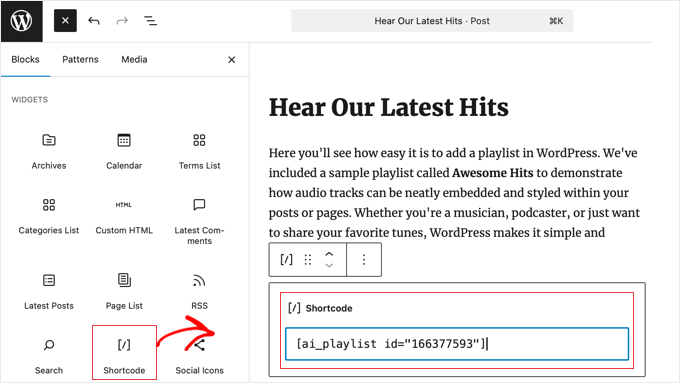
A cool thing about shortcodes is that you can also add your audio playlist to a widget area, like your sidebar or footer, by pasting the same shortcode there.
For more details, you can check out my full guide on how to add a shortcode in WordPress.
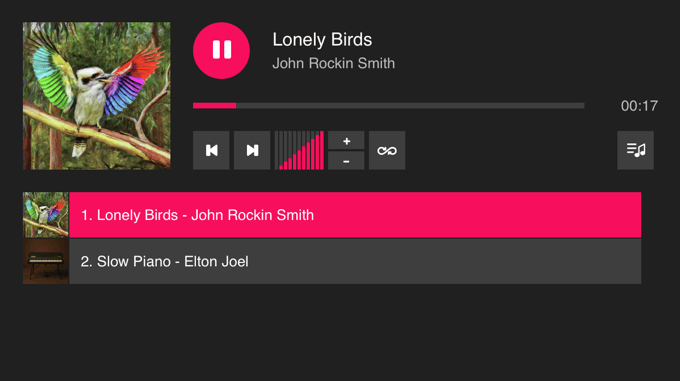
If you want to explore other options, then you can check out my full guide on the best audio player plugins for WordPress.
How to Edit Audio File Details (Metadata)
Metadata is like a digital label for your audio files. It includes important details like the song title, artist name, album, and even the cover art. Making sure these details are correct helps your audio files look neat and professional in a playlist.
When you upload an audio file, WordPress tries to read this information on its own.
To check and change it, you can first go to your Media Library. Next, click on the audio file you want to edit. On the right side, you’ll see boxes where you can fill in or change details like the ‘Title’, ‘Artist’, and ‘Album’.
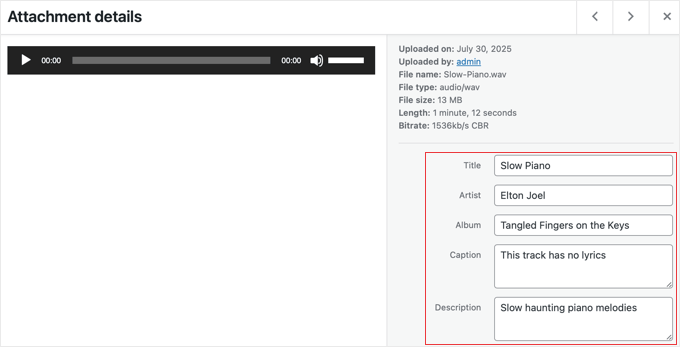
For example, if you uploaded ‘podcast-episode-1.mp3’, then you could set the ‘Title’ to ‘Episode 1: How to Start a Blog’ and the ‘Artist’ to ‘My Podcast Show’.
To add or change the cover picture for a track, you just need to set a thumbnail for that audio file. Simply click the ‘Edit more details’ link under the metadata to see more information.
On the next page, you will find an option to set a featured image. This image will act as the album cover art when your audio file plays on your website.
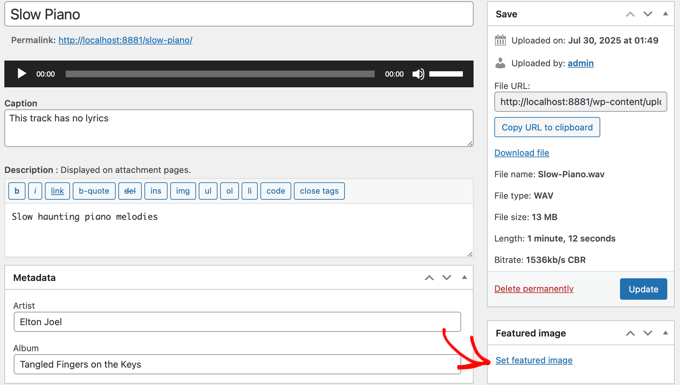
Most good audio plugins will then use these details to show your tracks nicely in a playlist.
Audio Accessibility: Why Transcripts Are Important
To make your audio content available for everyone, you should definitely provide a text transcript.
- For People: Transcripts help users who can’t hear well enjoy your content. They also help anyone who prefers to read, or who is in a place where they can’t listen.
- For AI and Search Engines: Transcripts are a huge win for search engines and AI models! They can read and understand the text in your transcript. This helps your content show up for more keywords and gets picked up by AI for answers.
Tip: To keep your page looking clean, we recommend placing your transcript inside a Details block right below your audio player. This creates a simple accordion that visitors can click to expand and read the text without it taking up the whole screen.
For help with transcripts, check out our recommendations for the best transcription services.
Bonus: How to Sell Your Audio Files in WordPress
Once you get comfortable adding audio to your site, you might wonder if you can sell your files directly to your audience. This is perfect for musicians selling songs, creators offering sound effect packs, or podcasters providing premium episodes.
The best way to do this is with a plugin like Easy Digital Downloads (EDD). It’s designed specifically for selling digital products like audio files.
You can simply create a new product in WordPress, upload your audio file, and set a price. EDD handles the secure checkout and file delivery for you after the customer has paid.
I have a complete guide that walks you through the entire setup from start to finish. For detailed instructions, see how to easily sell music files in WordPress.
Frequently Asked Questions About Adding Audio Files in WordPress
I’ve covered the main ways to add audio files, but I know some questions often come up. Here are the answers to a few that I get asked a lot.
How do I stop users from downloading my audio files?
The default WordPress audio player includes a download link and doesn’t have an option to disable it. If you need to protect your files, your best bet is to use a third-party streaming service like SoundCloud and embed their player to hide the download button.
Just keep in mind that highly determined users can still use browser extensions to capture audio, but this stops the average person from downloading your files directly.
Can I sell audio files with WordPress?
Yes, absolutely. You can easily sell audio files like music tracks, audiobooks, or premium podcasts. The best way to do this is with a digital downloads plugin like Easy Digital Downloads. It helps you manage the entire sales process, from integrating with payment gateways to providing secure file delivery after a purchase.
What is the best way to start a podcast with WordPress?
The best setup, in my experience, is to use a dedicated podcast hosting service like Buzzsprout to store and serve your audio files. Then, you can use a plugin like Seriously Simple Podcasting on your WordPress site to manage your podcast feed and publish new episodes. This gives you professional-grade performance and full control over your website.
Additional Resources for Adding Audio in WordPress
I hope this article helped you learn how to add audio files and create playlists in WordPress.
You might like to see some other articles on adding audio and video to your website:
- How to Start a Podcast with WordPress (Step by Step)
- How to Easily Embed Videos in WordPress Blog Posts
- Best WordPress Themes for Musicians and Bands
If you liked this article, then please subscribe to our YouTube Channel for WordPress video tutorials. You can also find us on Twitter and Facebook.


Rachel E
Do you recommend optimizing audio files to minimize file size, like is recommended for images?
Thanks for another informative article!
WPBeginner Support
We would not normally recommend hosting audio or video on your site and instead embed it from another service but if you do plan to upload the files to your site you would want to optimize them for reduced file size.
Admin
Afaque
The above screenshots of the wordpress are very old. unable to add playlist in new wordpress interface.
Can you please guide how to add playlist and also guide, how to allow users to select their own playlist in the wordpress?
WPBeginner Support
This article was last updated in 2015, we’ll be sure to look into updating this article once we are able
Admin
Danica
This doesn’t work now? Whenever I upload an mp3 single file less than 5mb in size, it says “Sorry, this file type is not permitted for security reasons.”
How do I fix this?
WPBeginner Support
For that error, you would want to take a look at our article below:
http://www.wpbeginner.com/wp-tutorials/how-to-add-additional-file-types-to-be-uploaded-in-wordpress/
Admin
Joey
As of Wordpress 5.4, single songs work but I don’t think you can do playlists (unless I’m missing something). I’m guessing it can still be done with HTML though, but an external embed like Sound Cloud might be easier. Just posting this in case someone else is having trouble finding how to make a playlist, so you don’t waste your time.
WPBeginner Support
Correct, at the moment there is not a playlist block with the block editor, we will be sure to take a look for what we can update with for other options.
Admin
Tianna
Is it possible to have a playlist on my home page
I have created it on a new page and it works great just what i want for the home page but can’t seem to make that happen.
THANKS FOR ANY HELP
WPBeginner Support
It would depend on your specific theme and if you’re using a static homepage, otherwise you would need to add the playlist to a widget
Admin
Anna
Thanks a lot!
It’s a very useful article.
WPBeginner Support
You’re welcome
Admin
naijahot
how can I upload music for people to download e.g if I upload music once my visitor click download it will start downloading
WPBeginner Support
For allowing file downloads, you would want to take a look at our guide here: https://www.wpbeginner.com/plugins/how-manage-track-control-file-downloads-wordpress/
Admin
taylor holden
I’ve done all this but my files don’t show attachment_id. its just the file name as i’ve saved it.
what i was hoping to do was to have a page with lecture notes by topic and this doesn’t seem to work.
any ideas or am i doing it wrong. no issues adding to the functions.php but i haven’t added a text widget because i don’t want to see the widget on every page.
Cliff
I am able to insert an audio file into a post using your above method. It is in a Wav format. However, the audio file will not play in preview. Do I have to actually publish the post for the audio to play?
Yesenia Latorre
Hello, I figured out how to add the audio file to both, a post and Footer 1, I actually like it better at the bottom of the page, it was pretty easy to upload, it’s about 3 minutes of a song, however, like your photo above it shows 00:00 and I published it and when i press play, it wont? help? Also, this is my first site, so I haven’t launched it yet, does that have anything to do with it? Also can i make it play automatically whenever someone visits the site?
Natasha Lane
Hello,
I keep following this method to add my audio but it only becomes available as a download and can’t actually be played on my site. Can you tell me why this is?
Thanks in advance.
Natasha D. Lane
Hey, there! I’m an author who is trying to add a short audio recording of my book under each description. I’ve followed the tutorial but the audio player doesn’t pop up. Instead the link just becomes downloadable.
How can I fix this?
Thank you.
WPBeginner Support
Hi Natasha,
Your audio clip needs to be in supported format MP3, OGG, and WAV file formats.
Admin
Lynne
Great tutorial. Followed it to a “T,” however, files will not load. The files are compatible as they are MP3, and they worked back when I started up my website. Now there is a 2MB limit. Any ideas? All songs are longer than 2MB. It will work in a post, but not as this suggests in a media library. I have not tried a widget playlist as I thought it would do the same. Have tried from both URL and selecting files, but as stated the limit prevents me from adding anything. TIA.
WPBeginner Support
Hi Lynne,
You can increase the maximum file upload limit in WordPress.
April Perez
I need to add a playlist to my website. I am a DJ and need to have brides and friends access playlist and put songs and artists as well as be able to add MP3 files on the list if needed. I need it to be specifically accessible to each party separately. I am not sure which plug in is best. I use WordPress regularly for my website. Can you advise?
Casey
What size should the photo be set to so you can see it with correct aspect ratio? It’s only showing me the top 1/3 to 1/2 of my photo.
Marcio Motta
I have a blog with a considerable number of visitors and would like to make available an audio version of the posts, that is, all the posts would be reproduced, also, in audio.
My question is whether this could be characterized in duplicate content for Google.
Thank you for your response.
Kumar saptam
How to increase the loading media size from 2mb to 10000mb
Christian Wameh
Very good tutorial but i want to know if it is possible to add “download” button on single song and how.
joel
I got watched many tutorials on how to add audio and create playlist but I can’t find a tutorial/lesson on how to add download option in the playlist.
Jesse
I want to create a playlist as a widget, but the permalinks for my audio files are showing as the artist/song names, not as attachment ids with numbers. Therefore when I want to create a playlist made up of song ids, I’m not sure how to do that. Is there a way to change this or get the id that I’m not seeing?
Randy
I host a weekly radio show. For the time being I am using HTML tables to create my playlist. Is there an easier less time consuming way to do this? My radio shows are on my hosting site in mp3 format. Any ideas would be greatly appreciated!!
I use Google sheets to write out my playlist for a given show and then use the online tool tableizer to convert the text to table. Then I take that code and paste it to my WordPress page. I go through a lot of steps and would love to simplify this process.
Thanks!!!!
WPBeginner Support
Hi Randy,
The instructions mentioned above will help you create a playlist in WordPress itself. You can also check out these audio player plugins for WordPress to make things more simpler.
Admin
Alison
Hello, I’m trying to add an audio playlist (mp3 files) to my homepage in a widget and I’m not able to. I have the Maxwell template. Does this template allow for this function? When I download music files, the “Create Playlist” function doesn’t appear. I’ve also tried installing the Cue plugin, which allows me to put a playlist on a post or a page, but not in a widget on the static homepage. Thanks for any help!
Prosper Ezenwa
Any idea on what could cause music to play when clicked on the download link instead of downloading?
zee
i have put the audio file. But, how do i make it downloadable to the public instead of streaming?
John Stephens
This tutorial was awesome. The mp3 file works great on my post page. However it doesn’t work on my site when accessed by an android phone or tablet. It does nothing when clicking the start button, any suggestions?
Steve
Hello, can I display the music with a different appearance? Bigger buttons to manage the songs. Another music theme.
francesca
hi there,
is it possible to have one song playing in the entire website, that doesn’t stop and start again the minute I navigate it?
thanks in advance for your reply!
have a nice day
best
francesca
Asif
Can shared hosting take the load of music playbacks from website?
WPBeginner Support
A couple of music files not accessed by many users at once will be fine. However, if you are getting many visitors and have multiple music files, then you will need to upgrade your hosting to managed WordPress hosting.
Admin
Sergio
I added a playlist with the sidebar widget but it only shows on computer not on phones or tablet
WPBeginner Support
Hey Sergio,
Does your theme shows sidebars and widgets on smaller screens?
Admin
Jill Bedford
Is it possible to embed an audioboo link in the free version of wordpress? This is for a not for profit organisation. many thanks
Jill
WPBeginner Support
Hey Jill,
Yes of course you can embed an audiobook on your WordPress site.
Admin
Jill Bedford
Thanks – is it possible to add video files to a free version of Wordpress? Using the theme Twenty Thirteen.
Jill Bedford
…or embedding links to ‘audioboo’ – an audio recording platform in the free version of Wordpress….?? Not an audiobook – although that sounds cool!!!
Thanks, Jill
Ed Smith
Is there a way to share this audio on social media such as Facebook or Twitter, etc?
Melissa
I’m never listening to what WP Beginner says again. I was trying to add a code for different music player as the one I have doesn’t do playlists. It says Wordpress can do it itself, so I added what it said where it said and the following happened.
Adding Audio Files and Playlists to Sidebar Widgets is the bit I added. Now I get this error when trying to do anything on my site
Parse error: syntax error, unexpected ‘add_filter’ (T_STRING) in /home/user/public_html/example.com/wp-content/themes/mystore/functions.php on line 365
Just copy and paste that code into the functions.php you said. Great, THANK YOU VERY MUCH.
WPBeginner Support
Hi Melissa,
Please see our guide on how to fix syntax error in WordPress. You may also want to see our beginner’s guide on how to copy paste code in WordPress.
The error you are seeing indicates that in your WordPress functions there is an unclosed statement before add_filter at line 365. Probably just a missing semi colon. You can easily fix that by editing your functions file using an FTP client or file manager in your hosting control panel.
Admin
marcos ferreira
Thank you for sharing this video. It was very helpful
Mark Bigland-Pritchard
I just tried to add 4 audio files to the media library for our site and was refused. It gave a list of acceptable file types, none of which is audio.
Aragon
HI, is there any way that we can sort the songs in the playlist based on number of views
Shirley
I created this audio play list. Love it. They are fine on website. BUT just found out that they keep looping the first section of audio files when playing on ipad and iphone. Please guide.
Cristian Balan
Is there a way to create a Playlist using external (remote) mp3 files?
Kevin Gilbert
I know how to embed the audio player for one song, and then edit it to provide both an mp3 and an ogg file so that the right one plays based on the visitor’s browser. Does anyone know if that’s doable when you’re creating a playlist? I can’t seem to find whether that’s possible or not, and how to do it.
Jesse Cann
Is there a way to have the mp3 set to autoplay and to loop when the page is uploaded? Thanks.
Juksaa
How can i add one playlist from own map of my sites ftp, not via media upload to wp?
how can i play one map, how is link?
eraxe
Nice article everything works.
So I’d like to know if you have an idea how to make the audio files downloadable, probably to insert a download button along the playlist for each track?
Thanks
Chris Mueller
It seems that every time I create a playlist, the audio files can be easily downloaded by users. In the video, it appears that the songs are not downloadable by the viewer. Could someone offer assistance in making these audio files non-downloadable?
Sem
I have the same problem!
The playlist shows on the website’s page not with the possibility to play it but download it.
How can I fix it ?
Thanks
Angela Bowman
Hi, I have definitely used this approach in the past. I am migrating a client from Host Gator to WP Engine and realized they have over 1GB of audio files they are hosting (and streaming of course) on their site. This is a huge bandwidth issue, as you can imagine. Not that the files are access frequently, but it occurred to me that self hosting audio may be just as bad as self hosting video.
In the past, I’ve hosted the files on Amazon S3 account instead and used an audio streaming plugin to fetch those files. I think that would be a better solution to avoid download/bandwidth issues on the web host.
However, I’m wondering if an even better solution is to host and stream the files via SoundCloud or similar service, then embed the SoundCloud file on the website?
I’m trying to assess what is going to allow best performance, reliability, and least bandwidth hit to the WP hosting account.
Thanks!
erase
Take Note: anyone trying to do this, shouldn’t copy and paste the ‘play list’, code rather manually retype it to your own website because the quotation mark here seems to produce a False result. Thank You, it works.
Editorial Staff
Sorry about that. I just fixed that formatting issue.
Admin
emeka nkeze
Love this tutorial. Thanks for sharing. What about adding a playlist from soundcloud or other media sites like hulkshare and reverbnation??
Emily Barney
Any guidance on what audio files you can post and which you shouldn’t for copyright reasons? Even some links would be useful.
It’s very easy to upload files, but it’s also very easy for artist / label / copyright holders to submit a DMCA Takedown notice to your ISP (internet service provider) or hosting service:
WPBeginner Support
As a general rule of thumb, you should not upload audio files containing the works that you haven’t created yourself. You can create and upload your own audio files, or the audio files that are currently in public domain.
Admin
Alpha
Great post! Thanks you so much!
I Have embedded different streaming radios in my site. Selecting them one by one they all play simultaneously. Is it in Wordpress a way to automatically close the playing radio on selecting a other one?
WPBeginner Support
No, users will have to manually stop and play them.
Admin
Peter
Any plug-in suggestions for situations with large size MP3 files that are too big to upload into the Media Library. Rather than music, these are educational lectures. Files sizes around 40 – 45MB
Kevin Gilbert
Peter, Ask your host to increase your file size upload limit for WordPress. If they won’t or can’t, and it’s something you really need, you might want to change hosts. For one of my client’s sites on WPEngine, they’ve increased our upload size to 200MB. Once a year, we upload about 10 audio files from a conference, and we needed the additional file size settings because the files are usually of one-hour talks, so they’re larger than just your typical audio song file.