


Cuando intenté agregar episodios de podcast a mi sitio web de WordPress por primera vez, me di cuenta rápidamente de que incrustarlos desde Apple Podcasts no era tan sencillo como esperaba. Como muchos de ustedes, quería una solución simple que no requiriera conocimientos de codificación.
A través de prueba y error (y mucho café), descubrí varios métodos diferentes para incrustar Apple Podcasts en WordPress. Y al probarlos todos, encontré las mejores soluciones para podcasters y otros usuarios de WordPress.
En esta guía, te guiaré a través de los pasos exactos que necesitas para incrustar Apple Podcasts en WordPress, asegurando que tu contenido de audio se vea genial y funcione perfectamente en cualquier dispositivo.
Ya sea que estés compartiendo tu propio programa o presentando episodios de otros, estos métodos facilitan la visualización de un reproductor de podcast atractivo y funcional.
⚡ Respuesta Rápida: Cómo incrustar Apple Podcasts en WordPress
Esta guía cubre dos métodos sencillos para incrustar Apple Podcasts.
- Método 1. Usando el bloque HTML personalizado predeterminado – el mejor para usuarios que desean una solución rápida y gratuita sin instalar complementos adicionales.
- Método 2. Usando el plugin EmbedPress – el mejor para usuarios que desean más opciones de personalización.
¿Por qué incrustar Apple Podcasts en WordPress?
Apple Podcasts es una de las principales plataformas para descubrir y escuchar podcasts en iPhones, iPads y otros dispositivos Apple, con decenas de millones de oyentes activos.
Si tienes un programa de audio en Apple Podcasts, incrustar episodios en tu sitio de WordPress es una excelente manera de promocionar tu producción y hacer crecer tu audiencia.
En lugar de enlazar o usar un reproductor genérico, puedes mostrar tus episodios directamente en el sitio web de tu podcast, donde los oyentes pueden reproducirlos al instante.
Cuando incrustas tu programa:
- 🎧 Los visitantes pueden escuchar sin salir de tu sitio.
- 📈 Aumentas el tiempo en el sitio y mejoras la participación.
- 🌟 Tu podcast se mantiene fiel a la marca al convivir con tu otro contenido.
- 🚏 El sitio web de tu podcast se convierte en un centro central para promocionar tu programa, compartir contenido adicional y hacer crecer tu audiencia en tus propios términos.
Quizás lo más importante es que cualquier visitante nuevo del sitio web que descubra tu marca o negocio sabrá de inmediato sobre tu podcast. Esto puede ayudarte a ganar muchísimos oyentes nuevos.
Incluso si no estás incrustando tu propio programa, presentar Apple Podcasts en tu sitio web es una forma inteligente de compartir tus episodios de podcast favoritos o curar recomendaciones.
Por ejemplo, si eres un bloguero, podrías incluir episodios relevantes para enriquecer tus artículos o respaldar puntos clave. Mientras tanto, las empresas y los autores pueden presentar apariciones en podcasts como prueba social.
Además, los creadores de cursos en línea podrían usar entrevistas o discusiones incrustadas como material adicional para los estudiantes.
🔗 Artículos Relacionados: Consulta nuestra selección experta de los mejores plugins para podcasts y los mejores temas para WordPress para podcasts.
Cómo incrustar Apple Podcasts en WordPress
Ahora que sabes por qué incrustar Apple Podcasts en WordPress es una buena idea, te mostraré 2 maneras sencillas de hacerlo, sin necesidad de conocimientos técnicos.
Puedes usar el enlace rápido a continuación para saltar a los diferentes métodos:
- Método 1: Incrustar Apple Podcasts en WordPress usando el bloque HTML personalizado (Gratis + Fácil)
- Método 2: Incrustar Apple Podcasts en WordPress usando EmbedPress (Más personalizable)
- Consejos y ideas adicionales para hacer crecer tu podcast
- Preguntas frecuentes sobre cómo incrustar Apple Podcasts en WordPress
- Próximos Pasos: Mejora el sitio de tu podcast
¿Listo? Empecemos.
💡 Nota: La interfaz de Apple Podcasts puede verse un poco diferente según si usas la versión web, de escritorio o la aplicación móvil. En esta guía, los pasos se basan en la versión web.
Método 1: Incrustar Apple Podcasts en WordPress usando el bloque HTML personalizado
Este método funciona bien si estás usando el editor de bloques de WordPress y deseas una forma rápida y gratuita de incrustar un episodio de Apple Podcasts.
No necesitas instalar ningún plugin; simplemente copia el código de incrustación de Apple Podcasts y pégalo en un bloque de 'HTML personalizado'. Ten en cuenta que debes iniciar sesión como Administrador o Editor, de lo contrario, WordPress eliminará el código iframe por seguridad.
Dicho esto, ten en cuenta que algunos temas pueden dar estilo al reproductor de podcast incrustado de manera diferente. Así que asegúrate de previsualizar cómo se ve en móvil y escritorio.
Paso 1: Copia la URL de Apple Podcast
Primero, dirígete al sitio de Apple Podcasts. Puedes hacer esto en cualquier navegador moderno; no necesitas abrir la aplicación Apple Podcasts de escritorio o móvil.
A continuación, usa la barra de 'Buscar' en el panel izquierdo para encontrar el podcast que deseas destacar. Puedes buscar por título del podcast, nombre del episodio y nombre del presentador.
Por ejemplo, busqué un programa llamado 'The Climate Question'.
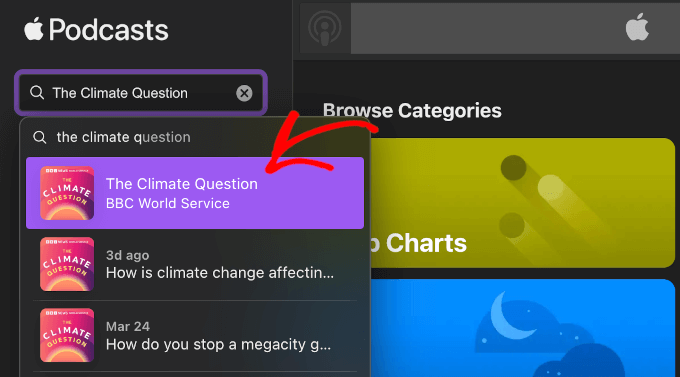
Una vez que encuentres lo que buscas, haz clic en el resultado de búsqueda relevante para abrir el programa o el episodio.
En la página del podcast, haz clic en el menú de tres puntos junto al botón '+ Seguir'.

En el menú desplegable, selecciona 'Copiar incrustación'.
Apple Podcasts copiará automáticamente el código de incrustación del programa a tu portapapeles.

Si deseas incrustar un episodio específico, desplázate hacia abajo en la página del programa hasta la lista de 'Episodios'.
Haz clic en el menú de tres puntos en la sección de episodios. Luego, presiona el botón 'Copiar código de incrustación'.

Alternativamente, puedes hacer clic en el título de un episodio específico.
Esto te llevará a la página del episodio, donde podrás ver una breve descripción de qué trata. También encontrarás enlaces a las páginas de redes sociales, una dirección de correo electrónico para consultas, la clasificación del contenido del episodio (como Limpio o Explícito) y detalles sobre el presentador.

Una vez allí, simplemente haz clic en el menú de tres puntos junto al botón 'Reproducir' y selecciona 'Copiar incrustación' en el menú desplegable.
Con eso hecho, ya tienes el código de inserción del episodio copiado en tu portapapeles.

Paso 2: Agrega el código de inserción de Apple Podcast a WordPress
Ahora que tienes el código de inserción de Apple Podcasts, es hora de agregarlo a tu sitio de WordPress.
Puedes insertar el reproductor en cualquier publicación o página. Para este tutorial, te mostraré cómo insertarlo en una publicación de blog usando el editor de bloques.
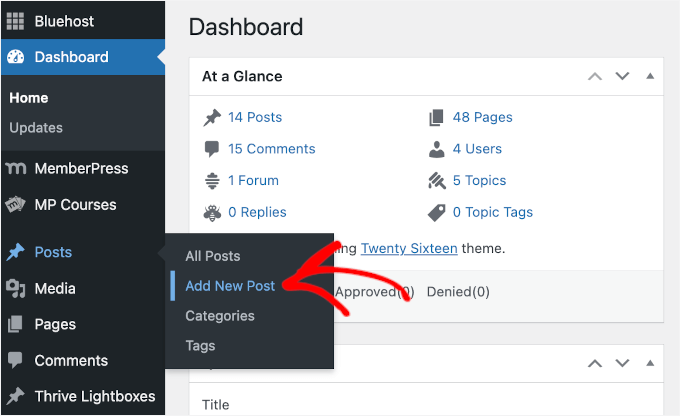
Desde tu área de administración de WordPress, ve a Publicaciones » Añadir Nueva Publicación o abre una publicación existente donde quieras añadir el podcast.
En el editor de bloques, haz clic en el botón '+' para añadir un bloque.
Luego, escribe 'HTML personalizado' en la barra de búsqueda y selecciona el bloque 'HTML personalizado'.

Ahora, puedes pegar el código de inserción de Apple Podcasts que copiaste anteriormente en el bloque.
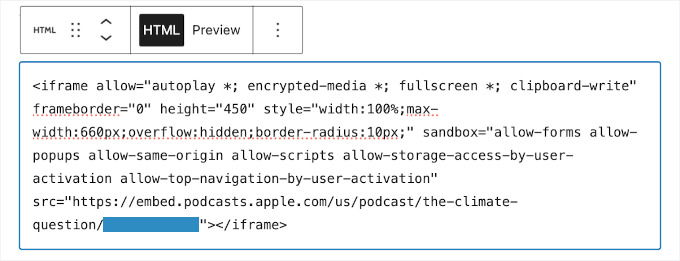
No olvides revisar el fragmento de código para asegurarte de que el atributo de ancho esté configurado en '100%' para que el reproductor se ajuste automáticamente a las pantallas móviles. Debería verse algo así:
Si quieres ver cómo se verá el reproductor de Apple Podcasts en el lado del cliente, selecciona el bloque HTML y haz clic en la pestaña 'Vista previa' en la barra de herramientas.
Esto cargará la vista previa del reproductor en el editor de contenido.
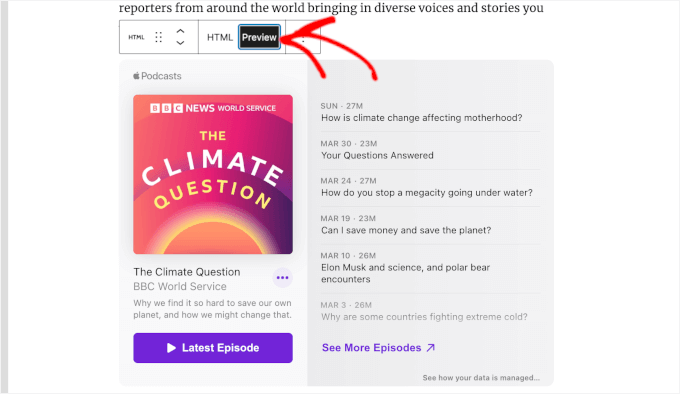
Si el reproductor insertado se ve bien en el editor, también te recomendamos hacer clic en el botón principal 'Vista previa' de tu publicación para ver cómo queda con tu tema de WordPress.
Una vez que estés satisfecho, haz clic en 'Publicar' (o 'Actualizar' si estás editando una publicación existente).
Ahora, tus visitantes pueden escuchar Apple Podcasts directamente desde tu sitio. ¡Es así de simple!
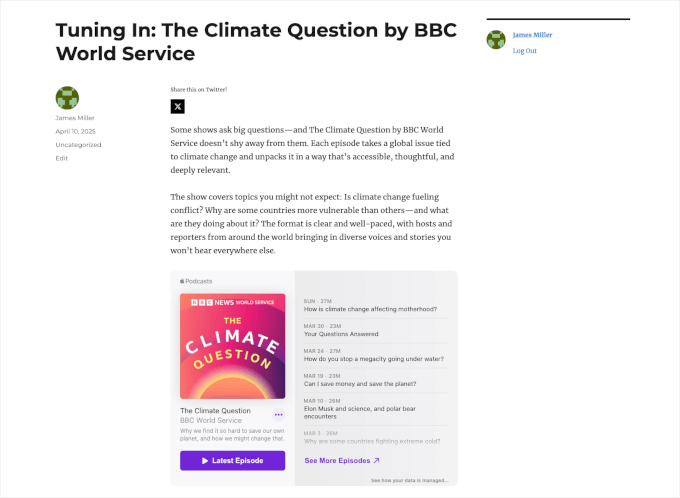
Ten en cuenta que en un navegador de escritorio, el audio se reproducirá directamente en tu página. Sin embargo, si un visitante hace clic en reproducir en un dispositivo móvil como un iPhone, es posible que se le pida que abra el episodio en la aplicación nativa de Apple Podcasts en su lugar.
Esto es en realidad algo bueno, ya que facilita mucho que los usuarios hagan clic en 'Seguir' dentro de la aplicación y aumenten la clasificación de tu podcast. 📈
Método 2: Inserta Apple Podcasts en WordPress usando EmbedPress
El bloque HTML Personalizado es una excelente opción gratuita, pero lidiar con el código iframe sin procesar puede resultar un poco torpe, especialmente si planeas insertar docenas de episodios con el tiempo.
Presentamos EmbedPress, un plugin dedicado para insertar contenido en WordPress. Ofrece una experiencia de inserción más optimizada al permitirte pegar la URL de Apple Podcasts en el bloque EmbedPress, y muestra instantáneamente un reproductor compatible con dispositivos móviles en tu contenido.
Paso 1: Obtén EmbedPress Pro (Requerido para Apple Podcasts)
Para insertar Apple Podcasts usando EmbedPress, necesitarás EmbedPress Pro. Apple Podcasts es una fuente de contenido premium que requiere la versión Pro del plugin.
Con EmbedPress Pro, puedes hacer que tu contenido sea exclusivo, mostrar anuncios de video o imágenes, ajustar el diseño del reproductor y agregar tu propia marca. Incluso te permite habilitar la carga diferida para mejorar la velocidad del sitio.
Puedes crear una cuenta de EmbedPress Pro en el sitio web de EmbedPress. Haz clic en ‘Empezar ahora’, elige un plan y completa el proceso de pago.
Al registrarte, puedes descargar el archivo zip de EmbedPress Pro y copiar tu clave de licencia.
Paso 2: Instala y activa EmbedPress Pro
Después de comprar EmbedPress Pro y descargar el archivo .zip desde el panel de tu cuenta, ve a Plugins » Añadir Plugin en tu área de administración de WordPress.
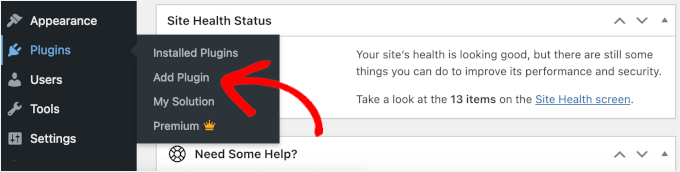
Haz clic en el botón ‘Subir plugin’ en la parte superior.
Elige el archivo .zip que descargaste de EmbedPress.
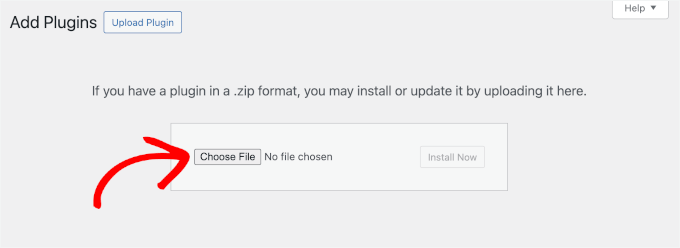
Luego, haz clic en el botón ‘Instalar ahora’ seguido de ‘Activar’. Para obtener instrucciones más detalladas, puedes consultar nuestra guía sobre cómo instalar un plugin de WordPress.
El siguiente paso es activar el plugin premium usando tu clave de licencia.
Para hacer esto, ve a EmbedPress » Licencia en tu panel de WordPress, pega tu clave de licencia y haz clic en ‘Activar licencia’.
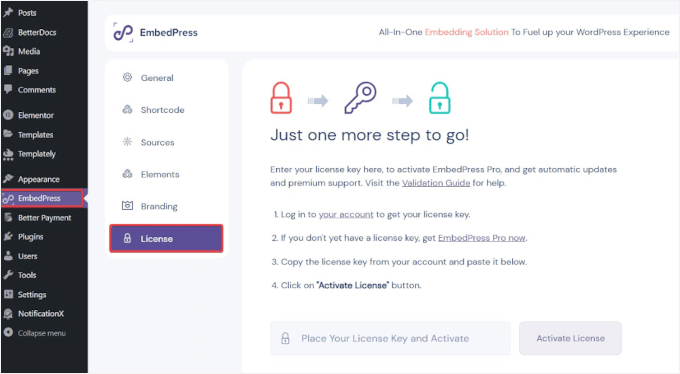
En este punto, se enviará un código de verificación a la dirección de correo electrónico que utilizaste para comprar EmbedPress Pro.
Simplemente abre el correo electrónico, copia el código de verificación y luego regresa a esta página para ingresarlo en el nuevo cuadro que aparece debajo del cuadro de la clave de licencia. Luego, presiona ‘Verificar’.
Una vez que actives el plugin, desbloquearás el soporte para plataformas premium, incluyendo Apple Podcasts, y obtendrás acceso a funciones de personalización adicionales.
Paso 3: Copia la URL de Apple Podcast
Para incrustar Apple Podcasts en WordPress usando EmbedPress, necesitarás la URL correcta de todo el programa o de un episodio específico.
Al igual que hiciste en el Método 1, localiza tu programa o episodio en Apple Podcasts.
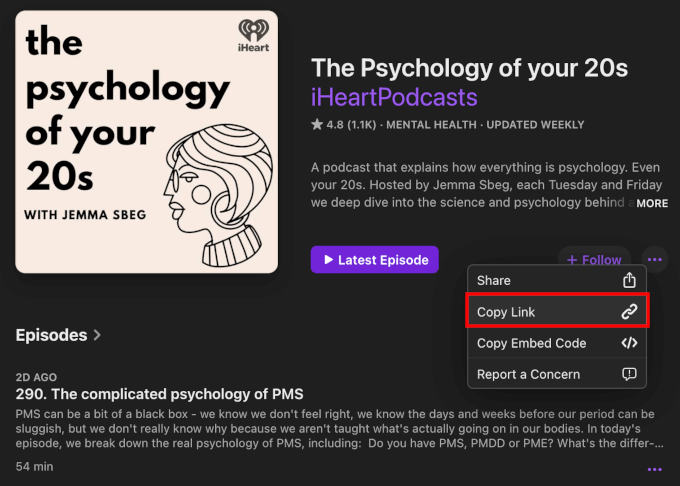
Para hacer esto, ve a Apple Podcasts y usa la barra de búsqueda para encontrar el programa o episodio que deseas destacar. Por ejemplo, busqué ‘The Psychology of Your 20s’.
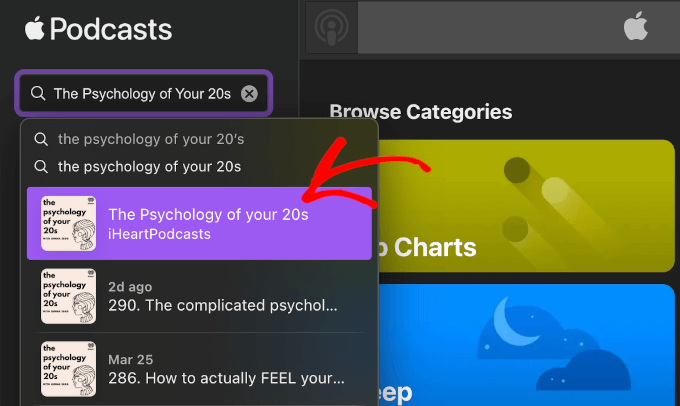
En los resultados de búsqueda, haz clic en el nombre del podcast para abrir la página principal del programa.
Luego, haz clic en el botón de tres puntos junto al botón + Seguir para expandir el menú.
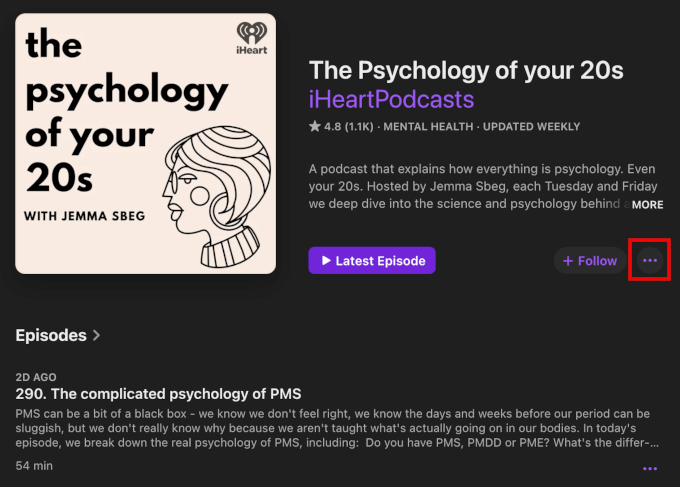
Ahora, haz clic en el botón ‘Copiar Enlace’ para obtener el enlace del programa.
Apple Podcasts copiará automáticamente el enlace a tu portapapeles.
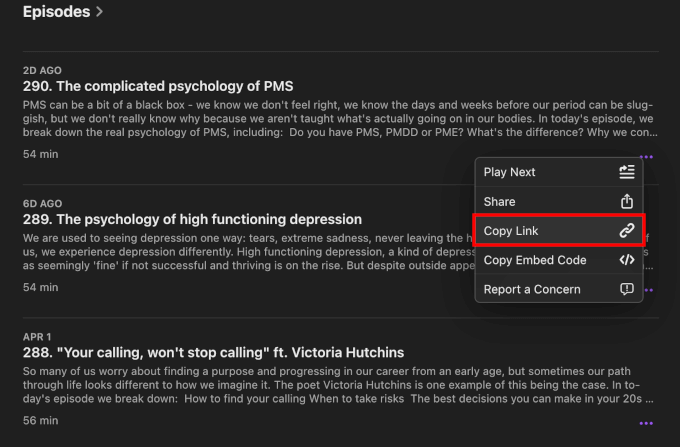
Ahora, para copiar el enlace de un solo episodio, desplázate por la lista de episodios disponibles en el programa de Apple Podcasts.
Una vez que encuentres lo que buscas, haz clic en el botón de tres puntos del episodio y haz clic en el botón ‘Copiar Enlace’.
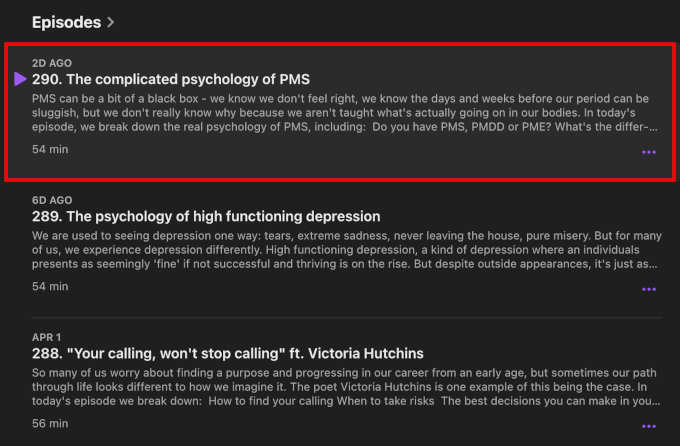
¿Quieres ver más detalles sobre el episodio?
Simplemente haz clic en la sección del episodio para abrir su página. Allí, encontrarás una breve descripción del episodio, enlaces a páginas de redes sociales, una dirección de correo electrónico para consultas, la calificación del contenido (como Limpio o Explícito) e información sobre el presentador.
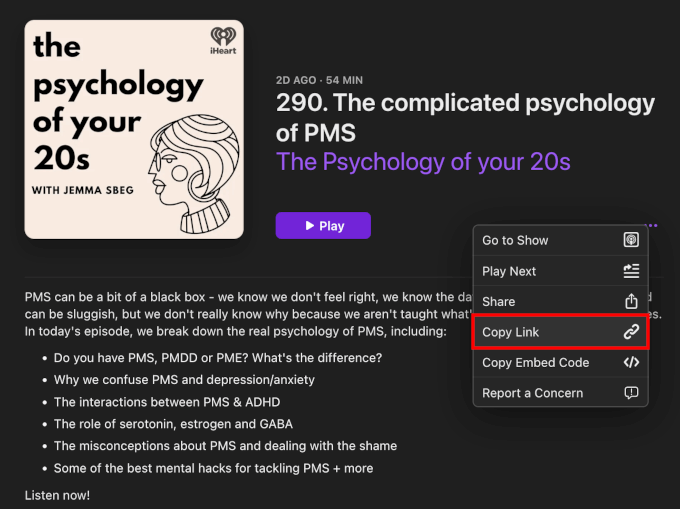
Desde la página individual del episodio, haz clic en el botón de tres puntos junto a ‘Reproducir’.
Luego, selecciona ‘Copiar enlace’ para obtener el enlace del episodio.
Alternativamente, puedes copiar la URL del programa o episodio directamente desde la barra de direcciones de tu navegador.
Esto te evita tener que buscar el menú de tres puntos y hacer clic en el botón ‘Copiar enlace’.
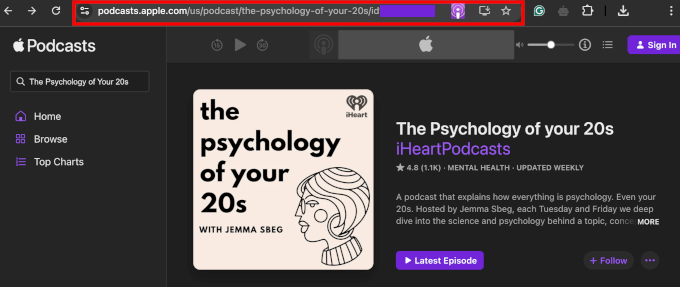
Solo asegúrate de estar exactamente donde quieres estar: en un programa o en un episodio específico.
Paso 4: Agrega la URL de Apple Podcast a WordPress usando el bloque EmbedPress
A continuación, es hora de incrustar tu podcast usando el plugin EmbedPress.
Puedes añadirlo a cualquier página o publicación, pero en este ejemplo, te mostraré cómo hacerlo en una entrada de blog de WordPress.
Desde tu panel de WordPress, ve a Entradas » Añadir Nueva o abre una entrada existente.
En el editor de bloques, puedes hacer clic en el botón ‘+’.
Luego, busca el bloque EmbedPress.
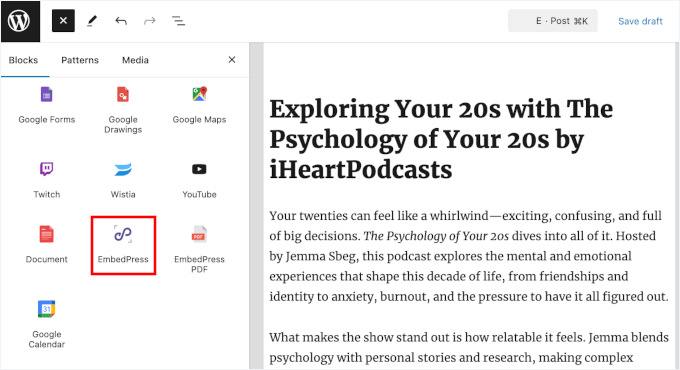
Simplemente selecciona el bloque cuando aparezca, y WordPress lo agregará a tu editor de contenido.
A continuación, simplemente pega la URL del programa o episodio que copiaste anteriormente en el bloque de EmbedPress.
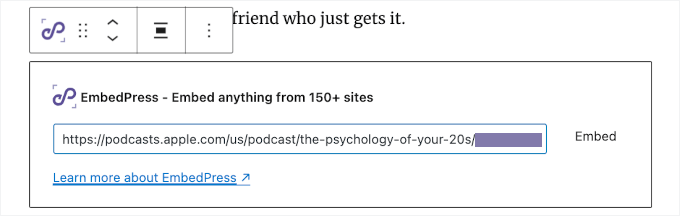
No olvides hacer clic en el botón 'Incrustar' o presionar 'Enter'.
EmbedPress obtendrá y mostrará instantáneamente el reproductor de Apple Podcasts directamente dentro de tu editor.
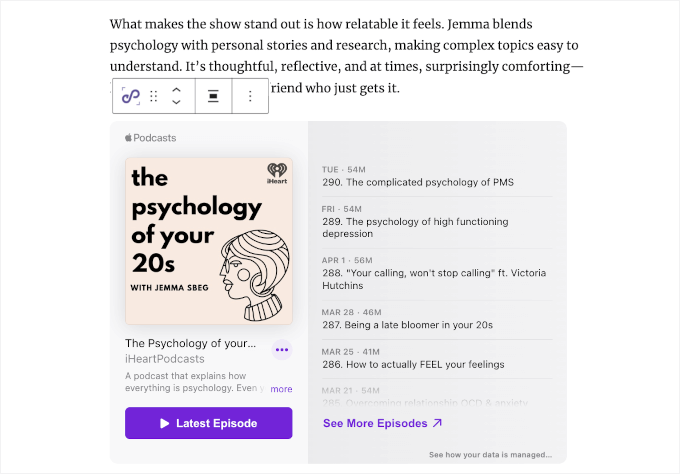
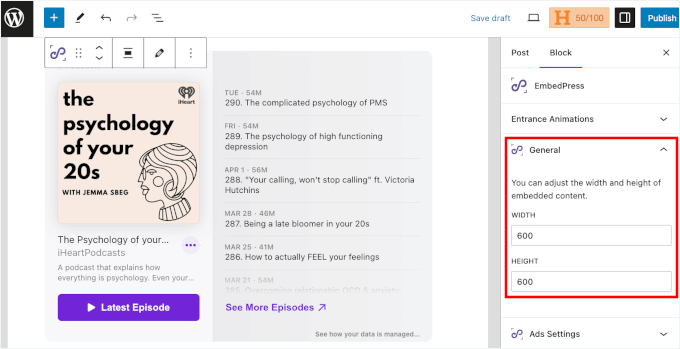
Puedes ajustar la apariencia del reproductor directamente en la pestaña ‘Bloque’.
En la sección ‘General’, simplemente ajusta el ancho y la altura para controlar el tamaño del reproductor incrustado.
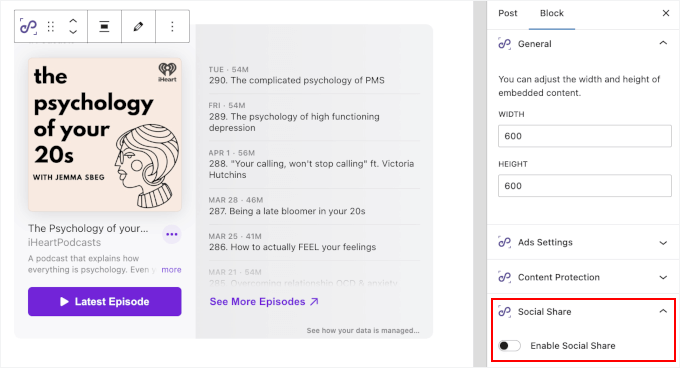
También puedes activar ‘Compartir en redes sociales’ para añadir botones para compartir en redes sociales para Facebook, X (Twitter) y más a tu incrustación de Apple Podcasts.
Esto permite a los visitantes compartir fácilmente el episodio en sus cuentas de redes sociales.
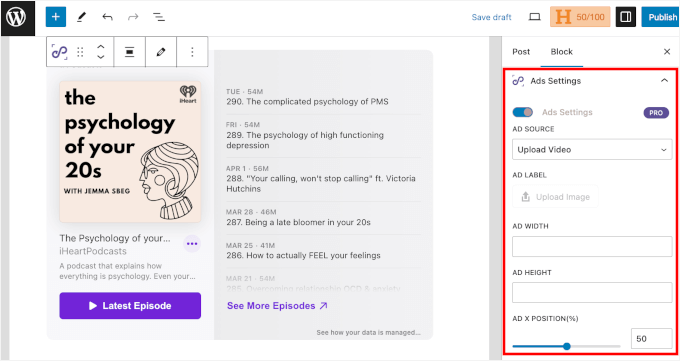
Además, EmbedPress Pro incluye herramientas de monetización y protección de contenido. Puedes encontrarlas en las secciones ‘Configuración de anuncios’ y ‘Protección de contenido’ en la pestaña ‘Bloque’:
- Configuración de Anuncios: Esto te permite añadir anuncios de video o imagen a tus incrustaciones, con control sobre el tamaño, el tiempo y las opciones de omisión.
- Protección de Contenido: Permite restringir el acceso por rol de usuario o contraseña para mantener seguro tu contenido incrustado.
Puedes configurar estas opciones según sea necesario.
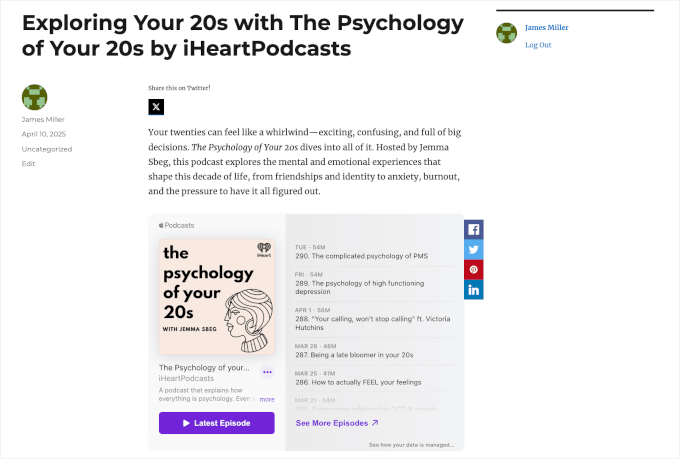
Una vez que estés satisfecho con la apariencia de la incrustación de Apple Podcasts, simplemente haz clic en ‘Publicar’ o ‘Actualizar’ para que esté en vivo.
Tus visitantes ahora pueden escuchar el programa directamente desde tu sitio, e incluso compartirlo en redes sociales con un solo clic.
Consejos y ideas adicionales para hacer crecer tu podcast
Incrustar tu Apple Podcasts en WordPress es solo el comienzo.
Aquí tienes algunas formas sencillas de aumentar tu audiencia de podcast y mantener a los oyentes regresando:
| Estrategia | En qué ayuda | Cómo empezar |
|---|---|---|
| Realiza un sorteo | Aumenta suscriptores, reseñas y compartidos en redes sociales | Usa RafflePress para recompensar acciones como suscribirse, dejar reseñas o compartir episodios. |
| Invita a ponentes invitados | Expande el alcance y aporta nuevas perspectivas | Colabora con creadores o expertos en tu nicho para acceder a su audiencia. |
| Agrega notas del programa y transcripciones | Mejora el SEO y la accesibilidad | Publica notas detalladas y utiliza servicios de transcripción para que los lectores puedan hojear o seguir el contenido. |
| Haz crecer tu lista de correo electrónico | Construye una conexión directa con la audiencia | Agrega un formulario de suscripción al boletín debajo de tu reproductor o usa ventanas emergentes para capturar correos electrónicos. |
| Crear un sitio de membresía | Genera ingresos y lealtad | Usa MemberPress para ofrecer episodios extra, contenido detrás de cámaras o descargas exclusivas. |
Además, ten en cuenta que las escuchas de audio en tu reproductor incrustado se rastrean a través de Apple Podcasts Analytics, no del software de análisis de tu sitio web.
Sin embargo, aún puedes usar una herramienta como MonsterInsights para rastrear las visitas generales a tu página y ver cuántas visitas reciben tus páginas de destino de podcast. Estos pequeños detalles pueden ser de gran ayuda para construir una comunidad de podcast leal. 🌐
Preguntas frecuentes sobre cómo incrustar Apple Podcasts en WordPress
¿Todavía tienes preguntas? Aquí hay algunas preguntas comunes que recibo de lectores que buscan incluir Apple Podcasts en sus sitios de WordPress:
¿Se puede incrustar un podcast en un sitio web de WordPress?
¡Sí, se puede! WordPress admite tanto códigos de inserción HTML como URL directas para muchas plataformas de podcast. Eso significa que puedes mostrar fácilmente episodios de podcast usando bloques integrados o plugins, ¡sin necesidad de codificación!
¿Cómo incrusto Apple Podcasts en un sitio web?
La forma más fácil es copiar el código de incrustación directamente de Apple Podcasts y pegarlo en un bloque de HTML personalizado en WordPress. Alternativamente, puedes usar un plugin como EmbedPress, que te permite incrustar Apple Podcasts simplemente pegando la URL del episodio.
¿Necesito un sitio web para mi podcast?
Aunque no es obligatorio, tener tu propio sitio web te da más control sobre tu contenido, marca y audiencia. Puedes promocionar episodios, recopilar correos electrónicos, agregar notas del programa e incluso mejorar el SEO para llegar a más oyentes.
¿Es WordPress una buena opción para un sitio web de podcast?
Sí, WordPress es una plataforma muy adaptable y fácil de usar para principiantes que admite una amplia gama de plugins y temas para podcasts. WordPress facilita la gestión y promoción de tu podcast en un solo lugar, ya sea que recién estés comenzando o estés haciendo crecer tu programa.
Próximos Pasos: Mejora el sitio de tu podcast
Espero que esta guía te haya ayudado a aprender cómo insertar Apple Podcasts en WordPress. A continuación, puedes consultar nuestras guías sobre:


¿Tienes alguna pregunta o sugerencia? Por favor, deja un comentario para iniciar la discusión.