


When I launched my first WordPress site, I was terrified I would break something. There are so many settings and plugins that it is easy to feel overwhelmed.
If you rush the setup, you might skip vital steps. This often leads to security holes or site speed issues down the road.
I have helped thousands of users start their websites, and I see the same errors pop up constantly. Fixing them later is much harder than getting them right today.
In this guide, I will share the most common WordPress mistakes and how to fix them. Let’s make sure your website is set up for success from day one.
To make it easier, here’s a table of contents to help you navigate through our article on common WordPress mistakes. You can use the links below to jump to the sections you’re interested in:
- Choosing The Wrong WordPress Platform
- Buying More Than What You Need
- Not Setting Up Automated Backups
- Skipping Website Analytics
- Forgetting Your Contact Form
- Overlooking Your Email List
- Picking the Wrong WordPress Theme
- Ignoring WordPress Updates
- Not Optimizing for Search Engines
- Mixing Up Categories and Tags
- Confusing Posts and Pages
- Choosing the Wrong URL (Permalink) Structure
- Ignoring Website Speed and Performance
- Neglecting Your Database
- Picking the Wrong Plugins
- Skipping Website Security
- Skipping SSL and HTTPS
- Changing Your Website URL the Wrong Way
- Leaving WordPress Demo Content
- Letting Comment Spam Through
- Forgetting to Optimize Images for the Web
- Adding Code to the Wrong Place
- Editing Files in the Wrong Area
- Skipping Google Search Console
- Leaving 'Uncategorized' as the Default Category
- Not Using a Professional Branded Email Address
- Leaving a Site Public While Still Working on It
- Stopping Your WordPress Education
- Frequently Asked Questions About WordPress Mistakes
- Additional Resources
1. Choosing The Wrong WordPress Platform
One of the first challenges many new users face is realizing there are two different versions of WordPress. The confusion about which blogging platform to choose often causes people to get stuck right at the start.
There’s WordPress.com, which works like a hosting service where things are managed for you, offering simplicity with limitations. And then there’s WordPress.org, which is a flexible, self-hosted platform many people choose for serious websites because it gives you total control.
For most users, WordPress.org is the better choice because it gives you the freedom to use any theme or plugin you want. You can customize your site without any platform restrictions, which is essential for building the exact site you have in mind.
To help you understand the key differences between them, we’ve put together a side-by-side comparison of WordPress.com vs WordPress.org.
Making the right choice early on truly saves you potential hassle and complicated migration work down the line.
2. Buying More Than What You Need
Once you decide to use WordPress.org, your next steps are getting a domain name and WordPress hosting.
But there are a lot of options out there, so things can get confusing fast. What’s more, most domain registrars try to sell you extras, which you might be unsure about.
You’ll likely see offers for website protection, multiple email accounts, special security services, and more. You may feel overwhelmed by all the checkboxes and add-ons presented during checkout.
But try not to panic – when you’re just starting out, all you need is your domain name and a basic hosting plan.
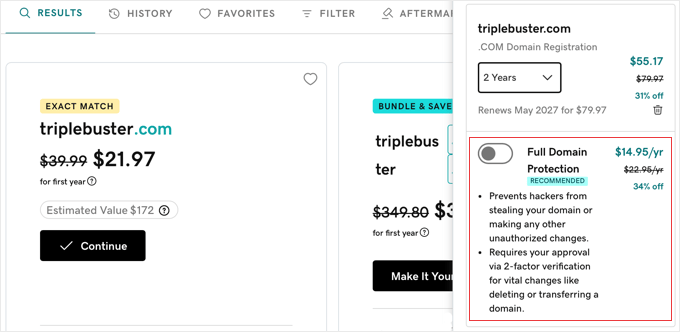
You can skip all those extra services initially and save your budget for other things. I prefer to add features as my site grows, when I actually need them.
You’ll also need to choose a hosting plan. For most new websites, a basic shared hosting account is enough to get started.
Many beginners find Bluehost to be a straightforward option. They’re a large hosting company and are even recommended by WordPress.org itself.
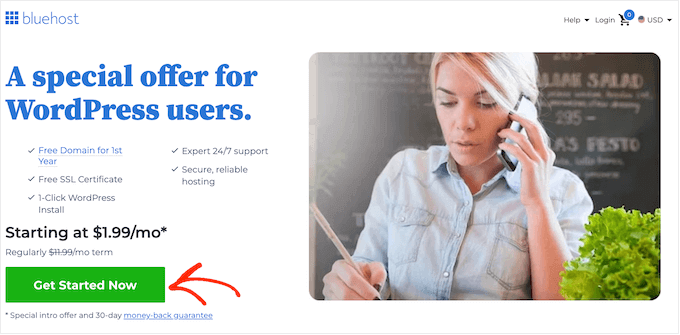
They offer WPBeginner users a special discount on hosting, a free domain name, and a free SSL certificate, with plans often starting as low as $1.99 per month for the initial term.
As your website grows and gets more traffic, you can think about upgrading your hosting plan or looking into managed WordPress hosting for extra speed and support.
For more details, see my guide on the cost of a WordPress website and how to save money when building your website.
3. Not Setting Up Automated Backups

Accidents happen, sites get hacked, and servers can fail. Losing everything because you didn’t have a safety net is a common and painful mistake for new website owners.
Automated backups are one of your most powerful defenses against these digital disasters.
Setting up a WordPress backup plugin is easy, and it acts like an insurance policy for your hard work. You set it once, and it runs in the background, regularly saving copies of your site.
But there’s an important second part to this mistake: where you store those backups. A lot of beginners save their backups right on their hosting server.
However, if your server fails or gets compromised, then your backups will be lost along with your website.
As a safety precaution, it’s best to store your backups somewhere else, off-site. Services like Google Drive, Dropbox, or Amazon S3 are perfect for this.
Many WordPress backup plugins can handle both the automation and sending copies to a remote cloud storage location automatically.
At WPBeginner, we use Duplicator to create remote backups for our partner websites, and we love how easy it is to navigate. You can read our Duplicator Review to learn more about the plugin.
To make sure you set this up correctly and keep your hard work safe, follow our step-by-step guide on how to back up your WordPress site.
4. Skipping Website Analytics
To grow your website, you need to know who is visiting, where they come from, and what they do once they arrive. Without this information, you won’t be able to create effective growth strategies.
That’s why Google Analytics can be super helpful. It’s the standard tool for understanding website traffic. However, if you want to get the most value out of your data, you’ll need to set it up properly with WordPress.
In my experience, using a dedicated plugin makes this much simpler.
If you’re not sure which one to use, I recommend MonsterInsights, which is a popular Google Analytics plugin designed specifically for WordPress users.
It saves you from having to edit code and brings the most important stats right into your WordPress dashboard, making it easy to understand your visitors.
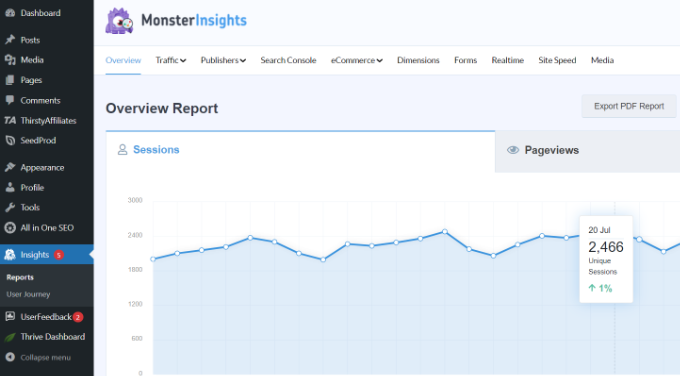
It also comes with powerful features like enhanced eCommerce tracking, affiliate link and ads tracking, form conversion tracking, user journey reports, popular posts, and more.
There’s also a free version of MonsterInsights you can use when getting started.
We even use it on the WPBeginner blog to track conversions, referral links, and other website stats. You can check out our detailed MonsterInsights review for more information about the plugin.
5. Forgetting Your Contact Form

Imagine someone lands on your website, loves what they see, and wants to reach out to you directly. Maybe they have a question about your service or a potential business opportunity.
If they can’t easily get in touch, you could be missing out on important opportunities. Not having a contact form is a surprisingly common mistake, especially for beginners.
But, almost every successful website has a dedicated contact page. It is one of the most important pages for every website because it gives visitors a clear way to communicate with you.
WordPress itself doesn’t come with a contact form built in, but adding one is super straightforward thanks to contact form plugins.
A great place to start is with WPForms Lite. It’s the 100% free version of the most popular contact form plugin for WordPress, trusted by over 6 million websites.
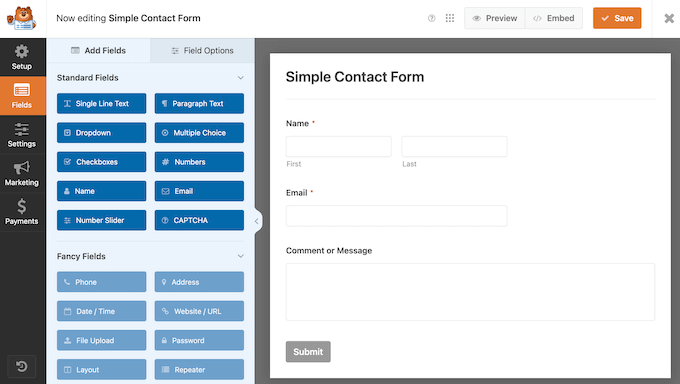
You can use it to create a functional contact form in just a few clicks, without needing any code.
At WPBeginner, we’ve been using WPForms for years to create several different types of forms, including contact forms, website migration forms, and more.
We’re always happy with the results and love how easy it is to use. For more information about our experience with the plugin, see our detailed WPForms review.
To get your form set up in just a few clicks without writing any code, follow our step-by-step guide on how to create a contact form in WordPress.
6. Overlooking Your Email List
Did you know that the vast majority of people who visit your website will likely never come back on their own?
If you run an online business, not building an email list is like leaving money on the table. Every visitor who leaves your site without subscribing is a potential customer you might lose forever.
To understand why this is a mistake you can’t afford to make, read our full article on why building an email list is important.
Converting website visitors into email subscribers can allow you to bring them back again and again.
You will need an email marketing service to set up and manage your list properly. It’s a tool that handles collecting emails and sending out your messages.
I recommend Constant Contact because it’s highly beginner-friendly. It makes it simple to create sign-up forms and send your first email campaigns.
We’ve also tested it extensively in our complete Constant Contact review, which I suggest you check out.
To learn the right way to set this up and start growing your audience, check out our complete tutorial on how to start an email newsletter.
7. Picking the Wrong WordPress Theme
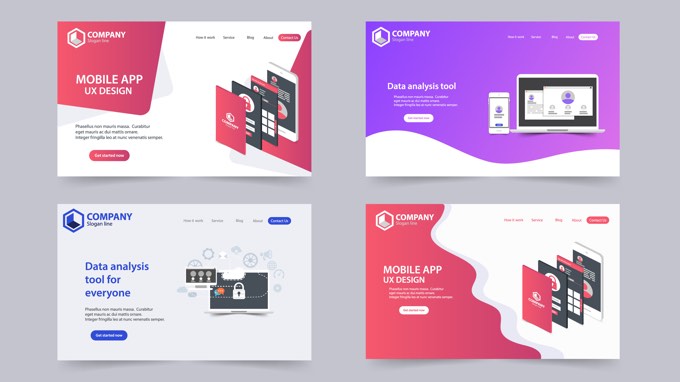
With thousands of options, choosing a WordPress theme can feel like being in a candy store where you can only pick one.
I remember spending ages browsing themes, installing one, playing with it, only to realize it didn’t quite work how I wanted, or it broke something else.
Trying out dozens of themes when you’re just starting is a really common mistake that can waste a lot of time.
More importantly, constantly changing your theme after your site is live can make it feel inconsistent to visitors and damage the brand recognition you’re trying to build.
Visitors get used to how your site looks and feels. When you constantly change themes, you lose that sense of familiarity and brand recognition. I learned it’s much better to choose the right WordPress theme from the start and commit to it.
People often ask me, “How do you pick one that works?”
The simple answer is: I always prefer themes that lean towards simplicity rather than being overly flashy. A clean, functional design beats lots of bells and whistles any day.
Here are a few key things I ask myself when I’m looking at themes:
- Does it look good and work well on phones and tablets, not just desktops?
- Is it easy to customize colors, fonts, and layouts without needing to be a coding expert?
- Will it work okay with popular WordPress page builders and plugins?
- Is it built in a way that helps your site load quickly?
Now, I understand that as a non-techy user, you may not be able to check all those things on your own.
In that case, I recommend choosing a theme from a top commercial WordPress theme shop like aThemes, Elegant Themes, or Themify.
If you need more recommendations, then check out these theme showcases where we hand-picked the best WordPress themes in different categories.
- Best WordPress blog themes
- Best WordPress business themes
- Best simple WordPress themes
- Best multi-purpose WordPress themes
You can also use a drag and drop website builder plugin like SeedProd to create a custom WordPress theme, no coding required.
8. Ignoring WordPress Updates
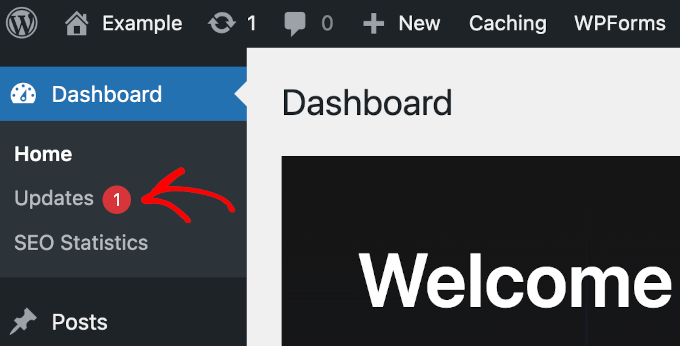
Sometimes, clicking that ‘Update’ button can feel a little scary. But letting those updates pile up is a significant, easily avoidable mistake.
This is because updates often include important security fixes that patch vulnerabilities hackers could exploit. Running outdated software is like leaving the back door of your house unlocked.
It’s not just about security, though. Updates also bring bug fixes and sometimes even new features or performance improvements that can make your site run better.
While there’s a small chance an update could cause a temporary issue, the risk of staying on old, insecure versions is almost always far higher in the long run.
That’s why performing regular updates is a fundamental part of keeping your WordPress site healthy and secure. It’s not something you should skip.
To learn the best way to do this without breaking your site, check out our complete guide on how to safely update WordPress.
9. Not Optimizing for Search Engines
Making your website go live probably feels like a big accomplishment. But how do people find it among all the other sites out there?
A lot of people just put their content out and hope visitors will appear. That’s not very effective.
This is where SEO (Search Engine Optimization) comes in. It’s the process of making your website easy for search engines like Google to understand and rank higher in their results.
This is important because search engines are usually the biggest source of free, consistent traffic for most websites.
Not optimizing for them is like opening a shop in a busy city but not putting up a sign or telling anyone your address. You’re missing out on many potential visitors.
That’s why I highly recommend learning the basics of WordPress SEO. It might sound technical, but it’s more approachable than you might think.
10. Mixing Up Categories and Tags

Another big mistake is not using categories and tags properly. Some users end up using categories where they should have used tags and vice-versa.
I have seen websites with dozens of categories and no tags at all. On the flip side, I’ve also seen websites using hundreds of tags without any categories.
To avoid this, I recommend thinking of categories as main topics or the ‘table of contents’ for your website. If your site were a file cabinet, then categories would be the big, labeled drawers.
Tags are more like the index or specific labels on the individual files inside those drawers. They describe the smaller, more detailed subjects within a broader category.
For a more detailed explanation, see our guide on categories vs tags and how to use them properly in WordPress to improve your site’s SEO.
11. Confusing Posts and Pages
When you first start adding content to WordPress, you’ll see options for both Posts and Pages.
At a glance, they might seem pretty similar. This similarity leads many beginners to a common mistake: using posts for things that should be pages, or pages for things that should be posts.
It doesn’t seem like a big deal at first. But as your site grows, using the wrong one makes it very difficult to manage and organize.
Here’s the simple way I came to understand it:
- Pages are for static content. These are things like your About Us page, Contact page, or Privacy Policy. They are timeless and don’t change much.
- Posts are for timely, chronological content. This is where your blog articles, news updates, or any regular (recurring) pieces belong. They show up in a feed based on when they were published.
With that in mind, using them properly from the start is key for good site structure and easier management later. It keeps your static information separate from your stream of articles.
Take a look at our complete guide about the difference between posts vs pages and what you can do with them.
12. Choosing the Wrong URL (Permalink) Structure

It’s important to choose the right URL structure from the very beginning. It’s one of those settings that’s surprisingly difficult to change later on, especially if your site has started getting traffic.
A clean, descriptive URL is better for both people and search engines. It helps visitors understand what the page is about, and it can give search engines clearer signals too.
A common mistake is just sticking with the default, which is not very user-friendly or SEO-friendly.
The structure I recommend is the one that includes the post name in the URL. This option makes URLs intuitive and straightforward.
You can easily set this up by going to the Settings » Permalinks page in your dashboard.
Look for the ‘Post name’ option. Selecting this early on avoids the trouble of trying to migrate later and helps your site look more professional from day one.
13. Ignoring Website Speed and Performance

Most people won’t wait more than a few seconds for a slow website to load. If a page takes too long, then visitors will often hit the back button, meaning you can lose them before they even see your content.
This means website speed isn’t just a nice-to-have feature, it’s very important. Not paying attention to how quickly your site loads is a common mistake that can harm your site’s growth.
And it’s not just about keeping visitors happy. Search engines like Google also prefer faster websites and tend to rank them higher.
You might think optimizing speed is very technical, but it’s more straightforward than it seems.
We have a step-by-step guide that will help you improve WordPress speed and performance.
14. Neglecting Your Database

Your database stores everything on your website. That includes posts, pages, comments, settings, and more.
Over time, it can get cluttered with leftover data you don’t need. This slows down your site and makes everything feel sluggish.
Keeping your database clean helps your site run faster and more smoothly.
You can easily clean up and optimize your database using popular, user-friendly plugins. We show you how to do this step by step in our guide on WordPress database maintenance.
15. Picking the Wrong Plugins
One of the best things about WordPress is how you can add almost any feature you can imagine using plugins. There are literally thousands of them, just a click away.
But the mistake many people make is installing plugins without checking them out first.
A bad plugin can slow down your site, cause conflicts with your theme or other plugins, or even have security issues.
That’s why choosing your plugins wisely is just as important as choosing your theme or hosting. The right plugins can unlock new and powerful features. The wrong ones can create problems.
To avoid this, here are a few simple checks I always recommend:
- Get plugins from WordPress.org or WordPress companies with a good reputation.
- Look at how many active installations a plugin has, when it was last updated, and its rating.
- Read user reviews to see if people are reporting issues and if the developer is actively helping in the support forums.
Choosing trusted plugins saves you so much potential trouble down the line.
To start with safe and reliable plugins, check out our list of recommended WordPress plugins for all websites.
And you can learn the exact process for checking plugins for safety and quality in our complete guide on how to choose the best WordPress plugins.
16. Skipping Website Security

Many beginners believe their small website is safe from hackers. It’s easy to think you’re flying under the radar, especially when you’re just starting out.
But the reality is that hackers often don’t care how big or small your site is. They often target sites randomly, just looking for vulnerabilities they can exploit.
They could use your website to distribute malware, conduct brute force attacks (where automated bots try to guess your password), steal data, and more.
Not taking basic steps to protect your WordPress site is a very common mistake, and it leaves your site vulnerable.
That’s why it’s crucial to follow security best practices and build layers of security around your WordPress site. Luckily, it doesn’t take too much time, and you don’t need any special skills to do it.
Simply follow our complete WordPress security guide with step-by-step instructions to protect your website.
You can also see our recommendations for the best WordPress security plugins.
17. Skipping SSL and HTTPS
You may have noticed the little padlock icon in your browser’s address bar when visiting some websites. On others, you might have seen a warning that the site is ‘Not Secure’.
That little padlock means the site is using something called SSL (Secure Sockets Layer), which makes the connection between your browser and the website encrypted. It protects any information you send, like logins or payment details.
Not having SSL on your WordPress site is a pretty serious oversight. Without it, any information sent between your visitors and the website is not secure and can be exposed.
Beyond the security risk of not protecting sensitive data, ignoring SSL has several downsides.
Google uses HTTPS (the secure version of HTTP, enabled by SSL) as a ranking factor, so it can lower your ranking in search results.
The good news is that adding this security is easier and cheaper than ever. In our guide, we’ll show you exactly how to get an SSL certificate for your WordPress website for free.
To make sure you do this correctly without causing broken links or SEO issues, follow our step-by-step guide on how to properly move WordPress from HTTP to HTTPS.
18. Changing Your Website URL the Wrong Way
Many website owners think about changing their domain name to something better. But doing this incorrectly is a significant mistake that can cause major problems for your site.
Changing your URL without taking the proper steps can lead to losing all the hard-earned traffic you might have built up. All the links pointing to your old pages will break, and search engines won’t automatically know where your content moved.
To do it right, you need to set up permanent 301 redirects. Think of these like a ‘change of address’ notice for the web that automatically forwards visitors and search engines from your old URLs to your new ones.
To make sure you do this safely without losing your hard-earned SEO rankings, you’ll find every step in our guide on how to properly move WordPress to a new domain.
19. Leaving WordPress Demo Content
You’ve just finished installing WordPress. Everything is fresh and ready. You log in and see a default post called ‘Hello World!’ and a ‘Sample Page’.
It’s easy to just ignore these, thinking they don’t hurt anything. That’s a very common mistake people make when they first start.
But leaving that default content on your live site can cause a couple of problems. For one, search engines can find and index it.
Because this ‘Hello World!’ post is the same on thousands of new websites, search engines don’t see it as unique or valuable. More importantly, it looks unprofessional to any visitor who happens to find it.
Also, think about the default tagline WordPress adds: ‘Just another WordPress site’. I’ve seen countless users leave this visible by accident.
The fix is simple. Delete the ‘Hello World!’ post, the ‘Sample Page’, and the default comment, then go to Settings » General and change your tagline.
20. Letting Comment Spam Through

Comment spam is a significant problem and makes your site look unprofessional.
A common mistake I see many beginners make is relying on WordPress’s default comment settings, which are not strict enough.
By default, once you approve a comment from someone, all of their future comments are automatically published.
Spammers often take advantage of this by posting one normal-looking comment to get approved, and then they can automatically post spam links later.
When you allow comments to go live without checking them first, you make it easy for spammers to post. They can leave comments containing links to potentially harmful websites, low-quality products, or just irrelevant content.
Seeing spam like that appear on your site can damage your website’s reputation and even negatively impact your search engine rankings.
To fix this, you need to turn on comment moderation. Simply go to the Settings » Discussion page, and check the box next to the ‘A comment must be manually approved’ option.
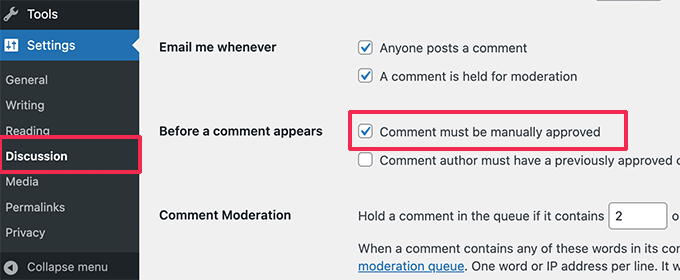
Then, you need to make checking your comments section a regular part of your site maintenance routine. It usually only takes a few minutes each day or week.
For more details, see our guide on how to moderate comments in WordPress and these tips on how to combat comment spam in WordPress.
21. Forgetting to Optimize Images for the Web
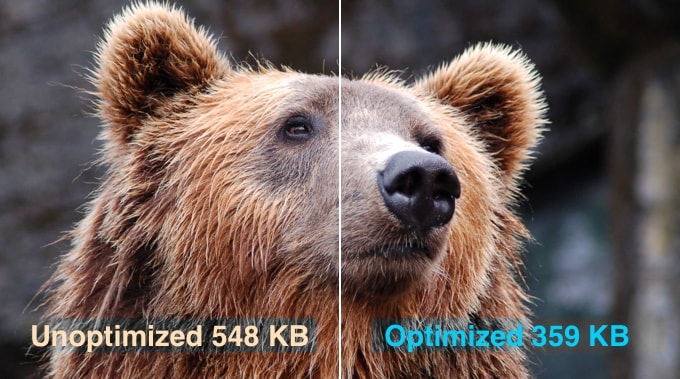
Images make a website look much more engaging. They break up text and add visual appeal.
But here’s something easy to overlook: high-resolution images from your camera or design software can have large file sizes. They are slower to load than plain text on a page.
A common mistake is uploading these big, unoptimized image files directly to WordPress.
This is a problem because large image files take longer to download when someone visits your page. This directly impacts your website’s speed.
Slow websites frustrate visitors and can make them leave before they even see your content. And remember, search engines also prefer faster sites.
That’s why I strongly recommend getting into the habit of optimizing images for the web. This significantly reduces their file size without noticeably lowering the quality, helping your pages load faster.
You can do this easily with a free WordPress plugin like Smush or by using a web-based tool to compress your images before you upload them.
22. Adding Code to the Wrong Place
As you get more comfortable with WordPress, you might find code snippets online that promise to add features or tweak how your site works.
Maybe you’ve seen instructions that tell you to add it to your theme’s functions.php file.
But adding too much code, or code that isn’t directly related to your theme’s specific appearance, into that functions.php file is a common mistake.
You see, that file is part of your theme. That means if you ever decide to switch themes, then you lose all those code modifications you added.
This file is very sensitive because it loads before almost anything else. A single typo can cause a critical error, often called the ‘white screen of death,’ which locks you out of your entire site.
That’s why the functions.php file isn’t the ideal place for most custom code snippets.
A much safer and more reliable approach is to use a dedicated code snippets plugin. This keeps your custom code separate from your theme files.
I’ve personally used WPCode to manage snippets safely and easily. It provides a dedicated place for all my custom code snippets and offers features that help prevent syntax errors that can break my site.
You can learn more about its features in our WPCode review.
There’s also a free version of WPCode to get you started.
23. Editing Files in the Wrong Area
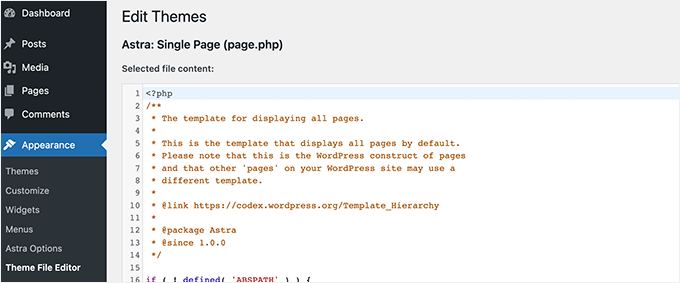
If you are using a classic WordPress theme, your dashboard includes a built-in theme file editor. You can find it under Appearance » Theme File Editor.
This can seem convenient, but using that editor to change sensitive files like your theme’s functions.php, is very risky.
Even a small typo can completely break your site and lock you out of the admin area.
While WordPress has gotten better at preventing fatal errors from saving, you can still easily make a change that renders your admin area inaccessible.
To avoid this problem, I strongly recommend not using the built-in theme and plugin editor for making actual code changes, especially when you’re starting out.
Instead, it is safer to disable the theme and plugin editor and use FTP (File Transfer Protocol) to safely edit files in WordPress.
24. Skipping Google Search Console
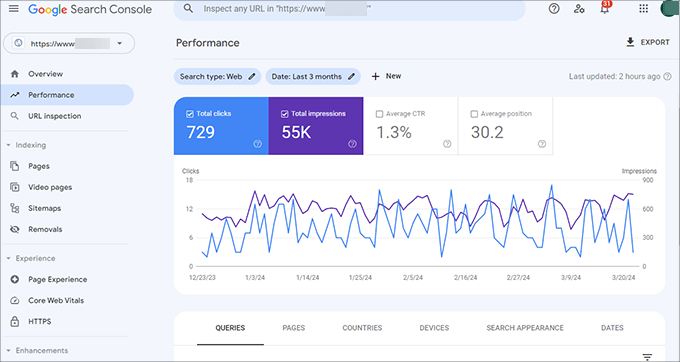
Google offers a free and helpful tool that shows you how your website is performing in search results. Google Search Console is your site’s direct communication channel with Google Search.
It shows you important information like your average position in search results, which search queries are bringing visitors, and if Google found any errors on your site that might prevent indexing.
A common mistake many users make is not connecting their WordPress site to it early on.
See our guide on how to add your site to Google Search Console (GSC) for detailed instructions.
You may also want to check out our collection of tips for using GSC to grow your site.
25. Leaving ‘Uncategorized’ as the Default Category
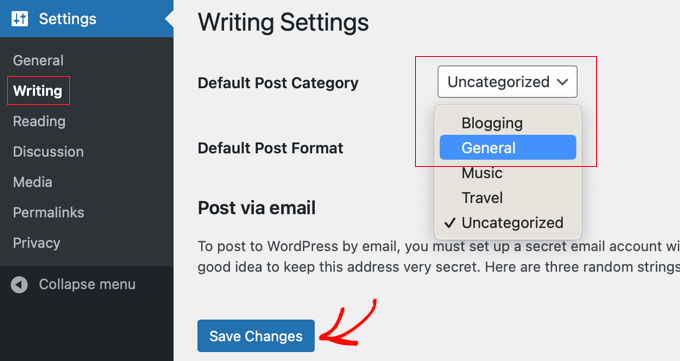
When you first install WordPress, you’ll see a default category called ‘Uncategorized’. If you don’t choose a category for a new post, WordPress automatically puts it there.
A common mistake people make is forgetting to pick a specific category when they publish a post, so it ends up filed under ‘Uncategorized’. They end up with many posts just sitting in that generic category.
To avoid this, it’s much better to choose a proper default category that’s relevant to your site’s topic.
Simply go to Settings » Writing in your WordPress dashboard, and you’ll see an option for ‘Default Post Category.’
26. Not Using a Professional Branded Email Address
When you receive an email from an address like coolwebsiteguy123@gmail.com, it can make a business seem unprofessional.
Even if your website is great, a generic email address can make you seem less credible and might cause potential customers to hesitate.
It’s a common scenario, and can make you wonder how legitimate the person or business is. Using a free, generic email address when you have a website is a surprisingly common mistake, especially when you’re trying to present yourself professionally.
With that in mind, having a professional email address that uses your own domain name, like contact@yourwebsite.com or yourname@yourwebsite.com, is important for building trust and looking credible.
The good news is that getting one is very easy. See our guide on how to get a professional business email address for free.
27. Leaving a Site Public While Still Working on It
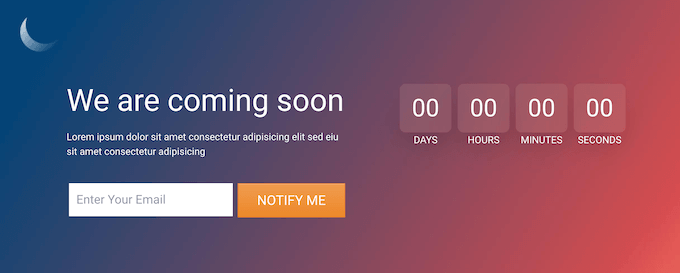
Sometimes people make the mistake of leaving their website publicly accessible while it’s still clearly under construction. It’s not fully ready and is missing important information.
Leaving your under-construction site public looks unprofessional and can cause other issues. Search engines may start crawling and indexing incomplete pages, and your competitors could see your work in progress before you’re ready.
And if potential customers find it, seeing an unfinished site can create a poor first impression.
There is an easy solution to avoid this mistake. Simply put your website in maintenance mode and add a coming soon page to build anticipation.
28. Stopping Your WordPress Education

Getting your WordPress site up and running is a major accomplishment. It’s true, the basics are surprisingly user-friendly, even if you’re not technical. You can manage content and keep things running smoothly without needing advanced knowledge.
But here’s another big, common mistake: thinking you know enough and stopping there.
While you can run a website with just the basics, by not continuing to learn, you miss out on so much.
You miss discovering features, plugins, and strategies that seem simple once you know about them, and which could improve your website or business.
Learning more helps you optimize your site’s speed, improve its security, boost your search rankings, connect with your audience better through email, and so much more.
I recommend you think about learning WordPress not as a chore, but as unlocking more potential for your site.
WPBeginner is the largest free WordPress resource site for beginners with many helpful resources, videos, how-tos, step-by-step tutorials, and more.
The following are just some of the helpful free resources you’ll find on WPBeginner:
- WPBeginner Blog: Your main source for all our step-by-step WordPress tutorials.
- WPBeginner Dictionary: A helpful resource for learning technical WordPress terms.
- WPBeginner Videos: Become a member of our video courses website for more easy-to-follow visual tutorials.
- WPBeginner on YouTube: Offers even more video tutorials. Subscribe to our channel for the latest videos.
- WPBeginner Engage: Join our free Facebook community to get your WordPress questions answered by our experts and fellow users.
- WPBeginner Deals: Find exclusive discounts on WordPress products and services for WPBeginner users.
Frequently Asked Questions About WordPress Mistakes
We hear from thousands of readers every year who are setting up their first websites. Here are the answers to the most common questions we receive about avoiding WordPress errors.
1. What is the single biggest mistake beginners make?
The most frequent error is choosing the wrong platform. Many beginners sign up for WordPress.com thinking it is the same as the self-hosted WordPress.org software.
We always recommend using self-hosted WordPress.org because it gives you full ownership of your website and the freedom to install any custom plugins or themes you want.
2. Is there a limit to how many plugins I should install?
There is no specific number of plugins that is ‘too many’. A website can run slowly with just five poorly coded plugins, while another site might run perfectly fast with 50 high-quality plugins like WPForms or All in One SEO.
The key is to choose reputable plugins from trusted developers and only install the tools you actually need for your specific goals.
3. Can I fix these mistakes after my website is already live?
Yes, most common WordPress errors, such as forgetting to install Google Analytics or neglecting image optimization, can be fixed even after your site is public.
However, some mistakes, like choosing the wrong permalink (URL) structure or hosting platform, are much easier and safer to address before you launch to avoid broken links or losing your search engine rankings.
4. Is WordPress secure by default, or do I need to do something?
While the core WordPress software is very secure, you are responsible for keeping your specific website safe. This means you must regularly update your themes and plugins, use strong passwords, and install a dedicated security plugin. We recommend using a firewall like Cloudflare or a security tool like Sucuri to protect your site from hackers.
Additional Resources
Now that you know which mistakes to avoid, here are some comprehensive guides to help you set up your website correctly from the start:
- How to Start a WordPress Blog (Beginner’s Guide)
- How to Install a WordPress Plugin – Step by Step
- Most Common WordPress Errors and How to Fix Them
- How to Properly Ask for WordPress Support and Get It
- Must Have WordPress Plugins for Every Website
If you liked this article, then please subscribe to our YouTube Channel for WordPress video tutorials. You can also find us on Twitter and Facebook.


Mrteesurez
Thanks for these article, infact it really helpful to me because I have made about 60% of these mistake, I changed theme for more than 20 times before I settled with one and I also bought some hosting add-on I didn’t use. I am using this guide to restructure my website. I urge all beginners to read this post.
Jiří Vaněk
I made some of the mistakes in my blog and now I’m just fixing them. If I had read this article a year and a half ago, it would have saved me a lot of work that I am now finishing. Thanks for the nice summary. I forgot some things myself. Great list.
Shiv
Awesome, thanks for the info
WPBeginner Support
Glad our guide was helpful
Admin
Kartik Satija
Amazing article, well written and very articulate.
Keep up the great work guys.
Cheers,
Kartik.
WPBeginner Support
Glad you found our content helpful
Admin
TimothyRaine
I started using Envira Gallery yesterday, in combination with Woocommerce, with a view to selling my photographs as prints. However, when I tried to link to Envira Gallery videos and information through Wordpress I got the following messages:
FIREFOX
An error occurred during a connection to enviragallery.com. PR_END_OF_FILE_ERROR
CHROME
enviragallery.com unexpectedly closed the connection.
ERR_CONNECTION_CLOSED
I am using Mac O SX Mojave and tried two different browsers. This is now happening with nearly all Wordpress plugin websites as in I cannot acess them. However, I can access the plugin install in Wordpress.
I have https on the domain and I’m the administrator.
WPBeginner Support
That specific error is normally due to your internet connection and/or DNS rather than WordPress itself sadly
Admin