


Are you worried about moving your WordPress site to a new domain name? It is a scary thought for many website owners.
You don’t want to lose the search rankings and traffic you worked so hard to build. One wrong move could result in broken links and lost visitors.
We have migrated hundreds of websites successfully. We know the exact steps you need to take to ensure nothing breaks during the process.
In this guide, we will show you how to easily move WordPress to a new domain without losing SEO.
Migrating your WordPress site to a new domain name can be scary, but it doesn’t have to be. We are here to walk you through every step of the process.
You can click on any of the links below to go to a particular step of migrating your WordPress site to a new domain name:
- What to Know Before You Change Domains
- Pre-Steps: What You Need to Get Started
- Step 1: Create a Duplicator Package of Your WordPress Site
- Step 2: Create a Database for Your New Domain Name
- Step 3: Unpack WordPress on Your New Domain Name
- Step 4: Set Up Permanent 301 Redirects
- Step 5: Notify Google About Your New Domain
- Notify Your Users About the New Domain Name
- Frequently Asked Questions About Moving a WordPress Site
- Video Tutorial
- Additional Resources
What to Know Before You Change Domains
Before you start, there are a few things you should know.
The process of transferring to a new domain will temporarily affect your search engine rankings since Google and other search engines will need to adjust to the changes.
It will also temporarily affect your search traffic. Please keep in mind that this is normal, and it happens to all websites that switch to a new domain.
However, you can dramatically decrease the SEO impact by following this guide. We will show you the right way of moving your WordPress site to a new domain name, setting up proper 301 redirects, and notifying search engines.
Please note that this guide is not for moving a WordPress site to a new host. This is for switching a domain name only. While the process is similar, there are a few extra steps. These extra steps will help you to protect your SEO rankings and traffic.
Lastly, if your old website is on WordPress.com, then you need to follow the instructions in our guide on how to move from WordPress.com to WordPress.org instead.
Pre-Steps: What You Need to Get Started
In this guide, we are assuming that you have your WordPress website set up on oldsite.com, and you are trying to migrate it to newsite.com.
We are also assuming that you already have a WordPress hosting account and you are familiar with your web hosting control panel.
You’ll also need to know how to use an FTP client like FileZilla or how to edit files using the File Manager app available in your hosting account dashboard.
In case you don’t have a web hosting provider or are looking to switch to a new one, we recommend using Bluehost (great for small sites + comes with a free domain) and either SiteGround or WP Engine (great for larger sites or online stores).
Once you have those things in place, you are ready to start the process!
Step 1: Create a Duplicator Package of Your WordPress Site
The first thing you need to do is create a full backup of your WordPress site.
You’ll then use this backup to create a duplicate of your website so that you can set up the redirects properly from your old domain to the new one.
While there are many WordPress backup plugins available, we will be using Duplicator for this tutorial.
Duplicator is the best WordPress backup and migration plugin. We have used it to migrate countless websites for our own businesses as well as customers. We have found it to work reliably, even for very large websites.
Note: There is also a free version of Duplicator available, which you can use for this migration. However, we recommend upgrading to a paid plan to unlock more features like automatic cloud backups, 1-click website recovery, easier migrations, and more.
Let’s start by installing and activating the Duplicator plugin on your old domain name. For more details, see our step-by-step guide on how to install a WordPress plugin.
Once activated, the plugin will add a Duplicator menu item in your WordPress admin. You need to go to the Duplicator » Backups page and then click on the ‘Create New’ button to create a new backup or copy of your WordPress site.
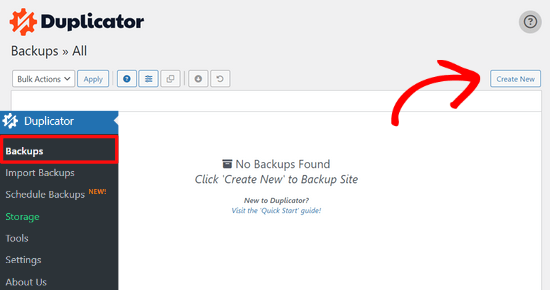
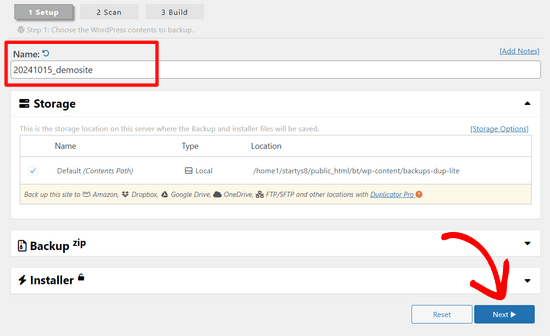
Duplicator will now initialize the backup wizard. It will automatically assign a name to this package.
Click on the ‘Next’ button to continue.
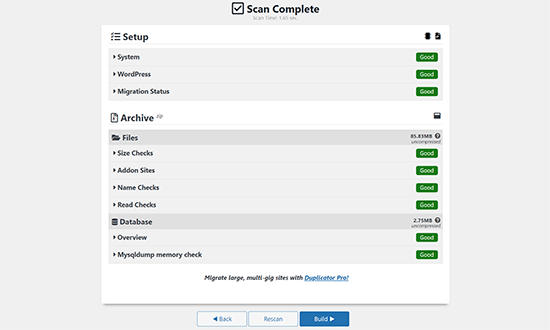
Duplicator will now run some tests to see if everything is in order. If the plugin finds an issue, then you will see a warning with instructions.
If all items are marked ‘Good,’ then click on the ‘Build’ button.
The plugin will now start creating a duplicator package of your website files. Depending on the size of your site, this process may take a few minutes.
Once finished, you’ll see a ‘Download’ option. Clicking it will show you options to download Both Files or download Installer and Archive (zip) separately.
Choose ‘Download Both Files’ to download them to your computer.
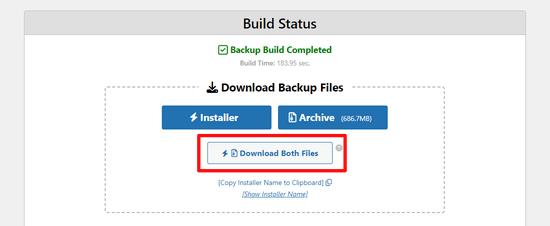
The Archive file is a complete copy of your WordPress files. It includes your WordPress themes, permalink settings, plugins, uploads, and any other files created by WordPress plugins.
The installer script is a PHP file that will automate and run the WordPress migration by unpacking the archive file.
Step 2: Create a Database for Your New Domain Name
Before moving your WordPress site to the new domain, you’ll need a new SQL database to unpack WordPress on your new domain name.
If you have already created a database, then you can skip this step.
To create a database, you need to visit your hosting account’s cPanel dashboard, scroll down to the ‘Databases’ section, and then click on the ‘MySQL Databases‘ icon.
Note: If you are using a Managed WordPress Hosting provider like WP Engine, you may not need to do this step manually. You can refer to your host’s documentation for adding a new site or database.
We will show you how to locate it on Bluehost, but the basic instructions are the same and should apply to all hosting providers.
Log in to your Bluehost account dashboard and click on the ‘Settings’ button under your website.
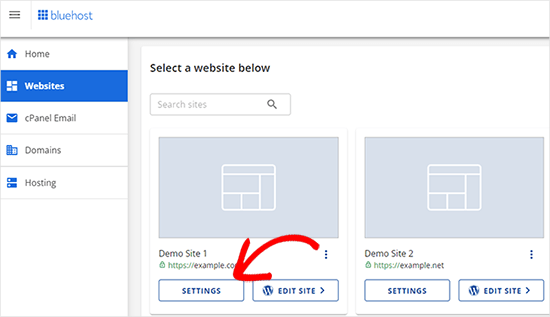
Under your site settings, you need to switch to the ‘Advanced’ tab.
Scroll down a little to the cPanel section and click ‘Manage’.
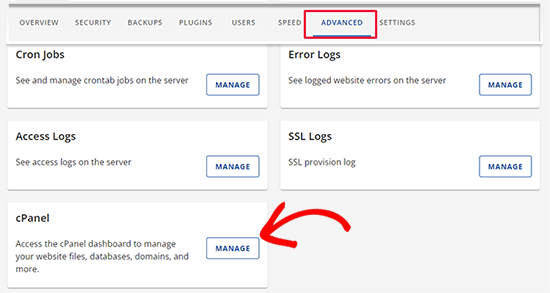
This will open the cPanel dashboard.
Scroll down to the Databases section and click on the ‘MySQL Databases’ option.
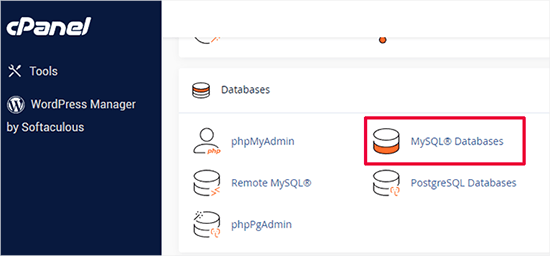
Note: Your hosting control panel may look slightly different than the screenshots. However, you should still be able to find a Databases section with an option to create a new database.
Simply provide a name for your database and then click on the ‘Create Database’ button.
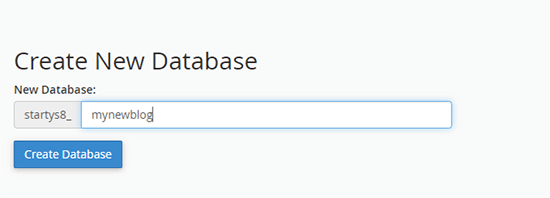
cPanel will now create a new database for you. After that, you need to scroll down to the MySQL Users section.
Next, provide a username and password for your new user and click on the ‘Create User’ button. Make sure to note the username and password in a safe place.
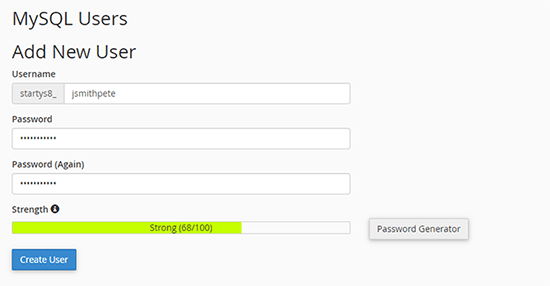
The new user you just created still does not have permission to work on the database. Let’s change that.
Scroll down to the ‘Add User to Database’ section. First, select the database user you created from the dropdown menu next to the ‘User’ field. Then select the new database you just created and click on the ‘Add’ button.
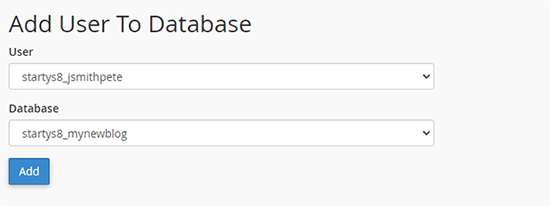
Next, you will be asked to choose privileges for the user.
Select ‘All Privileges’ and click on the ‘Make Changes’ button to continue.
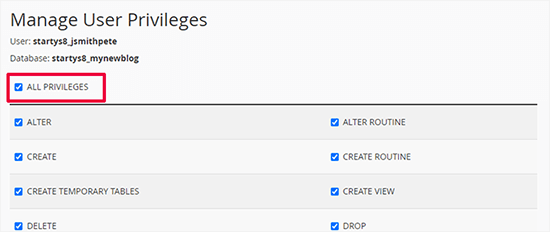
Your database is now ready and can be used to move WordPress to the new domain name.
Make sure to note down the database name, username, and password. You’ll need this information in the next step.
Step 3: Unpack WordPress on Your New Domain Name
Now, you need to upload the Duplicator files you downloaded earlier to your new domain name.
The Duplicator package includes your WordPress installation as well. This means you don’t need to install WordPress on your new domain.
First, connect to your domain name using an FTP client. Once connected, make sure that the root directory of your website is completely empty.
After that, you can upload the archive and installer files to the root directory. This is usually called public_html.
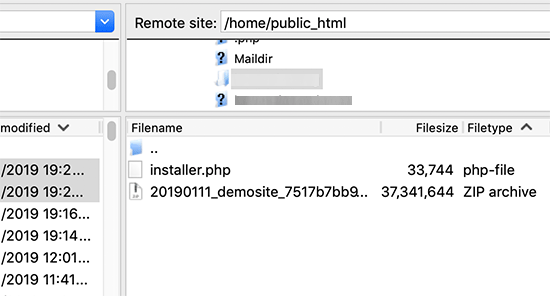
Once both files have finished uploading, you are now ready to unpack WordPress.
Open a new browser tab and go to the following URL:
http://example.com/installer.php
Don’t forget to replace example.com with your new domain name. This will launch the Duplicator migration wizard.
Note: If your new domain doesn’t open or takes you to a different page, then you may need to wait for the DNS settings to update. This can take up to 24 hours, but it usually happens much faster.
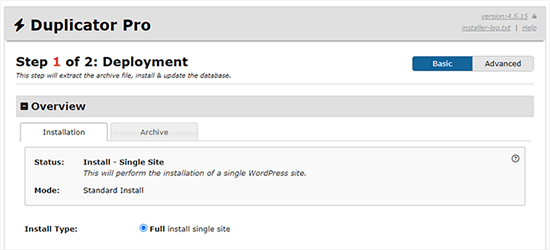
The installer will look for the archive file and then automatically select options for you on the screen.
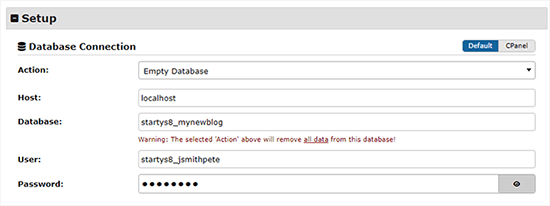
Scroll down a little to enter the information for the database you created in the previous step.
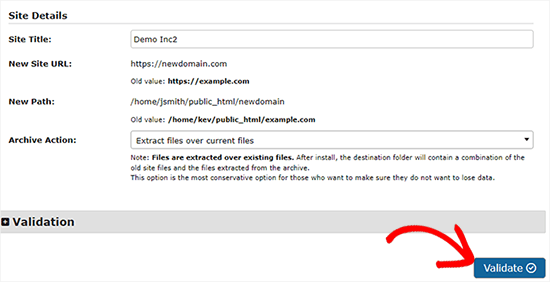
Below that, Duplicator will automatically show you the URL of your old domain and your new domain.
If everything looks good, click on the ‘Validate’ button to continue.
Duplicator will now attempt to connect to the database using the information you provided.
Upon success, it will show you a Validation Pass. Otherwise, it will show you a warning with details on how to fix it.
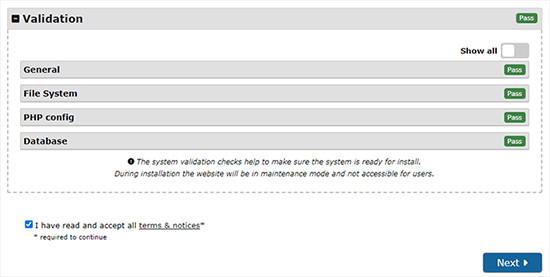
Click on the ‘Next’ button to continue.
Duplicator will now start importing your WordPress website. Once finished, you will see a success message with an Admin Login button.
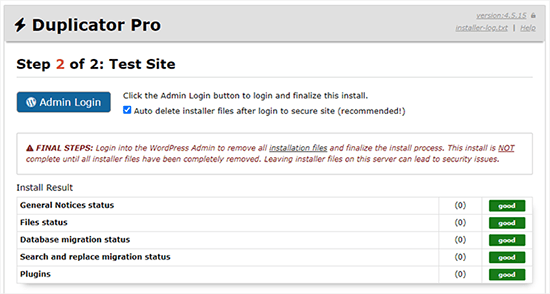
Duplicator will automatically update URLs to your new domain name. You can now click on the ‘Admin Login’ button to enter the WordPress admin area of your new site.
Once you log in, Duplicator will automatically clean up the installation files (installer.php and the zip archive). This is a critical security step, so make sure to check the notification confirming these files have been deleted.
Step 4: Set Up Permanent 301 Redirects
The next step is to point users arriving on your old domain name to the new domain. This is done by setting up 301 redirects.
301 redirects are very important for SEO and user experience. Adding them will allow you to automatically redirect users and search engines to your new domain name.
In other words, whenever someone lands on a post or page on your old domain, they will be automatically redirected to the same post or page on your new domain instead of seeing a 404 error.
At this point, you have two websites: one on your old domain and an identical one on your new domain.
To keep your redirects in place, you must keep your old WordPress installation active so it can continue to redirect visitors to the new one.
There are two ways to set up the redirects. The first method is easy and just takes a few clicks. The second method requires you to edit files manually.
Method 1: Set Up 301 Redirects With All in One SEO
For this method, you’ll need All in One SEO (AIOSEO). It is the best WordPress SEO plugin on the market and allows you to easily optimize your WordPress website for SEO.
First, you need to switch back to the WordPress dashboard of your old website. Next, install and activate the All in One SEO plugin. For more details, see our step-by-step guide on how to install a WordPress plugin.
Note: You’ll need at least the Pro version of the plugin to access the redirect manager addon. You can also set up AIOSEO on your new WordPress site to boost your search engine rankings and traffic even more.
Upon activation on your old domain, you need to visit the All in One SEO » Redirects page and click on the ‘Activate Redirects’ button.
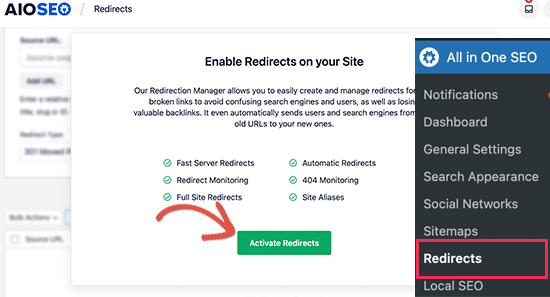
Next, you need to switch to the ‘Full Site Redirect’ tab and turn on the ‘Relocate Site’ toggle.
After that, you need to enter your new domain name next to the ‘Relocate to domain’ option.
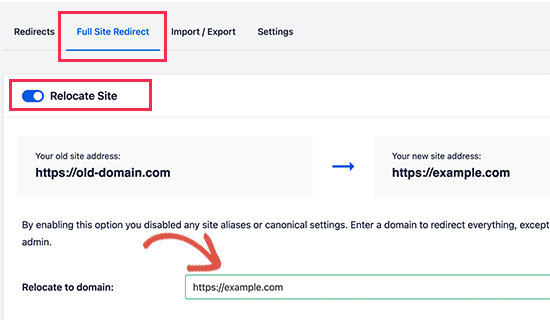
Don’t forget to click on the ‘Save Changes’ button to store your settings.
Method 2: Manually Set Up Redirects to New Domain
This method requires you to edit the WordPress .htaccess file on your old domain name.
Note: This only works if your hosting server uses Apache. If you are using NGINX (common with managed hosting like WP Engine), you won’t have an .htaccess file. In that case, please use Method 1 instead.
First, you need to connect to your old site using FTP and edit the .htaccess file.
This will be located in the same directory as your wp-includes or wp-admin folder. Open the .htaccess file and paste the following lines of code at the very top:
#Options +FollowSymLinks
RewriteEngine on
Unchanged: RewriteRule ^(.*)$ http://www.newsite.com/$1 [R=301,L]
Make sure you replace newsite.com with your new domain in the above code.
Once you have applied these changes, then visit your old domain name. It should automatically redirect you to the new domain.
If it doesn’t, then it means the redirection is not set up properly, and your server likely doesn’t support redirect rules. You need to contact the support team at your web hosting company to get RewriteEngine turned on.
Step 5: Notify Google About Your New Domain
Now that you have moved WordPress to a new domain name and set up redirects, it is time to notify Google about your change of address. This will help Google find your new website domain quickly and start showing it in search results.
First, you need to make sure that both your new and old domains are added to the Google Search Console as two different properties. See step 1 in our Google Search Console guide for instructions.
Next, you need to select the old domain name as the active property in your Google Search Console account dashboard.
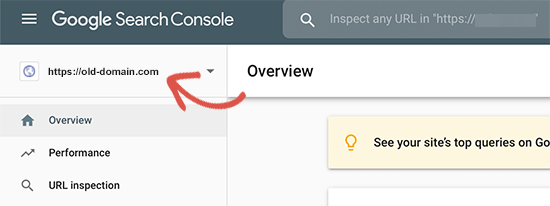
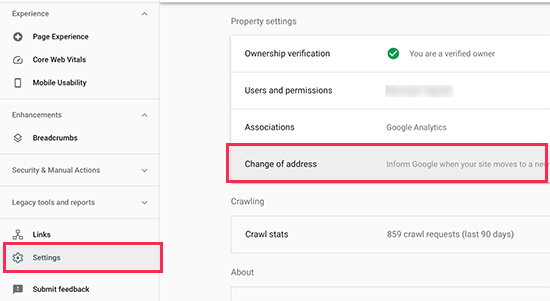
After that, click on the Settings menu from the left column.
Now, you can click on the ‘Change of address’ tool.
Now, you need to select your new domain from the Update Google section.
Then, you should click on the ‘Validate & Update’ button.
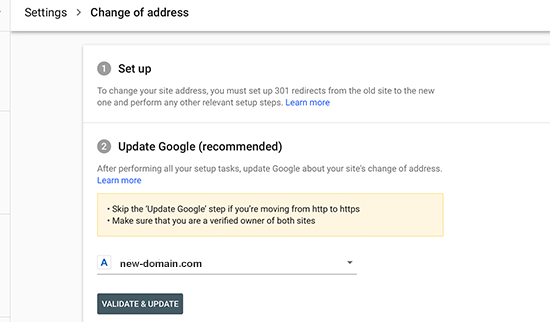
That’s all. Google will now validate that your old domain is redirecting to the new domain and save your changes.
On the next screen, Google Search Console will show you a step-by-step wizard to submit your change of address request.
Notify Your Users About the New Domain Name
While the 301 redirects do their job, it is always good to make a public announcement about the migration.
You can do this by simply writing a blog post on your new site and sharing it on your social media accounts.
If you have an email newsletter or push notification subscribers, then you should send out an announcement to them, too.
This can be helpful in a lot of ways.
First and foremost, your users are more likely to remember the new domain once they read about it.
Second, you can ask your users to let you know if they see any bugs. You alone cannot test your site in every type of browser or system environment, so it’s always helpful to have a fresh pair of eyes look at it.
Frequently Asked Questions About Moving a WordPress Site
We understand you might still have some questions about migrating your WordPress site to a new domain. Here are answers to some of the most common ones we receive to help give you complete confidence in the process.
1. Will changing my domain name permanently hurt my SEO?
No, it won’t. As long as you follow the correct steps, moving your site will not permanently hurt your SEO. While a temporary dip in rankings and traffic is normal as search engines process the change, this guide is designed to minimize that impact.
By properly setting up 301 redirects (Step 4) and notifying Google via the Search Console (Step 5), you are telling search engines exactly where you’ve moved, allowing them to transfer your existing authority to the new domain.
2. Do I need to keep my old domain after moving to the new one?
Yes, you absolutely need to keep your old domain name active for the foreseeable future. Your old domain is what hosts the permanent 301 redirects that guide both users and search engines to your new site. Letting it expire would break all of those links, leading to lost traffic and a significant drop in your SEO rankings.
3. How long does the entire domain migration process take?
The technical steps in this guide, from backing up your site to setting up redirects, can typically be completed in a few hours. However, it will take longer for search engines like Google to fully crawl and index your new domain. While notifying Google speeds this up, it can take several weeks for your rankings to fully stabilize after the move.
4. Can I move my WordPress site without using a plugin like Duplicator?
While it is technically possible to move a site manually by transferring files via FTP and exporting/importing the database, we strongly advise against it for most users.
A manual migration is complex and has a much higher risk of errors, such as missed URL updates or database connection issues. A plugin like Duplicator automates these critical steps, making the process safer, faster, and more reliable.
5. What is the main difference between moving to a new domain vs. a new host?
Think of it like this: moving to a new domain is like changing your business’s street address. Moving to a new host is like changing the company that owns the building, but your address stays the same. This guide is specifically for changing your address (domain), which has unique SEO requirements, like the 301 redirects, that are critical for success.
Video Tutorial
Additional Resources
We hope that this tutorial helped you move your WordPress site to a new domain name. The following articles and tutorials will help you track and regain your SEO rankings after migrating to a new domain name:
- The Ultimate WordPress SEO Migration Checklist (For Beginners)
- How to Check If Your WordPress Blog Posts Are Ranking for the Right Keywords
- How to Track Website Visitors to Your WordPress Site
- Tips to Optimize Your Blog Posts for SEO Like a Pro (Checklist)
If you liked this article, then please subscribe to our YouTube Channel for WordPress video tutorials. You can also find us on Twitter and Facebook.


Greta Anderson
Wow This worked great! Thanks!
Elliott Bailey
This was exactly what I was after! Thanks ED
Vikram
The installer.PHP Setup is giving 503 Internal Error Or Mis configuration on clicking on next after giving database details in installer.PHP
Jon Wilson
Thanks, it worked perfectly, and my new site is up and running!
The UIs have changed a bit so the screen shots could be updated, but it’s easy enough to figure out. The deleting the database thing is a little scary and confusing. I created a new database and installed it there, which worked well. Otherwise it might have deleted my existing (now old) database and re-written it. I wanted to leave the whole old site intact until the new site was up and then do the 303 redirect. Google’s Search Console UI has also been updated, but that’s easy enough to figure out through a quick google search.
Aditya
It Means That We Should have a New Host For The New SIte to which we are moving ..can we do it with The same hosting on which the old site is
WPBeginner Support
You can change domain names on existing host by simply changing DNS and pointing the new domain to your existing WordPress install. However, you will still need to update URLs in WordPress, setup redirects, and inform search engines about the address change.
Admin
Aditya
My Duplicator Plugin Is Not Generating Installer.php and archive file , It shows some error .
what to do
Aditya
I Am On A Godaddy Economy Linux Hosting With Cpanel
Adick
Thanks for this post, it was very helpful!
Karan Bhagat
Ooops, I am sorry I forgot to ask something in my previous comment, do I need to add newsite.com to my webmaster and analytics separately or will it track the old one ?
Karan Bhagat
Now this is what I call as perfection, did it in less than 15 minutes, no issues, working properly yet and hope no problem arrives even in future as well.
A big thanks to WPBeginner team.
Katie Steckly
so did you have to set up analytics separately? I’m wondering about that as well
Brooke Browne
This is great, thank you! I’m happy to see the plugin you recommend is still alive and kicking, so many years after posting this.
One question I have is if I need to do anything different given my scenario. I have the live old domain, and I have a live dev site that is just simply not indexed. The dev site is the one I want to push to the new domain, so I figured I could skip updating the old domain altogether. It’s fine to just do this process with devwww.olddomain.com > newdomain.com, right?
I’m just the web designer and recently lost my developer, so this is all new to me, and scary. Thanks!
WPBeginner Support
Yes.
Admin
Jasmine
Hi, I want to transfer my blog post from 2 old different niche sites to 1 new authority site. The 2 old niche websites have always been in maintenance mode but register with GWMT.
With that being said, after I transfer my 20+ post total to the new site,
Do I have to still do 301 directs and notify Google of change of address even though it hasn’t been indexed?
Sugianto
Nice post. help me a lot. but now i got new problem after do redirect. i move my old site to new sub-domain name. Now i want to install new fresh wordpress to my old domain name but after instalation when i want to access wp login area, there still login to my new sub-domain site. how to fix that? please help
umukub
If i have oldsite as deindex search engine, then I make redirect to new site. Whats the new site will have impact deindex like old site ?
WPBeginner Support
If your old site was penalized by search engines, and your new site has the same content. Sooner or later your new site will be penalized and deindexed as well.
Admin
Badger
I’ve spent the past year as managing editor of a reasonably popular academic blog. I’m thinking of using duplicator to create a copy of the blog to be stored secretly on a subdomain of my own personal website. That way, I can show prospective employers a record of my editorial work. Do you anticipate this causing any problems for the actual blog as long as I tell search engines not to index the duplicate and don’t set up 301 redirects or notify google?
WPBeginner Support
You can do that but search engines may still crawl your website. To be extra cautious we would recommend you to password protect the entire subdomain with .htaccess. This way search engines will not be able to crawl it and you can send a link along with username and password to anyone.
Admin
Karan Bhagat
Hey,
I have a confusion. Suppose I own a site oldsite and I have migrated it to newsite by redirecting it and the oldsite domain name is about to expire, do I need to renew it every year along with the newsite.com ?
WPBeginner Support
You should keep old domain for at least six months.
Admin
Carmia
Thanks so much for this helpful tutorial! I have successfully moved my site to a new domain with your help.
Prince
Don’t use duplicator it’s not copying fonts. changing with times new roman
Andy
quick question do you know what happens to Facebook likes to individual posts if I change domains and make the 301 redirect for the old one.
Do they carry over as it is a 301 redirect or will the like count drop to zero?
WPBeginner Staff
Please see: How to update URLs when moving your WordPress site
Carol Faughnan
Hi i transferred a subdomain to the main domain and the home page is without the subdomain prefix but the rest of the pages still have the prefix in place. How do I remove it? And do I still need to redirect the URLs in webmaster?
WPBeginner Staff
6-12 months just to be on the safe side.
Mathieu
Thanks. Another question: you say that the search engine rankings will be temporary affected. How great is the loss in organic visits and how long does it last?
Mathieu
Thanks you for such a comprehensive and easy guide. One question: how long do you advise keeping the old domain/site after switching to the new domain?
Tauseef
I have a wordpress.org blog. Now I changed from .com to .org, I was getting anywhere from 4,000 to 400 traffic per day. After the change over I’m lucky to get 160 max and When I went from .com to .org the domain is the exact same one.
why would this be? My domain is still .com, I just changed from wordpress.com to wordpress.org
Alex Sol
Okay, I know this is an old article but I hope I can still get a reply
1. I am thinking of moving blog.old-domain,com to newdomain.com… So is duplicator going to change all links properly? For instance, if the old site had an article: blog.old-domain.com/this-is-article, will it be now created as newdomain.com/this-is-article ?
2. Once I redirect using 301, should I do anything with the content on the old site? Should I leave it or delete it? If I do leave it, I guess I have to keep renewing the old domain as well?
Thanks!
stew7645
Thanks, I found this guide extremely useful and well explained. Managed to move my site from one domain to another in about an hour
WPBeginner Staff
Yes, it is a good idea to submit your sitemap to Bing as well.
Christian Locke
great tutorial, major time saver. I notified Google of the changes through the webmaster tools and it was a breeze. Just want to ask, do you recommend also doing the same thing in Bing webmaster tools? I don’t really put much emphasis on Bing in general but if it would help somehow, I would do it. The process is more complicated and if it can be avoided that’s really what I want to hear but if it’s a good idea, I will take the time to do it. Thanks for offering us this tutorial and taking the time to reply to our questions!
Joe
This article was definitely not written for a beginner. I got stuck around here: “Make sure that the root directory, or the directory where you want to copy your website is completely empty. ” What is the root directory? Then I don’t know what credentials to use to log in anyway.
markyh2904
Sorry I’m late to the party but I’ve only just come across this post when looking how to move one of my WP sites
I have been penalised by G (penguin 3) on one of my music sites as I stupidly bought too many bad link packages from fiverr a few years ago and my domain is just considered spammy now.
Will this work if I want to swap my site content to a new domain BUT not 301 my old site to the new site? And if so,should I de-index my old site immediately after the transfer or before?
Thank you in advance
Hicham Alaoui
Hello,
I displaced my website “http://www.mywebsite.com” to “http://www.mywebsite.com/blog” and after a few months, I displaced posts as before and I deleted all content from /blog.
The problem is that Google still reference the same article as duplicate content, I do the redirection links manually, but there are more than 9000 links deemed not found, I will not finish!
I tried to solve this problem with the tool of Yoast “https://yoast.com/wp-content/permalink-helper.php,” but either it doesn’t work for me, or that I haven’t understand how.
Do you have a solution please?
Thank you.
Tom Durkin
I’ve not thought about looking for a plugin to handle this, will have to take a look!
John R. Meese
Glad to do it!
WPBeginner Staff
If your temporarily URL was public and you didn’t block search engines, then there is a chance that search engines may have crawled the URL. Sometimes a URL may not appear in search index but is still out there and can appear at any time. So you should setup a 301 redirect just to be safe.
On the other hand, if you are pretty sure that it was not crawled or indexed by search engines then you don’t need to set up 301 redirect.
As for step 2. please see our guide on how to use FTP to upload or edit WordPress files.
Chad
If I am just moving from a temporary URL to my permanent URL, should I still do a 301 redirect? Also, if I didnt submit the site to GWT’s yet, I assume I don’t have to change address in GWT’s, just submit to GWT’s after the domain transfer is done, correct? Lastly, in the middle of step 2 above, “Next you need to open your FTP and connect to your new site”….what dose this mean exactly? Open FTP and connect to what? Thanks anyone, pretty newbie here.
WPBeginner Staff
Did you take a look at our free blog setup service.
WPBeginner Staff
Beth, we have a tutorial on how to move a WordPress.com site to Self Hosted WordPress.org
As for your concern about Google Indexing a site that you don’t want to be indexed. You can add a robots.txt file to the root directory of that domain and instruct Google and all other bots not to crawl or index that site.
Beth Terry, CSP
Thank you! You guys are great! I’m a little ahead of the game and did some things out of order. I moved all content to a newly redesigned blog site at a subdomain Then I switched around the theme, etc on the WP.com blog.
I already own the name of my active blog and have been using that for 7 years at the dot com site. So I do have some readers and a ton of content and I have it linked to Twitter and LinkedIn.
I would think that pointing CactusWrangler to my new subdomain blog should bring my indexing and followers with it, but maybe not. All the content and media is on the new site. I did it all with Jetpack plug in… So am I just ready to tell GoDaddy my new DNS information? Unfortunately, Jetpack’s WP support is out till Sept 24!
Yikes ! My goal is to make my website and blog look similar so the linking back and forth is smooth and congruent. Once I get this done, I need to switch the themes on the main website which is an active site since 1998.
I dont’ know how you do this for a living! My eyes are bleary and my brain is mush! ;-D
Beth Terry, CSP
Does this also apply to moving from WP.com to WP.org? I created a subdomain on my website for my blog so I could create a new design. I have had a blog on WP.com and moved the content to the new design. Now I have two identical sites and I need to shut down the .com one before google marks my new one as fake. I’m trying to figure out the next steps. I haven’t technically gone “live” with the subdomain yet, so my URL for the blog still points to the .com site. The comment below about subdomains concerns me. Is there something I need to watch out for?
I know I’m about 3 steps away from solving this, just not sure how to proceed. Thanks for an informative article!!
David
I was dreading moving my wife’s large site to a new URL. Your instructions are the clearest I could find and the process was not so bad after all. Thanks so much. Best of all, it all works. Still have a few page titles, and SEO settings to manually change. Now I don’t have quite the depth of gratitude in the bank with my wife as I had hoped for, but that’s all for the best, I suppose.
Jenny
This was amazing. An absolute lifesaver. Great article!!
Keshav
Hi, I want to move my wordpress blog from blog.yoursite.com to news.yoursite.com Also, I want to change the URL structure from /postname to /post_id/postname
How shall we proceed with this for URL redirection?
Alberto
Hi!
I have a multisite install. I want to move just one website from that installation.
I already have the new website up and running and just need to make the 301 redirects.
The website I’m moving is oldsite.com/the-site and I’m moving it to newsite.com
How can I do this without redirecting all the websites in the multisite installation?
WPBeginner Staff
No, if your users can still access your site and posts at the same URLs as they did before then you need to set up 301 redirection. But if they can’t then this means search engines cant do that either. That way you will be losing a lot of traffic and your search rankings as well.
Susan Finch
Well, since the old domain will simply be a redirect to the new one, this can be problematic since results are all absolute in search engines. Guess I have some 301s to create. Thank you for the quick reply.
Susan Finch
We are simply changing our WP URL – not moving. Are 301 redirects still needed if we follow permalink and notify users steps?
Simon Somlai
The url currently looks like this http://www.oldsite.com/newsite.com how do I change this to a regulat newsite.com?
John Meese
You’ll need to add “http://” before newsite.com for it to work correctly.
Simon Somlai
Alright John! I got it working Thanks for your help man
Vishal Kumar
Simple yet effective… Thanks WPBegginner team.
I have one more query.. It has been 20 days i have moved my site to the new domain successfully by following the above steps. Now given that the old domain is still live and redirects users to new domain, should i consider deleting the old domain data to avoid duplication penalties. Kindly suggest…
Tim Ludy
Great resource thanks! Is there a way to only redirect the blog articles and not the entire site? We’re creating a whole new website for one area of a business so only some of the old websites pages are switching to the new site and the rest are staying on the old site.
Om Livin'
Quick question about Pinterest…would I need to go and change all my pinned links??
Hieu Nguyen
Excellent! Just what I’m searching.
But if I don’t want to move the WP site, is it possible to just change the URL only?
WPBeginner Staff
you can exclude subdomains from your .htaccess file by adding this line just before the RewriteRule line :
RewriteCond %{HTTP_HOST} !^subdomain.example.com$ [NC]
Shah Jahan
Hi, Thanks for the reply, i have added the code,
RewriteCond %{HTTP_HOST} !^subdomain.olddomain.com$ [NC]
RewriteRule ^(.*)$ http://www.newdomain.com/$1 [R=301,L]
now when i try to access subdomain.olddomain.com it redirects to newdomain.com/subdomain.olddomain.com
Shah Jahan Labar
I have some sub domains, when i tries to apply the redirect rule my subdomains also got redirected .
Kasa
What about redirecting subdomain to new different domain?
Is process the same, as you cant change address for subdomain in webasters tools.