


If you’re running a WordPress multisite, there may come a point when one of your sites needs to operate independently. That can happen when a site grows, requires different plugins, or simply needs complete control outside the network.
Separating a site from multisite can feel complicated, especially when you want to keep all your content, settings, and SEO exactly as they are.
Fortunately, the process is completely manageable. I’ve helped many users move sites out of multisite networks, and in this guide, I’ll walk you through each step so you can make the transition smoothly, even without technical experience.
Quick Summary for Moving Multisite to Single Install
Moving a WordPress site can feel like a big task, but it really comes down to choosing the right method for your needs.
To help you decide, here’s a quick look at the two main ways to move a site from a multisite network to its own single installation:
| Method | Summary | Pros | Cons |
| Using a Plugin (Duplicator Pro) | Use a dedicated migration plugin to create a complete copy of a sub-site and move it to a new single installation. | Easiest and safest method. Migrates everything (content, themes, plugins, settings). Great for beginners. | Requires a premium plugin subscription. |
| Using WordPress Tools (Manual) | Use the built-in WordPress export/import tools to move your site’s content to a new, separate WordPress installation. | Free to use. Doesn’t require a premium migration plugin. | Only moves your content (posts, pages, comments, etc.). It does not migrate your theme, plugins, or site settings, which you must set up manually. Higher risk of error. |
For most users, especially beginners, I recommend using a plugin like Duplicator because it’s much safer and handles everything for you.
However, the manual method works too if you’re comfortable with a more hands-on approach.
Why Move a Site From WordPress Multisite to a Single Install
In a WordPress multisite network, each individual website is called a ‘sub-site’. A great way to think of it is like an apartment building: the network is the building, and each sub-site is one of the apartments inside.
But what happens when one of those ‘apartments’ is ready to become its own standalone house?
That’s a situation I see all the time. A sub-site that started as a small project has grown into its own brand and needs more freedom to expand.
Here are the most common reasons for making the move:
- You Need Full Control and Flexibility: In a multisite, themes and plugins are managed at the network level. I’ve seen many users get frustrated when they can’t install a specific plugin or theme they need. Even worse, some plugins aren’t compatible with multisite at all. A single install gives you complete freedom.
- You’re Handing a Site Over to a Client: Many freelancers and agencies develop client sites on their own multisite network. When the project is finished, you need to move the site to the client’s own hosting. This process gives them full ownership and control over their new website.
- Your Site Has Outgrown the Network: When a site becomes successful, it deserves its own domain for better branding and SEO. Moving it out of a shared subdomain or subdirectory helps establish it as a distinct entity in the eyes of both users and search engines.
- You Want Better Performance or Lower Costs: As a multisite network grows, it can put a heavy load on your server, slowing down all the sites. This often forces you into more expensive hosting plans. Moving a high-traffic site to its own, optimized hosting can improve its speed and sometimes even reduce overall costs.
While moving a site feels complex because of how multisite shares its database and user roles, don’t worry. The methods I’ll show you are designed to handle this safely.
Let’s dive into the step-by-step instructions for each method:
- Method 1: Move a Sub-Site to a New Domain With a Plugin
- Method 2: Move a Sub-Site Manually (The Free Method)
- Final Step: Setting Up Redirection and Deleting the Old Site
- Troubleshooting the Migration
- Frequently Asked Questions About Multisite Sub-Site Migration
- Additional Resources: Next Steps for Your New Single Site
Method 1: Move a Sub-Site to a New Domain With a Plugin
This is the method I highly recommend for most users.
I’ve seen it save beginners countless hours and prevent the typical headaches that come with manual migrations. Using a dedicated migration plugin like Duplicator Pro is the safest and most reliable way to move your site to its own new domain.
The great thing about Duplicator is that it bundles everything from your sub-site (content, themes, plugins, users and their specific roles, and settings) into a single, portable package. This avoids the common pitfalls of manual methods, where settings or files can be left behind.
Let’s walk through the process.
Step 1: Install and Set Up the Duplicator Plugin
First, you’ll need to install and activate the Duplicator plugin.
While there is a fantastic free version of Duplicator that’s perfect for standard websites, for this specific job, you will need Duplicator Pro.
The reason is that the Pro version has a specific feature for multisites. It allows you to take a single sub-site from your network and turn it into its own independent install package, leaving the rest of your network untouched.
Once you’ve purchased Duplicator Pro, you’ll need to install it from your Network Admin dashboard and ‘Network Activate’ it so that it’s available for all your sub-sites.
This is the main control panel you use as the Super Admin to manage the entire network.
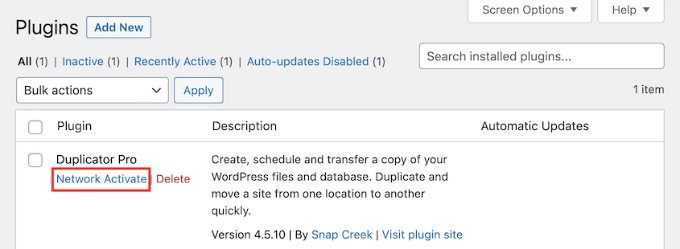
For a detailed walkthrough, you can follow our guide on how to add themes and plugins to your WordPress multisite network.
Step 2: Create a Backup of the Sub-Site You Want to Move
The first step is to create a backup of the individual sub-site you want to move. This package will contain all of its content, themes, plugins, and settings, ready to be moved to its new home.
From your Network Admin dashboard, navigate to Duplicator Pro » Backups and click the ‘Add New’ button at the top.
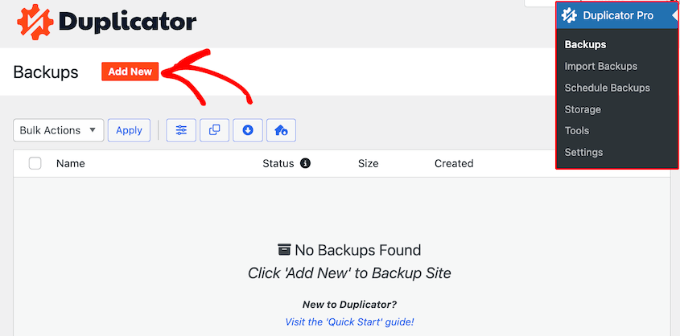
This will take you to the setup screen.
First, you will notice the backup name uses dynamic tabs to help you remember which sub-site it’s for. Under ‘Storage,’ make sure the ‘Local’ option is selected. This is the default and simplest option.

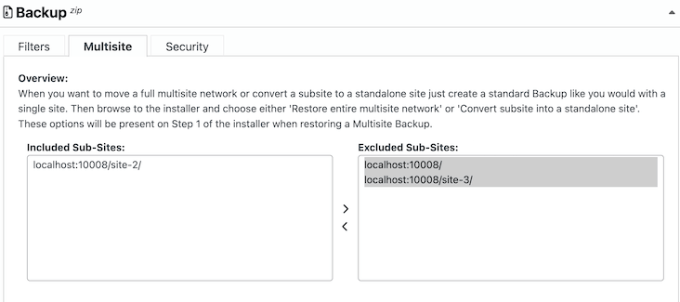
Next, scroll down to the ‘Backup’ section and click on the ‘Multisite’ tab. You’ll see two boxes: ‘Included Sub-Sites’ and ‘Excluded Sub-Sites’. By default, all your sites will be in the ‘Included’ box.
Your goal here is to isolate just the one sub-site. Click and drag all the sites you don’t want to back up from the ‘Included’ box over to the ‘Excluded’ box.
When you’re done, only the one sub-site you’re currently backing up should remain in the ‘Included’ box.
Now, click the ‘Next’ button at the bottom. Duplicator will scan your site.
If everything looks good, click the ‘Create Backup’ button.
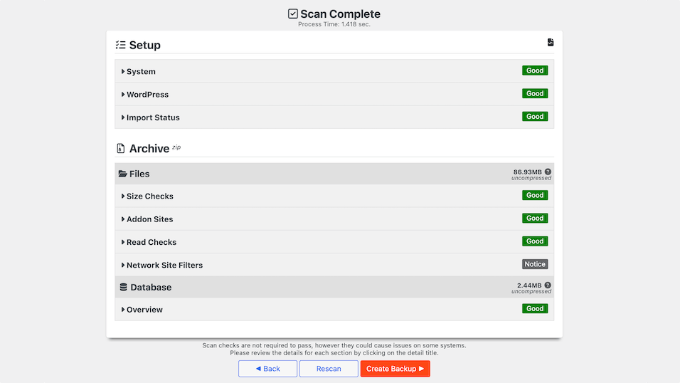
Once it’s finished, you will be taken to the download screen.
For this import method, you only need to download the Archive file to your computer. This single file contains all your sub-site’s data, content, and settings.
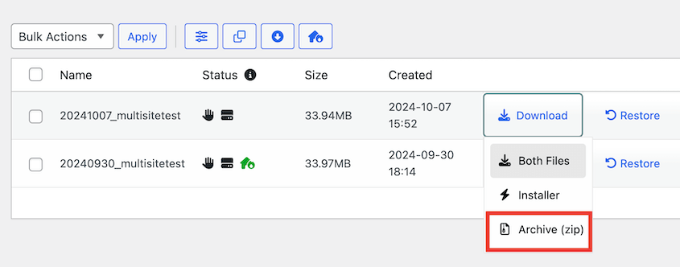
Step 3: Prepare Your New WordPress Site
Next, you will need a new home for your website. This means you’ll need a new hosting account and a domain name.
If you need any recommendations, see our pick of the best WordPress hosting with reliable providers that include free domain names.
Once you have that, go ahead and install a fresh, empty WordPress site at the new location. This will be the destination for your migration.
Don’t worry about the default ‘Hello World’ post or sample page on the new site. The migration process will completely overwrite this with your sub-site’s content.
Step 4: Restore Your Sub-Site to the New Location
Next, log in to your new, empty WordPress site and install the Duplicator Pro plugin (you can use the same license key).
Once Duplicator is active, navigate to Duplicator Pro » Import in the left-hand menu. Drag and drop the Archive file you downloaded in Step 2 onto the page.
From here, Duplicator will launch its installation wizard. It will guide you through the final steps to validate the process and overwrite your empty site with your sub-site’s complete content, themes, and settings.
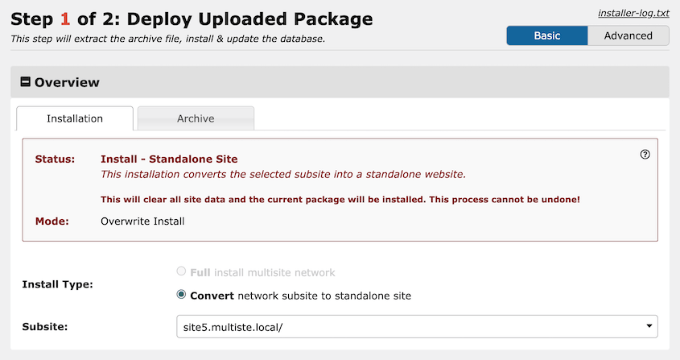
Congratulations! Your new site is now live on its own domain.
To complete the move and protect all of your hard-earned SEO rankings, you must set up redirects (below). This final, essential step tells search engines and visitors where to find your site’s new home. Head to the next section for the must-do instructions.
Method 2: Move a Sub-Site Manually (The Free Method)
If you’re on a tight budget or prefer a more hands-on approach, you can move your sub-site using the free, built-in WordPress tools.
Be warned, though: while this method is free, you pay for it with your time. It’s not for the faint of heart, and you should be prepared for some manual work to get your new site looking right.
The main limitation is that this process only moves your content (posts, pages, comments, and users). It does not move your theme, plugins, or your site settings.
You will have to set all of that up again manually. But don’t worry, I’ll guide you through it.
Step 1: Export Your Sub-Site’s Content
First, you need to export the content from the sub-site you want to move. Log in to your WordPress multisite and go to the dashboard of that specific sub-site.
From the left-hand menu, navigate to Tools » Export.
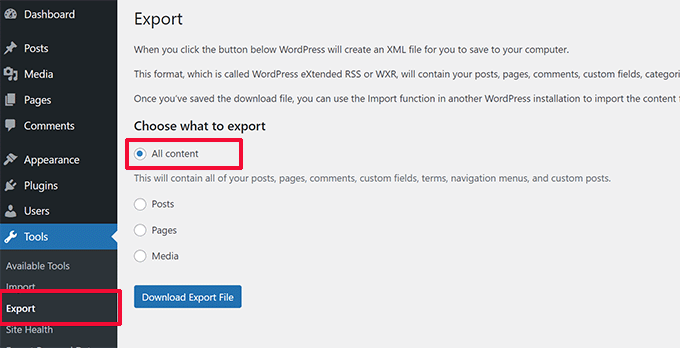
You’ll be asked what you want to export. The best option is to select ‘All content’, which includes your posts, pages, navigation menus, and more.
Click the ‘Download Export File’ button.
Your browser will now download an XML file to your computer. This file contains all your content in a portable format.
Step 2: Prepare Your New WordPress Site
Next, you’ll need a new, empty WordPress installation where your sub-site will live. This will be its new independent home.
Most hosting providers offer a ‘one-click’ WordPress installer.
For detailed instructions, you can follow our complete, step-by-step guide on how to properly install WordPress.
Step 3: Import Your Content Into the New Site
Log in to the dashboard of your new, empty WordPress site. To import the content from your XML file, you’ll need to use the WordPress Importer tool.
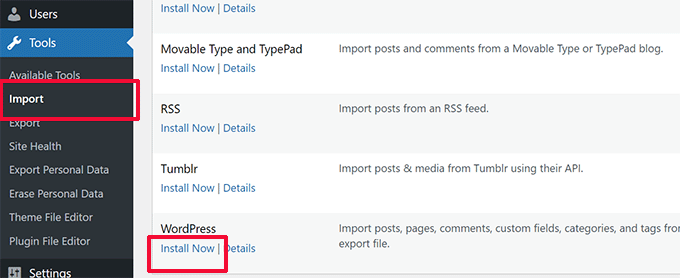
Go to Tools » Import. In the list of importers, find ‘WordPress’ and click the ‘Install Now’ link. After a moment, the link will change to ‘Run Importer’. Click it to proceed.
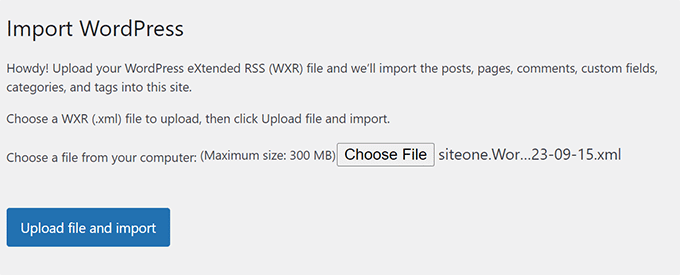
On the next screen, click the ‘Choose File’ button and select the XML file you downloaded in Step 1.
Then, click ‘Upload file and import’.
You will then be asked to assign the authors for the content you’re importing.
You can either assign the posts to an existing user on your new site or create new users with the same names.
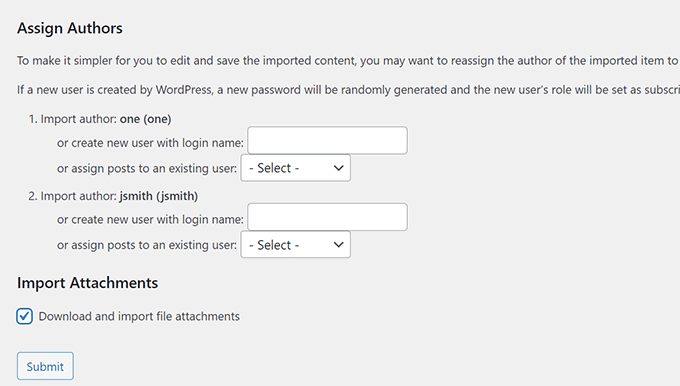
Make sure you check the box that says ‘Download and import file attachments’. This is crucial for bringing over your images.
Note: Your old sub-site must be publicly accessible for this to work. If your old site is in maintenance mode or password-protected, the importer won’t be able to download the images.
Then click the ‘Submit’ button.
WordPress will now start importing your content. Depending on how much content you have, this will take a few minutes. Once it is done, you will see a notification that says, ‘All done. Have fun!’

Step 4: The Post-Migration Checklist
At this point, all your content has been moved, but your site probably looks nothing like it did before. This is the manual part I warned you about!
Here is a checklist of what you need to do to get everything back in order.
- Install Your Theme: Go to Appearance » Themes and install the same theme you were using on your old sub-site.
- Install Your Plugins: Go to Plugins » Add New and reinstall the plugins you were using.
- Set Up Your Menus: Your imported menu should be available, but you’ll need to assign it. This process varies depending on your theme (classic vs. block). Our detailed guide shows you exactly how to add your navigation menu for any theme type.
- Configure Your Widgets: You’ll need to reconfigure your sidebar, footer, and other widget areas. The method depends on your theme (classic themes use the Widgets screen, while block themes use the Site Editor).
- Check Your Site Settings: Go through the settings in Settings » General and Settings » Reading to make sure your site title, tagline, and homepage settings are correct.
- Check Your Permalinks: Go to Settings » Permalinks and make sure you select the same URL structure you used on your old site. This is a critical step to prevent broken links.
Great work. Your content has been moved, and your new site should be set up correctly.
The final, and arguably most important, step is to set up redirects to protect your SEO. Please move on to the next section for instructions on how to do this.
Final Step: Setting Up Redirection and Deleting the Old Site
This is the most important step for preserving your SEO and ensuring a good user experience. Whether you used Method 1 or Method 2, you must set up a 301 redirect.
This permanently sends visitors and search engines from your old sub-site URL to your new single-site domain, transferring all your ranking authority.
You will set up this redirect on your old multisite network, from the dashboard of the sub-site you are moving away from.
First, you need to know which type of multisite setup you were using. The redirect rules are different for each:
- Subdirectory Setup: Your old site URL looked like
network.com/subsite/. - Subdomain Setup: Your old site URL looked like
subsite.network.com/.
Choose one of the options below and follow the instructions that match your old setup.
Option 1: Setting Up Redirects with All in One SEO (AIOSEO)
In my experience, the easiest and safest way to set up redirects is by using the Redirection Manager in All in One SEO (AIOSEO). It’s the best WordPress SEO plugin, and it lets you redirect an entire site in just a few clicks, without any risk of code errors.
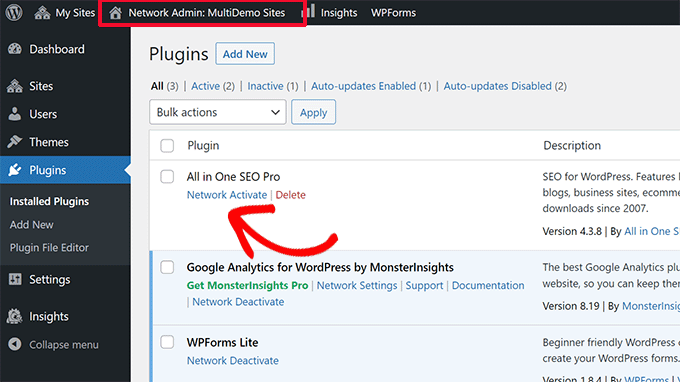
First, you’ll need to install and activate the AIOSEO Pro plugin on your multisite network. From your Network Admin » Plugins page, find All in One SEO Pro and click ‘Network Activate’.
Next, you need to make sure the ‘Redirection’ addon is active.
Navigate to All in One SEO » General Settings and click on the ‘Redirects’ tab. If it’s not already on, toggle the switch to enable AIOSEO’s Redirection Manager.
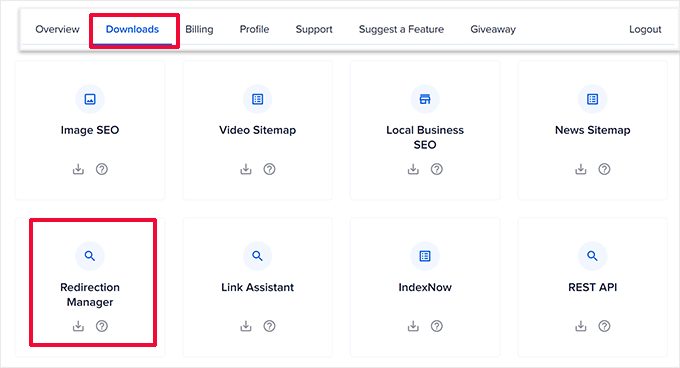
Now, go to the dashboard of the specific sub-site you are moving away from. From its dashboard, navigate to All in One SEO » Redirects and click on the ‘Full Site Redirect’ tab.
Toggle on the ‘Relocate Site’ setting. In the ‘Relocate to domain’ field, enter the full URL of your new single site (e.g., https://newdomain.com). Don’t forget to save your changes!
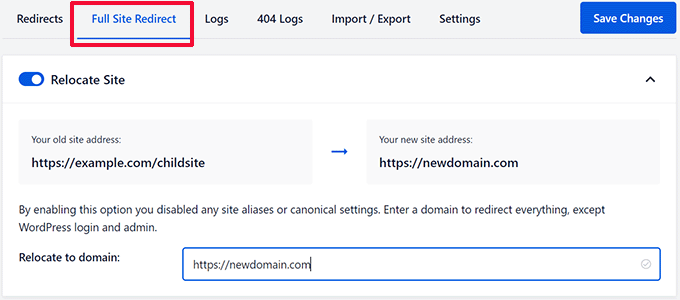
AIOSEO will now automatically handle all the 301 redirects, sending both users and search engines from the old sub-site to the new domain, protecting your SEO.
Option 2: Setting Up Redirects With the Redirection Plugin
Another great option is the free Redirection plugin. You will need to install and activate it on your old multisite network.
Once activated, go to the dashboard of the specific sub-site you are moving. From there, navigate to Tools » Redirection.
The easiest way to redirect your entire site is to use the ‘Site’ relocation feature. Click on the ‘Site’ tab at the top of the page. In the ‘Relocate to domain’ field, enter the full URL of your new single site (such as https://newdomain.com) and save your changes.
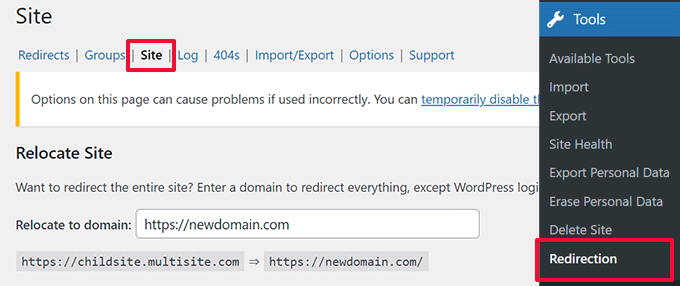
This will automatically redirect all traffic from your old sub-site to the new domain.
Alternative: Setting Up a Manual Redirect
If you only need to redirect a single page or a specific path, you can do so from the ‘Redirects’ tab. However, for moving an entire site, I strongly recommend using the ‘Site’ tab feature described above.
To create a manual rule, click the ‘Add New’ button.
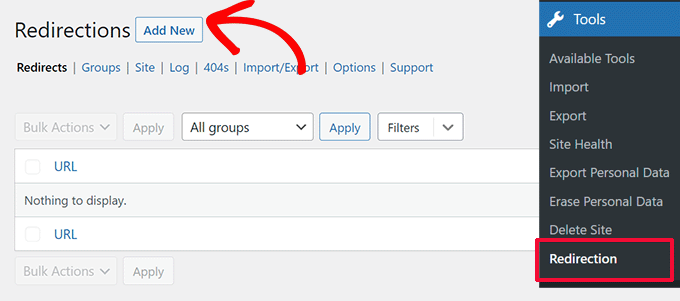
Now, you need to fill in the redirect details:
- Source URL: This is the part of the URL on your old site that you want to redirect.
- Target URL: This is the full URL of the corresponding page on your new single site.
Click ‘Add Redirect’ to save the rule.
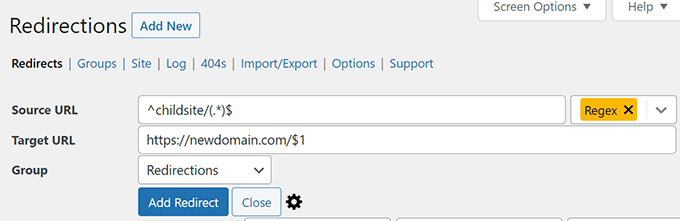
For example, if your old site was a subdirectory (network.com/subsite/), you could enter /subsite/ as the Source URL and https://www.newsite.com/ as the Target URL to create a basic redirect.
However, properly redirecting a full subdomain requires advanced regular expressions (Regex), which are complicated and can cause errors if not written perfectly.
For this reason, I do not recommend this method for beginners. The ‘Site’ tab’s relocation feature handles this for you automatically and is by far the safest choice.
Option 3: Setting Up Redirects Using the .htaccess File
This method is for advanced users, as a small mistake in the .htaccess file can make your site inaccessible.
First, you will need to connect to your old multisite’s hosting account using an FTP client or your host’s File Manager. Once connected, locate the .htaccess file in your multisite network’s root directory to edit it.
For Subdirectory Setups (e.g., network.com/subsite)
Add the following code to the top of your .htaccess file. Be sure to replace subsite with your actual sub-site directory name and http://www.newsite.com with your new domain:
RewriteEngine On
RewriteRule ^subsite/(.*)$ http://www.newsite.com/$1 [R=301,L]
For Subdomain Setups (e.g., subsite.network.com)
Add the following code to the top of your .htaccess file. Replace subsite\.network\.com with your old subdomain and http://www.newsite.com with your new domain:
RewriteEngine On
RewriteCond %{HTTP_HOST} ^subsite\.network\.com$ [NC]
RewriteRule ^(.*)$ http://www.newsite.com/$1 [L,R=301]
Excellent work. You’ve successfully navigated all the hands-on steps of the manual migration.
Your content is moved, your site is set up, and you’ve put the crucial redirects in place to protect your SEO. Your new, independent site is now live and ready to go.
Testing the Redirect & Deleting Duplicate Content
After setting up your redirect using one of the methods above, open a new browser window and try to visit your old sub-site URL. You should be redirected to your new domain immediately.
Once the redirect is working, you’ll want to remove any duplicate content from the old sub-site. This prevents search engines from indexing two versions of the same pages.
This means that you need to delete the posts and pages on your old sub-site, but do not archive or delete the site itself. This avoids duplicate content without breaking your redirect settings.
Troubleshooting the Migration
Even with a careful migration, it’s not uncommon to run into a few issues. Here are the most common problems I’ve seen users face and how to fix them quickly:
1. Export File Too Large: If your WordPress export file is too large, you may fail to import it properly. You may need to split a large XML file into smaller pieces to fix this.
2. Images Not Imported: Another common issue is that images may not import correctly to your new site. To fix this, you can try importing them as external images.
3. Redirects Not Working: If users are not being redirected correctly to your new site, you need to carefully review your redirect settings. Ensure that your single install and the child site use the same Permalinks structure.
For other issues, see other common WordPress errors and how to fix them.
Frequently Asked Questions About Multisite Sub-Site Migration
I know that moving a website can bring up a lot of questions. Here are the answers to some of the most common ones I get from our readers.
1. Will moving my site from multisite affect my SEO?
If done correctly, moving your site should not negatively impact your SEO. The most important step is to set up proper 301 redirects from your old URL (e.g., network.com/subsite/) to your new domain (newsite.com). This tells search engines that your site has permanently moved, and they will pass along your existing ranking authority to the new address.
2. What happens to my themes and plugins when I manually move a site from multisite?
The manual WordPress export tool only includes your content (such as your posts, pages, and media info). It does not export your theme files, plugin files, or settings.
You will need to manually install your theme and plugins on the new single-site installation and configure their settings from scratch.
3. Can I use Duplicator to move a sub-site to a completely new domain/hosting?
Yes, Duplicator is perfect for this. Instead of importing the sub-site backup onto your existing multisite, you would perform a standard Duplicator migration to a new, empty WordPress installation on your new hosting account.
4. Do I need to delete the old sub-site after the migration is complete?
You should not delete the old sub-site, because doing so will remove the redirect settings and break your 301 redirects. If you used a plugin to set up redirects, keep the sub-site active and simply delete its posts and pages to avoid duplicate content.
If you prefer to archive the sub-site, then you must use server-level redirects (such as the .htaccess method), because plugin-based redirects will not work on an archived site.
Additional Resources: Next Steps for Your New Single Site
I hope this article helped you successfully move your site from a WordPress multisite to a single install.
Now that your site is independent, here are some essential guides to help you manage and grow it effectively:
- The Ultimate WordPress Security Guide (Step by Step) – Keep your new standalone site safe and secure.
- How to Properly Move WordPress to a New Domain Without Losing SEO – A detailed guide on changing domains, which is a common next step.
- The Ultimate Guide to Boost WordPress Speed & Performance – Now that your site is on its own, learn how to make it super fast.
- How to Choose the Best WordPress Hosting – Learn about the best hosting options for your standalone website.
If you liked this article, then please subscribe to our YouTube Channel for WordPress video tutorials. You can also find us on Twitter and Facebook.


Jiří Vaněk
Recently, one of our customers asked me the same question (I work for a web hosting provider in the Czech Republic). At the time, I didn’t know you had such a great tutorial on this. I’ll know next time.
Ralph
I have 2 websites installed with multisite method on 1 hosting. I want to move 1 of them to another host, and leave one where it is. Should i export that 1 website and then transfer it to another hosting or should I do something else?
WPBeginner Support
If we understand what you’re wanting to achieve then yes you would want to export then transfer the site.
Admin
Nick James Hipol
Hi, just the blog post I needed.
Can I now delete the subdomain where I made the redirection from?
Like delete the files and stuff?
Thank you!
Parul
Works great! Just make sure to add all the plugins first then do the importing.
It worked for most of the things.. just had to re-configure few menu points and theme customization.
frank
Hi there,
I have a problem with deleting a website in multisite installation (mainsite.com and oldsite.com). I deleted the second site (oldsite.com) through the wordpress multisite options and I uploaded a newsite in a deferent folder. my is issue is when I type newsite.com/wp-admin it sends me to mainsite.com/wp-admin
how to fix it?
Humberto wanke
Great post!
In exporting/importing,however, you may want to do via sql data base, and the plugins should be put one at a time. Overall, it’s quite simple following your instructions.
Thanks!
Scott Fichter
Thanks for this tutorial. The underlying (between the lines header) message should read. “Avoid Multisite Like the Plague”
Michael
This does seem to answer the question in its simplest form, BUT what about the database, themes, plugins, etc. Your example seems to be continuing to rely somewhat on the muti-site install and just redirecting to a different place. How would I COMPLETELY remove all instances of multi-site and create a stand alone install??
WPBeginner Support
This tutorial is intended to be used when a user wants to move a single site out of their multi-site network. It seems that you want to change your multi-site into a standalone site. This is out of the scope of this tutorial, we will try to cover that in a future tutorial soon.
Admin
WPBeginner Staff
We are not sure what you are trying to do. We are assuming that you want to install a plugin on your main site and want to use its plugins on the subdomain site. We don’t think it is possible.
4ryan
hello wpbeginner staff, I want to ask you is there any way to control a subdomain with same wordpress installation. for example I created subdomain support.mysite.com, and I want to show contact form(using contact form 7 plugin) there,but there is no option in wordpress to do so. I just don’t want to setup multisite because my hosting dont support it and I am wp beginner and afraid to change internal scripts for just single subdomain. Thank you for your help
WPBeginner Staff
That’s the default behavior for plugins on network.
Antonio Catanese
I have multisite installed and in the dashboard I cannot see the “plugin” panel. The only way for me to see and use this panel is to go into Network Admin and network activate plugins. I tried moving to a single site (i don’t want the other one), but I cannot see the plugin panel in the dashboard anymore, although plugins are working!! any ideas?
Segovia
Antonio, if you can’t see the plugins area when logged into your child site, but you can see it within the Network Admin interface, this could be because you have done something to disable them. I know there’s a way to do this in the wp-config.php file. If you know that wasn’t the case, then are you perhaps logging in as a different user with lower permissions, like Admin or Editor?
txyoji
Antonio,
Try UglyRobt’s “Multisite Plugin Manager” plugin.
It will let you expose or hide plugins for different sites on your network.
With this setup, you don’t have to network enable plugins to see them on subsites. You can pick which sites get which plugin.
WPBeginner Staff
Yes, it will not export widgets.
Paul Davidson
Hi Syed,
The export import does not include widgets, correct?
Jean Gérard Bousiquot
Nice article Syed!