


Ever wonder why your Google Ads aren’t converting as well as they should? The secret might be in your landing pages.
When people click your ad, they want to see exactly what was promised – not just your regular website ✍
We’ve created tons of landing pages using SeedProd and tracked what works best.
Through real testing, we’ve found that pages built specifically for your ads perform much better than sending visitors to your regular website pages.
In this guide, we’ll show you how to create a Google Ads landing page in WordPress that actually converts visitors into customers.

💡 Quick Answer: How to Make a Google Ad Landing Page in WordPress?
To easily make a Google Ad landing page in WordPress, we recommend using a dedicated page builder plugin like SeedProd. It helps you quickly design focused pages with drag-and-drop tools and templates, leading to more conversions.
Why Create a Dedicated Google Ads Landing Page?
A dedicated landing page helps turn your ad clicks into leads or sales. When someone clicks your Google Ad, they’re expecting something specific. Yhey don’t want to scroll through your homepage or hunt for the right product.
A landing page gives them exactly what they came for, making it easier for them to take action, whether that’s filling out a form, making a purchase, or signing up for a newsletter.
Whether your goal is to generate leads or increase sales, a focused landing page managed right in WordPress offers several benefits:
- Perfect alignment between your ad and landing page
- Fewer distractions that could lead to lost conversions
- Easier A/B testing and optimization
- Everything managed in one place (your WordPress dashboard)
- Full control over the user journey
- Better tracking of your ad campaign results
Ready to create your first Google Ads landing page? Let’s show you exactly how to do it. You can use the quick links below to navigate through this tutorial:
- Step 1: Install a WordPress Page Builder Plugin
- Step 2: Choose a Professionally-Designed Template
- Step 3: Customize Your Google Ads Landing Page
- Step 4: Add Personalized/Dynamic Content
- Step 5: Connect to Your Email Marketing Provider
- Bonus Tip: How to Get More Google Ad Conversions
- Frequently Asked Questions About Making a Google Ad Landing Page in WordPress
Step 1: Install a WordPress Page Builder Plugin
After testing numerous WordPress page builders, we’ve found that SeedProd stands out as the best WordPress landing page builder for Google Ads campaigns.
We use it ourselves for WPBeginner’s custom pages. Plus, our partners like OptinMonster have seen impressive conversion rates with their SeedProd-built landing pages.
What makes SeedProd particularly effective is its seamless integration with tools you likely already use, including popular email marketing services and Google Analytics. This means you can track your ad performance and capture leads all from one dashboard.
For a deeper look at all its features and capabilities, check out our comprehensive SeedProd review.
First, you need to install and activate the SeedProd plugin. For more details, see our step-by-step guide on how to install a WordPress plugin.
Note: While SeedProd has a free version, we recommend using the Pro version for Google Ads campaigns.
This is because the Pro plan unlocks the most important features for getting conversions, like the ability to connect with email marketing services and integrate with WooCommerce.
After activating the plugin, SeedProd will ask for your license key.
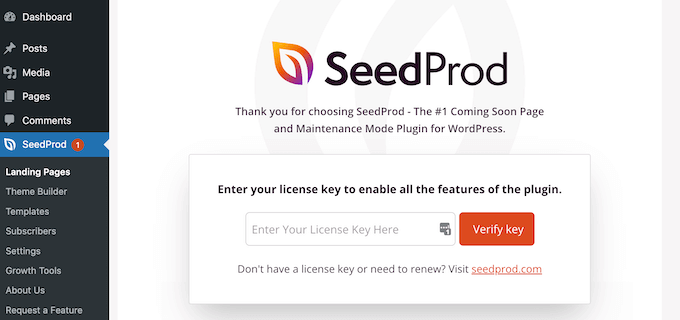
You can find this information in your account on the SeedProd website.
💡 Pro Tip: Need a head start? SeedProd’s AI website generator can create a custom landing page from scratch in under a minute – just describe what you want, and it handles the design, layout, and copy. For a complete walkthrough, see our guide on how to make a WordPress website with AI.
Step 2: Choose a Professionally-Designed Template
After entering your key, go to SeedProd » Landing Pages in your WordPress dashboard.
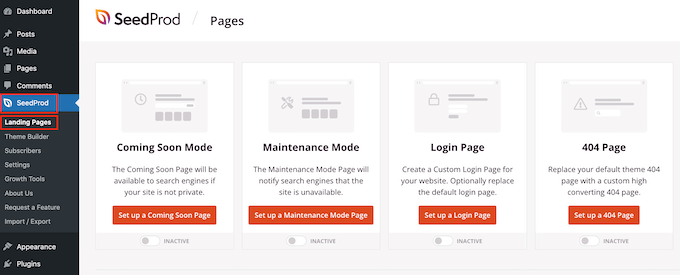
The tool comes with hundreds of professionally designed templates that are grouped into categories. Here, you will see categories that let you create coming soon pages, maintenance mode, login pages, and 404 error pages.
To design a Google Ad landing page, go ahead and click on the ‘Add New Landing Page’ button.
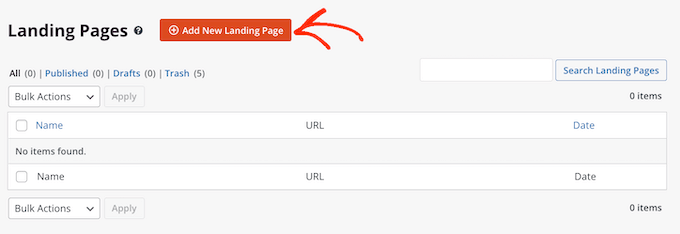
All of the SeedProd templates are easy to customize, so you can use any of them for your Google Ad landing page.
However, many WordPress blog owners use Google Ads to get sales, so you can click the ‘Sales’ tab.
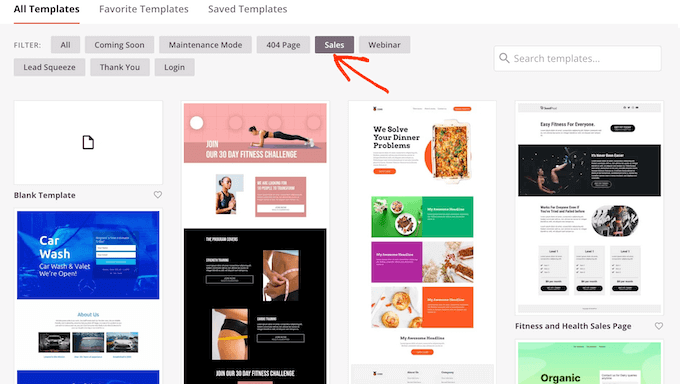
SeedProd will now show all the templates that are designed to help you sell more products and services.
To take a closer look at any design, simply hover your mouse over that template. Then, click on the magnifying glass icon.
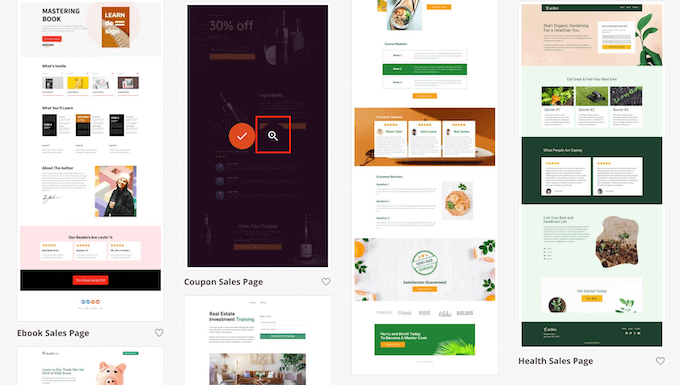
This will open the template in a new tab.
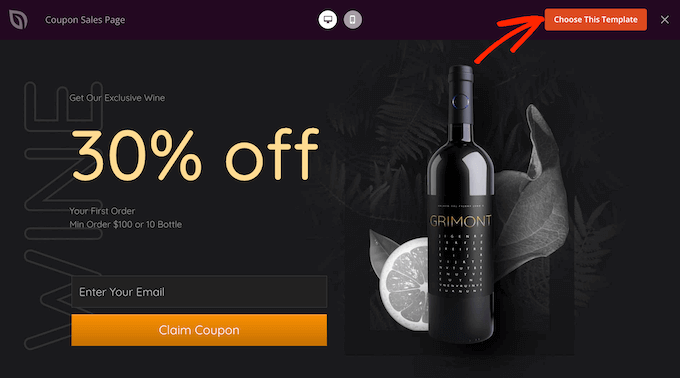
When you find a design that you want to use for your Google Ad landing page, simply click on ‘Choose This Template.’
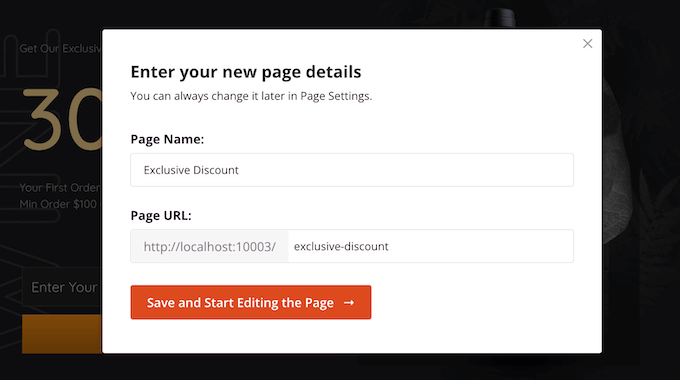
You can now type in a name for your landing page into the ‘Page Name’ field.
SeedProd will automatically create a ‘Page URL’ using the page name. This is the web address where your Google Ad landing page will appear.
Even though we are making a landing page for a Google Ad campaign, it’s still a good idea to fine-tune this page for the search engines.
Optimizing your landing page for SEO can bring you extra visitors from search results. Plus, it can improve your Google Ads Quality Score, which often leads to lower ad costs.
To learn more about getting your page ready for search engines, see our ultimate WordPress SEO guide.
With that said, it’s a good idea to include relevant keywords in your URL wherever possible. You can change the page’s automatically-generated URL by typing into the ‘Page URL’ field.
When you’re happy with the information you’ve typed in, click on ‘Save and Start Editing the Page.’ This will load the SeedProd page builder interface.
Step 3: Customize Your Google Ads Landing Page
SeedProd’s simple drag-and-drop builder shows a live preview of your landing page to the right.
On the left is a menu that shows the different WordPress design blocks and sections that you can add to your Google Ad landing page.
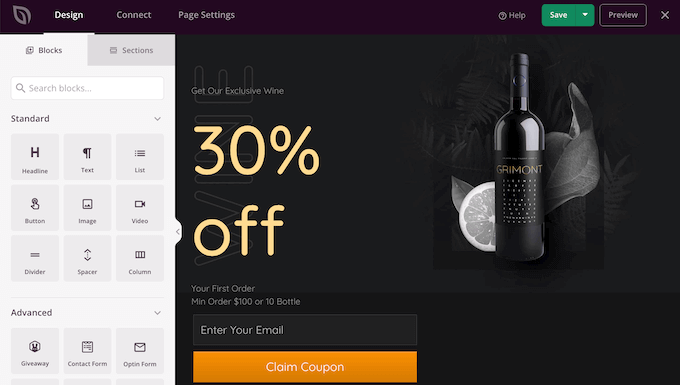
The plugin comes with dozens of ready-made blocks that can help you get more conversions, including pricing tables, contact forms, countdowns, and customer testimonials. You can build an entire Google Ad landing page within minutes using these ready-made blocks.
You can also use blocks like spacers, columns, and dividers to help organize and structure your Google Ad landing page. This can help visitors navigate your landing page and find the information they want.
When you find a block that you want to add to the Google Ad landing page, simply drag and drop it onto your template.
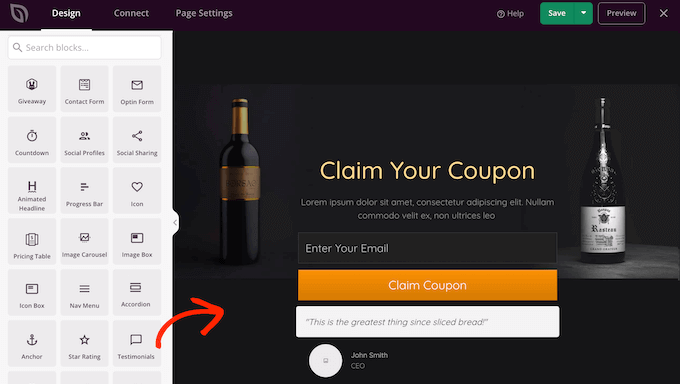
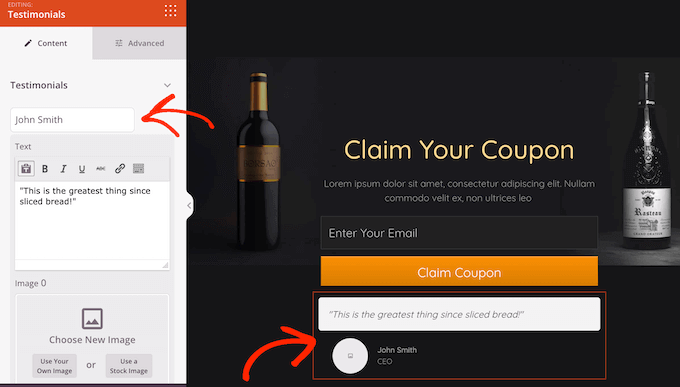
To customize a block, go ahead and click to select the block in the SeedProd editor. The left-hand menu will now update to show all the settings that you can use to customize the block.
For example, if you click on a Testimonials block you will be able to change the name of the person quoted and add some new testimonial text.
Images are a great way to catch the visitor’s attention and communicate more information. For this reason, many of SeedProd’s landing page templates come with placeholder images.
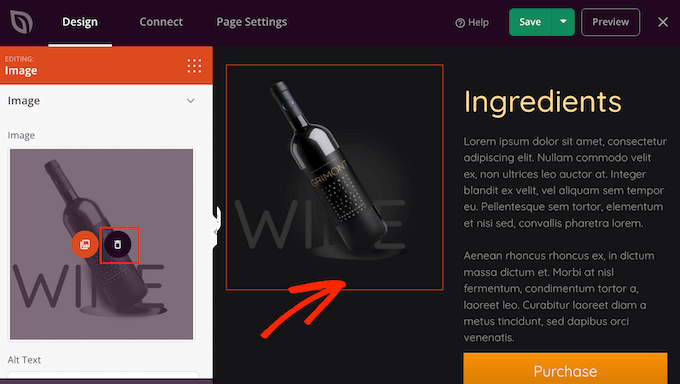
To replace the placeholder content with your own image, simply click on the Image block.
Next, in the left-hand menu, hover your mouse over the image and then click on the Trashcan icon to delete it.
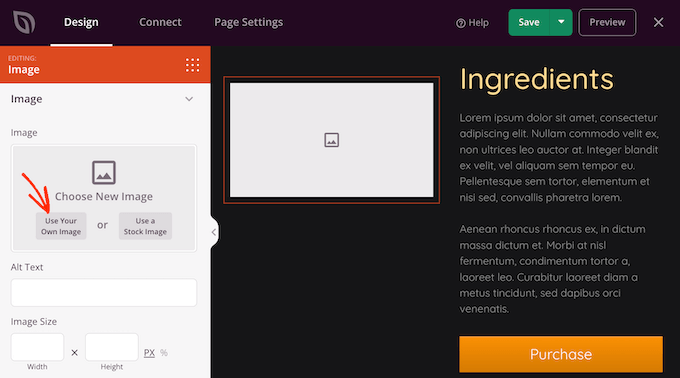
Once you’ve done that, there are a few different ways to add a new image to your Google Ad landing page.
One option is to click on ‘Use Your Own Image.’ You can then either choose an image from the WordPress media library or upload a new file from your computer.
Don’t have an image that you want to use? SeedProd comes with a built-in library of thousands of royalty free stock images that you can add to your Google Ad landing pages.
To see SeedProd’s stock image library, simply click on ‘Use a Stock Image.’
Next, just type in a word or phrase that describes the image you’re looking for and then click on the ‘Search’ button.
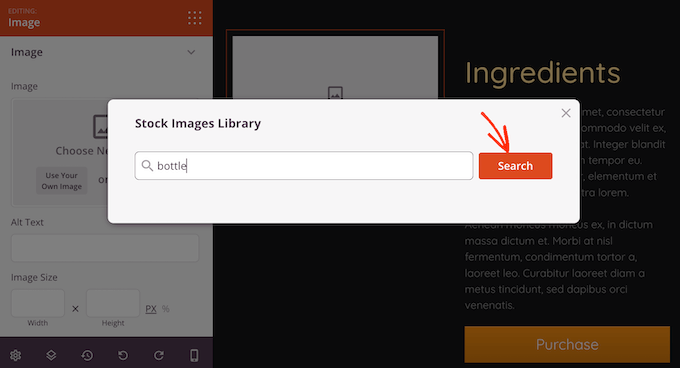
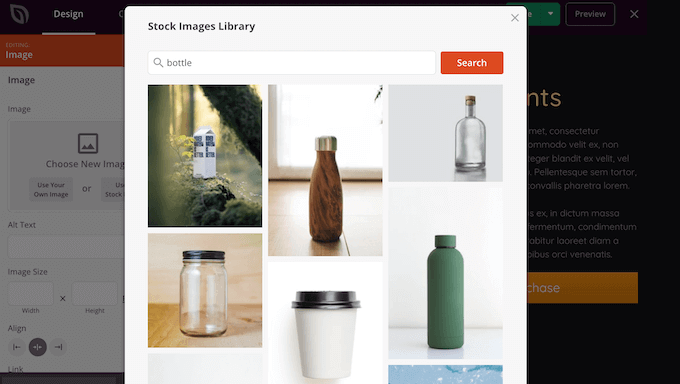
SeedProd will now show all the stock images that match your search term.
When you find an image that you want to use, simply give it a click to add the image to your Google Ad landing page.
Even better, SeedProd now includes a powerful AI image generator that lets you create custom visuals for your landing pages without leaving WordPress.
For small businesses, this is a game-changer. It lets you create completely unique, on-brand images for your pages without needing a budget for stock photos or a graphic designer.
To learn more about this feature, see our guide on how to use AI to generate images in WordPress.
Many people use Google Ad campaigns to advertise their products and services.
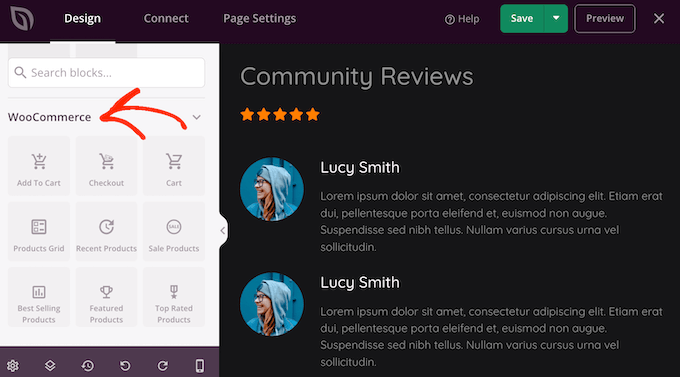
If you created an online store using WooCommerce, then SeedProd has special WooCommerce blocks that you can add to your landing page, including Add To Cart buttons, product grids, and checkout blocks.
These blocks make it easier for customers to buy your products, which is great for your conversion rates. It also lets you design a Google Ad landing page without being restricted by your WooCommerce theme.
To take a look at these eCommerce blocks, scroll to the ‘WooCommerce’ section in SeedProd’s left-hand menu.
You can now add any of these blocks to your Google Ad landing page, and get more sales for your online store.
As you’re building your landing page, you can move blocks around your layout by dragging and dropping them. This makes it easy to create a Google Ad landing page with a totally custom layout.
SeedProd comes with ‘Sections’ too. These are rows and block templates that can help you quickly create a nicely organized Google Ad landing page.
You can see all these sections by clicking on the ‘Sections’ tab.
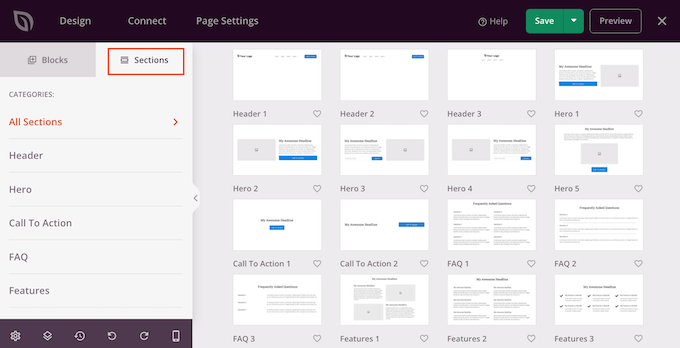
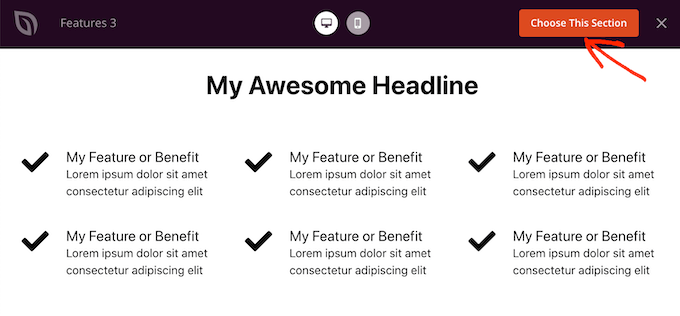
From here, you can preview any section by hovering over it. When the magnifying glass icon appears, give it a click. To get more sales, you may want to take a look at sections such as Hero, Call To Action, Features, and Testimonial.
To add a section to your page, click on ‘Choose This Section.’ SeedProd will now add the section to the very end of your Google Ad landing page.
Color can be a great way to catch the visitor’s attention, and help reinforce your WordPress website’s branding. For more on this topic, please see our guide on how to choose a perfect color scheme for your WordPress website.
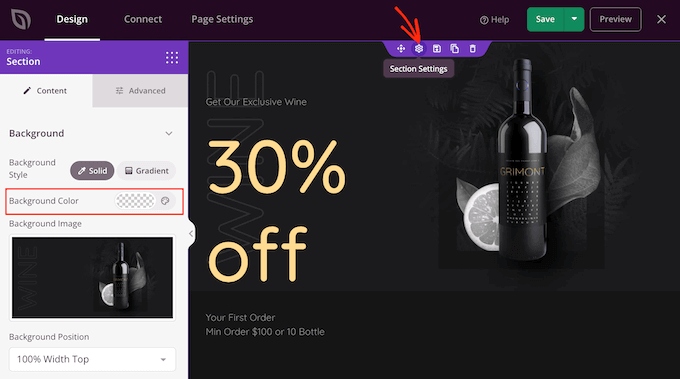
To change the background color of any section, simply click to select that section. Then, click on the little cog icon that appears.
Once you’ve done that, click on the Background Color field and choose a new background color using the popup settings.
Step 4: Add Personalized/Dynamic Content
People typically pay more attention to personalized content. With that in mind, you may get more sales by showing personalized content on your landing page or sales page.
SeedProd has full support for dynamic text replacement, which shows different content to visitors based on the search terms they used to find your ad. For example, if you’re targeting the keywords ‘summer offers’ or ‘Black Friday’ with your ad campaign, then you might dynamically change your heading to include those terms.
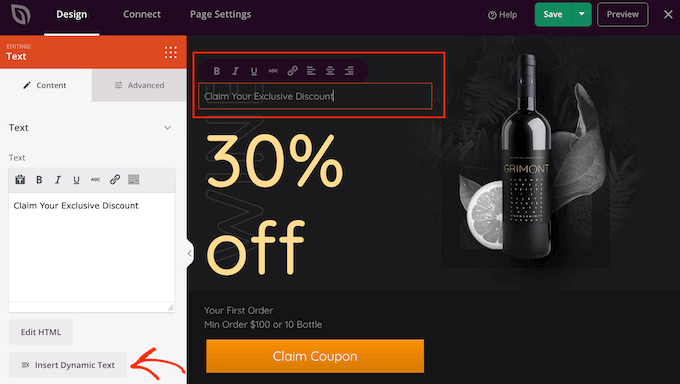
To add dynamic text to your Google Ad landing page, simply click on any Heading or Text block. Then, go ahead and click on the Insert Dynamic Text button.
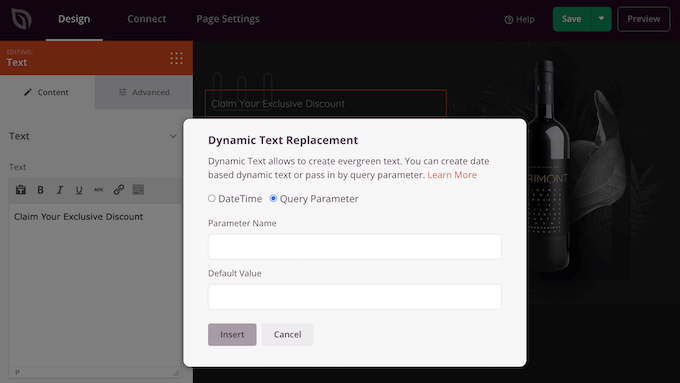
In the popup that appears, click on ‘Query Parameter.’
This allows you to send information from your Google Ad to your landing page using the URL.
For example, you can set up your Google Ad’s final URL with a custom parameter like `yoursite.com/sale?term=black-friday-deal`.
Then, your headline on the page can automatically display the text ‘black-friday-deal’ to the person who clicked the ad. This works by passing specific information you define in your ad’s URL to your landing page.
To learn more, please see SeedProd’s guide to dynamic text.
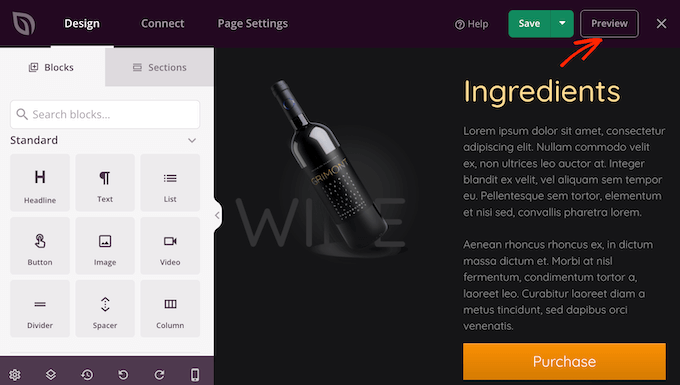
As you’re working on your Google Ad landing page, you can preview your design by clicking on the Preview button. This launches your landing page in a new tab.
When you are happy with how your landing page looks, it’s a good idea to optimize the page’s settings, as this can get you more conversions.
Step 5: Connect to Your Email Marketing Provider
SeedProd integrates with all the top email marketing services, including Constant Contact, Drip, and Brevo (formerly Sendinblue). This allows you to get signups and subscribers directly from your Google Ad landing page.
To connect your landing page to your email marketing service, simply click on the ‘Connect’ tab. You can then hover your mouse over the email marketing service that you use on your website and click on the ‘Connect’ button when it shows up.
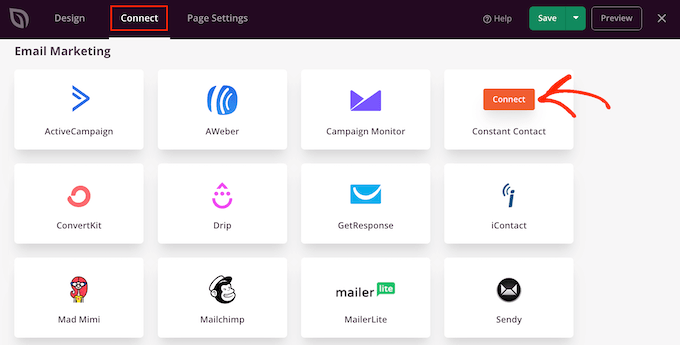
SeedProd will now walk you through the process of connecting your Google Ad landing page to your email marketing service.
With that done, anyone who subscribes to your landing page will be added to your email list.
Now that you are satisfied, simply click the ‘Save’ button and then choose ‘Publish’ to make your landing page live.
Now, you just need to add this new URL to your ad campaign. In your Google Ads account, find the ad you want to use and paste the landing page URL into the ‘Final URL’ field in the ad settings.
After that, anyone who clicks on your Google Ad will be redirected to the landing page on your WordPress site.
Bonus Tip: How to Get More Google Ad Conversions
A beautiful, professionally-designed Google Ad landing page can help you reach your campaign goals. However, there is always room to improve your conversion rates.
With that in mind, it’s a good idea to monitor your landing page’s stats to see what’s working and not working. You can then use SeedProd to tweak your landing page’s design and fine-tune it to get even more conversions.
The easiest way to measure important metrics in WordPress is using MonsterInsights. It’s the best WordPress analytics plugin and allows you to see your Google Analytics data directly in the WordPress dashboard.
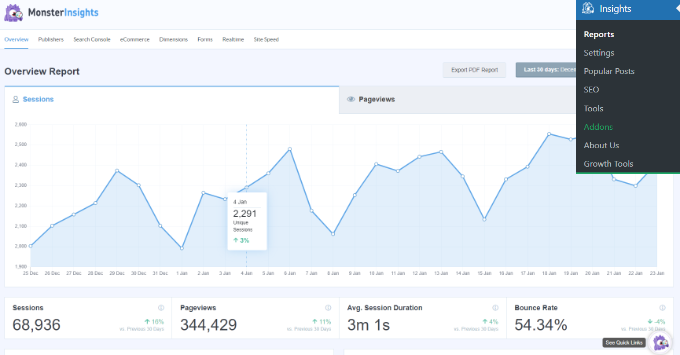
To learn more, please see our step-by-step guide on how to install Google Analytics.
Frequently Asked Questions About Making a Google Ad Landing Page in WordPress
Here are some questions frequently asked by our readers about making a Google Ad landing page in WordPress:
What is the main difference between a landing page and a homepage?
A homepage is designed for general exploration and serves many different visitors. It usually has lots of links and options to help people navigate your entire site.
A landing page is built for a single, focused goal, like getting signups from a specific Google Ad. It has very few distractions to guide the visitor toward taking one specific action.
Can I use the standard WordPress editor to build my landing page?
While you can use the block editor, it is not the best tool for this job.
A dedicated page builder plugin like SeedProd offers conversion-focused tools like countdown timers, pre-designed sales templates, and easy integration with marketing services.
This makes it much easier to create a professional page designed to get results, without needing to write any code.
How do I know if my landing page is effective?
The best way to track your landing page’s performance is by using an analytics tool. We recommend MonsterInsights because it allows you to see all the important stats right inside your WordPress dashboard.
This makes it simple to understand what’s working and where you can make improvements to boost your conversions. To get started, see our tutorial on how to set up Google Analytics in WordPress.
Should I include navigation menus on my Google Ad landing page?
For most landing pages, it’s a best practice to remove your website’s main navigation menu. Removing extra links keeps your visitors focused on the call-to-action.
This simple change can significantly increase your conversion rate by eliminating distractions.
We hope this article helped you learn how to make a Google Ad landing page in WordPress. You can also go through our guide on advanced landing page tips to skyrocket conversions, or our expert picks for the best WordPress theme builders to make your site visually appealing.
If you liked this article, then please subscribe to our YouTube Channel for WordPress video tutorials. You can also find us on Twitter and Facebook.


Randy Martin
From reading this, it’s apparent that simply has become the new actually.
WPBeginner Support
Thanks for your feedback
Admin
Chidera NwaEze
Wow! Nice pls, can I use the main site url like domain.com then adding domain.com/ads? To create the landing page
WPBeginner Support
SeedProd does allow you to set up your URL so you can create a URL like that for your ad page if you wanted.
Admin