


Opening your WordPress dashboard to a flood of pending comments can feel completely overwhelming. Spam bots, moderation filters, and old post discussions can quickly turn that queue into something unmanageable.
We remember that feeling well from the early days of WPBeginner.
What started as a simple moderation task quickly became a daily chore that stole time from creating helpful content. Manually clearing hundreds of comments one by one just wasn’t an option for our growing team.
Thankfully, you don’t have to waste hours on this tedious job.
At WPBeginner, we’ve perfected a few reliable methods that let you safely delete all pending comments in WordPress. And this guide will walk you through each step, so you can get back to what matters – growing your website. 🙌

🧑💻 TL;DR: We’ll share two ways to delete all pending comments. You can either do it manually from the WordPress dashboard for smaller batches or use a powerful plugin to clear very large quantities in just a few clicks.
What Are Pending Comments in WordPress?
In WordPress, pending comments are new submissions from readers that have been held for manual review by a site administrator before they can appear publicly. This moderation step is crucial for preventing spam.
You’ll find them in the WordPress admin area by visiting the ‘Comments’ page and switching to the ‘Pending’ tab. You can also see a notification for how many comments are waiting for moderation.
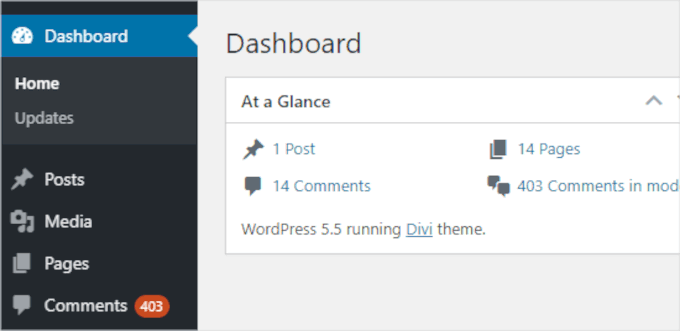
At WPBeginner, we always recommend users turn on comment moderation on all their websites to combat comment spam. This means all comments on your website will go to the ‘Pending’ queue before they are approved.
Why would anyone want to delete pending comments?
There are many scenarios when you may need to do that. For instance:
- The Akismet anti-spam plugin got disabled on your site, and suddenly, all spam comments are appearing as pending.
- Articles on your website generate a lot of unwanted comments.
- You forgot to turn off comments on older posts.
- You simply ran out of time to manage your WordPress website, and it gathered hundreds of comments that were no longer relevant.
Now, it can take a long time to go through and moderate each comment individually. If you are confident that there are no comments marked ‘pending’ that you want to keep, then you can simply bulk delete them all.
But if you’re not, we’ll show you how to delete them safely.
Here’s a quick overview of all the methods we’ll share in this article:
Ready? Let’s clean up your comment section!
Method 1: Deleting All Pending Comments in WordPress Manually
If you only have a few hundred pending comments, it’s quite quick to delete them manually.
Simply go to the ‘Comments’ section from the WordPress admin area and then click on the ‘Pending’ tab to see a list of all your pending comments.
By default, this list will show 20 pending comments at a time.
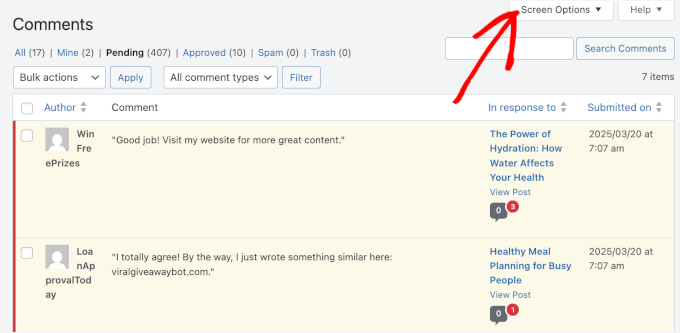
To change this, click on the ‘Screen Options’ tab at the top-right corner of the page, as seen in the screenshot above.
Next, you’ll want to type ‘100’ into the ‘Number of items per page’ and click the ‘Apply’ button:
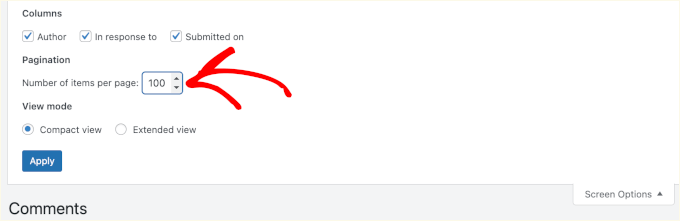
Now that you have 100 comments displaying, you can quickly scan all of them.
If you find nothing urgent or important, simply check the box to the left of ‘Author’ at the top of the list of comments. This will select all the comments on the page.
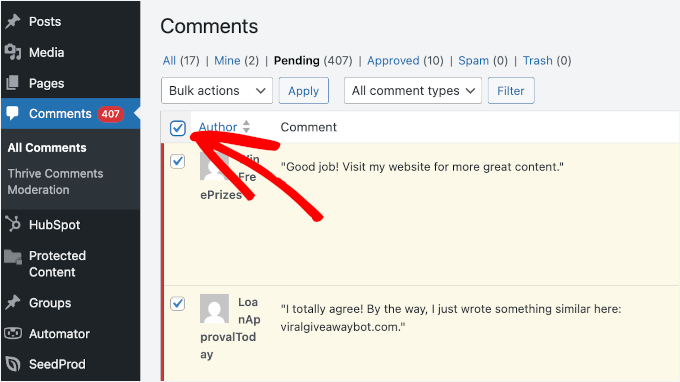
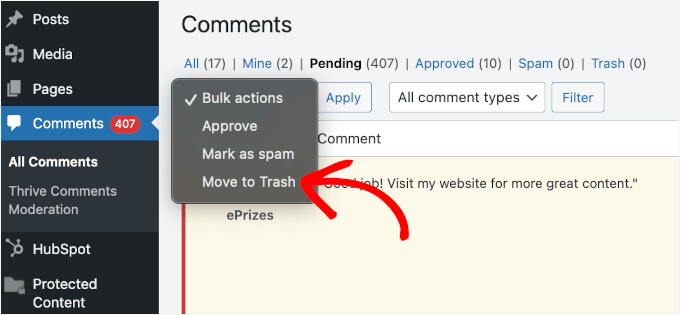
Then, you can click the ‘Bulk actions’ dropdown and select the ‘Move to Trash’ option.
Go ahead and click the ‘Apply’ button to move all those comments into the trash.
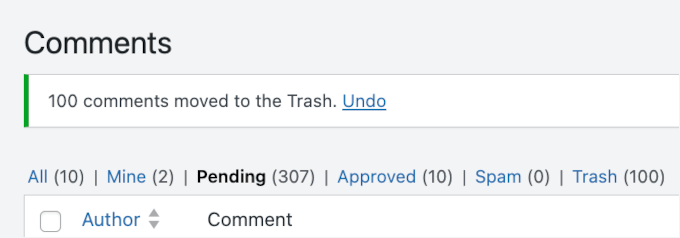
WordPress will then show you a notification saying that comments have been moved to the Trash.
If you change your mind, just click the ‘Undo’ link to restore the comments to the ‘Pending’ tab.
If that’s not the case, then you can continue this process.
WordPress will show you the next 100 comments on the page. Simply repeat the process to delete all the pending comments.
Please note that when you delete a comment on WordPress, it’s not deleted right away.
Instead, it goes to ‘Trash’ and will remain there for 30 days. After that, it will be automatically and permanently deleted.
If you would rather delete them permanently right away, then you’ll want to switch to the ‘Trash’ tab on the ‘Comments’ page.
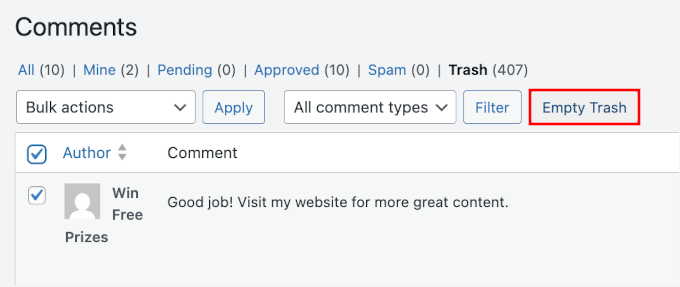
Go ahead and click the ‘Empty Trash‘ button.
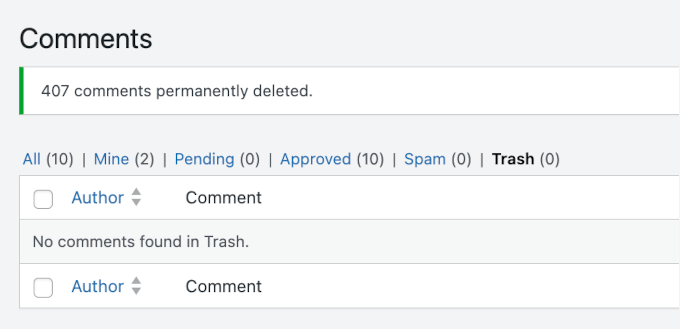
You will then see a message confirming that those comments have been deleted.
On a side note, you can use ‘Screen Options’ to show up to 999 comments per page.
However, we strongly recommend sticking to batches of 100-200. Trying to load and delete too many comments at once can overload your WordPress hosting server, which can cause a timeout error. It’s often much faster to delete comments in a few manageable batches!
You might also see an error message like this one when you try to move comments to the trash:

If you have more than a few hundred pending comments, then we recommend using a plugin method to delete them.
Method 2: Deleting a Large Number of Pending Comments in WordPress Using a Plugin
The quickest way to delete a very large number of pending comments is to use a plugin.
Since this method will permanently delete your pending and spam comments, we recommend backing up your WordPress site first with a plugin like Duplicator. That way, you’ll have a copy saved just in case you ever need it.
Step 1: Installing a WordPress Comment Plugin
In this guide, we’re going to use the Thrive Comments plugin. Apart from allowing you to delete comments, it gives you tools to increase visitor engagement, promote discussions, and get more comments.
It’s one of the best tools to improve WordPress comments, and we’ve tested it extensively to see how well it performs.
Learn more about the plugin’s features in our extensive Thrive Themes Suite review.

📝 Note: Thrive Comments is a premium plugin that provides a complete comment management system.
Since Thrive Comments is part of the Thrive Themes Suite, you’ll first need to go to the Thrive Themes website and create an account.
Simply click on the ‘Start Now’ button and complete the sign-up process.

Upon registration, you can download the Thrive Product Manager plugin from your Thrive Themes account dashboard.
Then, simply upload and install it on your WordPress site. If you need help, then you can refer to our guide on how to install a WordPress plugin.

After that, let’s go to ‘Product Manager’ in your WordPress dashboard.
From here, you can click ‘Log into my account’ and enter your Thrive Themes credentials.

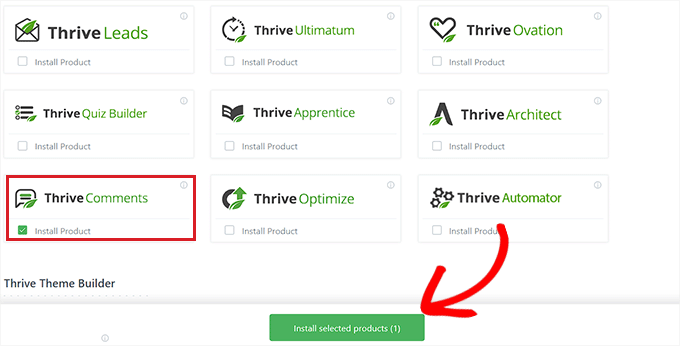
On the next screen, you’ll need to locate the Thrive Comments section. Once found, go ahead and check the ‘Install Product’ box.
Then, just click ‘Install selected products (1)’ to complete the installation.
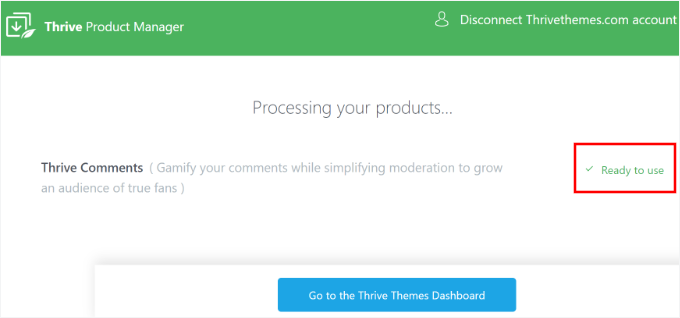
After installation, you’ll see the ‘Ready to Use’ message.
There’s also a ‘Go to the Thrive Themes Dashboard’ button to manage the plugin. Go ahead and click on it.
You’re now ready to delete your pending comments! 🎉
Step 2: Deleting Pending Comments Using Thrive Comments
In Thrive Comments, moderation is automatically enabled, which means pending comments are already filtered for review.
From your WordPress dashboard, navigate to Comments » Thrive Comments Moderations » Pending. On this screen, you can approve, edit, or delete them as needed.
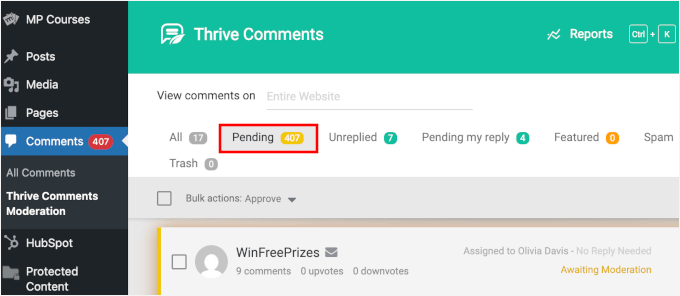
To delete them all, simply click on the check box next to ‘Bulk Actions.’
After that, you can hover over the dropdown menu to look at your options. Go ahead and click on ‘Mark as Trash.’
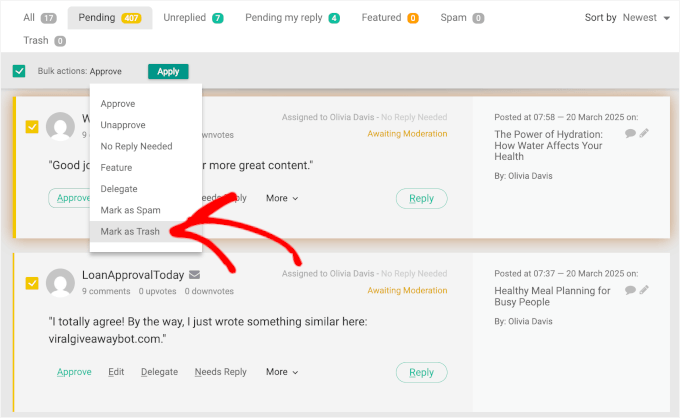
This will move all pending comments to the ‘Trash’ tab.
Once again, click the check box next to ‘Bulk actions’ and then select ‘Delete Permanently’ from the dropdown.
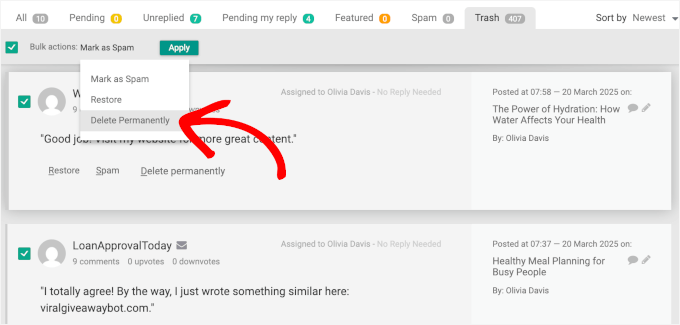
Now, all you have to do is click the ‘Apply’ button, and Thrive Comments will start comment deletion.
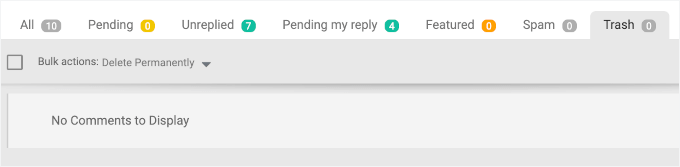
Once done, you’ll see the ‘No comments to Display’ notification, like this:
Thrive Comments also allows you to do several other things with your WordPress comments. For example, you can:
- Allow Users to Like or Dislike Comments in WordPress
- Feature or Bury Comments in WordPress
- Redirect Your User’s Attention With Comment Redirect
Bonus Tip: Deleting Spam Comments Only in WordPress
What if you don’t want to delete pending comments but want to delete the ones that are marked as spam? Well, that’s very easy to do in WordPress!
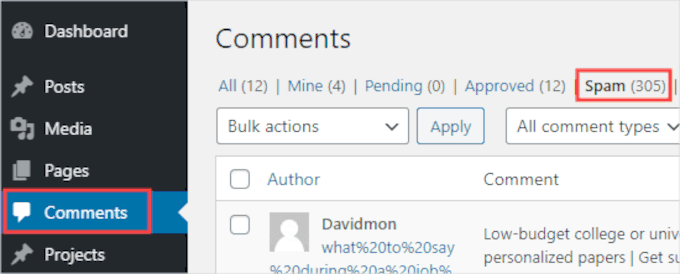
First, you can go to ‘Comments’ in your WordPress admin area and open the ‘Spam’ tab:
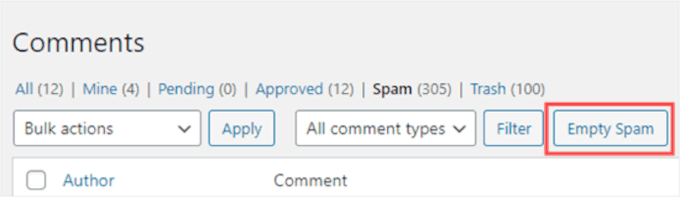
Next, go ahead and click the ‘Empty Spam’ button.
This will delete all spam comments permanently, not just the ones on the current page.
For more detailed instructions, you can see our step-by-step guide on how to quickly batch-delete spam comments in WordPress.
FAQs About Deleting All Pending Comments in WordPress
How many comments can I delete at once manually in WordPress?
You can increase the number of comments shown per page up to 999, but we recommend 100–200 for stability.
Does deleting comments from ‘Pending’ also remove spam?
Not necessarily. The ‘Pending’ queue includes all unapproved comments. Spam is held in a separate ‘Spam’ folder.
Will deleting pending comments hurt my SEO?
No. Pending comments aren’t visible to search engines because they aren’t published. Deleting them won’t affect your site’s SEO.
Can I restore deleted comments if I change my mind?
Once pending comments are permanently deleted, they can’t be recovered from the WordPress dashboard. If you think you might need them later, consider creating a database backup first.
Further Reading for Improving Your WordPress Comments
We hope this article helped you learn how to delete all pending comments in WordPress.
Next, you may also want to see our other helpful guides on:
- How to Completely Disable Comments in WordPress (Ultimate Guide)
- How to Allow Users to Edit Their Comments in WordPress
- How to Add Custom Fields to the Comments Form in WordPress
- How to Make Blog Post Comments Searchable in WordPress
- How to Allow Users to Report Inappropriate Comments in WordPress
If you liked this article, then please subscribe to our YouTube Channel for WordPress video tutorials. You can also find us on Twitter and Facebook.





Jiří Vaněk
The sweep plugin is great for this. I use it to delete revisions. However, it can also do these things like delete comments, unused categories and many more. This is a great plugin for pure Wordpress.
WPBeginner Support
Thank you for sharing your another plugin option
Admin
Max
Awesome article! Helped me a lot! Used the plugin and everything went clear as the sky. Thanks!
WPBeginner Support
Glad our recommendation was helpful
Admin
Stan Williams
Good tip. s I also find that Askimet already weeds out 99% of comments and puts them i spam folder which gets deleted automatically periodically anyway so the few that remain are usually from a legit source. I have used it on many many website for many year now.
WPBeginner Support
Glad you’ve found Akismet helpful
Admin
Joan Menter
This was a clear informative piece and easy to follow. I often don’t have time for a lot of complicated instructions. I know that can’t always be avoided but I can grab info like this and run with it. Thank you.
WPBeginner Support
You’re welcome
Admin
Alice Miller
Delete Pending Comments is awesome. I was able to clean up lots of comments very easily.
Thanks for the article.
WPBeginner Support
You’re welcome
Admin