


Running a WordPress agency means balancing two big tasks: keeping client sites running smoothly and clearly showing the work you do behind the scenes.
The tricky part? Clients don’t always notice the updates, security checks, and performance tweaks that keep their website healthy — they just expect everything to work.
That’s why we’ve put together a simple guide on creating WordPress maintenance reports your clients will actually read. By the end, you’ll be able to send clean, professional reports that highlight your work without adding extra steps to your day. 🙌
Why Maintenance Reports Are Important for Clients
Regular WordPress maintenance reports are more than just a formality. They boost communication with your clients, showcase your expertise, and demonstrate the value of your ongoing website maintenance services.
By keeping your clients informed and their websites healthy, you can build trust and strengthen long-term relationships.
For instance, clients trust you with their WordPress websites, often without understanding the technical work involved. Detailed reports can bridge this gap by clearly showing the work done behind the scenes and strengthening their trust in your expertise.
By clearly documenting each maintenance activity, you demonstrate accountability. Clients appreciate knowing that you’re proactive about maintaining their site’s health, which gives them peace of mind that their websites are in good hands.
Now, let’s see what to include in WordPress website maintenance reports for clients.
What to Include in a Client Maintenance Report
When creating client maintenance reports, you might be tempted to include every single detail.
However, the purpose of the report is to give clients a quick overview of the work you’ve done and highlight the metrics that matter for their business.
Here are a few important things to include in your report:
- 🔐 Security Updates: Clients might not understand the technical jargon, but they do care about security. Briefly mention updates to WordPress core, themes, and plugins. You can also tell them how these updates fix issues and keep the site safe from malicious attacks.
- 💾 Backups: Reassure clients that their data is safe. Explain your backup process in simple terms – how often you back up and where the data is stored. To build extra trust, you can mention if backups are saved off-site or in the cloud, like Google Drive or Dropbox.
- ⚡ Performance Optimization: Website speed directly impacts user experience and WordPress SEO. In the report, briefly explain what you did to improve it, including plugin updates, image optimization, database cleanup, or other behind-the-scenes tweaks.
- ☁️ Uptime Monitoring: If you monitor website uptime, share the overall uptime percentage. You can also explain why high uptime is important for visitors and search rankings.
- 🧑💻 Additional Work: Finally, you’ll want to list any extra work you’ve done. This might include bug fixes, content updates, new blog posts, landing page optimization, or new features.
With that in mind, let’s look at how to create a WordPress maintenance report for your clients. Here’s a quick overview of all the topics we’ll cover in this guide:
Let’s get started.
Creating a Maintenance Report in WordPress
The easiest way to send WordPress maintenance reports to clients is by using a plugin like WP Client Reports.
It is a free WordPress plugin that’s great for freelancers, agencies, and website managers who need to generate client-friendly reports.

WP Client Reports automatically tracks updates made to plugins, themes, and WordPress core files. While it handles the technical change logs for you, you will still be able to manually add notes about other metrics like uptime and backups.
For this tutorial, we will be using the free version of WP Client Reports, which is sufficient for most users.
However, a paid version is also available that offers advanced white-labeling features. This allows you to add your own logo, remove the plugin’s branding, schedule reports to send automatically, and integrate with other tools.
First, you’ll need to install and activate the WP Client Reports plugin. From your WordPress dashboard, go to Plugins » Add New Plugin.

Then, you can simply use the search feature to quickly find the plugin.
Go ahead and click ‘Install Now’ in the search result.
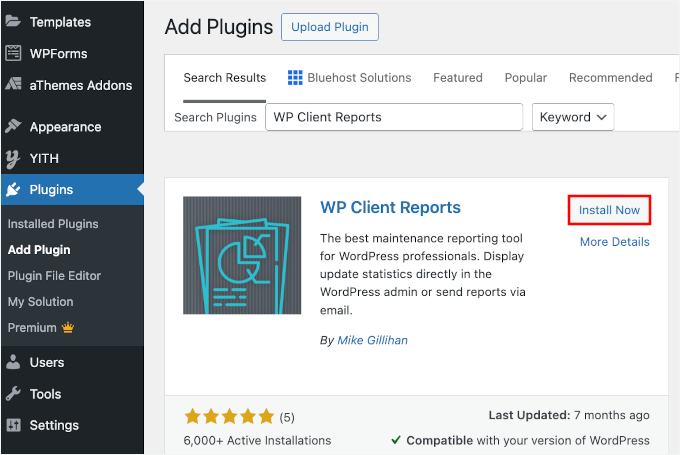
To start using the plugin, don’t forget to click on ‘Activate’ when it appears. If you need help, please see our guide on how to install a WordPress plugin.
Upon activation, go to Settings » WP Client Reports in the admin area. Here, you will see the email settings for your reports.
For instance, you can change the report subject line, enter the email addresses to send the report to, set the “send from” email address, and more.
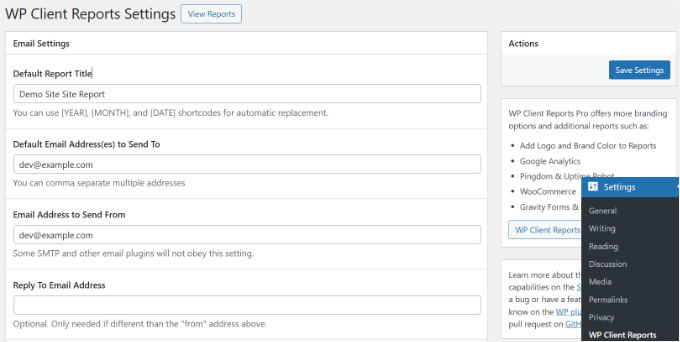
If you scroll down, you’ll see more options, such as adding a site name, an email introduction, and editing the email footer text.
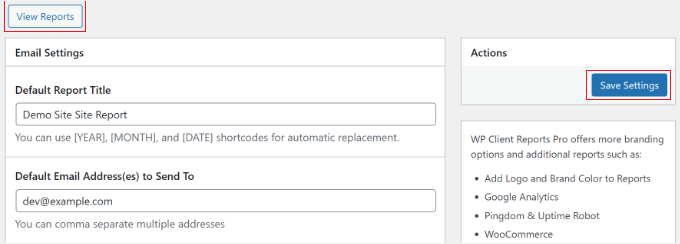
There is also an option to track software updates and site content. Ensure that these two options are enabled.
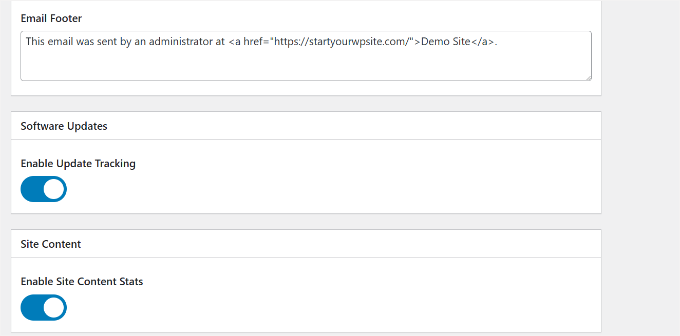
Once that’s done, you can click the ‘Save Settings’ button.
Now, you can view the client reports by clicking the ‘View Reports’ tab.
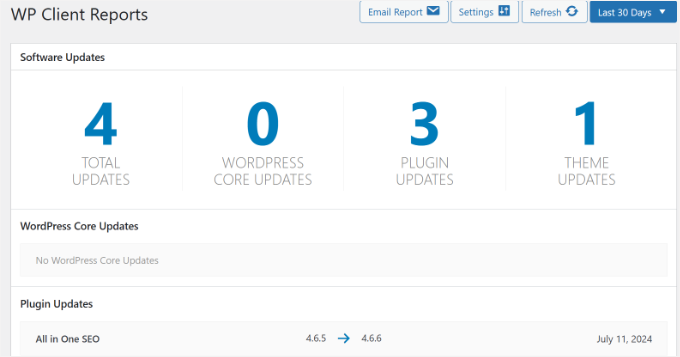
In the report, you can show clients the total number of updates you made to their website.
These include WordPress core updates, plugin updates, and theme updates. There is also an option to select the date range and display stats from a specific time period.
For instance, the plugin will show maintenance stats from the last 30 days by default.
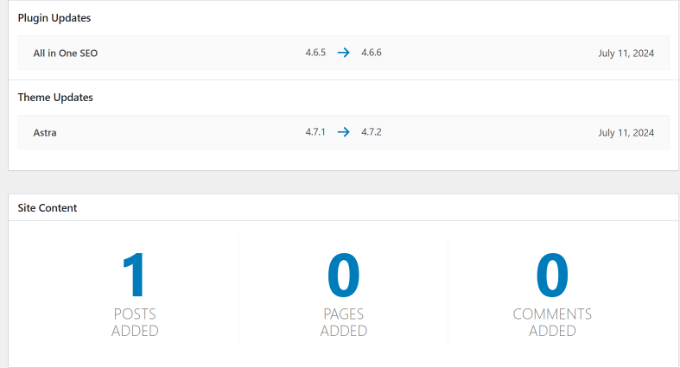
The best part about WP Client Reports is that it shows which files, plugins, and themes were updated, along with their old and new version numbers.
Plus, your client will also see the total number of posts, pages, and comments added.
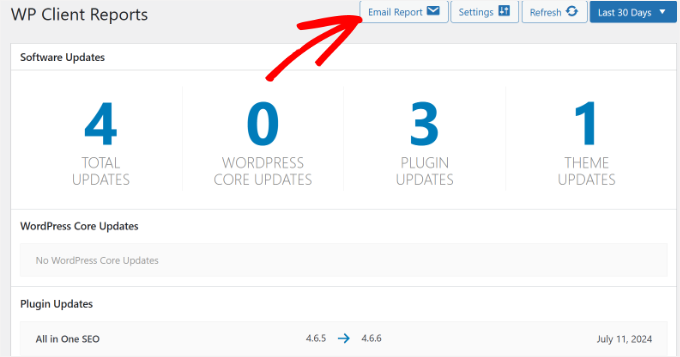
Once you’re happy with the report, the next step is to send it to your clients.
Simply click the ‘Email Report’ button at the top.
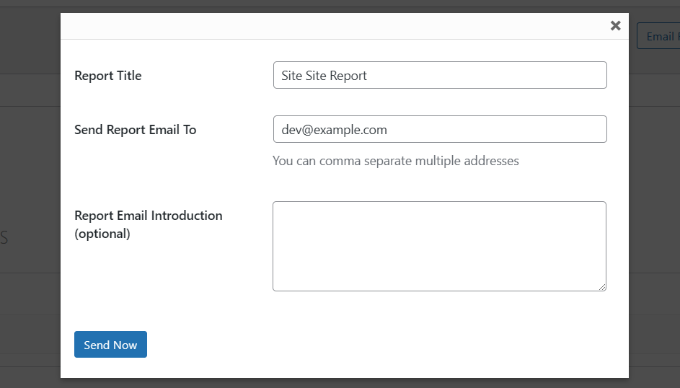
Next, a popup window will open.
You can check the report title and enter the email addresses of your clients in the ‘Send Report Email To’ field.
There is also a ‘Report Email Introduction’ field. This is the perfect place to summarize the checks that the plugin doesn’t track automatically.
For example, you might write: “We successfully ran a daily backup of your site to Google Drive, and your uptime this month was 99.9%.”
🧑💻 Pro Tip: We recommend sending a test email to your own address first. This allows you to check that the formatting and logo look correct before you send it to the client.
Also, it’s a good idea to use SMTP instead of the default WordPress email method. This helps your emails actually make it to the inbox instead of going to spam or not sending at all. You can use a plugin like WP Mail SMTP to set this up.
If your emails still aren’t going through, check out our guide on how to fix WordPress not sending emails.
Once you are happy with the preview, simply click the ‘Send Now’ button.
That’s it! You’ve successfully created and sent a WordPress maintenance report.
FAQ: More About WordPress Maintenance
Still have questions about offering WordPress maintenance as a service? Here are some quick answers to common questions we hear from agency owners and freelancers:
How do I create a maintenance service page in WordPress?
You can create a dedicated page using your WordPress block editor or a page builder like SeedProd or Elementor.
Clearly list your services (backups, updates, security, etc.), pricing, and what’s included in each plan. Don’t forget to add trust signals such as testimonials or case studies.
How much should I charge for WordPress maintenance?
Rates vary based on the services you offer and your target market. On average, monthly plans range from $50 to $500+. If you’re offering custom development, SEO, or advanced support, you can charge more.
How long does WordPress maintenance take?
It depends on the size and complexity of the website. For most sites, basic maintenance like updates, backups, and scans can be done in 30–60 minutes a week. Larger or eCommerce sites may require more time.
How much can I charge per hour for WordPress maintenance tasks?
Freelancers and agencies typically charge between $50 and $150 per hour. Your rate should reflect your expertise, the urgency of the task, and the value you provide.
How do you write a maintenance report?
A good maintenance report should be simple and client-friendly. Include completed tasks, such as updates and backups, performance data, uptime stats, and any additional work done. You can use tools like WP Client Reports or even Google Docs to create, format, and share your reports.
How do I show my WordPress site is under maintenance?
You can enable maintenance mode using a plugin like SeedProd, LightStart, or WPCode. These plugins let you display a custom message or design while you work on the site.
More Helpful Guides on WordPress Maintenance
We hope this article helped you learn how to create a WordPress maintenance report for clients. You may also want to see our other guides on:
- Crucial WordPress Maintenance Tasks to Perform Regularly
- How to Put Your WordPress Site in Maintenance Mode
- Coming Soon vs. Maintenance Mode in WordPress
- Maintenance Page Ideas You Can Use on Your WordPress Site
- WordPress Maintenance Costs – How Much Should You Pay?
- Ultimate WordPress Maintenance Guide for Beginners
If you liked this article, then please subscribe to our YouTube Channel for WordPress video tutorials. You can also find us on Twitter and Facebook.


Olaf
Wow, this is the first time I’ve seen this plugin. I have a system where I record completed work and then invoice clients, but this could serve as additional feedback on the tasks that are then reflected in the invoice for work on the website or its maintenance. A great idea for better tracking of my work on maintenance tasks.
Dennis Muthomi
I particularly appreciate the section on “What to Include in a Client Maintenance Report.”
In my experience, clients often don’t understand the technical aspects of website maintenance, so focusing on security updates, backups, and performance optimization is key.
To add to this, I’ve found that including a brief section on website analytics can be valuable.
For instance, using MonsterInsights to pull key metrics like page views, bounce rate, and top-performing pages can help clients see the tangible results of their website’s performance.
One suggestion I’d make is to consider including information about any accessibility improvements made during maintenance.
As web accessibility becomes increasingly important, clients would benefit from knowing how their site is being optimized for all users
Oyatogun Oluwaseun Samuel
It has always been a challenge reporting the details of work done on clients maintenance. the WP Client Report provides a streamlined way to this. For me, I think it will improve my professional image and efficiency. I think this is a must have tool that must be installed on all websites in my care as clients will see the progress of maintenance work and build relationship and bond with my clients. Am grateful this article. Thanks.
WPBeginner Support
You’re welcome!
Admin
Mrteesurez
I completely agree, reporting maintenance work to clients can be tricky. I used to struggle with keeping clients informed about ongoing tasks, which sometimes led to misunderstandings. When I started using WP Client Report, it made a huge difference. Not only did it streamline communication, but it also helped build trust by showing clients the value of my work. Implementing this tool has definitely enhanced my professionalism and strengthened client relationships. Thanks for sharing this insight!
Kzain
Creating detailed maintenance reports for clients is essential for building trust and transparency. I like the idea of customizing reports based on specific client needs. I’ll definitely be implementing this into my workflow. Do you have any tips on using specific metrics to measure website performance? I’m looking for ways to show clients tangible results beyond just listing completed tasks. Thank youi
WPBeginner Comments
You can measure the speed of a website using a speed test tool, such as one of the tools mentioned in this guide: https://www.wpbeginner.com/beginners-guide/how-to-properly-run-a-website-speed-test-best-tools/
Moinuddin Waheed
This will solve a major hurdle in handling the clients websites that I have always wanted to have.
Having WP clients report plugin will help in making the relevant maintenance report and will help in timely sending the report without having to prepare manually.
This will definitely help in gaining the clients trust and long term relationship.
Jiří Vaněk
I manage several websites and have always recorded all changes in an Excel spreadsheet. From time to time, I would send a report to show how much time I spent maintaining the websites. In my opinion, it’s not a bad system, but it certainly takes a lot of time and requires consistency. If a plugin can log all this for me, then there’s no reason not to ditch the old Excel sheet and start doing things a bit more easily and efficiently. I’ll definitely give it a try so I don’t have to remember what I forgot to write down in Excel. Thanks for the tip.