


‘How do I make my links stand out?’ That’s a question we hear regularly from our WPBeginner readers.
While it might seem like a small detail, link colors play an important role in your website’s usability and conversion rates. That is why we use the color orange for links at WPBeginner.
The good news is that changing link colors in WordPress has become much easier than it used to be. You don’t need to be a CSS expert or hire a developer – there are now simple solutions that anyone can use, regardless of their technical skills.
In this guide, we are going to walk you through the exact steps to change your link colors in WordPress.

💡Quick Answer: Methods to Change Link Color
If you are in a hurry, here is a quick summary of the different ways you can change link colors in WordPress:
- Classic Themes: Go to Appearance » Customize and look for the ‘Colors’ settings to change links globally.
- Block Themes: Go to Appearance » Editor and use the ‘Styles’ panel to adjust colors for the Link block.
- Individual Links: Highlight specific text in the post editor and use the color options in the block toolbar.
- Custom CSS: Use the WPCode plugin to add a specific CSS snippet that forces link colors to change across your site.
Why Change the Link Color in WordPress?
The main reasons to change link colors in WordPress are to match your brand identity and improve the readability of your content. By customizing these colors, you guide your visitors’ attention to the most important parts of your page.
Here are a few specific benefits of customizing your link colors:
- Better Accessibility: Increasing the color contrast between text and the background makes your site easier to read for people with vision impairments.
- Brand Consistency: You can align your links with your logo and overall color scheme for a professional look.
- Higher Click-Through Rates: Using a distinct color for links (such as buttons or calls to action) encourages visitors to click, boosting conversions.
That being said, let’s look at how to change the link color on your WordPress website. Simply use the quick links below to jump straight to the method you prefer:
How to Change Link Color in WordPress Classic Themes
Some classic themes have built-in options for changing link colors, but you’ll need to check your specific theme’s settings first.
To see if your theme has this option, go to Appearance » Customizer. Then look for a setting that says ‘Colors’ or something similar. In the Sydney theme, it’s labeled simply as ‘Colors.’
Note: If your WordPress theme customizer is missing, then you’re most likely using a block theme and need to go to the next section.
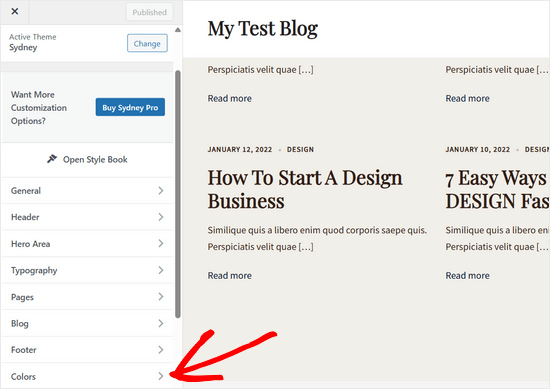
Next, find a setting that allows you to change link colors.
Sydney makes this straightforward with ‘Link Color’ options for both default and hover states.
The link hover color is the one that appears when a visitor hovers their mouse over a link, so it’s a great way to catch their attention and improve your click-through rate.

You can then click ‘Publish’ to save your changes.
Keep in mind that some themes don’t have direct link color settings. Instead, the link color might be tied to your theme’s primary or secondary colors globally.
If your theme doesn’t offer direct link color customization, don’t worry! You can go to the fourth method, where we’ll show you how to change your link color using code.
How to Change Link Color in WordPress Block Themes
If you use a block theme, then you will need to use the full-site editor to customize your link colors.
Go to Appearance » Editor in your WordPress dashboard.
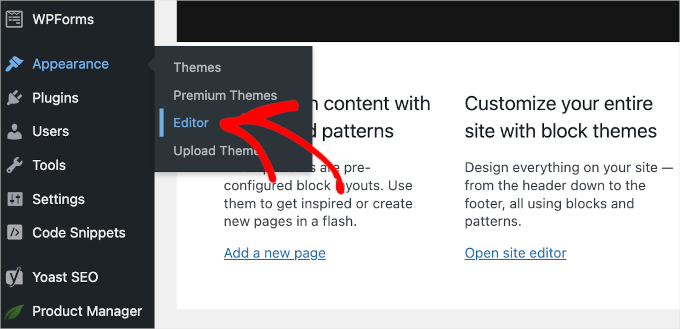
You will see all the menus to customize your site’s appearance.
Here, click ‘Styles.’
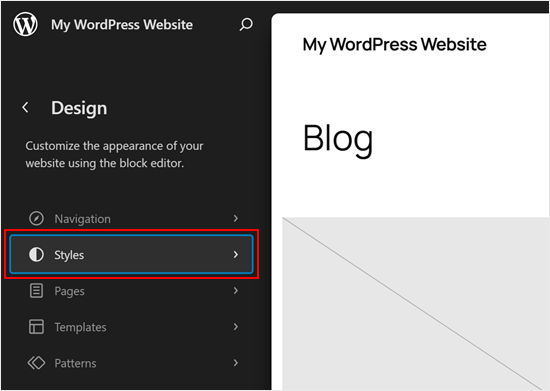
You will see your theme’s default styles displayed.
Look for and click on the pencil ‘Edit’ button to begin customizing.
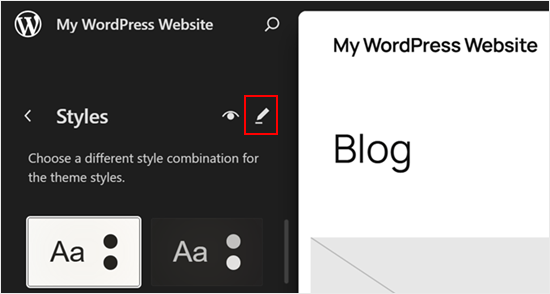
The full-site editor will open with a sidebar for editing your theme’s styles.
Click ‘Colors’ in this sidebar to access color customization options.
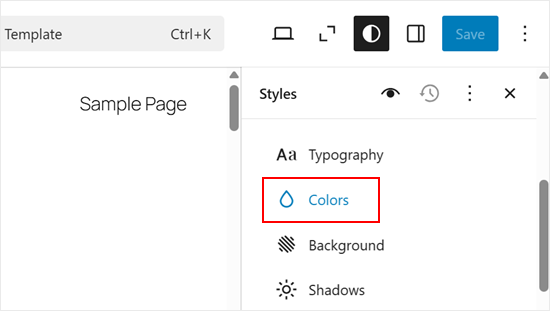
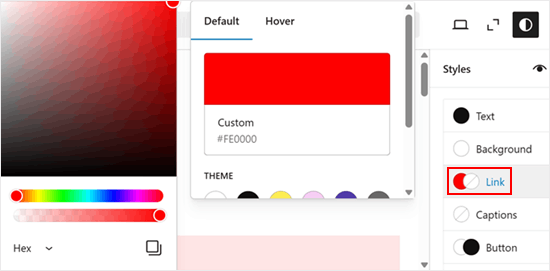
Find the Link option and click it to reveal color settings for both default and hover states. You should choose a color that matches your website design.
However, it is also important to make sure there is high contrast between the background and the link color. This ensures your site is accessible and easy for everyone to read.
Once you’re happy with your changes, simply click ‘Save’ to make them live on your site.
How to Change Individual Link Colors in Block Editor
Sometimes, you may want to change the color of individual links. For example, you might want to draw the visitor’s attention toward the call to action on a landing page.
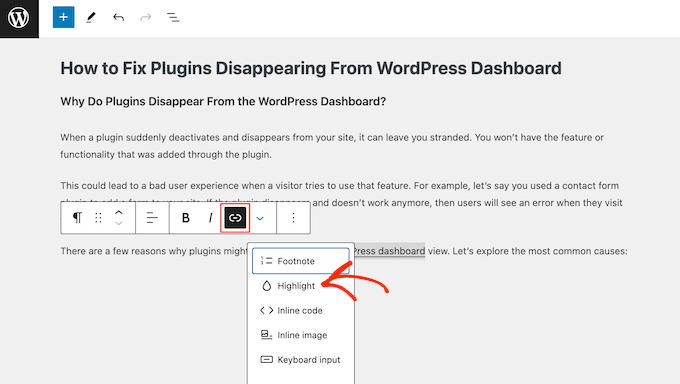
To do this, simply highlight the specific link you want to customize.
Then, click on the arrow icon in the toolbar and select ‘Highlight’ from the dropdown menu.
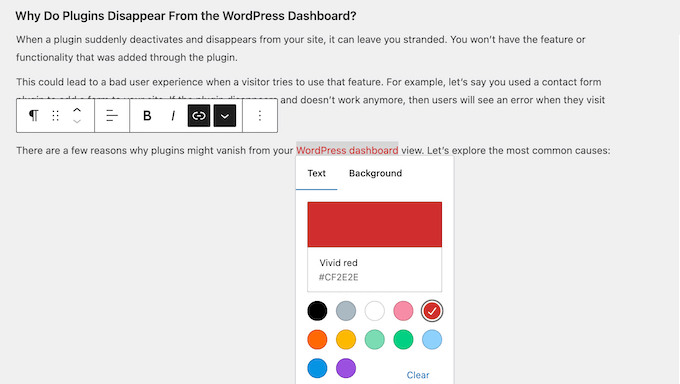
Next, click on the ‘Text’ tab. You can now select the color for that specific link.
With that done, go ahead and select the color you want to use.
To customize more links, simply repeat these steps.
When you are happy with how the links look, click ‘Save’ to make your changes live.
How to Change Link Color in WordPress With Code (All Themes)
If your theme doesn’t offer the option to change your link color, then the easiest way is to add custom CSS to your WordPress site.
Often, you will find code snippets in WordPress tutorials with instructions to add them to your theme’s functions.php file.
The biggest problem is that even a tiny mistake in the custom code snippet can break your WordPress site and make it inaccessible. You will also lose all your customizations the next time you update your WordPress theme.
That’s where WPCode comes in.
After thorough testing, we have concluded that it is the safest and easiest way to add custom code to your website. For details, see our WPCode review.
The first thing you need to do is install and activate the free WPCode plugin. For more details, see our step-by-step guide on how to install a WordPress plugin.
Note: WPCode also has a premium version that we recommend using if you want to unlock smart conditional logic, cloud library of code snippets, block snippet feature, and more.
Upon activation, head over to Code Snippets » Add Snippet.
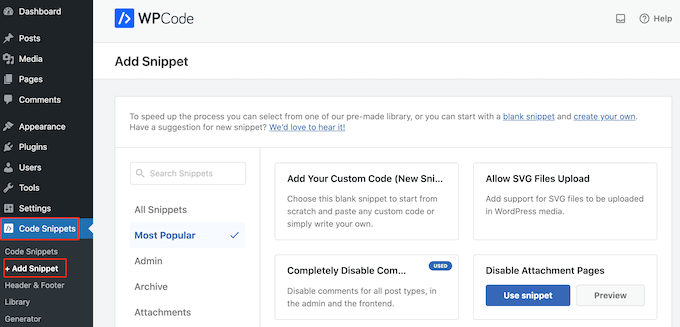
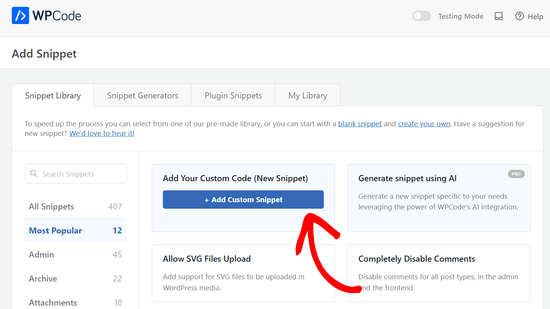
Here, simply hover your mouse over ‘Add Your Custom Code (New Snippet).’
Then, click on the ‘+ Add Custom Snippet’ button when it appears.
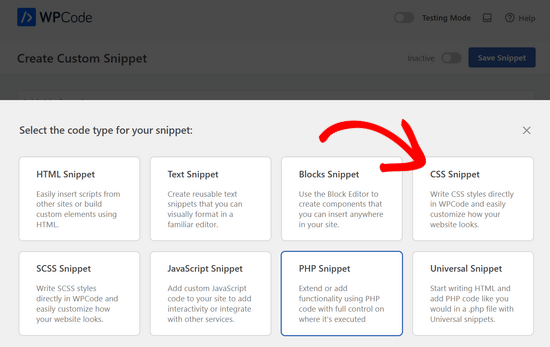
Next, you need to select ‘CSS Snippet’ as the code type from the list of options that are displayed on the screen.
After that, type in a title for the custom code snippet. This can be anything that helps you identify the snippet in the WordPress dashboard.
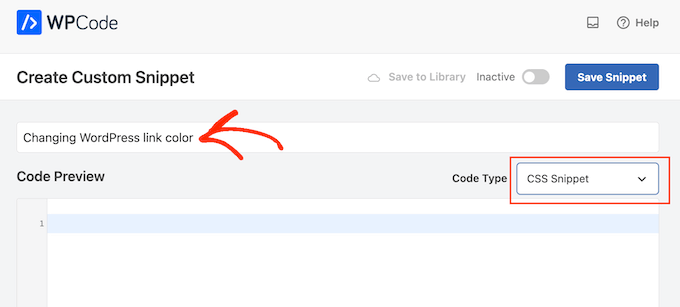
You can now go ahead and add a custom CSS snippet to the code box. Let’s look at some of the different snippets you can use.
Change the Link Color Across Your WordPress Website
To start, you may want to customize the overall link color. This is the color that visitors will see before they click on a link.
To do this, simply add the following snippet into the WPCode code box:
a {
     color: #FFA500;
}
Note: This CSS code changes the link color for your entire website. This includes navigation menus, buttons, and footer links.
In the above example, the # hex code will change the link color to orange, so you will need to change #FFA500 to the color you want to use.
If you are not sure what hex code to use, then you can explore different colors and get their codes on the HTML Color Codes website.
When you are happy with how your code looks, click on the ‘Inactive’ toggle so that it shows ‘Active’ instead. Finally, click on ‘Save Snippet’ to make the CSS snippet live.
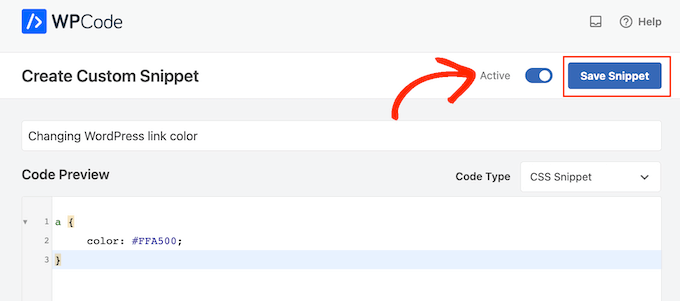
Now, if you visit your WordPress website, you will see the new link color in action.
Change the Link Hover Color in WordPress
To change the link hover color, simply paste the following snippet into WPCode’s editor:
a:hover {
     color: #FF0000;
     text-decoration: underline;
}
The code above will change the link color to red and underline the text when visitors hover over it. As before, you can change the #FF0000 hex code to any color you want to use.
When you are ready to go live, you can publish the code snippet by following the same process described above.
Change the Link Color After Visit in WordPress
Next, you may want to change the link color after a user clicks the link. This can help visitors find their way around your WordPress blog by showing which links they’ve already clicked.
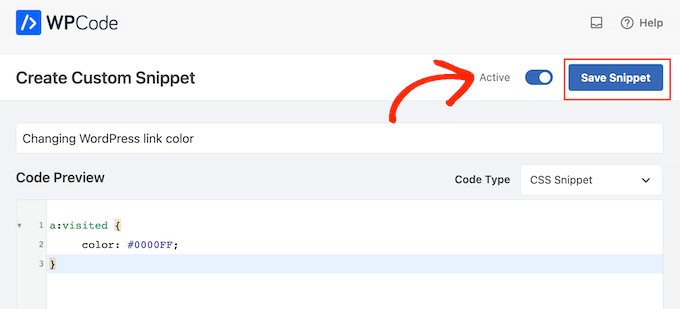
You can use the CSS code below to change the visited link color:
a:visited {
     color: #0000FF;
}
As always, make sure you change the blue #0000FFhex code to the color you want to use in your links.
With that done, click on the ‘Inactive’ toggle so that it changes to ‘Active.’ Then, just click on ‘Save Snippet’ to make the code live on your site, blog, or online store.
Video Tutorial
If you don’t enjoy following written instructions, you can check out our video tutorial instead:
Frequently Asked Questions About Changing Link Color in WordPress
Here are some questions that our readers have frequently asked about changing link colors on their website:
Can I change the color of a hyperlink?
Yes, most WordPress themes allow you to change hyperlink colors globally via the Appearance settings or Site Editor. You can also change the color of individual links directly inside the post editor by highlighting the link and selecting a color from the toolbar.
How to customize a link in WordPress?
You can customize a link by selecting it in the block editor and using the toolbar options. This allows you to change the destination URL, set it to open in a new tab, or adjust the color and style settings in the right-hand sidebar.
How do I customize my URL link?
To change the text of the URL itself (the slug), go to the ‘Post’ settings in the right-hand sidebar and look for the ‘URL’ section. If you want to change how the link looks visually, such as the font or color, use the ‘Style’ settings in the block editor.
For more details, see our tutorial on how to change your WordPress site URLs.
How do you change links in WordPress?
Simply click on the existing link text within the content editor and select the ‘Edit’ (pencil icon) button in the floating toolbar. From there, you can paste a new URL or modify the text you want to display to your visitors.
How can I change my page link?
You can change a page link by editing the permalink slug in the Page settings sidebar under the ‘URL’ section. If the page is already published, we recommend setting up a 301 redirect so that visitors using the old link are sent to the correct new page.
How to change the link icon in WordPress?
WordPress does not have a default setting to add or change link icons, so you will usually need to use a plugin. Plugins like External Links can automatically add icons to outbound links, or you can manually add icons using FontAwesome and custom CSS.
We hope this article helped you learn how to change the link color in WordPress. You may also want to see our guide on how to change the text color in WordPress or our ultimate guide to the most effective WordPress design elements.
If you liked this article, then please subscribe to our YouTube Channel for WordPress video tutorials. You can also find us on Twitter and Facebook.



Stuart Duncan
just wondering if WP code changes the colour of all links on the website or do you have to do it to each link?
WPBeginner Support
It should update the color of all links unless your specific theme has CSS to make it more difficult to change the color.
Admin
kzain
I’ve been wanting to tweak the look of my links and this post made it super easy. The customizer option was perfect for my basic needs,
but I’ll definitely keep the CSS method in mind for more advanced changes.
Dayo Olobayo
I’ve been struggling to change the link color in my WordPress site for weeks. Your step-by-step guide made it easy to understand and implement. I used the a tag in the custom CSS and it worked perfectly. Now my website looks more modern and visually appealing. Thanks for the help.
WPBeginner Support
You’re welcome!
Admin
Chris
The code was able to change the link colours in the side bar but not the links in the article. How do I change the colour of the link in the article?
WPBeginner Support
The code if for all links, if it only changes the link color for you in one spot it means that your specific theme has more specific CSS rules than the code then it would override our CSS. To find the CSS affecting your content we would recommend using Inspect Element following our guide below!
https://www.wpbeginner.com/wp-tutorials/basics-of-inspect-element-with-your-wordpress-site/
Admin
Abdul Rehman Asad
Thanks for sharing this.
WPBeginner Support
You’re welcome!
Admin
Shaun Mendonsa
Very useful article and just what I needed.
WPBeginner Support
Glad our article was helpful!
Admin
Chloe
Thank you, this is so helpful! Is there a way you can share how to add bolded links in CSS? I’d like to make all my links bold.
WPBeginner Support
You should be able to add bold in the post editor for your links the same as you would for other text in your paragraphs without needing to edit your CSS.
Admin
Tom Maglienti
Great Article! When using CSS Hero to change link colors for example, if I change the color on one blog post link does it change all links on the site the same way inserting the CSS code directly does?
Thanks!