


One simple truth about successful WordPress sites: making it easy for visitors to engage with your content is key to growth. Yet so many site owners overlook something as simple as adding a Facebook Like button.
While it might seem like a small addition, it’s actually one of the most powerful tools for expanding your reach. More likes mean more visibility, which often leads to more traffic and potential customers.
Fortunately, adding one to your WordPress site is easier than you might think! We’ve experimented with different Facebook integration methods, and we’ve found a few that work exceptionally well.
In this tutorial, we’ll walk you through how to add a Facebook Like button in Wordpress. We’ll share the best approaches we’ve tested, so you can start leveraging social engagement to grow your WordPress site. 📈

Why Add a Facebook Like Button in WordPress?
Facebook is one of the most popular social media platforms in the world. Many businesses use Facebook to connect with their customers and promote their products.
Adding a Facebook Like button to your WordPress website can help drive more engagement. It also encourages people to share your content on their Facebook profiles and attract new users to your site.
You can use the Facebook Like button to increase your social followers and build a community. It helps raise awareness about your products and services and boosts conversions.
With that in mind, we’ll show you how to add a Facebook Like button to your WordPress website. Here’s a quick overview of the methods we’ll cover in this guide:
Ready? Let’s see how to add a Facebook Like button in WordPress using a plugin or custom code.
Method 1: Add a Facebook Like Button in WordPress Using a Plugin
In this method, we’ll use a WordPress plugin to add a Facebook Like button. This method is very easy and recommended for beginners.
The first thing you need to do is install and activate BestWebSoft’s Like & Share. For more details, see our step-by-step guide on how to install a WordPress plugin.
Upon activation, you can go to Like & Share » Settings from your WordPress admin panel.
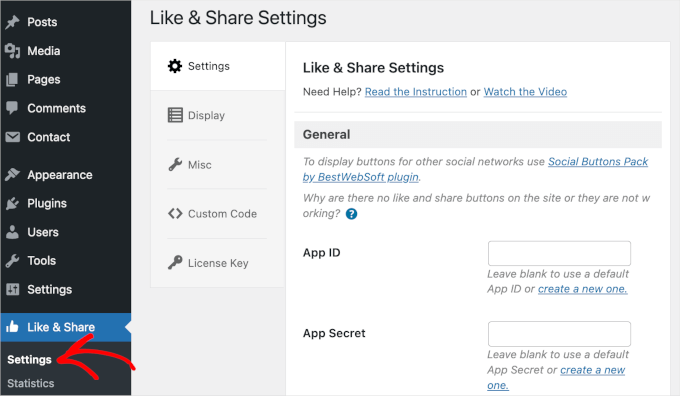
Next, you’ll need to add a Facebook ‘App ID’ and ‘App Secret.’ If you don’t have this information, then simply follow the steps below.
How to Create a Facebook App ID and App Secret
In the ‘Settings’ panel, go ahead and click the ‘Create a new one’ link under the ‘App ID’ or ‘App Secret’ field in the Like & Share plugin.
This will take you to the Meta for Developers website. We suggest opening the website in a new tab or window because you’ll need to open the Like & Share settings page in your WordPress admin area to enter the app ID and secret.
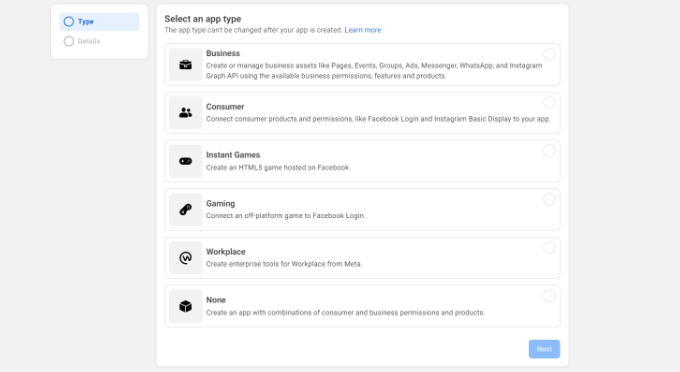
From here, you’ll need to select an app type. Go ahead and choose ‘Business’ as the app type and click the ‘Next’ button.
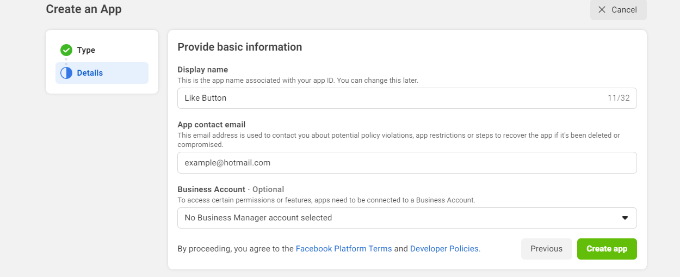
Next, you’ll need to provide basic information about your app.
You can enter a display name for your app and be sure that the correct email address appears under the ‘App contact email’ field. Facebook will automatically pick the email address of the account you’re currently logged into.
There’s also an option to choose a business account. You can leave this on ‘No Business Manager account selected’ and click the ‘Create app’ button.
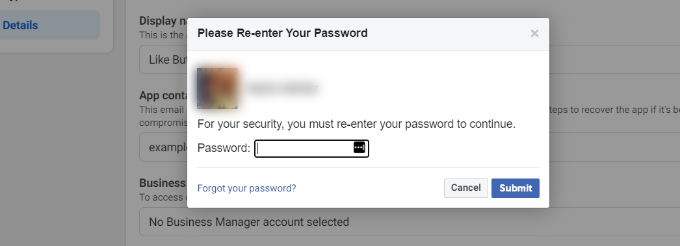
Then, a pop-up window will appear. Here, Facebook will ask you to re-enter your password.
This is a security measure to prevent malicious activity on your account. Go ahead and enter your Facebook account password and click the ‘Submit’ button.
After that, you’ll see your app dashboard.
From here, you can head over to Settings » Basic from the menu on your left.
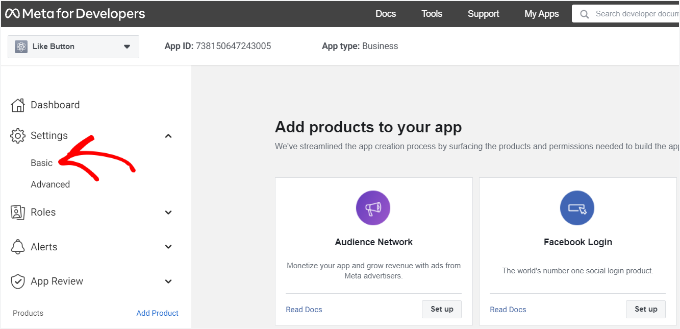
Now, you’ll want to expand the ‘Settings’ dropdown and click ‘Basic.’
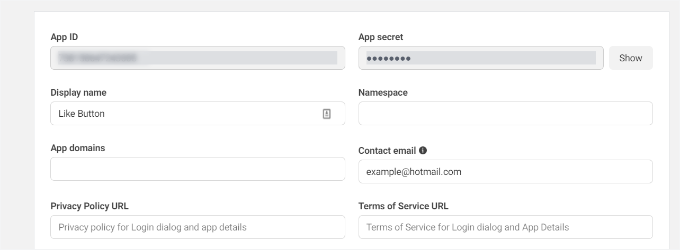
Here, you will see the ‘App ID’ and ‘App Secret.’
You can now enter this information in the Like & Share plugin settings.
Finish Up Customizing Your Facebook Like Button
First, you’ll want to copy the ‘App ID’ and head back to the tab or window where you have the Like & Share » Settings page opened. Then, simply enter the ‘App ID’ in the respective field.
Now, you’ll want to repeat the step by copying the ‘App Secret’ data from the Meta for Developers page and pasting it into the Like & Share plugin settings.
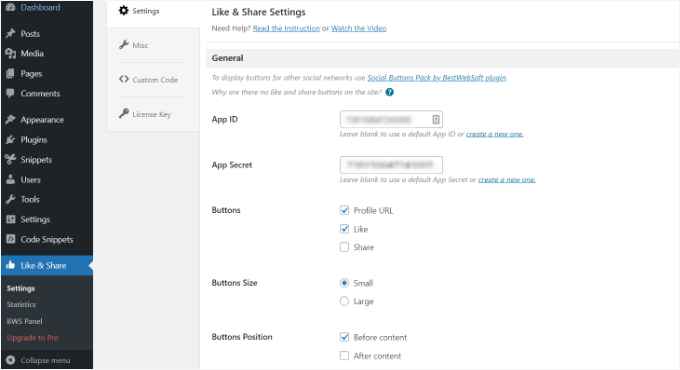
Once you’ve done that, you can choose whether to show the Facebook Like button along with the Profile URL and Share buttons.
There are also settings to edit the Facebook Like button’s size, its position before or after the content, and alignment.
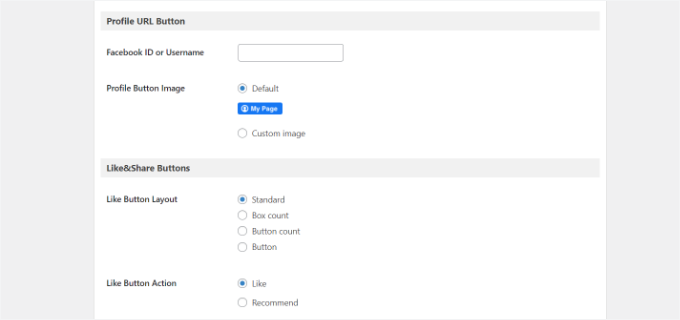
If you have enabled the Profile URL button, then you can scroll down to the ‘Profile URL Button’ section and enter your Facebook username or ID.
When you’re done, don’t forget to save your changes.
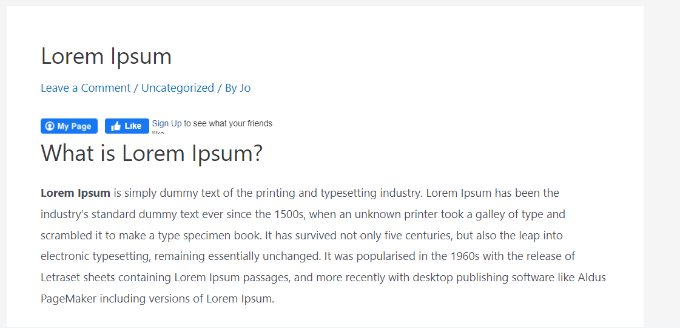
Now, the plugin will automatically add a Facebook Like button to your WordPress website and position it based on your settings.
You can also use the [fb_button] shortcode to add the Facebook Like button anywhere on your site.
That’s all! You can now visit your site and see the Like button on each post.
Method 2: Manually Add a Facebook Like Button in WordPress
Another way to add a Facebook Like button is by using custom code. However, this method requires adding code directly to WordPress, so we recommend it only for those comfortable with code editing.
In this section, we’re going to use the WPCode plugin, as it makes it simple for anyone to add code to their WordPress blog.
But first, you’ll need to visit the ‘Like Button’ page on the Meta for Developers website and scroll down to the ‘Like Button Configurator’ section.
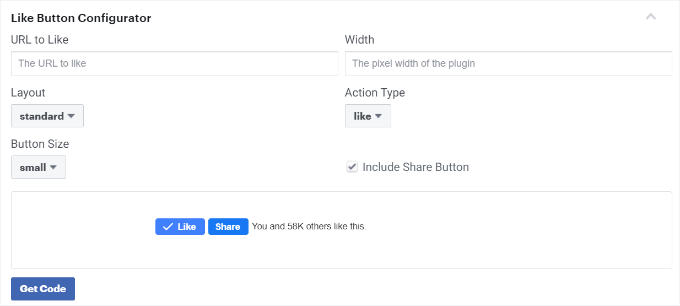
Next, enter your Facebook page URL in the ‘URL to Like’ field. This will connect the Facebook Like button to your page.
After that, simply use the configuration to choose the Like button layout and size. You will also get a preview of the Like button.
Once satisfied with the preview, go ahead and click on the ‘Get Code’ button. This will bring up a pop-up window that shows two code snippets under the ‘JavaScript SDK’ tab.
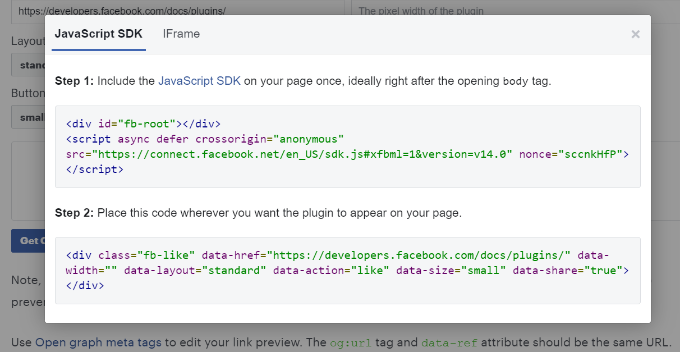
Please note that directly adding these code snippets to your WordPress theme may break your website. Plus, they will be overwritten when you update the theme.
That’s why we recommend using the WPCode plugin. This plugin lets you paste code snippets into your website and easily manage custom code without editing your theme files. This helps you avoid the risk of breaking your WordPress site.
Also, we’ve trusted WPCode across our brand sites to handle customizations smoothly and efficiently. For more information on our experience with it, you can go ahead and check out our complete WPCode review.
To get started, you’ll need to install and activate the WPCode free plugin. For more details, please see our guide on how to install a WordPress plugin.
📝 Note: The free version of WPCode allows you to add custom code snippets, which is what we’ll be using here. However, upgrading to WPCode Pro unlocks additional features, such as complete revision history and the ability to schedule your code.
Upon activation, you can head to Code Snippets » Header and Footer from your WordPress dashboard.
Then, you’ll need to copy the first code snippet and add it to your WordPress theme‘s header.php file right after the <body> tag. Simply copy the code and enter it in the ‘Body’ section.
After completing this process, don’t forget to click the ‘Save Changes’ button.
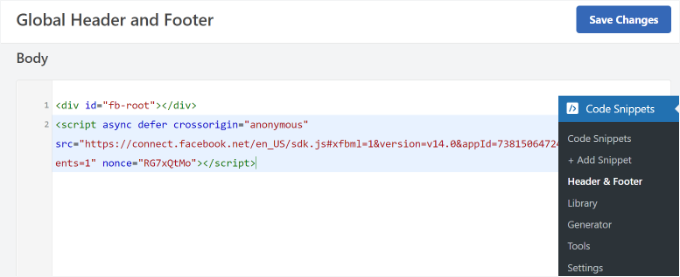
Next, you’ll need to copy the second piece of code and paste it into your WordPress site to display the Facebook Like button.
To do this, you can go to Code Snippets » + Add Snippet from your WordPress admin panel. Or, simply click the ‘Add New’ button in the WPCode dashboard.
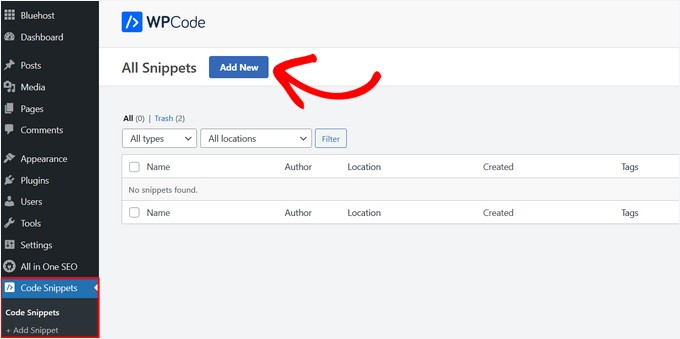
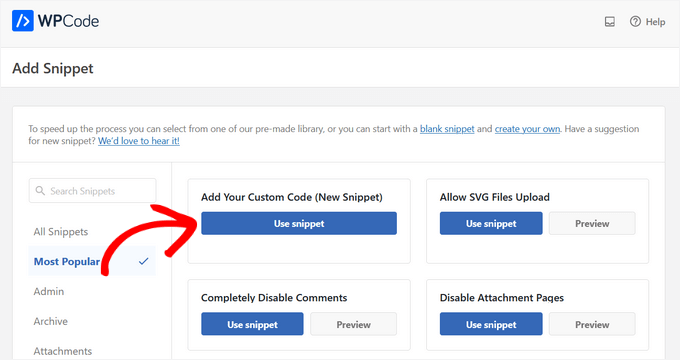
On the next screen, WPCode will allow you to select a snippet from the pre-built library or add a new custom code.
Go ahead and choose the ‘Add Your Custom Code (New Snippet)’ option and click the ‘Use snippet’ button.
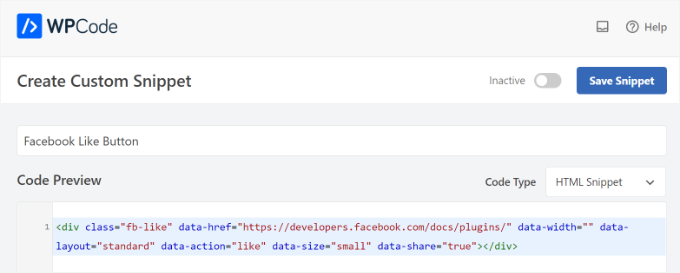
After that, you can give your custom code a name and enter the second code snippet under the ‘Code Preview’ section.
Make sure to click the ‘Code Type’ dropdown menu and select ‘HTML Snippet’ as the code type.
Then, you can scroll down to the ‘Insertion’ section and select where you’d like the Facebook Like button to appear.
For example, let’s say you want it to appear before the content.
Simply click the ‘Location’ dropdown menu and choose the ‘Insert Before Content’ option under ‘Page, Post, Custom Post Types.’
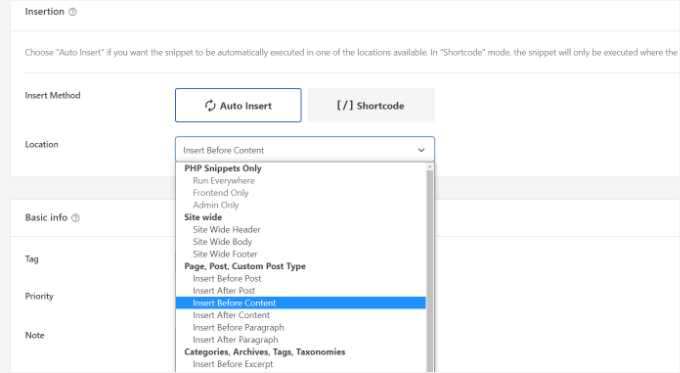
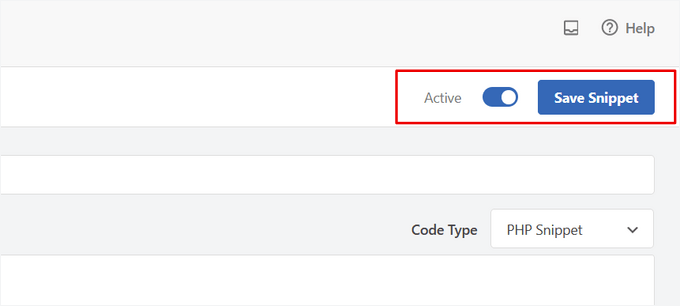
Once you’re done, you can click the ‘Save Snippet’ button.
You’ll also have to click the toggle and switch it from ‘Inactive’ to ‘Active.’
That’s it. A Facebook Like button will appear on your website after you enter the code.
Bonus Tip: What Is Open Graph Metadata & How to Add it to WordPress?
Open Graph is metadata that helps Facebook collect information about a page or post on your WordPress site. This data includes a thumbnail image, post/page title, description, and author.
Facebook is quite smart in pulling up the title and description fields. However, if your post has more than one image, then it may sometimes show an incorrect thumbnail when shared.
If you are already using the All in One SEO (AIOSEO) plugin, then this can be easily fixed.
At WPBeginner, we ourselves use the AIOSEO plugin for managing OpenGraph settings for Facebook and X, among other SEO efforts. We’re a big fan of it, and you can see our extensive AIOSEO review for more details.
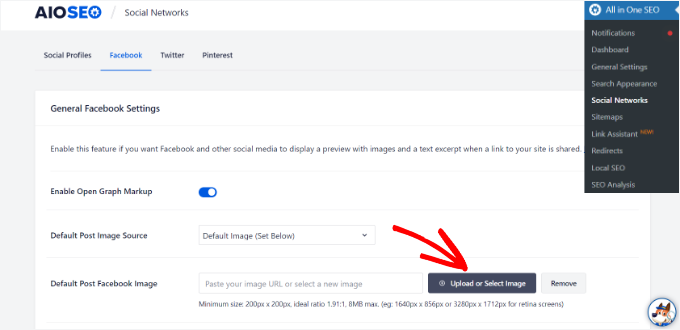
To do this, you can first head over to All in One SEO » Social Networks and switch to the Facebook tab.
Next, click the ‘Upload or Select Image’ button to set a ‘Default Post Facebook Image’ if your article doesn’t have an open graph image.
Besides that, you can also configure an open graph image for each individual post or page.
When editing a post, simply scroll down to the AIOSEO Settings section in the content editor. Next, you can switch to the ‘Social’ tab and see a preview of your thumbnail.
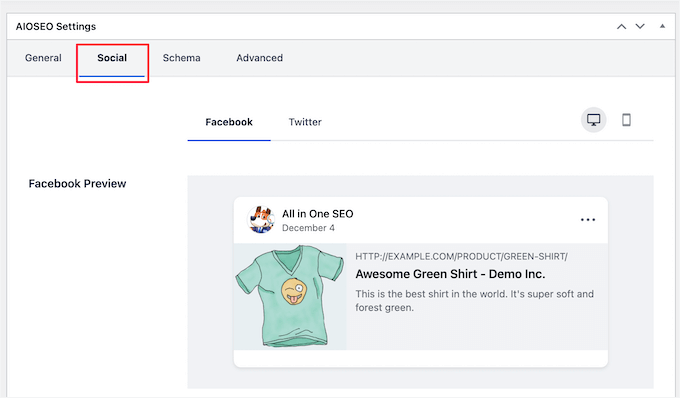
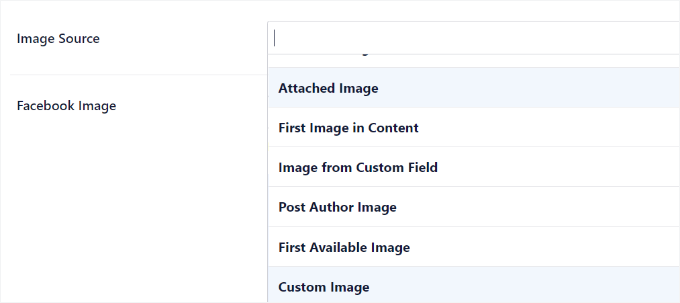
Now, you’ll want to scroll down to the ‘Image Source’ option. Then, go ahead and choose an open graph image for your post.
For example, you can select ‘Attached Image,’ ‘First Image in Content,’ or ‘Custom Image’ to be used as an open graph thumbnail.
For more details and alternate ways to add open graph metadata, feel free to see our guide on how to add Facebook Open Graph metadata in WordPress.
Bonus Resources: More Social Media Guides for WordPress Websites
We hope this article helped you learn how to add a Facebook Like button in WordPress. Next, you may also want to see our guides on:
- How to Display Facebook Page Reviews in WordPress
- How to Embed Facebook Albums in WordPress
- Best Facebook Tips and Tutorials for WordPress Users
- How to Run a Social Media Contest to Grow Your Site
- How to Use Social Media to Boost Email Subscribers in WordPress
- Best AI Prompts for Bloggers, Marketers, and Social Media
- The Complete Social Media Cheat Sheet for WordPress
- Best Social Media Plugins for WordPress
If you liked this article, then please subscribe to our YouTube Channel for WordPress video tutorials. You can also find us on Twitter and Facebook.



wpbeginner
@artist74 There is no EXACT point because it varies. The exact point is determined by where you want the code to show (for example before post / after the post / within the post etc). Once you decide that then you can also do further styling via CSS!
lo0_ro
and here are the codes for other services like identi.ca google plus one twitter etc
http://www.lo0.ro/2011/add-wordpress-social-buttons-from-code-identi-ca-facebook-like-twitter-and-google-plus-one/
dekanfari
Can I align it to left?
Ovidiu
any words of advice about the XFBML version? I copied the code straight from the facebook developer page, need to know if there is anything to do?
Editorial Staff
You need to add the Open Graph Meta Data to the site. We have edited the article. Look for the NOTE.
Admin
tyasmedika
Nice post…
How to add facebook like button in wordpress.com?
Thanks.
Please, Visit my blog. ^_^
Editorial Staff
You can’t… Switch to Self-Hosted WordPress.
Admin
Dror
Hi,
Is there a way to add the like button to the comments on a wordpress blog?
Thanks
Editorial Staff
Yes, you can have the like button on each comment by retreiving the comment permalink rather than the post permalink.
Admin
Redefining
I have a wordpress.com. I have no idea where to start with adding the Facebook Like button. I have been trying to find the single.pnp option. I just need a start on where to find it as I tried the Appearance and then go to theme and then what?Please can you advise?
Editorial Staff
This doesn’t work with WordPress.com sites.
Admin
Ruby
Thanks a lot I was just looking for that………
Aaron Grey
I’m torn between adding the facebook like button at the top of my posts or near the bottom, so I added it in both places. Does anyone know if this can cause issues to have 2 like buttons on one post?
Editorial Staff
It shouldn’t cause issues… both won’t update simultaneously, but it will display the same count on each page refresh.
Admin
Aaron Grey
I kind of thought so. I just never heard anyone mention doing this in any tutorials. Thanks for the info.
Dimitris
Hi, I placed the code in the single.php file and inside the loop as you have instructed. When I Like the post everything works correctly except from the title of the post on FB’s wall.
For example on MyWebiste.com I like the post with a title MyPost.
On FB wall shows that someone “likes MyWebiste on MyWebiste.com”, not “MyPost on MyWebiste.com”
However, the link of “MyWebsite” links correctly to the respective article, “MyPost”.
For me that means that the code works just fine and retrieves the right article, but not the title of the article and I’m trying to figure out if I need to do something else in order to show the title of the posts on FB wall and not only their right links.
Any suggestions would be appreciated.
Thank you.
Editorial Staff
That’s weird because it should take your page title. But to override an fix this issue, look at the resource link that we have in this article. You will need to add og:title meta tag.
Admin
Alvin
Hello..
I’m a site owner and I want to know who’s clicked the like button on each post. Not just the number of people. Is that possible?
Editorial Staff
Yes, you can showfaces=true and it will show the face of some people.
Admin
Aaron Torng
Thanks for the guide! I successfully added the ‘like’ button to my individual pages but I’m still having problems adding it to my main site which aggregates all the posts. Do you know which page I’m supposed to add it to and where?
Thanks again,
Aaron
Editorial Staff
Use the Like Box instead of the Like Button on the main page, and put it in your sidebar.
Admin
Sipovics
Hy!
My problem is that if I “Like” a post on my site (which is named kukkold.hu) the facebook shows on my profile page that I like the kukkold.hu link on the site kukkold.hu. I experience this at every post, so I always like the main page of my site instead of the link and name of the post. What can be the problem? I tried varius like plugins, and I have inserted the code directly into the loop, but the problem is always the same and it’s really annoying. For a test I wrote a specific permalink into the space of the ID)); ?> block, but the problem was the same again.
The like counter goes well, so it knows which post how many times was liked.
What should I do? Please help me!
Thank you!
Editorial Staff
You need to paste the codes mentioned in this post INSIDE THE LOOP. If you post it outside the post loop, then it will not work.
Admin
charle
im using wordpress.com and i trying to add the facebook like box in my blog but i doesn’t work. i read some forum that saying wordpress.com cant read iframe code. is that true? any solution?
Editorial Staff
Yes thats true. You are very limited with WordPress.com site. The solution is move to a self-hosted setup. Utilize our Free Setup service.
Admin
Joe
I added the code in the loop as you sayed…but nothing happens!! I tried more and more times, in different parts of the loop…. it just doesn’t work!! Any suggestion? Thanks
Editorial Staff
This is an iframe code, so it should work because we are using it on our site.
Admin
drowan
This is great, however I am encountering a glitch. The code functions fine and everything, but when I like it, instead of ‘liking’ the specific post, it instead ‘likes’ the parent home page. The same shows up on the Facebook feed, just the home page. Have you encountered this problem, and what can I do to fix?
Thanks!
drowan
my permalink structure at this time is /%category%/%postname%/ for reference. All the ‘likes’ I’ve tested only link to the parent site.
Editorial Staff
If you put the code inside the loop, then it should not do that.
Admin
Editorial Staff
The code that we have is the same one running on this site. As long as you post it in the loop, it should like the page that you are on.
Admin
wilson keenan
Thanks so much for this.
I was wondering – are you using this iframe (in the single.php) w/ meta tags in header.php?
I’m wondering if the URL in the facebook meta tags is conflicting with my ability to use the edited like button you have here?
Thanks so much,
Wil
Editorial Staff
We are not using Meta tags in the header at the moment, so it is just an iframe.
Admin
Aurora
Thanks for this great resource! I had played around with some plugins but they just weren’t working well for me, then I found your tutorial and just edited the code and VOILA! Success!
Thanks!
Andreas Koutsoukos
Hi, i have question about that facebook button layout.
My friend wants me to code blog and he send me this photo and ask if i can custom the like button like that http://www.andreaskoutsoukos.com/images/others/facebook_like.jpg.
Is it possible and how?
If some one know about that.
Editorial Staff
Don’t think that there is a Facebook API that lets you like the layout…
Admin
Ash Robbins
Great post guys, so simple to add in and configure. Nice work.
sanjaperic
Hi!
Thanks for this code, but something not working well…
For example, if I go on post, I see “Like button and Be the first…message” Ok. Fine! No one like ’till now, doesn’t matter, I will be the first.. so click, Like! And then! Wow! I see that 178 people acctualy like this, but I couldn’t see that untill I like it first. Do you understand? My english is not so good, but hope you can understand what I am talking about…
If you find a time to go on my page, and then on any single post, you will see Like button and message Be the first… but if you like it, than you’ll find out, that you weren’t the first!
Editorial Staff
It is a very weird problem. Normally it won’t show you pictures unless your friends like it, but it certainly shows the count.
Admin
Huw Rowlands
Hi,
I have the like button appearing, but when clicking nothing at all happens??
Please can you advise on this…
I even installed the Facebook ‘Like’ plugin and had exact same issue.
Thanks
Editorial Staff
Don’t know what could be the issue. We have the exact same code running on our site… and it is working fine.
Admin
Paul
Working perfectly now. Must have been a problem from Facebook’s end.
Rakibul Islam
This seems to not working on my site. It showing error after clicking the Like button.
What can i do now?
Editorial Staff
We are using this code on our site, so don’t know what could be causing the error. Can you please specify what error it is.
Admin
Janice
Thanks for the tutorial and great tips inside the comments. Just installed on Atahualpa theme. Great!
Sean Serritella
All I know is that I tried putting in code for the like button and now I get double posts.
Eli
Same happens to me, had to erase it because it doubled the text of my posts
Eli
Ok! Forget it! Since IE jumps every time I paste something, I must have doubled “the-content” part somehow.
Replaced the old single.php, pasted again your code (both before and after “the-content” and works great either way!
A million thanks for the code!
agon
thank you very much, i am starting to learn wordpress…and here i found your site very helpfull for begginers…keep it up…
Sean Serritella
Dude, what loop? What is a loop? I don’t get what that means. I tried pasting the code in the single php page but got nothing.
Editorial Staff
Loop is the code which says if is post…http://codex.wordpress.org/The_Loop
Admin
Jason Fonceca
Fantastic! I know this may seem like a useless comment, but I really am thrilled to find this tutorial. Much appreciation.
Lindsay
Is there a way to show on the sidebar which posts have the most likes on Facebook. I think it would be neat to see which ones are shared most often.
Mark
I posted it in my style.php so I am not sure if that is what you mean by putting it in my loop?
Mark
sorry single.php file is rhe one I changed
Mark
I addedd the button to my code and it appears in my blog posts. however when I poke it, my facebook profile does not reflect that I like it? Am I doing something wrong? I should see that I like it my feed, am I correct?
Editorial Staff
Yes you should see that you like it in your feed. Are you pasting the code inside your loop?
Admin
Jose
Thanks for sharing. How did you make your retweet and facebook share buttons to remain permanent on your blog?
Editorial Staff
We are using a plugin called Smart Sharing. Do a search on our site and you should be able to find it. It is exclusive for WPBeginner users.
Admin
Janek
thanks for the good tutorial Facebook Like Button in WordPress
helped me very much!
Que
I have added the code on single.php , but the button doesn’t appear on all my post.
If I add the code on every post (from HTML tab), the button appear but encountered problem.
Why this happen? Is it depend on the theme?
Editorial Staff
It will appear on all single post pages. If you mean that you want to show it on all pages in your category pages or your index pages, then you would need to paste the code in your index.php inside the post loop.
Admin
Que
No, I mean doesn’t show in my posts not pages. Or maybe I placed in wrong part of single.php. Is it possible to paste the code in any part of single.php?
Thanks.
Andrea
This is probably a stupid question, but are the instructions you gave relative to the small “thumbs-up” graphic and text (showing 184 people liked this. Be the first of your friends) at the top of this post? Or are they for the larger square graphic appearing to the left of your post (the one appearing underneath your tweetmeme button that says 45 shares).
I’d like to just have that larger square graphic on my blog and have it appear next to my tweetmeme button and I’m wondering how to go about that? Is there a tutorial you can direct me to?
Thank you so much for any guidance!
Editorial Staff
This tutorial is about the like button. Just use the search button on this site and look for Facebook Share button and you will find the tutorial for that.
Admin
Andrea
Thank you – I did as you suggested and found that tutorial and left you a comment on it as I was unsuccessful in getting it to work.
dillon
The like button is the best little added feature to a site thanks for the lesson.
Sara
Works great! I narrowed the height to get rid of some white space it caused, but that was the only tweak.
Jan Weiss
I added the code however if you go to the individual post it gets apage that only shows the facebook “like” button and does not take the viewer to the actual post. So now if a viewer goes to the post they lose it. Any suggestions?
Editorial Staff
Have no idea what you are talking about. Please use our contact form and show us what you are talking about by linking to your site.
Admin
Ciociaria
Hi to everyone,
I see more blogs use only the button and the number of persons who like without the phrase “be the first….”
how is it possible?
thanks
Editorial Staff
You need to change the layout parameter to button_count as mentioned int he article.
Admin
Titanas
Hey,
What about adding the site’s URL after the post title? Something like this: X likes Y on Z.com
Editorial Staff
You don’t get to control that. It is facebook who is doing that, and they only display page title.
Admin
PelFusion
just placed one on my blog
Danang Sukma
Finaly iam found plugin like the float stuff in your site. Thanks for your share.
Mike
I have noticed many sites have added the button to the top of the page. But isn’t it a better idea to place the button at the bottom of the page, allowing readers to click without scrolling up after they have finished reading the article ?
Editorial Staff
It is entirely up to the blogger. You can try it on your blog and see which placement works best for you
Admin
Tiffany
Is there a way to make it display at the bottom of the post instead of the top?
Editorial Staff
Yes just add it after the_content php part of your post … At the bottom of the loop. It can be added anywhere in the loop .. doesn’t have to be at the top.
Admin
Heather
Unfortunately, I don’t have a single.php file in my Atahualpa theme. I’m not sure where else I could put the code. Any ideas?
Editorial Staff
Don’t know a lot about Atahualpa theme very much. Please ask in their support forum, or you contact us via email and we can take a closer look at your site.
Admin
Stu
Re: Atahaulpa – I had the same issue as Heather. Solution: In Dashboard, go to Appearance – Atahaulpa Theme Options – Style and edit center column. Paste it in “The LOOP” section. Works like a treat!
Stu
Been noticing this Facebook like button appearing on more and more sites lately and think it’s a great idea. Time to see if I can implement this now… WITHOUT completely destroying my blog (you’d be surprised how close I’ve come multiple times once I start messing with the code – programmer FAIL).
Bottomless
Here’s the Wordpress plugin:
http://wordpress.org/extend/plugins/like
No coding necessary, you can customize the look and placement of the button in the settings interface.
Amanda
Love the article but I have encountered some problems. I don’t know where to find the single.php file? lol. Could you guide me? I use wordpress.com and I’m not sure if that makes a difference.
Thanks!
Editorial Staff
This is for Self Hosted WordPress blogs not WordPress.com themes.
Admin
jeh
Just what I was looking for. Thanks
hydir
Thanks for this tutorial.
I really looking how to implement it and found the answer here.
Great!