


Have you ever published a WordPress blog post that looked fine at first glance but felt hard to read once you scrolled through it? Long blocks of text can overwhelm readers and make them lose interest, even if the content is valuable.
Sometimes, all it takes is a simple horizontal line to make the content flow better. These dividers break up text so it feels more organized and easier to follow. They also help highlight key announcements, promotions, or transitions between sections in a way that feels natural.
In this tutorial, we’ll walk you through three easy ways to add horizontal line separators in WordPress.
This way, you can make your posts look polished and professional with minimal effort. 🙌
Why Should You Add a Horizontal Line Separator in WordPress?
A horizontal line separator breaks up sections, makes your content easier to scan, and keeps readers engaged.
Beyond readability, horizontal lines are also useful for drawing attention to key points, emphasizing quotes, or creating smooth transitions between ideas.
Overall, visitors decide in seconds whether to stay on your page or leave. On many devices, your blog post might appear as one long wall of text, which can be overwhelming to read.
A simple horizontal line can change that. ✅
Since this is a comprehensive guide on how to add a horizontal line divider in WordPress, you can use our table of contents to find the method you would like to use:
- Method 1: Adding a Horizontal Line in the WordPress Block Editor
- Method 2: Adding a Horizontal Line in the WordPress Classic Editor
- Method 3: Splitting a Long Form into Multiple Pages with WPForms
- Bonus Separators You Can Use in Your Posts and Pages
- Frequently Asked Questions About Adding Horizontal Lines in WordPress
- Keep Learning: Tips to Manage Your WordPress Posts and Pages
Ready? Let’s get into it.
Method 1: Adding a Horizontal Line in the WordPress Block Editor
To add a horizontal line using the WordPress block editor, you can click the ‘+’ icon to add a new block wherever you want the line to be.

Next, let’s select the ‘Separator’ block from the ‘Layout Elements’ section.
You can find it easily using the search bar.
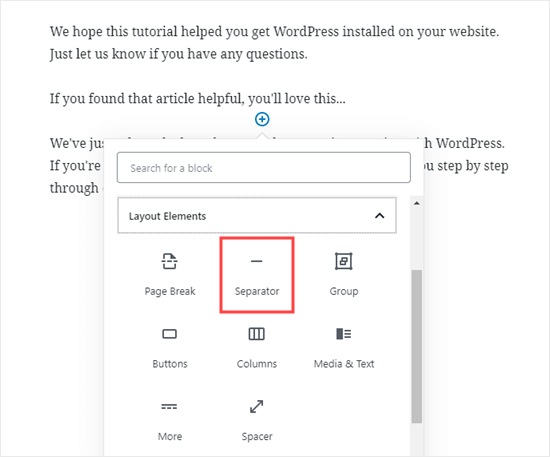
Once added, you’ll see your horizontal line divider in your content area.
Styling the Horizontal Line in the WordPress Block Editor
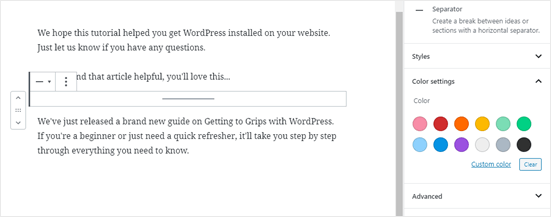
By default, the horizontal divider is a pale gray line across the center of your post or page.
You can change how it looks by clicking on the line to select its block. Then, the ‘Block’ editing panel will open up on the right-hand side of your screen.
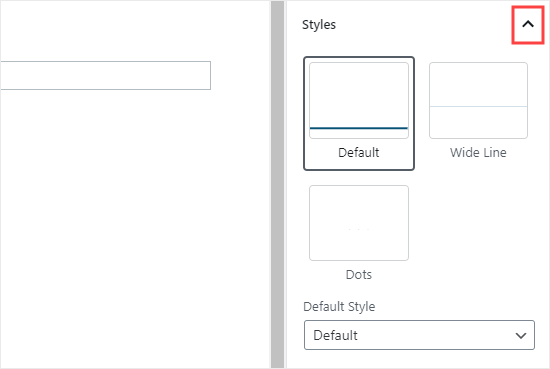
To change the style of your line, just click the little arrow next to ‘Styles.’ Then, you’ll see the different options.
You can change the horizontal line to one of these if you want:
- A wide line that covers the full width of your post’s content.
- Three dots are displayed in the center of your post.
📌 Note: In some WordPress themes, both the wide line and the default line will cover the whole width of your post.
You can also change the color of your horizontal line under the ‘Color’ settings.
Simply click on one of the options displayed or use the ‘Custom color’ link to pick any color.

If you want to go back to the default gray color, simply click the ‘Clear’ button under the color options.
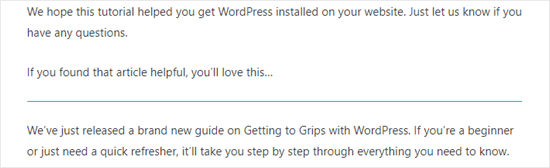
Here, our horizontal line is blue and uses the ‘wide’ style.
Method 2: Adding a Horizontal Line in the WordPress Classic Editor
If you’re using the Classic Editor (often enabled with a plugin), you can still easily add horizontal lines.
To do so, simply edit an existing post or page or create a new one. If you only see one row of buttons in the toolbar above the post editor, then click on the ‘Toolbar Toggle’ icon on the right:
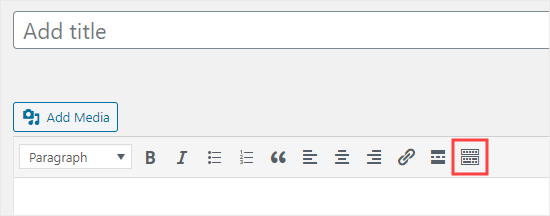
This will open up the second row of buttons, which includes the horizontal line option.
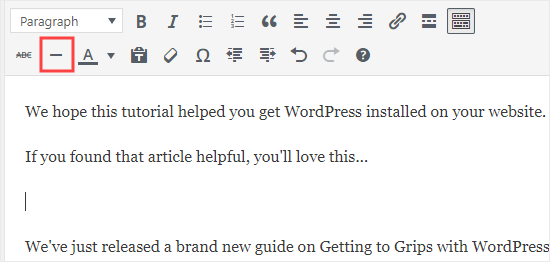
From here, the first thing to do is place your cursor on a new line where you’d like to insert the horizontal line.
You can then click the ‘Horizontal Line’ icon. It’s the second from the left on the second row:
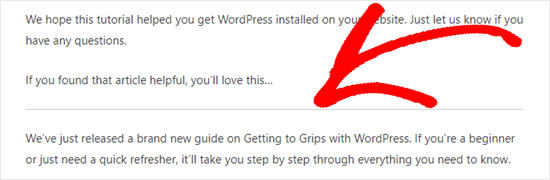
Once added, you’ll see a light gray horizontal line.
It’ll cover the whole width of your post like this:
Manually Adding a Horizontal Line Using HTML
In some rare cases, you may need to manually add a horizontal line divider in your WordPress content.
If so, you can simply do that by using the <hr> HTML tag in your content:
<hr>
You can add this tag in the ‘Text’ view of the Classic Editor or within a ‘Custom HTML’ block in the Block Editor.
It’s a quick way to add a separator when you’re working with code.
Method 3: Splitting a Long Form into Multiple Pages with WPForms
Sometimes you need to break up a long form to make it less overwhelming for users. Instead of a visual line, you can split your form into multiple pages. We’ll show you how to do this using our favorite WordPress contact form builder, WPForms.
In fact, WPForms is the tool we love and use ourselves, so we highly recommend that you consider it. For more information about the plugin, hop over to our full WPForms review guide!
First, you’ll need to download, install, and activate the WPForms plugin. If you’re not sure how, then just check out our step-by-step guide on how to install a WordPress plugin.
📌 Note: The free WPForms version works well for this guide. That said, if you need advanced features like conditional logic, you’ll need to upgrade to the Pro version.
Next, you can go to WPForms » Add New from your WordPress dashboard.
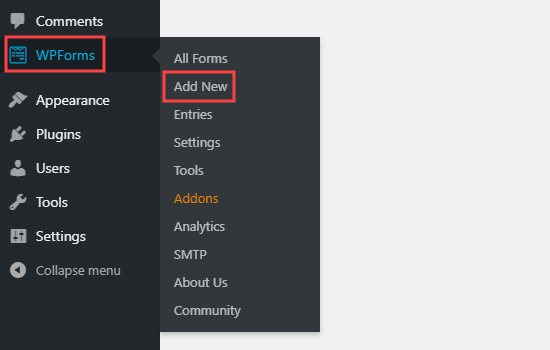
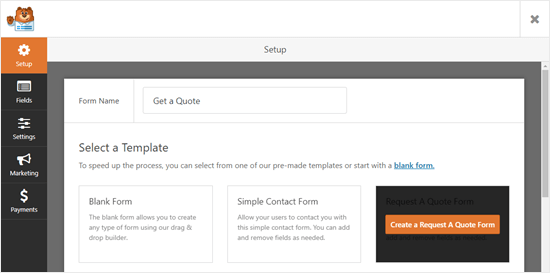
On the next screen, you’ll enter a name for your form, then pick a template.
For this tutorial, we’re going to use the ‘Request a Quote Form‘ template.
After choosing a template, you can simply run your mouse cursor over the template and click the button to create your form.
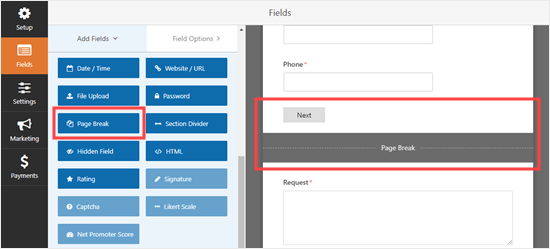
Next, let’s scroll down the ‘Add Fields’ tab on the left-hand side to the ‘Fancy Fields’ section.
Then, you can drag and drop the ‘Page Break’ to wherever you want it on the form. We’re putting it just before the ‘Request’ box.
💡 Pro Tip: Want to quickly build your form? Then you’ll appreciate the WPForms AI-powered form builder! Simply give a short description and wait for the AI to generate your form.
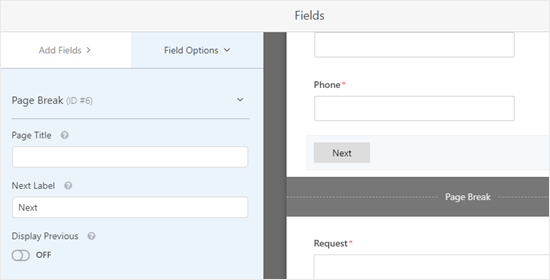
You’ll see that the form is now broken into 2 parts. WPForms has automatically added a ‘Next’ button, too.
You can change the ‘Next’ label if you want to, and you can add a ‘Previous’ button for users to go to the second page of the form.
Just click on the page break field to edit it.
Once you’re done, you can save the form by clicking the ‘Save’ button on the top right.
Now, it’s time to add the form to your website.
Go ahead and click the ‘Embed’ button right next to the ‘Save’ button to get started. This will open a prompt window where you can create a new post or page or edit an existing one.
For this tutorial, we’ll choose the ‘Select existing page’ option.
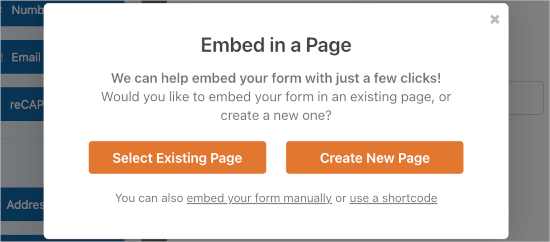
The next step is to choose from the available pages and click ‘Let’s Go!’
You’ll then be redirected to WordPress’s content editor.
From here, simply click the ‘+’ icon to add a new block to your post or page and find the ‘WPForms’ block. You can use the search bar or look in the ‘Widgets’ section.
Once you find it, click on it to add the block to your page.
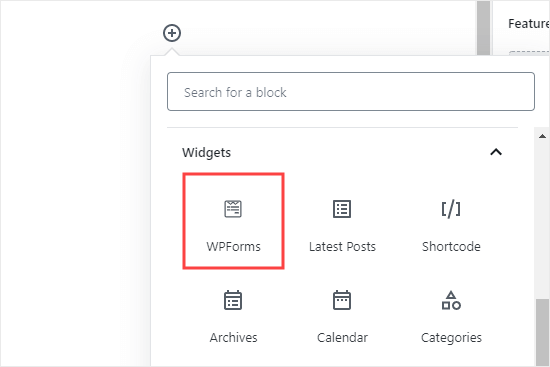
Now, you’ll see an option to select your form.
Go ahead and choose the form you just created from the dropdown list.
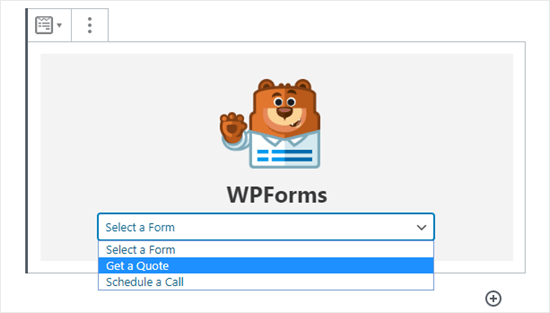
Once you’ve done that, you can publish the post or page. And that’s all there is to it!
Now, if you visit the post or page, you can see the form in action.
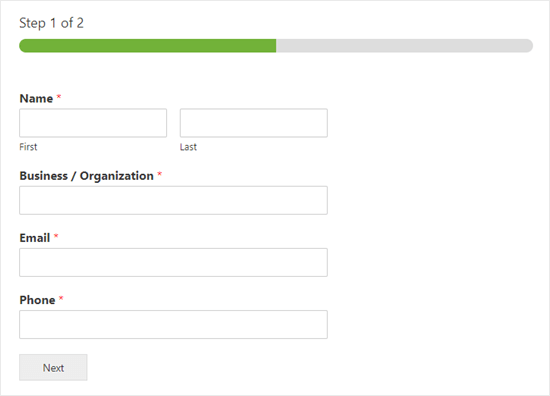
Bonus Separators You Can Use in Your Posts and Pages
Besides a horizontal line, the WordPress Block Editor offers other useful blocks to help you organize your content and improve layout. Let’s take a look at a few great alternatives.
The Spacer Block
The ‘Spacer’ block lets you add white space between blocks.
For instance, if you want a slight gap at the end of your post before a lead magnet, you can use ‘Spacer.’
Here’s how it looks when you’re creating your post in the block editor:
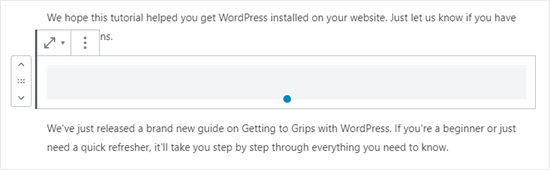
You can customize the height of the spacer to fit your content area better.
And here’s how the spacer might appear on your site:

The More Block
If your theme shows full posts on your main blog page instead of excerpts, adding a ‘More’ link will cut off your post at that point.
This will require visitors to click to read more.
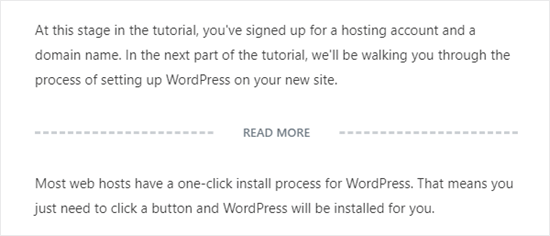
The above image shows what you will see in the content editor.
And below is how it might appear on your site to visitors:
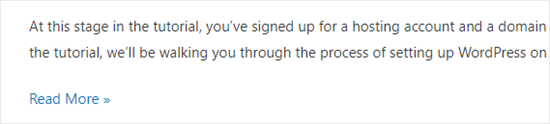
You can learn more about this in our guides on how to properly use the more block and how to easily customize excerpts in WordPress.
The Page Break Block
‘Page Break’ splits a long blog post into multiple pages (a technique called pagination).
The block itself doesn’t have styling options in the editor, so its appearance is controlled by your WordPress theme. Here’s how it looks when you’re writing your post:
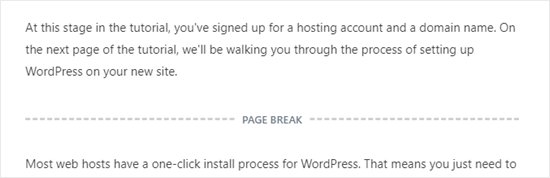
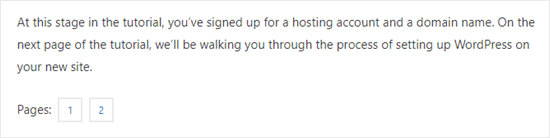
Then, ‘Page Break’ will use page numbers and allow readers to choose which page they want to go to.
Here’s how it might appear on your WordPress site:
For details, you can refer to our guide on how to split WordPress posts into multiple pages.
Any of those could be good alternatives to adding a horizontal line in WordPress, depending on your goal.
Frequently Asked Questions About Adding Horizontal Lines in WordPress
What is the HTML tag for a horizontal line?
The HTML tag for a horizontal line is <hr>, which stands for “horizontal rule.” You can add this tag in the code editor to manually insert a standard line separator.
How can I customize the horizontal line in WordPress?
The WordPress block editor has built-in settings that let you change the line’s style and color. For more advanced customizations, like adjusting the thickness or creating unique designs, you would typically use custom CSS.
Can I use an image instead of a line as a separator?
Absolutely. Using a custom image as a separator can add a unique, branded touch to your content. For even more creative control, a page builder plugin like SeedProd lets you design custom section dividers without any code.
Keep Learning: Tips to Manage Your WordPress Posts and Pages
We hope this tutorial helped you learn how to add horizontal line separators in WordPress.
If you want to add more design and layout elements to your posts and pages, check out our articles on:
- The Best Drag-and-Drop WordPress Page Builders
- How to Create a Custom Shape Divider in WordPress
- How to Display a List of Last Updated Posts in WordPress
- How to Add Custom Post Status for Blog Posts in WordPress
- How to Create Custom Post Types in WordPress
- How to Password Protect a Page or Post in WordPress
If you liked this article, then please subscribe to our YouTube Channel for WordPress video tutorials. You can also find us on Twitter and Facebook.


Jiří Vaněk
May I ask you, if its possible to make dividier horizontal, instead fo vertical?
WPBeginner Support
For that you would want to create columns and then you would use css to add the border property to the columns.
Admin
Shoaib
Does using hr tags between article affect SEO?
WPBeginner Support
It would depend on how they are being used but for the most part they should not have a major effect.
Admin