


While Canva has become the go-to choice for many website owners (we’ve used it too!), we’ve discovered that it’s not always the perfect design tool for everyone’s needs. Sometimes you need something simpler, sometimes more powerful, and sometimes just different.
Through countless late-night design sessions and working with hundreds of graphics, we’ve test-driven practically every design tool out there, from the free hidden gems to the premium powerhouses.
Our team has learned which tools work best for specific needs, and more importantly, which ones won’t leave you pulling your hair out!
In this article, we’re excited to share our honest, hands-on experience with the best Canva alternatives we’ve actually used. Whether you’re looking to save money, need more website-specific templates, or want something easier to use, we’ve got you covered.
Our Favorite Canva Alternatives for Website Graphics
Are you in a rush and want to know which design tool to choose? Don’t worry. We’ve summed up our favorite tools in this quick overview:
| # | Tool | Why We Recommend It | Online/Desktop? |
|---|---|---|---|
| 🥇 | Adobe Express | Easy online Photoshop alternative | Online |
| 🥈 | Visme | More powerful Canva alternative | Online |
| 🥉 | Affinity Photo 2 | Full-featured desktop photo editing software | Desktop |
| 4 | Snagit | Desktop screen capture software | Desktop |
| 5 | Piktochart | Online infographic maker | Online |
| 6 | Pixlr | Beginner-friendly online photo editing tool | Online |
| 7 | Picmaker | Social-media focused online graphics tool | Online |
| 8 | Fotor | Online photo editing and design | Online |
| 9 | PicMonkey | Easy-to-use online image editor | Online |
| 10 | GIMP | Free and open-source Photoshop alternative | Desktop |
Our Approach to Testing Canva Alternatives
We’ve used many of these tools ourselves for years on WPBeginner, particularly Adobe Express and Affinity Photo. For others, we created test projects and consulted real user reviews to ensure our recommendations were solid.
Our goal was to find alternatives that not only match Canva’s capabilities but might work even better for specific needs.
As experts who’ve helped countless website owners make logos and create better blog images, here’s what we look for:
- First, we believe a good design tool should be easy to use from the first click. When testing tools like Visme and Adobe Express, we looked for clear navigation, helpful tutorials, and whether we could create a basic design within 10 minutes of signing up.
- We carefully evaluated both free and paid options. Tools like Affinity Photo caught our attention with their one-time payment model, which can be more cost-effective than subscriptions for regular users.
- We specifically look for tools that offer genuine value in their free versions, not just limited demos.
- In today’s work-from-anywhere world, easy access is crucial. We prioritized tools that work smoothly in web browsers and sync across devices, similar to how Canva operates.
- Every tool we tested needed to handle basic website graphics well. We focused on their ability to create featured images, website banners, and marketing materials. We created real blog headers, social media graphics, and featured images to test each tool’s capabilities thoroughly.
- Also, modern design tools should offer more than the basics. We were particularly interested in artificial intelligence (AI) features that can save hours of design time. We also valued specialized features like enhanced screenshot capabilities for tutorial creators.
- Having access to good templates and assets is also important for quick, professional results. We compared stock photo libraries, checked template quality, and assessed how often new content is added.
Why Trust WPBeginner? 📣
To write this comparison, we’ve personally tested each tool we recommend, creating real graphics for our own websites and client projects. We regularly use many of these tools ourselves, from crafting featured images to designing social media graphics and infographics.
Our editorial team thoroughly researches every tool’s features, pricing, and user feedback, then fact-checks all information for accuracy. We also regularly update our reviews as these design tools evolve and add new features.
For complete transparency about our testing and review process, you can check out our editorial guidelines.
With that being said, let’s take a look at some of the best Canva alternatives for website graphics.
1. Adobe Express (Online Graphic Design)
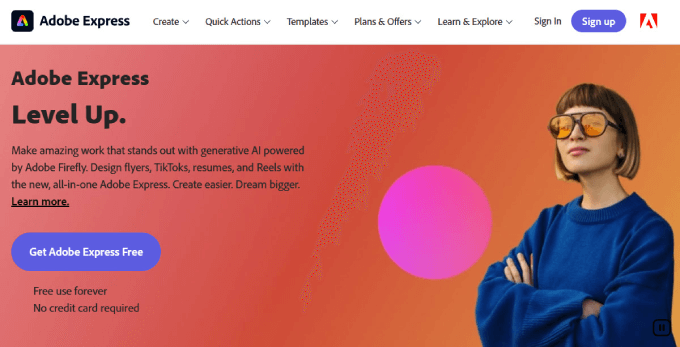
Adobe Express is a user-friendly online design tool from the same company that makes Photoshop. It’s a direct competitor to Canva, perfect for creating graphics for websites and social media without a steep learning curve.
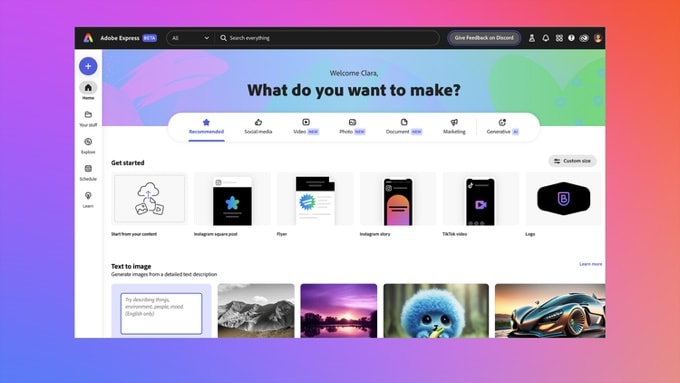
It offers plenty of image templates that help you get started on your images, much like Canva. You can then use its graphics editor to crop the image and add other visual elements.
We’re big fans of artificial intelligence, and we like the app’s generative AI features, like its text-to-image tools and text effects. During our testing, we were impressed by how we could create unique images and text styles simply by writing a prompt.
Adobe Express is free to use. There are also Premium and Team plans, and if you are already an Adobe subscriber, then you can use it with their other tools, like Adobe Stock and Fonts, to further enhance your blog post images.
Pros of Adobe Express:
- Online tool
- More features than Canva
- Affordable freemium pricing model
- Works well with other Adobe services
Cons of Adobe Express:
- Requires an internet connection
- Some features and resources are not included in the free plan
Why we recommend Adobe Express: Based on our hands-on experience, Adobe Express is an easier-to-use graphics tool by the people who create the industry standard, Photoshop. Like Canva, it is a web-based app that we found remarkably easy to use.
2. Visme (Online Graphic Design)
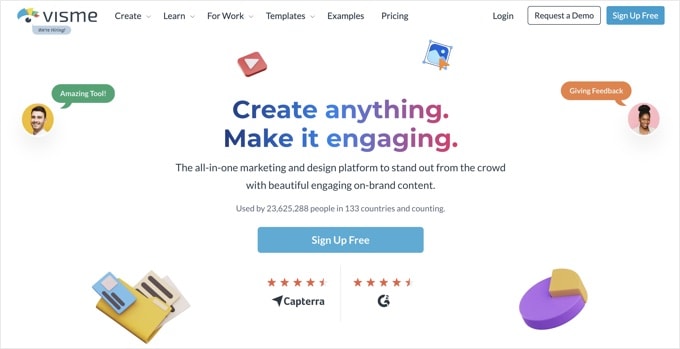
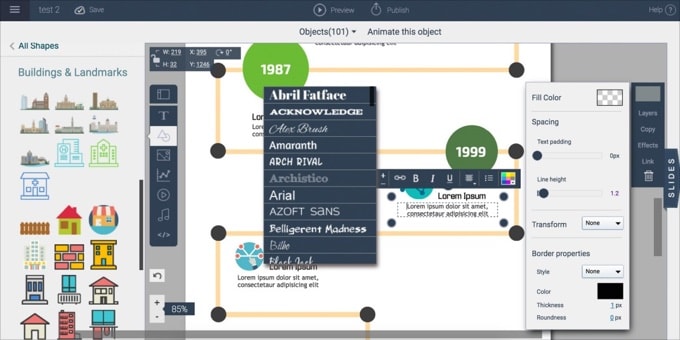
Visme is a freemium web platform designed for creating graphical content like website banners, infographics, and interactive charts.
It shares a lot in common with Canva, offering a vast library of templates, graphics, and customizable elements.
We’ve successfully used this tool to create all kinds of graphics to visually improve a site. Visme actually offers more features than Canva, making it a good choice for people who feel a bit limited by Canva’s toolset.
For example, we think it is stronger at creating interactive content such as charts, maps, and data widgets. However, beginners will find it has a slightly steeper learning curve.
Pros of Visme:
- More features than Canva
- Online tool
- Affordable freemium pricing model
Cons of Visme:
- Requires an internet connection
- Slightly steeper learning curve than Canva
- Some features and resources are not included in the free plan
Why we recommend Visme: Visme is a powerful graphic design tool used by over 23 million people in 133 countries. We found it to be affordable, web-based, and a worthy competitor to Canva.
3. Affinity Photo 2 (Photo Editor for Windows, Mac & iPad)
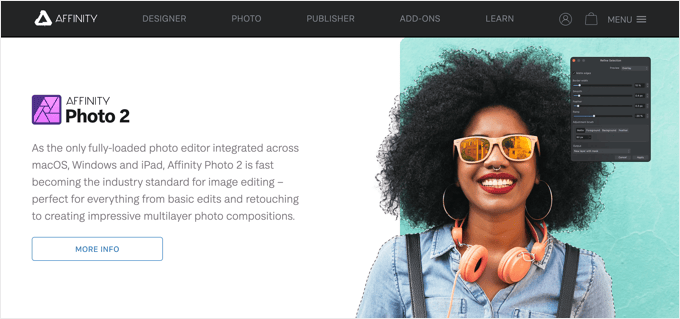
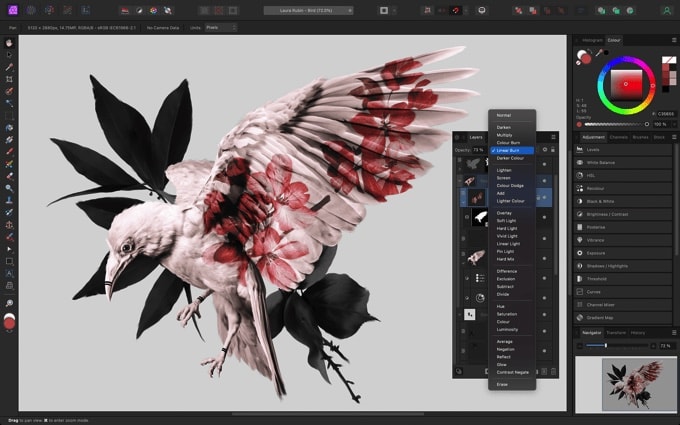
Based on our daily use, Affinity Photo 2 is a full-featured photo editing software that runs on Windows, Mac, and iPad. It offers advanced tools and features similar to Adobe Photoshop.
While Canva is designed to cover a wide range of graphics tasks, we’ve found Affinity Photo to be better focused on photo editing for people who need advanced features. However, the company also offers a whole suite of software to meet the needs of illustrators, designers, publishers, and more.
We regularly use Affinity Photo, along with its sister program, Affinity Designer, to create many of the images on WPBeginner. Having worked with both tools extensively, we can confirm that beginners will find it has a steeper learning curve than Canva.
In terms of pricing, we appreciate that Affinity Photo can be purchased with a one-off payment for each platform, with no ongoing subscription required.
Pros of Affinity Photo:
- Advanced photo editing features
- Other Affinity apps are available for illustrators, designers, and publishers
- Available for Windows and Mac
- One-off payment with no ongoing subscription costs
Cons of Affinity Photo:
- A little expensive, especially if you purchase multiple apps
- Steeper learning curve than Canva
Why we recommend Affinity Photo: From our extensive experience, Affinity Photo is an advanced photo editing tool that we use regularly for images on WPBeginner.
Alternative: Pixelmator
4. Snagit (Screen Capture for Windows & Mac)
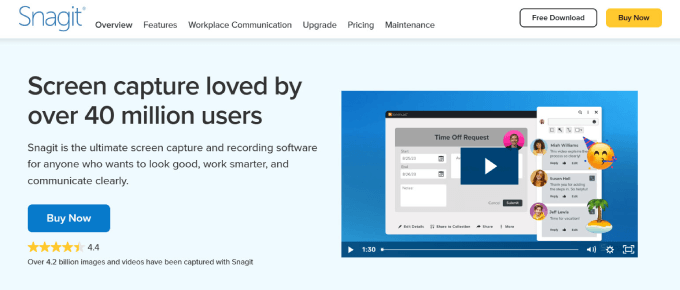
Snagit is a screen capture and recording tool for Windows and Mac. While it’s not an all-in-one design suite, we’ve found it to be a superior choice for creating and annotating screenshots.
You can use its screen capture feature to create annotated screenshots and short video recordings of software you are writing about. We find it essential for our own tutorials.
You can download the Snagit software for Mac and Windows with a single purchase. However, we should mention that if you wish to access Snagit’s assets, like stamps and templates, an ongoing subscription is required.
We particularly appreciate how Snagit lets you accurately specify which part of the screen you want to capture and preview it in the editor. The built-in editor gives you access to templates and flexible markup tools to customize your screenshots.
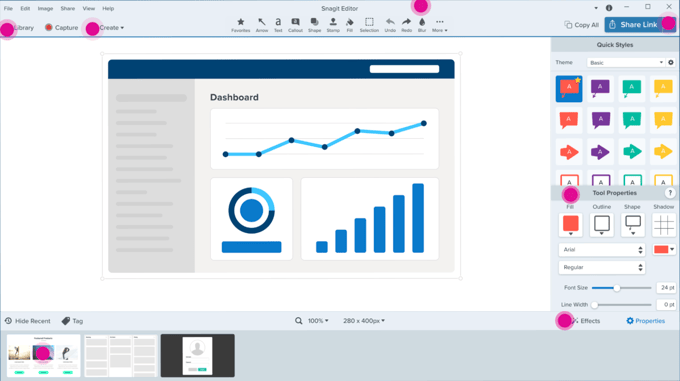
Its text recognition feature also works well for editing and customizing text in screenshots. Besides that, it recognizes elements on the screen, such as buttons, and allows you to move or remove them.
Pros of Snagit:
- Excellent tool for creating and marking up screenshots
- Available for Windows and Mac
- One-off payment with no ongoing subscription costs
Cons of Snagit:
- Not an all-in-one graphic design tool
- An ongoing subscription is required for Snagit assets
Why we recommend Snagit: Snagit is a highly rated screen capture application for Windows and Mac. If you create a lot of screenshots for your website, then it is a better tool than Canva.
Alternative: Greenshot (free and open-source software for Windows)
5. Piktochart (Online Infographic Maker)
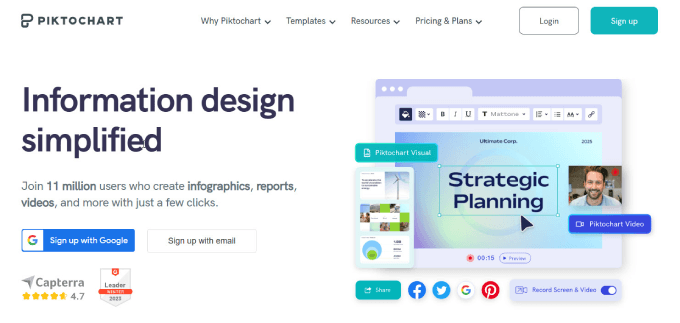
Piktochart is an easy-to-use online infographic maker. It provides over 600 professional templates that let you quickly create infographics, presentations, posters, and reports.
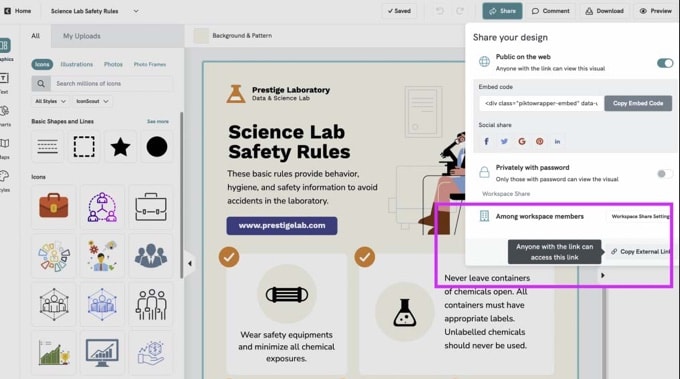
Once you’ve chosen a template, you can easily customize it using the drag-and-drop editor. There are plenty of free images, icons, and illustrations, and you can add your own charts and graphs, maps, icons, photos, and videos.
We also like how Piktochart can use AI to make creating images more efficient. For example, the Smart Templates feature automatically generates new templates tailored to your preferences, and Smart Suggestions recommends suitable fonts, colors, and icons to improve visual appeal.
Like Canva, it uses a freemium pricing model that lets you start to use the app free of charge, but with basic features and limited storage. Affordable paid plans remove these restrictions.
Pros of Piktochart:
- Online tool
- Focused on infographics
- AI tools to streamline image creation
- Freemium model with affordable plans
Cons of Piktochart:
- Requires an internet connection
- The free plan does not include all features
Why we recommend Piktochart: Piktochart is an excellent alternative to Canva for users who create infographics and similar artwork for their blogs. We particularly value its focus on data visualization and presentation tools.
6. Pixlr (Online Photo Editor)
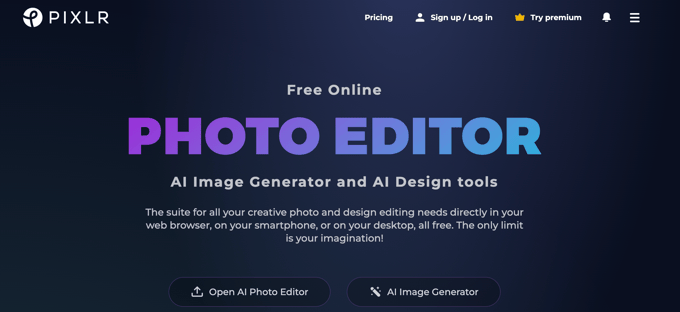
Pixlr is a freemium online photo editing tool that is created for beginners and non-designers. We find its features to be similar to Photoshop, but in a beginner-friendly way. This makes it more powerful than Canva for photo retouching, detailed adjustments, and advanced editing.
Like Canva, Pixlr offers plenty of pre-made templates to help you get started, and you can customize your images to fit your content needs. It has affordable pricing, and the free version will suit many users’ needs.
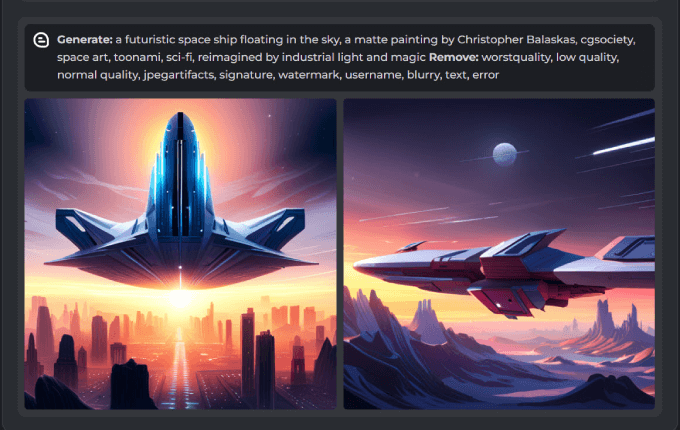
We’ve tested how Pixlr lets you create new images using AI. We were impressed by how you can simply write a descriptive prompt that describes the type of image you need, and Pixlr will make it for you automatically.
Pros of Pixlr:
- Advanced photo editing tools
- AI tools for creating new images from a prompt
- Online tool
- Affordable freemium pricing
Cons of Pixlr:
- Requires an internet connection
- The free version is ad-supported, has limited features and storage, and does not include AI tools
Why we recommend Pixlr: Pixlr is similar to Canva in many ways but we’ve found it to be much more capable when it comes to advanced editing and artificial intelligence features.
7. Picmaker (Online Graphics Tool for Social Media)
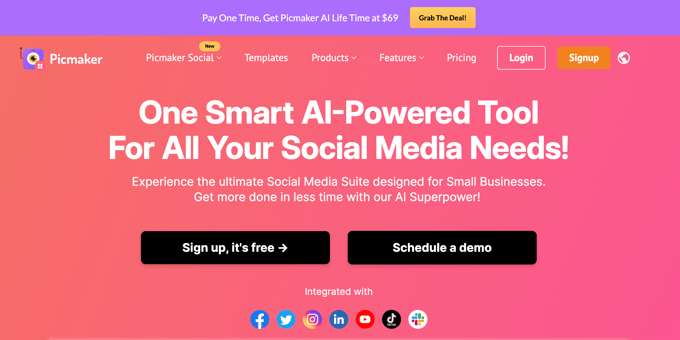
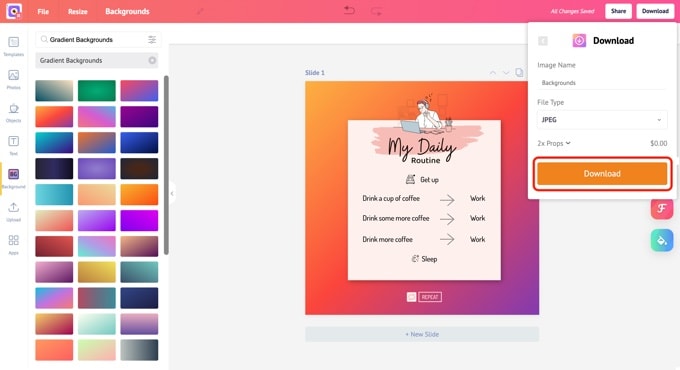
Picmaker is an easy-to-use online graphic design tool focused on creating images for YouTube and social media. We liked that it has a simple interface and a library of templates that lets beginners get started on new designs quickly.
If you’re a content maker focused on YouTube, you will appreciate its optimized tools and templates. We’ve tested its features for creating YouTube thumbnails and channel art, and they are very straightforward to use.
Picmaker also uses AI to streamline the design process. For example, it can analyze your preferences to recommend suitable templates and design elements, and it also uses AI to help maintain brand consistency.
Picmaker offers both free and paid plans. However, you are likely to outgrow the free plan very quickly if you use it often.
Pros of Picmaker:
- Online tool
- Affordable plans
- Features for creating YouTube and social media images
Cons of Picmaker:
- Requires an internet connection
- The free version lacks many features
Why we recommend Picmaker: Picmaker is highly rated by its users. It is a good alternative to Canva for YouTubers and social media marketers.
8. Fotor (Online Photo Editor)
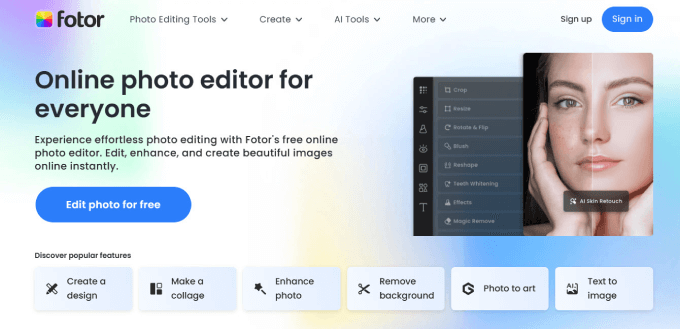
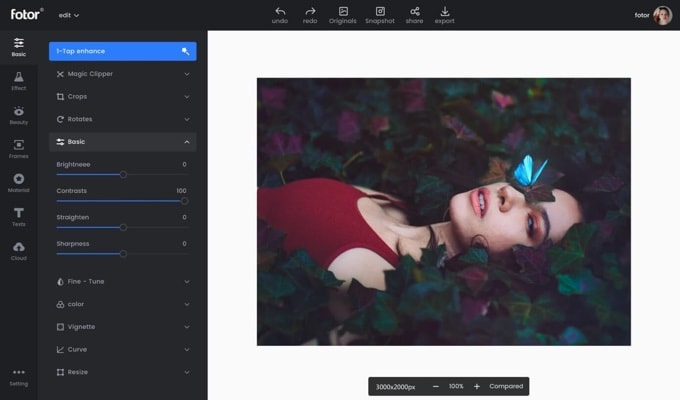
Fotor is a freemium online photo editing tool. We’ve explored its tools for photo editing, collage-making, and design, and found it suitable for users with varying levels of design experience.
While Canva offers a more versatile approach, Fotor is focused on photo editing and design. It provides tools for users who require detailed image enhancement and creative design options.
We’ve had the chance to test Fotor’s AI tools, including an AI background remover, an AI photo object removal, and an AI image generator. The last one allows you to create images by typing in text prompts.
The free version doesn’t include these AI tools, but otherwise will work well for many users. Paid plans are very affordable.
Pros of Fotor:
- Online tool
- Includes AI features, including image creation
- Freemium pricing model with affordable plans
Cons of Fotor:
- Requires an internet connection
Why we recommend Fotor: Fotor is an affordable online photo editor with smart AI features.
9. PicMonkey (Online Graphics Tool for Social Media)
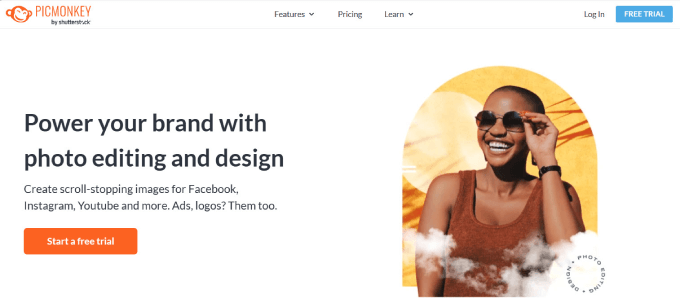
PicMonkey is an easy-to-use online image editor created by Shutterstock. Like Picmaker, it is focused on creating appealing images for YouTube and social media and includes templates for logos, banners, thumbnails, and more.
While Canva’s approach is more versatile, we’ve found PicMonkey offers stronger photo editing tools and creative design capabilities.
We’ve tested its image retouching, filters, overlays, textures, and effects, finding it more suitable for users who need detailed image enhancement and design options.
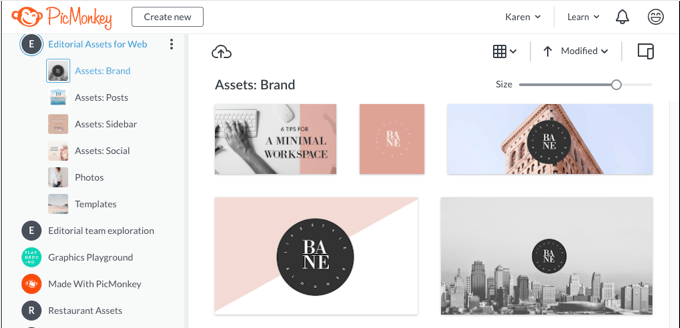
PicMonkey offers a free trial that lets you test out its features. However, you’ll need to upgrade to a paid plan to access core functions like downloading your finished graphics.
Pros of PicMonkey:
- Online tool
- Features for creating YouTube and social media images
- The free plan will meet many users’ needs
Cons of PicMonkey:
- Requires an internet connection
Why we chose PicMonkey: PicMonkey is an easy-to-use online tool suitable for YouTube and social media images.
BONUS: GIMP (Graphic Design for Windows, Mac & Linux)
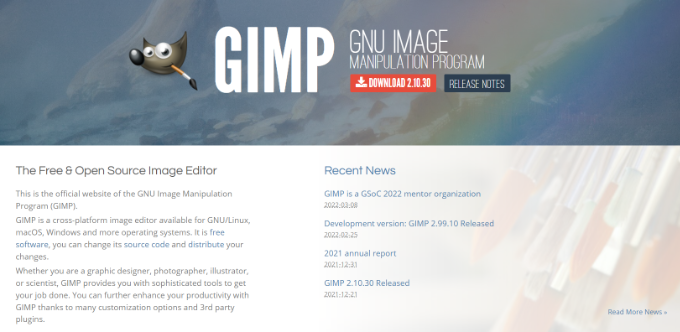
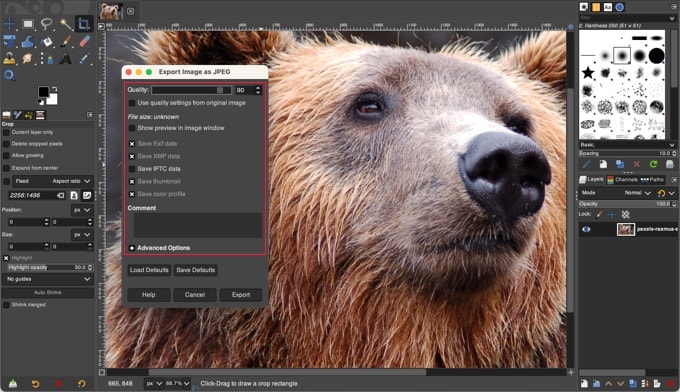
GIMP is a powerful open-source alternative to Photoshop. While Canva and our other alternatives aim to make graphic design easier, GIMP provides a full-featured app for experienced graphic designers free of charge.
GIMP is suitable for users who require more advanced features and are not looking for a beginner-friendly interface. It offers a wide array of tools for photo retouching, image editing, and graphic design, and is similar to Adobe Photoshop in many ways.
Pros of GIMP:
- Open-source and completely free
- More powerful than Canva
Cons of GIMP:
- Does not offer a wide range of templates as an easy starting point
- Has a high learning curve and is not beginner-friendly
Why we recommend GIMP: GIMP is a popular open-source graphic design application. It’s suitable for experienced users who prioritize power over ease of use.
What Is the Best Canva Alternative?
Canva remains an excellent option for creating web graphics. It’s affordable, easy to use, quite powerful, and able to do a wide range of graphics tasks. And because it’s an online tool, it’s instantly available on any computer you use.
For a similar online experience, Adobe Express and Visme are the best direct competitors.
Adobe Express is a fantastic, user-friendly choice, especially if you like the generative AI features. Visme is a great pick if you need powerful tools for creating interactive content like charts and maps.
If you prefer a desktop application that doesn’t require an internet connection, then Affinity Photo 2 is an excellent choice. It can be installed permanently on your Windows or Mac computer.
While those apps cover a lot of ground, you may find a more specialized tool is an even better fit for your specific needs:
- For creating marked-up screenshots, Snagit has intelligent features that make it easy to take and customize screenshots on Windows or Mac.
- If you create images for social media or a YouTube channel, then Picmaker and PicMonkey are the best Canva alternatives.
- For creating infographics online, there’s no better choice than Piktochart.
- For detailed photo editing, Pixlr and Fotor are the best beginner-friendly online tools.
Frequently Asked Questions About Creating Website Graphics
Our users regularly ask us questions about the best ways to use images on their websites. Here are some of the answers to the most frequently asked questions about website graphics.
What graphics file formats should I use for my site?
Traditionally, PNG was best for images with few colors (like screenshots), while JPEG was the choice for photos. However, we now strongly recommend using WebP for all your web graphics. It’s a modern format that provides excellent quality at a much smaller file size.
For more information, see our guide on the best image format for WordPress.
What are the best practices for using graphics on a website?
It is important to optimize your images for small file sizes. Otherwise, your web pages may load too slowly. You should also aim for consistency in design that fits with your branding.
What are some copyright and licensing considerations for website graphics?
Make sure that you have the proper rights to use any website graphics that you didn’t create yourself, such as stock images. This may involve purchasing a license or using royalty-free images.
Best WordPress Guides for Website Graphics
Now that you know the best Canva alternatives, you may wish to see some other guides related to website graphics:
- How to Properly Add Images in WordPress (Step by Step)
- How to Add Featured Images or Post Thumbnails in WordPress
- Tools to Create Better Images for Your Blog Posts
- How to Optimize Images for Web Performance Without Losing Quality
- Beginner’s Guide to Image SEO – Optimize Images for Search Engines
- How to Fix Common Image Issues in WordPress (Ultimate Guide)
- Best WordPress Themes for Graphic Designers
- How to Sell Digital Art and Graphics Online (The Easy Way)
If you liked this article, then please subscribe to our YouTube Channel for WordPress video tutorials. You can also find us on Twitter and Facebook.




kzain
I’ve been using Canva free version for creating Pinterest Pins, but I’m excited to explore these alternative options! I’m curious to know if they’re even more user-friendly than Canva, which I already find incredibly reflexive.
Thanks for such informative articles!
Hajjalah
I have been using Canva for a good time now. Its is one of the best if not the best free photo editor online to-date. Good enough this website enables any one to create different photos without adding their brand logo as some other photo editors.
This enables more sense of owning your created content. But sincerely, when I tested PicMonkey, it was another great experience because I discovered some advanced free features such as effects overlays and filters which are not available in free Canva. I think PicMonkey can beat Canva in some features.
Jiří Vaněk
I use Canva in the free version for creating infographics. I didn’t know these alternatives to this service and I’m definitely happy to try them. Thanks for the valuable tips.