


Got a glowing 5-star review sitting on Google, Facebook, or Yelp? That kind of feedback is a powerful trust booster, but if it’s not front and center for your WordPress site visitors, you’re missing out.
These days, people don’t just want to hear you say your business is great. Real, recent reviews offer the kind of social proof that can tip someone from just browsing to ready to buy.
That’s why one of the best ways to showcase your credibility is by embedding a live review feed right on your WordPress site.
In this tutorial, I’ll walk you through the easiest way to display your latest reviews on your site. This way, you can build trust, boost conversions, and make the most of every happy customer. 🌟

📚 Summary: The best way to show reviews in WordPress is by using the Smash Balloon Reviews Feed Pro plugin, which lets you pull in Google, Facebook, and Yelp reviews automatically – no technical setup required.
Why Display Business Reviews in WordPress?
Showing real customer reviews on your WordPress website is one of the fastest ways to build trust with new visitors. It lets your satisfied customers convince others to buy from you.
This type of social proof can be incredibly powerful. Showing real customer reviews helps build trust, and studies show that displaying reviews can boost conversions by up to $270. This means visitors are almost three times more likely to buy.
The challenge is that your best reviews are often on third-party sites like Google, Yelp, or Facebook. This forces potential customers to leave your website to find that important feedback. 😱
That’s why bringing those reviews directly onto your WordPress website is such a smart move. It keeps your visitors engaged and shows them all the great things people are saying in one place.
For example, you can add positive reviews on your WooCommerce product pages or your About Us page. These reviews can convince customers to trust your company, even if they haven’t bought from you before.
You can even add them to your custom WooCommerce checkout page. And this tactic can even help reduce your cart abandonment rates.
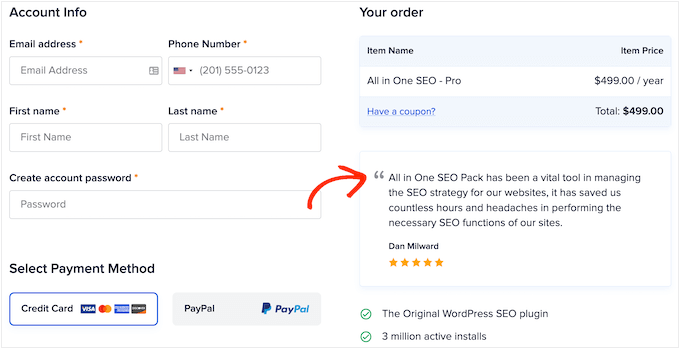
With that said, I’ll share how you can easily add Yelp, Google, and Facebook reviews to WordPress.
Simply use the quick links below to jump straight to the platform you want to use:
- How to Show Google, Facebook, and Yelp Reviews in WordPress
- Method 1: How to Show Yelp Reviews in WordPress
- Method 2: How to Show Google Reviews in WordPress
- Method 3: How to Show Facebook Reviews in WordPress
- Customize Your Google, Facebook, or Yelp Review Feed
- Add Reviews Feed to Your WordPress Website
- FAQs About How to Add Google, Facebook, and Yelp Reviews Feed in WordPress
- Next Steps for Using Reviews in WordPress
How to Show Google, Facebook, and Yelp Reviews in WordPress
You could manually copy and paste reviews, but it’s time-consuming and inefficient. You’d have to constantly check for new feedback, and your latest reviews wouldn’t appear on your site right away.
The best solution is to create a review feed that updates automatically.
For this, I use and recommend the Reviews Feed Pro plugin by Smash Balloon. It’s the best WordPress customer review plugin and a popular social feed tool trusted by over 1.75 million websites.
It’s my go-to tool because it pulls reviews from all the major platforms like Google, Yelp, Facebook, Trustpilot, TripAdvisor, and WordPress.org into a single, easy-to-manage feed.
Plus, it includes professionally designed templates, so you can quickly create beautiful layouts like carousels, grids, or simple lists. The feed also automatically matches your website’s design, helping it blend seamlessly with your site.

See more about it in our extensive Smash Balloon review.
First, let’s create a Reviews Feed Pro account.
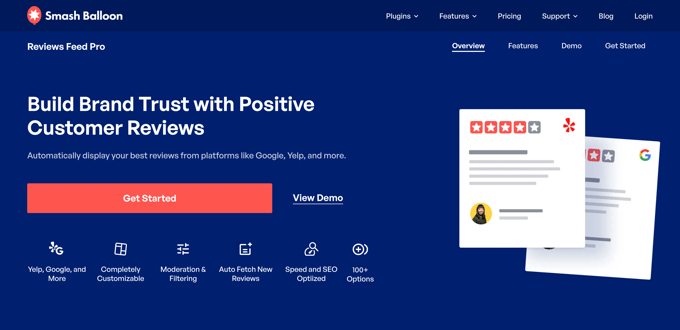
On the Smash Balloon’s Reviews Feed homepage, click ‘Get Started’ and pick a plan. You can also select the ‘All Access Bundle,’ which includes all of Smash Balloon’s plugins.
After choosing your plan, simply follow the on-screen instructions to complete checkout.
💡 Note: While there is a free Reviews Feed plugin for Google and Yelp, we will be using Reviews Feed Pro for this tutorial so we can seamlessly add Facebook reviews and unlock premium customization features.
Once you’ve signed up, you can download the Reviews Feed zip file and copy your license key.
Now, you can install and activate the Reviews Feed plugin.
From your WordPress admin area, you can go to Plugins » Add Plugin.

Then, click on the ‘Upload Plugin’ button.
In the file uploader, click ‘Choose File’ and upload the Reviews Feed zip file you downloaded earlier.
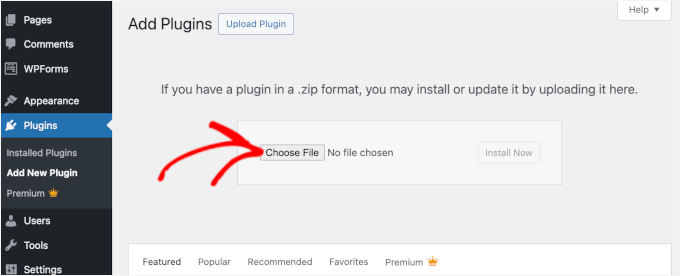
Once uploaded, click ‘Install Now’ and once again on ‘Activate’ when it appears. If you need help, please see our guide on how to install a WordPress plugin.
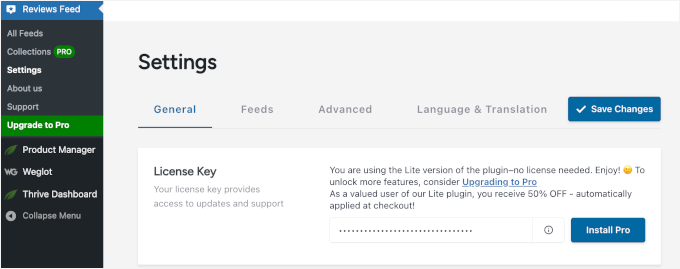
Upon activation, go to Reviews Feed » Settings in the left-hand menu.
You can then add your Reviews Feed Pro license key and click on the ‘Install Pro’ button. You can find the key in your account on the Smash Balloon account.
After activating the plugin, you’re ready to show reviews from Google, Facebook, or Yelp.
Method 1: How to Show Yelp Reviews in WordPress
Yelp is a huge source of customer reviews, especially for local businesses and restaurants. Getting those reviews onto your website is a great way to showcase your reputation.
If your business already has some positive Yelp reviews, then adding them to your website can get you more sales, members, appointments, and more.
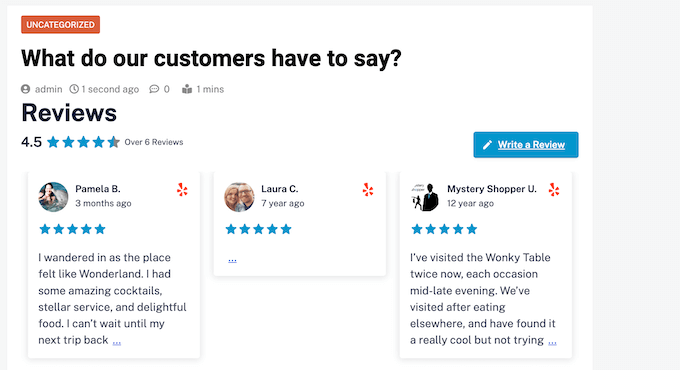
If you don’t already have a Yelp account, then you can claim your Yelp business page.
Since Yelp is a public site, you can show reviews from any business that has a Yelp listing. For example, if you own a business listing blog or membership site, then you could show Yelp reviews for different local businesses on your website.
🛑 Important: If you don’t already have an account, then go to the Yelp signup page and follow the onscreen instructions to register.
First, navigate to Reviews Feed » All Feeds from your WordPress admin sidebar and click the ‘Add New’ button.
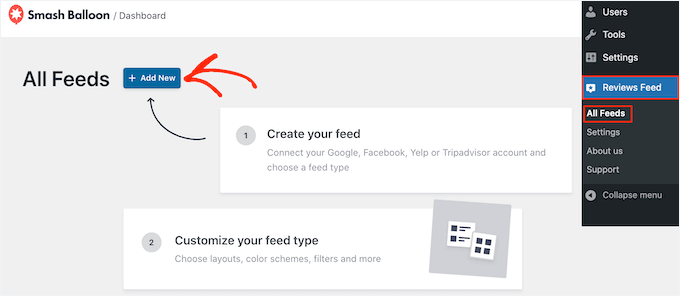
This will launch the guided setup flow.
Since you’re adding your first Yelp feed, you’ll need to connect it to a source. Go ahead and click on the ‘Add Source’ button to proceed.
A popup will appear asking you to select the review platform. Choose ‘Yelp’ from the options and then click the ‘Next’ button.
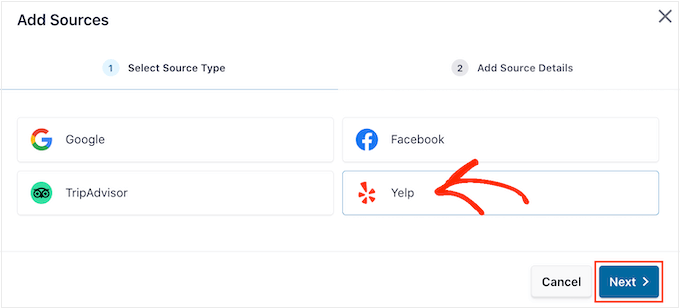
On the next screen, Reviews Feed Pro will ask for your source details.
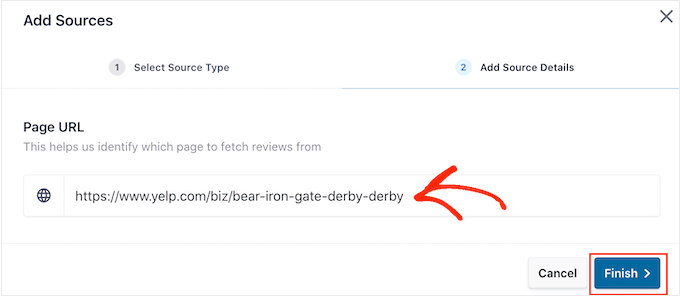
Here, you can simply paste the URL of the Yelp business page you want to display reviews from into the ‘Page URL’ field.
After pasting the link, you can click on ‘Finish’.
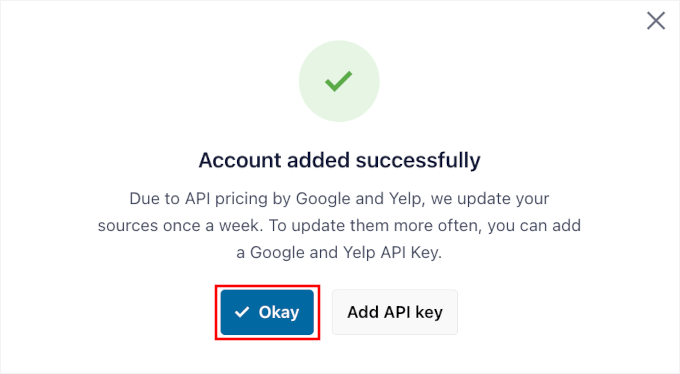
In the popup that appears, you can see that your account was added successfully.
By default, review sources update weekly.
For most small businesses, this weekly refresh is perfect. It saves you from the more technical step of creating and adding an API key, which is typically only needed for very high-traffic sites that get new reviews daily.
You can go ahead and click ‘Okay.’
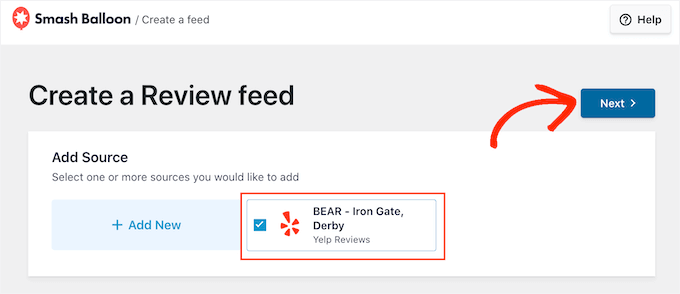
The plugin will then connect to the page and list it as an available source.
Select the checkbox next to your newly added Yelp page and click ‘Next.’
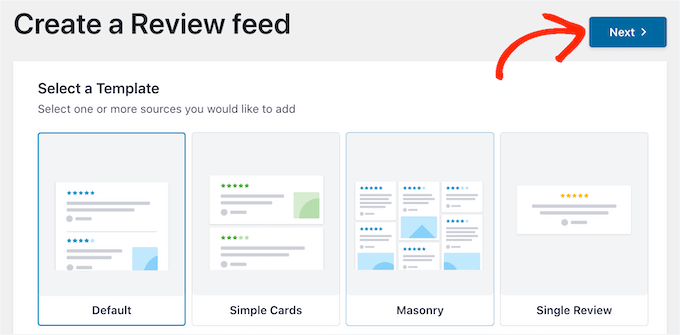
Now you get to the fun part. Reviews Feed Pro will prompt you to select a starting template.
You can choose from several professional layouts like a simple list, a masonry grid, or a sliding carousel. I’m a big fan of the ‘Showcase Carousel’ for homepages because it’s interactive and saves space.
After choosing a design, go ahead and click on the ‘Next’ button.
The plugin will then open its visual feed editor, where you can see a live preview of your Yelp reviews. You can also customize everything, from the layout and colors to which parts of the review are displayed.
I’ll cover the customization options in more detail later in this article.
Method 2: How to Show Google Reviews in WordPress
Google Reviews is another place where customers can review your business online. Apart from building visitor trust, lots of positive reviews on your Google Business Profile can improve your business’s search rankings, especially in local search results.
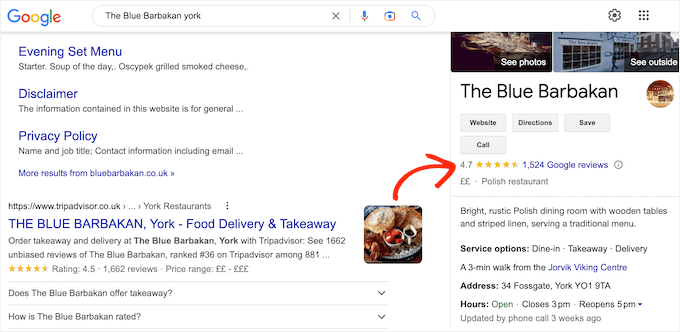
Displaying these great reviews on your website can then build more trust and also encourage more happy customers to leave you a positive review on Google, which can further boost your local SEO.
You can start by going to Reviews Feed » All Feeds and clicking the ‘Add New’ button.
On the screen that follows, the plugin will ask you to select a review source. Since you’re setting this up for the first time, click on ‘Add Source’.
A popup will appear with the different platforms. Select ‘Google’ and then click ‘Next.’
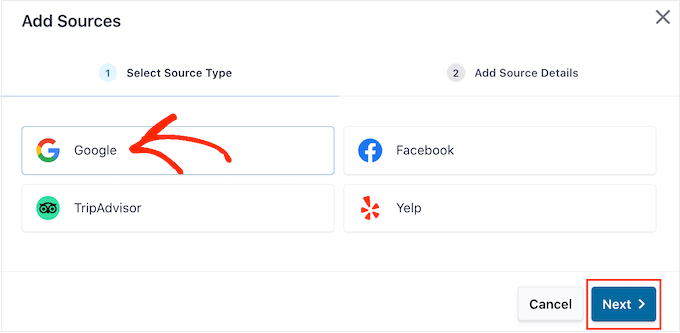
On the next screen, you’ll need to specify the business location. You can do this easily using a unique ‘Place ID’ from Google.
To get the ID, go to Google’s Place ID page and scroll to ‘Find the ID of a particular place.’
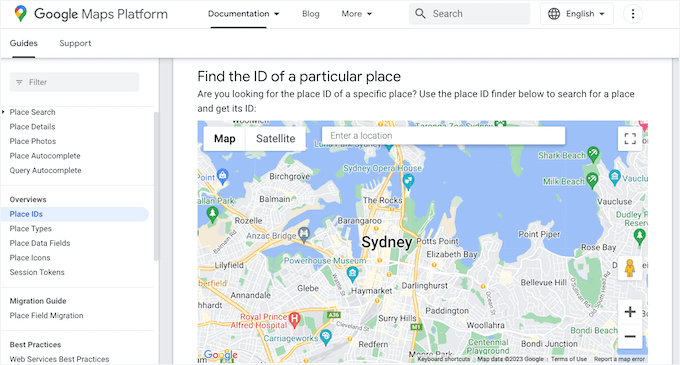
In the Google Maps search bar, type your business name and address. If you’re a service-area business, you can just enter the business name.
When it appears in the dropdown list, you’ll need to click on it.
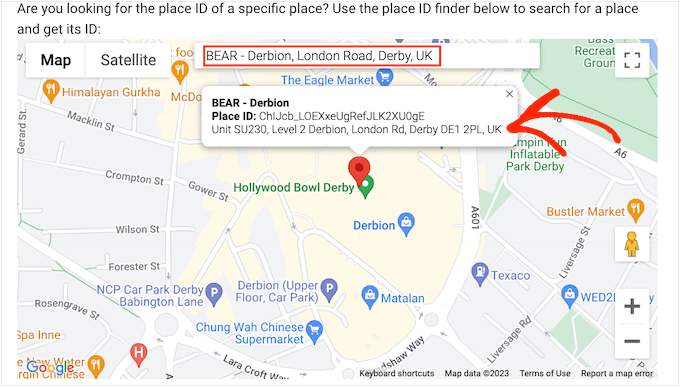
A small popup will appear on the map with your unique Place ID. Just copy the code shown there.
Now, you can head back to your WordPress dashboard and paste the ID into the ‘Place ID’ field. Then, go ahead and click ‘Finish’ to continue.
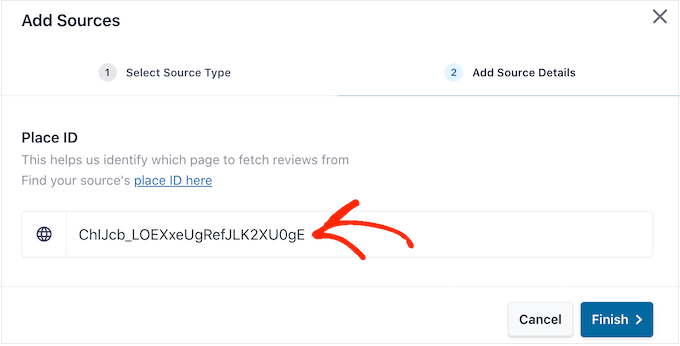
You’ll then see a confirmation popup that tells you your account has been successfully connected.
To refresh reviews more frequently than once a week, you can add your Google API key.
But for most websites, weekly updates are enough. Reviews act as evergreen social proof, so instant real-time syncing usually isn’t necessary.
Just click the ‘Okay’ button to continue.
Smash Balloon will add your Google Business Profile as a source.
Make sure the box next to it is checked, and then click ‘Next.’
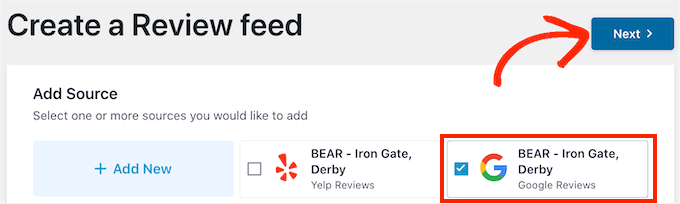
Now you can choose a starting design for your feed. Reviews Feed Pro offers several templates, including carousels, grids, and simple lists.
Select the one that best fits your site’s style and click ‘Next’ to open the visual feed editor.
On the next screen, you can see a live preview of your feed while you adjust the settings on the left. You can change the layout, customize the colors, decide which parts of the review to show, and much more.
To customize the feed, just scroll to the end of this post for a step-by-step guide.
Method 3: How to Show Facebook Reviews in WordPress
Many businesses, websites, and online stores use Facebook to connect with their audience. Facebook also has its own built-in review system, so you may want to add these reviews to your website.
Displaying Facebook reviews is also a fantastic way to promote your profile, cross-promote your content, and get more social media followers.
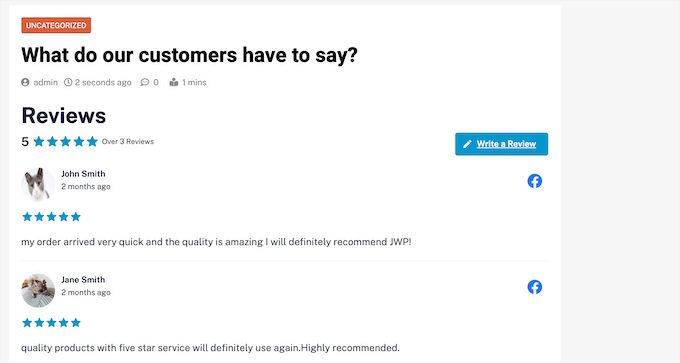
💡 Note: This method is for displaying reviews from a Facebook Business Page. It will not work with a personal Facebook profile.
To add your Facebook reviews, head to Reviews Feed » All Feeds and click the ‘Add New’ button. This will launch the guided setup flow.
In the popup that appears, you need to connect your Facebook page as a source.
So go ahead and select ‘Facebook’ from the options, and then click the ‘Connect with Facebook’ button. Just make sure you are logged into the Facebook account that manages your page.
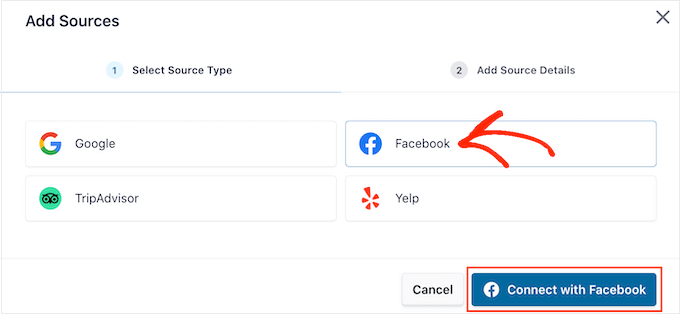
On the next screen, you can choose whether to connect to a Facebook account or add it manually using the API access token.
If you don’t already have an access token, we recommend using the direct connection. It’s much faster and doesn’t require any technical setup.
So, let’s click on ‘Connect to Facebook.’
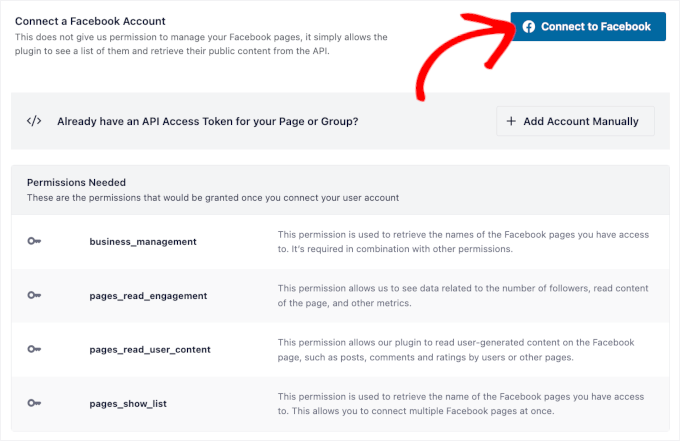
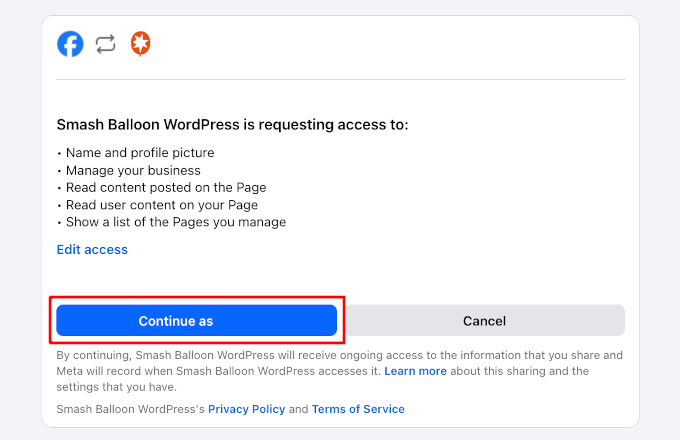
On the next screen, Smash Balloon will request access to your Facebook account. You can review the information the plugin needs before proceeding.
With that done, just click ‘Continue as [Your Facebook Username].’
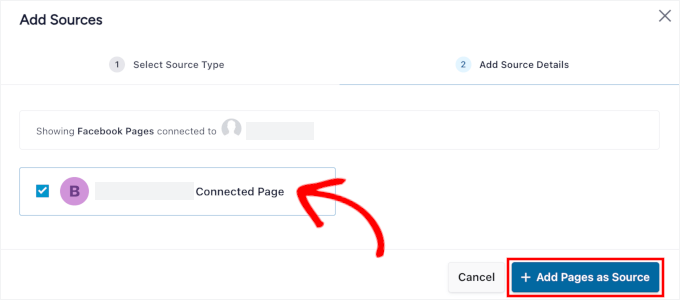
This will take you to the ‘Add Source Details’ tab. Here, you’ll see a list of the Facebook pages your account manages.
Simply tick the checkbox for the page you want to add and click ‘+ Add Pages as Source.’
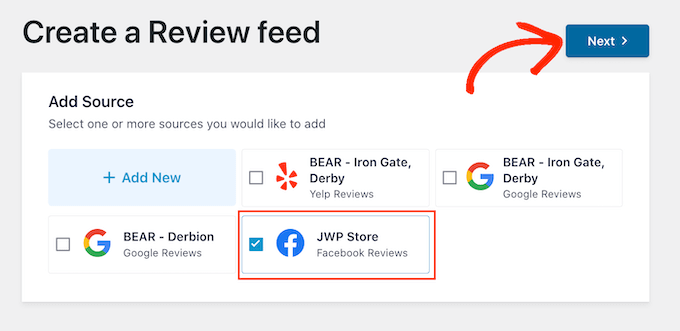
Smash Balloon will automatically take you back to the WordPress dashboard, where you’ll see the Facebook page you just connected to your website.
Simply select the checkbox next to the Facebook page and then click on the ‘Next’ button.
You can now choose the template you want to use for the Facebook reviews feed.
After making the decision, click on ‘Next.’

Smash Balloon will now create a feed showing all your Facebook reviews.
Customize Your Google, Facebook, or Yelp Review Feed
Smash Balloon automatically copies your WordPress theme, so any review feed that you create will fit perfectly with your site’s design. But, Smash Balloon also has an advanced feed editor so you can fine-tune every part of the feed.
Once you connect your chosen platform, Smash Balloon automatically opens its visual feed editor. Think of this as your command center for designing your reviews feed.
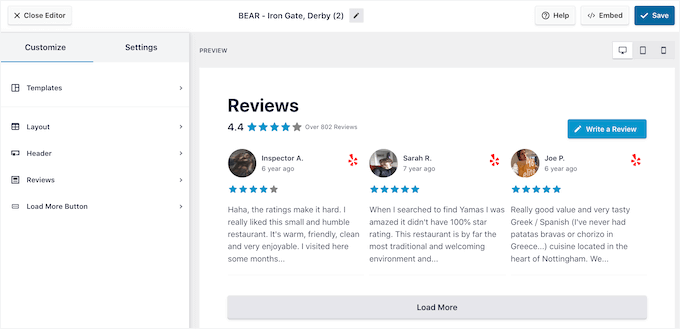
💡 Note: If you accidentally closed the editor, don’t panic. Simply go to Reviews Feed » All Feeds in the WordPress dashboard, and then click on the ‘Edit’ icon next to the feed.
On the right, you’ll see a live preview of your feed that updates instantly. On the left are all your settings. This setup makes it super easy to experiment with different looks until you find the perfect one for your site.
To see what changes you can make, start by clicking on ‘Layout’ in the left-hand menu. Here, you can choose from a Grid, Masonry, or Carousel layout.
As you click on the different layouts, the live preview will automatically update to show the new layout. This makes it easy to try different layouts and find the one you prefer.
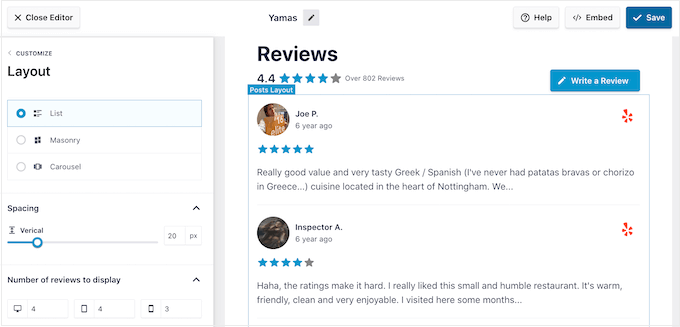
You can also change the spacing, how many reviews you include in the feed, and the number of characters WordPress shows from each review.
As you make changes, remember that the feed may look different on smartphones and tablets, compared to desktop computers.
So it’s a good idea to test the mobile version of your feed using the row of buttons in the right-hand corner. This way, you make sure it works well on all screen sizes.
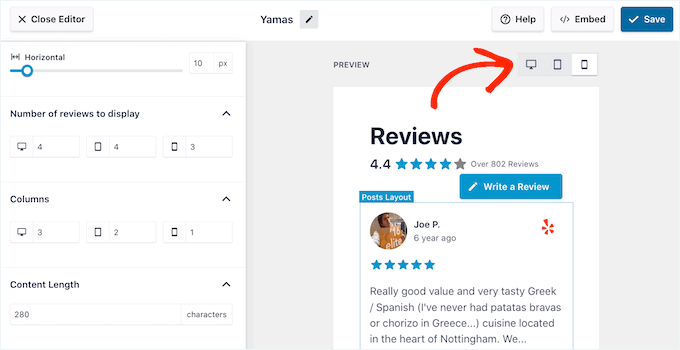
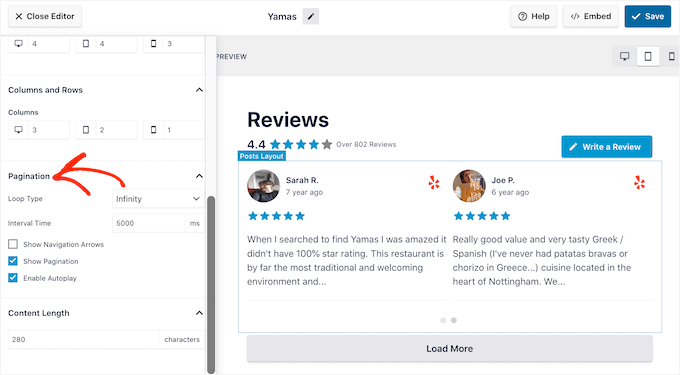
Finally, if you select the Carousel layout, then you can change how the reviews scroll using the ‘Pagination’ settings.
For example, you can enable autoplay so the reviews scroll automatically or increase the interval so visitors have more time to read each review.
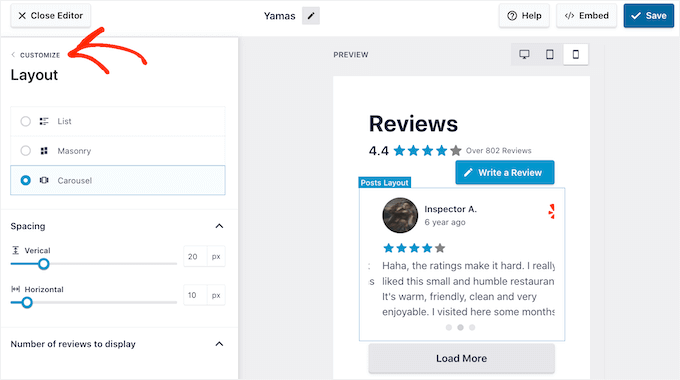
When you’re happy with these changes, click on the small arrow next to ‘Customize.’
This takes you back to the main Smash Balloon review feed editor.
Next, select ‘Header.’
The header shows your average star rating and includes a ‘Write a review’ button, which is a nice touch to encourage more feedback. You can toggle the entire header off or customize which elements are visible.
By default, Smash Balloon shows a ‘Review’ headline, your average star rating, and a ‘Write a review’ button.
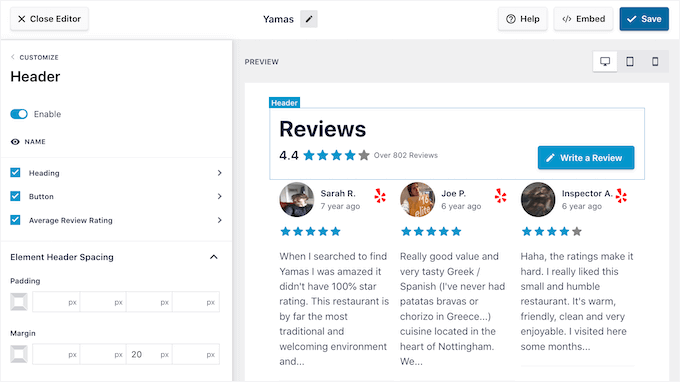
This header helps visitors understand the content, while also encouraging them to leave their own review. However, if you prefer, then you can remove the header using the ‘Enable’ toggle.
If you do show the header, then you can add or remove content using the Heading, Button, and Average Review Rating checkboxes.
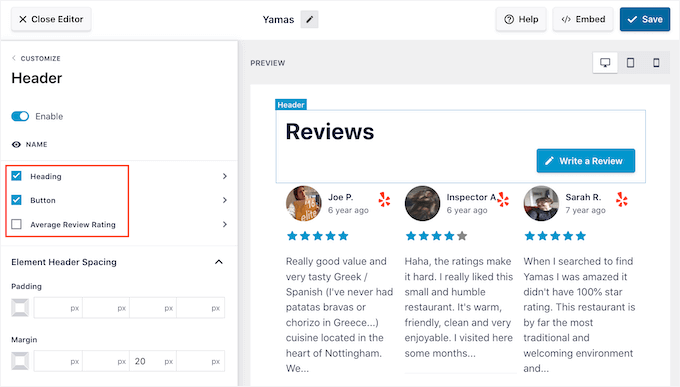
To change the padding and margins, simply use the settings under ‘Element Header Spacing.’
If you want to change any of the text that appears in the header, then simply click on either Heading, Button, or Average Review Rating. This takes you to an area where you can change the text color, size, and more.
You can also replace the standard text with your own custom messaging by typing into the ‘Content’ field.
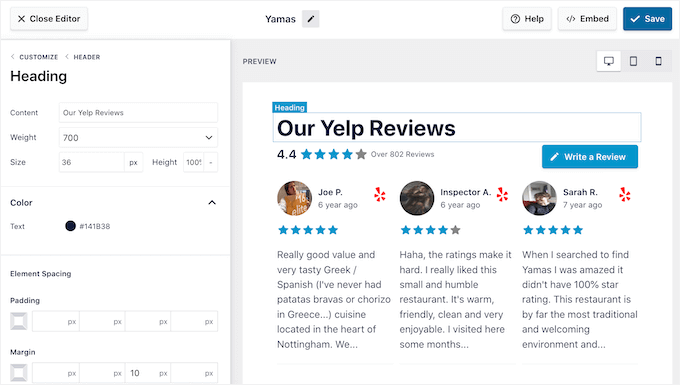
When you’re ready to return to the main editor screen, just click on the ‘Customize’ link at the top of the left-hand menu.
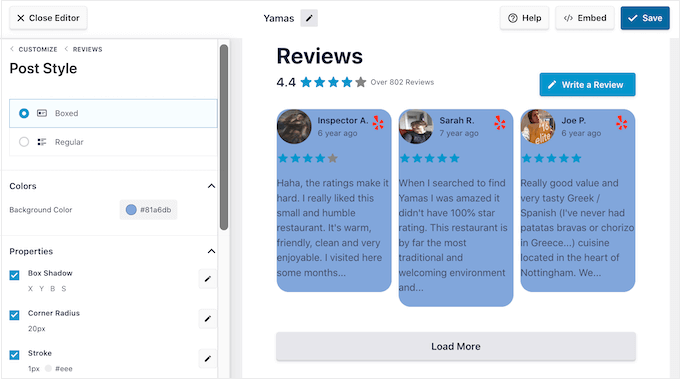
The next setting you can look at is ‘Reviews,’ so give this option a click. Here, you can choose between ‘Post Style’ and ‘Edit Individual Elements.’
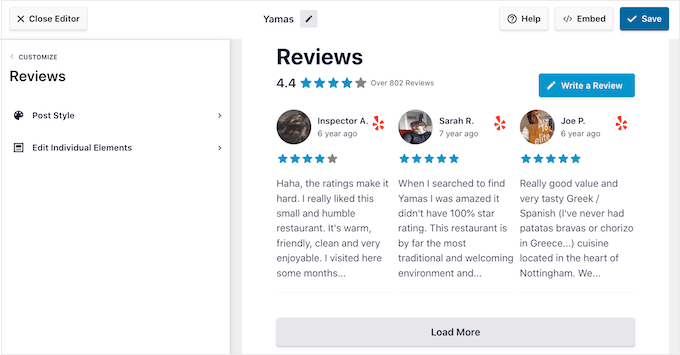
If you select ‘Post Style,’ then you can change how the individual reviews look inside the feed. For example, you can switch to a boxed layout, add a shadow, and change the corner radius to create curved edges.
As you make changes, the preview updates automatically so you can try different settings to see what looks best on your website.
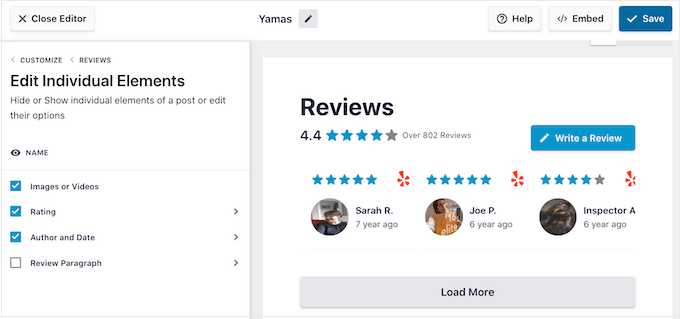
If you choose ‘Edit Individual Elements,’ then you’ll see all the different content that Reviews Feed Pro includes in each review, such as rating, author and date, and the review text.
To remove a piece of content, just click to uncheck its box.
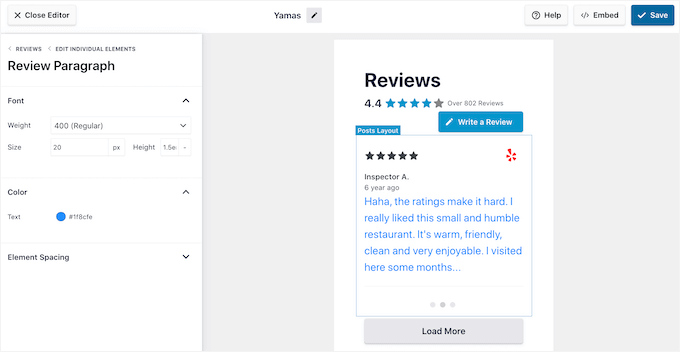
You can also customize how each type of content looks by clicking on it.
For example, in the following image, we’ve changed the color and size of the review content, known as the ‘Review Paragraph.’
When you’re happy with how the review feed looks, click on ‘Customize’ to return to the main Smash Balloon editor.
You can now move to the next settings screen by selecting ‘Load More Button.’
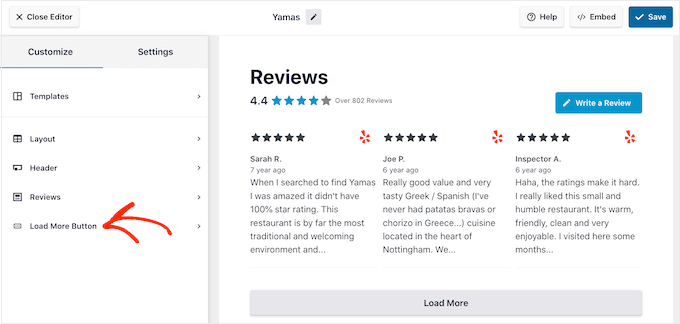
The ‘Load More’ button allows visitors to scroll through more reviews, so the plugin adds it by default. Since it’s such an important button, you may want to help it stand out by changing the background color, hover state, label, margins, and more.
You can also replace the default ‘Load More’ text with your own messaging by typing into the ‘Text’ field.
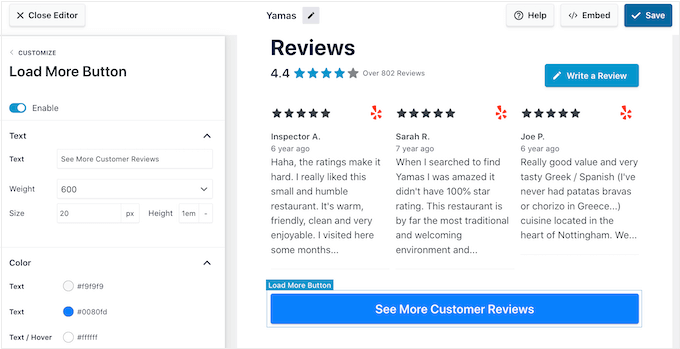
If you prefer, then you can remove the button completely by clicking the ‘Enable’ toggle.
When you’re happy with how the review feed looks, don’t forget to click on ‘Save.’ With that out of the way, you’re ready to add Google, Facebook, or Yelp reviews to your site.
Add Reviews Feed to Your WordPress Website
Once your review feed is ready, you can display it on your site using a block, widget, or shortcode.
If you’ve created more than one review feed in Reviews Feed Pro, the shortcode is key. It lets you control exactly which Google, Facebook, or Yelp feed appears in a block, widget, or sitewide template.
To get the shortcode for a specific feed, go to Reviews Feed » All Feeds in your dashboard.
You’ll see a ‘Shortcode’ column next to each feed. Make a note of the one you want to use.
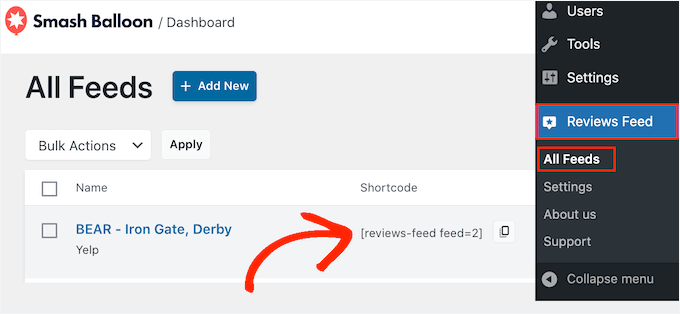
You’ll use this shortcode in the steps below whenever you need to display a specific feed.
Add Reviews to a Page or Post (Using a Block)
If you want to embed the feed in a page or post, then you can use the Reviews Feed block.
Just open the page or post where you want to show your Yelp, Google, or Facebook reviews. Then, click on the ‘+’ icon to add a new block and start typing ‘Reviews Feed.’
When the right block appears, click to add it to the page or post.
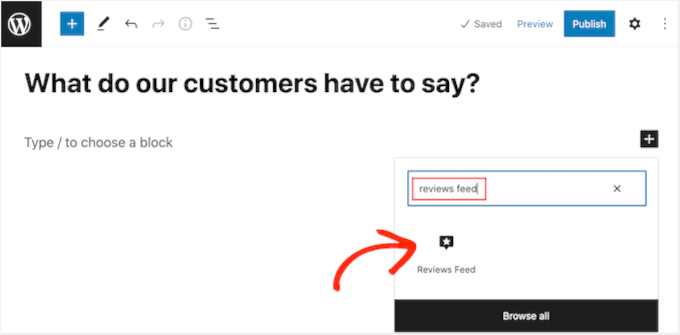
The block will show one of your review feeds by default.
If you want to show a different feed, then find ‘Shortcode Settings’ in the right-hand menu.
Simply add the shortcode you got earlier, and then click on ‘Apply Changes.’
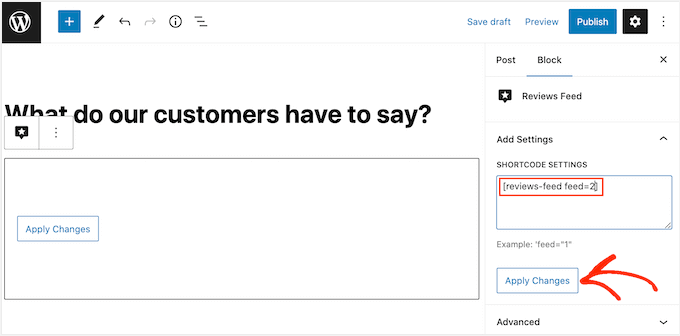
If you’re happy with how the review feed looks, then you can go ahead and publish or update the page.
Add Reviews to Sidebars or Footers (Using a Shortcode)
This method works best if you’re using a classic WordPress theme or a page builder that supports shortcodes. It’s also a great way to show positive customer reviews across multiple pages of your site.
To start, you can go to Appearance » Widget.
Then, click the ‘+’ and add a ‘Shortcode’ block in a widget-ready area, like a sidebar.
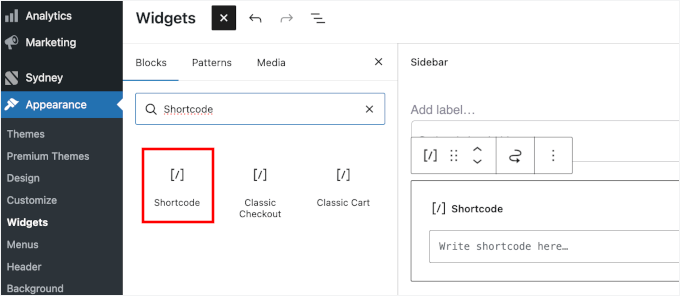
Once added, simply paste your shortcode inside it.
After that, you can click the ‘Update’ button.
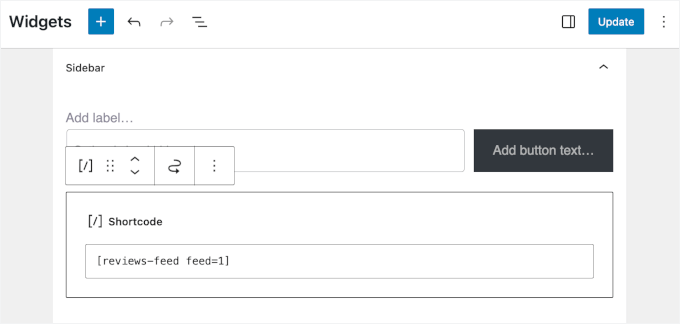
For help placing the shortcode, please see our guide on how to add a shortcode.
💡 Note: Since modern WordPress uses block-based widgets, you can also add the Reviews Feed block directly to widget areas. The shortcode method is shown here because it’s a reliable fallback that works with classic themes.
For details, see our guide on how to add and use widgets in WordPress.
Add Reviews Sitewide Using Full Site Editing (FSE)
If you’re using a Full Site Editing (FSE) block theme, you can add your reviews directly to theme templates like the header or footer.
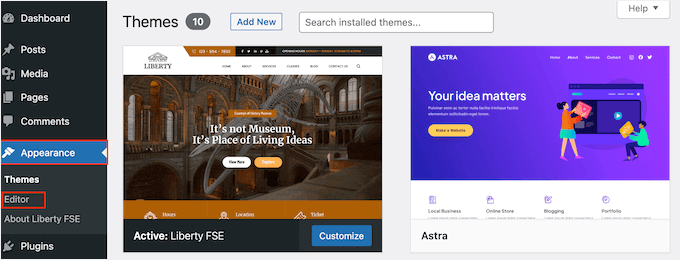
In the WordPress dashboard, go to Appearance » Editor.
By default, the full-site editor will show your theme’s home template. If you want to add your review feed to a different area, open the left-hand menu and click on ‘Templates.’
From there, you can choose a different layout to edit, such as your page template or your footer.
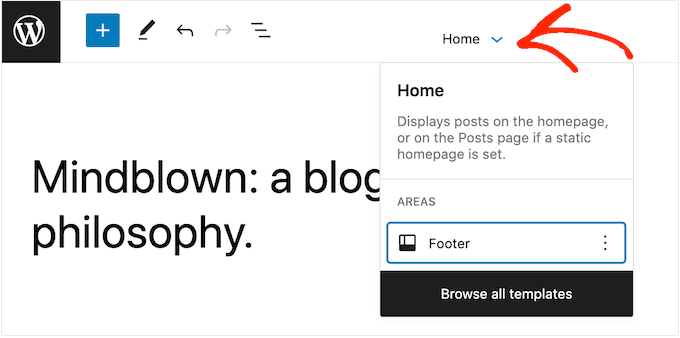
After choosing a template, simply hover your mouse over the area where you want to show the reviews.
Then, click on the ‘+’ button.
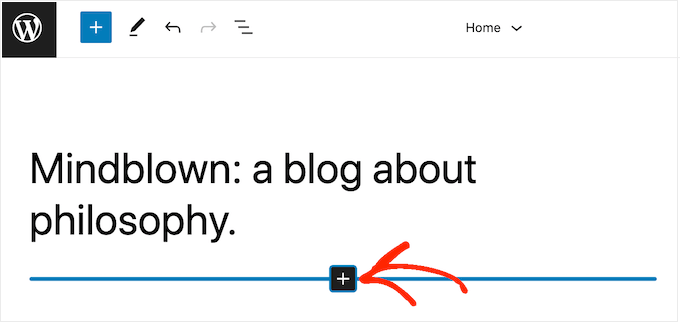
Once you’ve done that, type in ‘Reviews Feed.’
When the right block appears, click to add it to the template.
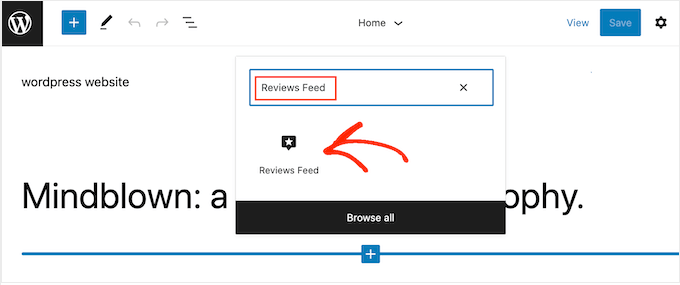
As always, Reviews Feed will show a feed by default. You can change this feed by adding a shortcode following the same process described above.
FAQs About How to Add Google, Facebook, and Yelp Reviews Feed in WordPress
I often get questions about the best way to handle reviews in WordPress. Here are the answers to some of the most common ones I hear from our readers.
Can I combine reviews from different platforms into one feed?
Yes. With Reviews Feed Pro from Smash Balloon, you can create a single “mashed-up” feed that combines reviews from Google, Facebook, Yelp, and more. This is a powerful way to show all your best social proof in one convenient place.
Will adding a reviews feed slow down my website?
No. We use Smash Balloon plugins on our own sites because they are built for performance. The plugin uses smart caching and lazy loading, which means it only loads content as visitors scroll down the page. This prevents it from having a negative impact on your site’s speed.
Can I control which reviews are displayed?
Yes, you have complete control. Reviews Feed Pro includes powerful moderation tools. You can set up filters to only show reviews above a certain star rating (like 4 stars and up). You can also manually hide any specific review you don’t want to appear on your site.
Do I need to know how to code to add this to my site?
Not at all. The plugin is designed to be completely user-friendly. You can add your feed anywhere using the simple WordPress block or widget, no code required. For more advanced placements, you can also use a simple shortcode.
Next Steps for Using Reviews in WordPress
I hope this guide helped you learn how to show Google, Facebook, and Yelp reviews on your WordPress site.
Next, you might also want to explore these other guides to continue growing your business:
- How to Send a Coupon After a WooCommerce Product Review
- How to Make a Niche Review Site in WordPress
- How to Turn Your WordPress.org Reviews Into Powerful Social Proof
- Can You Delete a Google Review? Here’s What You Can Do Instead
- How to Write an Affiliate Product Review (Expert Tips)
If you liked this article, then please subscribe to our YouTube Channel for WordPress video tutorials. You can also find us on Twitter and Facebook.


Jiří Vaněk
I recently added my business to Google and wanted to add reviews to my website, even though I don’t have many yet. Thanks for the detailed guide, including how to get the API, because I probably wouldn’t have been able to do it on my own. Now I can finally have Google reviews on my website in my personal portfolio.
Moinuddin Waheed
These are the best platforms to get reviews about our products and services and also to show them on our WordPress websites to get the visitors confidence and trust.
I have not yet implemented any of these steps in the past but will surely try to get these for my course website once it gets fully launched.
I really appreciate the quality content and the ease of implementation that you have simplified.
KK
Hi
1. How to set reviews collection in two rows?
2. How to auto import new reviews? (Like if any person give reviews on google or facebook then these reviews auto import in this plugin )