


While developing my own WordPress plugins, I realized that earning people’s trust was often harder than building the product itself. You can have great features and reliable support, but if someone hasn’t heard of you before, they will still hesitate to click “Install” or “Buy.”
That’s why I recommend showing real WordPress.org reviews and ratings directly on your own website. Seeing authentic feedback from existing users can help new visitors feel confident about choosing your plugin or theme.
It’s a simple addition that can instantly boost credibility and conversions.
In this guide, I’ll show you how to display live WordPress.org plugin and theme reviews on your site — no coding required.

🧵 TL;DR: Use Smash Balloon Reviews Feed Pro to embed WordPress.org plugin and theme reviews directly into your WordPress website.
Why Embed WordPress.org Reviews on Your WordPress Website?
Showing your WordPress.org reviews on your website is one of the easiest ways to get more installs and sales for your plugin or theme.
People trust what other users say more than any marketing message. In fact, research shows that displaying at least 5 positive customer reviews can increase conversion rates by up to 270%.
So, when visitors see real ratings and feedback from WordPress.org right on your site, it reassures them that your product is legitimate. WordPress.org reviews carry strict authenticity because users must have a registered account to leave feedback.
Plus, they don’t have to leave your website to check the reviews because the proof is right there. That means visitors stay longer on your site, which can lead to more pageviews and engagement.
Here are other ways that embedding WordPress.org reviews can help you:
- Builds instant trust — Real reviews show that others already use and love your product. This can convince them to click “Install” or “Buy”.
- Highlights your strengths — Reviews often mention ease of use, support quality, or performance (things that persuade new users).
- Keeps social proof fresh — Reviews update automatically, showing visitors your product is active and reliable.
Now, I’ll walk you through how to show WordPress.org plugin and theme reviews on your site.
Here’s everything I’ll cover in this guide:
- Step 1: Install and Activate Smash Balloon's Reviews Feed Pro
- Step 2: Create a New Review Feed
- Step 3: Add Your WordPress.org Plugin or Theme as a Source
- Step 4: Customize Your Reviews Feed
- Step 5: Display the Reviews on Your Website
- How to Maximize Conversions From WordPress.org Reviews
- Frequently Asked Questions About Showing WordPress.org Reviews
- Further Reading for Using Reviews and Other Social Proof in WordPress
Step 1: Install and Activate Smash Balloon’s Reviews Feed Pro
For this tutorial, I’ll use the Smash Balloon Reviews Feed plugin. It is the best WordPress customer reviews feed plugin that automatically aggregates and displays reviews from multiple platforms, like WordPress.org, directly on your website.
At WPBeginner, our team has extensively tested the plugin’s entire feature set. You can see our full results in our in-depth Smash Balloon review.
First, you’ll need to sign up for Reviews Feed Pro from the Smash Balloon website. Just click on the ‘Get Started’ button and follow the signup process to create an account.
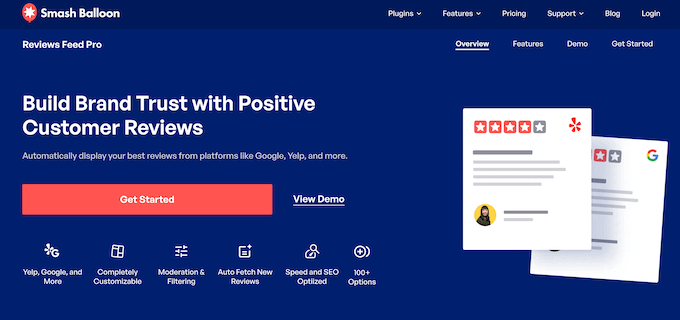
💡 Note: You’ll need the Smash Balloon Reviews Feed‘s Pro plan or the All Access Bundle to embed WordPress.org reviews. This is because connecting to specialized sources like WordPress.org requires the plugin’s more advanced features.
Once you’ve purchased a license, go ahead and download the Pro plugin’s .zip file from your Smash Balloon account dashboard. You’ll also want to copy your license key.
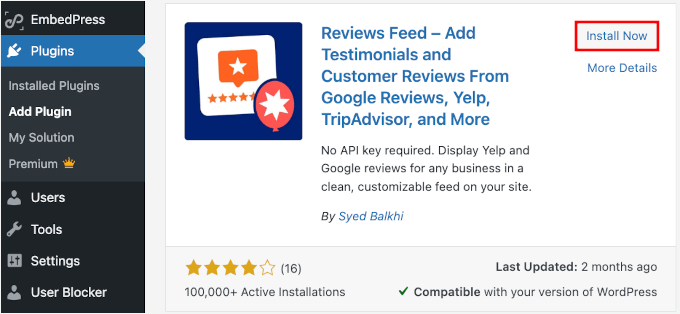
Then, let’s head to Plugins » Add New Plugin from your WordPress admin area to install the free Smash Balloon Reviews Feed plugin. We’ll start by installing the free version of the plugin, and then use your license key to unlock the pro features.

On the next screen, you can use the search feature to quickly find Smash Balloon Reviews Feed.
In the search results, click ‘Install Now’ and then ‘Activate.’ If you need help, you can see our complete guide on how to install a WordPress plugin.
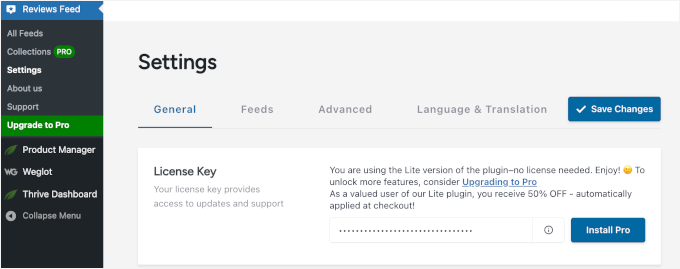
After activation, you’ll see a new ‘Reviews Feed’ menu item in your WordPress admin.
After activating the plugin, go to the Reviews Feed » Settings page. Here, simply enter your license key and click ‘Activate’ to unlock all the premium features.
Step 2: Create a New Review Feed
Now it’s time to set up your first review feed.
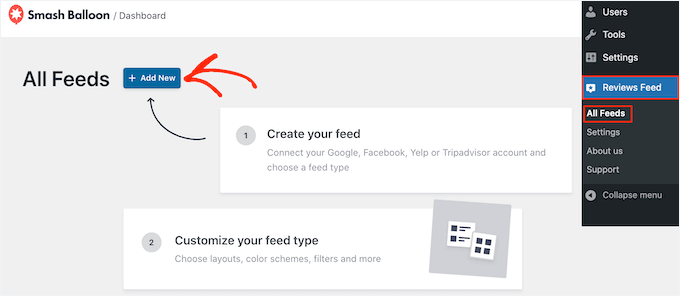
Navigate to Reviews Feed » All Feeds in your WordPress dashboard and click the ‘Add New’ button. This will open the feed creation wizard, which will guide you through connecting to WordPress.org.
From here, you can see that Smash Balloon Reviews Feed Pro supports multiple review platforms, including Google, Facebook, and Yelp. But for this tutorial, I’m focusing specifically on WordPress.org plugin and theme reviews.
So, from the list of available review sources, let’s select ‘WordPress.org’ and click ‘Next’.

The setup wizard will now prepare to connect your feed to WordPress.org’s review system.
This connection allows the plugin to automatically pull in fresh reviews from any WordPress.org plugin or theme page that you specify.
Step 3: Add Your WordPress.org Plugin or Theme as a Source
To connect your review feed to specific WordPress.org reviews, you’ll need to provide the URL of the plugin or theme with the reviews you want to display. This URL tells the plugin exactly where to look so it can pull in the right reviews.
You can open a new browser tab and navigate to the WordPress.org page for your chosen plugin or theme.
Let’s say you want to show reviews for a contact form plugin.
Simply go to that plugin’s official WordPress.org page and copy the complete URL from your browser’s address bar.
For example, the correct URL for the WPForms plugin is https://wordpress.org/plugins/wpforms-lite/.
Make sure you copy the clean link from the main page that ends directly with the plugin’s name and do not include extra URL parameters like ?tab=reviews at the end.
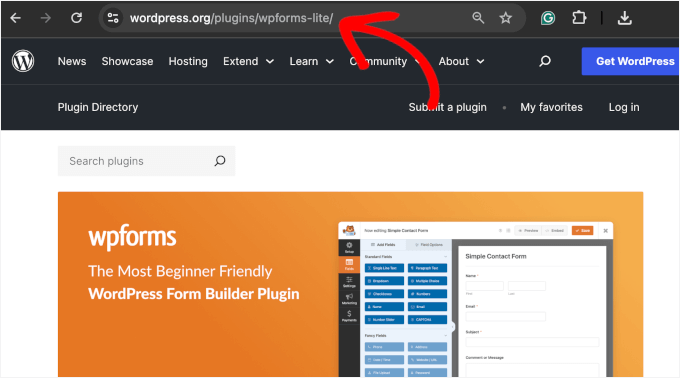
This specific web address is like a map pointer, telling the plugin exactly where to find the right reviews for your product.
You can now return to your WordPress dashboard, paste the URL into the ‘Page URL’ field, and then click ‘Finish’.
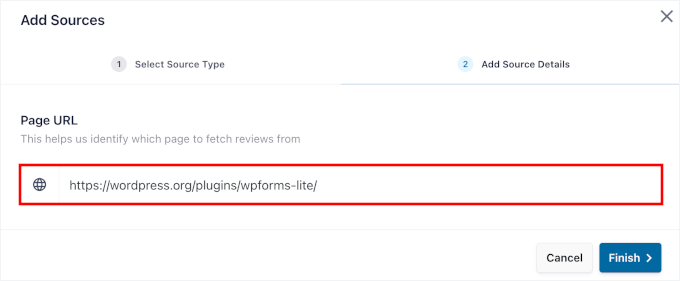
🧑💻 Pro Tip: The process works exactly the same whether you’re displaying plugin or theme reviews. Just make sure you’re copying the URL from the correct WordPress.org page.
Once connected, Reviews Feed Pro will automatically sync with WordPress.org to pull in the latest reviews for your chosen plugin or theme.
This ensures your displayed reviews stay current without any manual updates needed.
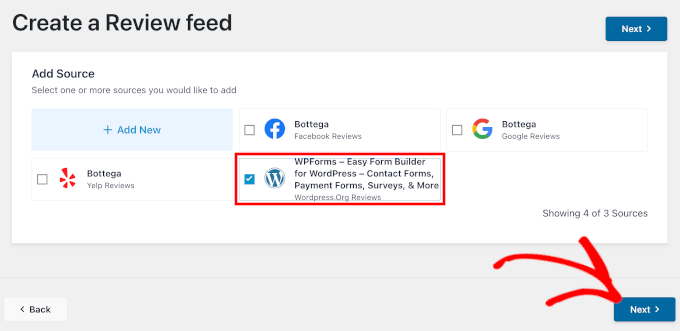
From here, just click ‘Next’ to start customizing your reviews feed.
Step 4: Customize Your Reviews Feed
Reviews Feed Pro automatically generates a feed that matches your website’s existing design, but you can customize it to fit your needs.
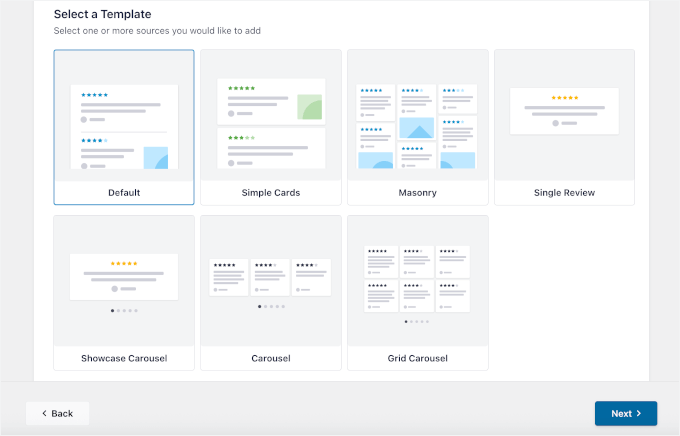
You can start by selecting from the available pre-built templates. These templates provide different layouts and styling options that work well with most WordPress themes.
After that, click ‘Next’ to continue.
On the next screen, you’ll see the visual customizer, where you can adjust your feed’s appearance.
Here, you can modify the header section, button styles, and individual review elements like star ratings and user avatars. Every change you make appears instantly in the live preview panel on the right side of your screen.
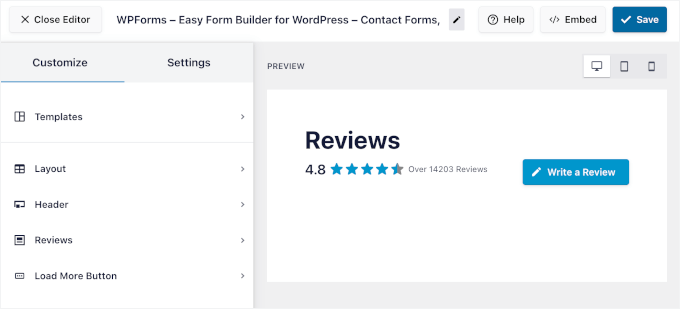
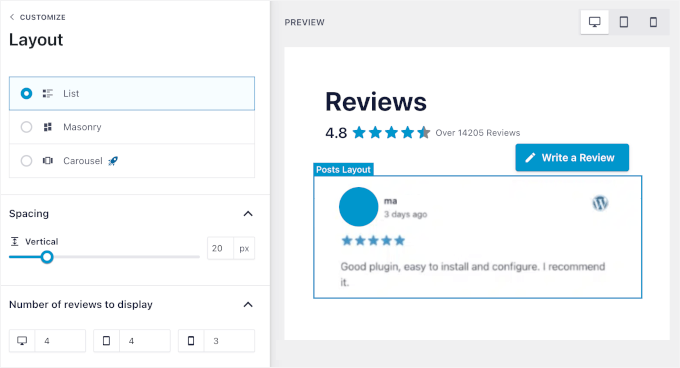
For example, if you go to the ‘Layout’ section, you can choose between 3 main layout styles:
- List – Reviews stacked vertically
- Masonry – Pinterest-style grid
- Carousel – Sliding reviews
Don’t worry if you’re not sure which one to choose, because you can see how it looks in the preview.
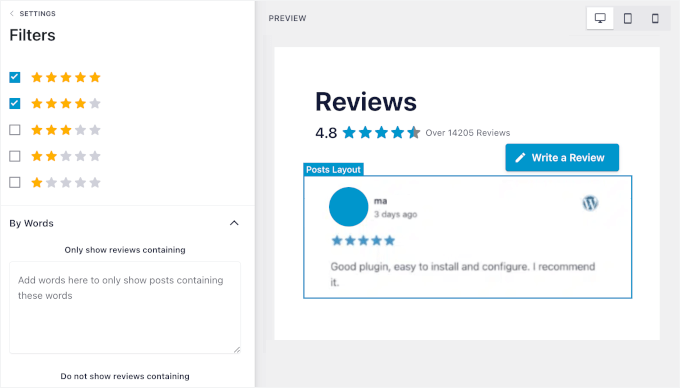
Next, one of my favorite features is the filtering system in the ‘Settings’ tab.
It lets you filter reviews by star rating to show only 4-5 star reviews, or use keyword filtering to display reviews that mention specific terms. There’s even a banned words filter to exclude reviews containing specific phrases.
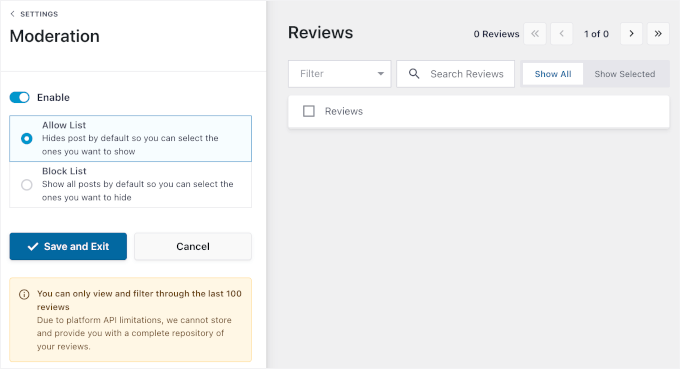
For complete control, you can manually moderate which reviews appear on your WordPress site. Hiding a review locally in the plugin does not delete or affect the original review on WordPress.org.
This allows you to safely curate the best feedback for your audience without violating WordPress.org’s strict guidelines against manipulating reviews.
For instance, you can highlight reviews that discuss a specific feature you want to promote or mention your excellent customer support.
Step 5: Display the Reviews on Your Website
When you’re satisfied with your feed’s appearance, click the ‘Embed’ button in the top-right corner of the customizer.
This opens your embedding options.
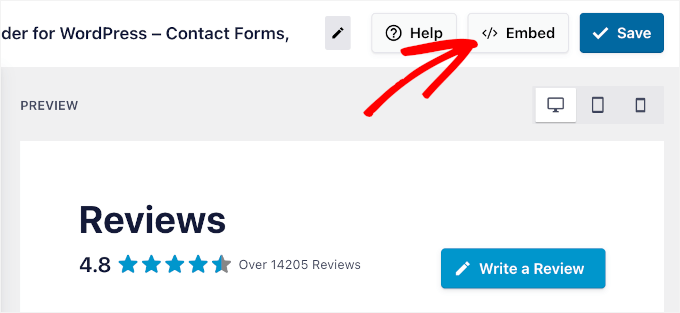
You have three ways to display your reviews:
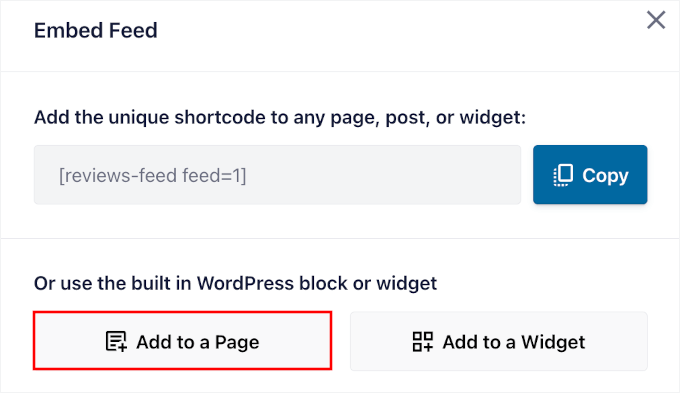
- Add to a Page lets you embed reviews directly into any existing post or page. This is perfect for product pages or detailed plugin reviews.
- Add to a Widget allows you to show reviews in your sidebar, footer, or any other widget area. This works well for displaying testimonials site-wide.
- Copy Shortcode gives you a shortcode that you can paste anywhere on your site. This option provides the most flexibility for custom placements.
For this example, let’s add reviews to a page – choose ‘Add to a Page.’
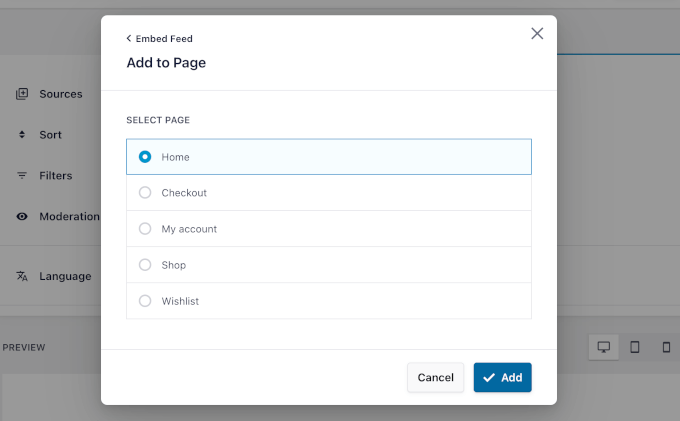
Then, you’ll select the page where you want the reviews to appear
Your home page is a good start. It can use a simple list of positive reviews to create a strong first impression of trust and reliability.
So, let’s select the home page from the list and click the ‘Add’ button.
Next, in the content editor, you can click the ‘+’ button to add the Reviews Feed block.
Go ahead and use the search bar to quickly find the block.
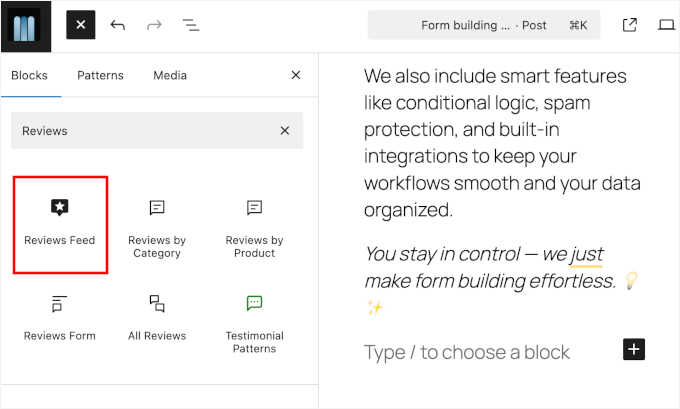
Once you add the Reviews Feed block, you’ll immediately see the preview in the editor.
From here, you can move around the Smash Balloon Reviews Feed block to any position on your page using the standard WordPress block editor controls.
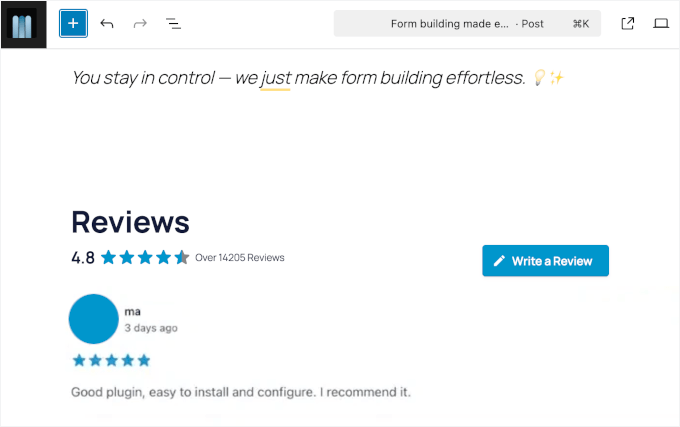
When you’re happy with everything, hit ‘Save’ or ‘Update’ to publish your page.
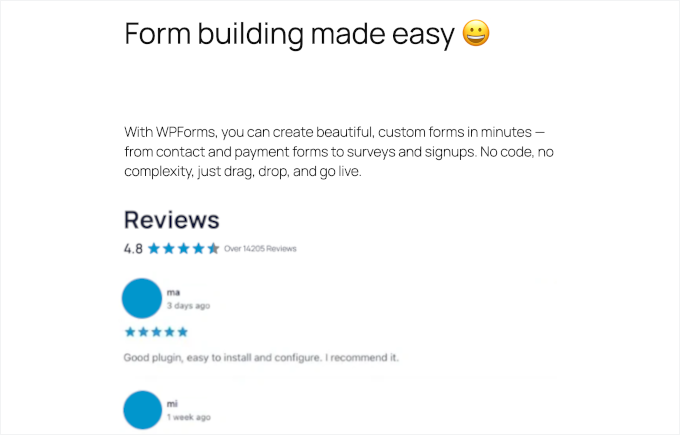
Your WordPress.org reviews are now live and will automatically update as new reviews are posted to the original plugin or theme page.
How to Maximize Conversions From WordPress.org Reviews
Displaying your WordPress.org reviews in the right place can make a big difference in how many people install or buy your plugin or theme.
Based on my own A/B testing across various sites, I found that strategic placement significantly boosts performance. Here are some of the best places you can add your WordPress.org plugin or theme reviews:
- 💰 Sales and product pages: Placing highly positive reviews right next to your ‘Buy Now’ button can be the final encouragement a potential customer needs. It helps justify the price by showing that other happy customers have already chosen your product.
- 🧩 Landing pages: When someone visits a page about a specific plugin or theme, showing reviews right away builds instant trust and helps turn interest into action.
- 🛒 Checkout pages: Even a small reviews widget with 4–5 star reviews can clear up any last-minute hesitation and reduce cart abandonment.
I’ve found that pages with well-placed reviews convert better. The key is to show the right reviews on the right pages, based on what your visitors are looking for and where they are in the buying process.
Frequently Asked Questions About Showing WordPress.org Reviews
Here are a few questions that readers often ask me about showing WordPress.org reviews on their websites.
How do I ensure WordPress.org reviews are updated automatically?
Reviews Feed Pro automatically synchronizes with WordPress.org to pull in new reviews as they’re posted. The plugin checks for updates on a regular schedule, so your displayed reviews stay current without you needing to do anything.
Can I customize which WordPress.org reviews are shown?
Yes, you can filter reviews using several different methods within the Smash Balloon plugin.
You can display only reviews above a certain star rating and filter by specific keywords that appear in review text. Or, you can use the banned words feature to exclude reviews containing unwanted terms.
What should I do if I run into a connection error with Smash Balloon?
Connection errors typically occur when the WordPress.org URL isn’t properly formatted or the connection has timed out.
To fix this, you’ll want to double-check that you’ve copied the complete URL from the plugin or theme’s WordPress.org page. Then, try reconnecting through the Smash Balloon Reviews Feed settings.
Are there limits to the number of reviews I can display with Smash Balloon?
The plugin doesn’t put strict limits on review numbers, but displaying too many reviews on a single page can slow down your site’s loading speed.
I recommend starting with 5-10 reviews per feed and testing your page performance before adding more.
Fortunately, Smash Balloon has built-in caching. This means it temporarily saves the reviews on your website, rather than asking WordPress.org for the data every single time a visitor loads your page, which protects your site’s speed.
Further Reading for Using Reviews and Other Social Proof in WordPress
I hope this guide has helped you show WordPress.org plugin or theme reviews on your site.
If you found this useful, then you might like our other helpful guides on:
- How to Show Google, Facebook, and Yelp Reviews in WordPress
- How to Use User-Generated Content in WordPress to Grow Your Business
- How to Display Authors’ Twitter and Facebook on the Profile Page
- How to Display All Your Subscriber Counts in WordPress
- How to Display Social Media Followers Count Text in WordPress
If you liked this article, then please subscribe to our YouTube Channel for WordPress video tutorials. You can also find us on Twitter and Facebook.




Have a question or suggestion? Please leave a comment to start the discussion.