


Every time someone logs into your WordPress site, you have an opportunity to create a great first impression.
Instead of dropping them into the default dashboard, you can send them exactly where they need to be—whether that’s their course portal, member area, or account page.
This kind of thoughtful user experience is what separates professional sites from amateur ones.
For our own plugins, we typically set up rules to redirect users straight to their account dashboard after purchase and login. We’ve found this makes more sense as they can get straight to managing their licenses or accessing support without getting lost in the admin area.
In this guide, we’ll walk you through the easiest methods to set up custom login redirects that will make your users’ experience much smoother.
💡Quick Answer: How to Redirect Users After Login
If you want to send users to a specific page after they log in, you have two main options:
- Use a Redirection Plugin (Best for Default Login): Plugins like LoginWP allow you to set up rules to redirect users based on their role (like Subscriber or Editor) or specific username using the standard WordPress login page.
- Use a Custom Login Form (Best for Custom Experience): A form builder like WPForms lets you create a custom login form to place anywhere on your site. It includes built-in settings to redirect users to a specific URL immediately after they log in.
Why Redirect Users After They Log in to Your WordPress Site?
If your website has multiple users, like a multi-author blog, a membership website, or an online store, then you will want to guide these users to the right place after they log in.
Many WordPress membership plugins and eCommerce plugins automatically handle redirects by showing users custom login pages and redirecting them to an account management page.
You may even create a client portal for them to manage their account.
However, not all websites will be using a plugin with this functionality. In this case, users will simply be redirected to the default WordPress admin area.
While this might work for bloggers and writers, it’s not an ideal experience for people like your members and customers.
That being said, let’s take a look at how to redirect users after a successful login in WordPress easily. You can use the quick links below to jump straight to the method you want to use:
Method 1: Setting Up Login Redirects With LoginWP
This method lets you redirect users after they sign in based on user roles, capabilities, usernames, and more.
The easiest way to do this is using LoginWP a popular login page plugin. It lets you set up simple login redirects in a couple of clicks.
First, install and activate the plugin. For more details, see our step-by-step guide on how to install a WordPress plugin.
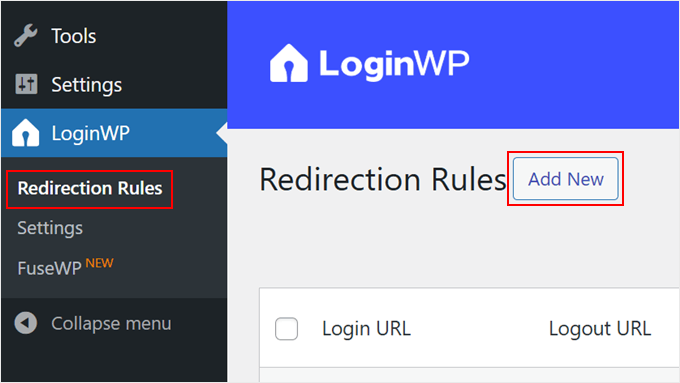
Upon activation, go to LoginWP » Redirection Rules to set up the plugin. This allows you to set up login redirects for various situations. Let’s look at each of them below.
Redirecting Specific Users After Login
You can set up redirects for specific users. This is useful if you have a small team and want to redirect team members to specific pages.
To do this, click the ‘Add New’ button in the ‘Redirection Rules’ section.
This brings you to a new page to set your redirection settings.
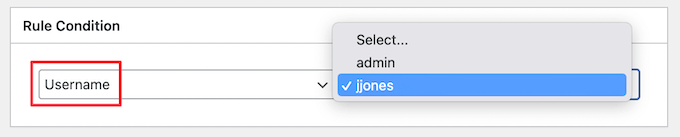
Select ‘Username’ from the ‘Rule Condition’ dropdown and choose the specific user.
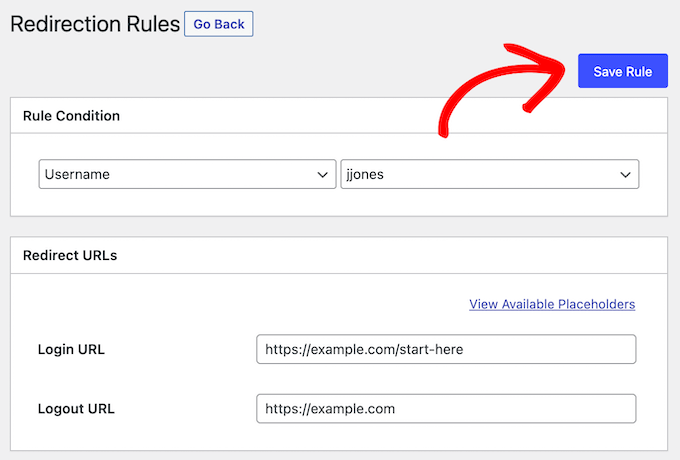
Then, you can enter the URLs you want to redirect the user to on login and logout.
Make sure to click the ‘Save Rule’ button to save your changes.
Redirecting WordPress Users by User Role
You can also set up a login redirect based on user role. For example, you might want to redirect editors to the admin area but have your email list subscribers go to a separate custom page
The process will be similar to the steps above. Simply click the ‘Add New’ button in the ‘Redirection Rules’ section.
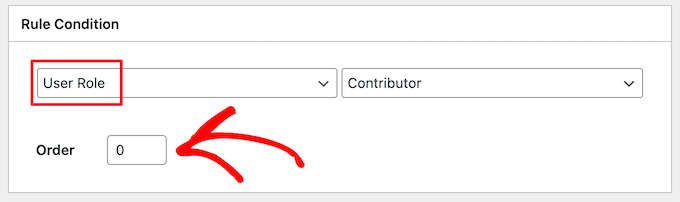
Select ‘User Role’ from the ‘Rule Condition’ dropdown and choose the user role from the list.
You can also set an order number. This determines the priority. If a user matches multiple rules, the one with the lower number applies first.
Then, enter the login and logout URLs where you want to redirect the user role.
Next, click the ‘Save Rule’ button.
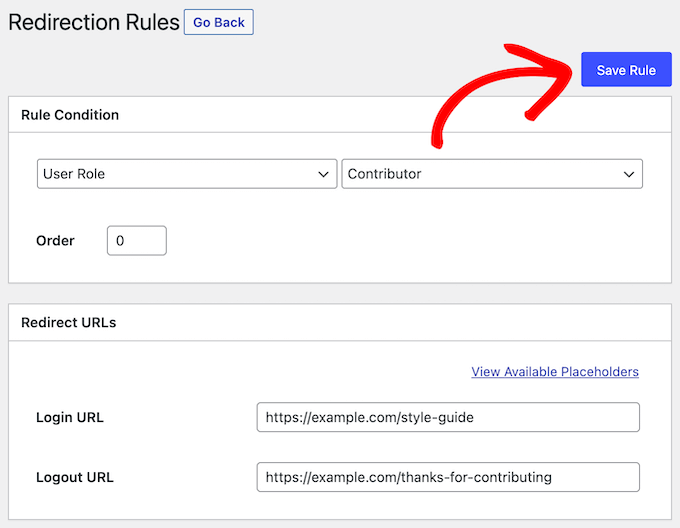
If you want to create different login redirects for multiple user roles, simply follow the same steps above.
Setting Up Login Redirects by Capabilities in WordPress
The plugin also allows you to set up login redirects based on user levels and capabilities. This is helpful if you want to target specific permissions, such as redirecting Editors who have the publish_posts capability.
To do this, follow the same steps above by clicking the ‘Add New’ button.
Then, select ‘User Capability’ from the ‘Rule Condition’ dropdown and choose the capability from the list.
You can also enter an order number if you want to keep your rules organized on the plugin settings page.
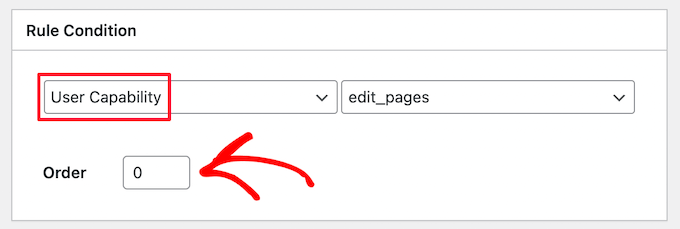
You will have different user capabilities available based on the roles you have assigned.
Next, enter your login URL and logout URL in the boxes below.
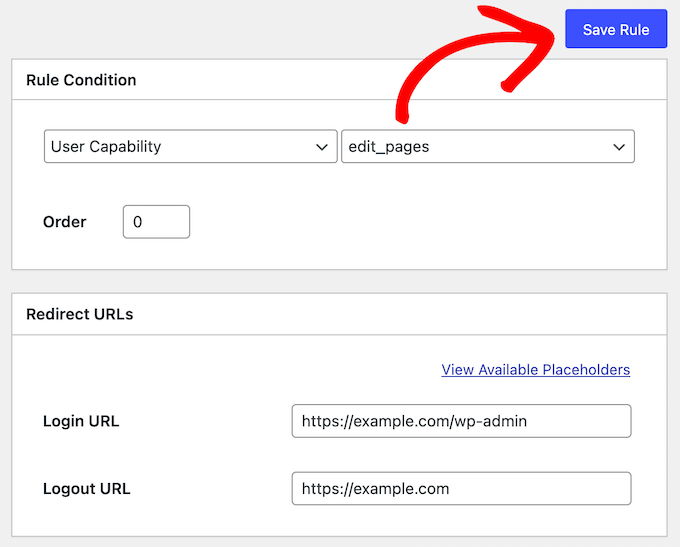
Finally, click the ‘Save Rule’ button.
Setting Up Login Redirects for All Users in WordPress
In the ‘Redirection Rules’ section, you will see a specific setting for ‘All Other Users’. If a user doesn’t match any rules you set above, you can redirect them by entering a URL here.
You can also use this setting to create a sitewide redirect for all users.
Simply enter a login URL and logout URL into the ‘All Other Users’ section.
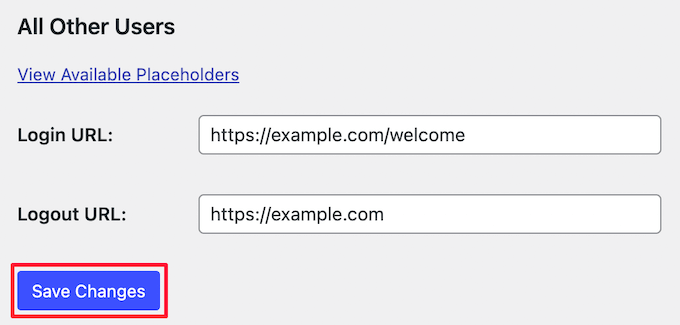
Then, click the ‘Save Changes’ button.
Setting Up a User Registration Redirect in WordPress
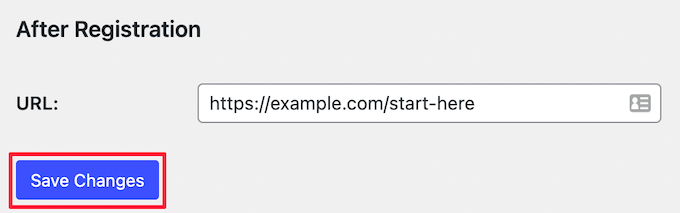
When a new user signs up on your website, WordPress redirects them to the login page. You can set up a redirect URL to send them to any other page on your website.
Enter the new URL in the ‘After Registration’ section and click the ‘Save Changes’ button.
Method 2: Setting Up Custom Login Form and Redirects With WPForms
If you want to create a custom login form, then you can use WPForms to set up a WordPress user redirect after they log in.
Note: This method creates a custom login form for the front end of your website. It does not replace the default WordPress login page, but it allows you to hide that admin screen from your standard users.
WPForms is the best user registration plugin on the market, used by over 6 million websites. It lets you easily create user registration forms, contact forms, and more.
At WPBeginner, we have used the tool to create our contact forms and annual surveys and have had an excellent experience. For more in-depth insights, you can check our WPForms review.
First, install and activate the WPForms plugin. For more details, see our beginner’s guide on how to install a WordPress plugin.
You can use the free version to create simple contact forms. However, you need WPForms Pro to access the login form feature.
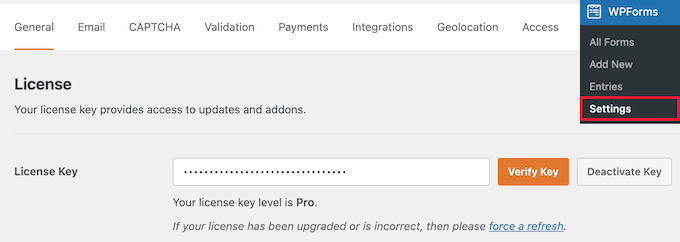
Upon activation, visit WPForms » Settings and enter your license key. You can find this information in your account on the WPForms website.
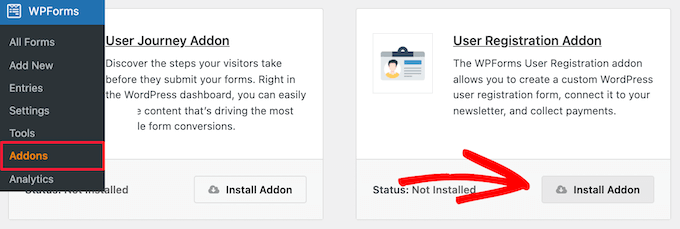
After that, install the user registration form addon.
Simply go to WPForms » Addons. Locate the ‘User Registration Addon’ and click the ‘Install Addon’ button.
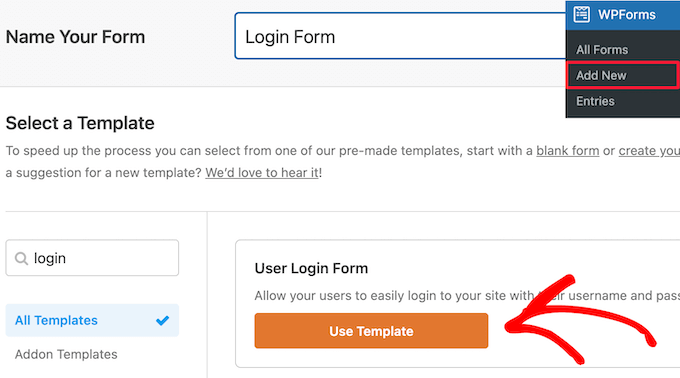
Now, create your own custom login form. Navigate to WPForms » Add New and give your form a name.
Search for ‘Login’ in the search bar to find the ‘User Login Form’ template. Then click the ‘Use Template’ button.
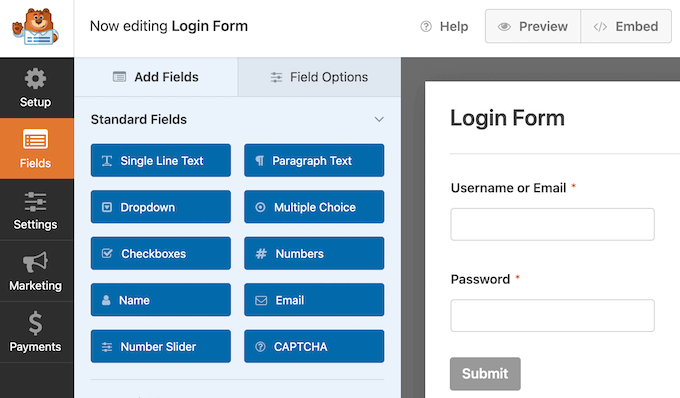
WPForms will load the User Login Form template with all the required fields.
You can edit existing fields by clicking on them and making changes on the new screen.
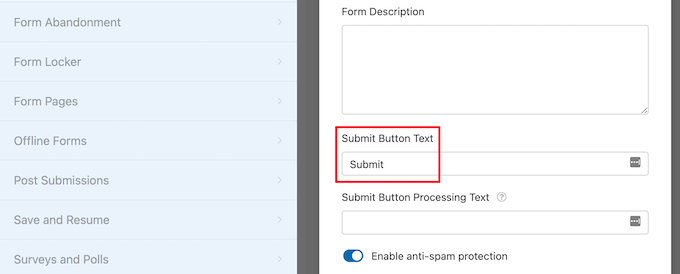
For example, if you want to change the ‘Submit’ text, simply click the button.
This brings you to an editor where you can add new button text, processing text, and more.
Once you finish customizing your form, set up a login redirect.
Go to Settings » Confirmation in the left column. Then, select ‘Go to URL’ as your confirmation type. Enter the URL where you want your users to go.
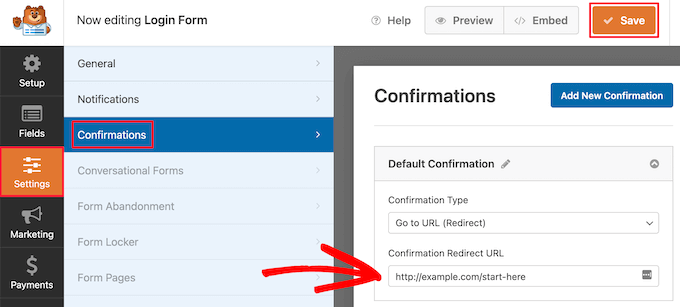
Your login form is now ready. Click the ‘Save’ button before closing the interface. Now, add your login form to your WordPress blog or website.
Open the page where you want your login form. Click the ‘Plus’ icon to add a new block and search for ‘WPForms’.
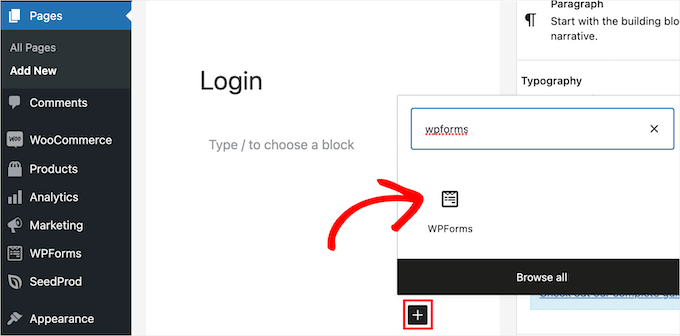
Click on the WPForms block to add it to your site.
Select the login form you created earlier from the dropdown list. It will load inside your content area.
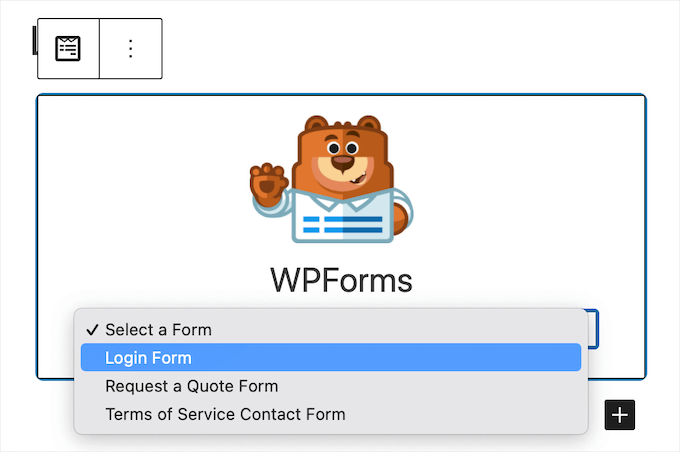
For more information on using WPForms, check out these articles:
- How to Add a Login Form in Your WordPress Sidebar
- How to Add Front-End Login Page and Widgets in WordPress
- How to Create a WordPress Login Popup Modal (Step by Step)
- How to Add CAPTCHA in WordPress Login and Registration Form
Alternative: Use SeedProd to Create a Custom Login Page
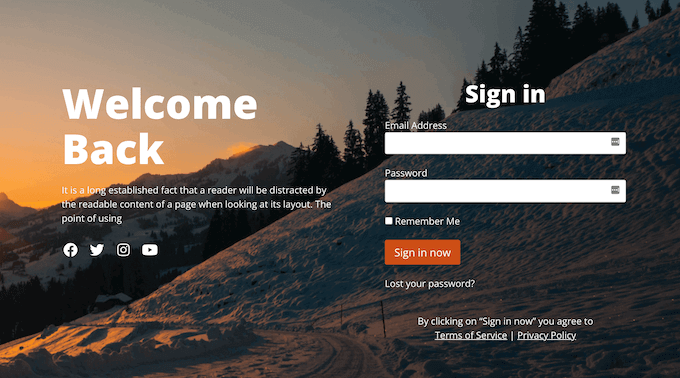
Alternatively, you could use a page builder plugin like SeedProd to set up a login redirect, plus create a beautiful login page.
SeedProd lets you easily create custom landing pages, login pages, 404 pages, and more.
For more details, see our guide on how to create a custom login page in WordPress.
How to Troubleshoot Common Login Issues in WordPress
Setting up redirects usually works smoothly. However, you might run into issues depending on your website setup and plugins.
Here are some tips to help you resolve those issues:
1. Update Your Permalink Structure
Go to Settings » Permalinks and click the ‘Save Changes’ button without making any changes.
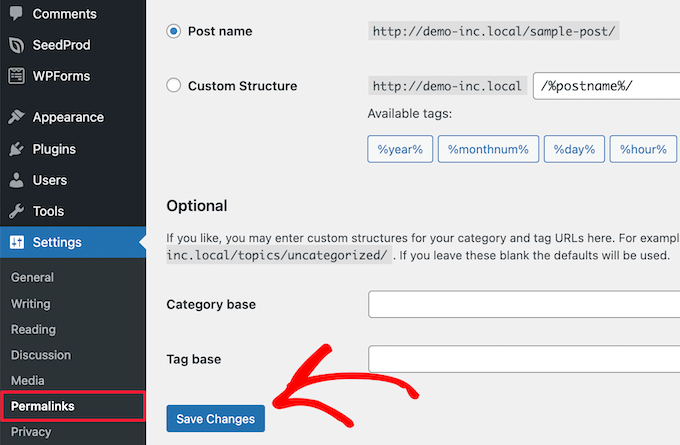
This refreshes the WordPress permalink settings. If you are experiencing general redirect issues, this often fixes the problem.
For more information, read our guide on how to regenerate WordPress permalinks.
2. Fix Login Page Redirect Issue
If your login page keeps refreshing and redirecting you back to the login form, it is often due to a browser cache or cookie issue.
First, try clearing your browser cache and cookies to see if that solves the problem. If not, it could be a sign of a settings conflict.
For help troubleshooting the problem, see our guide on how to fix the WordPress login page refreshing and redirecting issue.
3. Follow General Troubleshooting Tips
If the tips above didn’t solve your issue, it is likely a plugin or theme conflict. For more details, see our beginner’s guide to troubleshooting WordPress errors.
Frequently Asked Questions About Redirecting Users After a Successful Login
Here are some questions frequently asked by our readers about redirecting users after a successful login:
Can I redirect users to different pages based on their role?
Yes, you can redirect users based on their role using a plugin or some simple code. This is helpful if you run a membership site, online store, or multi-author blog.
For example:
- Admins can be redirected to the dashboard.
- Customers can go to their account or a thank you page.
- Contributors or authors can go directly to the post editor or pending drafts.
Can I redirect users after login without using a plugin?
Yes, but it requires adding custom code to your theme’s functions.php file or using a site-specific plugin. You’ll need to hook into the wp_login or login_redirect filter.
That said, using code comes with a risk. If it’s not added correctly, it can break your site. That’s why we recommend creating a backup first or using a plugin if you’re not comfortable with coding.
Is it possible to redirect users after logging in through a custom login form?
Absolutely. If you’re using a custom login form created with a plugin like WPForms, you can easily set a redirect URL in the form settings.
This allows you to:
- Send users to a welcome or thank-you page.
- Take them to their account area or dashboard.
- Show them a special offer or message based on their membership level.
We hope this article helped you learn how to redirect users after a successful login in WordPress. You may also want to see our complete guide on how to find your WordPress login URL and how to set up two-factor authentication in WordPress.
If you liked this article, then please subscribe to our YouTube Channel for WordPress video tutorials. You can also find us on Twitter and Facebook.



Jiří Vaněk
Thank you for the article, it solved our problem when we wanted to redirect all users except the administrator to the rules page. This worked out great and really easy thanks to WPForms. Now users have site rules available right after logging in.
Mike
Great tutorial! Solved the vexing problem of having users login and go to their profile page.
WPBeginner Support
Glad our article was helpful!
Admin
Kassem
Thanks for this post. The “troubleshooting issues” section have saved me as I’ve been trying to solve a “Cannot Modify Header Information – Header Already Sent By…” warning that kept appearing on my plugin admin pages with redirect requests, until I tried your suggestion and saved permalinks without any change.
It worked like magic
WPBeginner Support
Glad our recommendation was helpful
Admin
Faisal
How to redirect them to the page they were in before they login?
WPBeginner Support
We do not have a simple recommended method for that at the moment.
Admin
Tonka
Thank you, very helpful!
WPBeginner Support
Glad our article was helpful
Admin
Jailson Pacagnan Santana
Thank you! God bless
WPBeginner Support
You’re welcome
Admin
Owen Carver
Does this plugin allow you to make all logged in users who visit the homepage “root url” redirect to a specific page which would normally send to the homepage otherwise?
WPBeginner Support
These redirects are for directly after a user logs into the site and not when a user comes back when still logged in
Admin
Jono
Need to use custom code for that and works for woocommerce too, I’ve done it.
David
Hi,
I am able to successfully redirect the user to a custom page after the user logs in.
But on logging in I see the Edit profile option is present. How can that be disabled so the user does not have access to the profile editing options?
Regards
David
WPBeginner Support
To hide the admin bar you could use: https://www.wpbeginner.com/wp-tutorials/how-to-disable-wordpress-admin-bar-for-all-users-except-administrators/
or you could remove the profile area with adminimize:https://www.wpbeginner.com/plugins/how-to-hide-unnecessary-items-from-wordpress-admin-with-adminimize/
Admin
Danny
Hello,
How do I redirect a user to the page they were before logging in?
WPBeginner Support
You would use the http_referer variable for the plugin but you would want to reach out to the support for the plugin for the specifics of how to set it up
Admin
sebastian
Hello,
what is the limit on users?
I am planning a site with about 2000-5000 registered WP users.
I want everyone to have his own private area.
thx
WPBeginner Support
There is not a user limit for WordPress
Admin
Eric Simmons
I really thought I was getting the hang of WordPress. I followed the instructions and it is not working. It must be me… Because I see not other replies that it isn’t working for anyone else.
s2tm
Hi,
I’ve loved Peter’s login redirect for years, however, since i’ve moved to Woocommerce, i have found like many others, that woo has secured the redirect post login hook.
And now, all my logins go to my-account.
I’ve read Peters’ support pages, and there is mention of checking on what’s grabbing the hook, but my question is i know what it is, and now i need to know how to fix it.
Thought i’d ask the interweb to see what she would say.
Mike
Hi,
I was wondering if you can help, i am looking to set up many different users, but each user will be directed to a certain page, to only see certain information
I.E
User 1 once logged in can only see Page 1
User 2 once logged in can only see Page 2
User 3 once logged in can only see Page 3.
There could be up to 30 different users.
Is this something you could help with? Or is there a plugin that allows this?
Swapnil
How it is working with multisite setup?
Patrick
Is it possible to redirect the users to the same page they were viewing after login or registration.
Chris
Hello, I’m using Peter’s login redirect and would like to know how to get it redirect user to their
profile page. example.com/my-account/members/USERNAME/profile doesn’t work.
However, example.com/my-account/members/SPECIFIC USERNAMES/profile does.
So I can’t make it redirect to specific users unless I include their profile name in place of username
I tired using the plugin directory: You can use the syntax [variable]username[/variable] in your URLs so that the system will build a dynamic URL upon each login, replacing that text with the user’s username. In addition to username, there is “userslug”, “homeurl”, “siteurl”, “postid-23”, “http_referer” and you can also add your own custom URL “variables”. See Other Notes / How to Extend for documentation.
BUT it doesn’t work. Can you please help me ? Thanks.
WPBeginner Support
Please open a support thread on the plugin’s support page. Someone may have faced this issue before and the plugin author may be able to point you in the right direction.
Admin