


A growing content library usually means your WordPress site is doing well, but it can quickly become a headache for your visitors. When you have hundreds of posts, finding one specific tutorial or guide feels impossible.
We’ve managed some large-scale blogs where readers were leaving because they couldn’t sort through our content fast enough. That’s why adding filters to your posts and pages is important if you want to keep people on your website.
When visitors can sort content by category, tag, date, or even custom fields, they’re far more likely to stick around and explore. 🙌
We spent time researching and testing different filtering solutions to solve this problem. In this guide, we’ll walk you through 3 simple and reliable ways to let users filter posts and pages in WordPress.

Quick Summary: To let users filter posts in WordPress, we recommend using WPFilters or SearchWP. These tools allow you to visually build filter sets like checkboxes and dropdowns so that visitors can find content without writing any code.
Why Add a Filtering Feature for Your WordPress Posts and Pages?
When you add a filtering feature to your WordPress website, it helps visitors quickly find relevant content instead of scrolling through long, overwhelming lists of posts.
Without filters, even a well-organized site can become frustrating to use. When people can’t easily find what they’re looking for, they’re more likely to leave.
In the end, this can negatively impact SEO since search engines consider user experience a ranking factor. A website with high bounce rates and low engagement might be seen as less valuable by search engines.
A filtering feature solves this by letting users narrow content by things like category, tag, date, or author. That way, they can move straight to what they want instead of digging through pages of content.
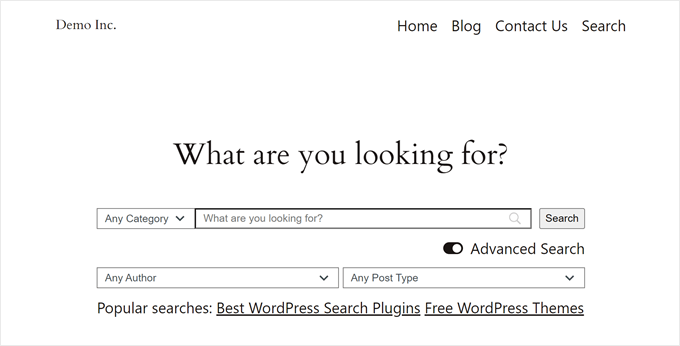
This isn’t only useful for WordPress blogs. On forums with thousands of threads, filters help users find the right discussion by topic or date.
Or, if you have a podcast site, listeners can look for their preferred episode using the feature.
With that in mind, we’ll show you 3 easy methods to let users filter posts and pages on your WordPress site.
You can use the quick links below to skip to your preferred method:
- Method 1: Filter Posts and Pages With WPFilters (Best Way)
- Method 2: Filter Posts and Pages With SearchWP (Recommended)
- Method 3: Filter Posts and Pages With Search & Filter Plugin (Free)
- Bonus Tip: Add Live Ajax Search to Your WordPress Site
- FAQ: Let Users Filter Posts and Pages in WordPress
- Next Steps to Improve WordPress Search
Ready? Let’s jump right in!
Method 1: Filter Posts and Pages With WPFilters (Best Way)
WPFilters is the best content filtering plugin for WordPress. It is a powerful tool that lets you visually build code-free filters like checkboxes and sliders for your posts, pages, and products.
It lets visitors narrow down posts and pages by:
- Categories and tags
- Author
- Custom taxonomies
- Custom fields/metadata
- Date ranges, and more
With WPFilters, you don’t need to write any code or hire a developer. You can visually build filters and drop them into any page using a block or shortcode.
See our detailed WPFilters review for more information.
Step 1: Install and Set Up WPFilters
To get started, you need to sign up for a WPFilters account.
On the WPFilters homepage, click the ‘Get WPFilters Now’ button, pick a plan, and follow the instructions to complete the checkout process.

Once logged in, open your SearchWP account area and switch to the Downloads tab. From there, click ‘Download WPFilters’ to save the plugin’s .zip file to your computer, and make sure to copy your License Key for later use.
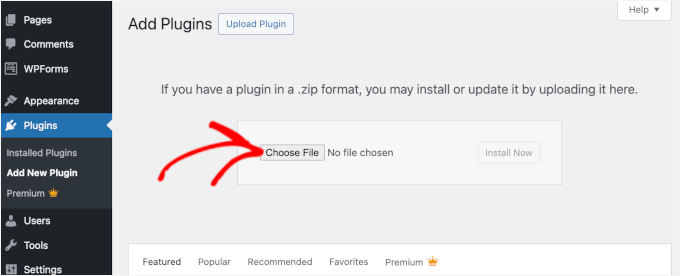
Now, you can install the plugin on your site by going to Plugins » Add Plugin in your WordPress dashboard.

On the next screen, click the ‘Upload Plugin’ button to open the file uploader.
After that, click ‘Choose File’ and choose the WPFilters .zip file you downloaded. Click ‘Install Now’ and ‘Activate’ to finish the setup.
If you need help, then check our guide on how to install a WordPress plugin.
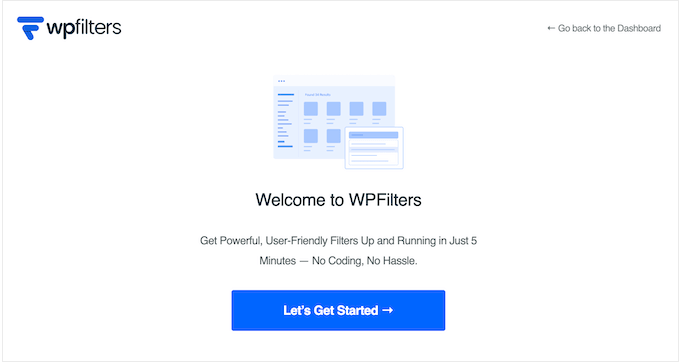
After activation, the WPFilters setup wizard will open. Click ‘Let’s Get Started’ and follow the onscreen steps to connect your license key and complete the initial setup.
Step 2: Create a New Filter Element
Now it’s time to create the actual filter that your visitors will use.
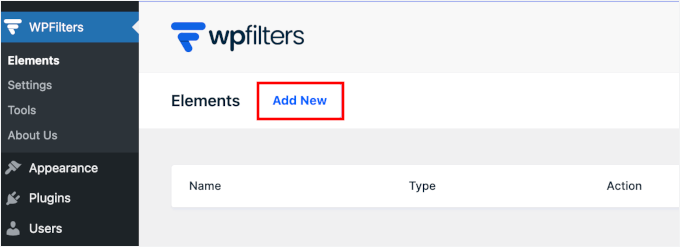
From your WordPress admin area, go to WPFilters » Elements and click ‘Add New.’
At the top of the screen, let’s give your element a clear, descriptive name, such as Blog Category Filter, Post & Page Filters, or Resources Filters.
This will help you with organization.
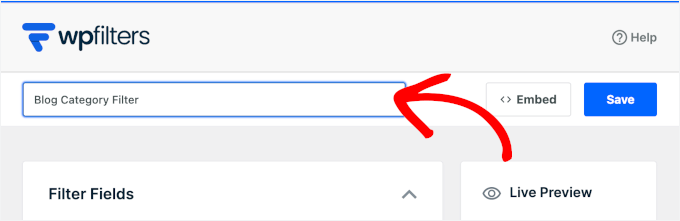
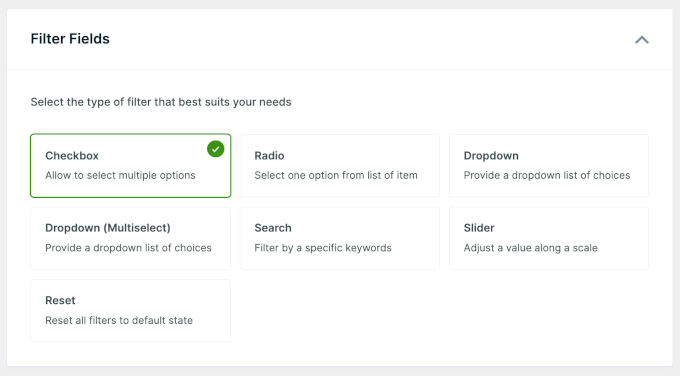
Next, use the panel on the left to choose the type of filter control you want to add. Some useful options for filtering posts and pages include:
- Checkbox – lets readers select multiple options at the same time
- Radio – allows readers to choose only one option
- Dropdown – displays options in a compact dropdown to keep the layout clean
- Dropdown (Multi Select) – a dropdown that still lets readers pick more than one option
- Search – adds a search box so readers can quickly find specific content
- Slider – works well for filtering by date ranges or numeric values
- Reset – adds a button that clears all selected filters so readers can start fresh
For this tutorial, we will use the Checkbox option.
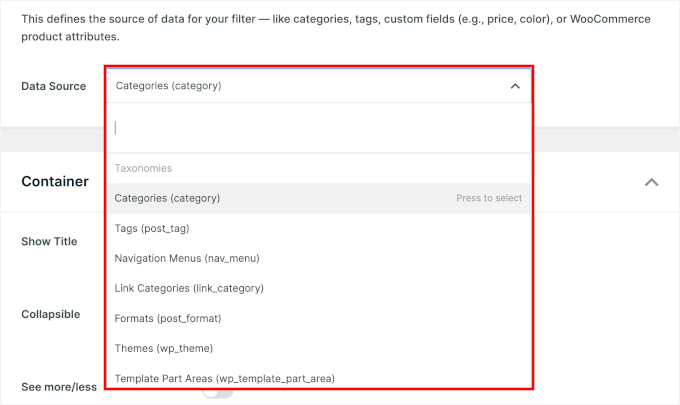
After that, scroll down to the ‘Data Source’ section and open the dropdown menu. This is where you choose what the filter will actually apply to.
For posts and pages, common data sources include:
- Categories – filter posts by blog categories
- Tags – filter content by tags
- Post Type – let users choose between Posts, Pages, or both
- Author – filter posts by author
- Date – filter content by publish date
- Custom Taxonomy/Custom Field – useful if your site uses structured metadata
Select the data source that best matches your filter. For example, you might use a checkbox list for categories/tags or a dropdown for post types.
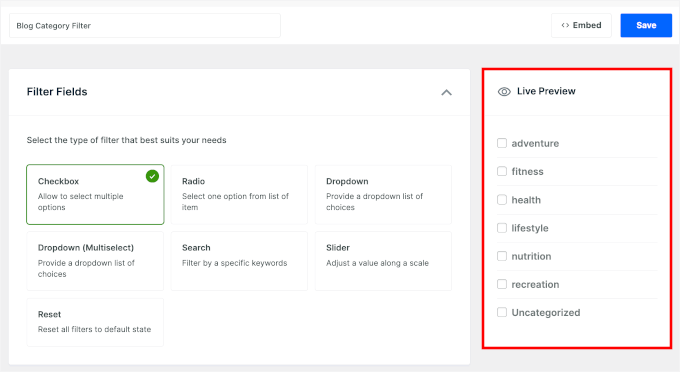
As you adjust the settings, you’ll see a live preview of the filter element on the right side of the screen.
This can help you fine-tune how your filter will look and work.
From here, you can create multiple elements, each with a different data source, to build a more advanced and flexible filter sidebar.
Step 3: Customize How Your Filter Works and Looks
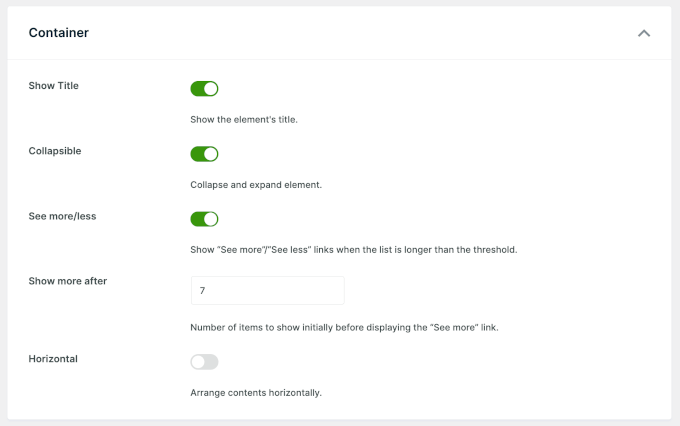
After you’ve chosen a data source, scroll down to the ‘Container’ section.
Here, you can fine-tune the appearance and layout of your filter element:
- Show Title – Display a heading above the filter like “Filter by Category.”
- Collapsible – Allow users to expand/collapse the filter group.
- Horizontal Layout – Arrange items in a row instead of a vertical list, which is useful for small sets like “Posts / Pages”.
Here’s what this section looks like on your screen:
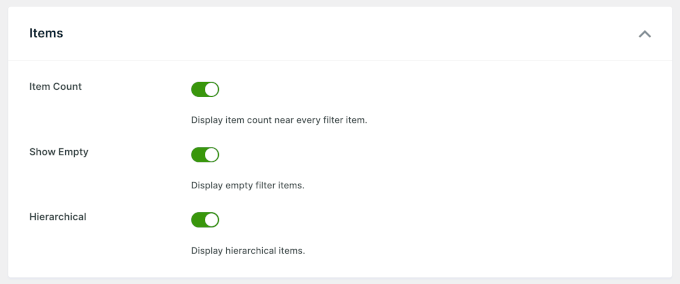
Scroll further to the ‘Items’ section. These settings control how the individual filter options behave:
- Show Item Count – Display how many posts/pages match each option, for example, “Tutorials (8).”
- Display Empty Items – Choose whether to show options that currently have no matching content.
- Hierarchical Display – If you’re filtering categories with parent/child relationships, this will visually nest subcategories.
When you’re happy with the settings, scroll back up and click ‘Save.’
You can repeat this process to create multiple elements, such as an author dropdown, a tag checkbox, or a post type selector. Together, these will form your complete filter interface.
Step 4: Embed Your Filters on a Page
Once your filter elements are ready, you can embed them anywhere on your site.
From the element screen, click the ‘Embed’ button.
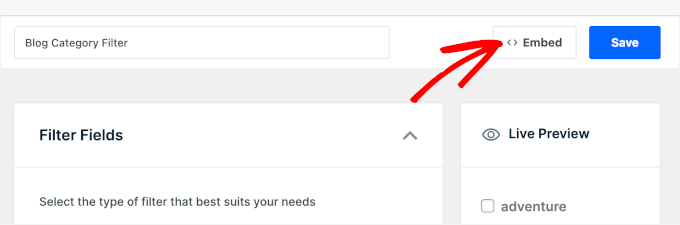
A popup will appear with different embed options – Gutenberg block, shortcode, and PHP code (for developers).
You’ll also see options to add the filter to an existing page or create a new page specifically for your filtered results.
For this guide, we’ll choose Gutenberg block and ‘Select Existing Page.’
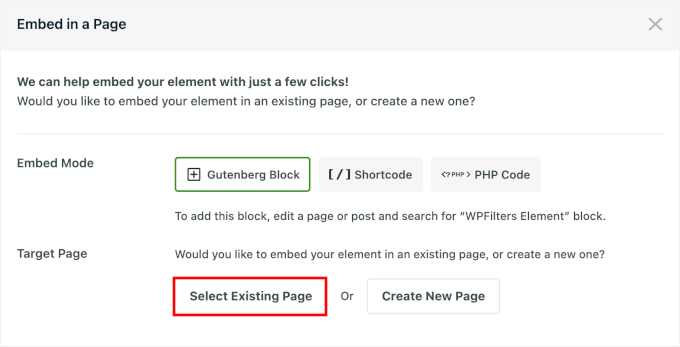
Next, click the dropdown to expand the option.
Select the page you want to embed the filter into and click ‘Let’s Go.’
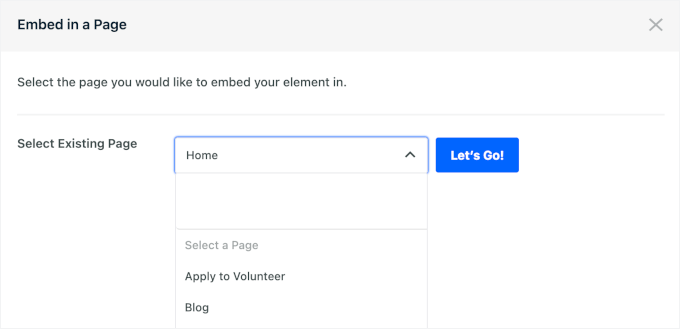
The visual builder will then open your page in the block editor.
Then, click the ‘+’ add block button to add a ‘WPFilters Element’ block.
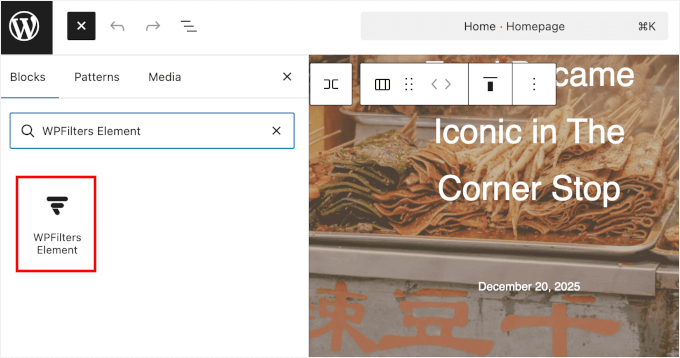
📝 Note: To add a filter to your sidebar, navigate to Appearance » Widgets in your admin area. This opens the widget customizer, where you can add the WPFilters Elements widget to your sidebar or other widget-ready areas.
Next, pick the filter element you just created in the block settings panel.
You should then see it appear instantly in the content editor.
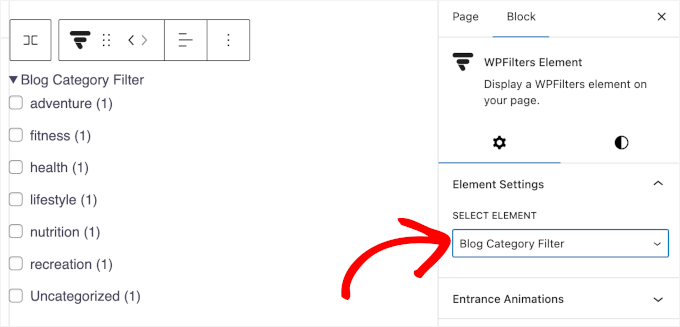
From here, you can add more WPFilters Element blocks to create a filter set.
When you’re done, click ‘Publish’ or ‘Update.’
Now, if you visit the page on the front end, you’ll see your filter in action.
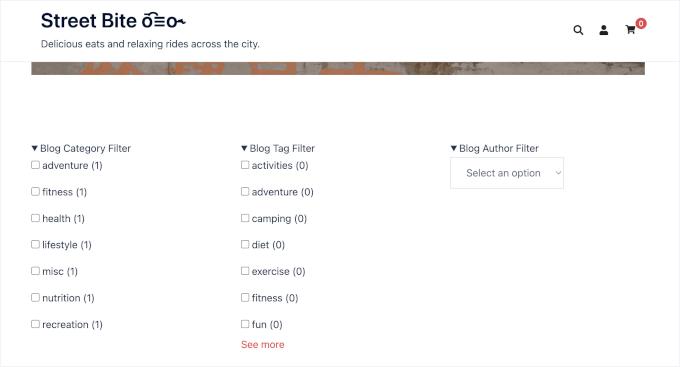
That’s it! You’ve added a post and page filter using WPFilters.
You might want to try out your new filters and see the list of posts and pages update to match their selections. You can also try to copy or share the URL to preserve that exact filtered view.
Method 2: Filter Posts and Pages With SearchWP (Recommended)
SearchWP is the best search engine plugin for WordPress. It lets you create advanced search forms that combine search with custom filtering options while giving you full control over how results are ranked.
We use SearchWP to power search on some of our business websites. For more details, see our complete SearchWP review.
Here’s a step-by-step guide on how to use SearchWP to create a custom search form with filtering options.
Step 1: Install and Set Up SearchWP
To get started, you need to create a SearchWP account.
On the SearchWP website, click ‘Get SearchWP Now,’ choose a plan that fits your needs, and complete the signup.

💡 Note: SearchWP is a premium plugin, but there’s also a free SearchWP Live Ajax Search that adds live search results. It’s great if you only need to improve the search experience.
After signing up, you’ll be taken to your SearchWP account dashboard. From there, you can download the plugin zip file and copy your license key.
Next, install the plugin on your site by going to Plugins » Add New Plugin in your WordPress dashboard.

On the next screen, click ‘Upload Plugin,’ then ‘Choose File,’ and select the SearchWP zip file you downloaded earlier.
Once the file is uploaded, click ‘Install Now,’ and then ‘Activate’ to properly enable it.
If you’re new to this, then we have a helpful guide on how to install a WordPress plugin.
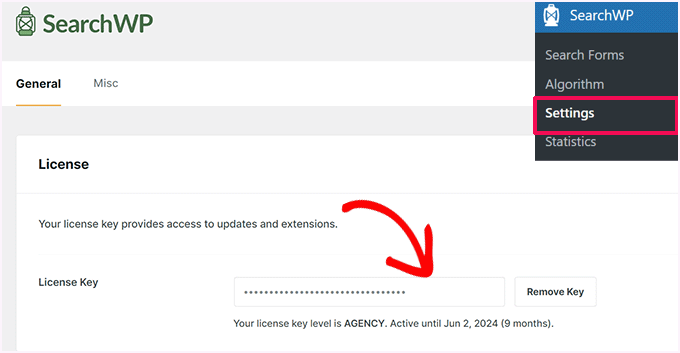
Once activated, you can go to SearchWP » Settings. Then, in the ‘General’ tab, go ahead and enter your license key to activate it.
Step 2: Set Up Your Search Algorithm
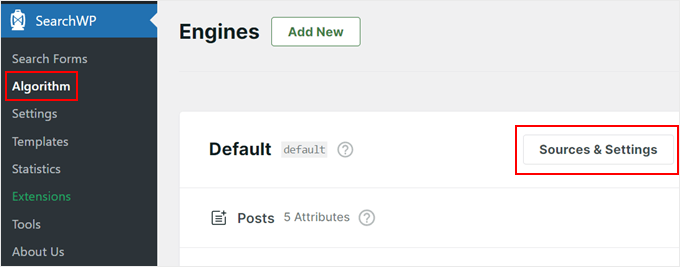
Now, let’s head over to SearchWP » Algorithm. Here, you can either edit the default search engine or create an additional one.
The default engine allows users to search through pages, posts, media files, and comments, which is good for a typical WordPress blog.
On the other hand, the additional search engine can use other sources like categories, tags, custom post types, and custom taxonomies. This may be useful for creating a non-blog content search and filter form, like an eCommerce product filter for WooCommerce websites.
For this tutorial, we will stick with the default engine and simply adjust its settings. Go ahead and click the ‘Sources & Settings’ button.
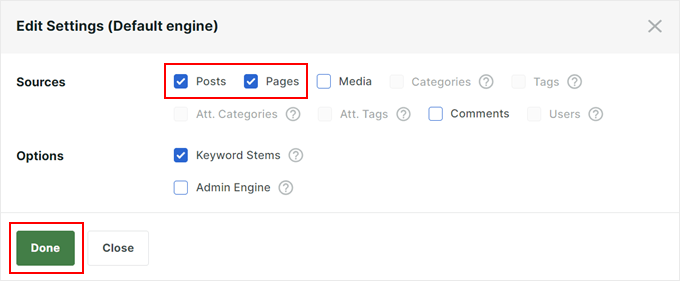
Since we’re creating a search and filter function to filter posts and pages, we will just include pages and posts as the sources for the WordPress search engine.
We’ve also enabled the ‘Keyword Stems’ feature, which allows SearchWP to show results even if the keyword isn’t a perfect match.
Once you’re happy with the settings, you can just click ‘Done.’
Step 3: Fine-Tune Your Search Engine
You will see a section for the sources you selected earlier (Posts and Pages).
There are also relevance settings to control how much “weight” each attribute should have in the search results.
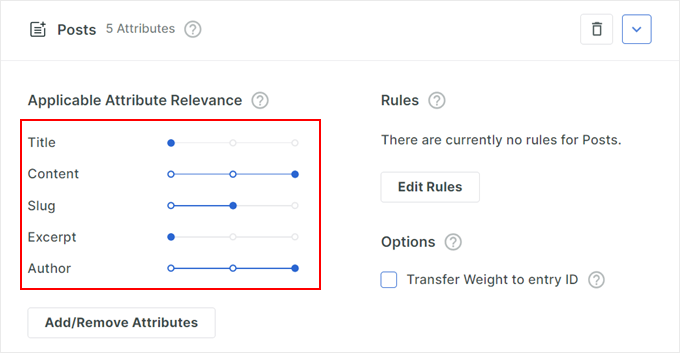
You can adjust these sliders based on your preference.
You can also click ‘Add/Remove Attributes.’
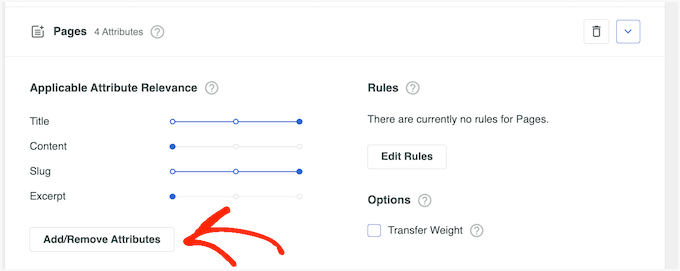
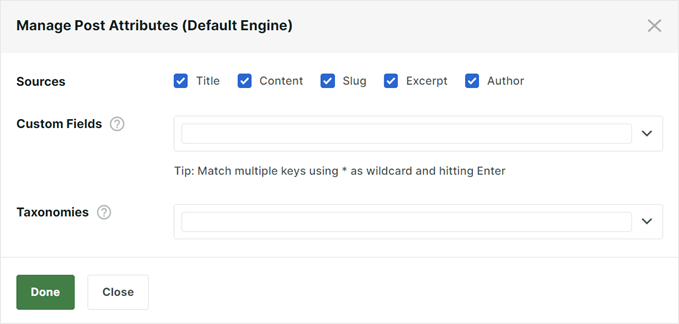
This will make a popup appear for you to include or delete more attributes.
For example, you could include custom taxonomies or custom fields to make them searchable.
Another powerful feature is the ability to create rules that include or exclude specific content from search results.
To do this, just click the ‘Edit Rules’ button.
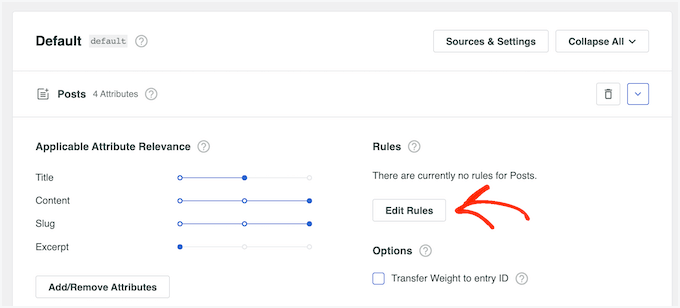
This setting allows you to filter out irrelevant content or highlight specific categories.
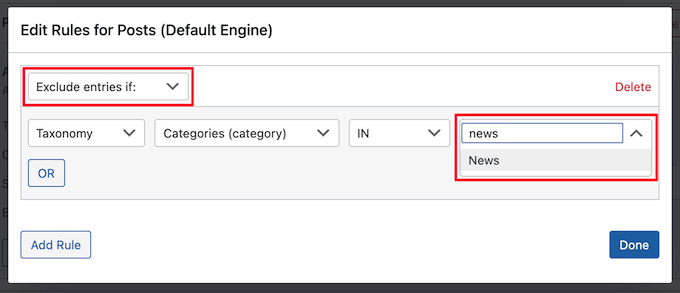
In the next popup, you can click ‘Add Rule.’
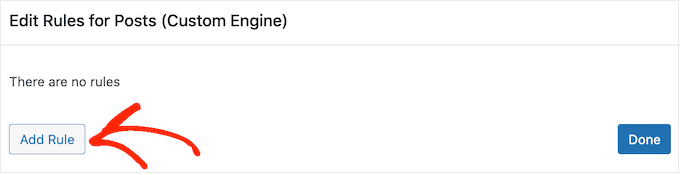
Now, simply click on the dropdown menu and pick ‘Only show entries if’ or ‘Exclude entries if.’
Then, you can choose whether to exclude or include the content if it is part of a specific taxonomy, was published within a certain date range, or has a certain ID.
To add another rule, simply click the ‘Add Rule’ button and repeat the same process described above. When you’re happy with how the rules are set up, go ahead and click ‘Done.’
You can repeat the same process for the other search entry sources, if needed.
When you’re happy with the search engine, you can go back to the top of the page and click ‘Save.’
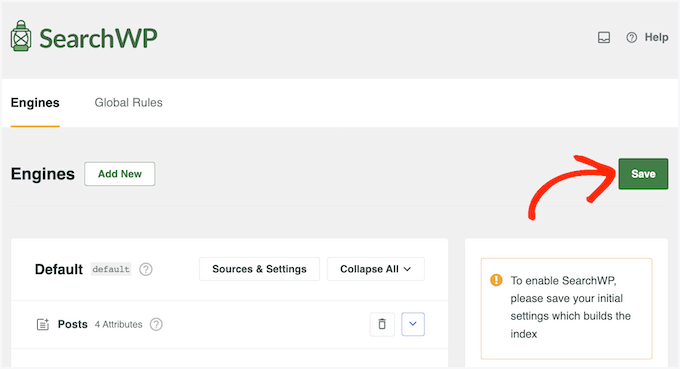
SearchWP will now rebuild the index, which may take a few minutes.
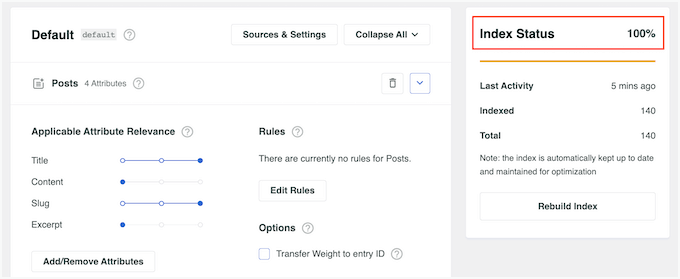
Once you see ‘Index Status 100%,’ that means SearchWP has indexed all your content and rules for the search engine.
Step 4: Build a Custom Search Form
Now that the search engine is configured, let’s create a user-friendly search form with filtering options.
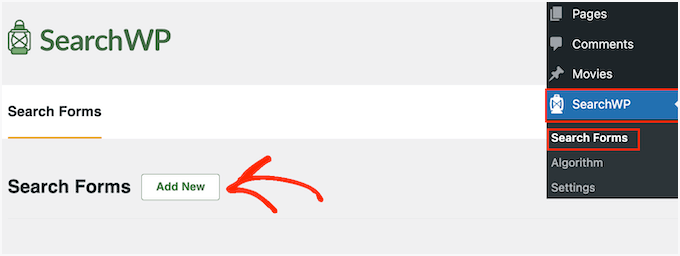
To start, let’s head over to SearchWP » Search Forms, and then click ‘Add New.’
On the next screen, the first thing you’ll do is give your form a recognizable name.
This is just for your internal reference, so the name can be anything that’s easy for you to remember.
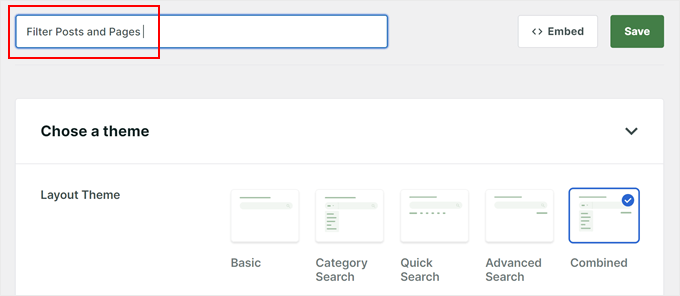
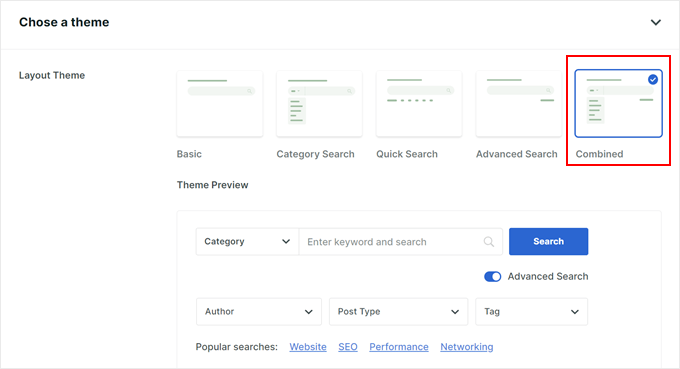
Then, you’ll choose a layout.
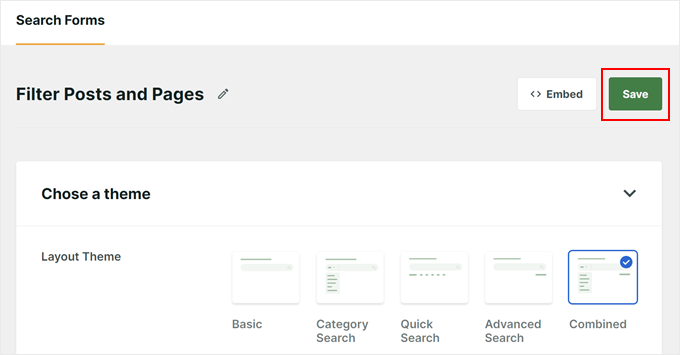
For this tutorial, we will use the ‘Combined’ option, as it provides the most filtering menus.
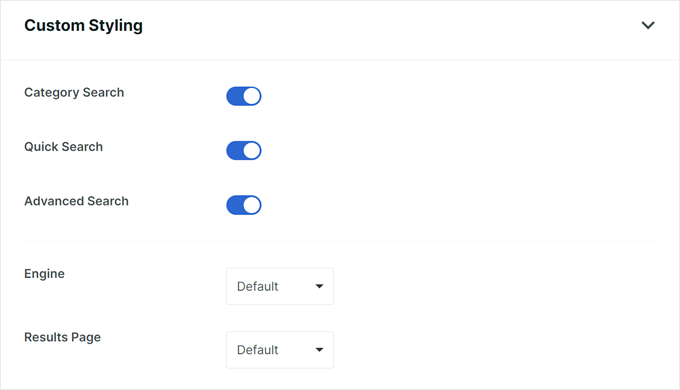
Now, you can scroll down to the ‘Custom Styling’ section and select both the ‘Category Search’ and ‘Advanced Search’ options. This ensures your form includes all the filtering features.
You can optionally choose ‘Quick Search’ if you want to add some suggested search terms below the search bar.
Then, in the ‘Engine’ menu, you’ll select the search engine you created earlier.
As for ‘Results,’ you can choose which search results page to use: the default WordPress results or SearchWP’s version.
In the ‘Type of Search,’ let’s select ‘Posts’ and ‘Pages.’
Below that, you can add the category names you want to include in the filter menu.
For the ‘Field Label,’ enter the placeholder text that will appear in the search field, such as ‘What are you looking for?’
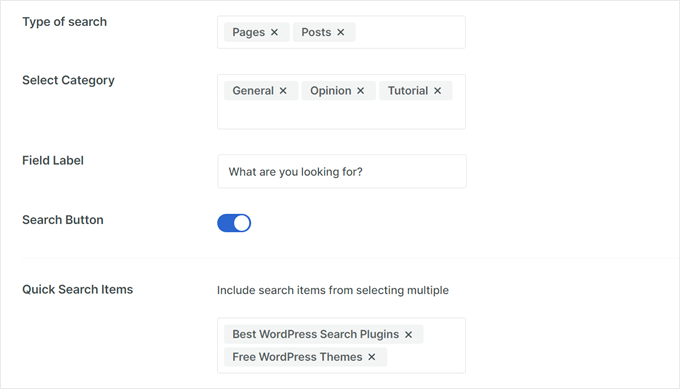
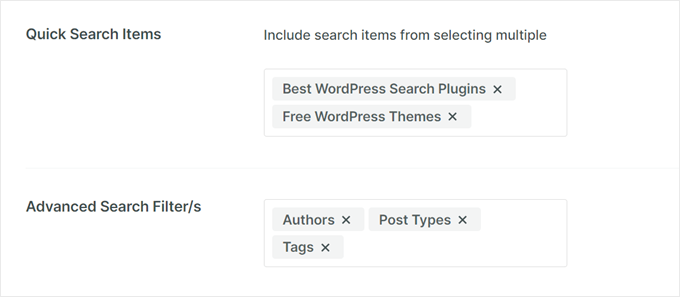
If you selected ‘Quick Search’ earlier, then you can include terms users might commonly search for in the ‘Quick Search Items.’
In the ‘Advanced Search Filter/s,’ simply choose which filtering options you want to offer users, such as ‘Authors,’ ‘Post Types,’ or ‘Tags.’
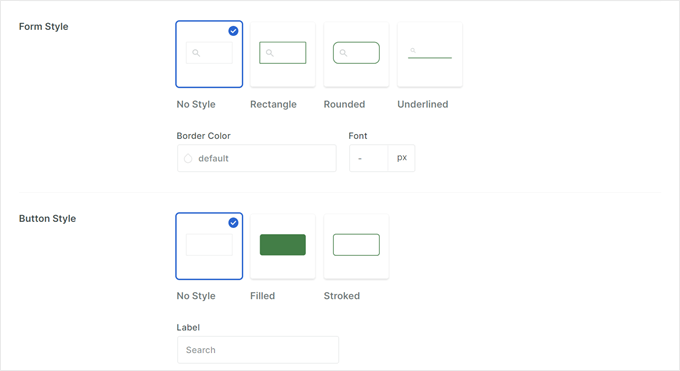
Finally, use the ‘Form Style’ and ‘Button Style’ settings to customize the appearance of the search form to match your website’s design.
You can change the colors, fonts, and shapes of the search form.
When you are finished, scroll back to the top of the page.
Then, it’s time to click ‘Save’ to create your search form.
Step 5: Embed the Search and Filter Form
The SearchWP plugin allows you to easily embed the search form on the front end of your website, like on your homepage or widget-ready areas.
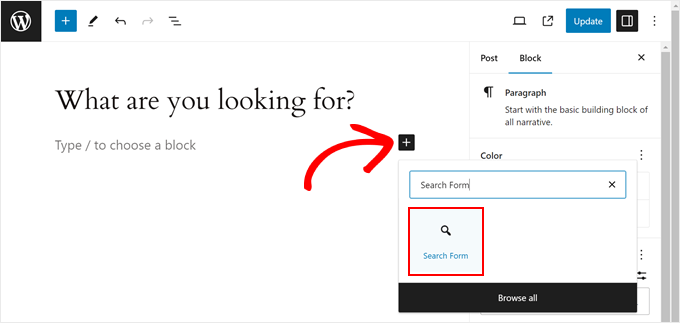
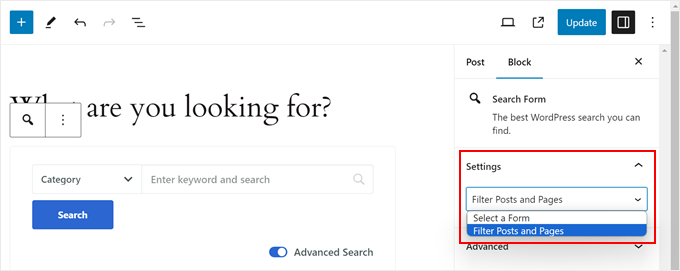
Here, we will demonstrate adding it to a page using the WordPress block editor and the Search Form block.
First, you can open the page or post you want to add the form to. Then, let’s click the ‘+ Add Block’ icon and search for ‘Search Form.’
In the ‘Block Settings’ sidebar, select the form you created from the dropdown menu.
Finally, simply click on ‘Publish’ or ‘Update’ to see the search form live.
For more information, you can check out these step-by-step guides:
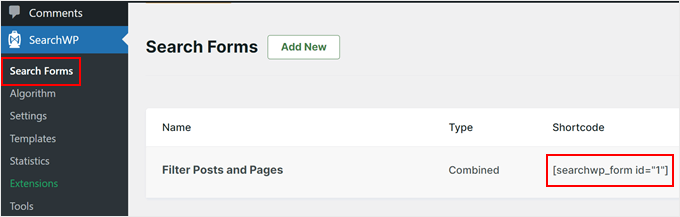
Alternatively, you can display the form using a shortcode.
To do this, you’ll need to find the shortcode for your specific form by going to SearchWP » Search Forms and copying the code in the ‘Shortcode’ column.
We have a guide on how to add shortcodes in WordPress if you need help.
With the search form and filtering options in place, your visitors can now easily find the content they’re looking for on your website.
This not only improves user experience but can also encourage them to explore different categories and discover more of your valuable content.
Method 3: Filter Posts and Pages With Search & Filter Plugin (Free)
The last method is to use the Search & Filter plugin, which is available for free.
It’s a great option if you want to quickly create a search box with filter dropdowns without editing any code.
Step 1: Install and Activate the Search and Filter Plugin
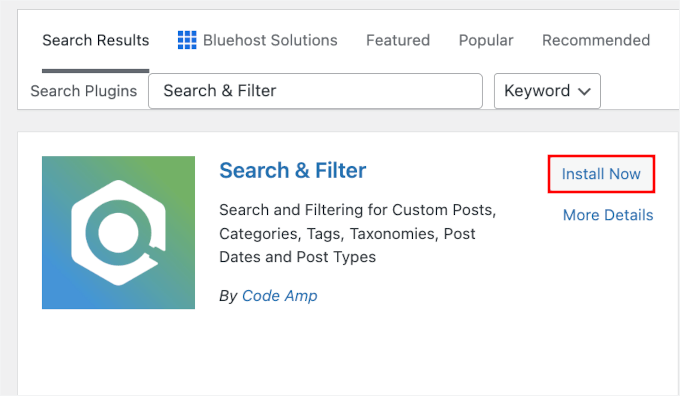
First, you need to install and activate the Search & Filter plugin. Open your WordPress dashboard and go to Plugins » Add New Plugin.
On the next page, use the search bar to quickly find the plugin.
In the search result, click ‘Install Now,’ and then ‘Activate.’
For more details, see our step-by-step guide on how to install a WordPress plugin.
Step 2: Get Your Search and Filter Shortcode
Next, go to Search & Filter. Here, you can get the shortcode for your filters.
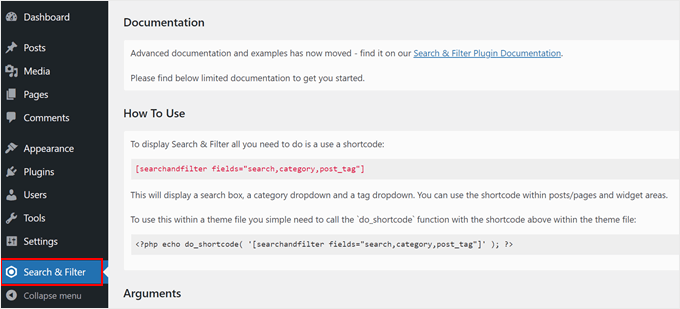
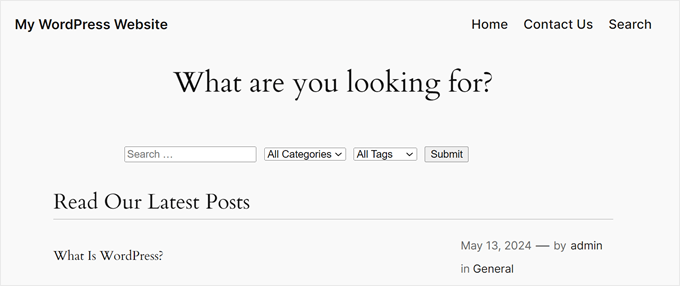
The Search & Filter plugin comes with a shortcode that accepts different parameters to display filtering options. You can use this shortcode in a post, page, or text widget:
[searchandfilter fields="search,category,post_tag"]
This will display the filtering options with search, category, and tag fields:
Step 3: Customize Your Shortcode (Optional)
One of the best features of this plugin is that you can customize which filtering options are available by editing the shortcode tags.
For example, if you want to include category, tag, post type, and date fields in the search bar, then you will need to use this shortcode:
[searchandfilter fields="search,category,post_tag,post_types,post_date"]
This is what it looks like:

If you don’t want to use dropdown menus, then you can also use checkboxes and add labels for each field.
In the shortcode below, we’re telling the plugin to display the search bar with checkboxes for category options:
[searchandfilter headings="Select categories:" types="checkbox" fields="category"]
Please check out the example below:

Additionally, you can tell the plugin to use checkboxes for some filter options and dropdown menus for others in one shortcode.
This is the shortcode we used to include post types, categories, and tags in the search bar. We asked the plugin to use checkboxes for the post types option:
[searchandfilter headings="Post type, Category, Tag" types="checkbox, select, select" fields="post_types,category,post_tag"]
Feel free to refer to the plugin’s documentation for more ways to use the shortcode.

And if you’re not familiar with how shortcode works, see our guide on how to add a shortcode in WordPress.
Bonus Tip: Add Live Ajax Search to Your WordPress Site
Now that you know how to let users filter posts and pages, you can take things a step further and improve the search experience with live Ajax search.
Live Ajax search uses real-time technology to display search results as users are typing their queries. This means no more waiting for a page to refresh.
Results will appear instantly, making the search process much faster and more convenient for your visitors.
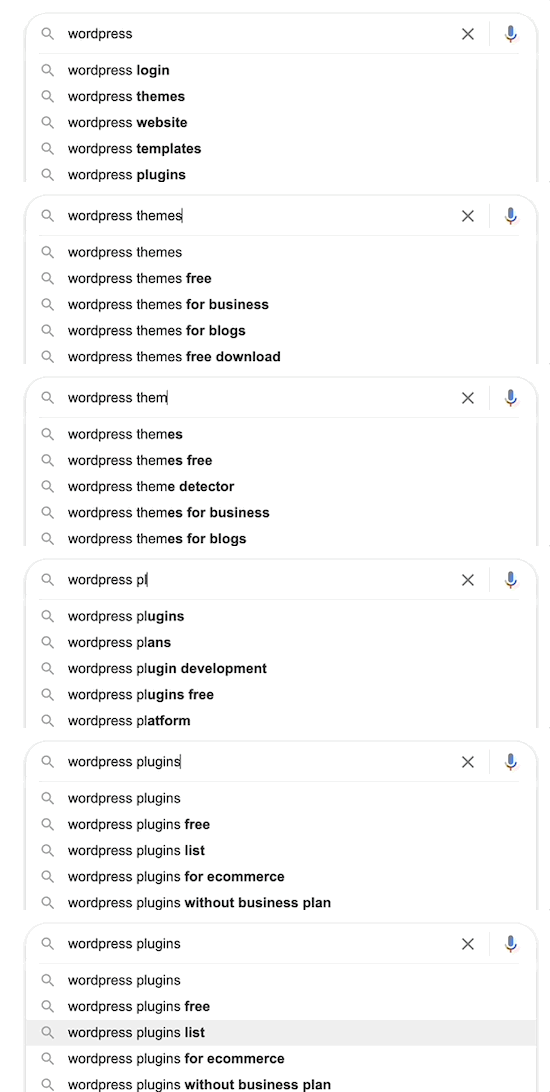
A faster search experience means you can keep users on your site longer, increasing pageviews and reducing the bounce rate.
The good news is that you can easily add these features to your site with a free plugin called SearchWP Live Ajax Search.
We use SearchWP Live Ajax Search on WPBeginner to provide real-time search results for our visitors. For more details, you can read our guide on how to add live Ajax search to your website.
FAQ: Let Users Filter Posts and Pages in WordPress
Before we wrap up, here are answers to a few common questions people ask when setting up filters and search on a WordPress site.
Can I add a search filter in WordPress?
Yes, you can add search filters for categories, tags, or custom fields in WordPress. To do this, you will usually need a dedicated search plugin. The tools covered in this guide let you add filters using simple settings so visitors can quickly narrow down content.
Why don’t I see a search bar in WordPress?
If you don’t see a search bar, it is likely because your theme does not display one by default. Some themes hide the search feature or only show it on specific pages to keep the design clean. However, WordPress still supports search, and you can manually add it back using a widget or plugin.
How do I create searchable documents in WordPress?
You can make documents searchable by using a search plugin like SearchWP that can index PDF text. This allows your onsite search to return results from inside your uploaded files, which is important for knowledge bases and resource libraries.
Next Steps to Improve WordPress Search
We hope this article helped you learn how to let users filter posts and pages in WordPress.
If you found this helpful, then you may want to check out our other guides on:
- How to Add Fuzzy Search in WordPress
- How to Exclude Pages from WordPress Search Results
- How to Make Blog Comments Searchable in WordPress
- How to See Search Analytics in WordPress
- WordPress Search Plugins to Improve Your Site Search
If you liked this article, then please subscribe to our YouTube Channel for WordPress video tutorials. You can also find us on Twitter and Facebook.





kzain
I’ve been wanting to improve website navigation for my users, and adding filters seems like a great solution. The breakdown of different methods is perfect, especially for beginners like me. I’ll definitely try out the SearchWP plugin. Thanks for sharing!
Himanshu Gautam
hi
I am using this plugin
is there any option to select a category without hitting the submit button?
Marwan Nour
Hello there,
I am trying to implement Search & Filter in a website that’s both in Arabic and in English. The English version of the Search & Filter is working well however in the Arabic Version, after hitting search, I am redirected to the English Version of the search page with the results in English. Can anyone help me with that issue please? Thank you
WPBeginner Support
You would want to reach out to the plugin’s support to see if this could be a conflict with the plugin and the translation plugin you’re using.
Admin
Tom Ale
Hi, I am using Wordpress with Gantry.
I installed this plugin and used a shortcode. It appears where it suppose to be. When clicking the button to filter content, nothing happens. Did anyone face this problem? Help, please.
Sébastien Albert
Hi,
Search & Filter looks great. But could you tell me if it can do that :
I would have a filter on tags but only on one category which I could define…
Thanks a lot
Sebastien
Soumik Sadman Anwar
How can I create filter options in a single post?
For example, If I am interested in writing a post “Necessary Tools to Build A Website” and want to include filter options like Purpose Based Tools (like SEO, Design etc.) and the Price option (Free or Paid), how do I do it?
Pavel
Great plugin, but have some limitations and bugs.
1. No Reset button.
2. When I uncheck all checkboxes and press Submit, it transfers to the front page.
Maybe there’s an option Show all?
Wolney Mamede
First of all, thanks for the post.
I would like to know if it is possible to filter the search from the group of fields, created from the “Advanced Custom Fields – v. 4.4.12” plugin.
Also by default, the search would be restricted to a custom post type from the “Custom Post Type UI – v. 1.5.8” plugin.
Sultan Haider
Hi, I had created employ database on tablepress and i want to filter in front end employ according to year wise for example if i select 2013 this shows only those employ which join in 2013.
i have perform lot of research but i cant find free pluggin according to my need.
please help me for suggestion.
thanks
Christine
Thanks a lot for the comprehensive article. Do you know if it is also possible to have only certain tags in the dropdowns?
Pawan
Great Job. just one last question. Instead of searching the post, is it possible to search category using the search string? I would like to show all the possible post in search page and then the category if it matches the search string (partially or fully).
Maz
Hi,
Great as always.
I just wonder would the use of this plugin be recommended on a site with many posts? Will it not lead to slower load time?
Thanks
Matus
Could you please give us a little bit deeper look to your behind the scenes? (in Blueprint post you write only what you’re using – you can also write if you want, how to properly set up plugins, themes…)
For example tutorial on 10 tips and trick to masterize or customize Genesis Framework would be really really helpful.
Patxi
Hi WPBeginner!
In relation to the filters of new taxonomies, a question of initiation, how I can visualize in the post a new taxonomy for a second type of labels that later I can filter with this plugin?
It would be an interesting topic.
Thanks for you post!
Omer Causey
Your suggestions for allowing users to filter posts are welcome, but the explanation of how and where to insert the required shortcode is beyond this beginner’s understanding.
WPBeginner Support
Hi Omer,
You can add the shortcode in a post or page. If you want to display the filter site-wide then you will need to edit your WordPress theme files and use the template tag instead.
Admin