


Setting up Telegram with WordPress sounds simple… until you’re staring at bot tokens, chat IDs, and plugins that all claim to do the same thing.
It’s easy to feel stuck or worry you’ll break something if you press the wrong button.
The good news is that you don’t need to be technical to make this work. I’ve tested the most popular methods and narrowed them down to the ones that are actually beginner-friendly and reliable.
In this guide, I’ll show you two simple ways to integrate your WordPress site with Telegram, even if you’ve never created a bot before. 🙌

Why Integrate Your WordPress Site with Telegram?
Integrating WordPress with Telegram lets you automatically share new blog posts with your Telegram audience and send important website notifications directly to your team, all through a secure and popular messaging app.
Telegram is a popular cloud-based messaging app, similar to WhatsApp, but with stronger privacy features and team-friendly tools that feel closer to Slack. Because it’s fast, secure, and widely used, it’s a great place to share updates and handle conversations.
With the right WordPress plugin, you can use Telegram in a few different ways.
For example, you can automatically share new blog posts to a Telegram channel, send important WordPress notifications to your team, or even let visitors message you directly from your website.
In this guide, I’ll walk you through 2 different ways to integrate WordPress with Telegram, depending on what you want to achieve:
- Use Method 1 (WP Telegram – Auto Post and Notifications) if you want to send content from WordPress to Telegram, like auto-posting new articles, sharing site notifications, or working with bots and channels.
- Use Method 2 (WPChat) if you want to let visitors chat with you on Telegram directly from your website, without dealing with bots or automated posting systems.
With that in mind, here’s a quick overview of all the things I’ll cover in this article:
- Method 1: How to Integrate Your WordPress Site with Telegram
- Step 1: Setting Up to Connect WordPress and Telegram
- Step 2: Integrating WordPress Posts into Telegram
- Step 3: Creating a Channel on Telegram
- Step 4: Adding Your Telegram Channel or Group to WordPress
- Bonus Tips: Configuring Settings for Sending WordPress Posts to Telegram
- How to Send WordPress Notifications to Telegram
- How to Send Notifications From WordPress to an Individual on Telegram
- How to Send Notifications From WordPress to a Group on Telegram
- Method 2: Add Telegram Chat to WordPress with WPChat (No Bots Needed)
- Integrating Your WordPress Site With Telegram FAQs
- Next Steps for Using Chats, Forums, and Social Media in WordPress
Ready? Let’s jump right in!
Method 1: How to Integrate Your WordPress Site with Telegram
For this method, I’ll use WP Telegram (Auto Post and Notifications).
This plugin is designed for one-way communication tasks, like automatically sending new posts to Telegram, pushing site notifications, and working with bots or channels.
It’s great if you want to broadcast content or receive internal alerts in Telegram. However, it’s not built for creating a polished, on-site chat experience where visitors can message you directly from your website.
If your goal is real-time conversations with site visitors, you’ll want a different approach – which I’ll cover in Method 2.
Step 1: Setting Up to Connect WordPress and Telegram
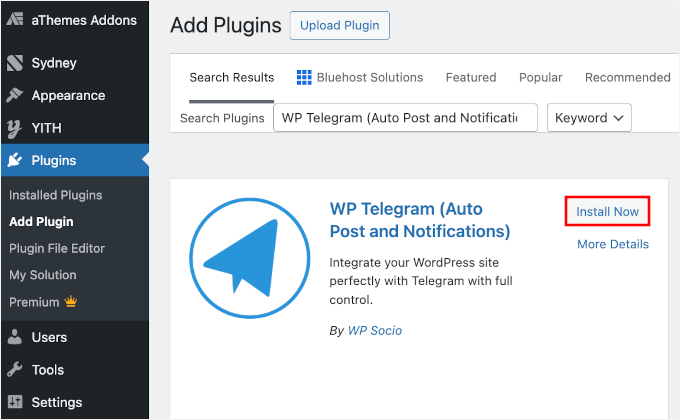
The first thing you need to do is install and activate the WP Telegram (Auto Post and Notifications) plugin.
To do this, head over to Plugins » Add New Plugin from your WordPress dashboard.

Next, you can use the search bar to quickly find the plugin.
In the search results, click on ‘Install Now’ and then ‘Activate.’ For more details, you can see our step-by-step guide on how to install a WordPress plugin.
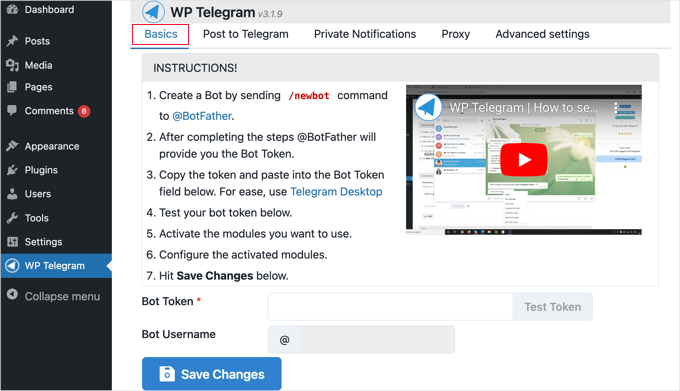
Upon activation, the plugin will add a new menu item labeled ‘WP Telegram’ to your WordPress admin dashboard. Let’s click on it to access the plugin’s settings page.
In the page’s ‘Basics’ tab, you’ll find a simple summary of how to set up Telegram for WordPress integration.
If you are not already running Telegram, then your first job is to install it on your mobile device and then sign up for an account. This must be done on mobile because each account is linked to a phone number.
Simply go to the Telegram apps page to download and install the app for Android or iOS.
After you sign up, you can also run Telegram on your computer. Versions are available for macOS, Windows, Linux, and the web.
You’ll connect WordPress and Telegram using a special automated account called a bot. Think of this bot as a messenger that will post updates from your website to your Telegram channel on your behalf.
To create a bot, simply search Telegram for @BotFather and then click on that user to start a chat.
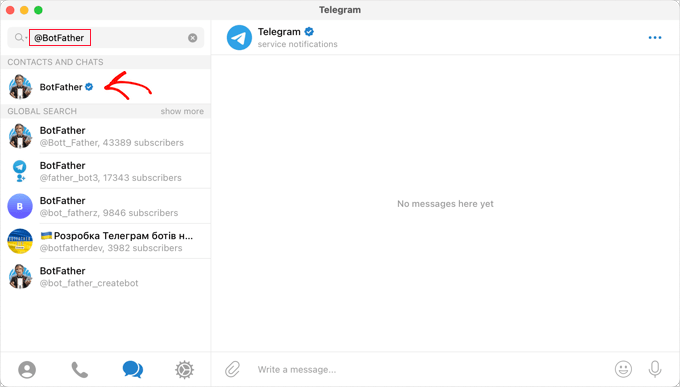
You’ll see a list of Telegram commands you can use when chatting with this bot.
You need to type the command /newbot in the chat and send it.
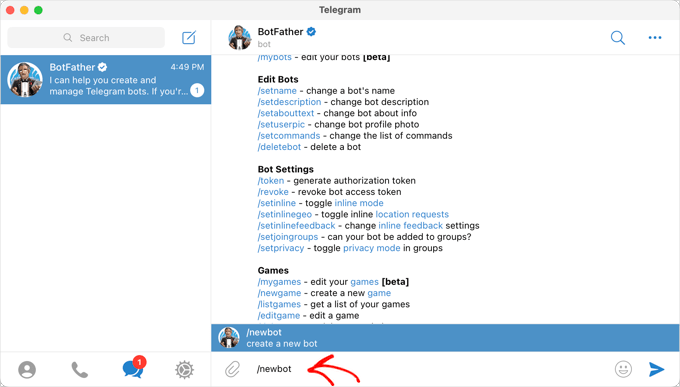
BotFather will then ask you to name your new bot.
You can choose any name, such as Bot for WP Telegram.
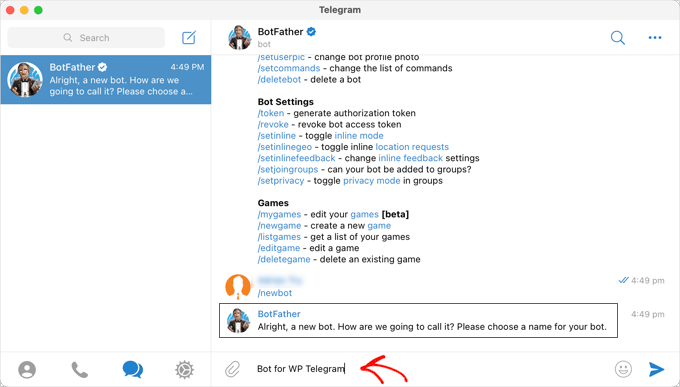
Next, choose a unique username for your bot, and make sure it ends with bot.
For example, I’ll use XYZ_wptelegram_bot.
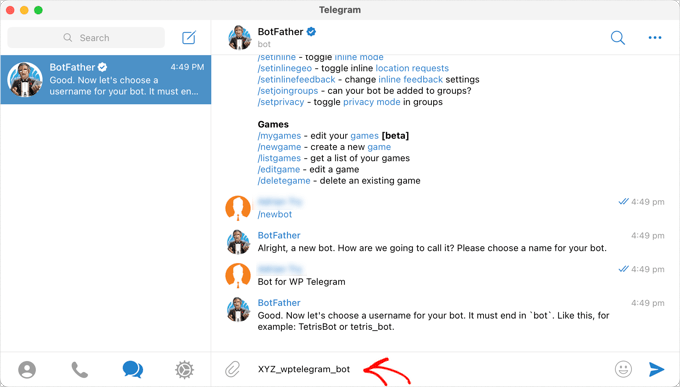
You’ve now successfully created a Telegram bot, and BotFather will display your bot’s API token in the chat window.
It’s important to treat this token like a password or a car key. Anyone who has it can control your bot, so keep it secure and never share it publicly.
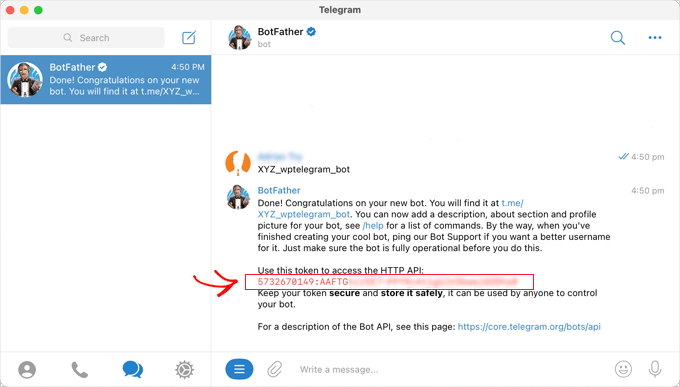
From here, let’s copy the token to the clipboard.
After that, you should return to your WordPress admin area and open the ‘WP Telegram’ settings page. Paste your bot token into the ‘Bot Token’ field.
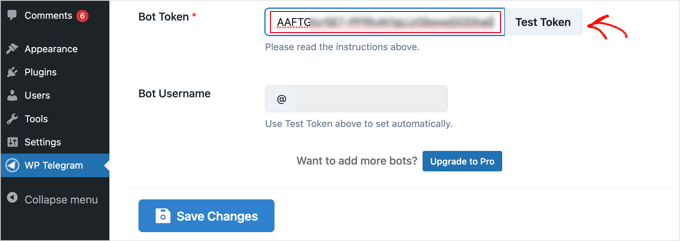
Once you’ve done that, you should click the ‘Test Token’ button.
The token is connected to this specific bot, so the ‘Bot Username’ field fills in automatically.
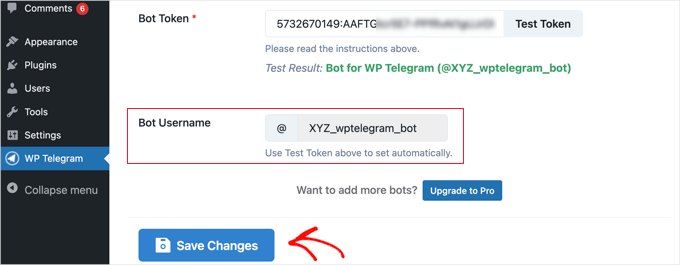
Don’t forget to click the ‘Save Changes’ button to store your settings.
Congratulations, you have finished the initial setup of Telegram and the WP Telegram plugin.
Next, you can configure the plugin to send WordPress posts to Telegram or to send WordPress notifications to yourself.
Step 2: Integrating WordPress Posts into Telegram
Make sure you’re on the ‘Post to Telegram’ tab in the plugin dashboard.
This page will let you configure the plugin to automatically send your posts to Telegram when they are published.
First, you need to toggle the ‘Active’ switch to the ‘On’ position.
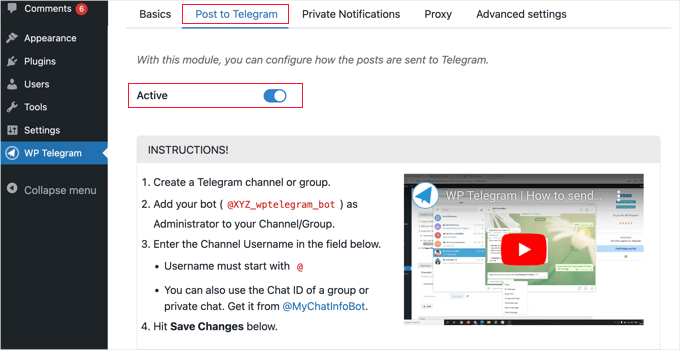
You will now see instructions for sending your WordPress posts to Telegram.
Step 3: Creating a Channel on Telegram
If you don’t already have a public Telegram channel, then you’ll have to create one.
To do this, you need to switch back to the Telegram app.
Then, you should click the ‘New’ icon at the top of the screen and click ‘New Channel’ from the dropdown menu.
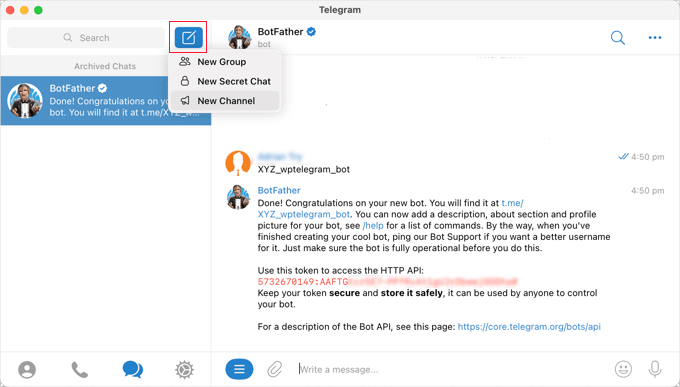
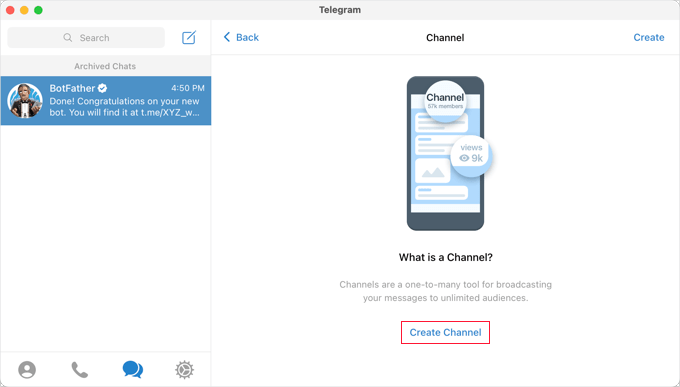
On the next screen, you’ll see a description of what a Telegram channel is.
You’ll need to click the ‘Create Channel’ link at the bottom of the page.
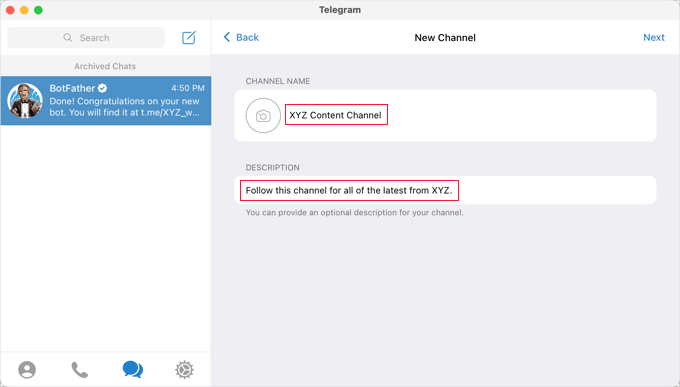
Now, you need to give your channel a name and description.
Remember that this will be a public channel, so name it appropriately.
After that, you should click ‘Next’ at the top right of the page.
You should also create a permanent public link. This makes it easy for people to find and join your channel. This link will look something like t.me/yourchannelname.
🧑💻 Important: The part you’ll need for the WordPress plugin is this username with an @ symbol in front of it (e.g., @yourchannelname). We’ll use this in a later step.
You might want to note this username, as you will need it later when setting up the plugin in WordPress.
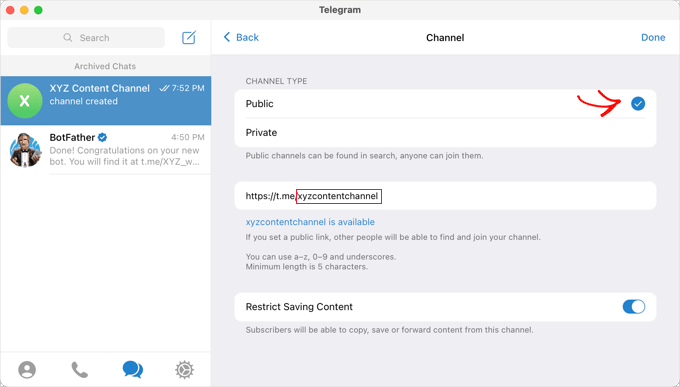
When you click ‘Done,’ your Telegram channel will be created, and you will now need to add your bot as an administrator.
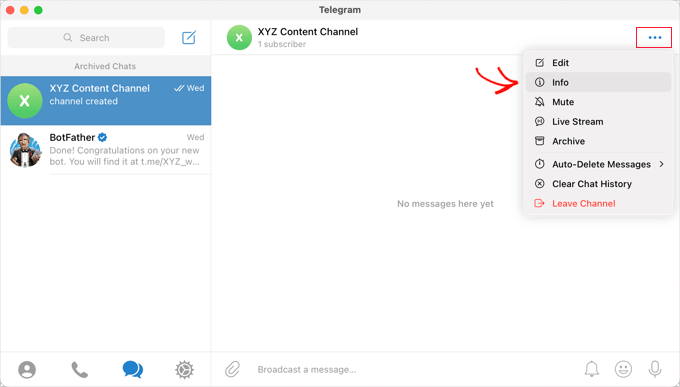
With your channel selected in Telegram, you need to click the ‘…’ menu at the top right of the screen and select ‘Info’ from the dropdown menu.
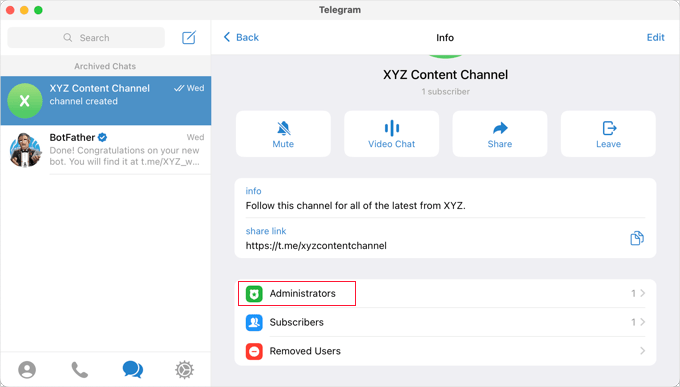
This screen displays information about your channel and provides buttons and menus to configure it.
Go ahead and click on the ‘Administrators’ menu to expand it.
Here, you can add a new administrator by clicking the ‘Add Admin’ link.
In the popup, you’ll need to enter the username of the bot you created earlier, and then click on the bot’s name in the list below.
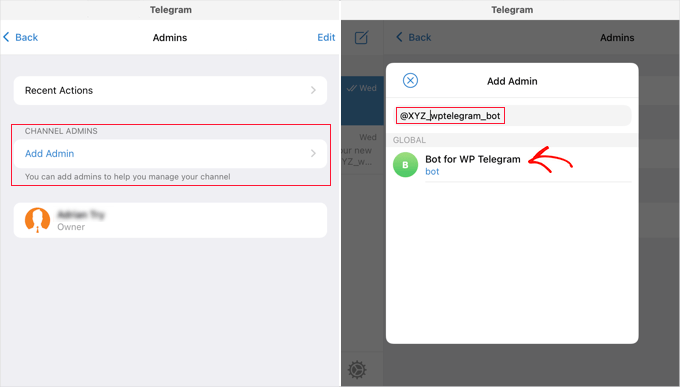
The next screen shows the bot’s permissions.
You can leave them as they are, but make sure that ‘Post Messages’ is enabled.
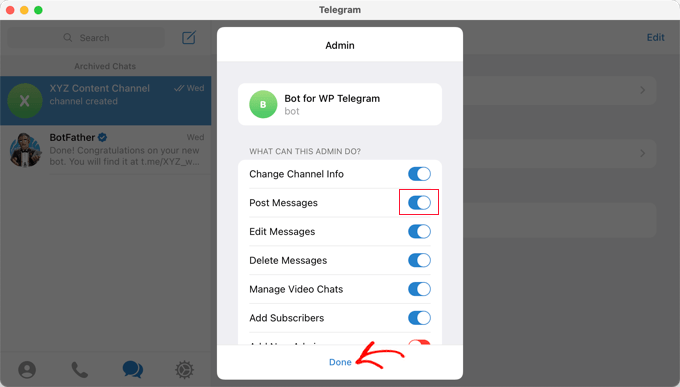
When you click ‘Done’ at the bottom of the popup, your bot will be added as an administrator of your channel.
Here’s what it might look like on Telegram:
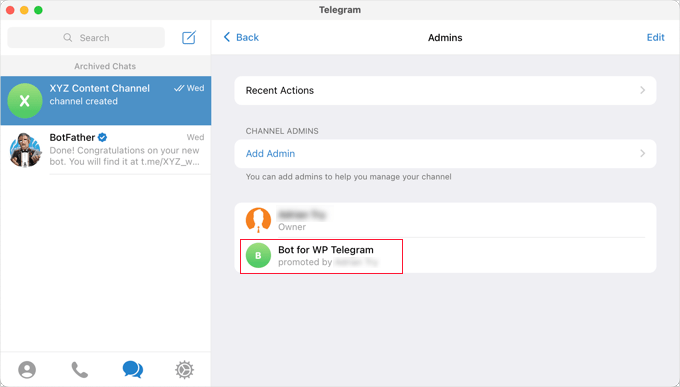
Step 4: Adding Your Telegram Channel or Group to WordPress
Now you’ll need to return to your WordPress website to finish setting up the plugin, and you should still be in the ‘Post to Telegram’ tab.
In the ‘Destination’ section, you need to click the ‘+ Add’ button.
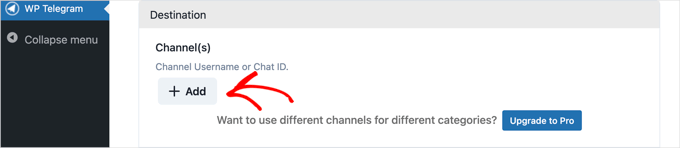
You can now enter your channel’s username. Remember to include the @ symbol at the beginning (e.g., @yourchannelname).
You can then click the ‘Send Test’ button to send a test message to your group or channel to verify the connection.
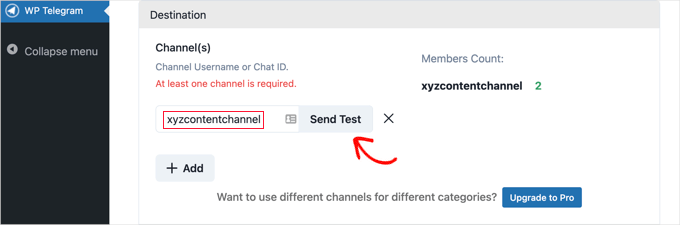
You’ll see a popup with the default message, ‘This is a test message.’
If you like, you can customize it to say whatever you want and then click the ‘OK’ button.
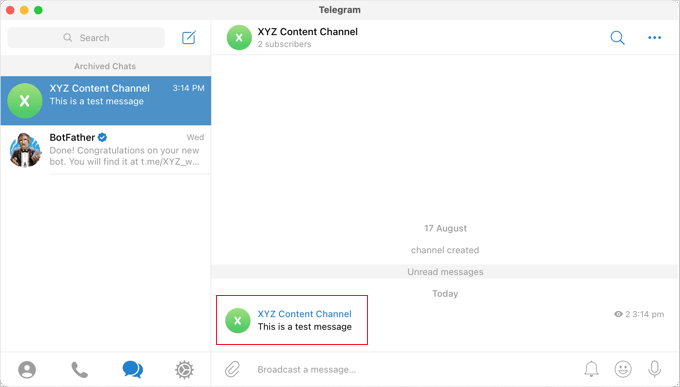
If you set up the plugin successfully, then you should see the test message in your channel or group in Telegram.
Bonus Tips: Configuring Settings for Sending WordPress Posts to Telegram
Now, you can return to your site and finish setting up the plugin.
In the ‘Rules’ section, make sure the box is checked to send new posts when they are published. If you like, you can check the second box as well, which will post to Telegram when you update an existing post.
After that, check the boxes for the post types you wish to broadcast on Telegram. The ‘Post’ box is checked by default, and if you like, you can also check the ‘Page’ box.
If you have custom post types, then you may have additional checkboxes. For example, you might see the WooCommerce product page, BuddyBoss forums, or Envira Gallery’s image and video gallery.
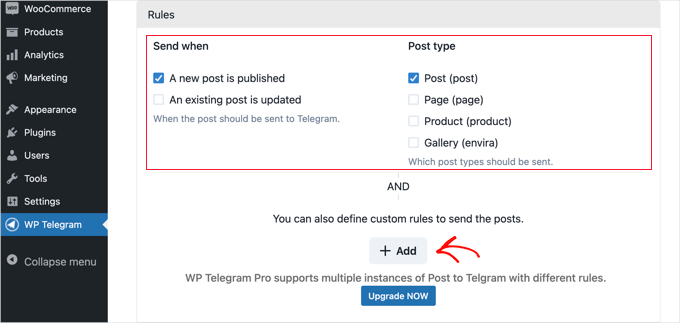
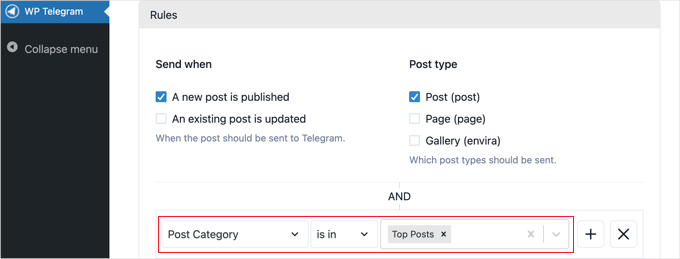
You can add custom rules to further customize which posts are sent to Telegram.
For example, the screenshot below shows a rule that sends posts to Telegram only if they are in the ‘Top Posts’ category.
The WP Telegram plugin offers many options to customize how your posts are sent. You can check and adjust them as needed. However, the default settings will work fine on most websites.
Once you’re happy with the settings, you can scroll to the bottom of the page and click the ‘Save Changes’ button to store your settings.
When creating or editing a post, you will see a new ‘Send to Telegram’ option in the WordPress editor. This is switched on by default for eligible posts.
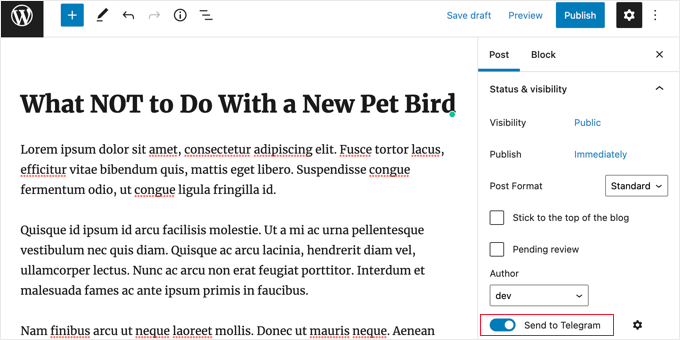
This is switched on by default. Simply switch it off if you don’t wish to send the post to Telegram.
The next time you publish a post that matches the rules you set, it will be automatically sent to your Telegram channel or group.
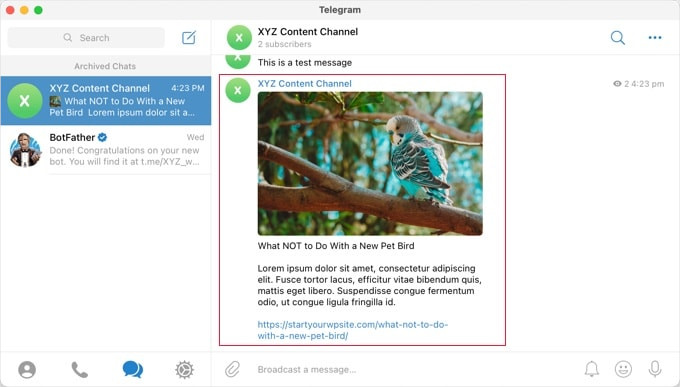
How to Send WordPress Notifications to Telegram
Make sure you’re in the ‘Private Notifications’ tab on the ‘WP Telegram’ page.
This page will let you configure the plugin to automatically send WordPress notifications to an individual privately or to a group on Telegram.
First, toggle the ‘Active’ switch to ‘On’.
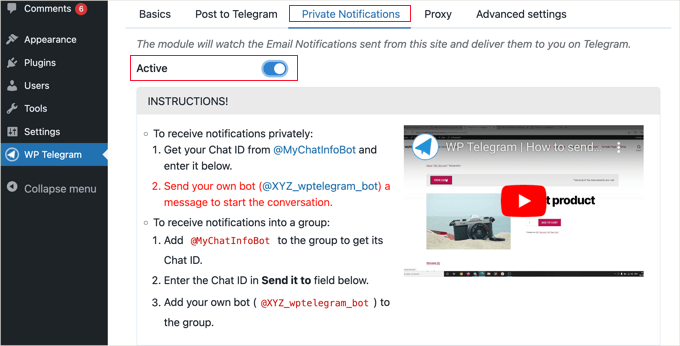
You will now see instructions for two methods: how to send your WordPress notifications to an individual on Telegram or to a Telegram group.
How to Send Notifications From WordPress to an Individual on Telegram
This method is best if you’d like WordPress to send notifications to just one person.
You will have to give the WP Telegram plugin your ‘User Chat ID’ on Telegram.
To learn your ID, you need to search for @MyChatInfoBot on Telegram and then click on the first search result under ‘Contacts and Chats.’
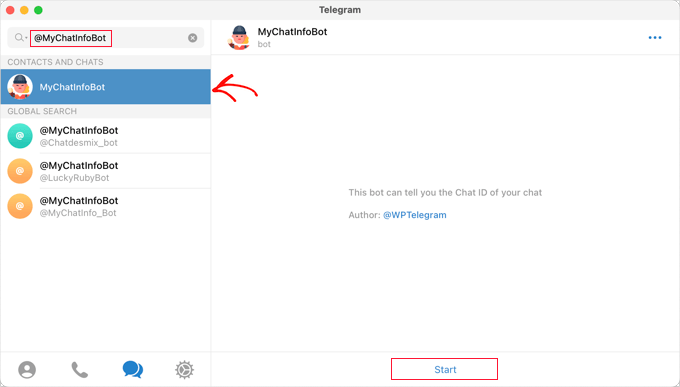
After that, simply click ‘Start’ at the bottom of the screen to start a chat with the bot.
In its first message, the bot will display your ‘Chat ID’ in red.
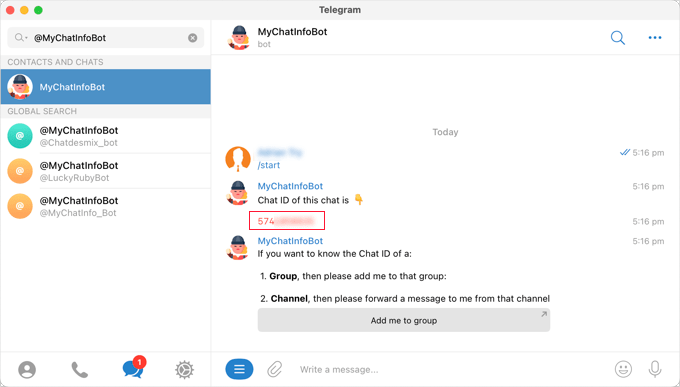
Let’s just copy the Chat ID to the clipboard and then return to your website.
In the ‘Notification Settings’ section, as shown in the screenshot below, you will find your admin email address. This is where WordPress admin notifications are sent by email.
Each time a notification is sent to this address, WordPress will also send it to the Telegram user you will enter in the plugin settings.
If you need to, you can use a different email address. To receive notifications sent to all email addresses, simply type ‘any’ in the ‘if email goes to’ field.
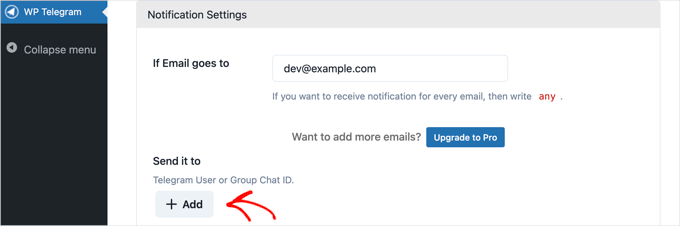
Next, you’ll need to enter the ‘User Chat ID’ you copied. Simply click the ‘+Add’ button.
This will show a new field under ‘Send it to,’ and this is where you should paste your ID.
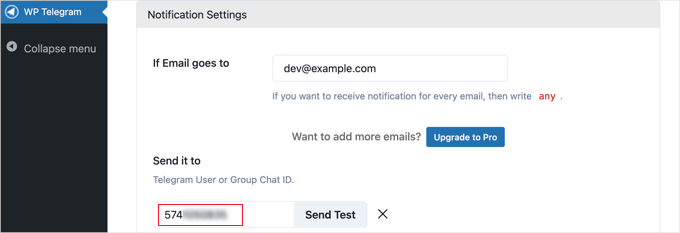
Don’t click the ‘Send Test’ button yet.
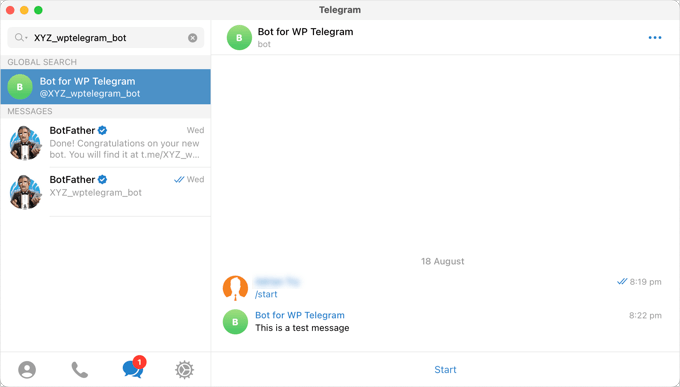
Before you test the connection, you need to first start a conversation with your bot in the Telegram app.
A security feature of Telegram prevents bots from starting conversations with users. By sending the first message (like clicking the ‘Start’ button), you give the bot permission to message you back.
You’ll have to switch back to Telegram and search for the bot you created during setup. Once you click on the bot, you can start a conversation by clicking ‘Start’ at the bottom of the screen.
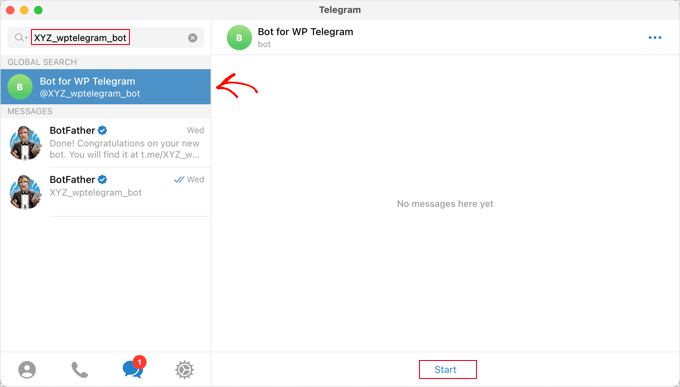
Now, you can return to WordPress and click the ‘Send Test’ button. You should then click ‘OK’ on the popup message that appears.
A confirmation will be displayed next to the ‘User Chat ID’ in WordPress, letting you know if the message was successful. You should also check Telegram to make sure the message is actually posted there.
Now, let’s navigate back to your WordPress site, scroll down to the bottom of the page, and click the ‘Save Changes’ button to store your settings.
Congratulations! You will now receive a Telegram message each time an admin notification is sent to your site.
How to Send Notifications From WordPress to a Group on Telegram
This method is best if you work with a team on your WordPress website and want some or all of them to see the admin notifications on Telegram.
The steps for this method are similar to the ones above for sending notifications to a single user on Telegram. However, instead of pasting a ‘User Chat ID’ into WordPress, you will need to paste the ‘Group Chat ID.’
If you don’t already have a Telegram group for your team, then you need to create one.
While a Telegram channel is simply for posting information, members of a group can communicate with one another. You can also control who belongs to the group.
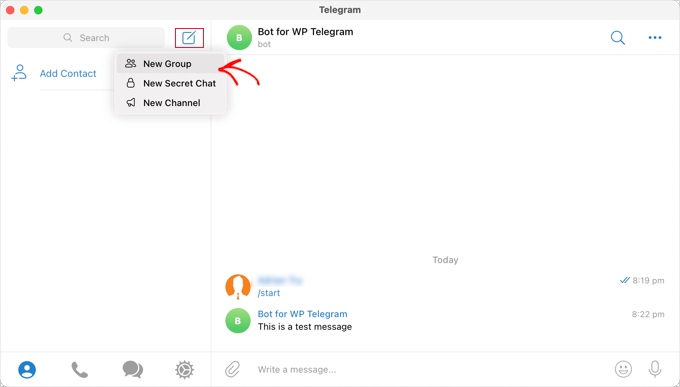
You should click the ‘New’ icon at the top of the Telegram screen and select ‘New Group’ from the drop-down menu. The group will be private by default.
After that, you need to add any other members you wish to be part of the group.
You will be automatically added to the group, and you will need to add at least one additional member.
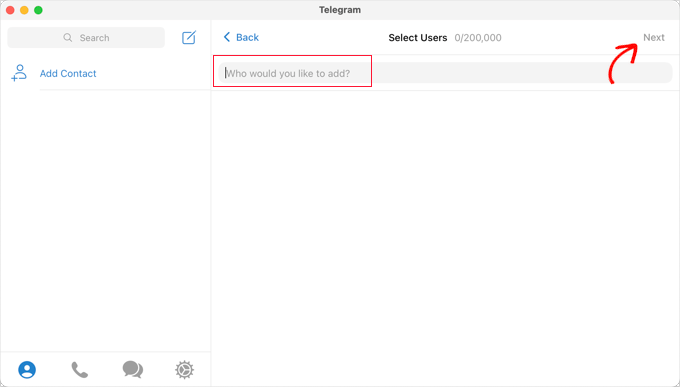
After adding your team members, you should click ‘Next’ at the top of the screen.
Finally, clicking ‘Create’ at the top of the screen will create the group.
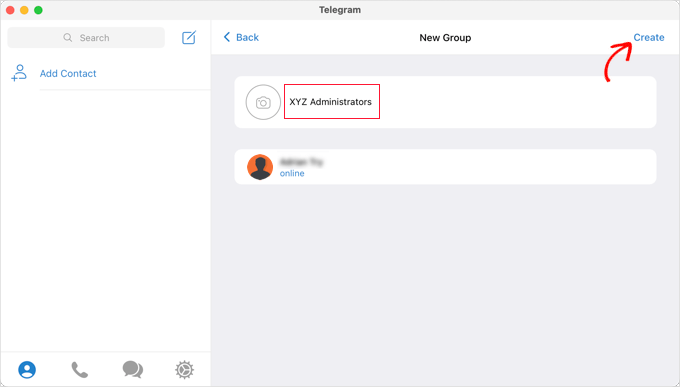
Now that you’ve created a group and added your team members, you will need to add two bots.
First, you should add @MyChatInfoBot so that you can find the Group ID to paste into the plugin settings in WordPress.
Second, you need to add your own bot so that the plugin can send WordPress notifications.
You can open the group’s ‘Info’ page by clicking on the group name at the top of the screen. Once there, click the ‘Add’ button to add new members.
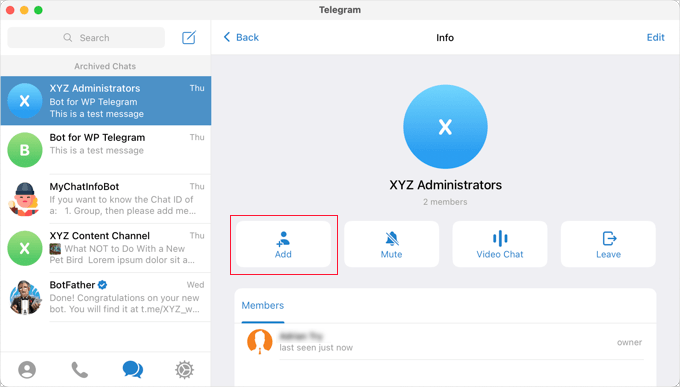
Next, you need to type @MyChatInfoBot into the ‘Add Members’ field and then click on it in the search results.
Then, you’ll do the same with the bot you created during the initial Telegram setup.
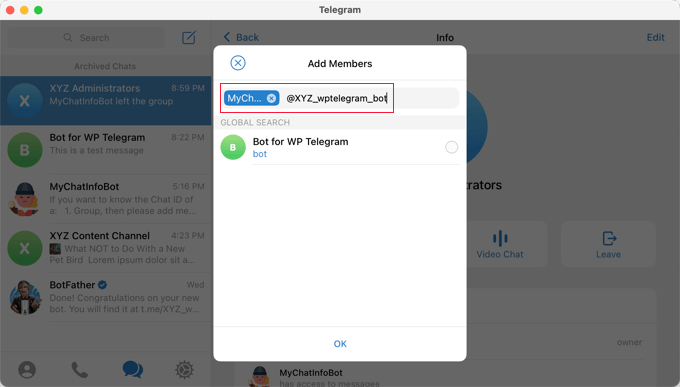
Let’s make sure you click ‘OK’ to add the two bots to the group.
You’ll then notice that the @MyChatInfoBot bot has automatically added your Group ID to the chat.
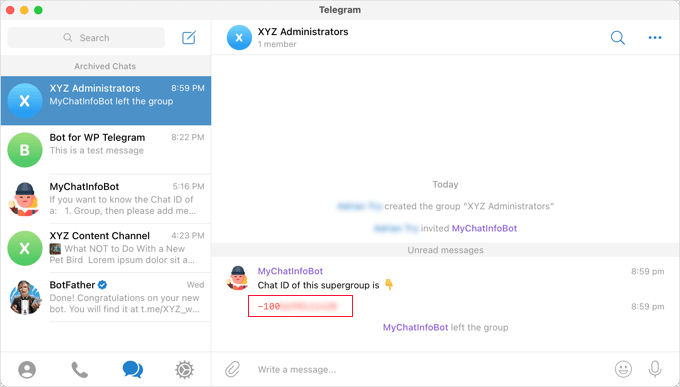
Next, you can paste this ID into the ‘Send it to’ section back on your WordPress site.
Now, you can click the ‘Send Test’ button to make sure that everything is set up correctly.
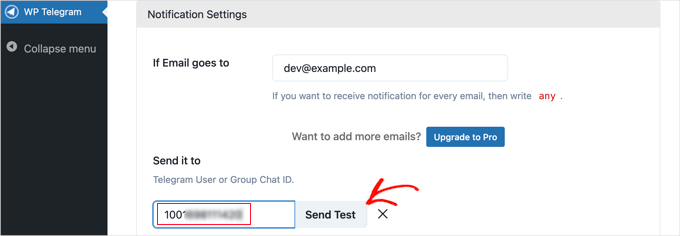
The plugin will pop up a default message that you can change if you like. After that, you should click the ‘OK’ button.
Now, go ahead and switch to the Telegram app and make sure the test message was posted.
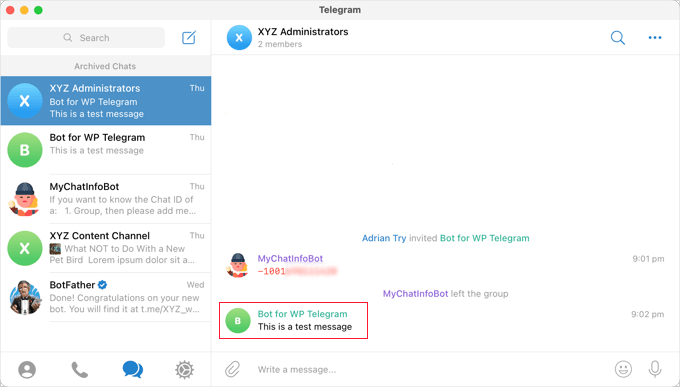
Congratulations! Your WordPress notifications will now be sent to your Telegram group.
Method 2: Add Telegram Chat to WordPress with WPChat (No Bots Needed)
If you don’t need a Telegram bot or an automatic post and notification system, then a dedicated chat plugin like WPChat is a better choice than WP Telegram (Auto Post and Notifications).
WPChat is designed for live conversations and customer support, making it ideal when you want to allow visitors to chat with you directly on Telegram.
Step 1: Installing and Activating WPChat
First, you’ll need to install and activate WPChat on your site.
On the WPChat website, click the ‘Get WPChat Now’ button, choose a plan, and follow the checkout process.
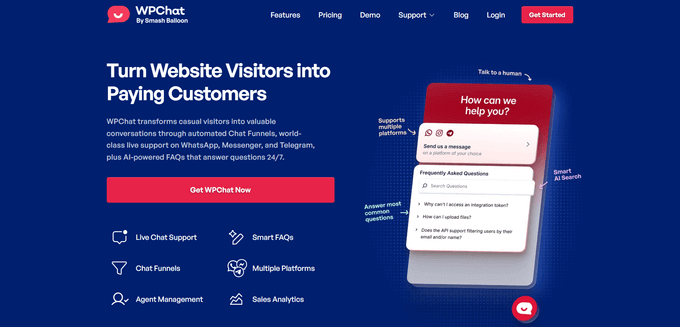
💡 Note: For this guide, I’m using WPChat Pro because it unlocks color palettes, FAQs, and multiple agent support. If you’re just getting started, the free WPChat version works too and is easy to install.
From here, you can download the plugin’s zip file from your WPChat account dashboard. You should also copy your license key.
Then, let’s head to your WordPress dashboard and go to Plugins » Add New.
On the next screen, click ‘Upload Plugin’ to open the file uploader.
After that, you can click the ‘Choose File’ button and upload your WPChat zip file. Click ‘Install Now,’ and activate it.
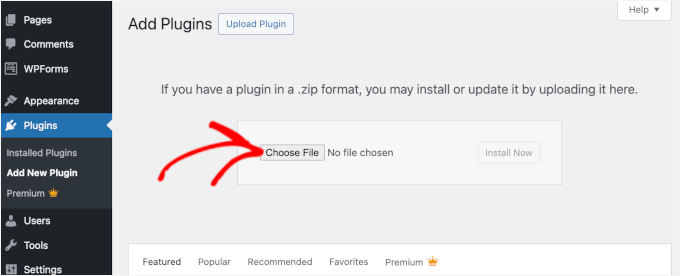
Once that’s done, you’ll see a new WPChat menu appear in your WordPress admin sidebar. For details, see our guide on how to install a WordPress plugin.
Step 2: Creating Your Telegram Chat Assistant
Next, it’s time to create your Telegram chat assistant.
From your WordPress dashboard, open WPChat and click the ‘Set Up’ button.
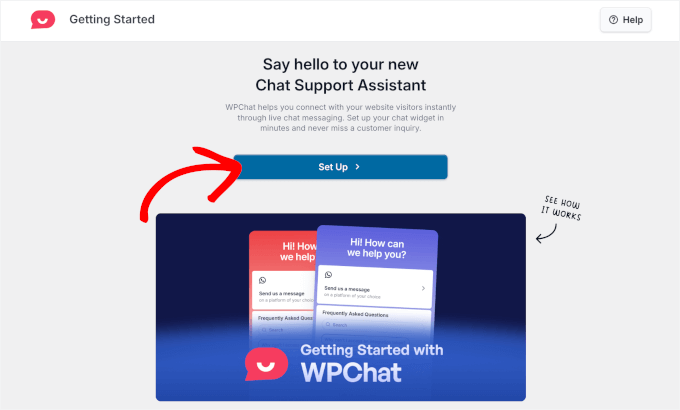
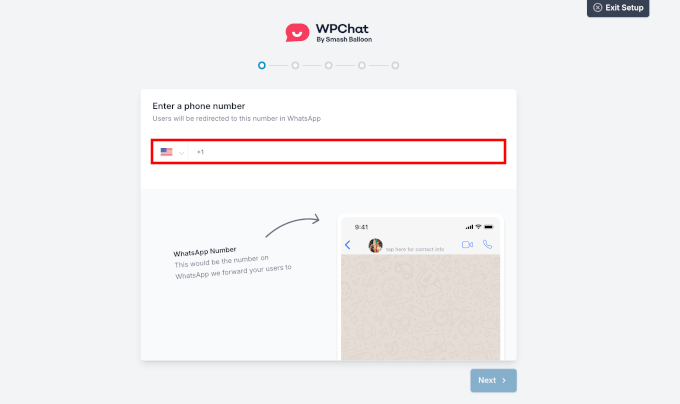
On the first screen, you’ll see an option to add a WhatsApp phone number.
This is the default contact method, so adding it lets visitors reach you right away via WhatsApp. You can add a Telegram number later.
When you’re ready, click ‘Next.’
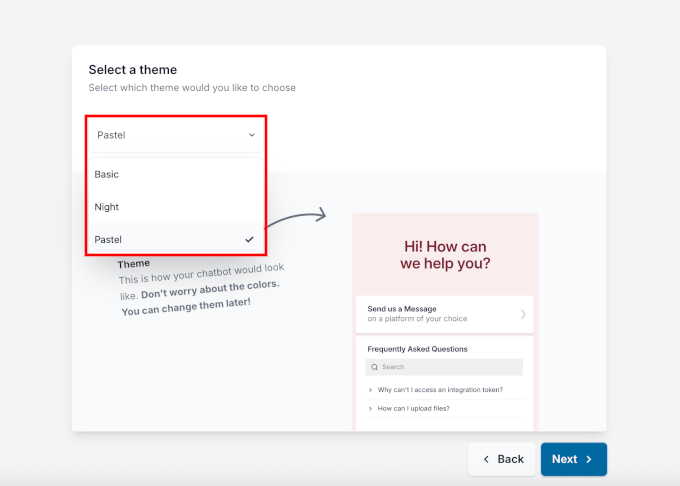
After that, you’ll choose a design theme for your chat assistant.
There are three themes available in the dropdown. Don’t stress too much about picking the “perfect” one because you can always change it later.
Click ‘Next’ again to finish this part of the setup.
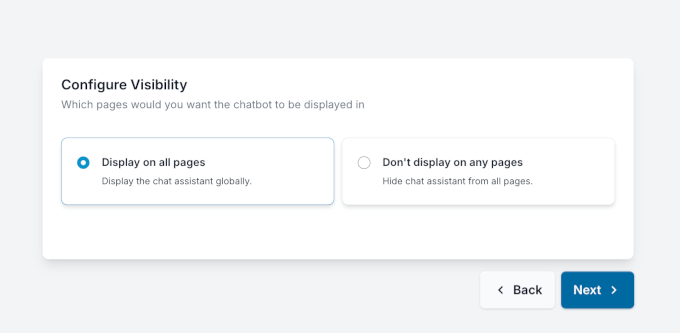
Next, you’ll decide where the click-to-chat button shows up on your WordPress website.
WPChat gives you 2 simple placement options:
- Show on all pages – This makes the click-to-chat button visible across your entire site as soon as setup is complete.
- Hide on all pages – This keeps the chat assistant hidden while you finish customizing it.
I usually recommend showing the button on all pages so visitors can easily reach you from anywhere. That said, if you’d rather fine-tune things first, you can keep it hidden and turn it on later with just a click.
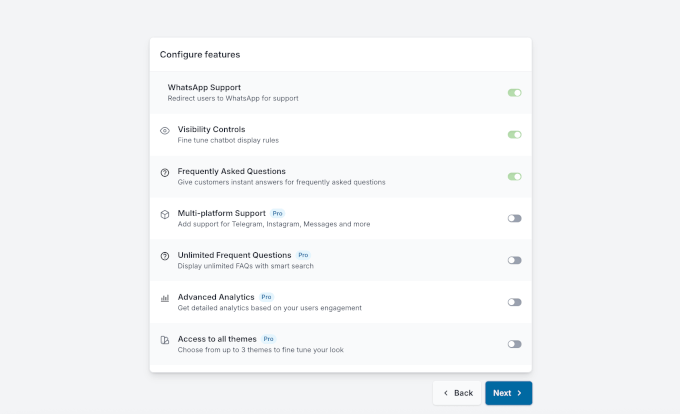
After that, you’ll land on an ‘Additional Features’ screen.
You can safely skip this step for now since you can always upgrade later if you decide you need those features.
Next, you’ll reach the final setup screen, where WPChat shows a summary of everything you’ve configured so far.
If you scroll down, you’ll see a field where you can enter and verify your license key. Go ahead and paste it in if you’re using WPChat Pro.
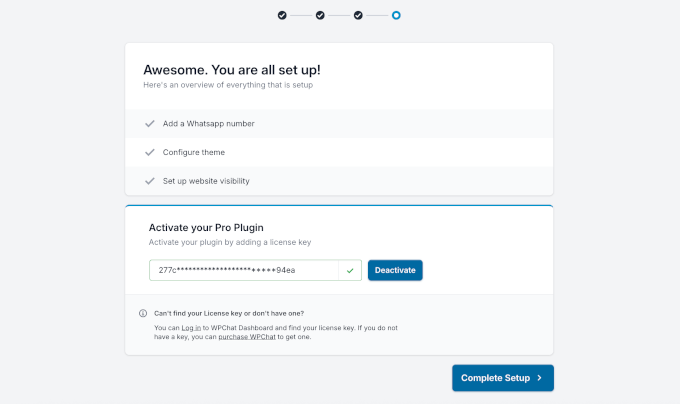
Once you’re done, click ‘Complete Setup’ to save your settings and finish setting up WPChat.
Step 3: Customizing the Look of Your Telegram Chat
In this step, we’ll make your Telegram chat look the way you want.
From the WPChat area, click ‘Customise’ to open the live customizer.
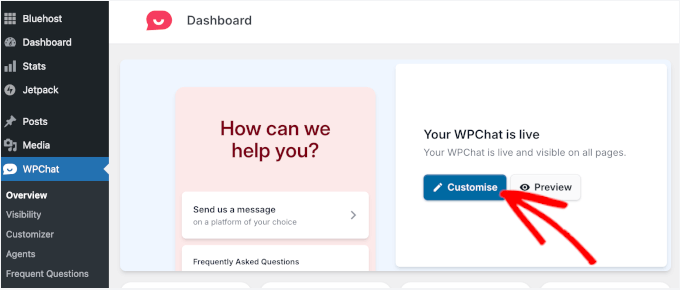
On the left, you’ll see all the customization settings. On the right, you’ll get a live preview, so you can see your changes as you make them.
Here’s what the visual editor and customization options look like on your screen:
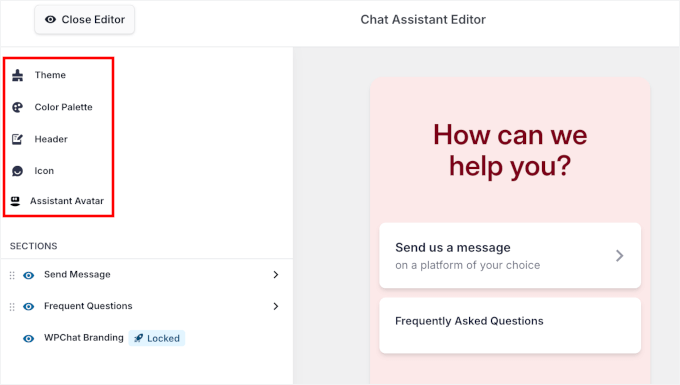
Here, let’s start by clicking ‘Color Palette’ in the left sidebar.
You can choose from one of the pre-made color schemes or select ‘Custom’ to match your brand colors using the color picker.
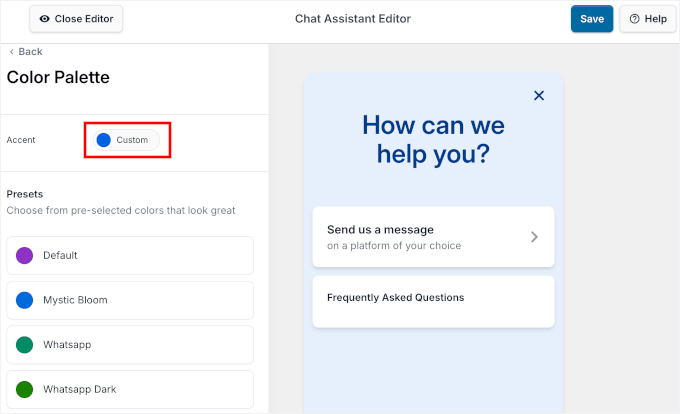
When you’re happy with the colors, click ‘Save’ to apply them.
Next, you can click ‘Back’ to return to the main options, then select ‘Header.’ This is where you can set the text that appears at the top of your chat window.
For example:
- “We’re here to help you!”
- “How can we help you today?”
Once you’ve entered your text, click ‘Save’ to confirm it.
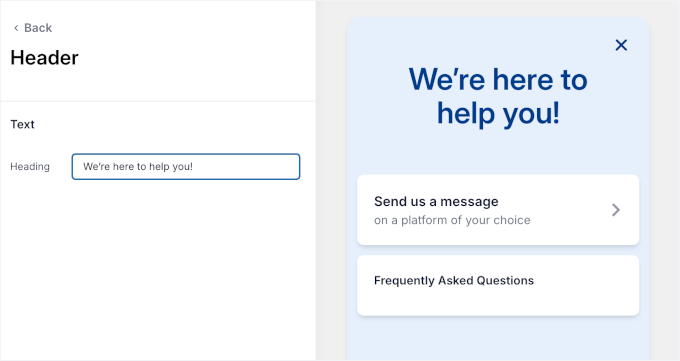
🧑💻 Pro Tip: A strong header message can make a big difference in getting visitors to start a chat. Keep it short, clear, and action-focused so people know what will happen when they click.
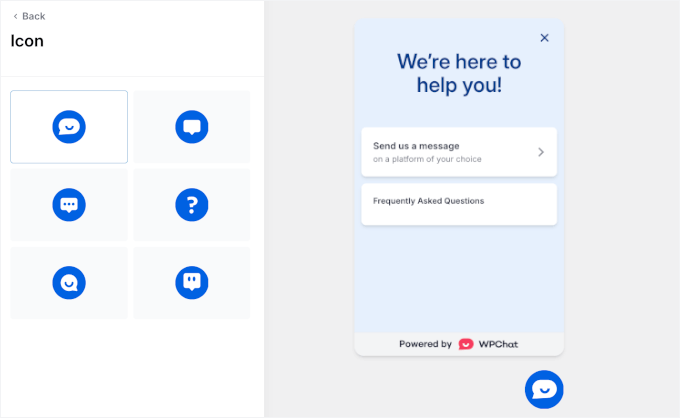
Next, you can choose an icon for your click-to-chat button.
I recommend picking something that fits your site’s style and feels consistent with your branding.
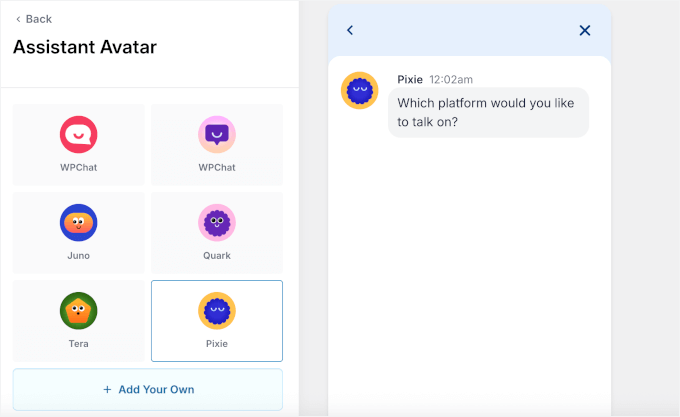
You can also select an assistant avatar. WPChat includes six built-in options, or you can upload your own image if you want the chat to feel more personal.
Just click ‘Add Your Own’ to open the file uploader.
Once everything looks good, don’t forget to click Save to apply your changes.
Step 4: Configuring Telegram Chat Button Visibility
Now, you’ll decide where the Telegram chat should appear on your site.
In the ‘Visibility’ tab, you can choose to show it on all pages or limit it to specific ones.
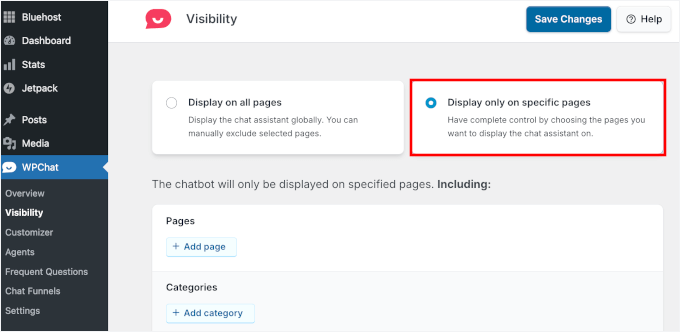
You can then scroll down to see the built-in filters. These let you include or exclude individual pages, categories, tags, and even custom post types.
For example, you might keep the chat button hidden on focused landing pages, privacy policy page, or inside member-only areas, while showing it on your shop, support, contact, or pricing pages.
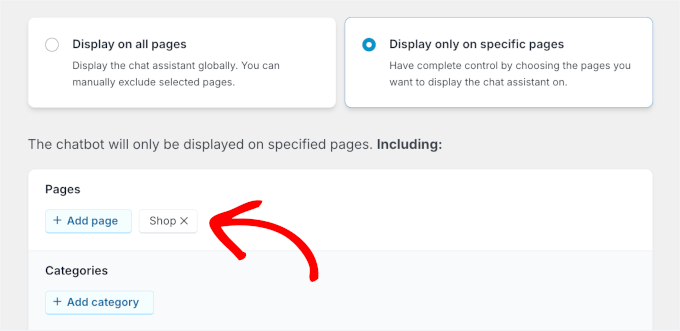
Once you’ve done, click the ‘Save Changes’ button to keep your configuration.
Step 5: Connecting Your Telegram Account
Finally, let’s connect the chat assistant to your Telegram account so messages actually reach you.
From your WordPress admin area, go to WPChat » Agents and find the default agent that WPChat created. Click ‘Edit.’
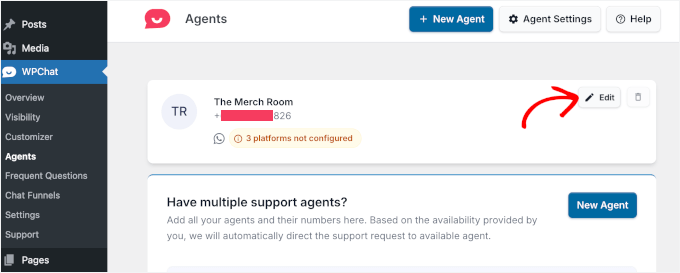
Now you can personalize the agent a bit.
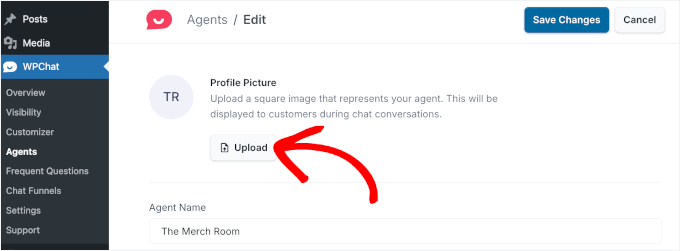
You might want to start by clicking ‘Upload’ to add a profile picture – this could be a real person’s headshot or your company logo.
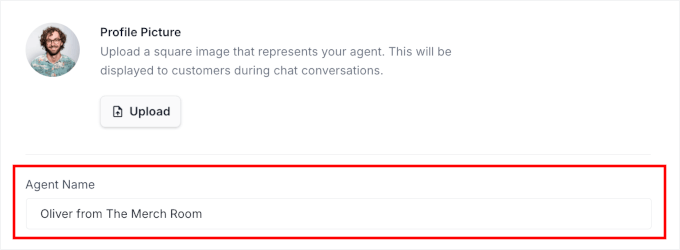
Then, enter a name for the agent.
You can use your company name, a specific staff member’s name, or even a combination of both.
Next, scroll down to the Telegram phone number field.
Go ahead and enter the phone number linked to your Telegram account.

When you’re done, click ‘Save’ to store your settings.
Once that’s set up, your Telegram account is officially connected and ready to receive messages.
As your team grows, you can easily add more agents to WPChat. Just click the ‘New Agent’ button and enter their details, following the same steps you used for the first agent.
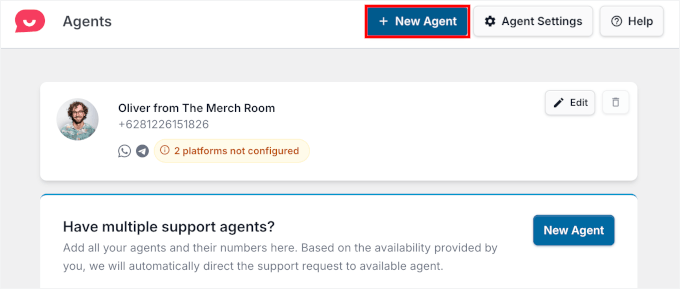
🧑💻 Pro Tip: If different team members handle different types of questions, you can assign each agent their own Telegram number. This way, sales inquiries can go straight to your sales team, while support questions reach your customer service staff.
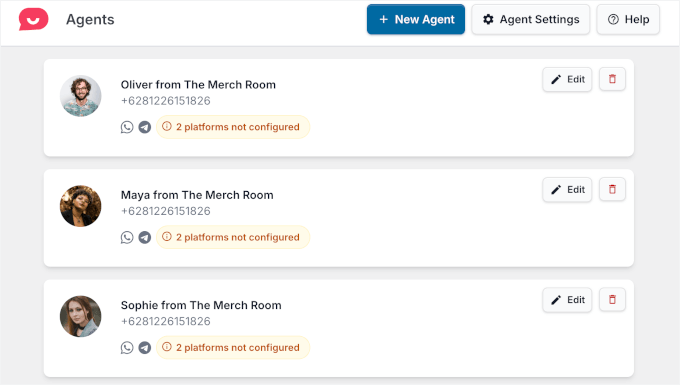
If you’re using the WPChat Pro version, you can add as many agents as you need.
And once you’re done, they’ll all appear in the ‘Agents’ list.
After setting up your agents, you can also control when each one is available.
To do this, click ‘Edit’ next to an agent’s name and set their working days and hours.
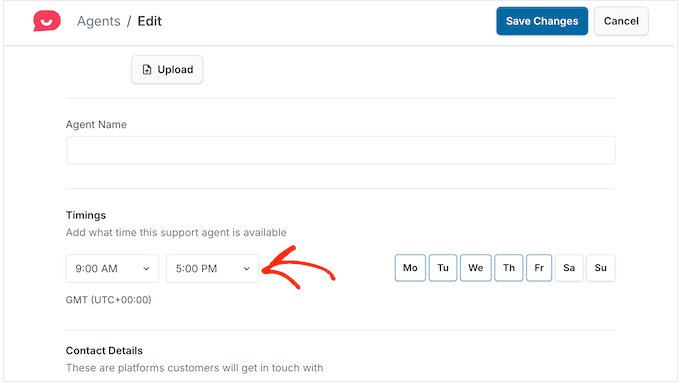
Don’t forget to click the ‘Save Changes’ button when you’re finished.
WPChat also lets you decide what happens when an agent is offline. You can either show your regular business hours or automatically route chats to another available agent so visitors still get help.
To set this up, click ‘Agent Settings’ at the top of the ‘Agents’ page.
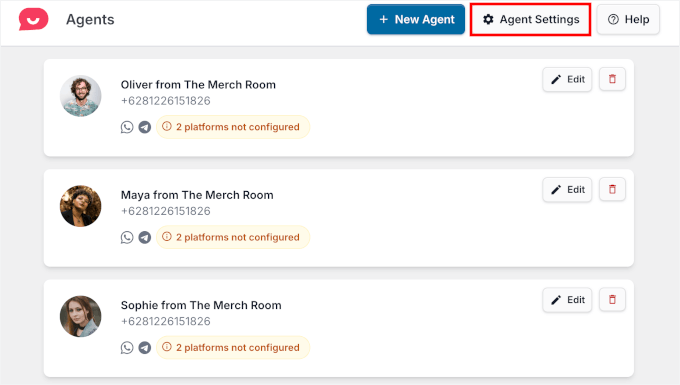
From there, you’ll first need to enable ‘Timings’ and then choose how chats should be handled outside working hours.
For this guide, you might select ‘Redirect to an off-hours agent’ and use the dropdown to pick who should receive those messages.
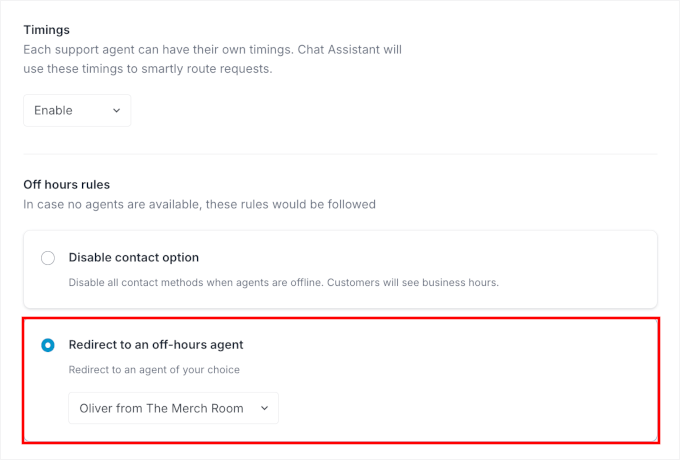
Once everything is set up, click ‘Save Changes’ to apply your settings.
With that done, visitors will see a professional chat widget on the pages you selected. And when they use it, they’ll be routed straight to your Telegram via the number you configured – no bot or auto‑post configuration required.
Bonus Tip: Add FAQs to Your Chat Widget
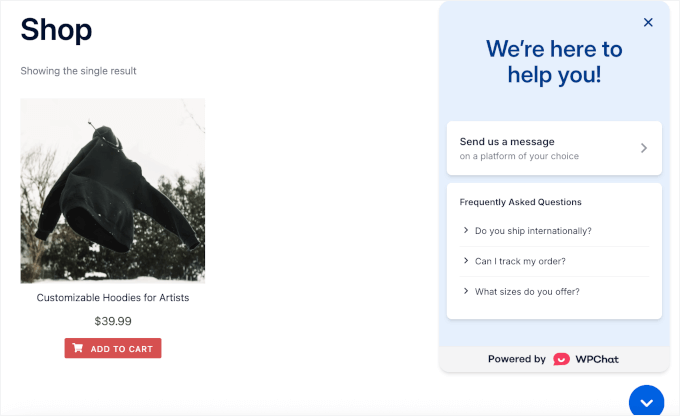
By now, your Telegram click-to-chat button is fully set up. If you’d like to go a step further, you can add an FAQ section to the chat widget so visitors can find quick answers without sending a message.
For example, an online store might answer common questions about shipping or delivery times. A service-based business, like a salon or repair service, could share opening hours, pricing, or typical response times.
This helps cut down on repeat questions and gives visitors the information they need right away.
To get started, head to WPChat » Frequent Questions in your WordPress dashboard and click ‘+ Add Question.’
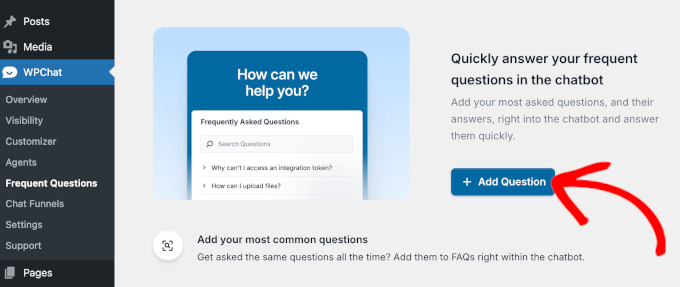
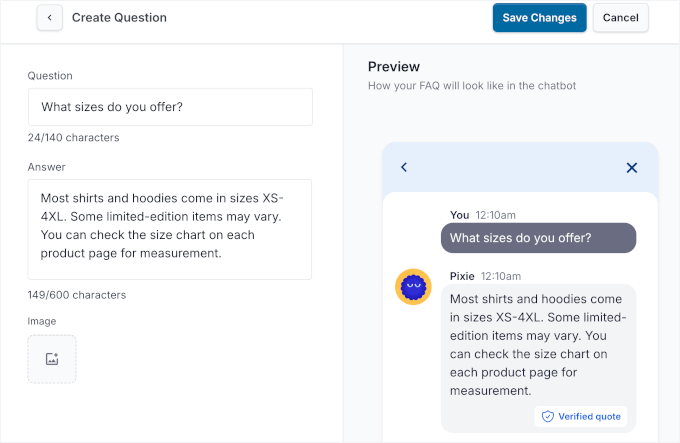
On the next screen, you’ll see a visual editor.
Enter your question in the ‘Question’ field, then add a clear, helpful response in the ‘Answer’ field. As you type, the live preview on the right shows exactly how the FAQ will appear on your site.
If you want to make an answer clearer, you can also add an image. Just click the ‘Image’ icon to upload a screenshot, photo, or diagram.
When everything looks good, click ‘Save Changes’ to publish the FAQ.
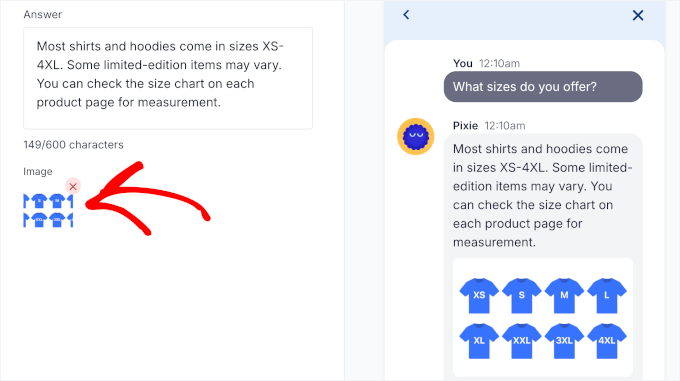
Adding more questions is just as easy. Simply click ‘New Question’ on the ‘Frequent Questions’ main page and repeat the same steps to build out your FAQ list.
All of your FAQs will then appear in a table:
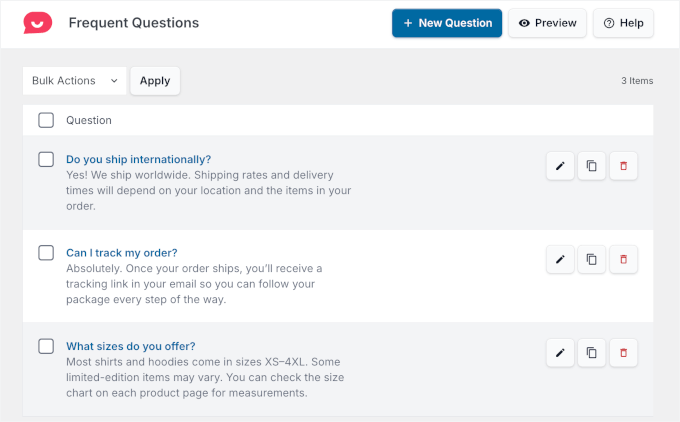
💡 Note: The Frequent Questions feature uses AI Smart Search, which helps visitors find answers even if they don’t use exact keywords. Keep in mind that this feature uses AI credits. Once those run out, the search falls back to basic keyword matching.
From the FAQ list, you can edit questions or update images, clone existing FAQs to save time, or delete questions you no longer need.
Once your FAQs are set up, your chat widget can answer common questions automatically and reduce incoming messages. You can update or expand the list anytime as your business grows.
Integrating Your WordPress Site With Telegram FAQs
In this section, we’ll answer some common questions about integrating WordPress with Telegram.
How do you add a Telegram button to WordPress?
You can use a social media plugin that supports Telegram, like WPChat, to add a Telegram click-to-chat button to your WordPress site.
Can I use Telegram for my business?
Absolutely! Telegram is great for business websites because it allows you to communicate with customers directly and securely. You can send updates, answer questions, and even create channels for announcements, making it easier to engage with your audience.
What is a good website builder for integrating chatbots?
WordPress is a great option for integrating chatbots, thanks to its wide range of plugins. If you want to use chatbots for customer support, then you can use WPChat or Heroic KB. For answering sales inquiries, we recommend ChatBot.
Next Steps for Using Chats, Forums, and Social Media in WordPress
I hope this tutorial helped you learn how to integrate your WordPress site with Telegram.
If you found this helpful, you may also want to learn:
- How to Display Your Social Media Followers Count in WordPress
- How to Add WhatsApp Chatbox and Share Buttons in WordPress
- How to Create a Custom Instagram Photo Feed in WordPress
- The Complete Social Media Cheat Sheet for WordPress
- How to Create Your Own Private Community with WordPress
- The Best Online Community Platforms (Pros and Cons)
If you liked this article, then please subscribe to our YouTube Channel for WordPress video tutorials. You can also find us on Twitter and Facebook.




TheiotaGuy
notifcaster does not work anymore
That plugin seems to have been abandoned. No updates from last 3 years (only stable tag updated).
Please update your tutorial
WPBeginner Support
Depending on the plugin some do not need to update the code itself to continue working but thank you for letting us know about notifcaster
Admin
Pawlik
Notificaster isn’t working anymore :/ too bad
Amira
Hi. Could I send notification to telegram when someone fill in the form in my wordpress website?
Thanks.
alin
how ican send from telegram to my blog in wordpress?
alin
thank you for this post
i need Sending Notifications From telegram to wordpress
amin
hi
i use zapier to send my posts to telegram,i want to know can i use a code at the end of my post that show “inline buttons”? or is there any plugin for showing this buttons?
alin
How do to send messages from telegram to wordpress with zapier ?
Farid
Great plugin it is very useful
Thank you for your tutorial
and many thanks to this plugin author Mr Amir
MIGUEL DE CABO
HI THERE:
NEED YOUR HELP PLEASEEEEE.
we have recently formed a non-profit Association in favor of parents of autistic children. We have built a web page using a Wordpress theme. We want to have a discussion Forum within our web page using Telegram which must me syncronized with our mobile phone, Ipads, etc, etc to make it more user-friendly since we have several subgroups within that discussion Forum (so that we can upload info at all times, etc). We don’t want just notifications, we don’t want a chat… We want to replicate within our web page what we have on our mobile phones. In other words, I would like to synchronize my Telegram Desktop app with that in my Iphone (which works wonders) but now in our WP Site.
Many Thanks in advance.
Regards
Miguel de Cabo
Jorge León
I’ve looking for ways to embed a Telegram channel on a wordpress static page. Do you know if this is possible?
Ted
+1
vahid mohammadi
hi thanks for your helpfull article thanks
my question is can i use this Plugin or some thing else to notify users after their login
its for more security and i need to do it using SMS or telegram and i think telegram is better choice because its free
is there any ways……
amin
hi.yeap.
there is a way, but it will send too all of your users.
e.g if Ahmad loge to site then your page send notifi to ahmad &mohsen&…all listed users
Kingsley
Nice, someone did similar thing with whatsapp for my blog, about sending post to telegram can it be down automatically?
Ted Wiberg
Hello!
Awesome tutorial, implemented.
But a question.
Will for example sites forms gets sent to my Telegram now?
WPBeginner Support
Yes, it would send form emails to Telegram as well. For privacy you may want to keep those notifications limited to a individual user or a private group.
Admin