


One of the biggest lessons we’ve learned from testing subscription systems in WooCommerce is that communication is key.
Store owners who keep their subscribers informed about upcoming renewals not only see better retention rates but also receive fewer support tickets and complaints.
After helping many subscription businesses through WPBeginner, we’ve refined the process of creating reminder emails that strike the perfect balance between informative and non-intrusive.
You don’t need to be a technical expert to implement these strategies – just the right tools and approach.
In this step-by-step guide, we’ll show you how to create subscription reminder emails that your customers will actually appreciate.
💡Quick Answer: How to Set Up Subscription Reminders
The best way to create WooCommerce subscription reminders is with the FunnelKit Automations plugin. Here are the basic steps:
- Install the Plugin: You will need to install both the free and Pro versions of FunnelKit Automations.
- Create an Automation: Start a new automation from scratch and choose the ‘Subscriptions Before Renewal’ trigger.
- Design and Activate: Add a ‘Send Email’ action, write your email copy using merge tags for personalization, and set the automation to active.
Why Create a WooCommerce Subscription Reminder Email in WordPress?
After you have set up WooCommerce subscriptions, it’s a good idea to create subscription reminder emails. These automatic messages let customers know that their subscriptions are about to renew.
- Reduce Failed Payments: Reminders give customers a chance to update their credit card or contact info, preventing renewal failures.
- Improve Customer Experience: A simple heads-up feels transparent and trustworthy, reducing customer complaints.
- Lower Support Tickets: Proactive communication helps you avoid admin headaches and refund requests.
In this way, you can allow subscribers to update their payment details and contact information or make other changes before their subscription auto-renews. This helps you avoid admin headaches, refund requests, and customer complaints.
It also gives the customer a chance to cancel their subscription.
Although you’ll want to get as many subscribers as possible, people who feel tricked into renewing their subscriptions may complain or leave negative customer reviews.
In the following sections, we’ll show you how to create a subscription reminder email in WordPress using the WooCommerce Subscriptions extension and FunnelKit.
Here is a list of steps we’ll cover in this guide:
Ready? Let’s get started.
How to Create a WooCommerce Subscription Reminder Email in WordPress
The best way to create a subscription reminder email is by using FunnelKit Automations. FunnelKit Automations is the best marketing automation tool for WooCommerce websites.
We’ve tested it across a bunch of WooCommerce stores, and you can read our FunnelKit Automations review for more details.
FunnelKit lets you easily set up automated emails for abandoned cart recovery, lead nurturing, post-purchase education, next-order coupons, subscription reminders, and more.
Step 1: Set Up FunnelKit Automations
First, you’ll need to install and activate the FunnelKit Automations Pro plugin. For more details, please see our guide on how to install a WordPress plugin.
The Pro plugin works as an add-on, so you will also need the free FunnelKit Automations plugin. The free version provides the core functionality, while the Pro version unlocks the advanced features like subscription reminders.
Once both plugins are active, you can navigate to FunnelKit Automations » Settings and add the license to the ‘FunnelKit Automations Pro’ field. You can find this information under your account on the FunnelKit website.
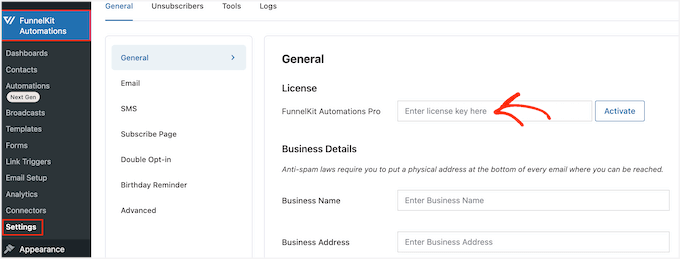
After entering the key, simply click on the ‘Activate’ button.
Now, you are ready to create all kinds of WooCommerce automations that increase sales.
Step 2: Create a FunnelKit Email Reminder Automation
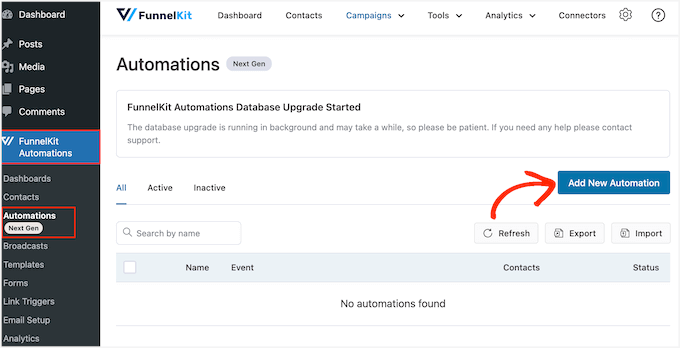
To start creating a subscription reminder email, you’ll want to go to the FunnelKit Automations » Automations (Next-Gen) page from the WordPress dashboard.
Then, go ahead and click on the ‘Add New Automation’ button.
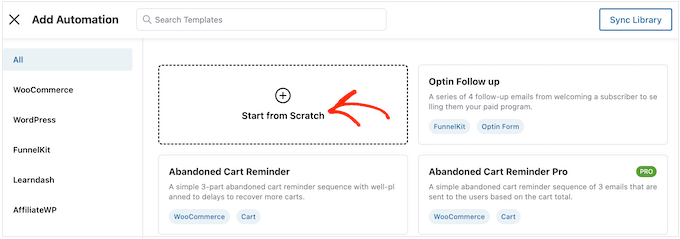
This will open FunnelKit’s library of pre-built automation recipes.
For this tutorial, we will click the ‘Start From Scratch’ button.
You can now type in a name for the automation. This is just for your reference, so you can use anything you want.
Once you’ve done that, you can click on the ‘Create’ button.
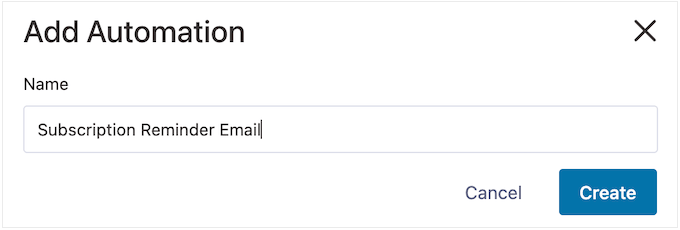
This will launch FunnelKit’s user-friendly email automation builder.
At this point, you should be all set for creating the WooCommerce workflow. To get started, simply click on ‘Select Trigger.’
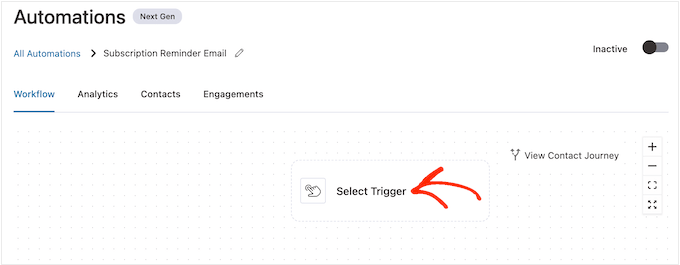
You can now choose the action to trigger the automated workflow in WordPress.
To do this, you’ll want to click on the ‘WooCommerce’ tab and select ‘Subscriptions Before Renewal.’
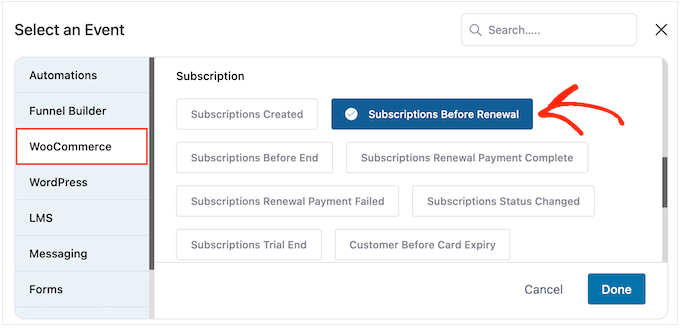
When you are ready, click on ‘Done.’
This will add a basic trigger to the FunnelKit editor. To configure the trigger, you can click on ‘Subscriptions Before Renewal.’
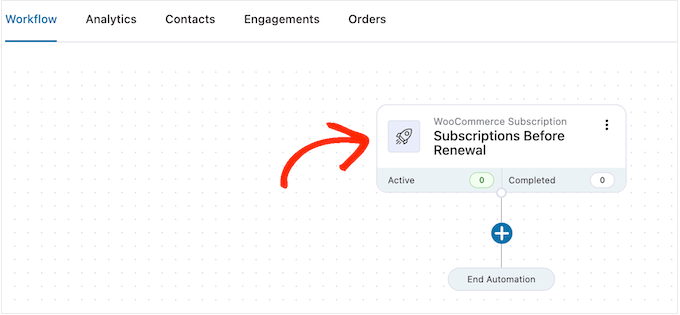
Now, you’ll be able to decide when to send the reminder.
Just be aware that you can also create follow-up emails. For example, you might send an email 5 days before the subscription renewal and a follow-up the day before.
To set a date, simply type a number into the ‘Days before subscription renewal’ field.
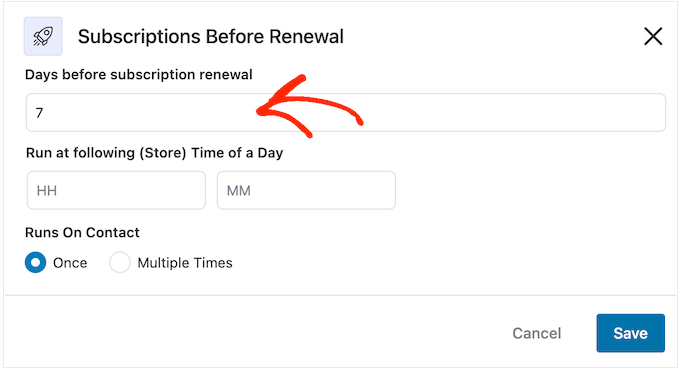
You can also choose the time when the email will be sent. It’s a good idea to send reminder emails when the subscriber is more likely to be online and opening messages.
That said, it helps to know as much about your subscribers as possible. If you haven’t already, then we recommend installing Google Analytics in WordPress. It will help you learn more about your customers, including their time zones and when they are most likely to be online.
After setting up your reminder emails, it’s also a good idea to track your email open rates. You can even set up A/B split testing by sending messages at different times and then seeing what gets the best results.
By continuously monitoring and fine-tuning all your custom WooCommerce emails, you should be able to improve your open and conversion rates.
You can tell FunnelKit to send reminder emails at a specific time by typing them into the fields that show ‘HH’ (hour) and ‘MM’ (minute) by default.
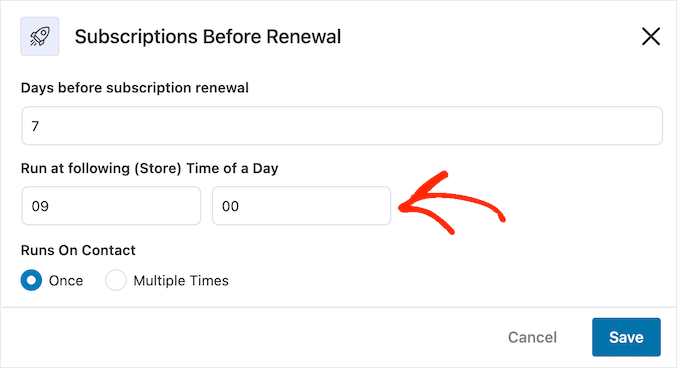
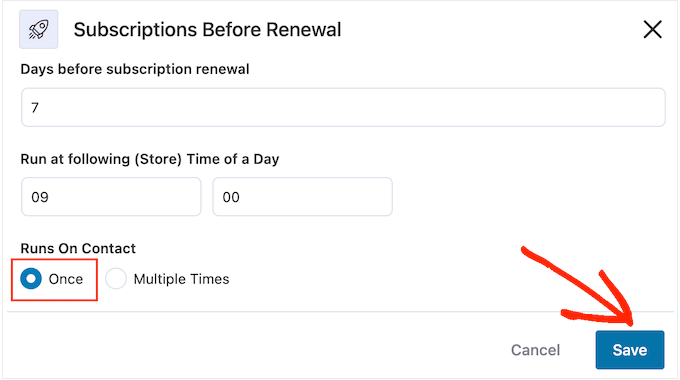
After that, you can choose whether to send this email once or multiple times.
Later in this guide, we’ll show you how to add follow-up emails to this campaign. With that in mind, you’ll typically want to send this email once by selecting the ‘Once’ button.
Once the trigger is configured, click the ‘Save’ button.
Step 3: Design the WooCommerce Subscription Reminder Email
Now, it’s time to create the WooCommerce email that will be sent to your subscribers by clicking on the ‘+’ button.
You can then select ‘Action.’
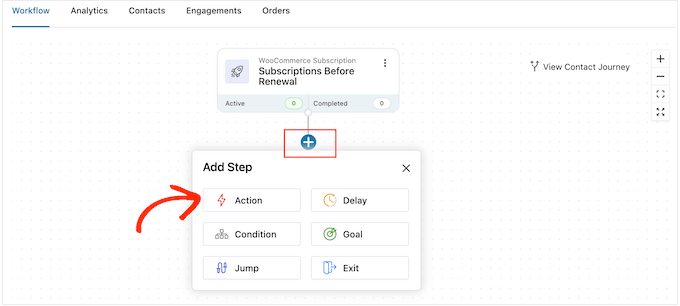
In the pop-up window that appears, you can choose ‘Send Email.’
After that, go ahead and click ‘Done.’
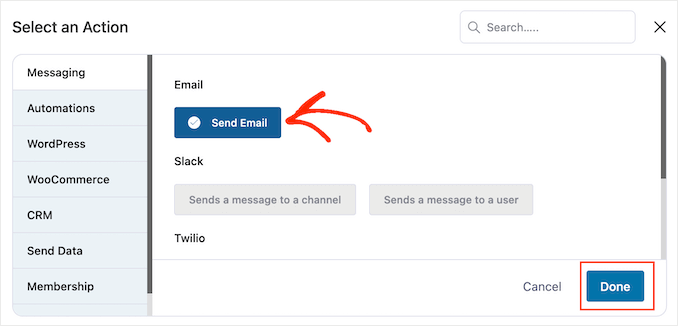
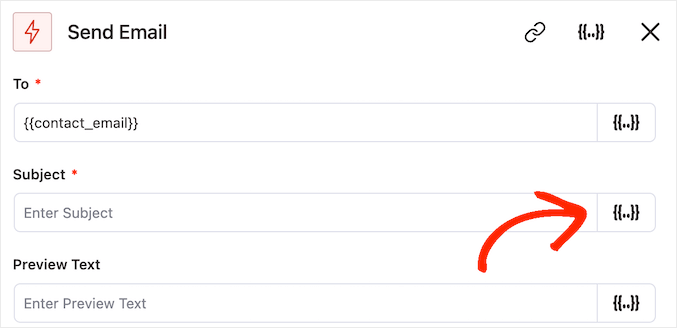
Now, you should be able to start creating the email by entering a subject and preview text.
You can use a mix of plain text and merge tags. FunnelKit will replace any merge tags with real values whenever it sends a subscription reminder email. This allows merge tags to catch the subscriber’s attention with personalized content.
For example, you might use a merge tag to add the subscriber’s name to the subject line or the date their subscription will auto-renew.
To add a merge tag, just click on the ‘{{.}}’ icon next to the field where you want to use the tag.
This opens the merge tag library. Merge tags are placeholders (like {{ contact.first_name }}) that automatically insert customer information into your emails, making them feel more personal.
When you find a tag you want to use, you might see either a ‘Copy’ or ‘Settings’ icon. If you see the ‘Copy’ symbol, then simply click it to copy the merge tag.
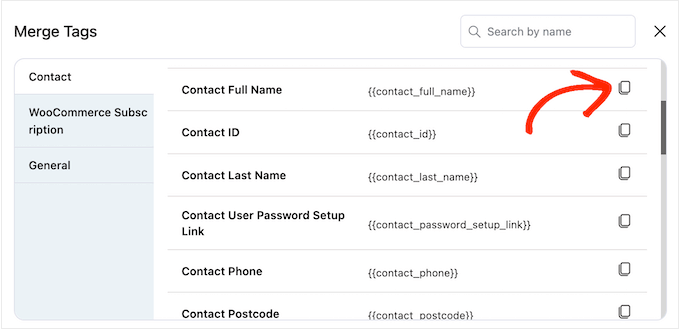
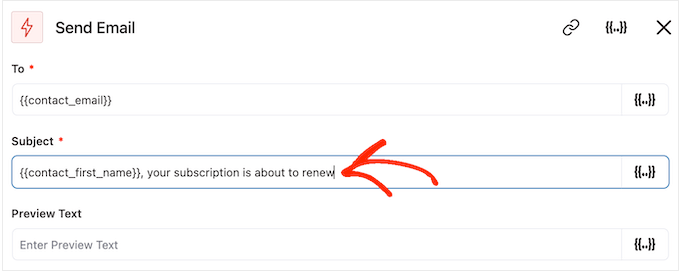
With that done, you can go ahead and paste the merge tag into the email.
At this point, you may also want to add some static (plain) text by typing it directly into the field.
Once again, when looking through the merge tags, you may also see a ‘Settings’ icon instead of a ‘Copy’ icon.
For example, this image shows a ‘Settings’ icon next to the ‘Contact First Name’ merge tag.
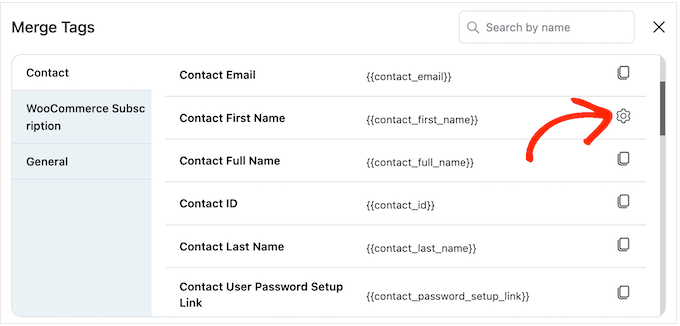
This icon allows you to set a fallback, which FunnelKit will use if it doesn’t have access to the real value.
If you see a ‘Settings’ icon, you can give it a click and type some text into the ‘Fallback’ field.
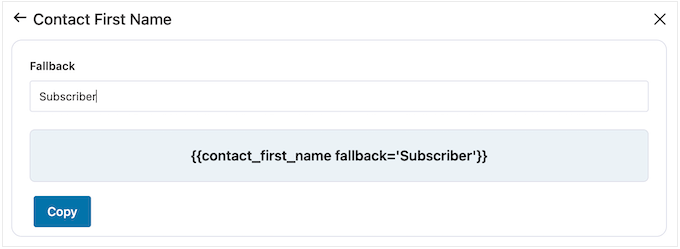
After creating a fallback, click on ‘Copy.’
With that done, simply paste the merge tag into the field where you want to use it. You can also type static text directly into the field.
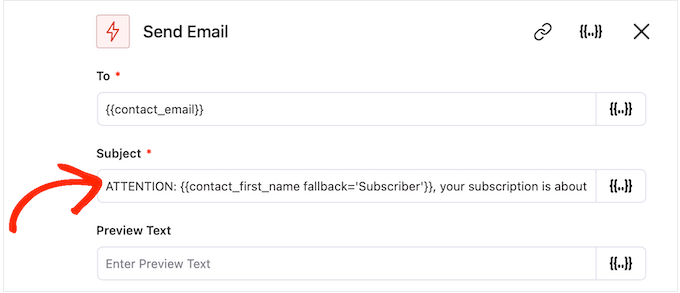
When you are happy with how the subject and preview text are set up, just scroll down to the small text editor.
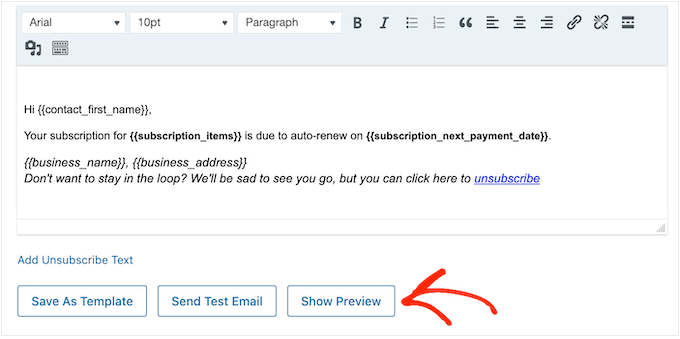
Here, you can create the email body text by typing it into the editor. You can also add dynamic tags by selecting ‘Merge Tags’ and then following the same process described above.
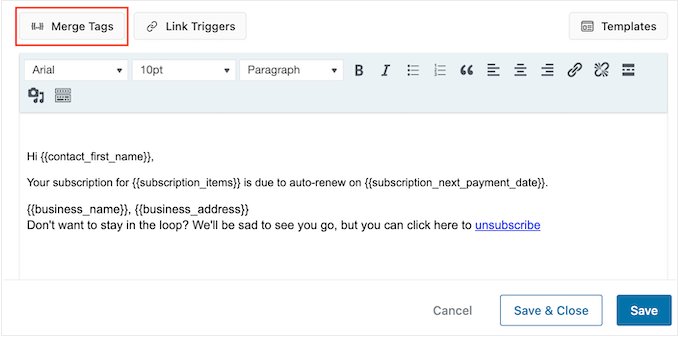
The text editor has all the standard text formatting options, so you can add links, change the text size, change the font, and more.
After you’ve completed this process, you can preview your email by clicking the ‘Show Preview’ button.
When you are satisfied with the subscription reminder email, go ahead and click the ‘Save & Close’ button.
Step 4: Create Follow-up Emails
At this point, you might want to add one or more follow-up emails to the campaign.
To start, you will typically add a delay between these emails by clicking the ‘+’ icon and then selecting ‘Delay.’
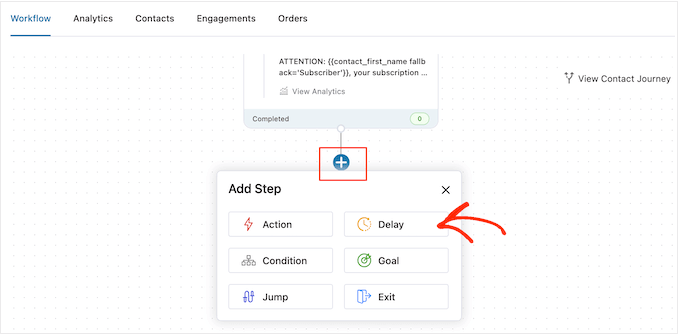
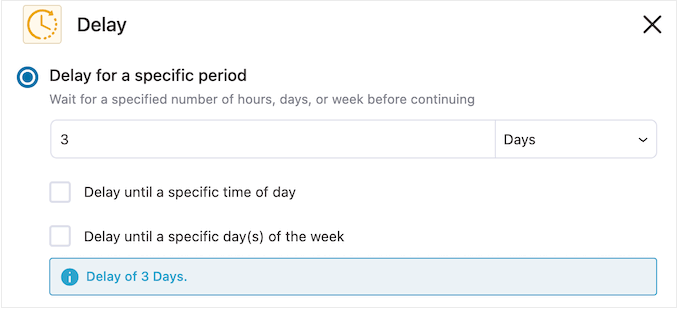
On this screen, open the dropdown that shows ‘Minutes’ by default and choose a value from the list. When creating reminder emails for your online store, you’ll typically want to select either ‘Days’ or ‘Weeks.’
After that, type in the value you want to use, such as 1 Week or 3 Days.
After that, you may want to set the time when FunnelKit will send the follow-up email. You’ll typically want to send the reminder email when subscribers are more likely to be online or when you usually get the best open rates.
To do this, just check the ‘Delay until a specific time of day’ box.
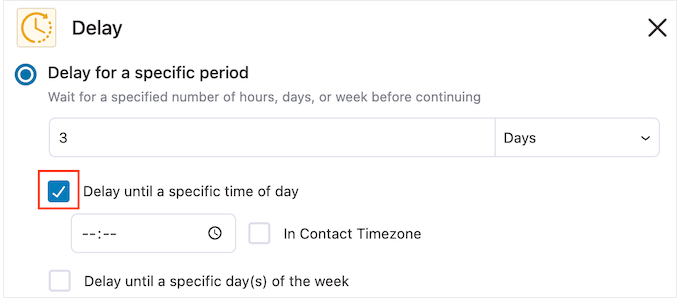
You can now set the time using the new settings that appear.
By default, FunnelKit will use the timezone in your WordPress settings. However, you can also send the email based on the subscriber’s timezone by checking ‘In Contact Timezone.’
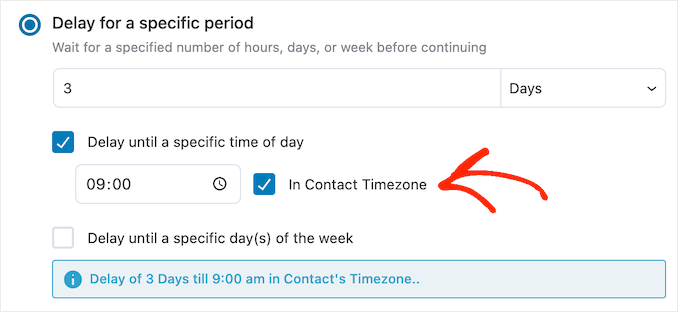
When you are happy with how the delay is set up, click ‘Save.’
With that done, it’s time to create the follow-up email. Go ahead and click the ‘+’ icon and then select ‘Action.’
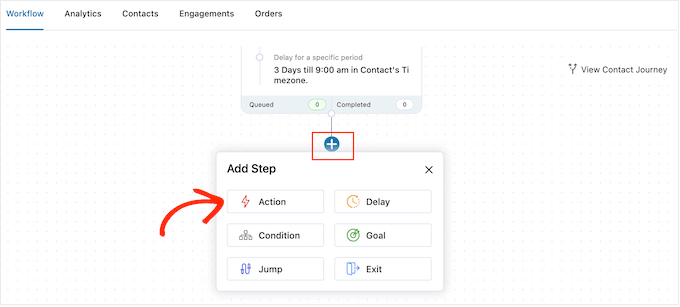
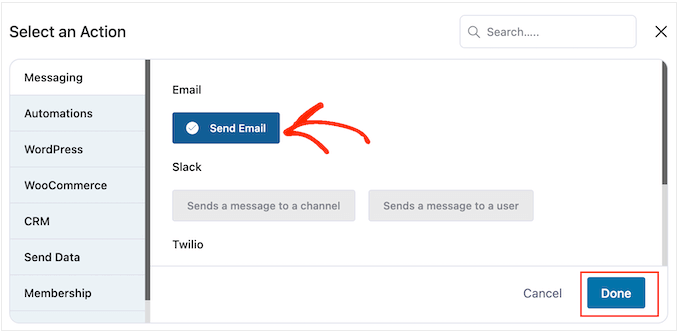
In the pop-up window that appears, you canselect ‘Send Email.’
After that, you’ll need to click on ‘Done.’
This will open a pop-up window where you can create a subject and preview, as well as add body text by following the same process described above.
When you are happy with the follow-up email, just click the ‘Save & Close’ button.
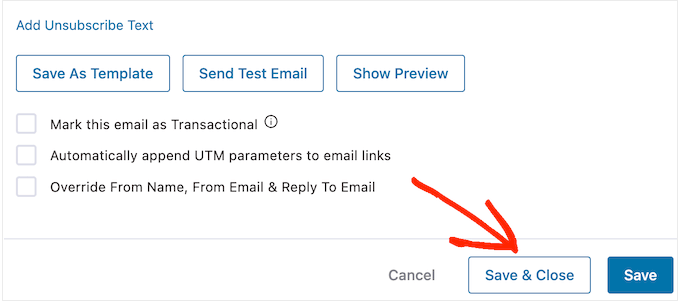
You can now add more delays and follow-up emails by repeating the exact same steps.
Pro Tip: A great follow-up sequence for subscription reminders is to send three emails. We recommend sending one 7 days before renewal, another 3 days before, and a final one on the renewal day itself. This gives customers plenty of notice without being annoying.
When you are ready to make the automation live on your WordPress website, click on the ‘Inactive’ slider so that it turns to ‘Active.’
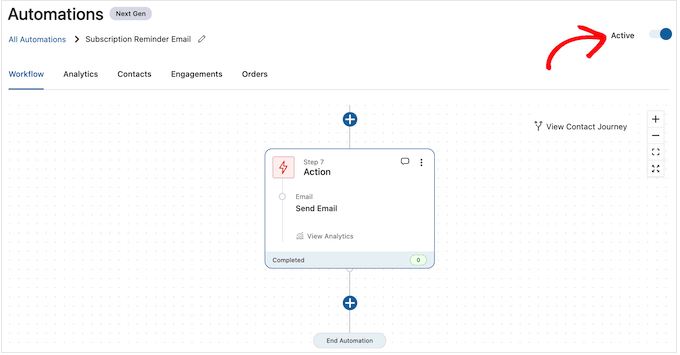
Now, FunnelKit will send automated subscription reminder emails to your online store.
Bonus: Make Sure Your Reminder Emails Are Being Delivered!
After creating the perfect reminder sequence in FunnelKit, there’s one final step: ensuring your emails actually reach your customers’ inboxes.
By default, WordPress uses a mail function that can be unreliable, often causing important emails to be flagged as spam.
The best way to fix this is by using WP Mail SMTP. It is the best SMTP plugin for WordPress that reconfigures your site to send emails through a proper mailer service, which greatly improves deliverability.
WP Mail SMTP also comes with detailed email logs, so you can see a complete record of every subscription reminder that your website sends out. This helps you confirm your automations are working correctly.
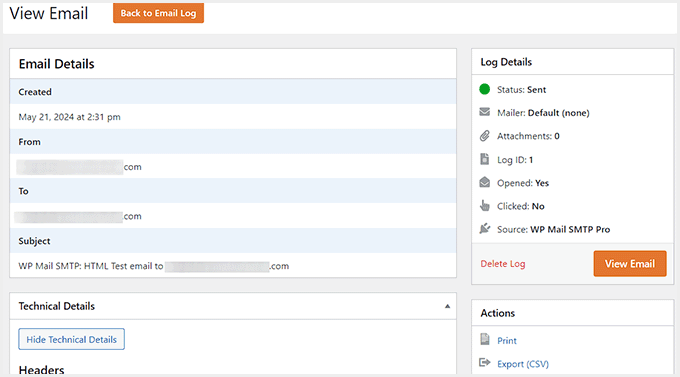
For details, you can go to our step-by-step guide on how to setup WordPress email tracking.
Frequently Asked Questions About Sending WooCommerce Emails
Here are some questions that our readers have frequently asked about sending WooCommerce subscription reminder emails:
Why are my WooCommerce reminder emails going to spam?
By default, WordPress sends emails using a method that isn’t always reliable. This can cause your important subscription reminders to be flagged as spam or not get delivered at all.
The best way to fix this is with the WP Mail SMTP plugin, which sends your emails through a proper email service to ensure they reach the inbox.
How many subscription reminder emails should I send?
We’ve found that a sequence of three emails works best. A common strategy is to send reminders 7 days before, 3 days before, and on the day of the renewal. This gives customers plenty of notice to update their payment details without feeling overwhelmed.
Can I customize the design of my WooCommerce emails?
Yes. While the default WooCommerce emails have limited styling options, a tool like FunnelKit gives you full control. It includes a visual builder that allows you to customize the layout, colors, and branding of your emails to perfectly match your store’s design.
We hope this article helped you learn how to create WooCommerce subscription reminder emails. You may also want to see our guide on how to create a WooCommerce popup to increase sales or our list of ways to recover abandoned cart sales.
If you liked this article, then please subscribe to our YouTube Channel for WordPress video tutorials. You can also find us on Twitter and Facebook.





kzain
This is a great tip for growing customer retention in my WooCommerce store! Automated reminder emails before renewals seem like a smart way to nudge subscribers and keep them engaged. The idea of promoting new products or deals within these emails is a clever marketing strategy. Thanks for this helpful guide!
THANKGOD JONATHAN
Great plugin and tutorial! It has helped me Boost my WooCommerce subscription renewals with these reminder emails.
Ralph
I think it is really important to send reminders emails as auto renewal may be profitable for us, but really ruin trust and lose us a customer. In case of yearly payment I would send reminders 30, 15, 7, 3 and 1 day before. Better be a little spamy than have angry client. This guide will definitely help a lot of people keep their customers happy.
WPBeginner Support
It is a delicate balance for how many emails to send and what works for you and your customers.
Admin