


If you’ve ever recommended a product you love to someone, then you already understand how referral marketing works.
A referral program simply turns that into a system where people get rewarded for sending new customers your way.
I’ve seen this work incredibly well across many of our partner brands. A lot of them use AffiliateWP to power their affiliate programs, and it’s been one of the easiest ways for them to consistently bring in new customers.
The good news? You can set up your own referral program in WordPress without needing any fancy tech skills.
In this guide, I’ll show you three beginner-friendly ways to create a referral program in WordPress, so you can choose the method that works best for your site.

💡Quick Answer: Creating a Referral Program in WordPress
The easiest way to set up a referral program in WordPress is by using a dedicated affiliate plugin. Here are the three options I recommend:
- Method 1: AffiliateWP – This is my top pick. It’s powerful, feature-rich, and perfect if you want to build a fully scalable affiliate program with detailed tracking and flexible commission options.
- Method 2: Easy Affiliate – This plugin is incredibly beginner-friendly. Its guided setup wizard makes it super easy to get started quickly without getting overwhelmed by settings.
- Method 3: RewardsWP – Ideal for stores that want a customer-focused refer-a-friend program. It works great for WooCommerce or digital products, and rewards both the existing customer and the friend they refer.
What Is a Referral Program?
A referral program (sometimes called an affiliate program) is a system that rewards people for bringing new customers to your business.
Basically, when someone promotes your products or services, and a sale happens, you give them a commission. It’s like having a team of helpers who only get paid when they actually deliver results — no extra risk for you.
If you want to dive deeper, check out our ultimate affiliate marketing guide to see how it all works.
What Are the Benefits of a Referral Program?
Running a referral program isn’t just about rewarding people for sharing your products — it can actually give your business a serious boost.
Here are five key benefits of using an affiliate program:
- Cost-Effective Marketing: You only pay commissions on actual sales, not clicks or impressions. It’s a low-risk way to grow your customer base.
- Increased Brand Trust: Recommendations from trusted creators or experts act as social proof, helping your products gain credibility faster than traditional ads.
- Targeted Traffic: Affiliates usually have an audience already interested in your niche, meaning the visitors they send are more likely to convert.
- Scalable Growth: As more affiliates join your program, your reach grows without adding extra work on your end.
- Better Customer Loyalty: Rewarding people for sharing your products can turn customers into repeat buyers and enthusiastic brand advocates.
That is why many successful companies, including some of our partner brands, use referral programs to grow their audience and sales.
Types of Referral Program Platforms
To run a referral program, you need a platform to manage it.
Here are the main options:
- WordPress Referral Plugins – These plugins, like AffiliateWP, run directly on your website, giving you full control. You set the rules, track referrals, and manage rewards without extra fees. This is perfect for small businesses that want full control.
- Refer a Friend Plugins – This is a more customer-focused version of a referral program. Instead of working with professional affiliates, your existing customers invite their friends and earn rewards like discounts, points, or free products. Plugins like RewardsWP make it easy to create these programs without complex setup.
- Cloud-Based Referral Networks – Platforms like ShareASale, PartnerStack, and Impact give you access to a large network of affiliates. The benefit is instant exposure, but they often charge setup fees, take a cut of each sale, and limit how you run your program.
In this guide, I’ll focus on WordPress-based referral programs and refer-a-friend programs.
This way, you can reward your customers directly and grow your audience without paying extra fees.
You can use the links below to jump to the method of your choice:
Method 1: Create a Full-Fledged Affiliate Program with AffiliateWP
If you run an online store, membership site, or digital product business, then AffiliateWP is one of the best ways to create a referral program directly in WordPress.
I recommend this method if you want full control over your referrals, detailed tracking, and the flexibility to reward your customers or partners.
Many of our partner brands also use AffiliateWP, and I’ve thoroughly tested it myself. It’s reliable, beginner-friendly, and works well for small, medium, and large-sized businesses.
We even have a complete review of AffiliateWP, where we go into all the features, pricing, and setup details.
Step 1: Install And Activate AffiliateWP
The first thing you need to do is install and activate the AffiliateWP plugin on your WordPress site. Keep in mind that AffiliateWP is a premium plugin with no free version.
Once you’ve installed it, go to the AffiliateWP » Settings » General page to enter your license key. You can find this information in your AffiliateWP account after purchase.
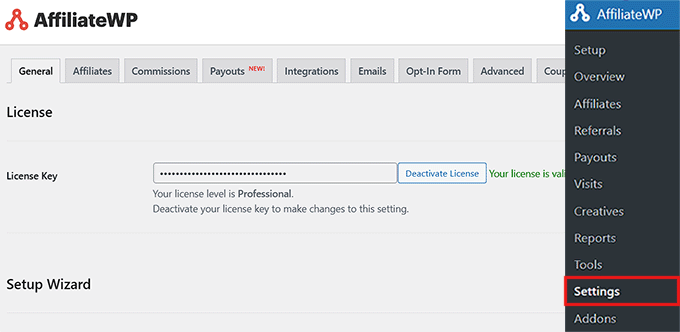
Entering your license ensures your plugin stays up to date and gives you access to support.
For a detailed walkthrough, you can check out our step-by-step guide on how to install a WordPress plugin.
Step 2: Set Up the Affiliate Area and Terms of Use
After you activate your license key, the next step is to set up the Affiliate Area and Terms of Use.
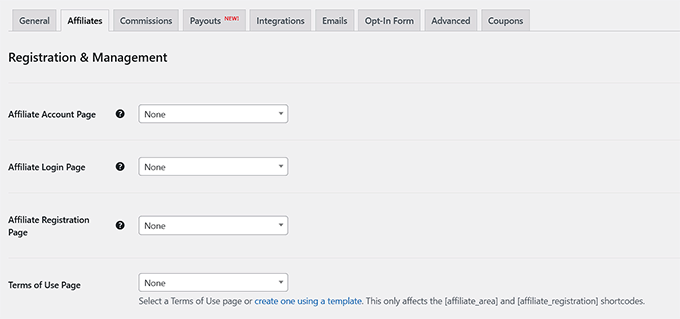
To do this, switch to the ‘Affiliates’ tab at the top. Here, you can select a page to use as your Affiliate account area from the dropdown menu.
This Affiliate Area is important because this is where your affiliates log in, track their referrals, and get their unique links.
I also recommend setting your affiliate registration and login pages on this same screen. These pages let new affiliates sign up and allow returning affiliates to log in easily.
Next, you need to select a Terms of Use page using the dropdown menu. This page is really important because it sets clear rules and expectations for your affiliates, which helps protect your business.
You can look at other affiliate programs for inspiration — for example, OptinMonster’s affiliate terms page is a good reference.
Once everything looks good, don’t forget to click ‘Save Changes’ to make sure your settings are applied.
Step 3: Adjust Affiliate Program Settings
After setting up your Terms of Use page, scroll down the ‘Affiliates’ page to configure some important setting for your referral program.
One key setting is whether to allow affiliates to register themselves. I recommend enabling this so new affiliates can sign up on their own, making it easier to grow your program.
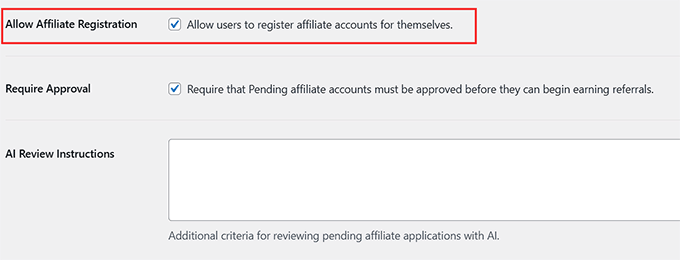
You should also enable reCAPTCHA on the registration page. To use this feature, you will need to generate free API keys from Google and enter them in the plugin settings.
This helps prevent bots from signing up and keeps your affiliate program free from spam.
After that, take a few minutes to review the other available settings on this page and adjust them to fit your program’s rules.
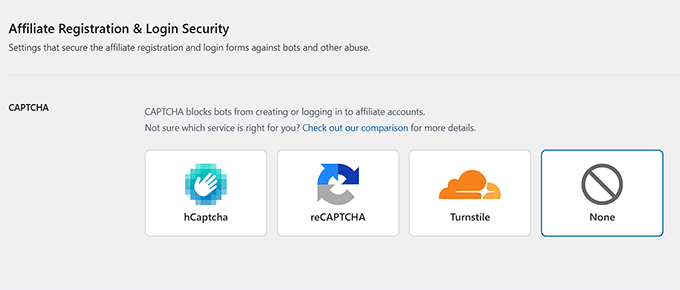
Once you’re done, just click the ‘Save Changes’ button.
Step 4: Enable Plugin Integrations
After that, go to the ‘Integrations’ tab to connect AffiliateWP with the other plugins you use to run your online store, membership site, or LMS.
These integrations automatically track sales and ensure affiliates receive the correct commissions.
Simply check the boxes for the plugins you want to integrate. AffiliateWP works with the most popular eCommerce, membership, contact form, and LMS plugins, so it should cover the tools you already use.
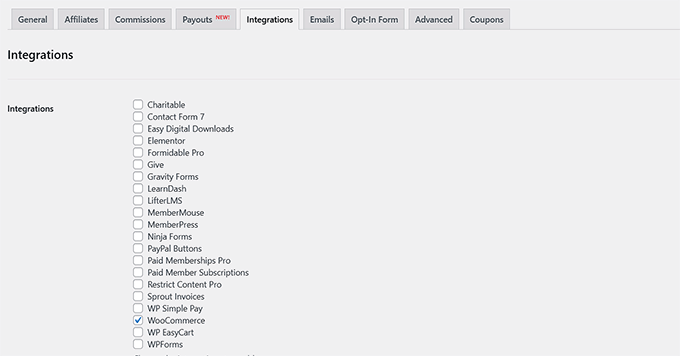
Then, click the ‘Save Changes’ button to store your settings.
Step 5: Customize Affiliate Emails
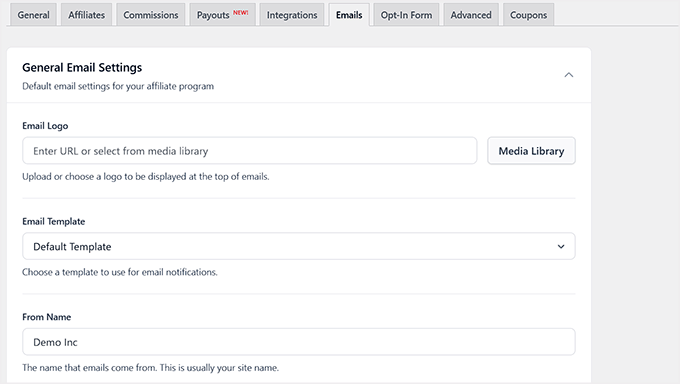
Now it’s time to customize all the emails that go out to your affiliates. To start, switch to the ‘Emails’ tab on the AffiliateWP Settings page.
First, upload your business logo so it appears at the top of every email, giving your messages a professional look.
Then, choose or customize an email template that matches your brand, and set the ‘From Name’ and ‘From Email’ so recipients know the messages are coming from your business.
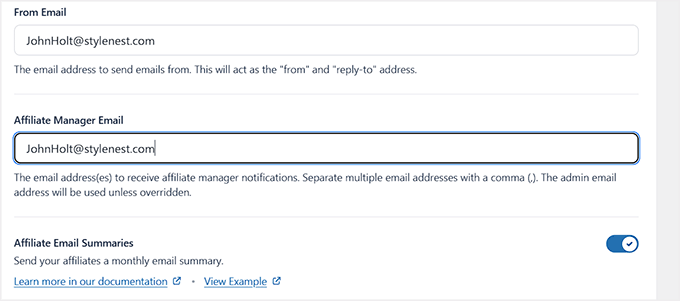
Next, make sure the ‘Affiliate Manager Email’ is correct. This is where notifications will go when new affiliates sign up or when referrals are created.
You can also enable affiliate email summaries to send monthly updates so your affiliates can easily track their performance.
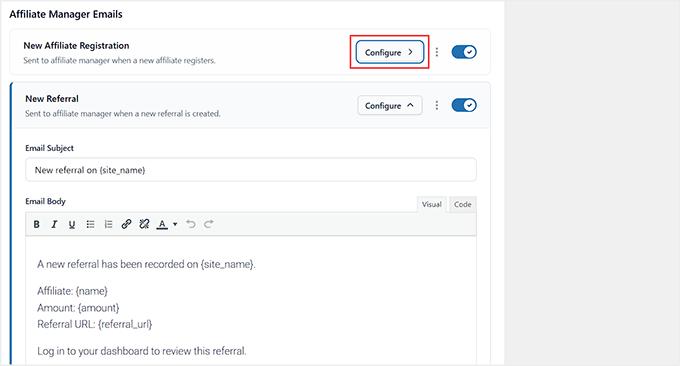
By default, AffiliateWP creates pre-made email templates for common affiliate actions, like new registrations, referral notifications, and payouts.
You can make any edits by clicking the ‘Configure’ button next to each email template.
I recommend taking some time to review and customize these templates so they match your brand and feel professional. This ensures everything looks consistent and polished.
💡Pro Tip: Sometimes WordPress doesn’t send emails properly because it uses the default PHP mail function, which many hosts block or mark as spam.
To fix this, you can install a plugin like WP Mail SMTP, which routes your emails through a reliable email service. This ensures your affiliate notifications are delivered to inboxes and not lost or marked as spam.
To get started, see our guide on fixing the WordPress not sending email issue.
Then, click the ‘Save Changes’ button to store your settings. Your referral program has now been set up.
Step 6: Add Links to Your Referral Program
Now that your referral program is set up, it’s time to make it easy for people to find. I always recommend adding a link to your Affiliate Area, especially if you’ve enabled affiliate registration.
This way, interested marketers can sign up, and existing affiliates can quickly log in to check their reports.
To do this, go to the Appearance » Menus page in your WordPress dashboard and add your Affiliate Area page to one of your navigation menus. I also suggest making it visible in the footer or sidebar, depending on your site layout.
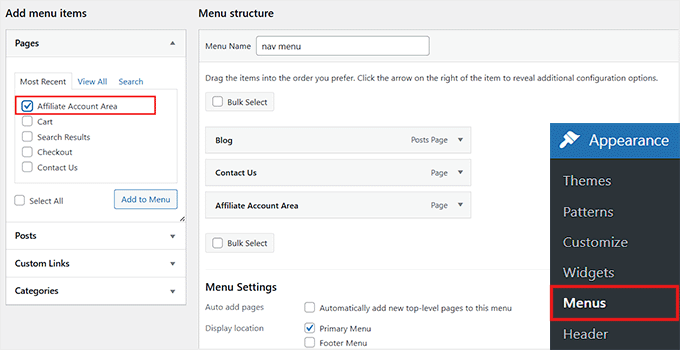
For more detailed instructions, you can check our beginner’s guide to adding navigation menus in WordPress.
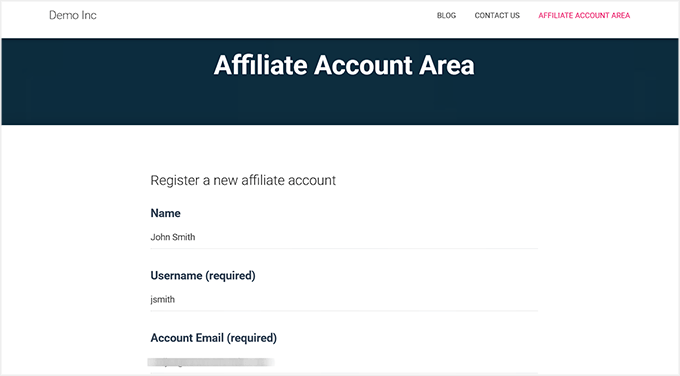
Once the link is added, clicking it will take users directly to the Affiliate Area, where they can either register as a new affiliate or log in to view their account and referral reports.
Step 7: Manage Your Referral Program in AffiliateWP
AffiliateWP gives you all the tools you need to manage your affiliates, track referrals, and run your program without ever leaving WordPress.
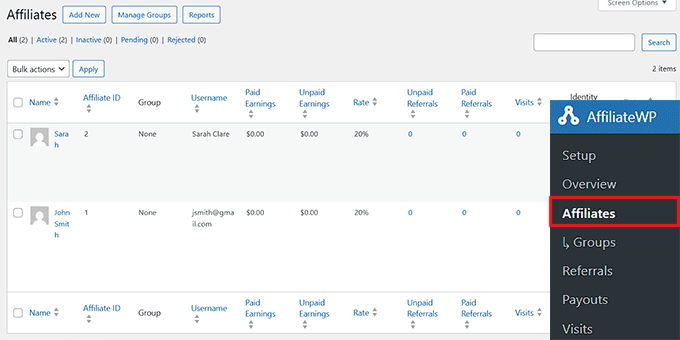
To see who has joined your referral program, go to the AffiliateWP » Affiliates page. Here, you’ll see a list of all your affiliate partners along with their earnings, unpaid commissions, referral visits, and more.
You can also click on any affiliate to edit their account individually if needed.
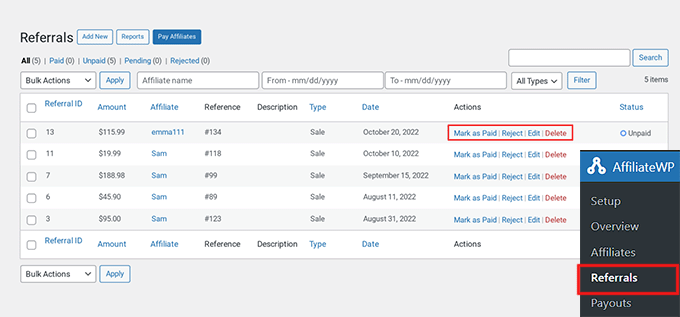
To track each sale made through a referral partner, visit AffiliateWP » Referrals.
You can now see all referral sales, the affiliate who generated them, the amount earned, and other details.
If you ever notice a referral that looks suspicious or potentially fraudulent, you can click the ‘Reject’ link to prevent it from being counted.
I recommend checking both the Affiliates and Referrals pages regularly. It helps you spot trends, reward your top performers, and keep your program running efficiently.
Step 8: Send Payments to Your Affiliates
Paying your affiliates is simple and super flexible with AffiliateWP.
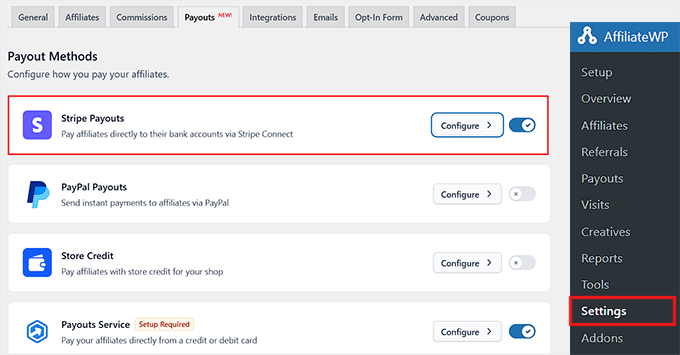
For most users, the easiest method is the built-in Payouts Service. It allows you to pay your affiliates directly into their local bank accounts, without them needing their own payment processor accounts.
To enable it, go to AffiliateWP » Settings and switch to the Payouts tab. From there, you can choose a payment gateway like Stripe by toggling the switch to active and adding your account details.
Once you are done, just click the ‘Save Changes’ button to store your settings.
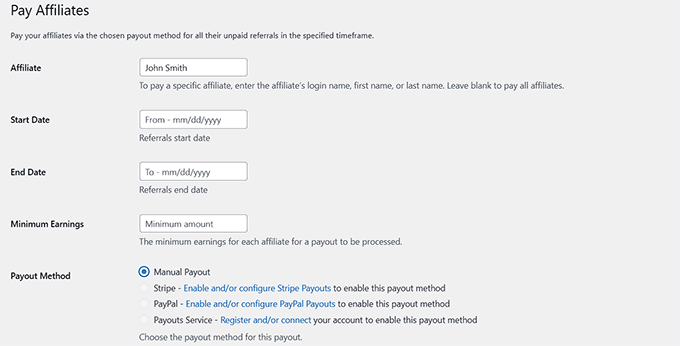
Alternatively, you can pay your affiliates manually by going to AffiliateWP » Referrals and clicking the ‘Pay Affiliates’ button.
This generates a payout list that you can use to send payments via PayPal, credit card, or any other method you prefer. I recommend this option if you want more control over each payout or need to handle one-off payments.
Step 9: View Your Referral Program Reports in AffiliateWP
Keeping an eye on your referral program’s performance is key to its success, and AffiliateWP makes this easy with its built-in reporting tools.
I love this feature because it gives a clear picture of how affiliates are performing and which strategies are driving the most sales.
To get started, go to the AffiliateWP » Reports page. Here, you’ll get a full overview of your program, including total referrals, earnings, and affiliate activity.
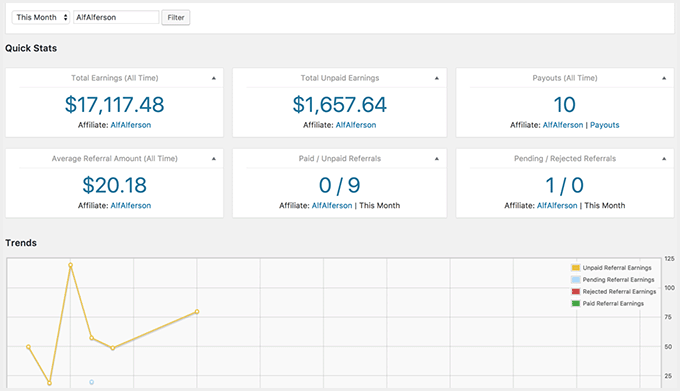
You can also filter the reports by time period or by individual affiliates to dig into more detailed insights. It’s a simple way to identify your top performers and optimize your program for even better results.
Method 2: Run an Easy Affiliate Program with Easy Affiliate
If you’re looking for a simpler alternative to AffiliateWP, I recommend Easy Affiliate.
Unlike AffiliateWP, which is packed with advanced features and integrations, Easy Affiliate is lightweight, beginner-friendly, and quick to set up.
I usually suggest it for small to medium-sized websites or for site owners who want to run a smooth referral program without diving into too many technical settings.
I’ve set up referral programs on my test site using Easy Affiliate, and I love how intuitive it is. You can get a referral program running quickly, create affiliate links, and manage payouts all within your WordPress dashboard.
It’s perfect if you don’t need every advanced feature AffiliateWP offers, but still want a professional, seamless experience for your affiliates.
If you need more information about the tool, check out our Easy Affiliate review.
Step 1: Install and Activate Easy Affiliate
To get started, install and activate the Easy Affiliate plugin on your WordPress site. If you’re not sure how, check out our step-by-step guide on installing a WordPress plugin — it makes the process super easy.
📌Note: Keep in mind that Easy Affiliate is a premium plugin and does not have a free version.
Once the plugin is activated, go to the Easy Affiliate » Settings page.
Scroll down to the bottom and click the ‘Launch Setup Wizard’ button.
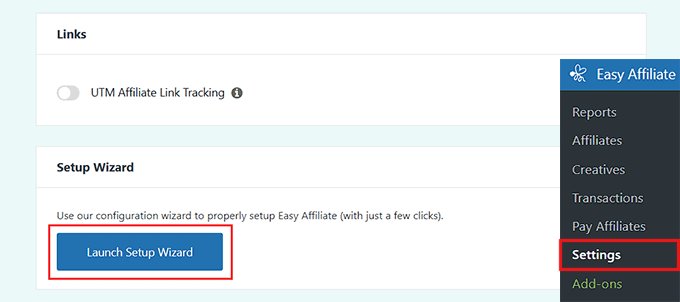
I always recommend using this setup wizard because it walks you through the essential settings and gets your referral program ready quickly, without having to guess what each option does.
Step 2: Configure The EasyAffiliate Setup Wizard
Once the setup wizard opens up on your screen, the first thing you’ll need to do is enter your plugin license key.
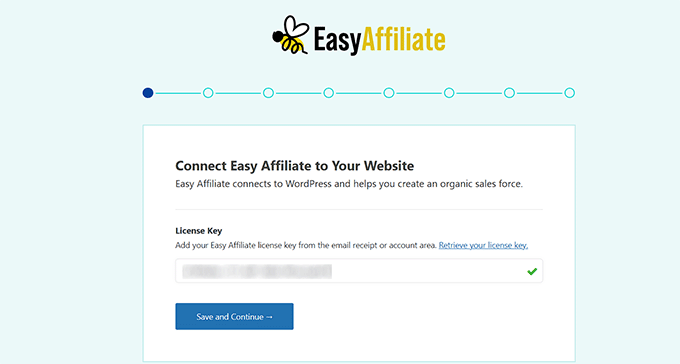
You can find this information in your account on the Easy Affiliate website.
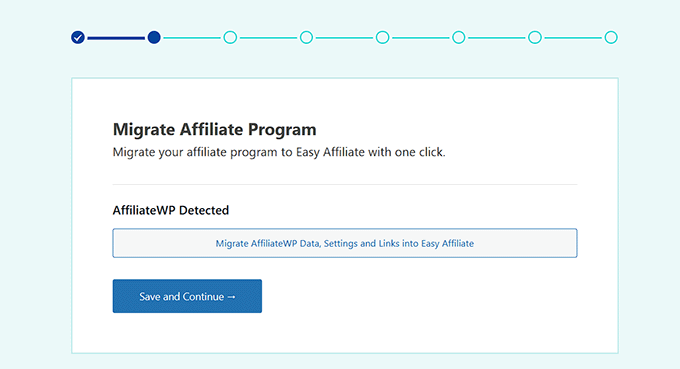
If you’ve used another affiliate plugin before, Easy Affiliate will offer to import your data. If not, simply skip this step and move on.
Next, the plugin will try to detect which eCommerce platform you’re using.
Just click the toggle next to your platform to proceed.
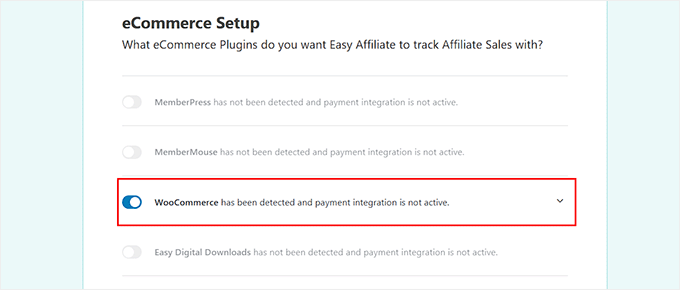
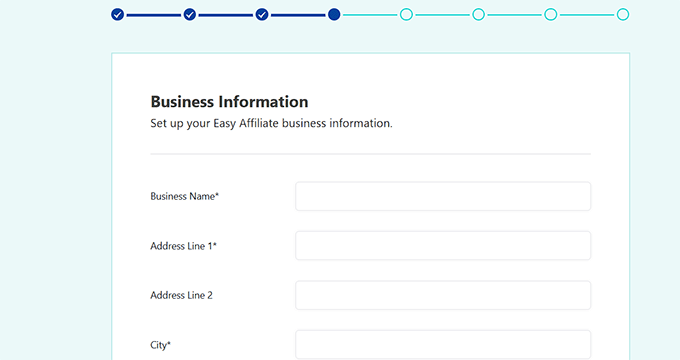
Then, fill out your business information — name, address, and other details — and click ‘Continue.’
I recommend providing accurate information here because it helps with affiliate reporting and payouts later.
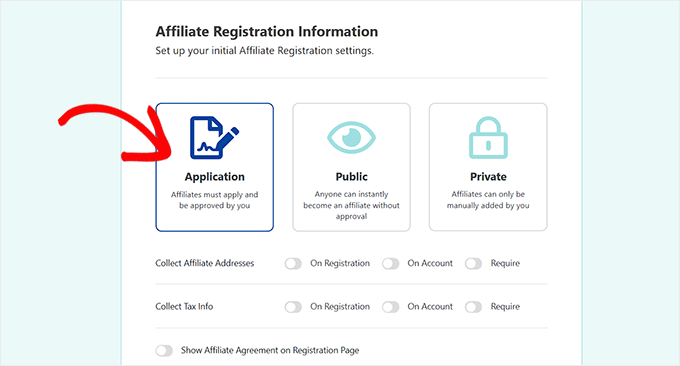
Now it’s time to set up affiliate registration.
You can allow affiliates to apply and approve applications manually, enable public registration, or add affiliates yourself.
You can also choose what information to collect from affiliates, like business address or tax information, and decide whether it’s required during registration or entered later in their accounts.
The plugin also lets you show an affiliate agreement. You can either upload your own or use Easy Affiliate’s automatic agreement generator by filling out a simple form. After that, click ‘Save and Continue.’
Next, set your default commission — either a percentage or a fixed amount — and configure payout options. Easy Affiliate supports recurring payments and lets you send bulk payouts manually or automatically.
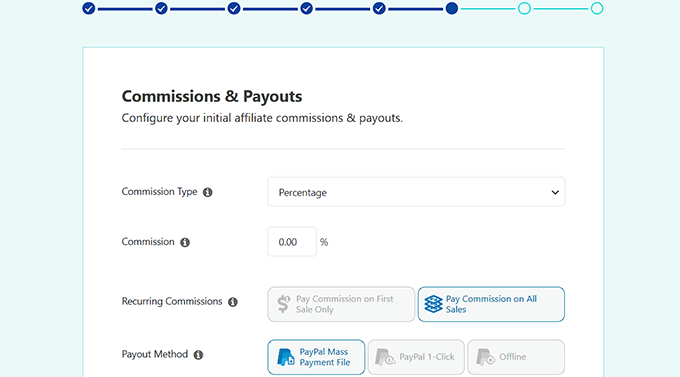
Once you click on the ‘Save and Continue’ button, you’ll arrive at the Creatives section.
Step 3: Upload Affiliate Creatives
After setting up your commission rates and payout options, the next step in the Setup Wizard is to upload your affiliate creatives.
In marketing, “creatives” is just a term for the promotional materials you provide to your affiliates. These resources make it easier for them to promote your products while keeping your branding consistent.
Here, you can add things like your website logo, product images, banner ads, and social media graphics.
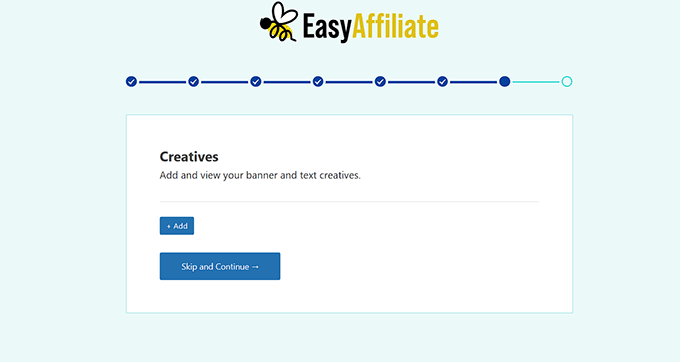
I recommend adding standard banner sizes, like 300×250 and 728×90. This makes it much easier for affiliates to fit the ads onto their websites.
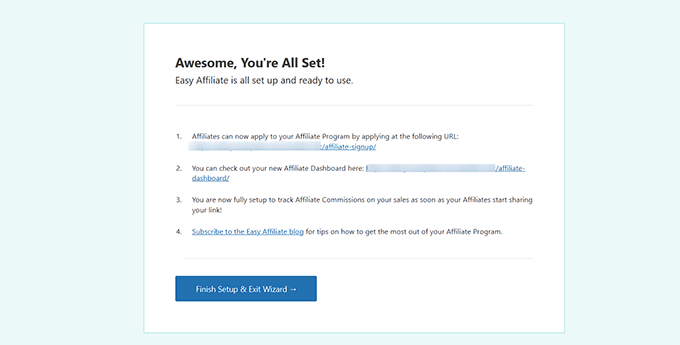
Once your creatives are uploaded, click ‘Finish Setup and Exit Wizard.’
Your referral program is now fully configured and ready for affiliates to start signing up and sharing your products.
Step 4: Add Links to Your Affiliate Referral Program
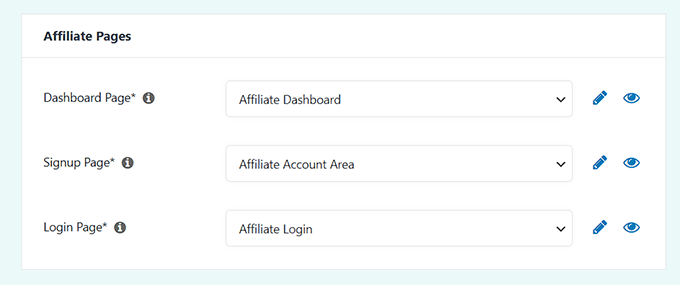
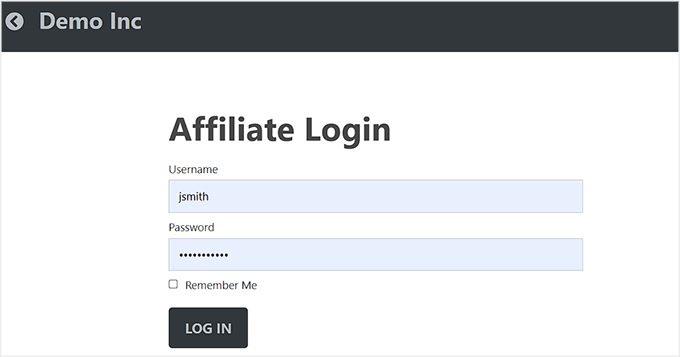
Easy Affiliate automatically creates the key pages your affiliates need — like registration, login, and account dashboard pages.
You can see these by going to Easy Affiliate » Settings and scrolling down to the ‘Affiliate Pages’ section under the ‘General’ tab.
Next, it’s time to make it easy for people to find your program. You can do this by adding the affiliate dashboard link to your website’s navigation menu, footer, or even a sidebar.
I suggest placing it somewhere visible so interested marketers can sign up quickly and returning affiliates can log in to view their reports.
Once the link is in place, your referral program is officially ready for affiliates to join and start promoting your products.
Step 5: View the Easy Affiliate Dashboard and Reports
Easy Affiliate also makes it super easy to track your affiliate program’s performance — both for you and your partners.
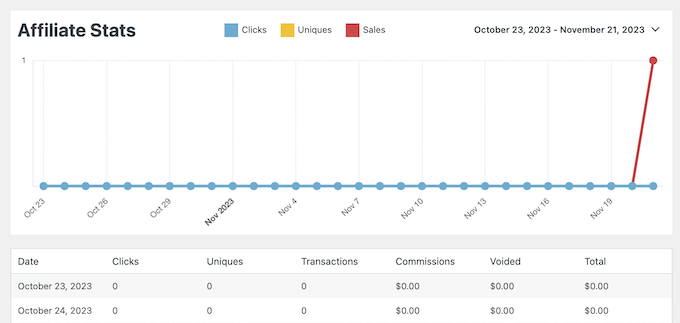
As the website owner, go to Easy Affiliate » Reports to see all the activity on your site. The dashboard provides a clear graph overview of affiliate stats, and the same data is displayed in tables below for more detail.
You can check these stats regularly to see which affiliates are performing well and which campaigns are driving the most sales.
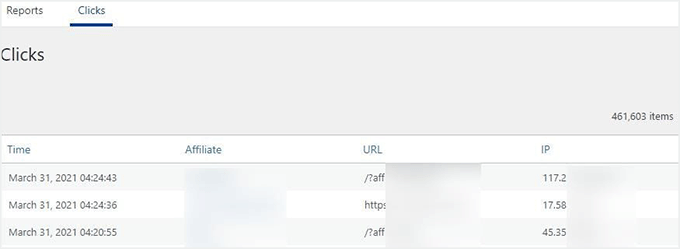
Easy Affiliate also includes link tracking, so you can see exactly which affiliate URLs are bringing you the most clicks. Just switch to the ‘Clicks’ tab to get a detailed view of which links are performing best.
This helps you understand what’s working and gives your affiliates feedback to optimize their promotions.
Step 6: Manage Affiliates
Once your referral program is up and running, Easy Affiliate makes it simple to manage your affiliates.
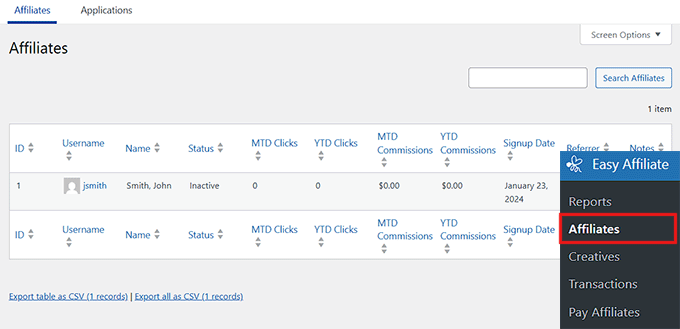
For this, go to Easy Affiliate » Affiliates, and you’ll see a list of all the affiliates you’ve approved or manually added to your site.
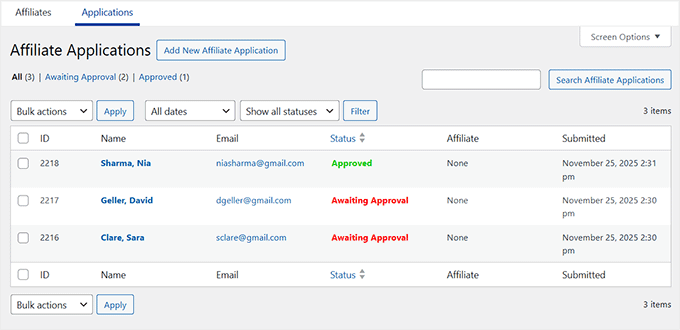
To approve new applications, switch to the ‘Applications’ tab. Here, you’ll see everyone waiting for approval. You can click on an affiliate’s name to view the details of their application.
If everything looks good, simply approve them so they can start promoting your products.
This step is important for keeping your affiliate program organized and ensuring only legitimate partners actively promote your business.
Step 7: Extend Functionality with Addons
One of the things I really like about Easy Affiliate is how easy it is to extend its functionality with addons. These integrations can help you take your referral program to the next level without needing custom code.
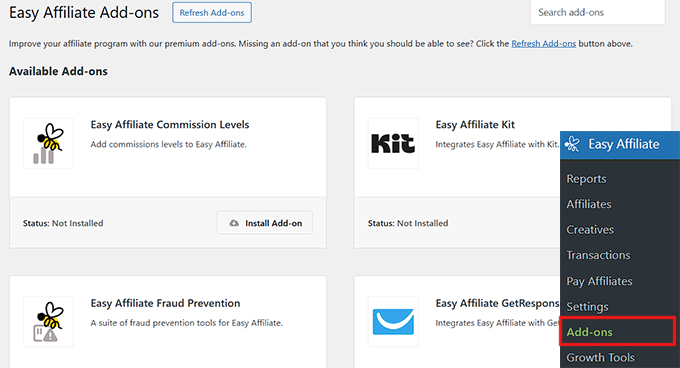
Easy Affiliate offers addons for email marketing platforms, fraud prevention tools, custom commission rules, advanced commission levels, and more.
I recommend taking a look at the available addons to see which ones fit your program and can help you save time managing affiliates.
Depending on your license plan, you can view and activate the addons by going to Easy Affiliate » Add-ons. From there, it’s just a matter of toggling the ones you want to enable.
Method 3: Create a Refer-a-Friend Program with RewardsWP
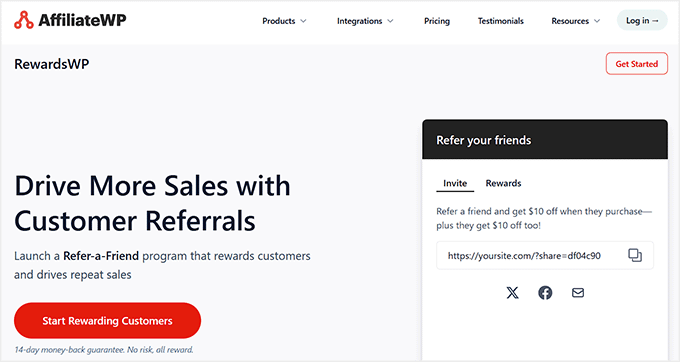
If you’re looking for a customer-focused referral program rather than a full affiliate system, I recommend using RewardsWP.
Unlike AffiliateWP and Easy Affiliate, which are designed primarily for working with affiliate marketers, RewardsWP is all about letting your existing customers refer their friends.
Plus, it works directly inside WooCommerce and Easy Digital Downloads, making it ideal for eCommerce stores that want to reward customers for sharing their products with friends.
For a deeper look at the plugin, you can check out our full RewardsWP review.
Step 1: Install And Activate RewardsWP
To get started, you’ll need to sign up for an account on the RewardsWP website and purchase a license, as this is a premium plugin. Once your account is set up, download the plugin.
Next, install and activate RewardsWP in your WordPress dashboard. If you need help with this, our beginner’s guide on how to install a WordPress plugin makes it super easy.
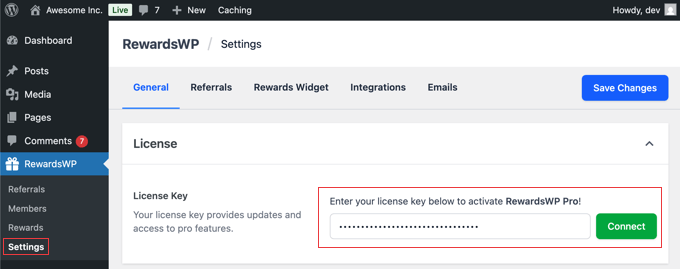
Upon activation, head over to the RewardsWP » Settings to enter your license key. You can find this information in your account area on the RewardsWP website or in the email they sent after purchase.
Just paste the key into the License Key field and click ‘Connect.’
Step 2: Configure Your Referral Rewards
Next, it’s time to set up rewards for your customers and the friends they refer. I always recommend rewarding both parties since it makes the referral program much more effective.
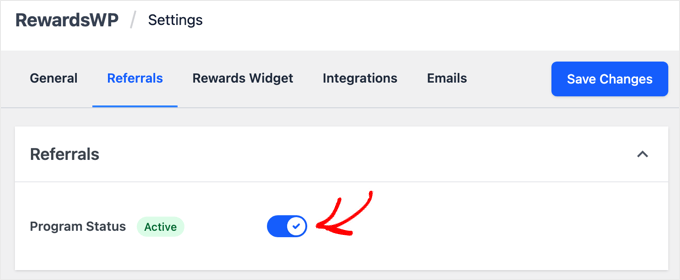
To get started, go to the RewardsWP » Settings in your WordPress dashboard and click the ‘Referrals’ tab. From here, activate the program by toggling the Program Status from ‘Inactive’ to ‘Active.’
You’ll now see two main sections on the page: Advocate Reward (for your existing customer) and Friend Award (for the new customer).
In my experience, rewarding only existing customers doesn’t encourage as many referrals. Friends are much more likely to use a referral link if they get something out of it, too.

Simply click the ‘Add Reward’ button, and a popup will appear where you can select the type of incentive you want to offer.
You have several options, including:
- Amount discount: A fixed dollar amount off their purchase (like $10 off).
- Percentage off: A percentage discount on the order (like 15% off).
- Free shipping: Waives the shipping costs for the order.
- Free product: Gives a specific product from your store at no cost.
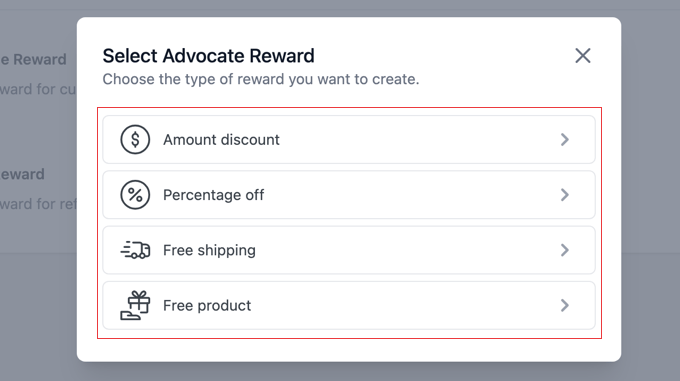
Since this is your first time using a refer-a-friend program, I recommend starting with ‘Amount Discount’ because it’s straightforward and appealing to most customers.
Once you select a reward type, you’ll see a few fields to configure it. From here, you can set the exact discount amount and the minimum spend required to use the reward.
Finally, the ‘Reward Expiration’ option determines how long the reward is valid, with options like 7 days, 3 months, 6 months, or 1 year.
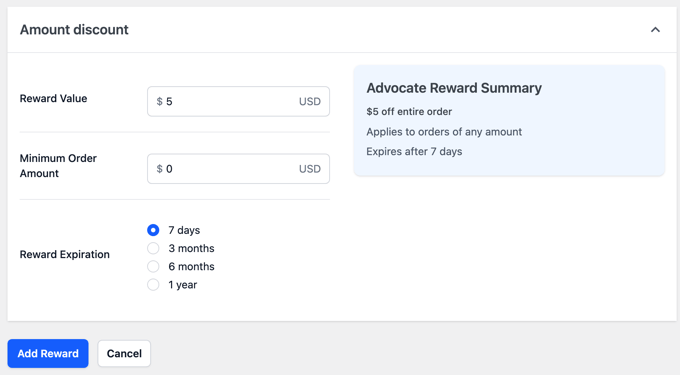
Once you are done, don’t forget to click ‘Add Reward’ at the bottom to save your settings. The other reward types work similarly and are just as easy to set up.
Once you’ve configured the Advocate reward, repeat the process for the Friend reward. Finally, click ‘Save Changes’ at the top of the screen to activate your rewards program.
Step 3: Customize the Rewards Widget
Now it’s time to make your rewards program look great and feel easy to use for your customers.
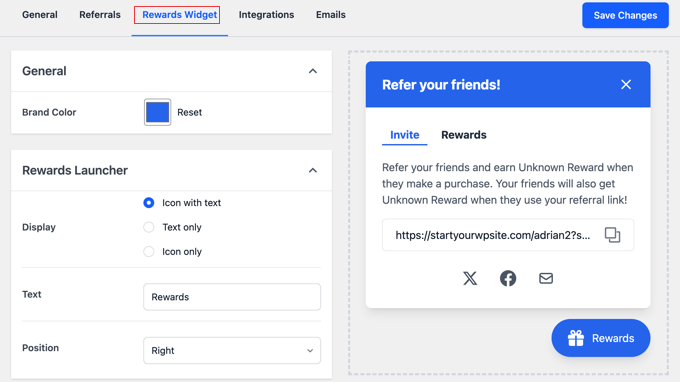
To get started, switch to the ‘Rewards Widget’ tab. This controls the floating widget that logged-in customers will use to find and share their referral links. Here, you can set the brand color for the widget’s title bar and buttons so they blend seamlessly with your site design.
The ‘Display’ option lets you choose how the widget button appears — I usually go with “Icon with text” because it’s clear and noticeable.
You can also adjust the button text and position, change the default “Rewards” label, and decide whether the button appears on the left or right side of the screen.
As you make these adjustments, you will see your changes in the live preview on the right.
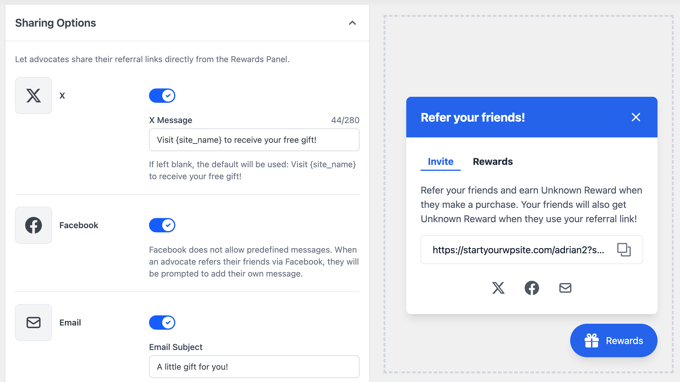
Next, I recommend checking out the ‘Sharing Options.’
You can enable sharing to X (formerly Twitter), Facebook, or Email with a toggle. For social sharing, you can set a default message that appears when users share your referral link.
If you want to send an email, then you can customize the default subject line and message.
Once everything looks good, make sure to click ‘Save Changes’ at the top right. Now your widget is live, and customers can easily find, share, and use their referral links.
Step 4: Enable Integrations for Your Store (Optional)
If you run an online store, it’s a good idea to connect RewardsWP to your eCommerce platform by switching to the ‘Integrations’ tab.
This is where you can connect the plugin to the platforms used to sell products or manage memberships.
For most online stores, the primary integration is WooCommerce, but RewardsWP also supports Easy Digital Downloads, which works well for digital products.
Enabling an integration allows RewardsWP to automatically track purchases, apply rewards, and assign referral credits without any manual work.
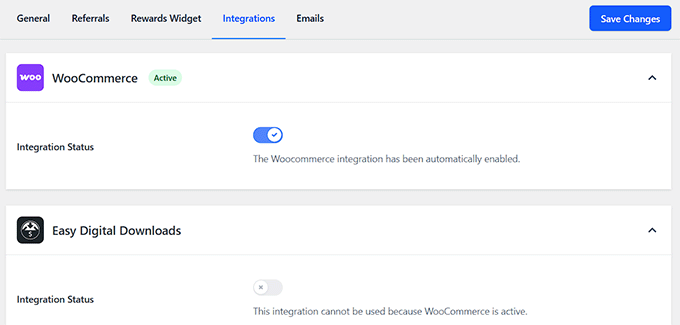
To do this, simply toggle the platform you use and click ‘Save Changes.’
This step is optional — if your website doesn’t sell products online, you can skip it and still run a fully functional referral program.
For online stores, I recommend double-checking after setup that all purchases are being credited correctly to both the advocate and the friend.
Step 5: Configure Email Settings
The RewardsWP plugin sends two key types of emails, and it’s important that they look like they’re coming directly from your store.
The first email is the invitation that your customer (the Advocate) sends to their friend, which you already customized in the Rewards Widget settings.
The second is an automated email that notifies the Advocate when their friend successfully makes a purchase, and their reward has been issued.
To set up the sender details for these emails, switch to the ‘Emails’ tab. Start by entering the ‘From Name,’ which should be your store’s name, so customers immediately recognize who the email is from.
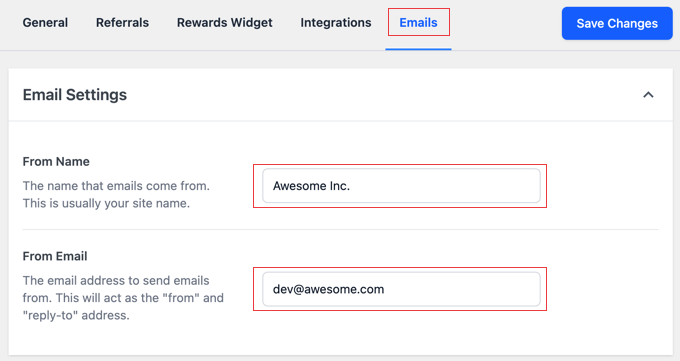
Then add the ‘From Email,’ using a professional address associated with your website, like support@yourstore.com. This ensures your rewards notifications look trustworthy and come from a recognizable source.
Once these are filled in, click ‘Save Changes’ to apply them.
💡 Pro Tip: By default, WordPress uses PHP mail to send emails, which can be unreliable and sometimes ends up in the spam folder.
To avoid this, I recommend using WP Mail SMTP. It is the best WordPress SMTP plugin that connects your site to a trusted mailer so that all rewards notifications reach your customers’ inboxes reliably.
Step 6: Track Your Program’s Success
Once your referral program is running, you can easily see how it’s performing from your WordPress dashboard. To view a live log of all referral activity, go to the RewardsWP » Referrals page.
You’ll now see a detailed table showing every referral, including who sent it, who received it, and its status. This is the best place to monitor your program’s success and see which customers are most active.
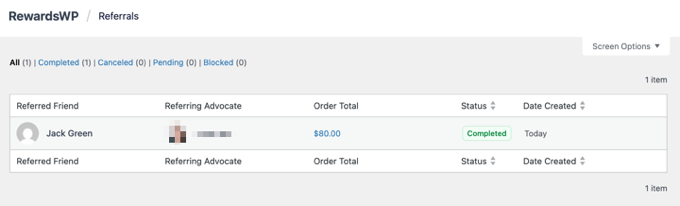
It’s a good idea to check this page regularly and identify your top advocates. You can then reach out to them personally with a thank-you message or even an extra bonus coupon.
This not only strengthens your relationship but also encourages more referrals over time.
For more detailed guidance, see our full tutorial on setting up a refer-a-friend program in WordPress.
❌ Common Mistakes to Avoid When Setting Up an Affiliate Program
Running an affiliate program can be a huge boost for your business, but I’ve noticed a few common mistakes that often trip up beginners.
Here’s what to watch out for:
- Not Defining Clear Rules: Make sure your affiliates know how commissions work, when they get paid, and what types of promotions are allowed. A simple, clear affiliate agreement goes a long way.
- Ignoring Email Notifications: Affiliates need to know when they earn rewards, when their applications are approved, or if a referral is rejected. Proper notifications keep your program transparent and build trust.
- Neglecting Tracking and Reporting: Without proper tracking, it’s hard to know which affiliates or campaigns are performing. Regularly check your reports in AffiliateWP or RewardsWP to stay on top of things.
- Offering Rewards That Aren’t Motivating: If the incentive isn’t appealing, affiliates won’t actively promote your products. Test different rewards to see what resonates with your audience.
- Not Blocking Self-Referrals: This is when people refer themselves just to get a discount on their own purchase. You should make sure your program has rules to prevent this so you don’t lose money.
- Allowing Spam or Fake Sign-Ups: Protect your program by enabling features like reCAPTCHA or manually approving affiliates. This ensures only serious affiliates are participating.
Avoiding these common pitfalls will make your referral program more professional, trustworthy, and effective.
Once these basics are in place, your program is set up for long-term success and happy affiliates who actively help grow your business.
Frequently Asked Questions About Referral Programs
Setting up your referral program is a big win for your business, but I know it can bring up a few questions about how it all works and how to manage it.
Here are answers to some of the most common questions I get from people just getting started:
What is a good commission rate for a referral program?
The ideal commission rate depends on your industry and profit margins. For digital products like software or courses, a rate of 20-30% is common. For physical goods, a rate of 5-10% is more typical.
The key is to offer a commission that is attractive to affiliates while remaining profitable for your business. It’s a good idea to research what similar companies in your niche are offering.
How do I find affiliates to join my program?
The best place to start is with your own audience. You can announce your new program to your email list and social media followers. Your most loyal customers often make the best advocates for your brand.
You should also add a link to your affiliate sign-up page in your website’s footer. Over time, you can reach out directly to bloggers and content creators in your industry and invite them to join.
To get started, take a look at our picks for the best affiliate marketing plugins in WordPress.
Should I choose AffiliateWP or Easy Affiliate?
Both are excellent plugins, and the right choice depends on your needs.
AffiliateWP is an incredibly powerful and flexible solution with a huge library of integrations. It’s a great choice if you want the most features and plan to build a large-scale affiliate program.
Easy Affiliate is known for its simplicity and ease of use, with a very friendly setup wizard. It’s an ideal choice for beginners or if you already use other products from the same team, like MemberPress.
Can I run a referral program for free?
While you can try to track referrals manually, it’s not recommended. A dedicated plugin like AffiliateWP or Easy Affiliate is a necessary investment to ensure accurate tracking and correct commission payments.
Trying to manage this manually often leads to errors and lost trust with your affiliates. The cost of the plugin saves you countless hours and ensures your program runs smoothly.
I hope this article helped you learn how to create a referral program in WordPress. You may also want to see our guide on how to write an affiliate product review in WordPress or check out our showcase of the best affiliate marketing tools for WordPress.
If you liked this article, then please subscribe to our YouTube Channel for WordPress video tutorials. You can also find us on Twitter and Facebook.




Mrteesurez
This guide is great. I have implemented a referral program on my site using AffiliateWP, and it’s been a powerful tool for driving traffics. The ease of tracking referrals and rewarding loyal customers really helped build a loyal community around my brand. Thanks for breaking down the steps so clearly.
WPBeginner Support
Glad our guide was helpful!
Admin
Haroon Shahid
Hey,
I want this when a user registers for affiliate program they should receive a Referral Link that we can track how many persons click on their link or buy stuff from their link
Which plugin or function do we need? Referral Link can be Manual or auto its not matter
Thank you
WPBeginner Support
Both of the plugins should allow you to track your affiliates, if you wanted something specific we would recommend checking with the plugin’s support and they can help clarify.
Admin
Brian
I’m looking for something very basic – I just want people to be able to refer their friends to my free newsletter, basically all they need is a unique referral URL. I don’t need them to log in for anything, there are no sales, etc. Just something quick and easy that integrates with MailChimp.
Does something like that exist??
WPBeginner Support
If you’re using MailChimp then their Forward to a Friend link sounds like what you’re wanting
Admin
Michael
Please how to i make users see the username of the people they’ve referred?
WPBeginner Support
You would want to check with the support for the affiliate plugin you’re using for if that is an option.
Admin
Bhupendra Singh Lodhi
Can I create a referral program in wp free
Christopher Scott
Thanks for this. I never knew this feature was available in WordPress. I should have known! WordPress have everything. Love it. I appreciate all your step-by-step tutorials here on this blog. Been reading for a while but rarely comment. Thanks.
Friday Alex
Thank you for this. I really think I will implement this in my store