


Affiliate programs are a powerful way to grow a WooCommerce store without relying on paid ads or doing all the marketing yourself.
Instead of handling everything in-house, you can let others promote your products and earn a commission only when they generate a sale.
It’s a win-win setup because you get more visibility, and affiliates are rewarded for driving results.
We’ve seen this strategy work well across many WooCommerce stores, especially when paired with the right tools. AffiliateWP is a favorite among several of our partner brands, but depending on your needs, other options may be a better fit.
In this guide, we’ll show you how to set up an affiliate program in WooCommerce, compare the top tools available, and help you choose the one that works best for your business.

Overview of the Best Affiliate Plugins for WooCommerce
🥇 First Place

Integrates seamlessly with WooCommerce for powerful affiliate management
Real-time reporting
Unlimited affiliates
Easy setup
🥈 Second Place

Customer-focused loyalty and referral program for WooCommerce
Points and rewards system
Refer-a-friend program
Built-in fraud prevention
🥉 Third Place

Self-hosted affiliate marketing solution for eCommerce
Commission tracking
Affiliate dashboard
Email marketing integration
Why Add an Affiliate Program to WooCommerce?
The main reason to add an affiliate program is to grow your WooCommerce store without relying on expensive paid ads. It allows you to partner with other marketers who will promote your products for you.
Instead of paying for clicks or impressions, you only pay a commission when a sale is actually made. This makes it a low-risk, high-reward marketing strategy.
Here are a few key benefits of starting an affiliate program:
- Pay Only for Actual Sales: Unlike ads, where you pay upfront and hope for results, affiliates only earn a commission when they send you a paying customer. That makes affiliate marketing one of the lowest-risk ways to grow sales, especially for smaller online stores with limited budgets.
- Reach New Customers You’d Never Find on Your Own: Affiliates promote your products through their blogs, YouTube reviews, email lists, and niche communities. This puts your products in front of shoppers who already trust the affiliate, often leading to higher conversion rates than with cold traffic.
- Better SEO: Affiliate reviews, tutorials, and comparison posts often include natural links to your product pages. Over time, this can strengthen your store’s authority and help your products appear more often in organic search results.
- Social Proof: When real people recommend your products in reviews, tutorials, or “best of” lists, it works as social proof. Shoppers are far more likely to buy after seeing your product recommended by someone they already follow or trust.
- Scale Marketing Without Adding More Work: Once your affiliate program is set up, your affiliates do the promotion for you. You’re not writing more ads, managing more campaigns, or creating daily content. The program keeps working in the background while you focus on running your store.
Typically, when a user signs up as your affiliate, they get a unique tracking link. If someone buys through that link, the affiliate earns a percentage of the sale price.
For digital products, this is often 30%. For physical products, the standard is around 5% to 10%.
However, WooCommerce does not include a built-in referral-tracking feature. To add this functionality, you will need to use an affiliate plugin. These tools allow you to add affiliates, track their performance, manage commissions, and grow your business.
We tested many of the best options in our article on the best WooCommerce affiliate marketing plugins.
And in this tutorial, we will show you four different ways to add an affiliate program in WooCommerce:
- How to Create a WooCommerce Affiliate Program Using AffiliateWP
- How to Create a Refer-a-Friend Program in WooCommerce With RewardsWP
- How to Build Your WooCommerce Affiliate Program Using Easy Affiliate
- How to Join AWIN to Start a WooCommerce Affiliate Program
- Frequently Asked Questions About WooCommerce Affiliate Programs
- Bonus Affiliate Marketing Guides to Help You Get Started
How to Create a WooCommerce Affiliate Program Using AffiliateWP
AffiliateWP is our top pick for affiliate marketing in WooCommerce, as it includes everything you need to build a thriving affiliate program. It was built with flexibility and scalability in mind, making it a great option if you plan to grow your affiliate program over time.
AffiliateWP seamlessly integrates with WooCommerce, allowing you to track affiliate referrals, manage commissions, and even set up advanced features such as coupon tracking and recurring commissions.
Plus, its real-time reporting tools and automated payouts simplify the management process, letting you focus on growing your program rather than handling the day-to-day details manually.
Several of our partner brands have successfully used AffiliateWP to build their affiliate programs, and their feedback has been super positive. We’ve also tested it ourselves, and we loved it. For a more in-depth analysis of the plugin, see our AffiliateWP review.
First, you will need to install and activate the AffiliateWP plugin. For details, see our tutorial on how to install a WordPress plugin.
Upon activation, a setup wizard will open up on your screen, where you need to add your license key. You can get this information from your account on the AffiliateWP website. Then, click the ‘Continue’ button.
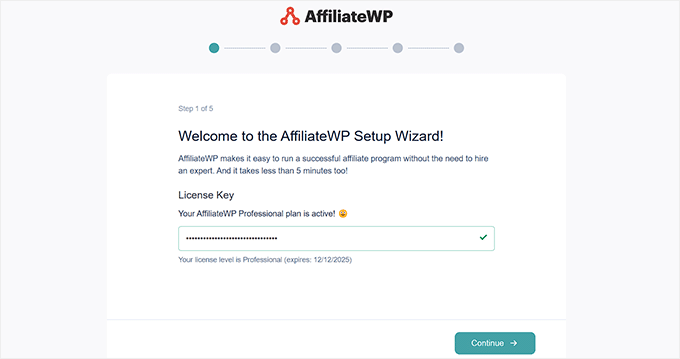
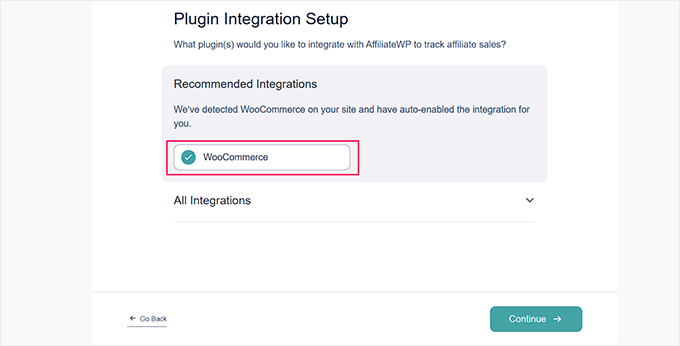
This will take you to the next step, where the plugin will recommend some popular plugin integrations.
From here, select WooCommerce and click ‘Continue.’
AffiliateWP will now automatically record referrals whenever someone visits your online store via an affiliate link.
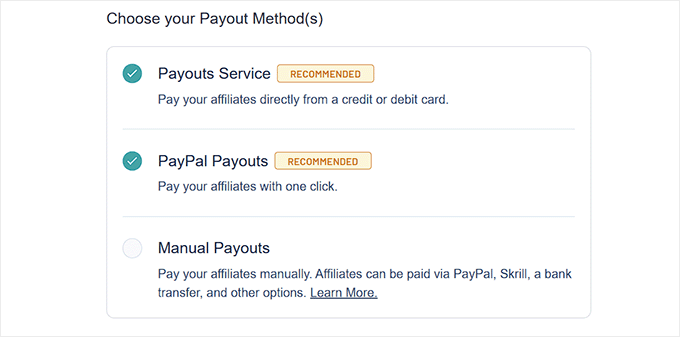
Then, you have to choose how you plan to pay your affiliate. You can select the ‘Payout Service’ option to pay from a credit card or the ‘PayPal Payouts’ option to offer one-click payouts.
Upon making a choice, you can move to the next step.
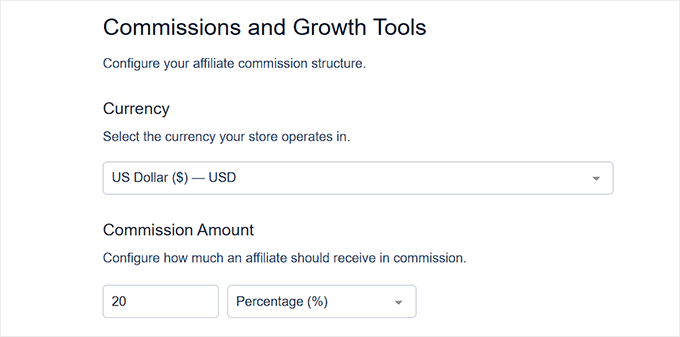
From here, you can choose a currency for your store.
You can also set a default commission rate for all your affiliates. You can later set a different commission rate for each affiliate as well.
Finally, click the ‘Finish Setup And Exit’ button.
You can now configure emails, add opt-in forms, and track all your affiliates from your WordPress dashboard. For more information, see our tutorial on how to easily create a referral program in WordPress.
Additionally, with AffiliateWP, you can download the ‘Affiliate Portal‘ addon. This allows you to use a dashboard where your affiliates can manage everything in a central place. This includes affiliate URLs, analytics, creatives, settings, and more.
It features an elegant interface that lets you and your affiliates view referral traffic, generate unique links, and create custom landing pages to promote your products.
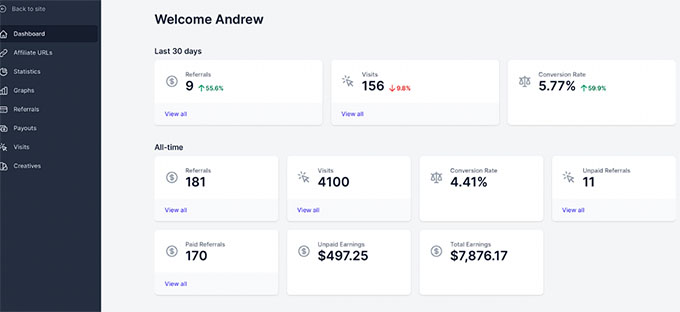
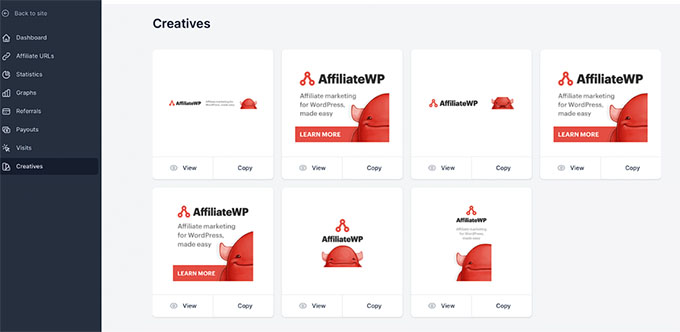
The portal even lets you view and manage all your creative materials in a central space. These are essentially marketing assets affiliates can use, such as banners, images, videos, and more.
To do this, switch to the ‘Creatives’ tab in the left column. This will display all your creative assets on the screen, where you can view, copy, and filter them.
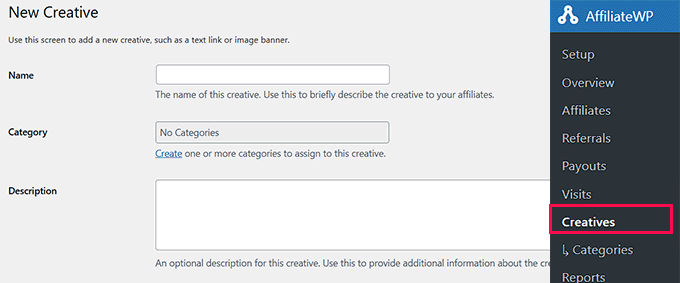
However, if you want to add a new creative, then you will have to visit the AffiliateWP » Creatives page from the WordPress dashboard and click the ‘Add New’ button.
This will direct you to a new page where you can add the creative’s name, category, description, image, URL, type, and status.
Once you are done, don’t forget to click the ‘Save Changes’ button.
✅ Pros of AffiliateWP:
- Easy-to-use interface with powerful customization options
- Affiliates can create custom coupon codes for their audiences
- Self-service referral link generation for affiliates
- An extensive library of free and premium add-ons is available
- No per-sale fees – just one annual plugin cost
- 30-day money-back guarantee
❌Cons of AffiliateWP:
- Refunds are only available for technical issues, not for a change of mind
- Advanced features like tiered commissions require higher-tier plans
Why we recommend AffiliateWP: It is the best choice for creating an affiliate program for your WooCommerce store, thanks to its seamless integration, ease of use, and scalability. It allows you to track affiliate referrals, manage commissions, and set up advanced features like coupon tracking and recurring commissions.
Pricing: AffiliateWP offers multiple plans, starting at $149.50/year for a single site. If you pay $299/year, you get all the “pro” addons included and all the features the plugin has to offer.
How to Create a Refer-a-Friend Program in WooCommerce With RewardsWP
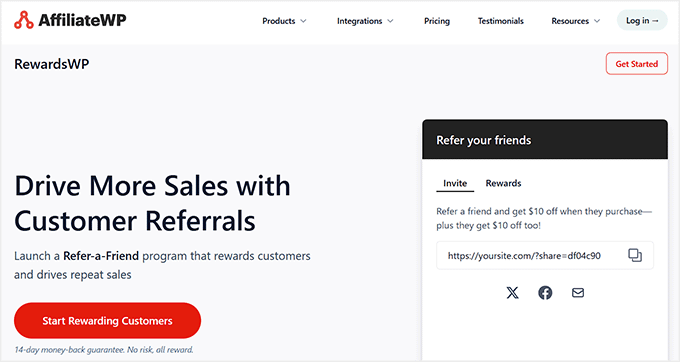
RewardsWP is a “refer-a-friend” plugin that lets you turn existing WooCommerce customers into repeat buyers and brand advocates, without managing a traditional affiliate program.
Unlike AffiliateWP, which is designed for working with affiliates and marketers, RewardsWP focuses on customer loyalty and referrals. It allows shoppers to earn points and rewards for purchases and referrals.
During testing, we found RewardsWP especially useful for stores selling physical or digital products where word-of-mouth plays a big role.
Since it integrates directly with WooCommerce and Easy Digital Downloads, rewards are applied automatically when orders are completed, without any complicated setup.
We also liked that RewardsWP includes built-in fraud protection. It automatically blocks self-referrals, duplicate accounts, and suspicious activity, keeping your referral program fair and reliable without manual monitoring.
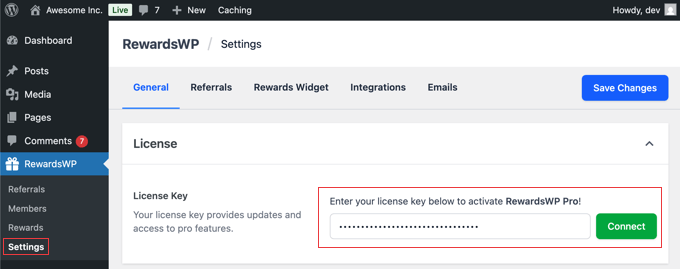
First, you will need to sign up on the RewardsWP website, purchase a license, and download the plugin. Then, install and activate RewardsWP in your WordPress dashboard.
Upon activation, go to RewardsWP » Settings, enter your license key from your account or confirmation email, and click ‘Connect.’
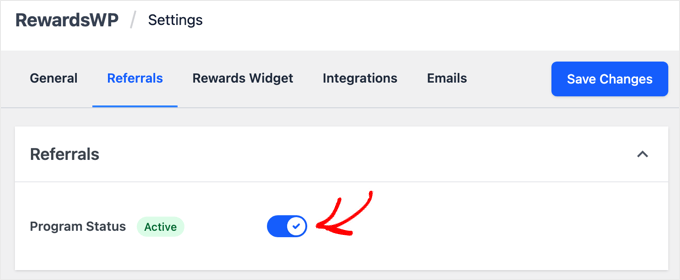
Next, configure your referral rewards. To do this, switch to the ‘Referrals’ tab and toggle the program status from ‘Inactive’ to ‘Active.’
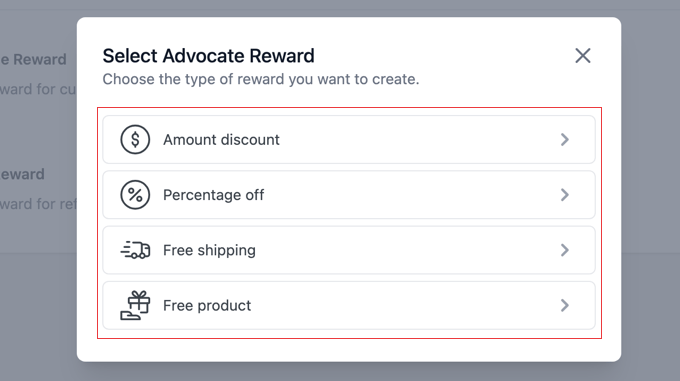
Then, click the ‘Add Reward’ button to set incentives for both your existing customers (Advocates) and the friends they refer.
You can choose from a fixed discount, a percentage off, free shipping, or a free product. Set the reward amount, minimum spend, and expiration, then click ‘Add Reward’ to save your settings.
Repeat the process for the Friend reward, and click ‘Save Changes’ to activate the program.
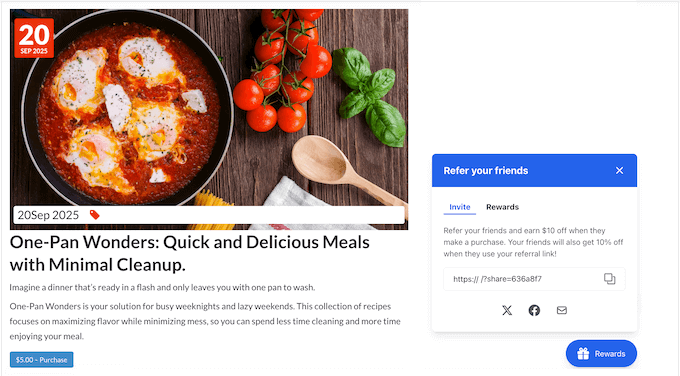
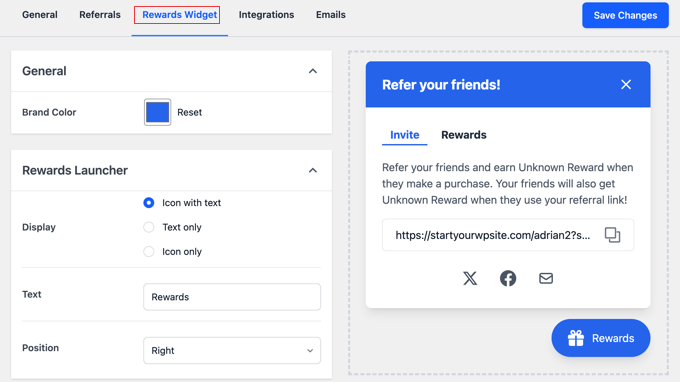
Customers can access a floating rewards widget to view points, grab referral links, and share them via email or social media.
You can adjust the brand color, display style, button text, position, and sharing options from the ‘Rewards Widget’ tab. Make sure to click ‘Save Changes’ to publish the widget.
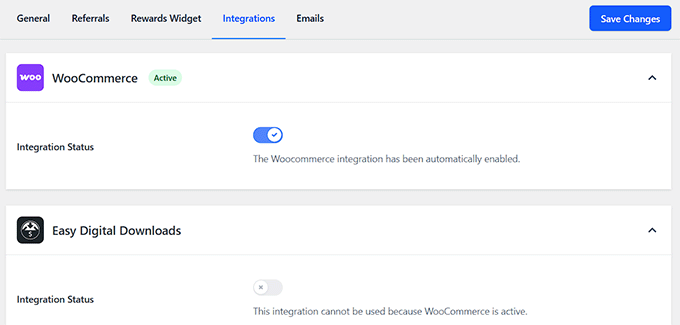
For online stores, you can connect RewardsWP to WooCommerce or Easy Digital Downloads from the ‘Integrations’ tab.
This allows the plugin to automatically track purchases, apply rewards, and assign referral credits without any manual work.
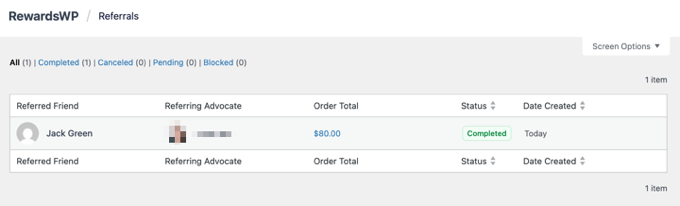
We also like how RewardsWP lets you track your program’s performance under RewardsWP » Referrals. You can see all referrals, who sent them, who received them, and their status.
This makes it easy to identify top advocates and encourage more referrals over time.
For more detailed instructions, check out our tutorial on creating a WooCommerce rewards program.
✅ Pros of RewardsWP
- Designed for customer loyalty and refer-a-friend programs
- Double-sided rewards encourage more referrals
- Works natively with WooCommerce and Easy Digital Downloads
- Built-in fraud prevention to stop self-referrals and abuse
- Clean, branded widget with no coding required
❌ Cons of RewardsWP
- Not designed for managing large affiliate teams
- The free version is limited
Why we recommend RewardsWP: It is a great option for WooCommerce store owners who want to increase repeat purchases and grow through customer referrals, rather than running a full affiliate marketing program. Its tight WooCommerce integration, simple setup, and fraud protection make it a reliable and beginner-friendly solution.
Pricing: RewardsWP is a premium plugin with plans starting at $79.50/year. It also comes with a 14-day money-back guarantee. There’s also a limited free version of RewardsWP available.
How to Build Your WooCommerce Affiliate Program Using Easy Affiliate
Easy Affiliate transforms your eCommerce store into a self-hosted affiliate marketing site. While it doesn’t offer quite as many features as AffiliateWP, its setup wizard is very user-friendly. This makes it a great option if you want to launch a simple yet effective affiliate program fast.
During testing, we noticed that its integration with WooCommerce is especially powerful. For instance, it automatically tracks product referrals in your WooCommerce store without a complicated setup. As soon as affiliates share their links, the plugin takes care of tracking clicks, sales, and commissions in real time.
For more details about our experience, see our Easy Affiliate review.
The plugin also offers a range of tools to help you build and maintain strong partnerships. Your referrals gain access to their own dashboard, where they can track their earnings, view performance metrics, and access pre-made promotional banners or links.
Plus, we love Easy Affiliate’s built-in email communication tools. These allow you to update affiliates about new products, special campaigns, or program changes directly from your WordPress dashboard.
First, you need to install and activate the Easy Affiliate plugin on your website. To learn more, you can refer to our step-by-step guide on how to install a WordPress plugin.
Once the plugin is active, you’ll be redirected to a new Easy Affiliate tab in your WordPress dashboard. Here, scroll down and click the ‘Launch the Wizard’ button.
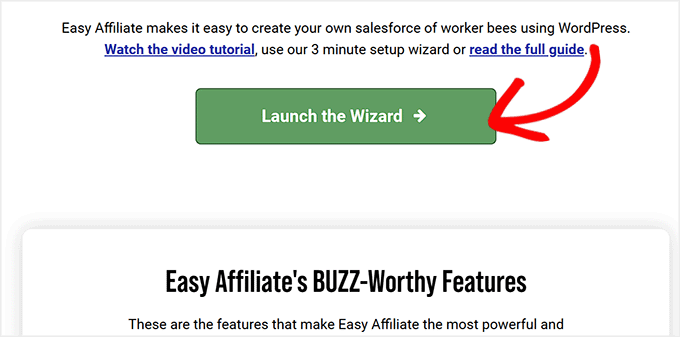
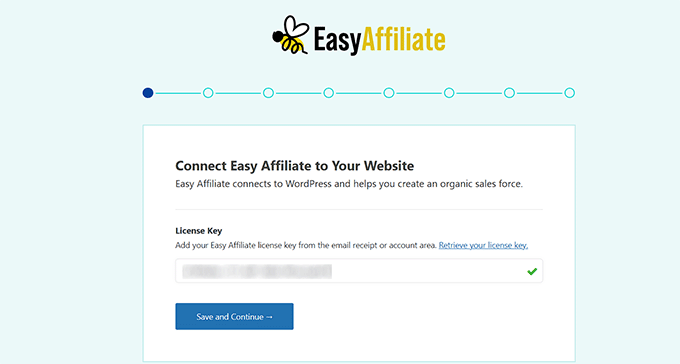
This will open a setup wizard on your dashboard, where you can start by entering your license key.
You can get this information in your Easy Affiliate account area and the email receipt. Then, click the ‘Save and Continue’ button.
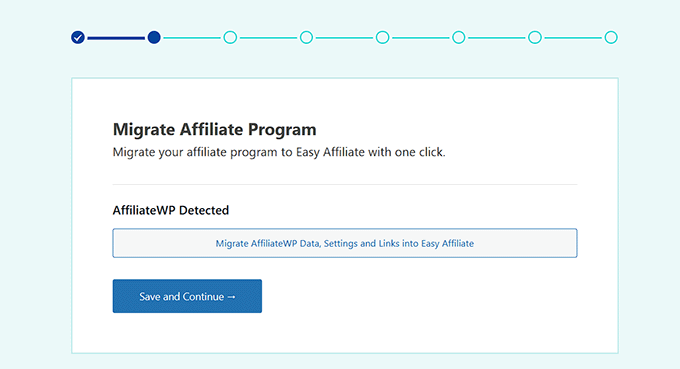
Next, Easy Affiliate will check for an affiliate program plugin and offer you an option to migrate your program.
You can click the ‘Save and Continue’ button.
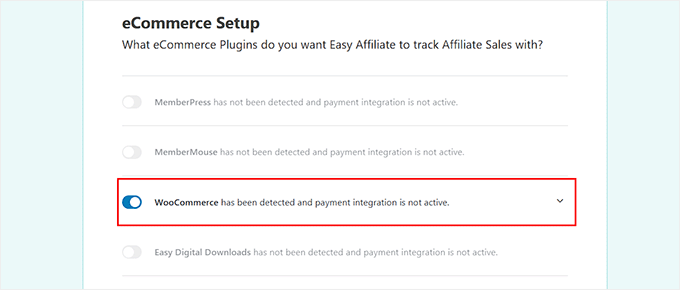
After that, you will be asked to choose an eCommerce plugin to connect with Easy Affiliate.
Here, you can enable the WooCommerce option and click the ‘Save and Continue’ button. You can also connect the tool with MemberPress, Easy Digital Downloads, and WPForms.
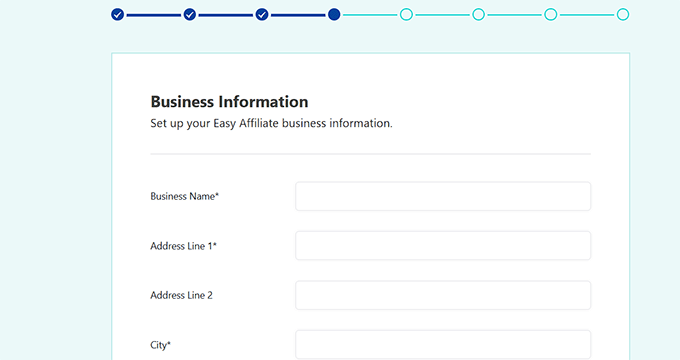
Then you’ll need to enter your business information, such as your name, address, city, state, and so on.
Once you have added these details, click the ‘Save and Continue’ button.
Next, you can set up your affiliate program’s registration process using one of Easy Affiliate’s 3 options.
The ‘Application’ option lets your affiliates apply to your affiliate program, and you can then approve users based on their applications.
In addition, you can choose the ‘Public’ option, where anyone can instantly become an affiliate without approval, or you can go for the ‘Private’ option to manually add affiliates.
We recommend using the Application process to get to know your affiliates before approving them to join the program.
Once you have done that, you can collect affiliate addresses and tax information ‘On Registration’ or ‘On Account’ and make it a required field (or not).
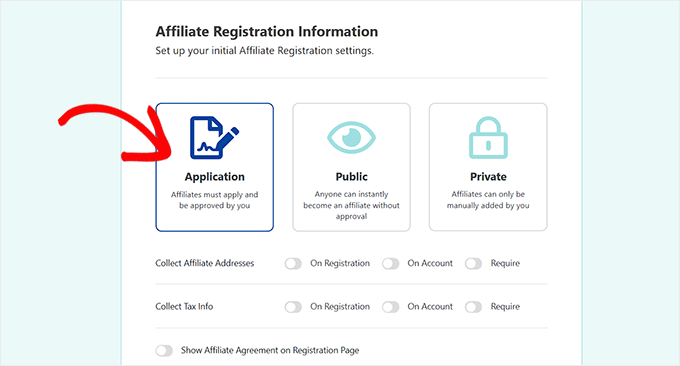
If you have an affiliate agreement, then you can also show it on your registration page by enabling the ‘Show Affiliate Agreement on Registration Page’ option. Once you’re done, click the Save and Continue button.
Next, you’ll want to set up your affiliate commissions. You can select a fixed amount or percentage as your commission type.
After that, type in the percentage or amount for the commission, select whether to pay the commission on the first sale only or on all sales, and choose a payment method.
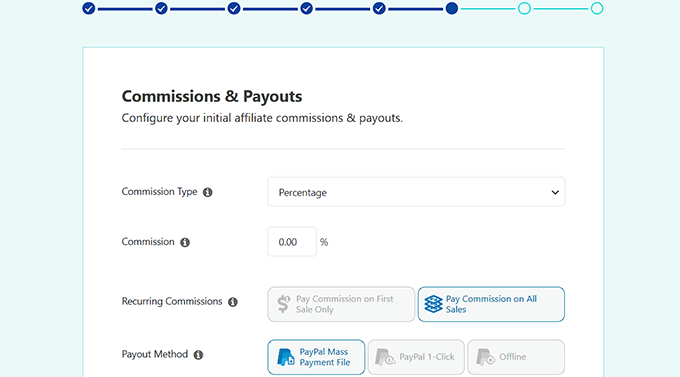
When you’re satisfied with the settings, you can click the ‘Save and Continue’ button.
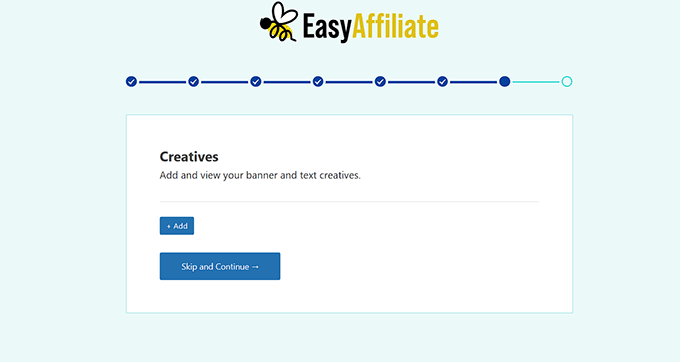
In the next step, Easy Affiliate will ask you to add a banner and text creatives for your program. Providing these resources for your affiliates makes it easier for them to promote your products or services. Click the ‘Add’ button to upload your creatives.
If you don’t have a banner or text creatives yet, then simply click the ‘Skip and Continue’ button.
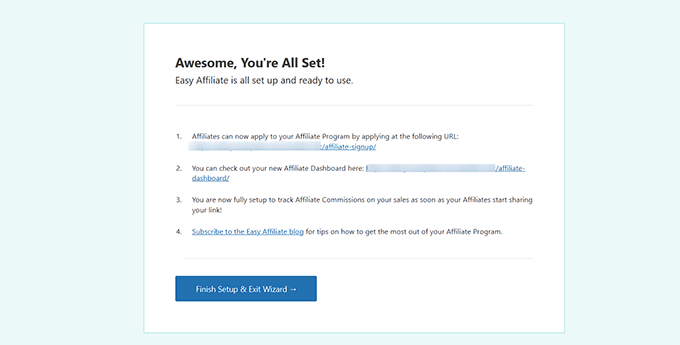
In the final step, you can review your WooCommerce store’s affiliate program.
After that, click the ‘Finish Setup & Exit Wizard’ button.
✅ Pros of Easy Affiliate:
- Quick setup with one-click WooCommerce integration
- Built-in fraud detection to prevent suspicious affiliate activity
- Streamlined affiliate application and approval process
- Comprehensive marketing materials (links, banners, text creatives)
- Powerful add-ons for commission levels and third-party integrations
- No per-sale fees – only annual plugin cost
❌Cons of Easy Affiliate:
- Affiliates are limited to pre-approved page links only
- Restrictive 14-day refund policy (technical issues only)
- No free trial or lite version available
Why we recommend Easy Affiliate: If you want complete control over your affiliate program, then Easy Affiliate is the solution for you. It offers features like customizable commission structures, real-time tracking, and secure fraud protection. These tools ensure that your affiliate program runs smoothly and stays profitable and trustworthy.
Pricing: Easy Affiliate pricing plans start from $99.60 per year for one website. If you want to use the plugin on more than one website, then you will need their Pro plan. It will cost you $199.50, and you get features like automatic fraud detection and setting up advanced commission rules.
How to Join AWIN to Start a WooCommerce Affiliate Program

AWIN (formerly ShareASale) is a bit different from the other options we’ve covered. It is an affiliate network, not just a standalone WordPress plugin. This means you can list your products in a marketplace where thousands of marketers are already looking for items to promote.
Several of our partner brands use AWIN. They are happy with how it helped them boost sales and conversions by connecting them with top-tier affiliate marketers.
We also like that it has a user-friendly interface. It offers everything you need to grow a successful affiliate program, from tracking referrals to managing payouts.
Plus, when you join AWIN as a merchant, the setup wizard on their website will walk you through setting up your account.
It can also be used with WooCommerce if you install a plugin like Awin – Advertiser Tracking for WooCommerce.
After installing and activating the plugin, visit the Settings » Awin Advertiser Tracking page from your WordPress dashboard. This will show your ‘Tracking Settings’ where you’ll need to enter your Advertiser ID.
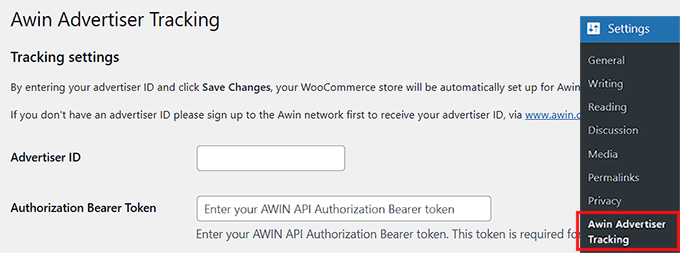
Make sure you click ‘Save Settings’ after making these changes.
✅ Pros of AWIN:
- Access toa large network of pre-screened affiliates
- No software installation required – fully hosted solution
- Automated affiliate payments and management
- Professional affiliate screening and approval process
❌ Cons of AWIN:
- High monthly costs ($49 per month) + 3.5% tracking fee
- More complex WooCommerce setup process compared to other options
Why we recommend AWIN: This platform stands out as a top choice for WooCommerce store owners who want to use a powerful affiliate network rather than a standalone WordPress plugin. This way, they don’t have to manage affiliates themselves. Its user-friendly interface and amazing features make it an excellent solution for managing affiliate programs seamlessly.
Pricing: AWIN starts at $49/month. However, you can use the platform for free in the first month.
Frequently Asked Questions About WooCommerce Affiliate Programs
Here are some frequently asked questions from our readers about WooCommerce affiliate programs.
Do I need coding knowledge to set up an affiliate program in WooCommerce?
No, you don’t need coding knowledge to set up an affiliate program in WooCommerce. Many affiliate tools, such as AffiliateWP, RewardsWP, and Easy Affiliate, are designed with ease of use in mind. These plugins offer intuitive interfaces, step-by-step setup guides, and smooth integration with WooCommerce, making the process straightforward.
With these tools, you can configure your program, set commission rates, and track affiliate performance directly from your WordPress dashboard without writing a single line of code.
Can I recruit affiliates for my WooCommerce store?
Yes, you can recruit affiliates for your WooCommerce store. One way is by creating a dedicated affiliate registration page on your website where interested individuals can sign up.
Most affiliate plugins, including AffiliateWP, Easy Affiliate, and even RewardsWP (for referral programs), make it easy to set up and manage this process.
You can also join networks like AWIN to connect with a larger pool of affiliates who are actively looking for products to promote.
This marketplace helps you find affiliates who specialize in your niche, giving your WooCommerce store more exposure and increasing the chances of attracting high-quality promoters who can drive sales.
Are there fraud prevention features for affiliate programs?
Yes, many affiliate programs include fraud prevention features to protect your business. Tools like AffiliateWP, Easy Affiliate, and RewardsWP offer built-in fraud protection, such as referral verification, IP tracking, and prevention of duplicate accounts or self-referrals.
Additionally, some platforms allow you to manually review transactions and set rules to detect suspicious activity. These features help maintain the integrity of your program and reduce the risk of paying for invalid or fraudulent sales.
How do I promote my affiliate program to attract affiliates?
To effectively promote your affiliate program and attract affiliates, you can try the following tips:
- Create a dedicated affiliate registration page on your website with easy instructions for affiliates to sign up.
- Use tools like OptinMonster to create pop-ups or landing pages that capture the interest of potential affiliates directly from your site visitors.
- Promote your affiliate program on social media by sharing posts and stories.
- Use email marketing to target your existing subscribers, inviting them to join your affiliate program and earn commissions.
- Encourage your current affiliates to refer others by offering bonuses or additional commissions for bringing new affiliates to your program.
By combining these tactics, you can attract high-quality affiliates to help grow your WooCommerce store.
Bonus Affiliate Marketing Guides to Help You Get Started
Here are some affiliate guides to help you get started:
- The Ultimate Affiliate Marketing Guide for Beginners – Step by Step
- Best Affiliate Tracking and Management Software for WordPress
- How to Generate Leads Through Affiliate Marketing in WordPress
- How to Build an Amazon Affiliate Store Using WordPress
- Affiliate Marketing Statistics You Need to Know
- How to Add Affiliate Disclosure for Each Blog Post Automatically
- Common Affiliate Marketing Scams and How to Avoid Them
- Best WordPress Themes for Affiliate Marketing
- How to Write an Affiliate Product Review (Expert Tips)
If you liked this article, then please subscribe to our YouTube Channel for WordPress video tutorials. You can also find us on Twitter and Facebook.




Mrteesurez
Welldone for this post, it is informative. I see it as a smart move adding affiliate program into websites that sell products or course, it’s is a great form of incentivising buyers to grow sales for you and automatically become your marketers.
I have been using AffiliateWP on my site since and it’s working fine making me integrate affiliate marketing program in to my easily. The best part of it, is that I can also track link on external website.
Eesa
Share a Sale has NEVER been $550….it’s free!
WPBeginner Support
You are thinking of joining as someone who promotes affiliates. If you want to join as a merchant so others can promote your product there is a fee.
Admin
Goodie
How does a person who registers for your woocommerce affiliate program gets paid?
WPBeginner Support
It would depend on the tool you use, there should be different payout options available.
Admin
lahorified
Thankful to you for sharing this awesome article this is the blog that provides lots of good information thanks for providing such good information.
WPBeginner Support
You’re welcome, glad you found our content helpful
Admin
Brian Kimble
I notice that you don’t list the actual affiliate service you use which I believe is called Tasty Affiliate. Did you guys switch or why is that?
WPBeginner Support
We use Thirsty Affiliates for links to other sites affiliate programs, this article is for creating an affiliate program for your site
Admin