


Plain WordPress comments can be hard to read. Visitors want to share their ideas or gain insights, but without simple formatting options, their key points, links, or emphasis can get lost in a wall of text.
One of the easiest ways to fix this is by adding quicktags to your WordPress comment forms.
These little formatting buttons let your visitors bold, italicize, link, and style their comments – all without knowing a single line of code.
In this guide, you’ll learn how to add quicktags to your WordPress comments. This way, your discussions are clearer, more engaging, and more enjoyable for everyone on your site.
💡 TL;DR: You can add formatting buttons like bold, italic, links, and blockquotes using the Simple Comment Quicktags plugin. Once activated, it automatically adds these buttons to your comment form, making discussions easier to read and more engaging.
Why Add Quicktags in Your WordPress Comment Forms?
Quicktags give visitors simple buttons to format their WordPress comments, like making text bold, italic, or adding links, without needing any technical knowledge.
If you’ve used a word processor like Google Docs or the old WordPress Classic Editor, you’ve already seen how these formatting buttons work.
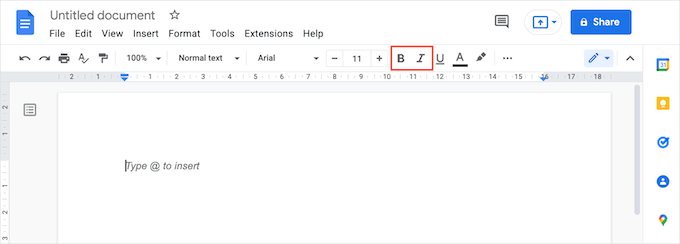
For example, in this image, you can see that Google Docs has buttons for creating bold and italic text.
These buttons can encourage people to comment more because they make it easier for visitors to organize their thoughts. For example, someone reviewing your tutorial might highlight a helpful step in bold or quote part of your post when asking a question.
They’ll also feel more inclined to express their thoughts in more detail, which leads to increased user engagement on your site.
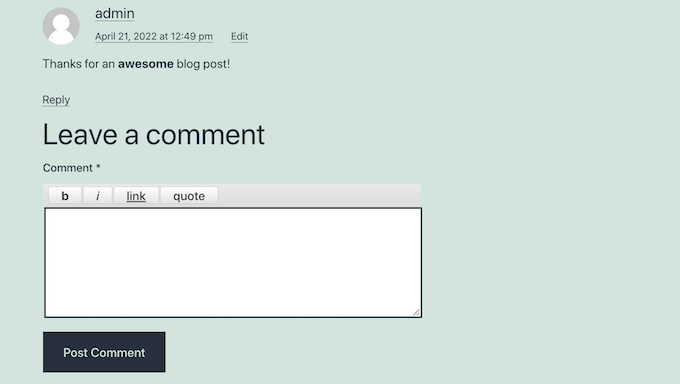
In the following image, you can see that the bold word stands out from the rest of the comment text:
Formatting can also encourage visitors to read your post’s entire comment section, even when it’s long and even when your comments are split across multiple pages.
With that in mind, we’ll show you how to add formatting quicktags to your WordPress comment forms. Here’s a quick overview of all the topics we’ll cover in this guide:
Let’s get started.
How to Add Quicktags in Your WordPress Comment Forms
The easiest way to add quicktags to your WordPress comment forms is by using the Simple Comment Quicktags plugin.
⚠️ Note: Though this plugin isn’t currently maintained, we’ve recently tested it ourselves and found it’s still working properly. If you’re unsure about it, you can check our article on whether it’s safe to use an outdated plugin.
First, you’ll need to install and activate the plugin. If you need help, please see our guide on how to install a WordPress plugin.
Once you activate this plugin, it will add new settings to your WordPress website’s comment form. Just visit any page or post to see your new quicktags live.
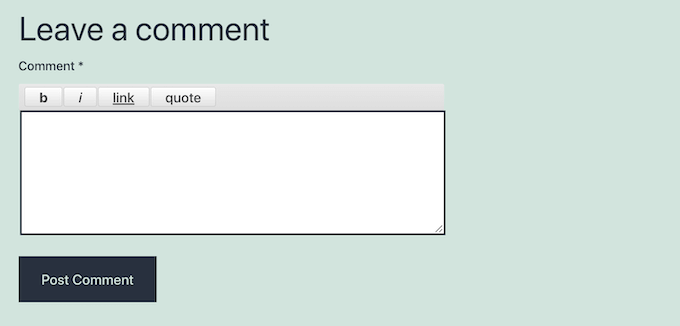
So, whenever visitors want to make their text bold or italic, they simply need to click on the ‘b’ for bold or ‘i’ for italic buttons.
This will add an HTML opening tag to their comment. For example, clicking the bold button inserts the <strong> tag, which tells WordPress to display the following text in bold.
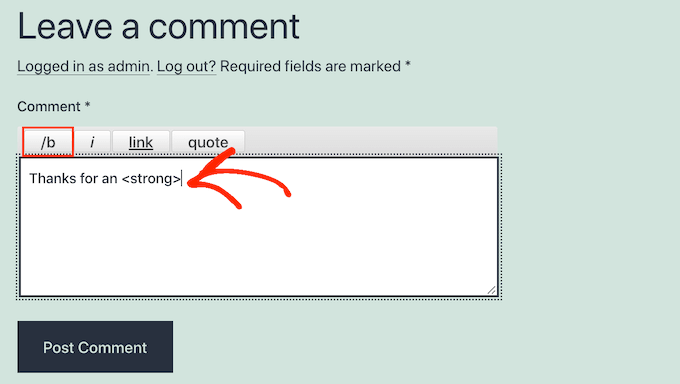
Now, everything the visitor types after that will have bold or italic formatting.
When they want to type plain text again, they just need to click the ‘b’ or ‘i’ button again.
Then, the bold or italic closing tag will appear. This tells WordPress where the formatting should stop, so only the selected part of the comment appears in bold or italics.
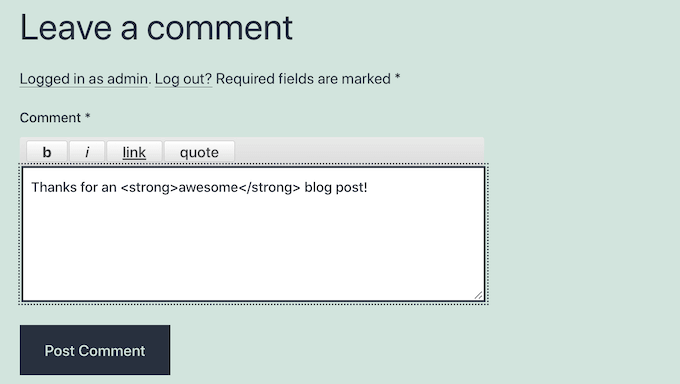
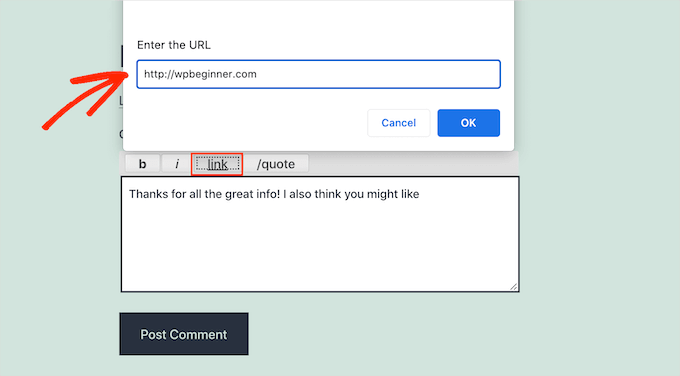
Visitors can also use a ‘link’ button to add links to their comments.
This lets them share useful resources with other readers. For example, someone might link to another helpful tutorial, a tool they recommend, or a source that supports their comment.
🛑 Important: Some people may use the ‘link’ quicktag to post spam links. Because of this, you may want to take extra steps to combat comment spam in WordPress and moderate your comments carefully.
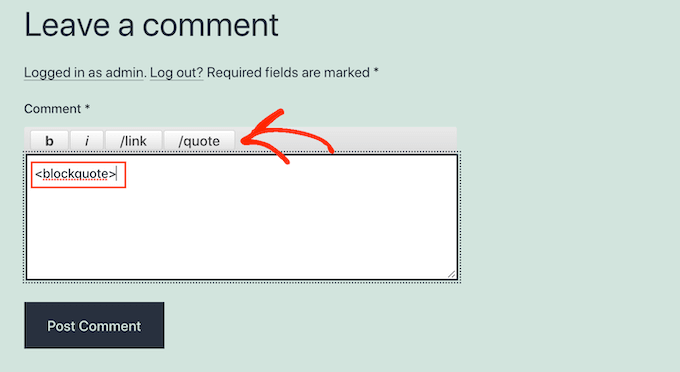
The final quicktag is blockquotes.
Your visitors can use this quicktag to quote part of your post or another commenter’s message. This can make replies clearer when someone is responding to a specific point in a discussion.
For more details, see our guide on how to customize blockquotes in WordPress.
Bonus Tip: Boost Engagement With Thrive Comments
Want to make your WordPress comments even more engaging? You can try using Thrive Comments.
Thrive Comments is part of the Thrive Themes Suite, and it’s the best WordPress comments plugin to improve user engagement on your website.
We’ve tested it extensively to explore its features, and you can find a dedicated section about it in our detailed Thrive Themes Suite review.

With Thrive Comments, you can allow users to like or dislike comments. This helps make the conversation more interactive.
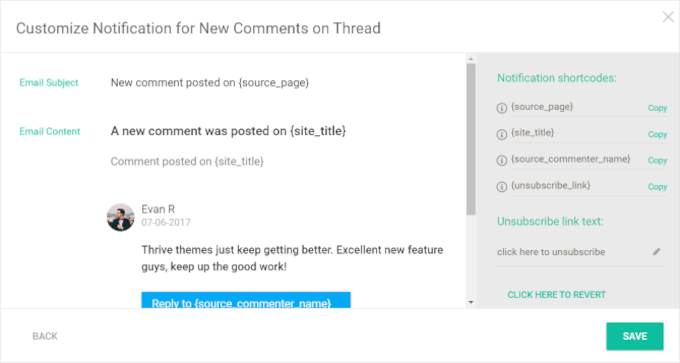
You can also let users subscribe to comments. This means they’ll get notified when new comments are added.
Another cool feature is notifying users only when someone replies to their comment. This keeps them in the loop without spamming their inbox.
FAQs: Quicktags in WordPress Comment Forms
Before we wrap up, here are some common questions about adding formatting options to WordPress comments, along with practical answers.
Is it safe to use the Simple Comment Quicktags plugin if it’s outdated?
It’s completely reasonable to be cautious with outdated plugins. The Simple Comment Quicktags plugin hasn’t been updated recently, but it has been tested on current WordPress versions and works as expected.
Still, it’s a good idea to try any plugin on a staging site first to make sure it works with your setup. For more details, check out our guide on whether it’s safe to use outdated WordPress plugins.
What HTML tags are allowed in WordPress comments by default?
WordPress allows a limited set of HTML tags in comments for security. This usually includes tags for links, bold, italics, and quotes.
The list includes: <a href="" title="">, <abbr title="">, <acronym title="">, <b>, <blockquote cite="">, <cite>, <code>, <del datetime="">, <em>, <i>, <q cite="">, <s>, <strike>, and <strong>.
Quicktags just make using these tags easier.
What is the shortcode for the comment form in WordPress?
By default, WordPress doesn’t have a dedicated shortcode for the comment form. Instead, comment forms are usually displayed automatically at the bottom of posts and pages where comments are enabled.
Additional Resources to Improve Your Comments Section
We hope this article helped you learn how to add quicktags in your WordPress comment forms. Now that your comment section is more user-friendly, you may also want to check out these other guides to further improve engagement.
- How to Moderate Comments in WordPress
- How to Allow Users to Edit Their Comments in WordPress
- How to Allow Users to Post Anonymous Comments in WordPress
- How to Quickly Batch Delete Spam Comments in WordPress
- How to Fix ‘Comments Are Closed’ in WordPress
If you liked this article, then please subscribe to our YouTube Channel for WordPress video tutorials. You can also find us on Twitter and Facebook.




mr jeqnko T
Cool been looking for this kind of a plugin for a long time
Adrian Robertson
I can see some quick tags being useful, others not so. I guess it depends on the type of forum you are trying to promote. I can certainly see how a link could be useful on many tech / web blogs, but general styling (bold, italics, headings, etc) not so sure about.
Having said that, it hasn’t stopped me installing this plugin on my own site!
I’ll be curious to see who uses the styling buttons (if anyone)