


Nothing drives visitors away faster than a clunky search experience.
We’ve seen many WordPress sites struggle with high bounce rates simply because their search results weren’t helpful. When visitors can’t filter content by category or tag, they often leave without finding what they need.
Adding an Ajax taxonomies filter to your WordPress search can completely transform how visitors interact with your content. It lets visitors instantly narrow down results by category, tag, custom field, or post type, which can lead to a more user-friendly experience.
In this guide, we’ll show you how to add an Ajax taxonomies filter to your WordPress site. By the end, you can give your visitors a fast, intuitive search experience. 🙌
Why Use Ajax Taxonomies Filter in WordPress Search?
Ajax-powered search is faster and provides a better user experience than the default WordPress search function.
For example, a car dealership website may have custom taxonomies for different vehicle types, price ranges, models, and more. Ajax filters can help users find exactly what they need.
You can add similar search filters in WordPress to improve your site’s user experience. WordPress also helps website administrators organize their content so that users can easily find it.
However, the default WordPress search is not that powerful and doesn’t offer the ability to filter content based on categories, tags, post types, product details, and more. If you use custom taxonomies on your site, the default search performs even worse.
This is where you’ll need a WordPress plugin to help you out. In the following sections, we’ll cover 2 methods on how to add an Ajax taxonomies filter to a WordPress search.
The first method will help you show filters on the front end of your WordPress website. The second method will help you improve the default WordPress search and include taxonomies when searching posts and pages on your site.
Simply click the links below to jump ahead to your preferred section:
Ready? Let’s get started.
Method 1: Add Ajax Taxonomies to WordPress Search Using SearchWP
The easiest way to add Ajax taxonomies to WordPress search is by using SearchWP. It’s the best search plugin for WordPress and makes it easy for users to find what they’re looking for on your website.
It goes beyond using just the content on your blog posts and pages to look up things. SearchWP uses custom fields, taxonomies, WooCommerce product attributes, text files, custom tables, and more.
For more information about the plugin, see our extensive SearchWP review.

⚠️ Important: Please note that SearchWP won’t show the taxonomies filters on your website’s front end. However, it will include them in the search process and improve the default WordPress search.
First, let’s visit the SearchWP website and sign up for an account. After that, you can download and install the plugin on your site. If you need help, then please see our guide on how to install a WordPress plugin.
Upon activation, you will need to go to SearchWP » Settings from the WordPress admin panel. From here, simply enter the license key, which you can easily find in your account area.
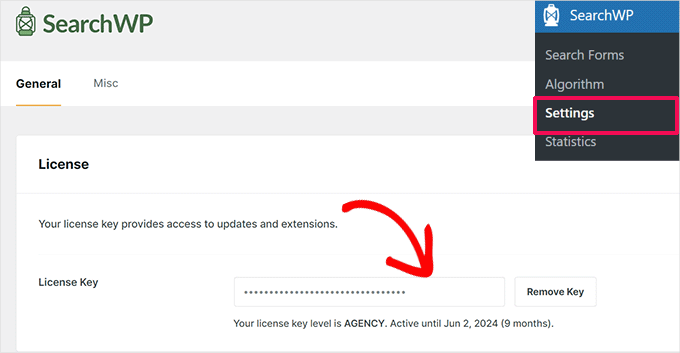
Now, you can go to SearchWP » Algorithm from the WordPress dashboard.
From here, you can edit the search relevance for your website. For instance, you can increase weights for title, content, slug, and excerpt to help users find what they’re looking for.
To add taxonomies to the search relevance, you can click the ‘Add/Remove Attributes’ button.

This will open a new window.
You can click the ‘Taxonomies’ dropdown menu and select whether you’d like to include categories, tags, formats, or all of them in the WordPress search.
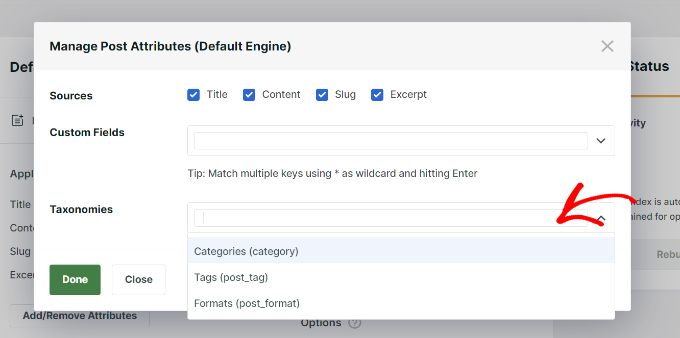
After selecting the taxonomies, don’t forget to click the ‘Done’ button.
You should now see the taxonomies for your WordPress blog post search algorithm. You can use the slider to increase their relevance in WordPress searches.
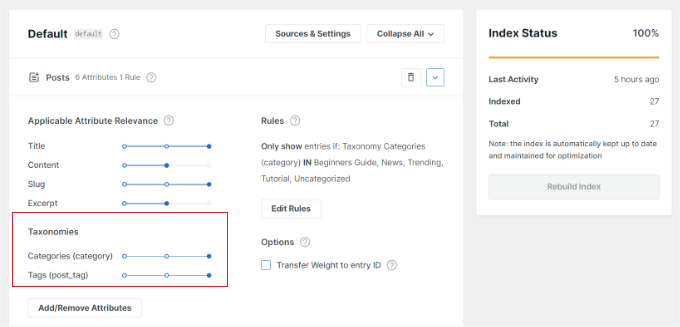
You can also click the ‘Edit Rule’ button to determine what content can and cannot appear in the search results.
For instance, SearchWP will include all the categories on your website. You can remove categories from which you don’t want the content to show up or add multiple conditions to customize the search results.
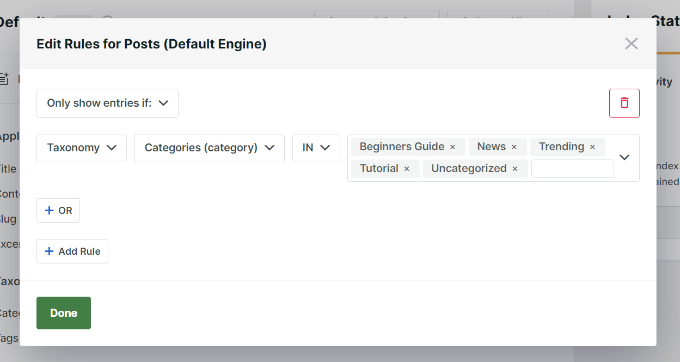
Don’t forget to click the ‘Done’ button when finished.
You can now edit the search algorithm for your pages, media files, WooCommerce products, and more to show up in SearchWP.
Now, whenever a visitor searches for pages and posts on your website, SearchWP will include taxonomies during the search process.
Method 2: Add Ajax Taxonomies Filter Using Search & Filter Plugin
Another method to add an Ajax taxonomies filter to your website is to use a free WordPress plugin like Search & Filter. While it requires a bit of coding, it’s still easy to use and allows your users to search based on category, tag, custom taxonomy, post type, and more.
First, you will need to install and activate the Search & Filter WordPress plugin. For more details, please see our guide on how to install a WordPress plugin.
Upon activation, you can add a shortcode to show the Ajax taxonomies filter anywhere on your website.
For instance, you can enter the following shortcode to show the category and post-type dropdown filter:
[searchandfilter fields="search,category,post_tag"]
On the other hand, if you want to show headings for categories and tags, then you can add the following shortcode:
[searchandfilter fields="search,category,post_tag" headings=",Categories,Tags"]
Here’s what the Ajax taxonomies search filter looks like on our demo site.
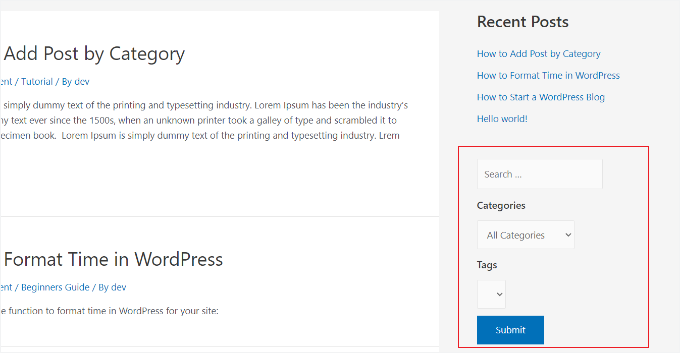
In the screenshot, you can see the filter in the sidebar where users can use the dropdown menu and select a category or tag.
The plugin also lets you show filters as radio buttons and checkboxes.
You can add the following shortcode anywhere on your site to show taxonomy filters as checkboxes:
[searchandfilter fields="search,category,post_tag" types=",checkbox,checkbox" headings=",Categories,Tags"]
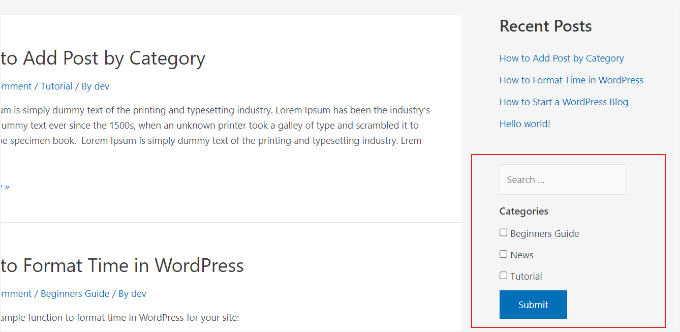
In the screenshot above, you can see the taxonomies filter as checkboxes. Users can simply select categories from which they want to view posts and pages.
Bonus Tips: More Things You Can Do with SearchWP
Once you’ve added Ajax taxonomies filtering, there are even more ways to improve your WordPress search with SearchWP. Here are a few extra features worth checking out:
🌫️ Use Fuzzy Search for Better Matching
By default, WordPress search only looks for exact matches. That means if a visitor misspells a word or uses a slightly different phrase, they might not find what they’re looking for.
Fuzzy search solves that problem by showing results that are close enough, like catching typos or similar word forms. It’s a simple way to customize your WordPress search to be smarter.

See our guide on how to add fuzzy search in WordPress for more details.
📄 Make PDF Files Searchable
If you share PDFs on your site, like manuals, eBooks, or brochures, SearchWP can index the content inside those files. This means when someone uses your search bar, results can include what’s written inside the PDFs, not just the file titles.
It’s especially useful for business sites, resource-heavy blogs, and even schools.
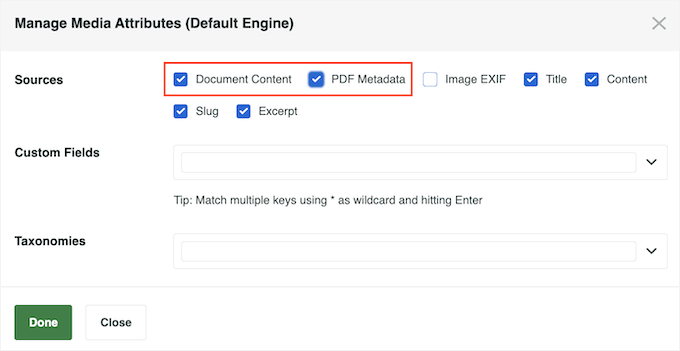
Learn more in our guide on how to add PDF indexing and searching in WordPress.
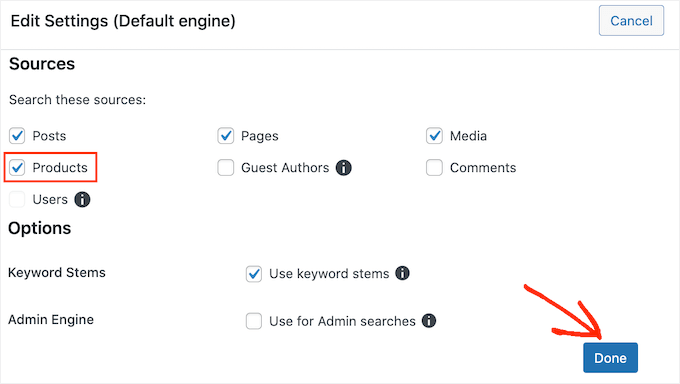
🛍️ Improve Product Search in WooCommerce
If you run an online store, SearchWP can upgrade your product search, too.
Instead of relying on WooCommerce’s default search, you can create a smarter product search that prioritizes titles, categories, tags, or even custom fields. This helps customers find the right product faster, and that can lead to more sales.
See our guide on how to make a smart WooCommerce product search.
And for more tips and tricks, you can see our guide on how to improve WordPress search with SearchWP.
We hope this article helped you add an Ajax-powered taxonomy filter to your WordPress search on your site. You may also want to check out our guides on how to fix WordPress search not working and how to see search analytics in WordPress.
If you liked this article, then please subscribe to our YouTube Channel for WordPress video tutorials. You can also find us on Twitter and Facebook.




Dennis Muthomi
SearchWP plugin is the best when it comes to this. It’s great that it includes custom fields and WooCommerce product attributes in the search process.
ANd I am ok with shortcodes, the Search & Filter plugin offers a flexible solution. The examples of different shortcode configurations are particularly helpful. I’ve used this plugin on a client’s site and found that combining checkbox and radio button filters can create a powerful, intuitive search interface.
Jiří Vaněk
Thanks for the advice on how to improve my blog search. I will try the SearchWP Live Ajax Search plugin. The only thing that discourages me a bit from using it is that it was only tested on WordPress version 6.2 and now we already have WordPress version 6.4.2. So hopefully an update will come very soon.
WPBeginner Support
If you also reach out to the plugin’s support you can normally let them know and they can look to update or let you know if they have a reason why they have not updated the tested version
Admin
Jiří Vaněk
Thanks for the advice, I will try to ask on the official forum directly on wordpress.org, because this plugin appeals to me mainly on those sites that have more articles and categories for a much better search experience. At the same time, when it’s not about my sites, I’m a little worried about security. Thank you for the advice.
Dylan
Is there anything like this plugin that is currently maintained? This plugin hasn’t been updated in a while.
realmag777
And one more thing – qTranslate friendly!+
James
Thanks for the recommendation. I went to install this plugin and found that the plugin author is no longer updating Ajax WP Query Search Filter.
Instead, he’s rolled this plugin into his newer one (which he’s still supporting): Ultimate WP Query Search Filter http://wordpress.org/plugins/ultimate-wp-query-search-filter/
WPBeginner Support
James, thanks for notifying us.
Admin
Mohammed Debashi
Can this plugin do search filters for a category, and its children. not sure if I am explaining myself properly. but something along the lines of Country -> State -> City..etc
Also is it compatible with WPML
Mike
Hey, thanks for this! Quick question: I’m having trouble applying jQuery stuff like tooltips to the AJAX content loaded, I guess because it only applies to content loaded upon initial page load. Any ideas on how to make the AJAX content get recognized? Thanks!
Thomas
Hi,
Which template file this plugin is looking for when displaying restults ?
Thanks !
th.
Zakaria
Hello!
I think Advance WP Query Search Filter is a lot better.
Piet
Cool, is the Ajax WPQSF plugin compatible with Relevanssi?
WPBeginner Support
We haven’t tested it with Relevanssi so we can’t say for sure.
Admin