


Have you ever landed on a recipe or product page and found yourself wondering, “How many cups is 500 milliliters?” or “What’s 3 meters in feet?” 🤔
If your WordPress site gets visitors from around the world, confusing measurements can quickly frustrate your audience and lead them to click away. This is especially true for eCommerce stores that list product sizes in metric or food blogs that use grams and liters instead of ounces and cups.
That’s why adding a metric-to-imperial unit converter can make a big difference. It helps your visitors get the information they need without leaving your site.
The best part? It’s easy to add a unit converter to WordPress — no coding needed.
In this guide, I’ll show you two simple ways to add a metric-to-imperial converter to your site: one by embedding a free calculator widget and another using the powerful WPForms plugin.
Why Convert Metric Units to Imperial?
If your WordPress site includes any kind of measurements, then adding a unit converter can greatly improve the user experience. This is especially true for international visitors who may be unfamiliar with your default measurement units.
Here are some common use cases where a metric-to-imperial (or vice versa) converter can help:
- eCommerce product pages – In an online store, this converter can help international customers understand product dimensions, weights, clothing sizes, and more.
- Recipe blogs – Automatically convert grams, milliliters, and Celsius into cups, ounces, and Fahrenheit for American readers.
- DIY and home improvement sites – Convert building measurements, materials, or temperatures.
- Travel blogs – Translate distances, temperatures, and fuel volumes for a global audience.
- Educational or science blogs – Convert lab values or scientific data for readers in different regions.
In all of these examples, a unit converter can improve the user experience. It also helps encourage people to stay on your site longer, increasing pageviews and reducing bounce rates.
This can send positive signals to search engines, which often improve your rankings and attract even more visitors.
💥 Related Post: Interested in boosting your search rankings? See our ultimate WordPress SEO guide for beginners.
While you could manually convert and publish all the measurements on your WordPress website, it’s much easier to use a third-party tool or a plugin.
With that said, I’ll share how you can add a conversion calculator to your site so visitors can convert metric units to imperial in WordPress.
Simply use the quick links below to jump straight to the solution you want to use:
Let’s get started!
Method 1: Converting Units with a Widget (No Plugin Required)
One way to add a conversion calculator to your website is by using code and a WordPress widget. This is a great option if you don’t want to install a separate calculator plugin, as the online calculator we’ll be using is free.
Since this approach relies on widgets, it is also the best approach if you’re using a classic theme. If you have a block theme installed on your site, you should jump to Method 2.
Just keep in mind that this approach is best for simple conversion calculators without custom features.
You can get the code for your simple conversion calculator by visiting the GIGA Calculator site. This site has hundreds of online calculators and converters that you can add to your WordPress website, including a Metric to Imperial converter.
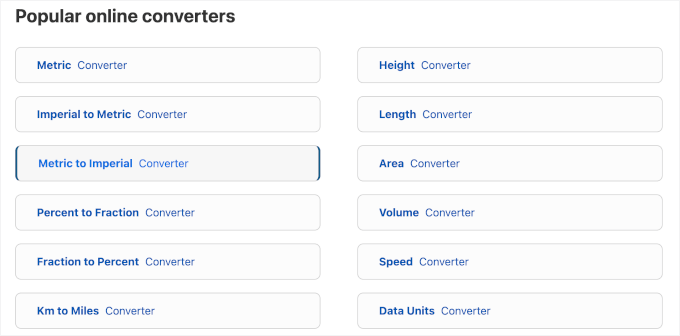
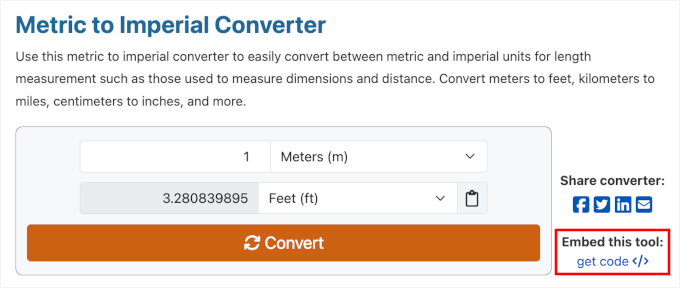
To start, you can test how the calculator works by typing in different measurements.
If you are happy with how the converter is set up, then go ahead and click on ‘get code.’
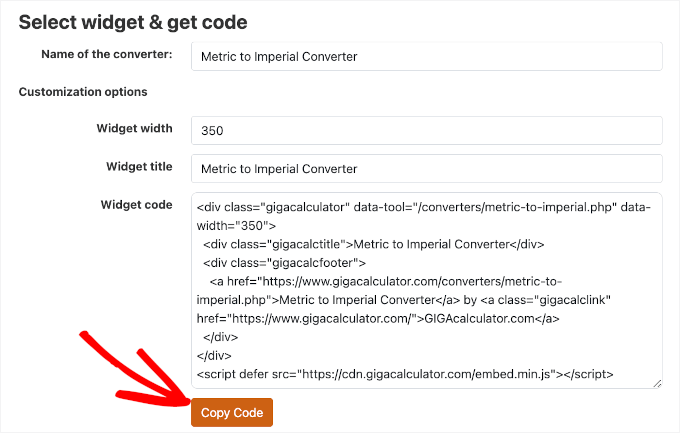
The default settings work well for most WordPress websites, but you can easily customize the widget.
For example, you can edit the ‘Widget title’ to give it a custom name and change the ‘Widget width’ (in pixels) to make sure it fits perfectly in your site’s sidebar or content area.
In ‘Widget code,’ you’ll see all the HTML that you need to add to your website, so go ahead and copy it.
In a new tab, head over to your WordPress dashboard and go to Appearance » Widgets.
You’ll now see all the widget-ready areas in your WordPress theme.
Simply find the area where you want to show the metric to imperial converter, and click on its ‘+’ button.
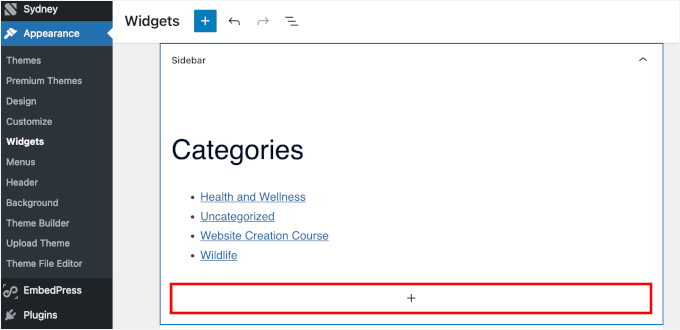
For example, I’ll add my converter to the sidebar.
In the popup that appears, select the ‘Custom HTML’ block. If you don’t immediately see the block, you can use the search bar to find it.
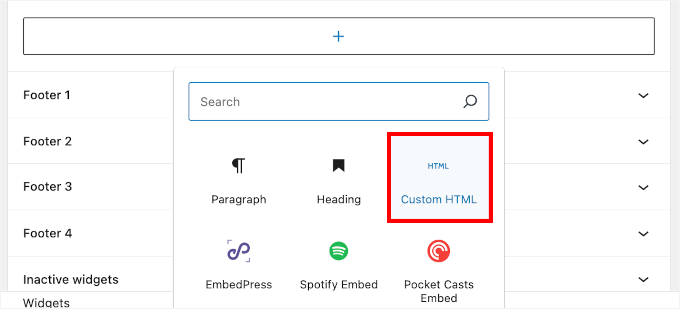
When the right block shows up, click to add it to the widget-ready area. You can now go ahead and paste the code into this block.
To make your changes live, click on the ‘Update’ button.

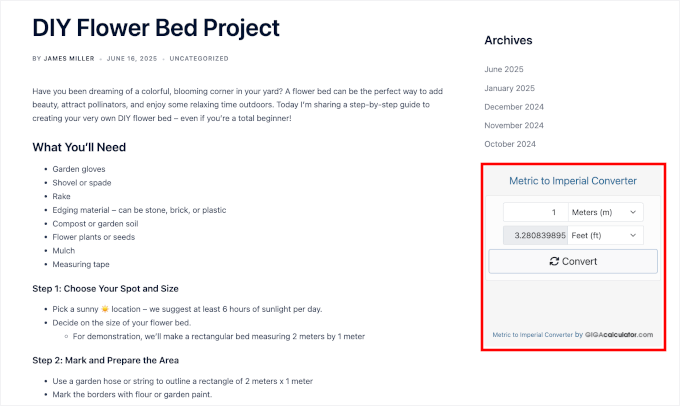
Now, visit your WordPress blog or website to see the converter in action.
Here’s what it looks like on my demo site, for example:
Method 2: Using a Form Builder (Best for Advanced Conversion Calculators)
If you just need a simple unit conversion calculator and you’re using a classic theme, then Method 1 is a solid choice. But keep in mind – it’s limited to a predefined set of conversions.
If you want more flexibility and full control over the form design, fields, and conversion logic, I recommend using WPForms. This is also the best option if you’re using a block theme.
WPForms is the best drag-and-drop form builder and the best WordPress calculator plugin. It lets you build a completely custom calculator that fits your exact needs.
At WPBeginner, we use WPForms for a lot of our form-building tasks, including contact forms, annual surveys, and more. We love how easy it is to use and how you can customize your forms to match your site.
You can check out our detailed WPForms review to explore its features.

For this method, you will need a WPForms Pro plan, as the AI form builder and Calculations features are only available in the paid version.
The first step is to install the free WPForms Lite plugin, which acts as the foundation.
The free plugin has limited features, but WPForms Pro uses it as the basis for its more advanced features. For more details, see our guide on how to install a WordPress plugin.
Once you’ve purchased a Pro plan from the WPForms website, you can get your license key from your account dashboard.
Then, go to WPForms » Settings. Next, paste your license key into the box and click the ‘Verify Key’ button.
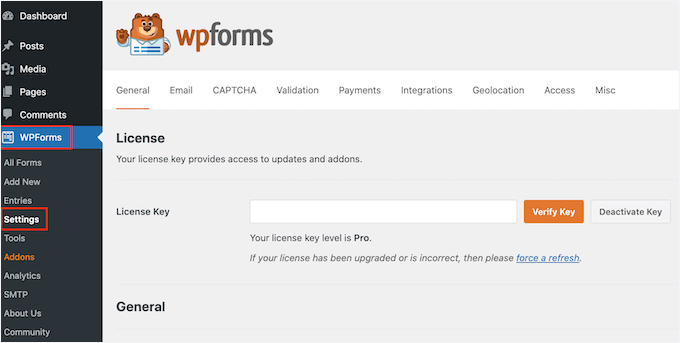
After your key is verified, you’ll see a success message.
From here, you can create your first calculator by going to WPForms » Add New.

On the ‘Setup’ screen, go ahead and give your converter a name. This is for your reference only, but I suggest choosing a clear name so you can refer to it easily.
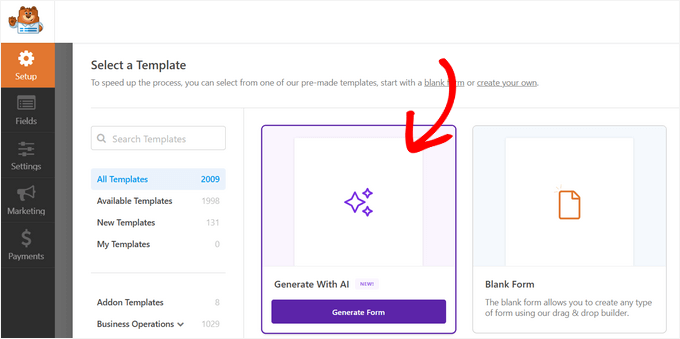
Then, you can hover over ‘Generate With AI’ and click the ‘Generate Form’ button.
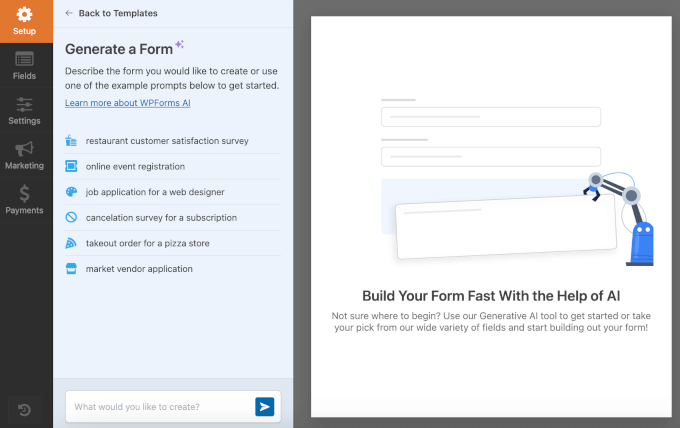
On the next screen, you’ll see a prompt field on the left-hand side and the preview area on the right.
This is where you can experiment with different prompts and import the AI-generated converter to the drag-and-drop editor to further customize it.
Now, please note that most form builders don’t allow dropdown fields to be used in formulas. You’ll need 3 separate fields to make the conversion work:
- The first field collects the input value, like centimeters.
- The second field stores the conversion factor, in this case, 1 cm = 0.393701 inches. You can make it hidden so users don’t see it.
- The third field runs the calculation and displays the converted result, inches.
This way, your form stays simple and works instantly on the front end.
The AI builder automatically sets the ‘Conversion Factor’ field to be hidden from your visitors. This is a great trick because it keeps your calculator looking clean and simple for your users.
For example, here’s what I added to the prompt field:
Create a metric to imperial converter form using this specification:

Field 1:
Label: Centimeters
Type: Number
Instruction: Enter the value in centimeters (e.g., 10)

Field 2:
Label: Conversion Factor (Hidden)
Type: Number
Default Value: 0.393701
(This field is hidden and is used in the calculation)

Field 3:
Label: Inches
Type: Calculation (Number)
Formula: Centimeters × Conversion Factor
(Displays converted value in inches)
🧑💻 Pro Tip: You can customize this prompt to create any type of unit converter. For example, to convert grams to ounces, just change the labels and use the correct conversion factor (1 g = 0.03527396 oz).
Don’t know the conversion factor? A quick search on Google for “grams to ounces conversion factor” will usually give you the number you need!
You can even build multiple converters into the same form. Simply follow the same three-field format for each conversion type you want to add.
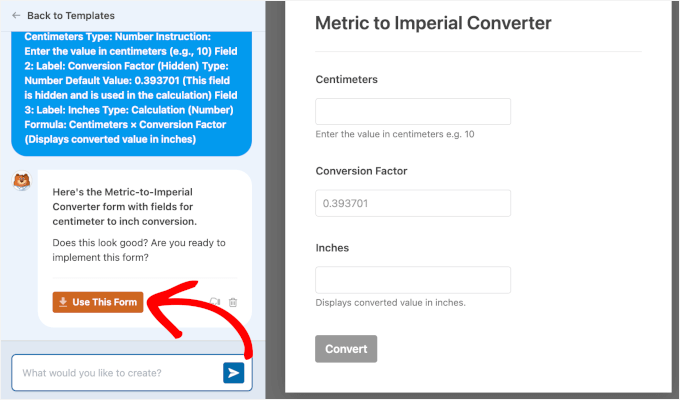
Once you’ve got the form generated, simply click the ‘Use This Form’ button.
This will open the WPForms editor.
At this point, the AI has built the basic structure of our form. Now, we just need to add the ‘brain’ to our calculator — the actual formula that performs the conversion.
To get started, click on the ‘Inches’ field to open its settings. Then, go to the ‘Advanced’ tab and turn on the ‘Enable Calculations’ toggle.
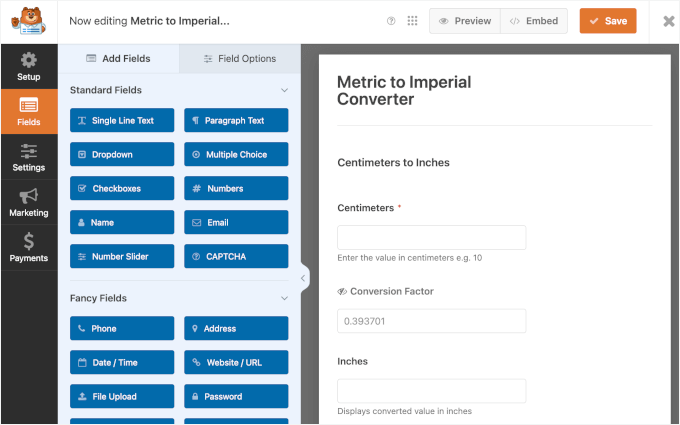
To set that up, click on the ‘Inches’ field to open its settings. Then, go to the ‘Advanced’ tab and turn on ‘Enable Calculations.’
Click ‘Generate Formula’ to use AI to build the conversion logic.
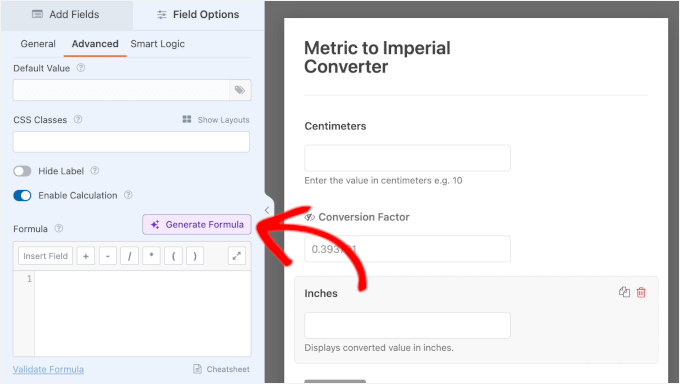
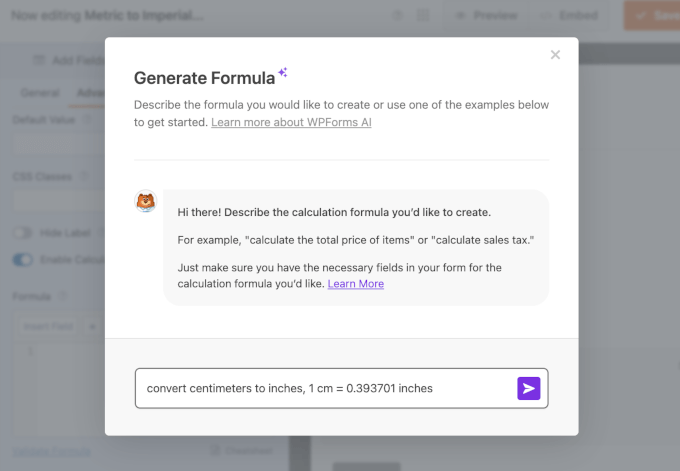
On the popup that appears, you can go ahead and enter your prompt with the conversion factor.
Here’s the prompt I used:
convert centimeters to inches, 1 cm = 0.393701 inches
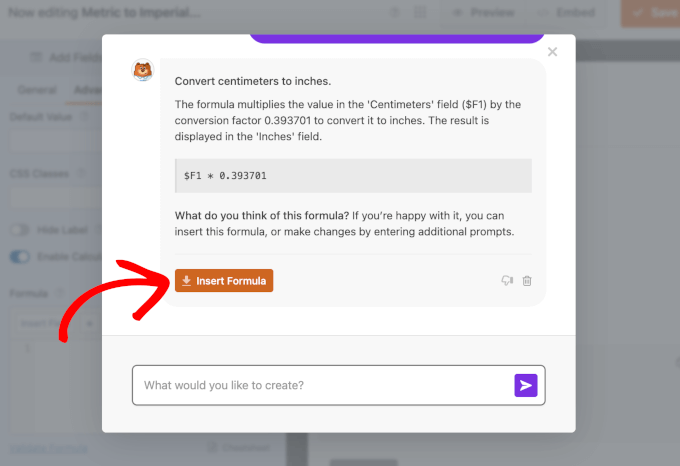
In a few seconds, AI Calculations will come back with the formula you can use.
Simply click the ‘Insert Formula’ button to add it.
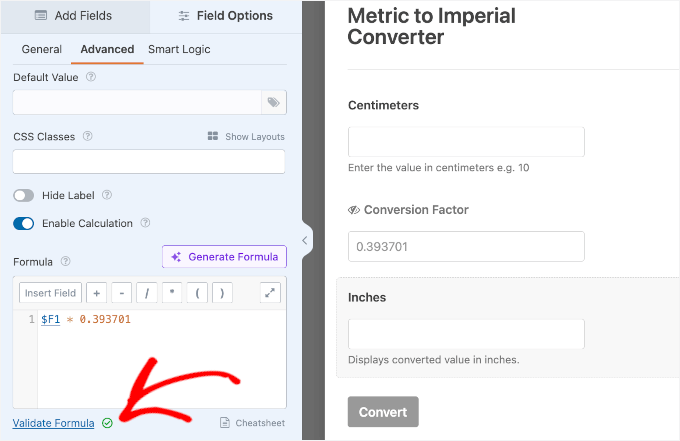
To make sure the formula works correctly, click ‘Validate Formula’ just below the formula field.
If everything’s set up properly, you’ll see a green checkmark appear to confirm it’s valid.
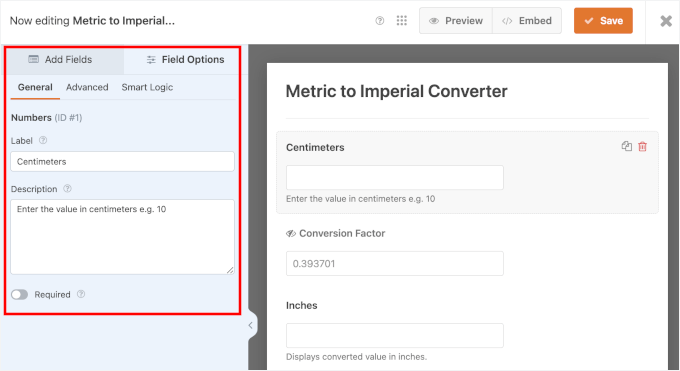
Now, you may also want to change the field label or the label description.
To do this, simply click on the field and then use the settings in the ‘Field Options’ menu.
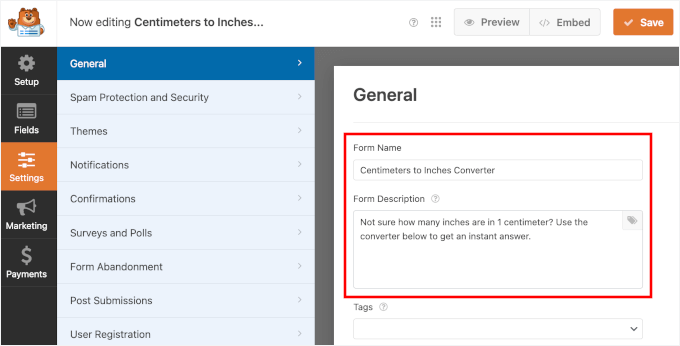
You can also edit the ‘Form Name’ and ‘Form Description’ in the ‘Settings’ tab.
🧑💻 Pro Tip: I recommend customizing these fields, as you can display them on the front end. It’s a great way to give visitors more context about what the form does.
When you’re happy with how the form looks, go ahead and click on the ‘Save’ button at the top of the screen to save your calculator.
Now that you’ve created a conversion calculator, you can add the form to any page or post.
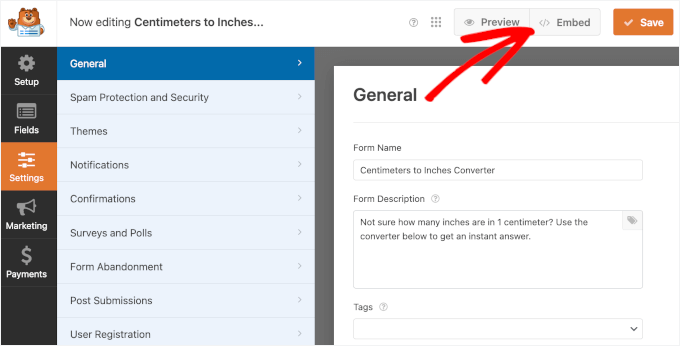
Just click ‘Embed’ to start the process.
In the popup that appears, click ‘Select existing page.’

Then, you’ll need to choose the page from the dropdown.
After that, simply click the ‘Let’s Go!’ button to open the WordPress block editor.

WordPress will now take you to the content editor.
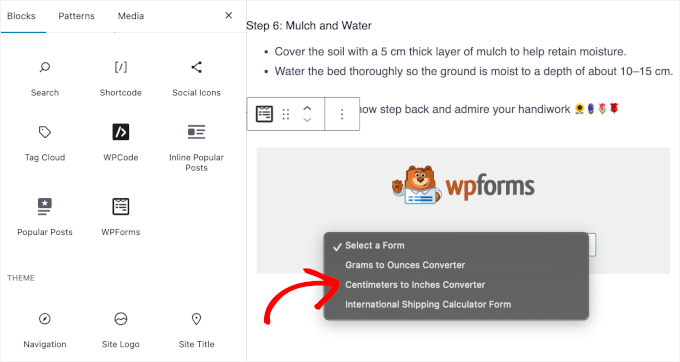
From here, click the ‘+’ button and select the WPForms block to add it.
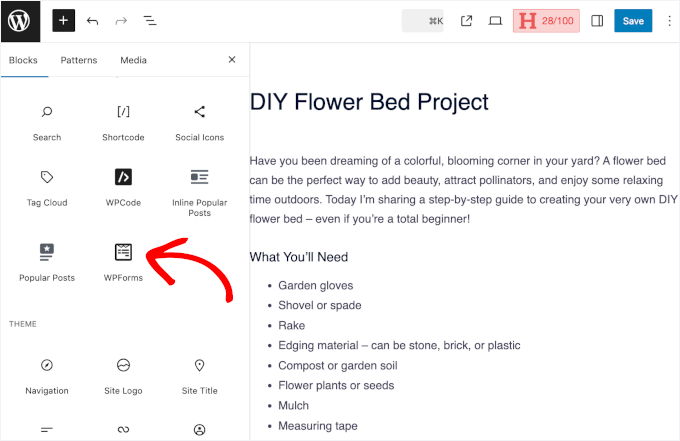
Then, go ahead and select the converter from the dropdown field.
WPForms will then load the form in the editor.
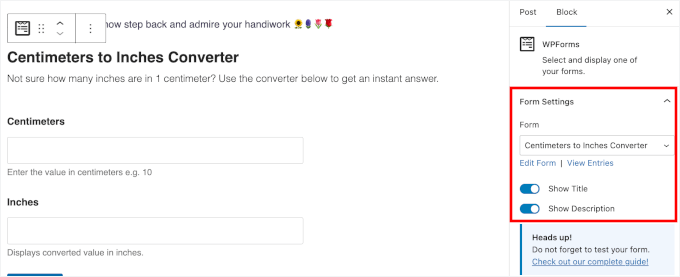
The default settings don’t show the converter title and descriptions.
To display them, just switch on the toggles in the ‘Form Settings’ in the right-hand panel.
If needed, you can move the form up and down in the content area.
When you’re ready to go live, just click the ‘Publish’ or ‘Update’ button in the right-hand corner of the page.
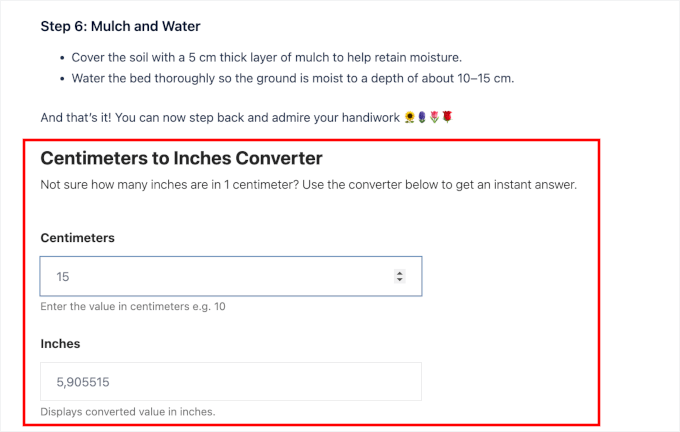
Now, if you visit your site, then you’ll see the conversion calculator live.
With WPForms, you can also add your forms in widget-ready areas. For example, on my demo recipe blog, I’ll show you how to add a gram-to-ounce converter in the sidebar.
Go to Appearances » Widgets from your WordPress admin area.
In the Sidebar section, click the ‘+’ button and select the WPForms block. Then, expand the dropdown fields to select the appropriate form. In this case, I’ll be using the ‘Grams to Ounces Converter.’

With that done, you can click ‘Save’ to store the changes.
Now, if you open your WordPress blog, you’ll see the converter on the sidebar:

FAQs About Converting Metric Units to Imperial in WordPress
If you’re just getting started with unit conversions on your WordPress site, you might have a few questions. Here are some common ones to help you get set up quickly and avoid common mistakes.
Can I add multiple converters to the same WordPress form?
Yes! You can create multiple conversion fields within the same WordPress form. Just follow the same structure: input field, hidden conversion factor, and output field.
This is useful if you want to let users convert several types of measurements (like cm to inches and grams to ounces) in one place.
How accurate are these unit conversions?
The conversions are based on standard mathematical formulas, so they’re typically very accurate.
However, the final result depends on how your formula is set up. You can choose to use full decimal values for maximum precision or round the result to make it easier for your audience to read – especially on recipe or eCommerce sites.
Can I use a dropdown to let users pick units?
Yes, but it depends on the method you choose. The GIGA Calculator widget from Method 1 comes with built-in dropdowns for selecting units.
However, as we covered in detail in Method 2, most form builders like WPForms work best when you use separate number fields for calculations. For reliable and instant results, we recommend the three-field approach with a hidden conversion factor.
Do I need a plugin to add unit conversions to WordPress?
Technically, you could hard-code the logic using JavaScript or PHP, but using a form builder like WPForms is much easier, especially if you’re not a developer. It also gives you drag-and-drop controls and built-in styling.
Can I display the result instantly on the page?
Yes, as long as your form builder supports real-time calculations or AI-generated formulas. With WPForms, for example, you can show results instantly after users type a value or submit the form.
Bonus Resources 🔗: More About Creating Online Calculators in WordPress
If you’d like to add other online calculators to your WordPress website, then check out these guides:
- How to Add a BMI Calculator in WordPress (Step by Step)
- How to Add a Shipping Calculator to Your WordPress Site
- How to Add a Currency Converter in WordPress
- How to Add a Mortgage Calculator in WordPress
- How to Create a Custom Calculator in WordPress (Step by Step)
- Best Tax Calculator Plugins for WordPress
I hope this tutorial helped you learn how to convert metric units to imperial in WordPress. You may also want to check out our expert picks of the best contact form plugins for WordPress and our guide on how to track and reduce form abandonment in WordPress.
If you liked this article, then please subscribe to our YouTube Channel for WordPress video tutorials. You can also find us on Twitter and Facebook.


Dennis Muthomi
Here’s a useful tip if you’re using Method 2 with Formidable Forms: Add a “Copy Result” button next to where the conversion shows up. I did this for a recipe blog, and it’s been great! Visitors can quickly copy measurements while cooking.
Sometimes the best part about these calculators is that they cut down on support tickets about measurement confusion.