


Ever get frustrated hunting for buttons and options while writing blog posts? We sure did when we first started with WordPress. It felt like playing hide and seek with the post editor!
The good news is that you can set up your editing screen exactly the way you want it. After helping countless WPBeginner users, we’ve learned that a well-organized editor can make writing so much easier.
Think of it like arranging your desk – you want your favorite tools within easy reach and less important stuff tucked away. WordPress lets you do just that with its post editor. You can keep your must-have tools visible and hide the features you rarely use.
In this guide, we’ll share our tried-and-tested tips for creating your perfect writing space in WordPress. These simple tricks have helped us (and many other content creators) write more smoothly and quickly.
⚡ Quick Answer: How to Rearrange the Post Edit Screen in WordPress
If you want to declutter your workspace instantly, here are the most effective ways to rearrange the edit screen:
- Top Toolbar: Go to Options (three dots) » Top toolbar to pin formatting tools to the top of the screen.
- Fullscreen Mode: Select Options » Fullscreen mode to hide the admin sidebar and focus on writing.
- Hide Unused Panels: Go to Options » Preferences » General to toggle off sections you don’t use, like ‘Custom Fields’.
- Spotlight Mode: Use Options » Spotlight mode to dim the blocks you aren’t currently editing.
Why Rearrange the WordPress Post Edit Screen?
Rearranging the WordPress post edit screen allows you to create a distraction-free workspace tailored to your needs. By hiding unused panels and organizing your tools, you can write content faster and avoid visual clutter.
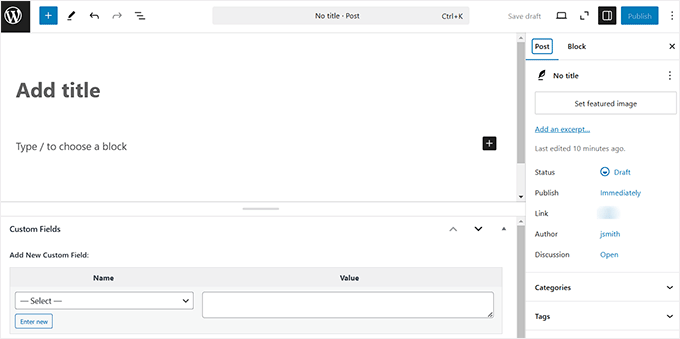
The default WordPress block editor offers a clean user experience. However, as you work on different projects, the interface can get crowded with settings and plugins you rarely use.
Here are a few specific reasons to customize your editor view:
- Focus on Content: Hiding the ‘Custom Fields’ section or unused meta boxes helps you concentrate on writing.
- Speed Up Your Workflow: Placing your most-used tools within easy reach saves time during the editing process.
- Better for Small Screens: Removing the admin sidebar or right panel makes the layout much more intuitive on laptops or tablets.
Here are the different ways you can customize your workspace. You can also use the links below to jump to the section of your choice:
- 🧩 Show/Hide Panels in the WordPress Post Editor
- 📌 Stick the Block Toolbar to the Top of the Post Edit Screen
- 🧹 Remove the Right Side Block Panel in the Post Edit Screen
- 🖥️ Using The Fullscreen Editor in WordPress
- 🔦 Using Spotlight Mode in the Post Editor
- 🎁 Bonus: Remove Blocks in the WordPress Post Editor
- Frequently Asked Questions About Rearranging WordPress Layouts
🧩 Show/Hide Panels in the WordPress Post Editor
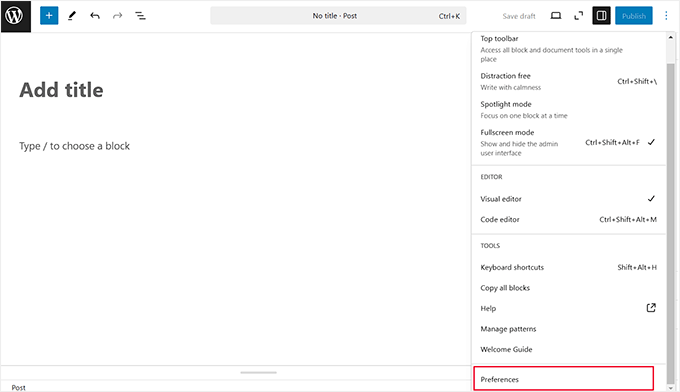
If you want to hide unnecessary sections in the block panel, click the three-dot icon in the top-right corner of the screen.
This will open a dropdown menu where you have to select the ‘Preferences’ option.
Once you do that, a popup will open up on your screen.
Here, scroll down to the ‘Document Settings’ section and toggle the switch to ‘OFF’ for all the panels that you want to remove.
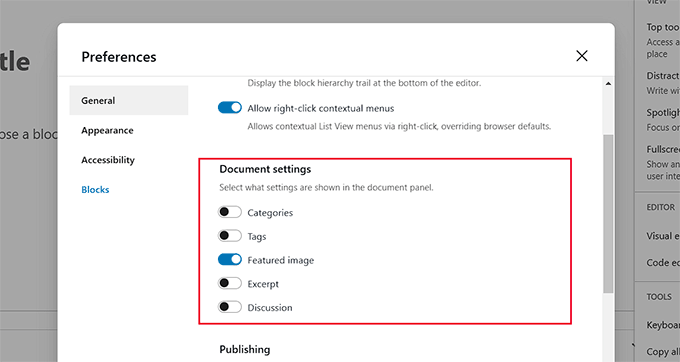
You can also remove the ‘Custom Fields‘ and ‘Post Settings’ sections from the bottom of your block editor by scrolling down to ‘Advanced.’
If you toggle the Custom Fields setting, a button will appear that says ‘Hide & Reload’ Page. You must click this button to apply that specific change.
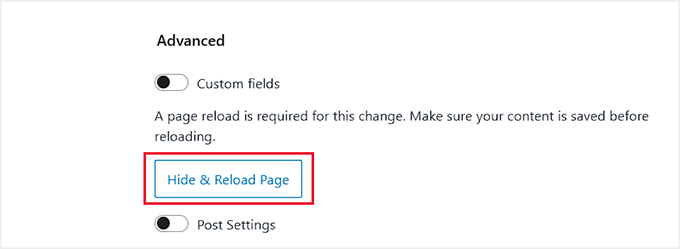
Once you do that, the block editor will reload.
You can now see that all the unnecessary panels that you chose have been removed from the block panel on the right.
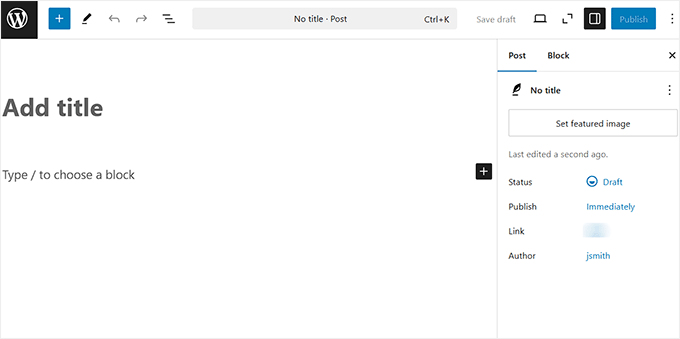
That said, we recommend removing only elements that you’re certain you don’t need. Otherwise, you may forget about useful settings and features.
📌 Stick the Block Toolbar to the Top of the Post Edit Screen
When using the block editor, you may have seen the floating menu that appears at the top of each block when it is selected. This block toolbar provides quick access to various options and settings specific to the block you are working with.
For example, if you are using a Paragraph block, the toolbar may include options like bold, italic, align text, and add links.
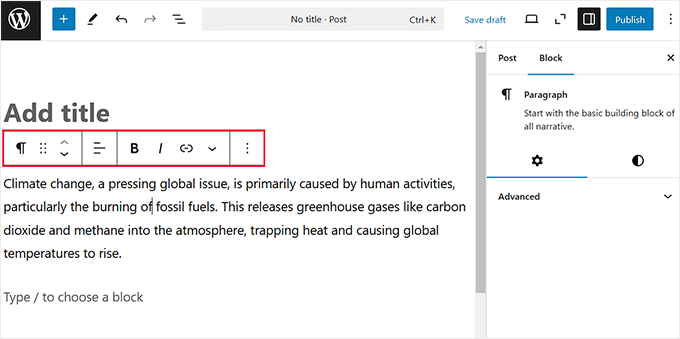
However, you may find the block toolbar distracting. It can also be annoying to chase the menu around the screen as you select different paragraphs.
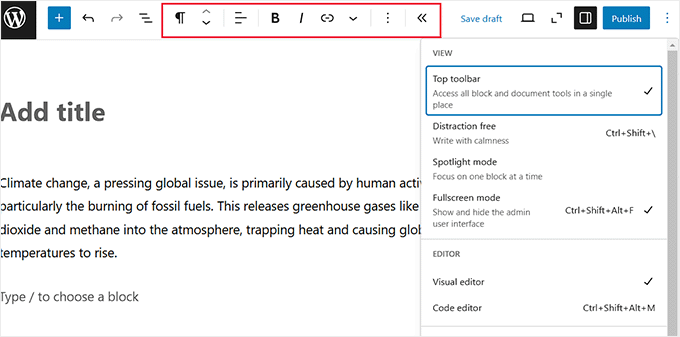
That’s why it can be a good idea to move the toolbar to the top of the post edit screen. This keeps your controls in one consistent place.
To do this, click the three-dot icon in the upper-right corner and open the dropdown menu. From here, simply select the ‘Top toolbar’ option.
🧹 Remove the Right Side Block Panel in the Post Edit Screen
You can also remove the block panel in the Gutenberg editor to create a clear writing space for your content.
To do this, just click the ‘Settings’ icon at the top right to remove the column from the screen.
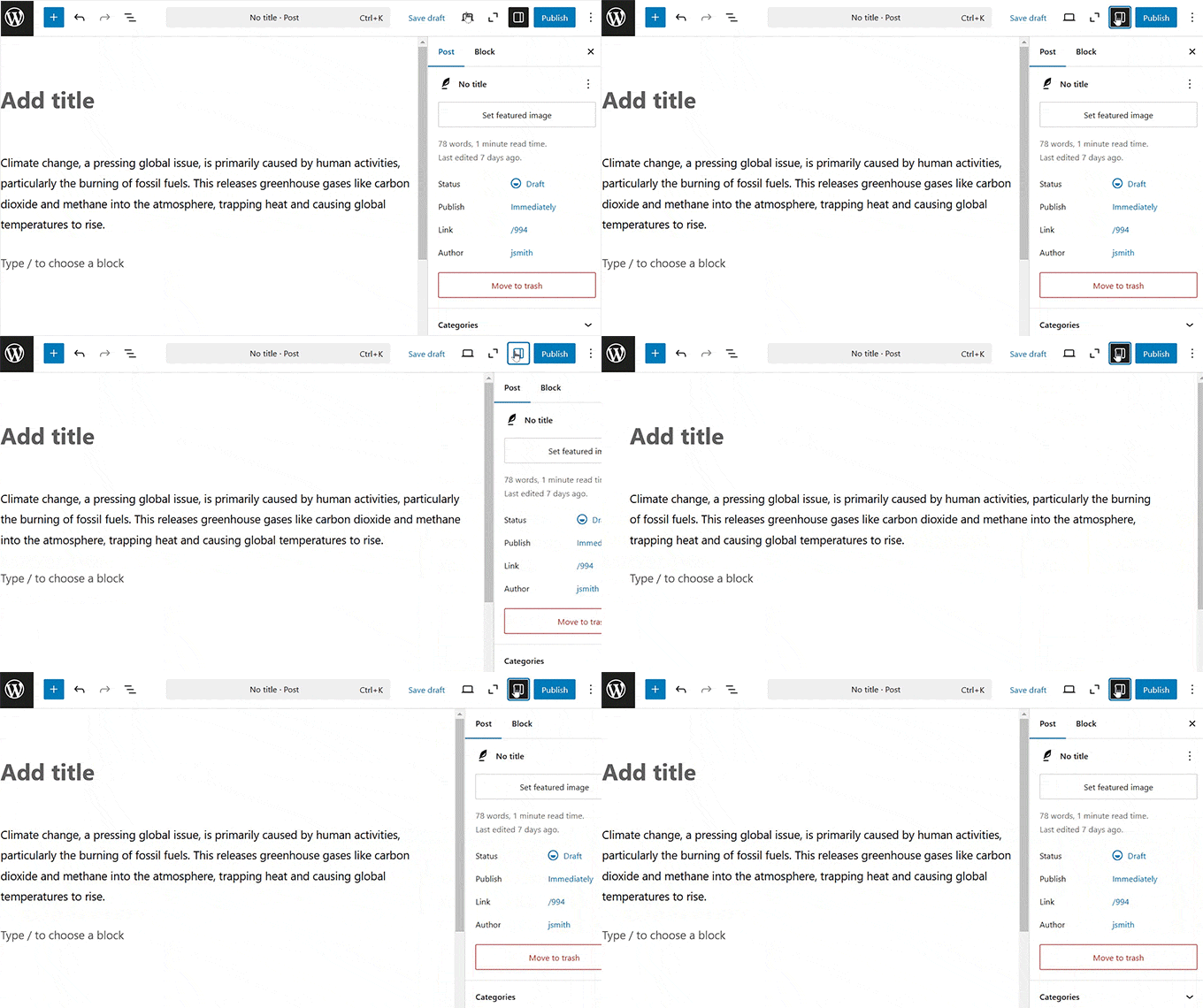
When you need to access your document or block settings, you can just click the ‘Settings’ icon again, and the panel will reappear.
🖥️ Using The Fullscreen Editor in WordPress
When you are using the block editor, the WordPress admin sidebar sometimes appears on the left side, which can be quite distracting.
Thankfully, WordPress offers a Fullscreen mode that removes the admin dashboard and gives you a decluttered environment to work with.
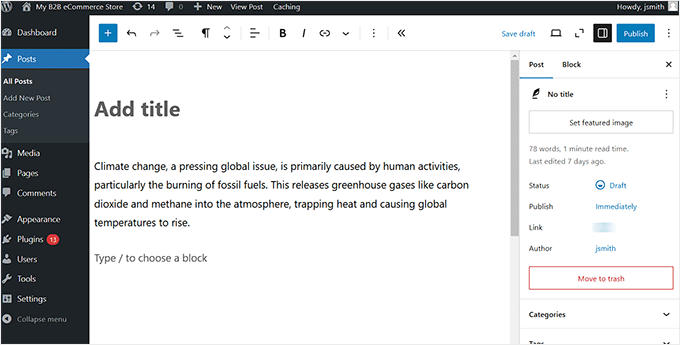
To use it, click the three-dot icon in the upper-right corner, which opens the menu.
Then, select the ‘Fullscreen mode’ option. Once you do that, the WordPress admin sidebar will disappear from the left side.
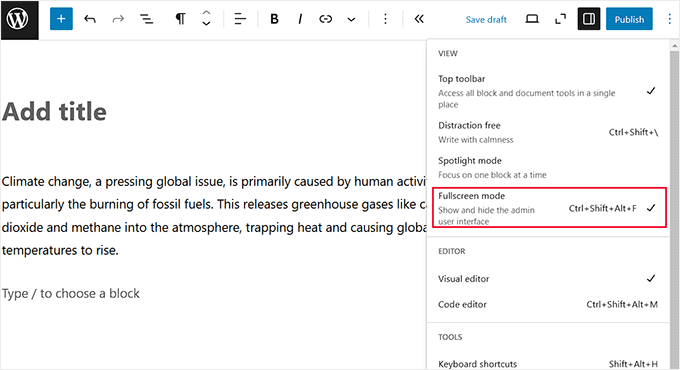
Plus, WordPress will remember your preference the next time and open the post editor in the same view you selected.
You can also disable the Fullscreen mode anytime you want using the same steps above. For more details, see our tutorial on how to disable the fullscreen editor in WordPress.
🔦 Using Spotlight Mode in the Post Editor
If you get distracted super easily, then you may want to use the Spotlight mode in the WordPress content editor.
Unlike Fullscreen mode, which hides the interface, Spotlight mode helps you focus on the content itself. It dims all other blocks, highlighting only the one you are currently working on.
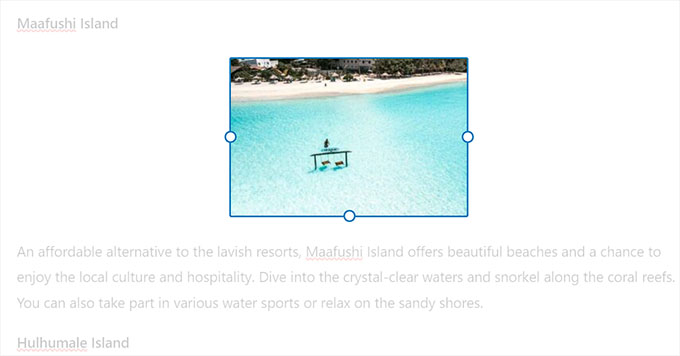
To activate this mode, just click the three-dot icon at the top right corner. Once the menu opens up, select the ‘Spotlight Mode’ option.
You can now write your content in a distraction-free environment.
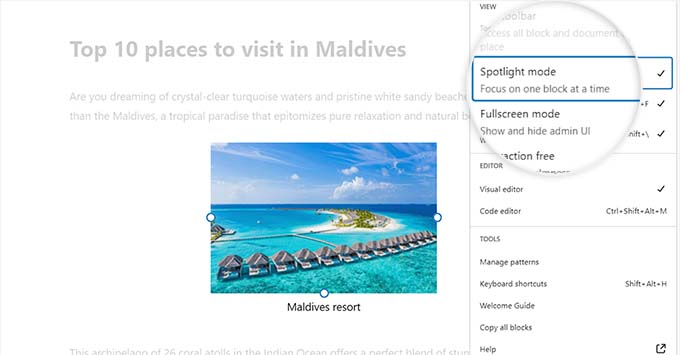
Once you are done, you can turn off this mode by clicking on the three-dot menu icon and selecting the ‘Spotlight Mode’ option again.
This will help you see all your blocks together to get an idea of how they will look on your website. To learn more, see our beginner’s guide on how to use the distraction-free fullscreen editor in WordPress.
🎁 Bonus: Remove Blocks in the WordPress Post Editor
In addition to rearranging the post edit screen, you may want to remove unwanted blocks from the block menu on the right.
For instance, if you run a small business website, then you likely won’t need the Verse block since it’s meant for formatting poetry.
The block visibility feature lets you easily hide unwanted WordPress blocks. But don’t worry—you can also bring them back if you change your mind.
Simply click the three-dot icon and choose the ‘Preferences’ option from the dropdown menu.
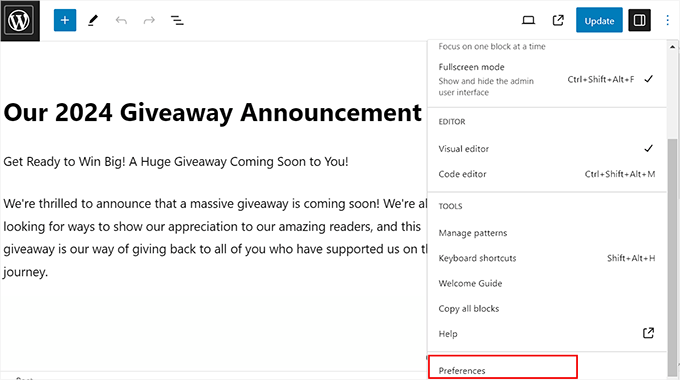
This will open a new prompt where you have to switch to the ‘Blocks’ tab on the left. Then, uncheck the boxes next to the blocks you want to hide in the post editor.
You can also disable blocks that have been added automatically by the WordPress plugins installed on your website.
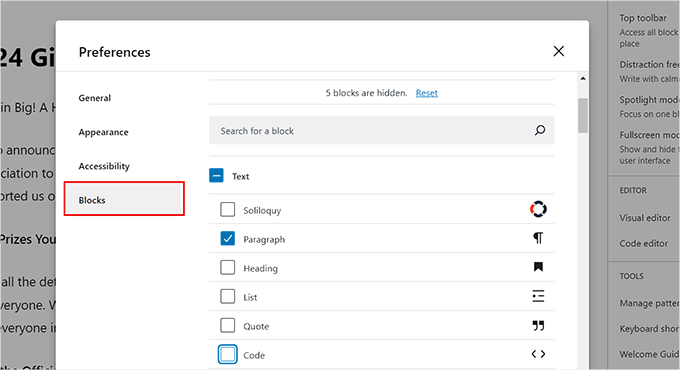
Once you are satisfied, simply click the ‘X’ icon to exit the menu.
Finally, click the ‘+’ button at the top left corner to open the block menu. You will now see that the blocks you chose are not visible anymore.
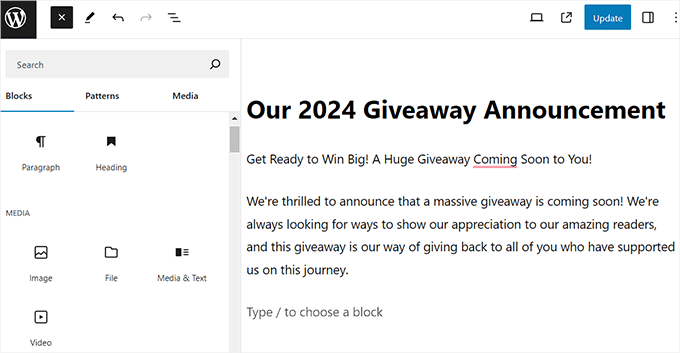
For detailed instructions, see our tutorial on how to remove a block in WordPress.
Frequently Asked Questions About Rearranging WordPress Layouts
Here are some questions that our readers have frequently asked about rearranging different sections and elements in WordPress:
How to rearrange posts on WordPress?
By default, WordPress displays posts in reverse chronological order (newest first).
To rearrange them manually without code, you can simply change the ‘Published’ date of a post to an earlier or later date. Alternatively, you can use a plugin like Post Types Order to drag and drop posts.
To get started, see our tutorial on how to change post order in WordPress.
How do I edit the post layout on WordPress?
If you are using a block theme, you can edit the single post template by navigating to Appearance » Editor » Templates.
For classic themes, you can often change the layout (like sidebar position) in the Appearance » Customize menu, or use a page builder plugin like SeedProd for complete design control.
How to rearrange page order in WordPress?
You can change the order of pages using the ‘Order’ attribute found in the Page Attributes box. Go to Pages » All Pages, click ‘Quick Edit’ on any page, and change the Order number.

Pages with lower numbers (0) appear first, and higher numbers appear later.
How to display WordPress posts in a grid layout?
The easiest way to display posts in a grid is by using the ‘Query Loop’ block in the block editor and selecting the ‘Grid’ view option. For more advanced grids with custom styling, we recommend using a plugin like SeedProd.
To get started, see our tutorial on how to display your WordPress posts in a grid layout.
We hope this article helped you learn how to rearrange the post edit screen in WordPress. You may also want to see our beginner’s guide on how to use WordPress block patterns and our expert picks for the best Gutenberg blocks plugins for WordPress sites.
If you liked this article, then please subscribe to our YouTube Channel for WordPress video tutorials. You can also find us on Twitter and Facebook.



Steve Speirs
I’m trying to update all my blog posts (900+) saved in Classic mode to Block mode. After I’ve finished editing a post, is there a way in the block editor to navigate to the next post, without having to click “All Posts” in the left navigation of WordPress admin?
Hope that makes sense!
WPBeginner Support
Not at the moment, it would probably be best to open the posts in a new tab and edit them on the new tab to limit your back and forth.
Admin
Marie-Christine Desplat
Hello,
In the new editor is there a way to move the tiny excerpt panel to the bottom of the page instead of the right side?
I tried Drag and Drop but it doesn’t work.
WPBeginner Support
Sadly, at the moment we do not have a recommended method for setting that up.
Admin
Mark
So I accidentally moved a plugin setting from the sidebar and it is located at the bottom under the Block editor content area. How can I get it back to the settings sidebar? I looked in the preferences of the sidebar but it just hides it on the bottom of the page.
WPBeginner Support
If there is not a setting to specifically set the location, you may want to try making your browser window wider as some of those move locations if the sidebar would be too small to properly read the settings.
Admin
Connie
I would like to know how to define the arrangement as administartor so that all users get the same working arrangement.
It is not helpful to travel to each user or to teach each user how to arrange before they start to enter content what will be their main topic
do you know how to store a certain arrangement for ALL users, permanently?
schwooba
Great question! I did some research but haven’t found a plugin or other means of doing this without some serious programming. Anyone else have a different experience?