


Do you want to put your WordPress site in maintenance mode without losing potential customers or frustrating visitors? With maintenance mode, you can temporarily hide your website while performing updates or making changes.
During maintenance, visitors will see a user-friendly notice instead of a broken website. You can also control exactly who has access to your site while you’re working on it.
We’ve put many websites into maintenance mode using powerful plugins like SeedProd, which simplifies the process and allows you to create engaging maintenance mode pages.
In this article, we’ll show you how to easily put your WordPress site in maintenance mode.
Why and When You Need to Put WordPress in Maintenance Mode
A lot of the time you can make changes to your WordPress website without having to put it in maintenance mode. For example, you can publish new posts, update WordPress, and install new plugins without any downtime.
However, sometimes you may need to work on your website for a longer period. For example, you might want to completely redesign your WordPress blog.
Some changes are also riskier than others, such as setting up a new plugin that changes your website’s behavior. While you’re making the change, the site may look broken to your users.
You might even lose data that gets created during this period. For example, if you’re making major changes to an online store, then you might lose any new orders that customers place.
One solution is to set up a staging website so you can work on your site in private. Many of the top WordPress hosting companies offer 1-click staging websites, including Bluehost, SiteGround, and WP Engine.
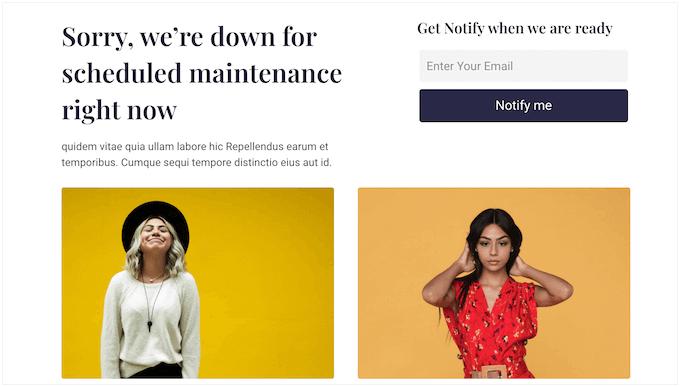
If you don’t use a staging site, then you should put your website into maintenance mode instead. Instead of a broken website, visitors will see a helpful maintenance page that lets them know what’s happening.
You might even suggest some alternative actions that visitors can take, such as following you on social media or joining your email list.
Having that said, let’s take a look at how to put your WordPress site in maintenance mode.
💡Need help managing your WordPress site? Let WPBeginner experts handle all WordPress technicalities. Backups, updates, security – we’ve got it covered. We keep your site running smoothly so you can spend your time on what truly matters.
Video Tutorial
If you’d prefer written instructions, then simply use the quick links below to jump to the method you want to use.
Method 1. Set up WordPress Maintenance Mode Using SeedProd Plugin (Recommended)
The easiest way to create a completely custom maintenance page is by using SeedProd.
SeedProd is the best page builder for WordPress, used on more than a million websites. It allows you to create beautiful coming soon pages in WordPress, improve your 404 page, design unique landing pages, and even build custom WordPress themes using drag and drop.
There’s a premium version of SeedProd that comes with more than 300+ professionally-designed templates and blocks. However, you can put your site into maintenance mode using the free SeedProd plugin, so that’s what we’ll be using in this guide.
The first thing you need to do is install and activate the SeedProd plugin. For more details, see our guide on how to install a plugin in WordPress.
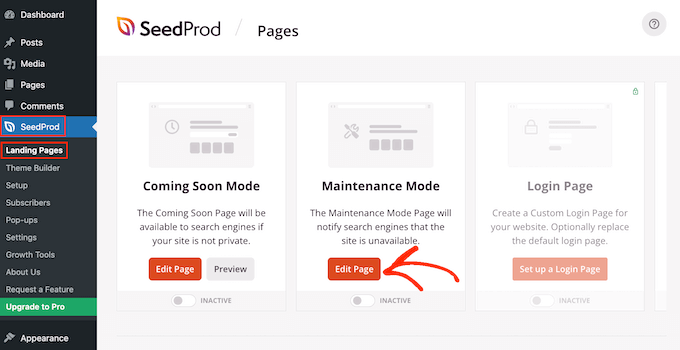
Upon activation, go to SeedProd » Pages. In the ‘Maintenance Mode’ section, click on the ‘Set up a Maintenance Mode Page’ or ‘Edit page’ button.
The next step is building the page that visitors will see when you enable maintenance mode.
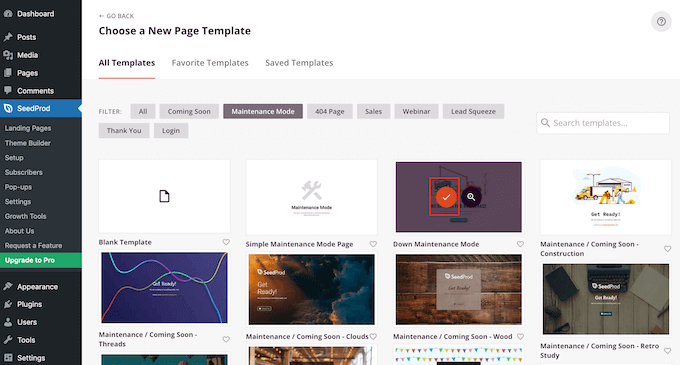
You can either choose a ready-made template or start with a blank design. We’re using ‘Down Maintenance Mode’ in all our images but you can use any template you want.
To select a template, simply hover your mouse over that design’s thumbnail and then click the ‘checkmark’ icon.
After selecting a template, you’ll be taken to the drag-and-drop builder, where you can start customizing the maintenance mode page.
On the left side of the screen, you’ll find blocks and sections that you can add to your design. The right side of the page is the live preview.
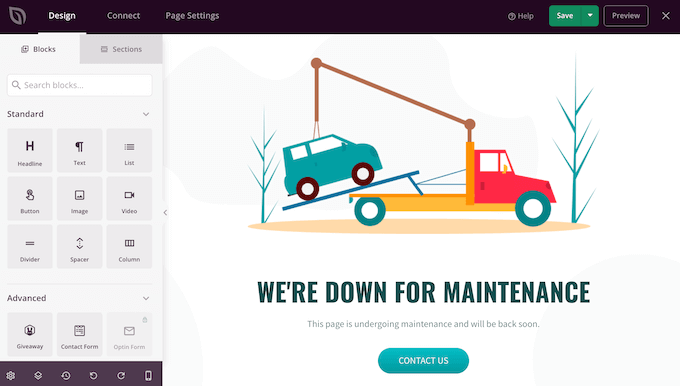
Most templates already have some blocks, which are a core part of all SeedProd designs. To add more blocks to your maintenance page, simply drag them from the left-hand menu and then drop them onto your design.
For example, you might add your custom logo, videos, contact form, and more.
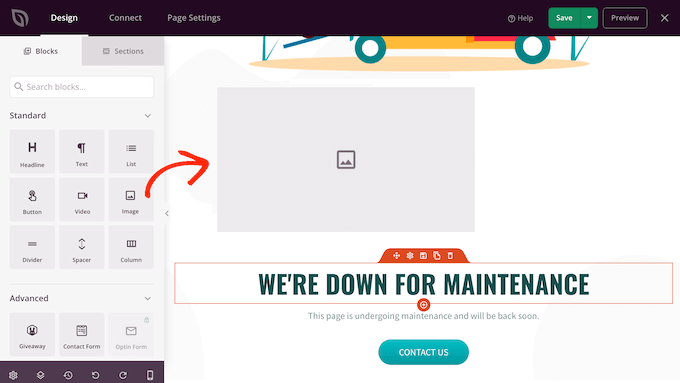
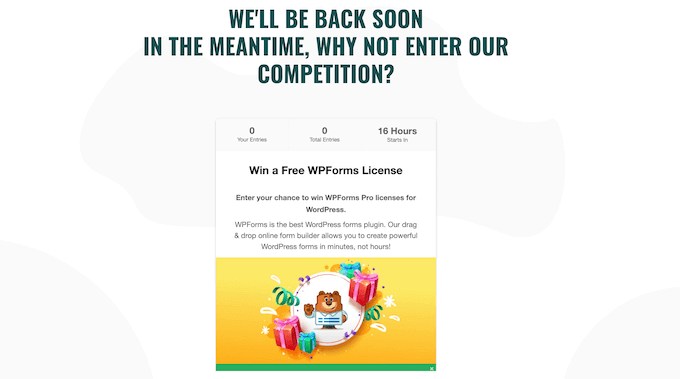
The options you see may vary depending on the plugins you’ve installed on your website.
For example, if you have RafflePress then you’ll be able to run a contest on your maintenance page using the Giveaway block, as you can see in the following image.
To customize a block, simply click to select that block in your layout. You can then change the block using the settings in the left-hand menu.
As an example, let’s see how you can connect the default ‘Contact Us’ button to your own business email address.
Simply click to select the ‘Contact Us’ button in the live preview. In the left-hand menu, you’ll see a ‘Link’ field, which shows ‘mailto:john@example.com’ by default.
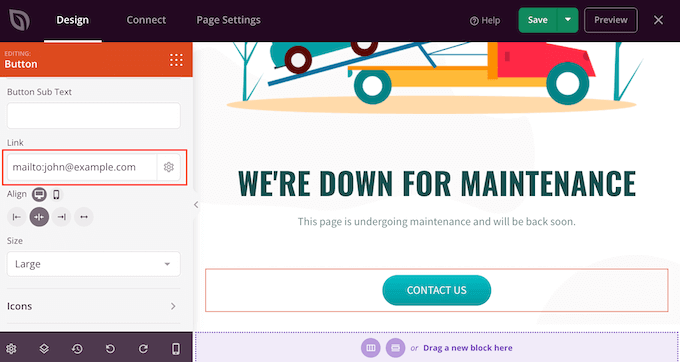
This means the button will open the visitor’s default email app with the ‘To’ field already filled in as ‘john@example.com.’
To change this, simply type your email address into the ‘Link’ field. Make sure not to delete ‘mailto:’ as this opens the visitor’s default email app.
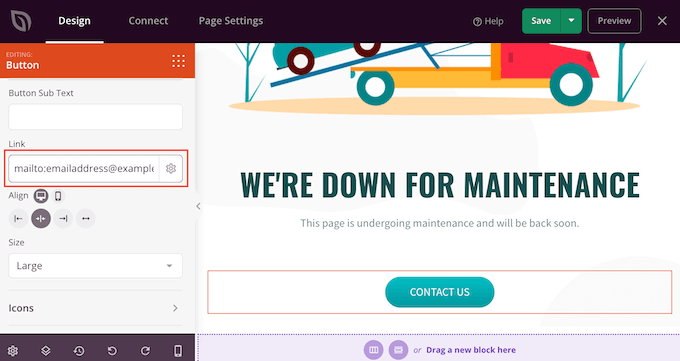
You can also make other changes to the button, including using a different alignment, button text, and changing the button’s size.
To remove a block from your design, simply go ahead and click on it. You can then select the trash can icon.
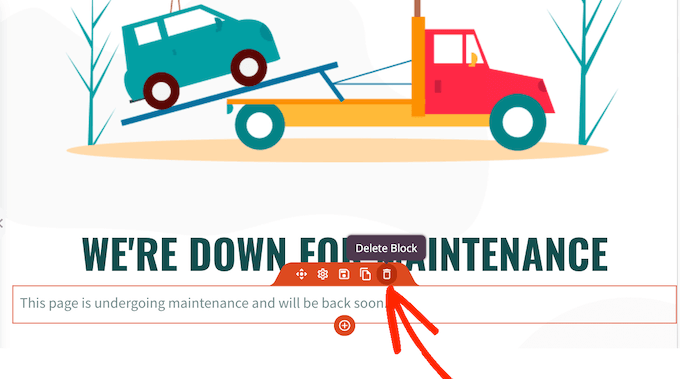
You can now continue customizing the template by adding new blocks, removing any blocks you don’t want, and making changes in the left-hand menu.
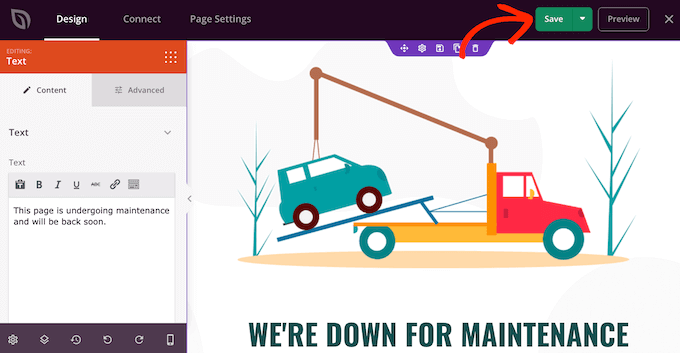
When you’re happy with how the maintenance page looks, it’s time to publish it by clicking the ‘Save’ button.
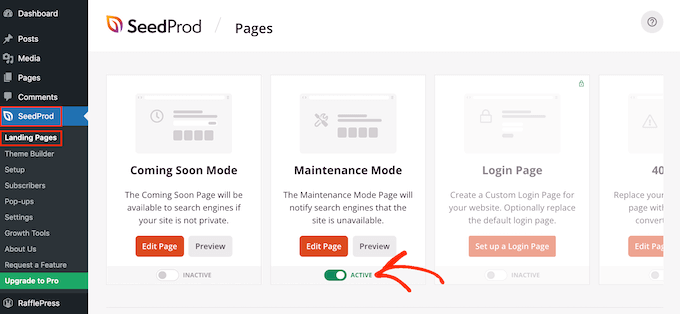
To enable maintenance mode and show visitors your custom maintenance page, just go to SeedProd » Landing Pages in the WordPress dashboard.
Here, click on the switch in the ‘Maintenance Mode’ section so that it shows ‘Active.’
Maintenance mode won’t show for you because you’re logged into the site. However, if you visit your site in an incognito browser tab then you’ll see the maintenance page in action.
When you’re ready to relaunch your site, simply go to SeedProd » Landing Pages. Under ‘Maintenance Mode,’ click on the slider to turn it from green (Active) to grey (Inactive).
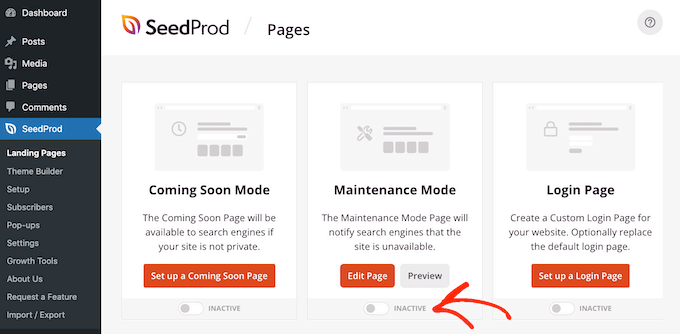
Now, anyone can access your WordPress website.
Controlling Website Access for Logged-in Users
By default, SeedProd will show the maintenance mode page to all non-logged-in users. However, anyone who has an account will still be able to log into your site. For example, subscribers on your membership site and customers on your WooCommerce store can still access their account.
You may want to change who has access to your site while it’s under maintenance. For example, if you’re developing a site for a client then they may still need access so they can monitor your work.
You can change the access controls by upgrading to SeedPro Pro. After activating the plugin, SeedProd will ask for your license key.
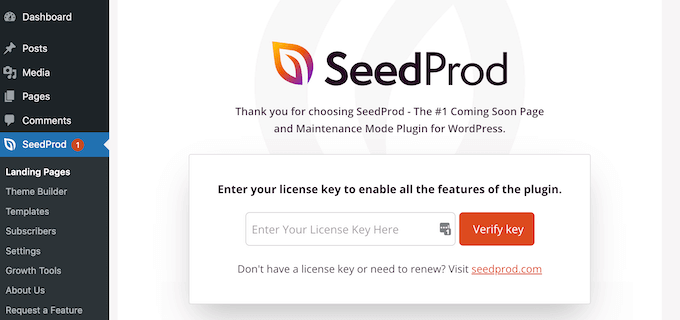
You can find this information under your account on the SeedProd website.
After that, simply go to SeedProd » Landing Pages and then click ‘Edit Page’ under Maintenance Mode.
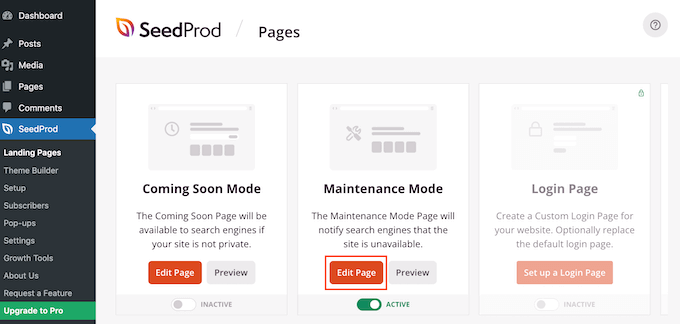
This will open the SeedProd page builder.
Here, click on ‘Page Settings,’ followed by ‘Access Control.’
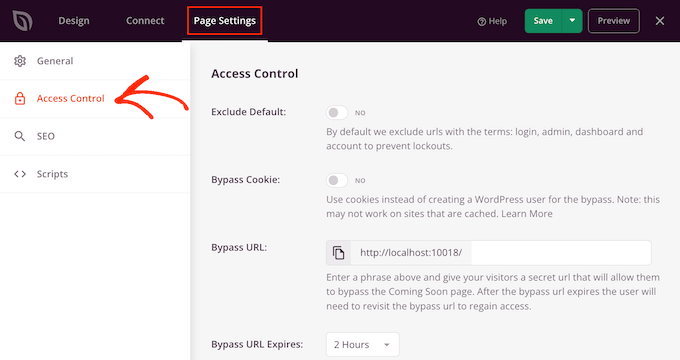
To start, it’s a good idea to activate the ‘Exclude Default’ slider. This allows visitors to access URLs that contain the following terms: login, admin, dashboard, and account. This will stop people from getting locked out of their accounts.
You can also allow users with specific browser cookies to access your account while it’s in maintenance mode, using the ‘Bypass Cookie’ toggle. Just be aware that this feature may not work if you’re using a WordPress caching plugin.
Instead, we recommend selecting the user roles that can access your site while it’s in maintenance mode. To do this, click on ‘Add Role’ and then select any role from the menu.
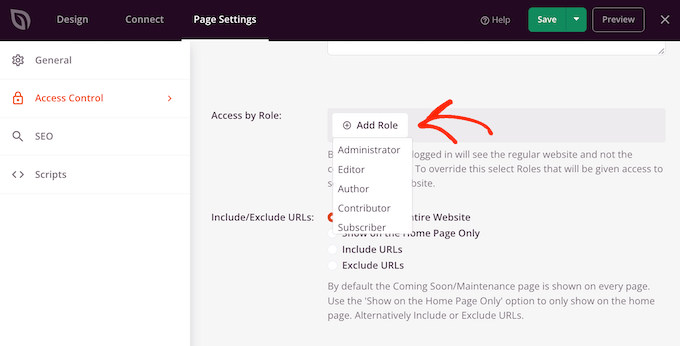
You can also include or exclude user roles created by your WordPress membership plugin or an eCommerce plugin.
When you’re happy with the access controls, don’t forget to click on the ‘Save’ button to store your settings.
Exclude Specific Pages from Maintenance Mode
SeedProd Pro also lets you include or exclude specific pages from maintenance mode. This comes in handy if users need access to certain pages.
For example, if you have a custom login page then you would usually want to exclude it from maintenance mode. If you provide customer support via email, then you may want to exclude your contact form as well.
You can do this in SeedProd’s ‘Include/Exclude URLs’ settings. Simply choose between ‘Include URLs’ or ‘Exclude URLs’ and then enter your links into the box.
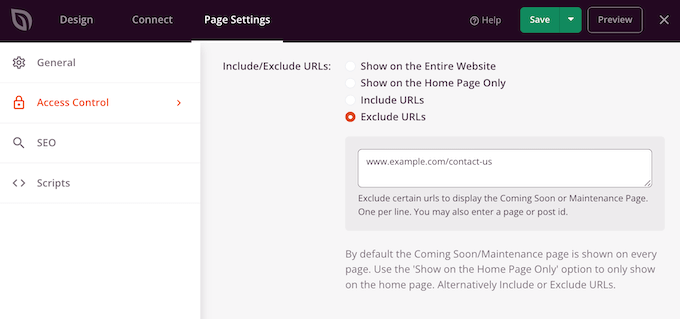
When you’re happy with how the maintenance page is setup, click on the ‘Save’ button to store your updated access control settings.
Method 2. Setup Maintenance Mode Using LightStart
Another option is to use the free LightStart plugin. This is a great choice if you want to create a simple maintenance mode page. However, this plugin uses the standard WordPress page and post editor, which isn’t as powerful as SeedProd’s drag-and-drop builder.
The first thing you need to do is install and activate the LightStart plugin. For more details, see our step-by-step guide on how to install a WordPress plugin.
Upon activation, go to Settings » LightStart.
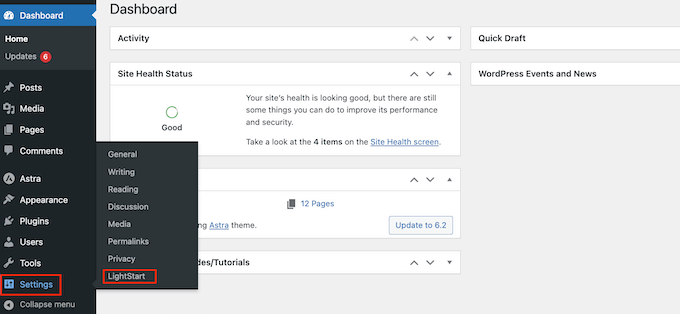
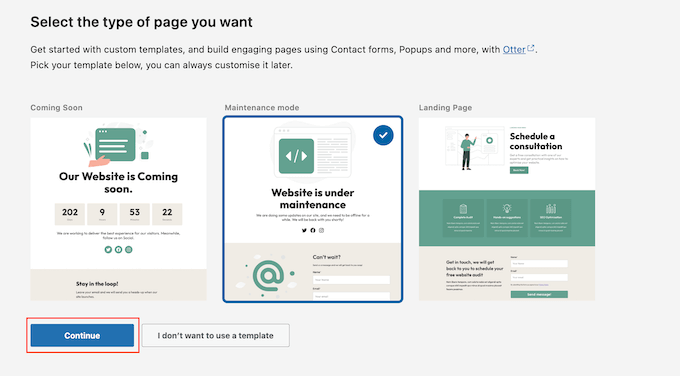
You can now choose between LightStart’s maintenance mode, coming soon, and landing page templates.
Since we want to create a maintenance mode, click on the ‘Website is under maintenance’ template and then select the ‘Continue’ button.
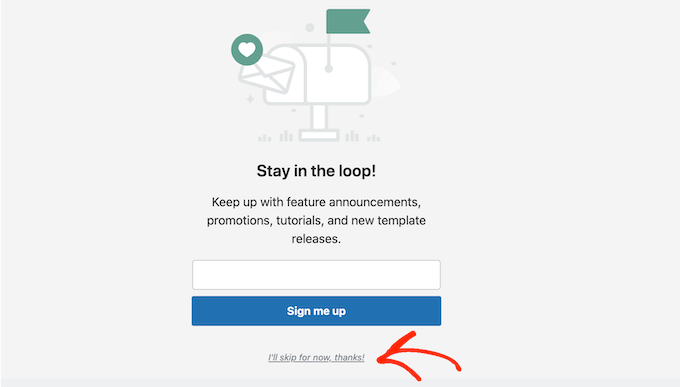
You will now have the option to join the LightStart email list.
You can simply go ahead and click ‘I’ll skip for now, thanks.’
LightStart will now go ahead and create a simple page using its built-in template.
To see this page, simply click on ‘View page.’
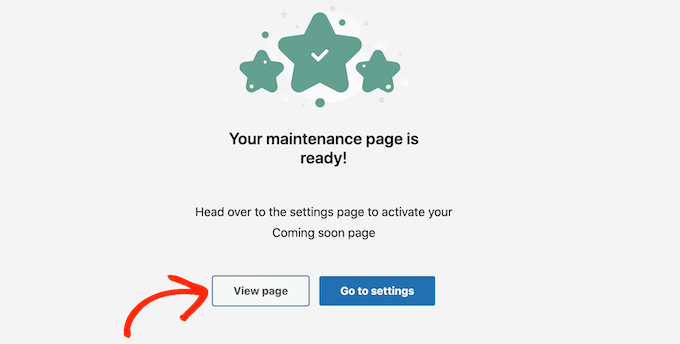
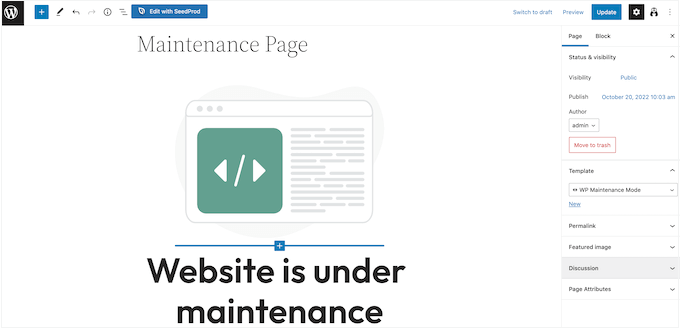
This opens the template in the standard WordPress post editor.
Note: Unhappy with this default template? You can find other designs by going to Settings » LightStart in the WordPress dashboard. Then, click on the ‘Design’ tab to see all the different templates you can use.
You can now make changes to the design in exactly the same way you edit a page or post.
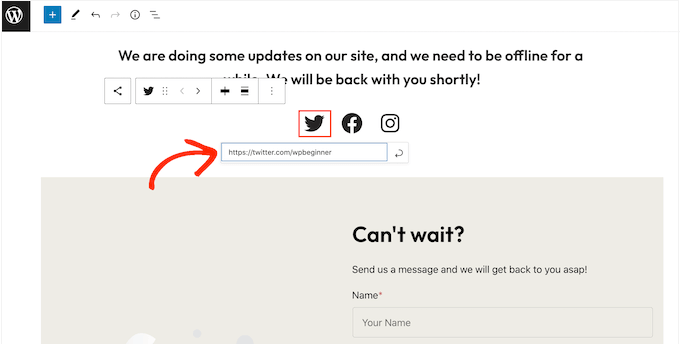
The template has a few social media placeholders that you’ll want to link to your own pages.
Simply click each of these icons and then type the URL into the little bar that appears.
When you’re happy with how the maintenance page looks, click on the ‘Update’ button in the content editor to save your changes.
Now you’ve designed your page, it’s time to configure your maintenance mode settings by going to Settings » LightStart in your WordPress dashboard.
You can then click on the ‘General’ tab.
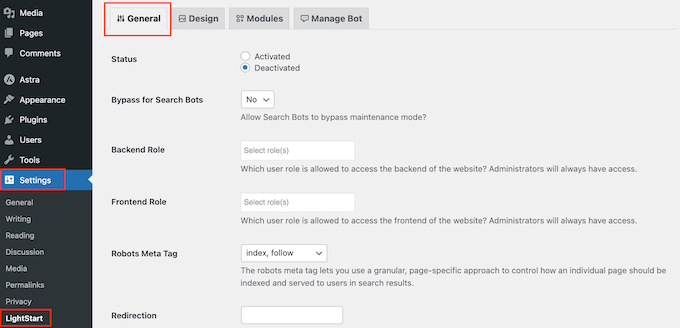
By default, search engine bots can’t see your site while it’s in maintenance mode. This can hurt your WordPress SEO and may affect where your site appears in the search engine rankings, especially if the maintenance takes a while.
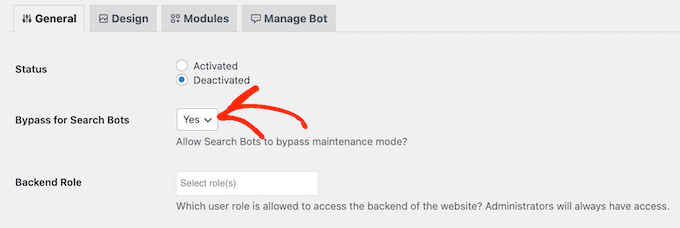
That’s why we recommend opening the ‘Bypass for Search Bots’ dropdown and choosing ‘Yes.’ This will allow any search engine crawlers to bypass your maintenance page.
As the site admin, you can access your WordPress dashboard and website while it’s in maintenance mode. However, you may want to grant access to other user roles.
You can give users access to the WordPress dashboard by opening the ‘Backend’ dropdown and then choosing a user role from the list.
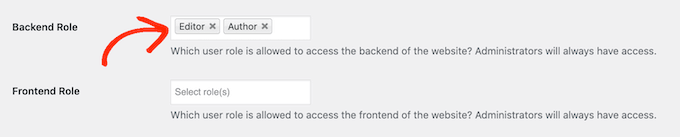
To give visitors access to your public-facing site, use the ‘Frontend’ dropdown instead.
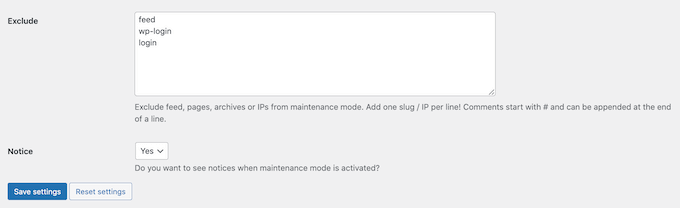
Similar to SeedProd, you can exclude certain pages from maintenance mode so they’ll always be accessible to visitors. For example, if you have a booking form then you may want to make this page available even when the rest of your site is down for maintenance.
To exclude a page, simply add its URL to the ‘Exclude’ box.
If you use Google Analytics to track visitors to your WordPress website, then make sure you click on the ‘Modules’ tab.
You can then open the ‘Use Google Analytics‘ dropdown and select ‘Yes.’
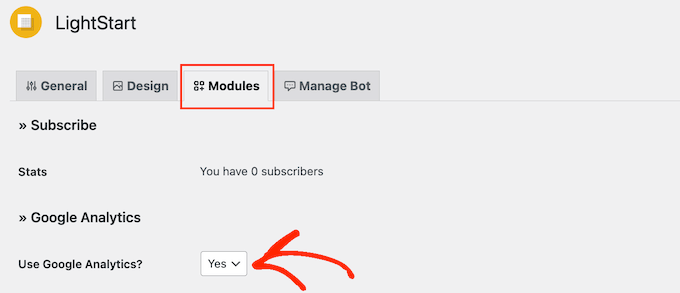
Then, simply add your tracking ID to the ‘Tracking code’ field.
There are lots more settings that are worth looking at, and most are self-explanatory. When you’re happy with how maintenance mode is set up, click on the ‘Save settings’ button to store your changes.
Now, you can activate maintenance mode at any time. Simply select the ‘General’ tab and click on the ‘Activated’ radio button.
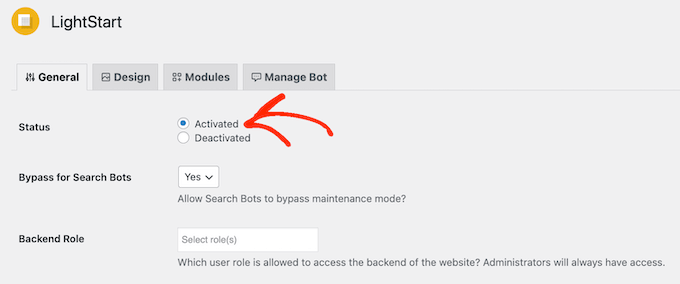
You can then scroll to the bottom of the page and click on ‘Save settings.’ Now, if you visit your site while in an incognito browser tab, you’ll see the maintenance page.
When you’re ready to take your site out of maintenance mode, simply go back to the ‘General’ tab and select ‘Deactivated.’ Then, simply click on the ‘Save changes’ button and your website will once be available to anyone who visits it.
Related: See our guide on how to fix WordPress stuck in maintenance mode.
How to Add a Chatbot to Your Maintenance Mode Page
Chatbots allow you to interact with visitors, record information about them, and even do lead generation in WordPress.
LightStart has a simple pre-programmed live chatbot that can ask visitors if they want to get notified when your site is out of maintenance mode by subscribing to your email list.
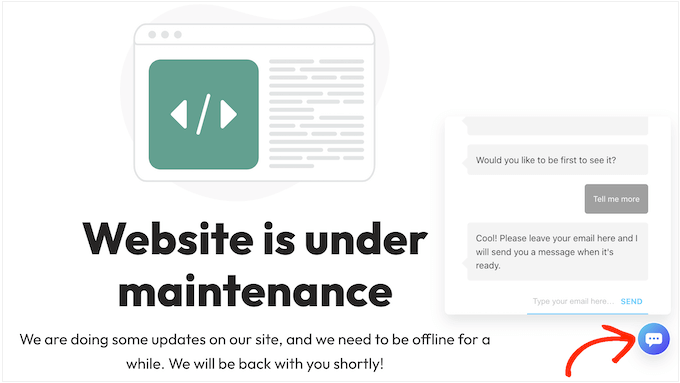
To see how the chatbot is set up, click on the ‘Manage Bot’ tab.
By default, this bot is named Admin but you can change this by typing a new name into the ‘Bot Name’ field.
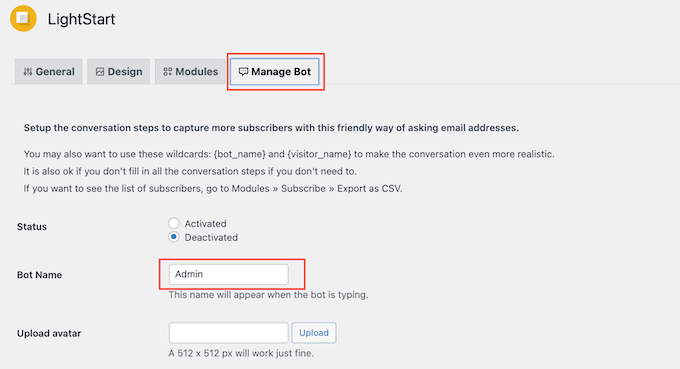
You may also want to add an avatar, which will appear in the chatbot popup.
After that, you can see the pre-programmed conversation under ‘Customize Messages.’
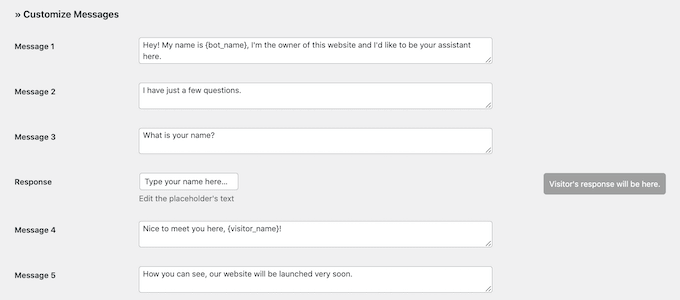
You can change any of these messages but the default settings should be a good fit for most WordPress websites.
To make the chatbot live, go to the top of the screen and click on the ‘Activated’ button.
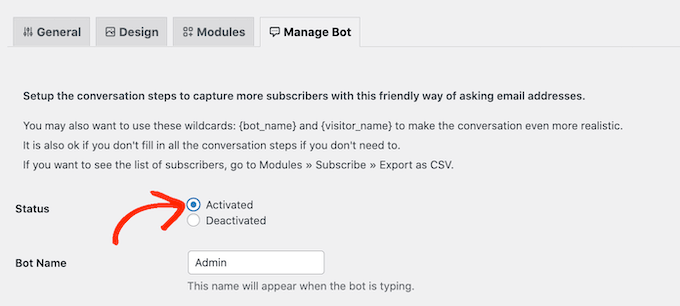
As always, don’t forget to click on ‘Save settings’ to store your changes.
Now if you visit the maintenance page in an incognito tab, you can talk to the chatbot.
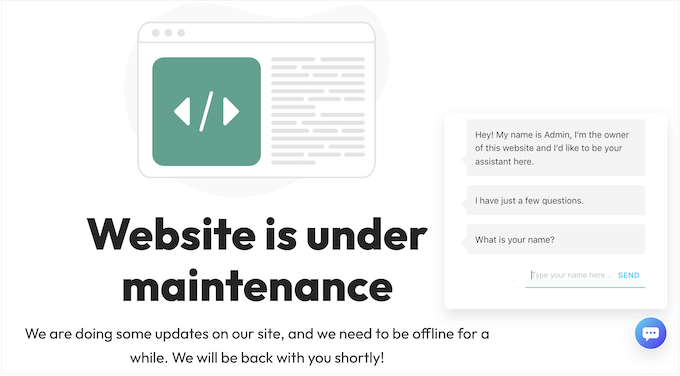
If you’re collecting user information through a chatbot or maintenance page, then it’s important to make sure your site is GDPR compliant.
Method 3. Set up Maintenance Mode Using WPCode Plugin
If you only need basic maintenance mode functionality and don’t want to install another plugin specifically for that, you can use WPCode.
WPCode allows you to easily add custom code in WordPress without editing your theme’s functions.php file. It comes with ready-made code snippets that you can use to customize your site, including maintenance mode, simple countdown timer, and much more.
First, you need to install and activate the free WPCode plugin. If you need instructions, you can see our guide on how to install a WordPress plugin.
Upon activation, go to Code Snippets » Library from the WordPress admin dashboard.
Once you’re there, search for the ‘Maintenance Mode’ snippet in the library. When you find it, hover over it, and click the ‘Use snippet’ button.
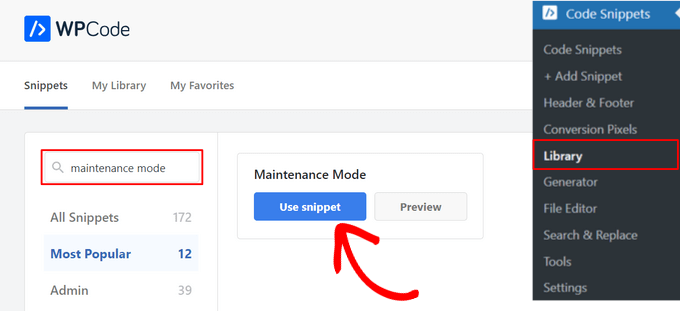
Next, WPCode will automatically add the code for you.
If you want, you can edit the maintenance mode message to make it more personalized.
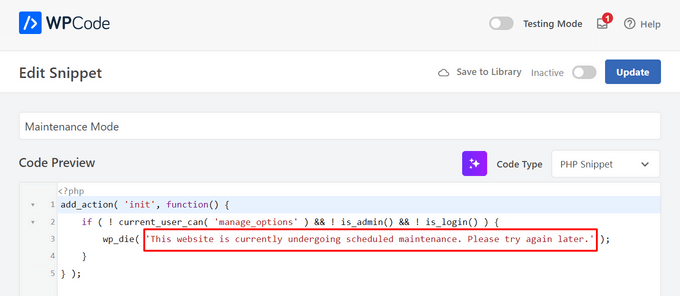
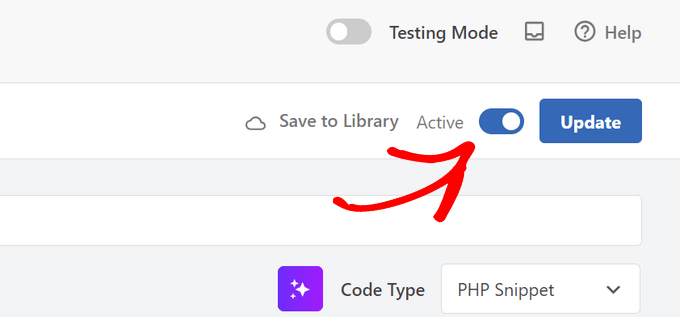
After that, all you need to do is toggle the switch from ‘Inactive’ to ‘Active’ and click the ‘Update’ button at the top of the page.
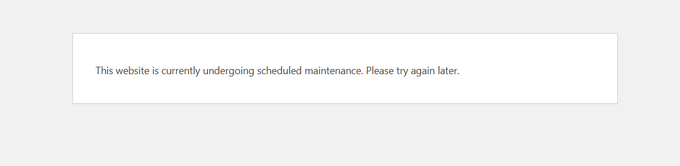
That’s it. Now a simple maintenance mode message will be displayed on your website to non-admin users.
We hope this article helped you learn how to put your WordPress site in maintenance mode. You may also want to see our guide on how to create custom pages in WordPress, and our comparison of the best business phone services to allow visitors to contact you while your website is under maintenance.
If you liked this article, then please subscribe to our YouTube Channel for WordPress video tutorials. You can also find us on Twitter and Facebook.



Oyatogun Oluwaseun Samuel
Today will mark the first day I will be using seedProd in my word press journey and this article is playing a crucial role in that. I am re-design a client website using wordpress and I am looking for way to “display maintenance in progress” page for visitors and I found this article searching your websites. I have read a lot about seedProd from this website and I am going to put all that I have read to test on this new project. Thanks for putting this together. and hence I now regard your website as wordpress encyclopedia. So if you see me saying wordpress encyclopedia just know I means wpbeginner.
Mrteesurez
The plugins you shared here are great to get this done especially the LightStart plugin, it has all what is need for a typical maintenance page, it also offer not, that’s fantastic.
I want to ask if I bypass for search engine, which page will search engines pick up as home page if some search for my website on Google ?
WPBeginner Support
It should link to your home page if you allow the bypass for search engine bots.
Admin
Mrteesurez
Thanks for the reply but won’t the plugin use the maintenance page as home page or how does it work to show homepage on search results while using by-passing feature ?
WPBeginner Support
The page home page for your users would be the maintenance page while the bots should see your actual homepage. You would want to check with the plugin’s support for the method of how they allow for the bypass.
Mrteesurez
Ok that means, different pages are showed to both users and bot during bypassing which makes it crawls the actual hopepage and show it in search results. Well it’s clear enough.
Thanks for your reply and guidance.
Jiří Vaněk
If I turn on maintenance mode with a plugin, will this avoid the problem with the .maintenance file on FTP, for example when updating more plugins? Sometimes it gets created on FTP and then has to be manually removed.
WPBeginner Support
It would not prevent that file from being created but normally that file should only stay if there was trouble during the process of updating a plugin on your site.
Admin
Jiří Vaněk
Coming back to this topic, very often this happens to me the moment I give a bulk plugin update. So is it better to update gradually instead of doing a bulk update? Thanks for your time and answers.
WPBeginner Support
Your host likely has a limit set in their system. In that case you would want to do gradual updates and if you reach out to your host they may have an option to remove the limit you are running into.
Jiří Vaněk
Thank you for the advice. The issue with the persistent .maintenance file was indeed resolved by avoiding bulk updates and instead updating one at a time. I appreciate your time and guidance.
Giuliano
I’m looking for a plugin that adds a page when the site is under maintenance. Also I want to add a Wpforms contact form. I’m not sure I understand this guide. I understand that the maintenance mode is manual and not automatic as I want.
WPBeginner Support
For what it sounds like you’re wanting you would want to use SeedProd from this guide.
Admin
Shailesh
How to allow to view site after entering a password?
WPBeginner Support
If the user is logged into your site they should see the content or SeedProd does have the option for a password for viewing the content. If you take a look at SeedProd’s documentation you can see the current method for how to set this up
Admin
Santosh
i followed your advise and put my website on maintenance mode but i now want to undo the maintenance mode (my situation changed and i did not do any maintenance tbh). To disable the maintenance mode i tried to go to the admin area
but it takes me to the website and does not display admin login page from where i can disable the maintenance module(MM).
please help, how to reverse MM and get back the website live.
WPBeginner Support
If you are unable to log in you can use one of the methods in our article below to disable the plugin you’re using:
https://www.wpbeginner.com/beginners-guide/how-to-easily-deactivate-wordpress-plugins/
Admin
Rasmita
Thank you, It’s really a helpful post.
WPBeginner Support
Glad our guide was helpful
Admin
Carl Engelbrecht
How do I allow access to a select group of people/friend/family to help me test my website before I take it out of maintenance mode?
WPBeginner Support
You should be able to create a test user for them to log in and see the site while it is under maintenance.
Admin
Jeanne Eisenstein
I installed the plugin and after activating it worked on Safari but I can not get any other browsers to bring up the under maintenance page. Tried on a Mac, PC and iphone – website opens as normal. Any additional suggestions?
WPBeginner Support
You may want to ensure you are not logged in to your site and the caching on your site has been cleared as those are the most common reasons not to see the page
Admin
Chelsey
Hi! I installed this plugin, but when it updated, it must have logged me out, and now even through trying to access the /wp-admin, it says now found and I can´t access my website! What can I do??
WPBeginner Support
You would first want to try /wp-login.php as one option and should you still not be able to get to your login page you can force disable the plugin using the method in our article here:
https://www.wpbeginner.com/plugins/how-to-deactivate-all-plugins-when-not-able-to-access-wp-admin/
Admin
Natasha
Thank you for this guide – it was easy to follow and super helpful. WP Maintenance page now up.
WPBeginner Support
Glad our guide was helpful
Admin
Ayesha
Thanks for the great article!
WPBeginner Support
You’re welcome
Admin
William Rojas
Great! I really wondering to know about WordPress maintenance. You have maked my work easy by sharing this article. Such a helpful content. Keep sharing!!
WPBeginner Support
Glad our article was helpful
Admin
teena
thanks for the post, i would like to know if i activate the plugin for 1 month , then what will be impact on seo ?. will my website keywords position get down or will remain same kindly answer it ,
thanks a lot
WPBeginner Support
If Google is unable to crawl your site for a month your SEO will likely take a hit that as it recrawls your site will begin to bring your SEO back up
Admin
Robert Crahmer
Hi, I want to put ONLY mobile site into maintenance / contruction state. How would I do that, I am running the free version. Thanks in advance. Regards.
WPBeginner Support
We don’t have a recommended method for that at this time.
Admin
Steve
Why does a plugin have to be downloaded for every little thing?
Is there not a simple built in function in Wordpress to put the site in maintenance mode?
WPBeginner Support
WordPress is designed for many types of sites and not all sites need a maintenance mode which is why there isn’t one by default at the moment.
Admin
JBerg
You can add a simple function to your theme or child theme (functions.php)
// Activate WordPress Maintenance Mode
function wp_maintenance_mode() {
if (!current_user_can(‘edit_themes’) || !is_user_logged_in()) {
wp_die(‘Under MaintenanceWebsite under planned maintenance. Please check back later.’);
}
}
add_action(‘get_header’, ‘wp_maintenance_mode’);
It isn’t very customizable and will take out the whole site (unless logged in). No excluding certain pages, and might not be a “Beginner Friendly” option, etc..
Andrew
@JBERG, thank you. For those that try it, make sure the single inverted commas paste correctly. I needed to replace them for the script to work.
Marc Amand
I´m trying to exclude pages but it doesn´t work.
WPBeginner Support
If you reach out to the support for the plugin you are using they should be able to assist with the exclusions not working.
Admin
john
I am currently working on a website and using WP Maintenance mode and everything has been working fine. Suddenly, I can’t view my website in maintenance mode again. Everything is stuck in WP Maintenance mode. I have to deactivate WP Maintenance plugin before I can see my website. How do I fix this?
WPBeginner Support
If the plugin is preventing you from seeing your back end then you would want to reach out to the plugin’s support and they can likely either fix the problem or let you know what needs to be changed.
Admin
sofiya
how to add fb pixel to wordpress in WP Maintenance Mode
WPBeginner Support
You would want to reach out to the plugin’s support for if they have a recommended method, otherwise you could add it using the HTML editor for the page with that plugin for now.
Admin
Keith
It worked on mobile but not on desktop. I’ve tried incognito mode on several browsers and computers… Any suggestions?
WPBeginner Support
Hey Keith,
Please see your settings to make sure that you are not just using it on mobile browsers.
Admin
Willman
I use WP Maintenance Mode plugin.
My URL now shows the maintenance page, but only when I am not logged in. It shows the normal blog when I am logged in. What happens?
WPBeginner Support
Hello,
That’s expected behavior. When you are logged in you can see your blog so that you can work on it.
Admin
Tony
A couple of quick questions please – Where exactly does the information collected in the Manage Bot tab get stored. How do I see the information collected by the BOT?
Thanks
Tony
joyce
I can’t get it to work.
I have followed instructions perfectly.
What am I doing wrong? Nothing fancy, just deactivate while I build.
Thanks.
Joyce
joyce
I figured it out. I was still logged in but the timer was going and I did not set up a timer.
Aurora
Well, you missed out a tiny but important piece of information, that to even install the WP Maintenance Plugin, you need to have a business plan with WP. I was misled to try this article and even registered for your free videos and plugins when I don’t even have a business plan.
WPBeginner Support
Hi Aurora,
Please see our guide on the difference between self hosted WordPress.org vs free WordPress.com blog.
Admin
Manoj Aryal
I have activated the maintenance mode through the dashboard in WordPress but the website is still online and everything is shown ?
I used rookie theme. please tell me how can the solve?
Er Abhishek Choudhary
First logout from wp then it works or use another web browser if you don’t want to logout.
Tabitha
Hi! I was really excited to find this plug in to display a coming soon page while I build my site. I followed the directions. Changed all the settings as described BUT now my site will not load at all. I can work on it from the back end no problem from my dashboard but when I have others go to see how the splash page looks, it wont load. Please help!
Jenna
Hello – how long after saving it as “activated” will it take for the front end to display the message? I am still able to see and navigate around the website, even though I have the maintenance mode set to active.
WPBeginner Support
Hi Jehna,
Try logging out of your website or open it in incognito mode.
Admin
Tabitha
I read that here and tried that. After a solid 2 minutes of nothing happening, I tried with a different browser and still nothing. Thing is its not just my computer that it won’t open on. My phone (not logged in), my room mates computer, and other friends too. Some get a 504 error code. Some get ‘safari could’t open bc server stopped responding’ type message. Any other suggestions?
Bella
Hi there,
I was wondering whether its only administrator roles that can edit the site while in maintenance mode?
I am running Dokan and WooCommerce and would like my users (vendors) to be able to upload products even when in maintenance mode? is this possoble or do i have to give them administrator access?
best regards,
Christabel
WPBeginner Support
Hi Bella,
Ideally you would only allow administrators to be able to access admin area during the maintenance mode. However, you can change that if you need.
Admin
Paul
I’m disappointed by the content. It’s a great article about a plugin, but I found it by searching for “wordpress enable maintenance mode”. I’m about to upgrade a site to version 4.8, manually. My first step will be to disable all of the plugins — including WP_Maintenance_mode. Your solution won’t work for me.
It would have been nice if you’d at least included a link to how to put a site into maintenance mode without a plugin.
Pranilesh
Hi, I recently started a blog and installed wp through the host service now when I click to visit my site it shows site under construction. Can you help Me please asap
Toon
A very nice plugin indeed.
But be aware!
Suppose you put your site in Maintenance Mode with this plugin and you are going to update Wordpress.
At some point in the update process you will still get the standard Wordpress ‘Maintenance message (‘Briefly unavailable for scheduled maintenance. Check back in a minute.’). After Wordpress is done updating, the Maintenance Mode page from the plugin returns.
I think that this is the case with most of these Maintenance plugins.
Honey
Hi Toon,
I was wondering, how do you go around this then? I’m about to use a maintenance plugin but I’m afraid I’d break my site.
Best,
Honey
Ben
Hello, WPBeginner
Please, is it recommended to delete the plugin after the plugin’s purpose has been fulfilled?
Thanks
WPBeginner Support
Hi Ben,
Yes. You should deactivate and delete the plugins that you don’t intend to use anytime soon.
Admin
Xyronch
The maintenance not working in https … it’s only in http they can access using https..
Nicole
Hi there. Looking for some help, please. I put my site into maintenance mode using these instructions, but now I can’t get out of it. I don’t have a direct Wordpress log in, I made the site in Wordpress through the host site. And now I can’t edit the site at all.
Any help would be greatly appreciated!
Thank you
Nicole
WPBeginner Support
Hi Nicole,
You can go to the plugins page and deactivate the WP Maintenance Mode plugin.
Admin
philippe
sorry i figured it out my bad
philippe
hi i put my page in mantic mode but now i can not access it at all i do not even have the blue tool bar to select options please help i click on my web site and all it does is take me to the mainanace page
Abhishek Sharma
Looks like a nice plugin, but it seems problem on this where is go You subscribed Emails. how can i check this email ids.
Konstantinos
Very nice article once again…
I have one question though.
I installed the plugin. I configured it as I wanted but I can’t find something to preview my “Under Construction” Page.
thank you in advance.
Kay
Super easy to set up, love it. However, it looks great on desktop but a mess on mobile. It supposed to be mobile responsive??? Am I missing something? Thanks
deb
Just wondering, will it be possible to change background each time the site refreshes ?
Sanjay Goswami
Is there any way to put WordPress site in maintenance mode through wp-config file?
Nicola
Hi,
Im stuck in maintenance mode and I can’t seem to access my site and work in the background. I obviously haven’t set a switch or checked a button. could you help me access my site?
Regards,
Nicola
Sarah
Hello I’m wondering if my site is not live, how is it possible to receive comments?
asraf
yeah well cleared man thank you so much,…..
Eikeen
I follow your instruction and the maintenance sign did not show up on my site and my site is still active. Is there another way that I can bring my site down
Gena
I have the same problem.
I have tried 4 different maintenance mode plugins and I can’t get any of them to work. My site is still active. Help
ANita
Hi,
Very clearly written post – I wish I had read it before activating the plugin. I don’t seem to be able to log back into my account. I just have this blank screen with the ‘under maintenance’ message and nothing else. Any change you could advise me on how to get back into my account? Thanks a million! Anita
WPBeginner Support
Please see How to fix briefly unavailable for scheduled maintenance error
Admin
Aksam Zarook
Thanks once again for a great resource wpbignner.
Your site has helped me out many times by giving advice on the best way to solve wp problems. I’m a wordpress designer and developer and many times I have had to find quick solutions to problems at short notices from customers. Today was one of them. There are many wp plugins new and old for the same function and you get confused what to select. In times like that I always first do a google search for wpbeginner articles.
adeem jan
Superb post buddy, i never know about it that we can set our blog on maintenance mode, this way i can save my traffic who came from search engine or referral for 1st time on my blog.
Will surely try this and will let you know about outcomes.
WPBeginner Staff
No it will put your site in maintenance mode for as long as you want. You will have to turn it off when you want to resume normal operation.
AlbertVR
Seems like u just screwed up with this plugin! all the functionality off the old plugin is deleted