


At WPBeginner, we have helped countless readers customize their WordPress sites to improve the user experience, boost branding, and drive conversions. And we have seen that when done right, a one-of-a-kind navigation menu can help increase engagement and keep people on your site longer.
The problem is that all WordPress themes have set locations where you can display a navigation menu, so changing this can be tricky. This is especially true if you’re a beginner because modifying theme files is a delicate process.
When you’re using a block theme, you can do this with the Full Site Editor. But, in our experience, there are better options that will work for all types of themes.
For instance, if you want advanced customizations, you can use a powerful page builder like SeedProd. Or, if you’re looking for a simple way to use custom code, WPCode is by far the best choice.
In this article, we will show you how to add a custom navigation menu to any area of your WordPress theme. We’ll walk you through 3 different options so you can choose the tutorial that is right for your needs.
Why Add Custom Navigation Menus in WordPress Themes?
A navigation menu is a list of links pointing to important areas of your website. They make it easy for visitors to find interesting content, which can increase pageviews and reduce the bounce rate in WordPress.
The exact location of your menu will vary based on your WordPress theme. Most themes have several options, so you can create different menus and show them in different locations.
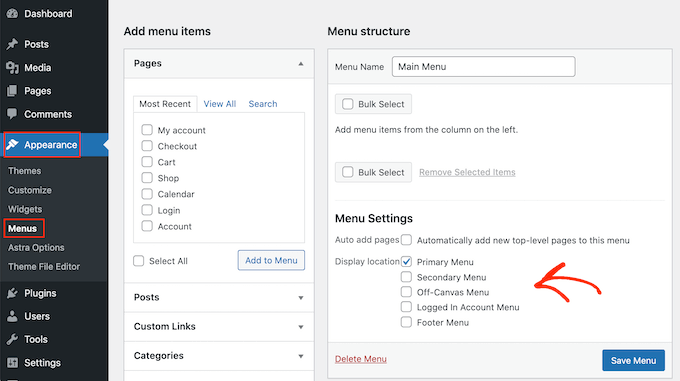
To see where you can display menus in your current WordPress theme, simply head over to Appearance » Menus and then take a look at the ‘Display location’ section.
The following image shows the locations that are supported by the Astra WordPress theme.
Sometimes, you may want to show a menu in an area that isn’t listed as a ‘Display location’ in your theme.
With that in mind, let’s take a look at how to add a custom navigation menu to any area of your WordPress theme. Simply use the quick links below to jump to the method you prefer:
- Method 1: Using the Full Site Editor (Block-Based Themes Only)
- Method 2: Using a Page Builder Plugin (Works With All Themes)
- Method 3: Create a Custom Navigation Menu in WordPress Using Code (Advanced)
Method 1: Using the Full Site Editor (Block-Based Themes Only)
If you are using a block theme such as ThemeIsle Hestia Pro, then you can add a custom navigation menu using Full Site Editing (FSE) and the block editor.
For more details, you can see our article on the best WordPress full-site editing themes.
This method doesn’t work with every theme, and it doesn’t let you customize every part of the menu. If you want to add a completely custom menu to any WordPress theme, then we recommend using a page builder plugin instead.
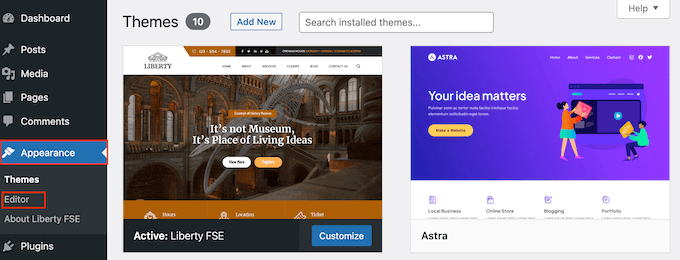
If you are using a block-based theme, then head over to Appearance » Editor.
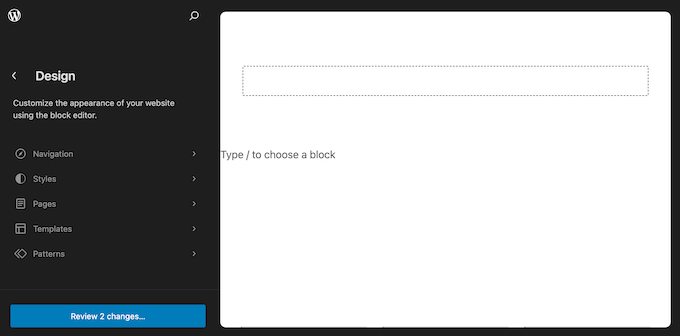
By default, the full site editor shows your theme’s home template, but you can add a navigation menu to any area.
To see all the available options, just select either ‘Templates,’ ‘Patterns,’ or ‘Pages.’
You can now click on the template, template part, or page where you want to add a custom navigation menu.
WordPress will now show a preview of the design. To edit this template, click on the small pencil icon.
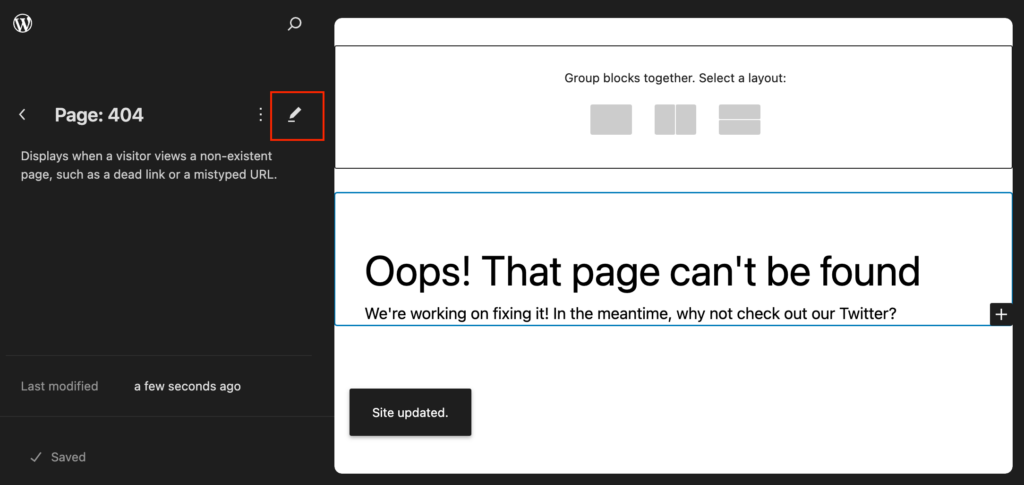
The next step is adding a Navigation block to the area where you want to show your menu.
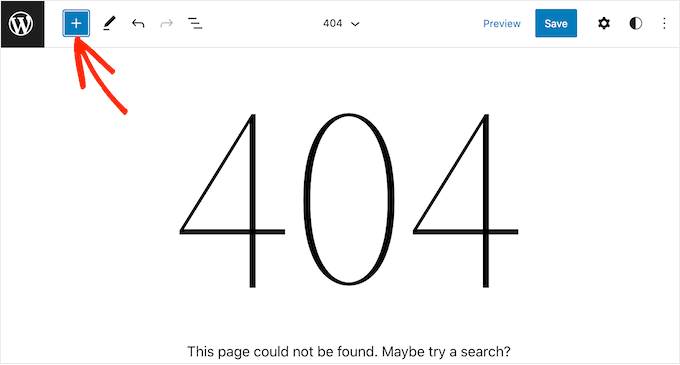
In the top-left corner, click on the blue ‘+’ button.
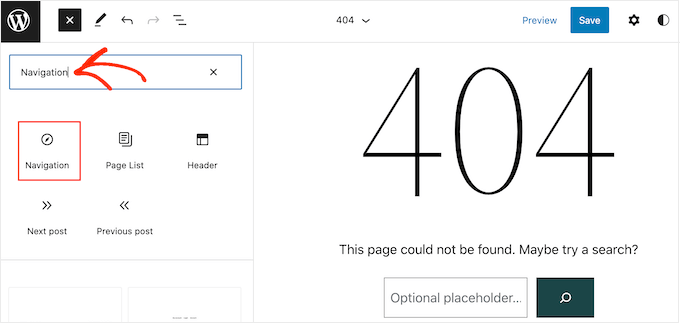
Now, go ahead and type ‘Navigation’ into the search bar.
When the ‘Navigation’ block appears, simply drag and drop it onto your layout.
Next, click to select the Navigation block.
If you’ve already created the menu that you want to display, then click to select the Navigation block. In the right-hand menu, click the three-dotted icon next to ‘Menu.’
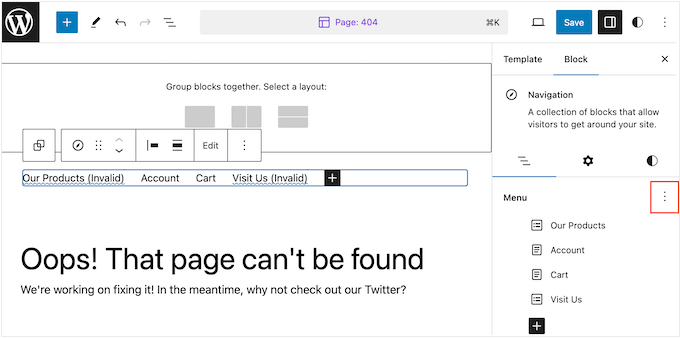
You can then choose a menu from the dropdown.
Another option is to build a menu inside the full-site editor by adding pages, posts, custom links, and more. To add items to the new menu, just click on the ‘+’ icon.
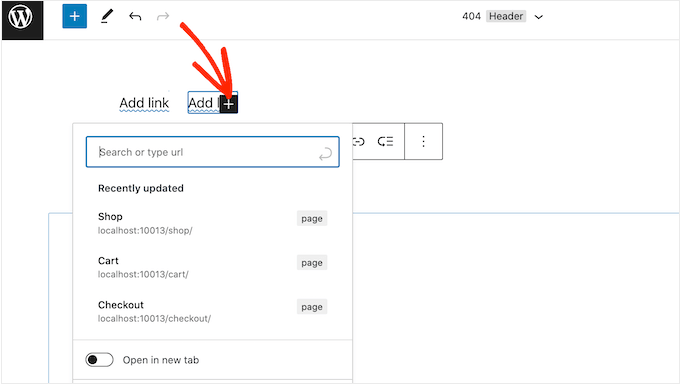
This opens a popup where you add any post or page and decide whether these links should open in a new tab.
You can also add a search bar to the WordPress menu, add social media icons, and more. In the popup, simply type in the block you want to add to the menu and select the right option when it appears.
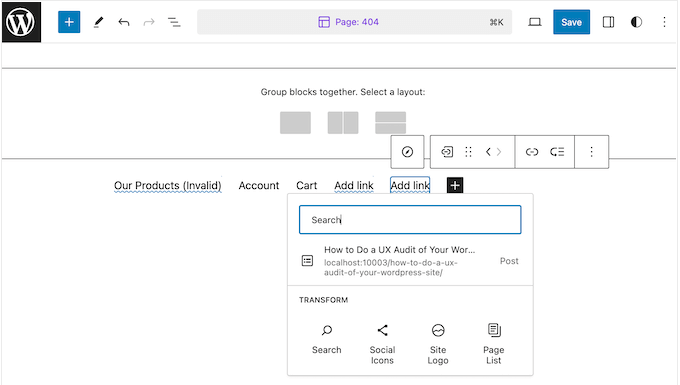
You can then configure this block using the settings in the mini toolbar and the right-hand menu. Simply repeat these steps to add more items to the menu.
When you’re happy with how the menu looks, simply click on the ‘Save’ button.
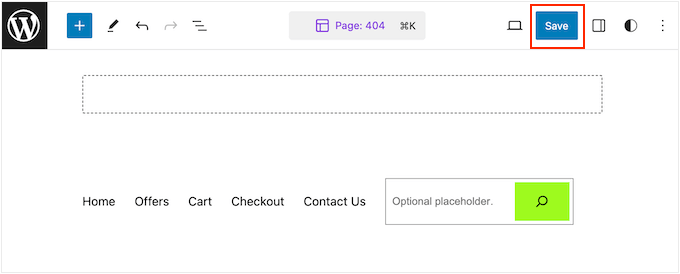
Your site will now be using the new template, and visitors can interact with your custom navigation menu.
Method 2: Using a Page Builder Plugin (Works With All Themes)
The full site editor allows you to add menus to block-based themes. However, if you want to add an advanced, fully customizable menu to any WordPress theme, then you’ll need a page builder plugin.
SeedProd is the best WordPress page builder plugin on the market that allows you to customize every part of your navigation menu.
We have extensive experience using this tool to build custom navigation menus, landing pages, and much more. For more details, check out our complete SeedProd review.
When it comes to pages, SeedProd comes with over 350 professionally-designed templates that you can use as your starting point. After choosing a template, you can add a custom navigation menu to your site using SeedProd’s ready-made Nav Menu block.
First, you need to install and activate the SeedProd plugin. For more details, see our step-by-step guide on how to install a WordPress plugin.
Note: There’s also a free version of SeedProd that allows you to create custom navigation menus without writing code. However, in this guide, we’ll be using SeedProd Pro since it has the Nav Menu block, plus extra templates and advanced features.
After activating the plugin, SeedProd will ask for your license key.
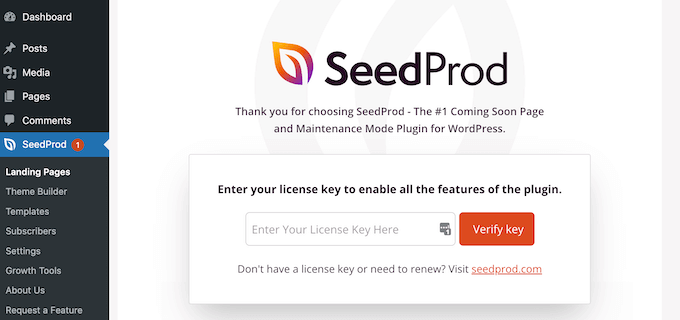
You can find this information in your account on the SeedProd website. After entering the key, click on the ‘Verify Key’ button.
Once you’ve done that, go to SeedProd » Landing Pages and click on the ‘Add New Landing Page’ button.
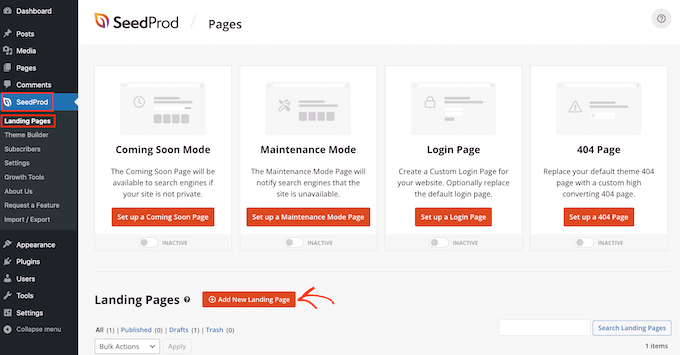
You can now choose a template for your custom page.
To help you find the right design, all of SeedProd’s templates are organized into different campaign types, such as coming soon and lead squeeze campaigns. You can even use SeedProd’s templates to improve your 404 page.
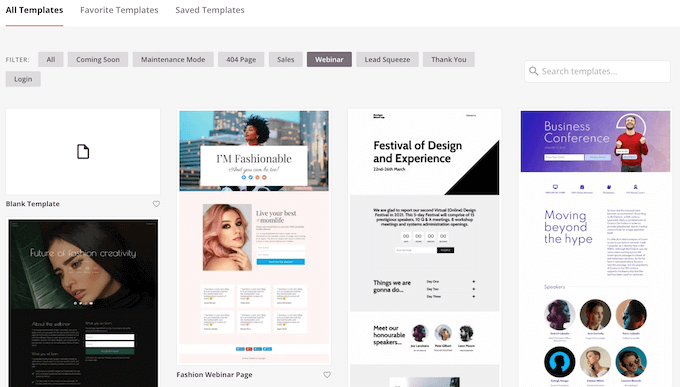
To take a closer look at any design, simply hover your mouse over that template and then click on the magnifying glass icon.
When you find a design you want to use, click on ‘Choose This Template.’

We’re using the ‘Black Friday Sales Page’ template in all our images, but you can use any template you want.
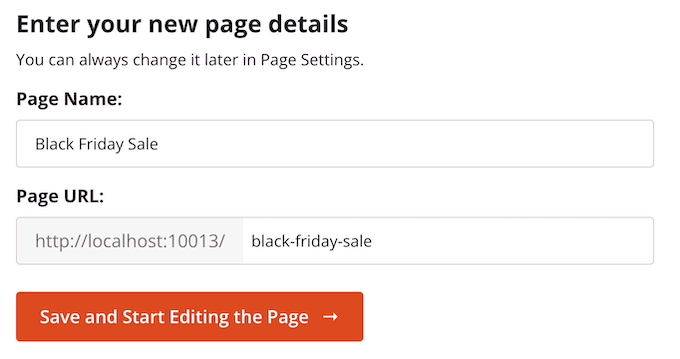
After choosing a template, type in a name for that custom page. SeedProd will automatically create a URL based on the page’s title, but you can change this URL to anything you want.
For example, you might add relevant keywords to help search engines understand what the page is about. This can improve your WordPress SEO and help the search engine show the page to people who are looking for content just like yours.
After entering this information, click on the ‘Save and Start Editing the Page’ button.
Most templates already contain some blocks, which are the core components of all SeedProd page layouts.
To customize a block, just click to select it in the page editor.
The left-hand toolbar will now show all the settings for that block. For example, in the image below, we’re changing the text inside a ‘Headline’ block.
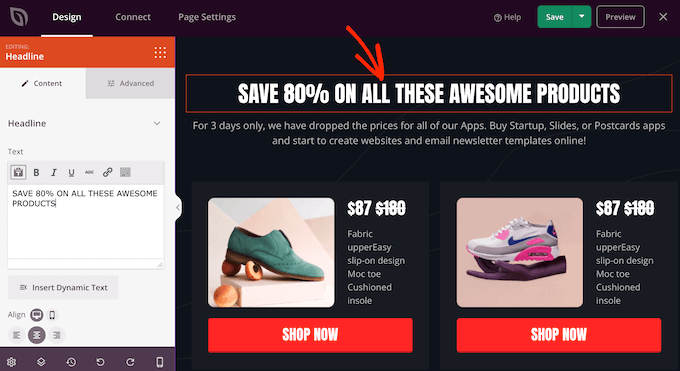
You can format the text, change its alignment, add links, and more using the settings in the left-hand menu.
If you select the ‘Advanced’ tab, then you’ll get access to even more settings. For example, you can make the block really stand out by adding box shadows and CSS animations.
To add new blocks to your design, simply find any block in the left-hand menu and then drag it onto the page. If you want to delete a block, then click to select that block and then use the trash can icon.
Since we want to create a custom navigation menu, drag a ‘Nav Menu’ block onto the page.
This creates a navigation menu with a single default ‘About’ item.
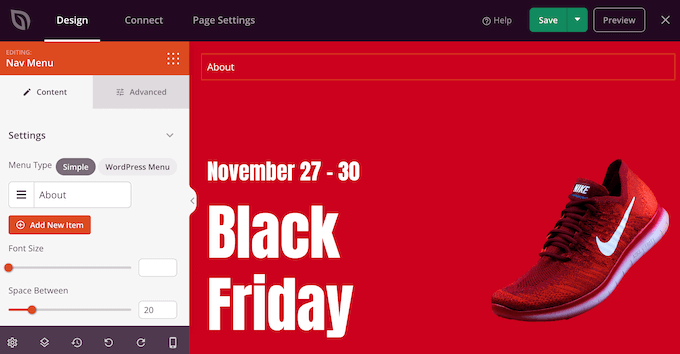
You can now either build a new menu inside the SeedProd editor or choose a menu you’ve already created in the WordPress dashboard.
To show a menu you’ve previously created, go ahead and click on the ‘WordPress Menu’ button. You can now open the ‘Menus’ dropdown and choose any option from the list.
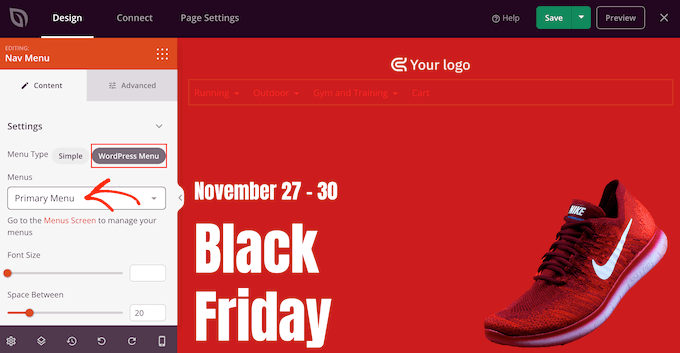
After that, you can change the font size, text alignment, and more using the settings in the left-hand menu.
If you want to build a new menu inside SeedProd instead, then select the ‘Simple’ button.
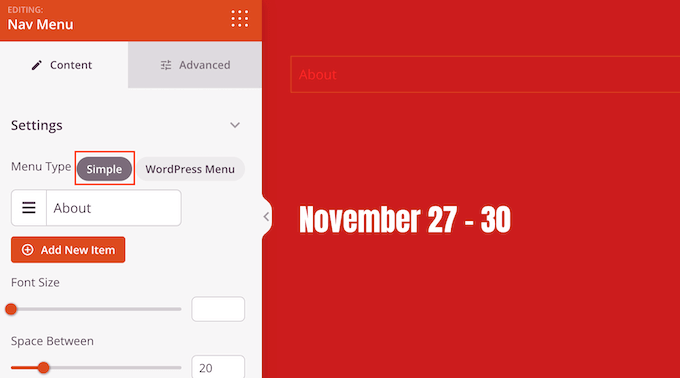
Then, click to expand the ‘About’ item that SeedProd creates by default.
This opens some controls where you can change the text and add the URL that the menu item will link to.
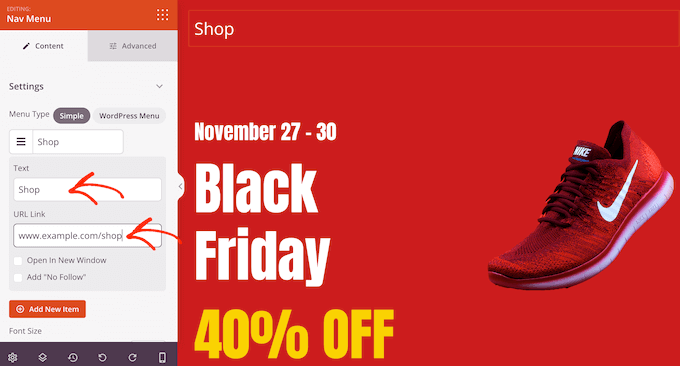
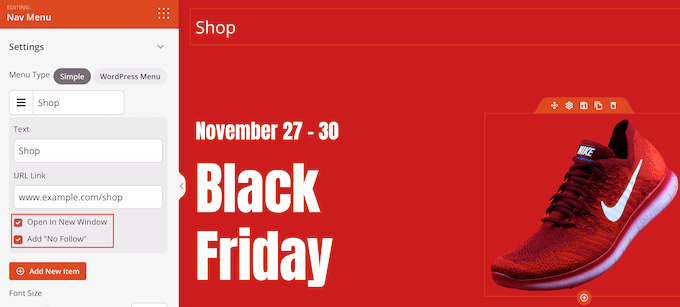
By default, the link will be ‘dofollow’ and open in the same browser window. You can change these settings using the checkboxes in the ‘URL Link’ section.
In the following image, we are creating a ‘nofollow’ link that will open in a new window. For more on this topic, please see our beginner’s guide to nofollow links.
To add more items to the menu, simply click on the ‘Add New Item’ button.
You can then customize each of these items by following the same process described above.
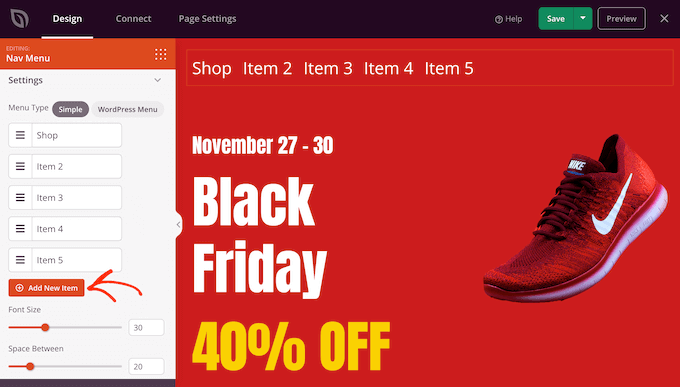
The left-hand menu also has settings that change the font size and text alignment.
You can even create a divider, which will appear between each item in the menu.
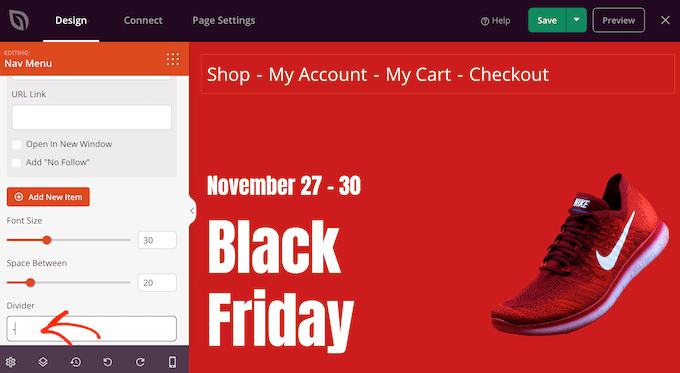
After that, go ahead and switch to the ‘Advanced’ tab. Here, you can change the menu’s colors, spacing, typography, and other advanced options.
As you make changes, the live preview will update automatically, so you can try different settings to see what looks good in your design.
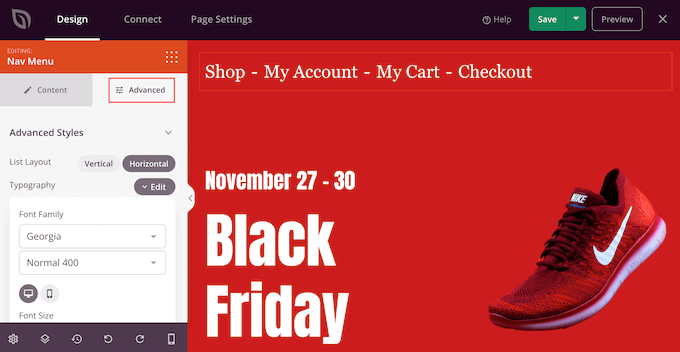
By default, SeedProd shows the same menu on mobile and desktop devices. However, mobile devices typically have much smaller screens compared to desktop computers.
With that in mind, you may want to create a separate menu to show on mobile devices. For example, you might use a vertical layout so mobile users don’t need to scroll sideways. You may also want to show fewer links on smartphone and tablet devices.
To create a mobile-ready menu, just design the menu following the same process described above. Then, select the ‘Advanced’ tab and click to expand the ‘Device Visibility’ section.
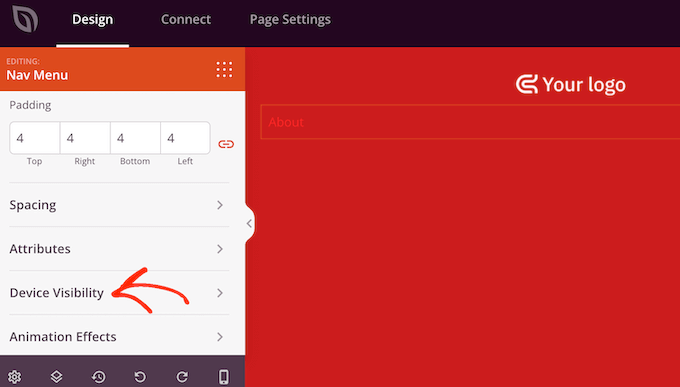
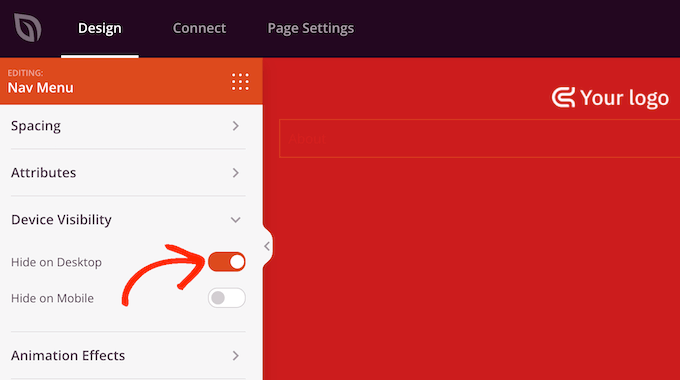
You can now toggle on the ‘Hide on Desktop’ slider.
Now, SeedProd will only show this menu to mobile users.
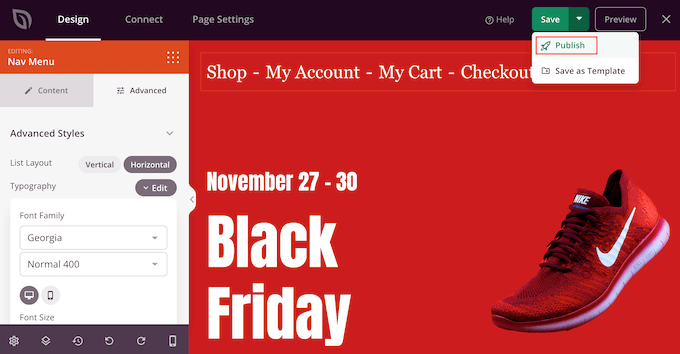
When you are happy with how your custom menu looks, it’s time to publish it.
Simply click the dropdown arrow next to ‘Save’ and then select ‘Publish.’
Now, if you visit your WordPress blog, you’ll see the custom navigation menu in action.
Method 3: Create a Custom Navigation Menu in WordPress Using Code (Advanced)
If you don’t want to set up a page builder plugin, then you can add a custom navigation menu using code. You’ll often find guides with instructions on how to add custom code snippets to your theme’s functions.php file.
However, we don’t recommend this method, as even a small mistake in your code could cause a number of common WordPress errors or even break your site completely. You’ll also lose the custom code when you update your WordPress theme.
That’s why we recommend using WPCode. It is the easiest and safest way to add custom code in WordPress without having to edit any core WordPress files.
Note: There are tons of different ways that you can use WPCode to safely customize your WordPress site. It has a built-in code snippets library and supports all the most important WordPress languages, including PHP, JavaScript, CSS, and HTML. For more information about the plugin, check out our complete WPCode review.
The first thing you need to do is install and activate the free WPCode plugin. For more details, see our step-by-step guide on how to install a WordPress plugin.
Upon activation, go to Code Snippets » Add Snippet in your WordPress dashboard.
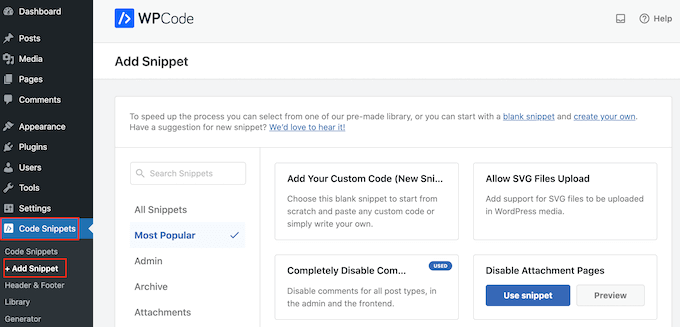
Here, you’ll see all the ready-made snippets that you can add to your site. These include a snippet that allows you to completely disable comments, upload file types that WordPress doesn’t usually support, disable attachment pages, and much more.
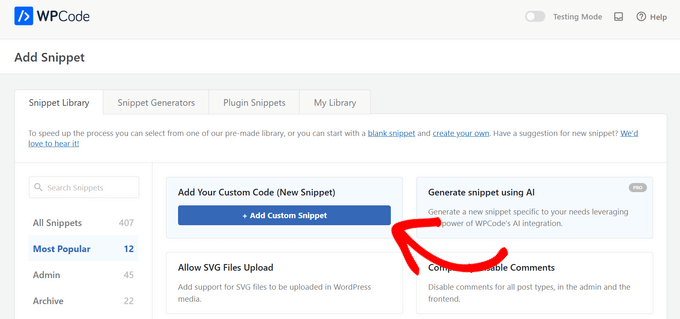
To create your own snippet, hover your mouse over ‘Add Your Custom Code (New Snippet)’ and then click the ‘+ Add Custom Snippet’ button.
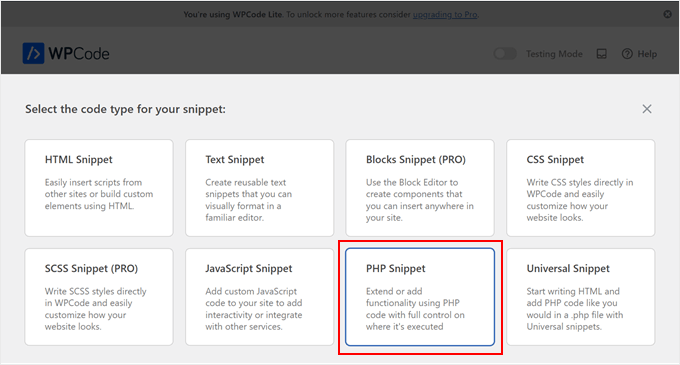
Next, you need to choose a code type from the list of options that appear on the screen. For this tutorial, select ‘PHP Snippet’ as the code type.
You’ll now be directed to the Create Custom Snippet page.
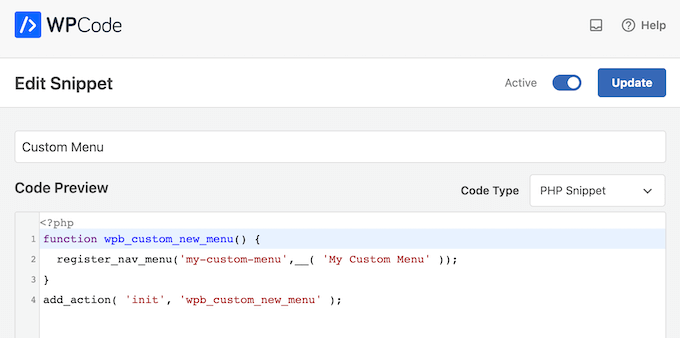
To start, enter a title for the custom code snippet. This can be anything that helps you identify the snippet in your WordPress dashboard.
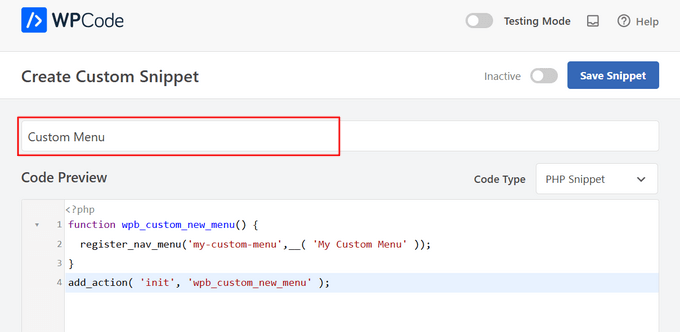
Once you’ve done that, simply paste the following snippet into the code editor:
function wpb_custom_new_menu() {
  register_nav_menu('my-custom-menu',__( 'My Custom Menu' ));
}
add_action( 'init', 'wpb_custom_new_menu' );
This will add a new menu location to your theme called ‘My Custom Menu.’ To use a different name, simply tweak the code snippet.
If you want to add more than one custom navigation menu to your theme, then simply add an extra line to the code snippet.
For example, here, we are adding two new menu locations to our theme, called ‘My Custom Menu’ and ‘Extra Menu:’
function wpb_custom_new_menu() {
  register_nav_menus(
    array(
      'my-custom-menu' => __( 'My Custom Menu' ),
      'extra-menu' => __( 'Extra Menu' )
    )
  );
}
add_action( 'init', 'wpb_custom_new_menu' );
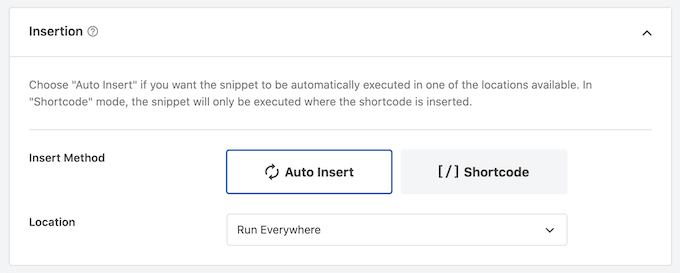
After that, scroll to the ‘Insertion’ options. If it isn’t already selected, then choose the ‘Auto Insert’ method so that WPCode adds the snippet across your entire site.
Then, open the ‘Location’ dropdown and click on ‘Run Everywhere.’
Now, you’re ready to scroll to the top of the screen and click on the ‘Inactive’ toggle so it changes to ‘Active.’
Finally, go ahead and click on ‘Save’ to make this snippet live.
After that, go to Appearance » Menus and look at the ‘Display location’ area.
You should now see a new ‘My Custom Menu’ option.
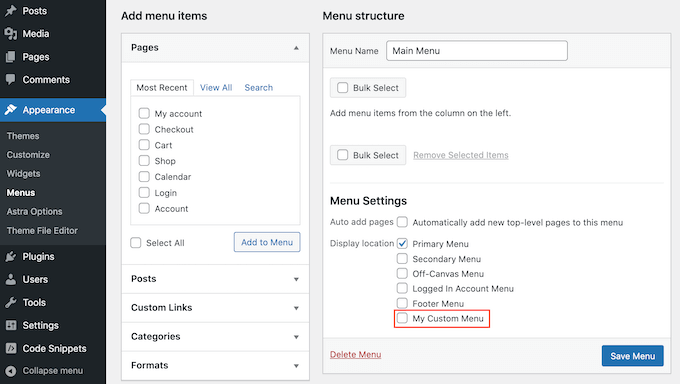
You can now go ahead and add some menu items to the new location. For more information, please see our step-by-step guide on how to add navigation menus for beginners.
When you are happy with your menu, the next step is adding it to your WordPress theme.
Most websites show the navigation menu directly under the header section. This means the menu is one of the first things visitors see, along with the site logo or title.
You can add the custom navigation menu to any location by adding some code to your theme’s template file.
In your WordPress dashboard, go to Appearance » Theme File Editor.
In the right-hand menu, choose the template where you want to add the menu. For example, if you want to show the custom navigation menu in your website’s header, then you’ll typically select the header.php file.
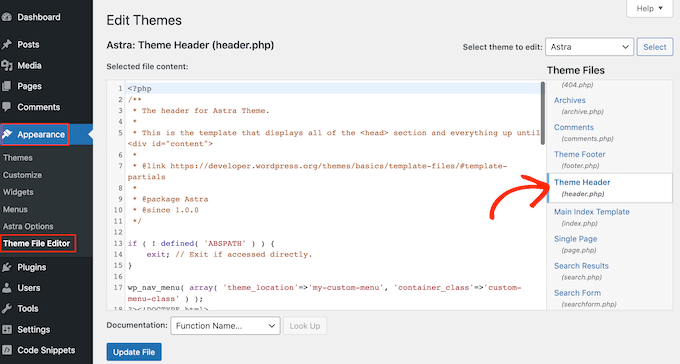
For help finding the right template file, please see our guide on how to find which files to edit in your WordPress theme.
After selecting the file, you’ll need to add a wp_nav_menu function and specify the name of your custom menu.
For example, in the following code snippet, we are adding ‘My Custom Menu’ to the theme’s header:
wp_nav_menu( array( 'theme_location'=>'my-custom-menu', 'container_class'=>'custom-menu-class' ) );
After adding the code, click on the ‘Update File’ button to save your changes.
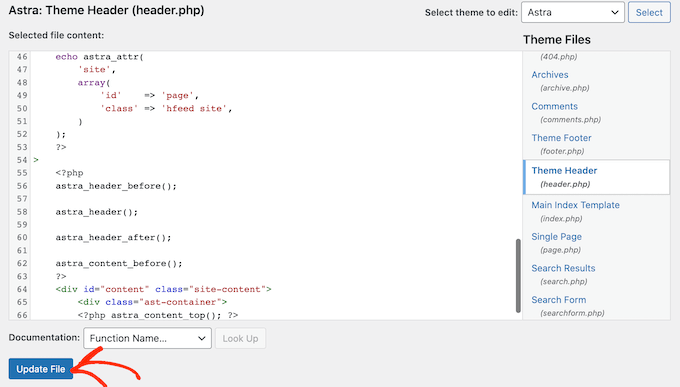
Now, if you visit your site, then you’ll see the custom menu in action.
By default, your menu will appear as a plain bulleted list.
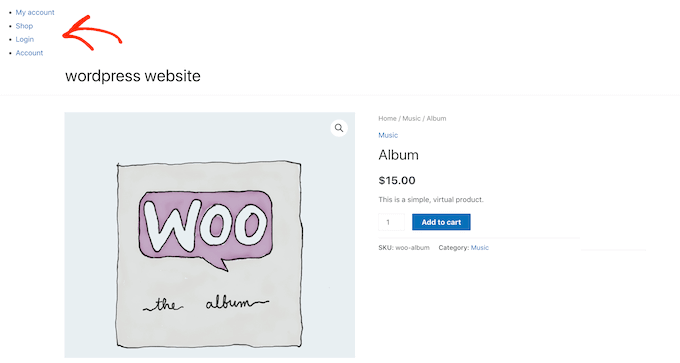
You can style the custom navigation menu to better match your WordPress theme or company branding by adding custom CSS code to your site.
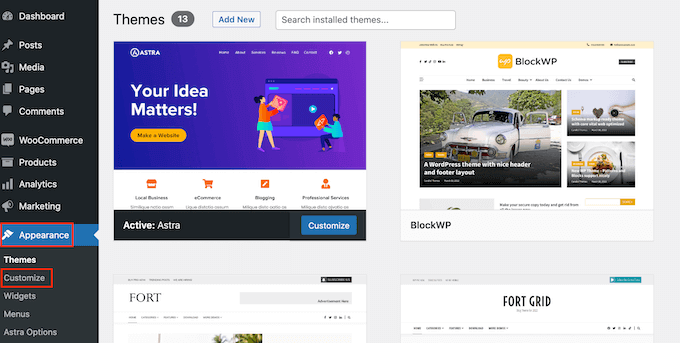
To do this, go to Appearance » Customize.
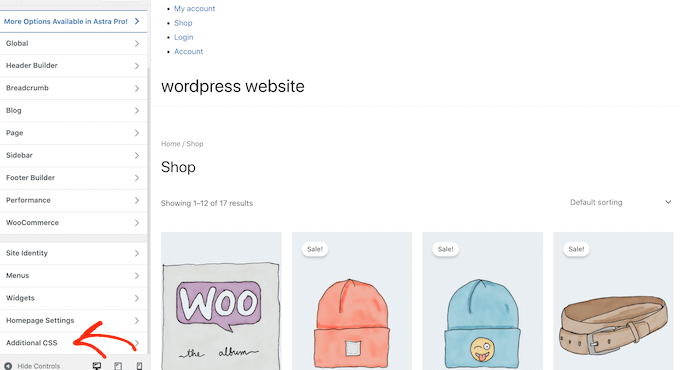
In the WordPress theme customizer, click on ‘Additional CSS.’
This opens a small code editor where you can type in some CSS.
You can now style your menu using the CSS class that you added to your theme template. In our example, this is .custom_menu_class.
In the following code, we are adding margins and padding, setting the text color to black, and arranging the menu items in a horizontal layout:
div.custom-menu-class ul {
    margin:20px 0px 20px 0px;
    list-style-type: none;
    list-style: none;
    list-style-image: none;
    text-align:right;
	display:inline-block;
}
div.custom-menu-class li {
    padding: 0px 20px 0px 0px;
    display: inline-block;
}

div.custom-menu-class a {
    color:#000;
}
The WordPress customizer will update automatically.
It will now show how the menu will look with the new style.
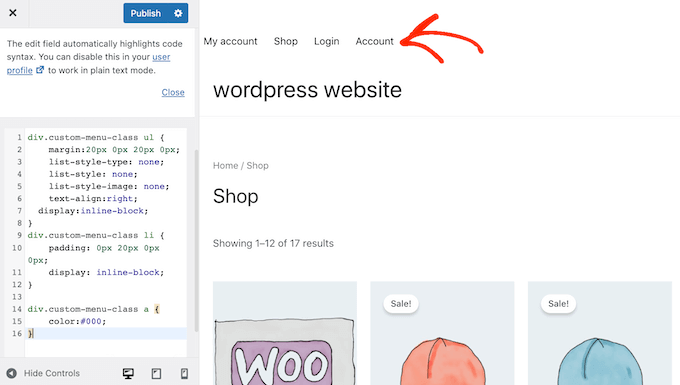
If you are happy with how the menu looks, then click on ‘Publish’ to make your changes live.
For more information, please see our guide on how to style WordPress navigation menus.
Expert Guides: Do More With WordPress Navigation Menus
With WordPress, you can create all kinds of helpful and engaging menus. With that in mind, here are some expert guides to help you get even more out of your navigation menus:
- How to Add Image Icons With Navigation Menus in WordPress
- How to Add Conditional Logic to Menus in WordPress (Step by Step)
- How to Add Menu Descriptions in Your WordPress Themes
- How to Add a Fullscreen Responsive Menu in WordPress
- How to Add a Mega Menu on Your WordPress Site (Step by Step)
We hope this ultimate guide helped you learn how to add a custom navigation menu in WordPress. You may also want to see our guides on how to add a button in your WordPress header menu or how to highlight a menu item in WordPress.
If you liked this article, then please subscribe to our YouTube Channel for WordPress video tutorials. You can also find us on Twitter and Facebook.




Jiří Vaněk
I always wanted to avoid the plugin first for things like this. That’s why I always appreciate it when you also offer the option of using WP Code and snippets. I always try them on a test site first and this one works great. I then save your snippets in my own code store, which I can always return to if necessary. Thanks.
WPBeginner Support
Glad to hear you found our code snippets helpful!
Admin
Mike
Thanks for show the code, I have an issue, my new new always shows same content as main menu after I applied:
wp_nav_menu( array( ‘theme_location’=>’too-right-menu’, ‘container_class’=>’top-right-class’ ) );
Please help.
WPBeginner Support
You may be using the same name as a different menu that your theme has active. If you have not done so already, please try a different location name.
Admin
Shubham Kumar
How can create that menu sticky, I use the first method ie. to paste the code in theme’s header.php, now I would like to sticky that element if the user scrolls to from that menu location.
Amit Singh
I created two menus. One in left of logo and other in right. Now I want to add sub menu. I m just dragging menus under parent but it’s not working. Do you have any article explain how we can add custom submenu
WPBeginner Support
Not at the moment but we will certainly take that into consideration for future articles.
Admin
Mohit
Keep doing the great work
WPBeginner Support
Glad you continue to enjoy our content
Admin
Saurabh
my menu is not display in header. it display below the page title
WPBeginner Support
You may need to modify where the code is inserted in the template but if you reach out to your current theme’s support they should be able to let you know where the header is added in their theme.
Admin
ian
hello
why can’t i see the menus page of my website?
the layout of the tutorials look absolutely nothing like my screen
thanks
WPBeginner Support
Is your site a WordPress.com site? https://www.wpbeginner.com/beginners-guide/self-hosted-wordpress-org-vs-free-wordpress-com-infograph/
Admin
krishna
hello
i want to add my own html for header
how can i do that ?
Mukeshwar Singh
Hey, I am using Magazine Pro and There is no option of Custom Menu in Widgets Area!! I Used your code to create a Custom Menu but I need help because there is no option of Custom Menu in the Widget area because of Which I cannot Drag and drop that into the footer area… Please help me
Elle
Hey! I completed the tutorial and I’ve been able to add the menu to my desired location on my site. I’ve styled it and everything. PROBLEM: The menu appears on page refresh for a moment I can even click it! However, it quickly disappears behind my header. It’s not clickable after it disappears. My brain’s exploding trying to figure this one out!!
Furqan
Hi
First I create the add menu with a name my custom menu and its perfectly fine and proper fetch and then I changed its name to footer menu after changed its name custom navigation not fetch what the reason
Himanshu
Just one ques : what should I do with the existing navbar of WordPress . How to delete it.
karima
Hi, Friend of mine has a problem, well several, she has the horizontal header nav bar but also a vertical one next to it which is obscuring the page content , it appears when you start to scroll on the home page but is fixed on all the content pages.. can someone look please and advise, also there is an error notice we can´t find how to get rid of, any help please appreciated.
sudhakar
how to remove default slider any theme and how to add our new slider model in homepage
Imran
I have a custom header built for wordpress when had menu items hardcoded, How can i use the wordpress menu in the header instead of the hardcoded menu ?
cheryl
I am fairly new to wordpress however I would like to edit a custom menu that we have created as something appears wrong within the menu.
How do i do this?
Manu
Excellent tutorial! This was exactly what I needed right now. Within 5 minutes I was able to set up a footer menu in a theme that by default didn’t have any. Thank you so much
Munna Hossain
Helpful article. I am a WordPress user and this tips will help me to add custom navigation menus. Thanks for sharing.
Daniel Keith
Hi there,
Great tutorial. How can I apply CSS to this custom menu?
Though this is a great way to add multiple menus but without proper CSS the website look odd.
Zaheer Abbas
I m creating my word press theme but menu and widget is not showing in admin panel ???
is it built in features in word press or i have to create menus and widgets with code plz guide
Tabitha
How can I make my drop down menu into columns? My current drop down is too long.
Aakash Salunke
I’m little bit advanced user. My theme supports only one menu. But I want to add one more menu. I have made it but how can I add?
WPBeginner Support
First you will need to register the menu location, then you will need to edit your theme files to display your navigation menu.
Admin
bobit
its worked, thanks for the great post
Aijaz Ansari
Awsome, tutorial, it really helps a novice like me.
thanks
Victoria
Thanks for the article!!! I created my new menu.
I have a problem though.
My website has a fixed width, and when I resize the window everything stays in place, exept for the new menu. Min-width is not an option because it’s not exactly the behavior I want.
How can I make it behave the same way as the rest of the contents of the page?
Thanks!
Joey
THANKS! I was looking a long time for this, never thought it was so simple.
Cory
i have a crazy old theme that didnt support WP 3.0+ menus. This tutorial was so easy. Took me 3 minutes to bring it a little more up to date. thanks so much.
Jacques Goudreau
Thanks for the tip! Great tut!
Emma
Where do you even go to make these changes? I can’t see any of those options under the Theme or Theme Options tabs.
I use the Buenos Theme, but can’t find on the Buenos theme page does it support these changes? I want to put in an Archive menu with a list of all the recipes on my blog… should be easy but proving impossible
Editorial Staff
Most themes do support this. Look at Appearance > Menus. This article is for theme designers who want to add this feature in their themes to allow users to add menus from the backend.
Admin
Zoe
I’ve been trying to add a custom class to a singular custom url (to change the color of just one url) in the Top Nav Menus section, but it just adds my class as an extension of the existing class in the output source code and nothing happens.
Here’s my css code and the source code that is output on my site:
.myCustomClass { color: #FFFF00; }
A one-off colored link
Any suggestions on how to get this to work?
Editorial Staff
Yes add it like color: #ffff00 !important; in that class. This should do the trick.
Admin
Jeremy Johnson
I was able to implement these modifications and the custom menu works. However, the css in my chosen theme doesn’t seem to support sub-menus. The submenu item is always visible, mousing over the parent item does nothing, and the parent menu item is as wide as the wider child item which pushes the other menu items farther to the right than they should be. Any suggestions on making the sub-menu act dynamically? I’m fairly new to CSS.
Editorial Staff
The best place to start would be to take the default Twenty Eleven theme. Use the navigation CSS from there, and start modifying.
Admin
Cedric
Still looking for a solution for this.
shaunling
This is just great!
digitfox
Yeah! its a nice tutorial for me! I am very new to WP! Thanks
PauloNeves
I need help.
Follow all steps, but in Apparance Panel the option menu not enable.
When select other theme working.
How do enable option menu?
Thanks.
Paulo Neves
wpbeginner
@PauloNeves You have to add this line in your theme’s functions.php file: add_theme_support( ‘menus’ );
Brad
Thanks for this! Worked awesomely for me and helped my client a lot! – aptdesign
eeebasic
That is very helpful me although wordprees 3.3 version released few days ago.
citydan
I have followed the instructions and this post and the post here (https://www.wpbeginner.com/wp-tutorials/adding-a-second-menu-to-the-twenty-ten-theme/), and figured out how to get my CSS to make the menu appear correctly, but the child items (sub menu items) are not appearing. I have them set up correctly in the menus editor, but on the site they do not show. They are not hidden by CSS because they are not there in the source code of the page.
Any ideas why my menu sub-items are not showing?
GourabMalla
Hi,
I have added the custom menu in top navigation but want to know how can I active the “Current Page Class”.
I’m using WordPress 3.2
Thanks
Gourab
DanFlynnDesign
Thank you! Love how this is all dynamic so the client can edit if needed, plus able to state which is the current page and apply hover effect! EXACTLY what I was looking for!
asharperrazor
I have tried this many times. I have an old wordpress theme. So old I’m not even sure what version of wrodpress it was written for. Anyway, I can get the functions part to work. I can save the correct menu. I can put the code into other parts of my website, say the footer, although it displays as a hierarchy list and not horizontally.
Won’t display in the top nav menu. Do I need a new theme or is it possible to edit my current theme to allow the new menu function?
Thanks in advance. The website is http://www.asharperrazor.com
JamesGeorge
I implemented this with NO problems-thank you! I took the “nav menu” code and put it in the div where my client’s theme was calling the list of pages. I basically replaced it with your code from above and uploaded it, and the css kept it in the same style. It looks great and functions perfectly. AWESOME!
ÁlvaroBenavides
I really need help implementing the CSS of the classes, so please notify when u finish!
Bec
Great post – thank you!
I have implemented as above and my menu items are showing on site only problem is that each page is empty?!
any ideas?
Editorial Staff
Sounds like a PHP error. Please validate your PHP to make sure there is no error.
Admin
Joseph McCullough
Quick and dirty – the way I like my code snippets. Thanks a bunch.
Paul
I have created custom navigation menus a couple of times. What is weird is that after I create and save them, they appear for a while and then the navigation bar returns to 2 tabs only as if the settings are automatically overwritten. On sites with the same template were I never created a custom bar they display correctly.
Any ideas?
Editorial Staff
Nope, no clue why it is doing that.
Admin
Narendra Choudhary
You can define custom classes to each navigation, and then add image in the background. You can even use CSS (text-indent) property to get rid of the Menu text if you want.
Reply
Ram
I have a question on nav menu,
is there any way to add the image to the list of navigation menus..
Thanks,
Ram
Editorial Staff
You can define custom classes to each navigation, and then add image in the background. You can even use CSS (text-indent) property to get rid of the Menu text if you want.
Admin
Ram
thanks for your response but i need more clearly that custom menu image for the wordpress.
Im using wp_list_categories(‘exclude=4,7&title_li=’); to show the navigational menu so is it any possibility to add the different images to the different menu button. Im trying the CSS but it never works for me
Thanks,
Ram
Editorial Staff
Yes it is possible to add different images with the custom menu. The one you are using is not the menu that we are talking about in this article.
Julie @ Inspired to Write
Can you add code to make it look more presentable (fonts, buttons, size, etc)? If so, can you give me an example and where to put this code? Thanks!
Editorial Staff
That is a CSS related question. You will have to add the font size in the appropriate classes in the CSS file. We will be doing a writeup on the CSS styles soon.
Admin
Chris
Question about the menu handling.
I have a menu that is right aligned, so the menu items show up in reverse order.
Is there a way to sort the menu_order in REVERSE?
so: sort_column’ => ‘menu_order’ would have something added to reverse the order.
Thanks!
Editorial Staff
Just because they are right aligned, shouldn’t make it appear in reverse order. To fix that, you need to change your CSS rather than reversing the hook. Make a container div that is aligned right, and then make the list tags float left.
Admin
Julie
Have followed instructions but after creating menus and adding appropriate categories to use, I can’t see them in my nav bar – any ideas what I have done wrong?
Editorial Staff
Have you pasted the codes in your header.php or wherever that menu should appear?
Admin