


We’ve seen this happen a lot: someone starts filling out a form on your WordPress site, then abandons it halfway through. Maybe the form asks for details they’ve already provided, or maybe it just feels too long.
That’s where dynamic field population can help. It automatically fills in form fields using information you already have, like a visitor’s name from their profile or data passed through a link.
After testing several plugins, WPForms stands out as the most effective option. We’re big fans of it here at WPBeginner because it makes building smart, user-friendly forms incredibly easy.
In this guide, we’ll walk you through how to set up dynamic field population in WordPress using WPForms. This way, you can improve the user experience while still collecting the data you need.

What Is Dynamic Field Population?
Dynamic field population allows you to automatically fill form fields based on user choices, the specific page they are viewing, links they clicked (query strings), or their logged-in profile information.
For example, an eCommerce store can create a form where the product field in the form is dynamically populated using existing products in WooCommerce or any other eCommerce software.
Similarly, a real estate website can automatically populate listings, agents, and property type fields in its appointment and lead generation forms.
Advanced users and developers can also use URL parameters to dynamically fill out form fields using smart links from email newsletters or other website interactions.
With that in mind, we’ll show you how to easily use the dynamic field population in WordPress. Here’s a quick overview of all the steps we’ll cover in this guide:
Let’s get started!
Method 1. Auto-Fill Form Fields Using Dynamic Field Population
First, you need to install and activate the WPForms plugin. For more details, see our step-by-step guide on how to install a WordPress plugin.
WPForms is the best WordPress contact form plugin on the market. It allows you to easily create online forms using a simple drag-and-drop tool.
It also comes with dynamic field population, conditional logic, and advanced form fields. Together, these features allow you to create smarter and more interactive forms on your website.
At WPBeginner, we use WPForms for creating our contact form. We have a great experience with it, and you can see our complete WPForms review for more information.
First things first, let’s head over to the WPForms website and create an account. Just click ‘Get WPForms Now,’ pick the plan you want, and finish signing up.

💡 Note: There is a free version of WPForms, but for things like dynamic field population and file uploads, you’ll need the Pro version.
Once you’re signed up, you’ll land on your WPForms account page. This is where you can download the plugin and grab your license key. You’ll want to keep this tab open for the next step.
Now let’s add WPForms to your site.
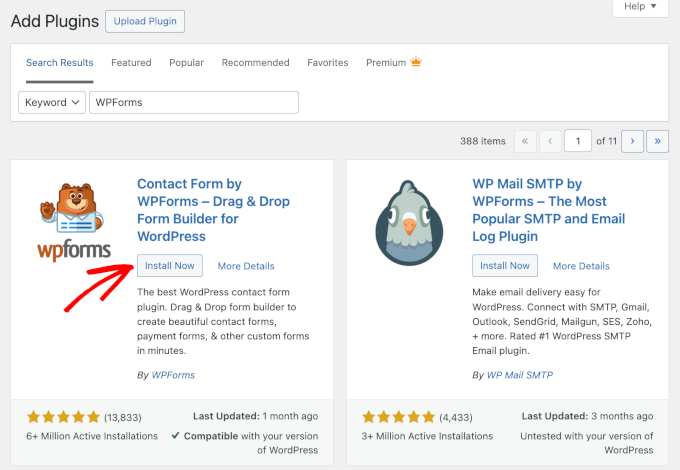
Go to your WordPress dashboard, click Plugins » Add New Plugin.

On the next screen, search for “WPForms.”
When it shows up, click Install Now, then Activate to properly enable it.
After that, head over to WPForms » Settings.
Paste your license key into the box, click ‘Verify Key.’
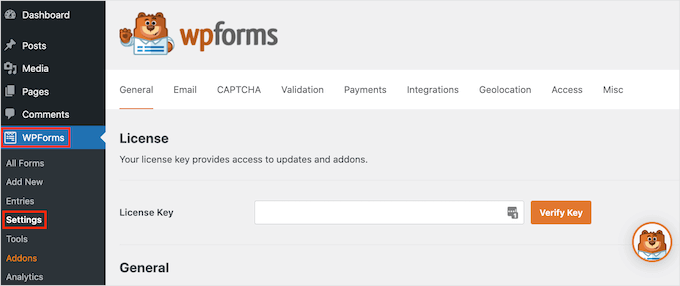
WPForms is now set up and ready. From here, you can start building your WordPress form and set up dynamic field population to auto-fill your fields.
To do this, visit WPForms » Add New to create your first form.
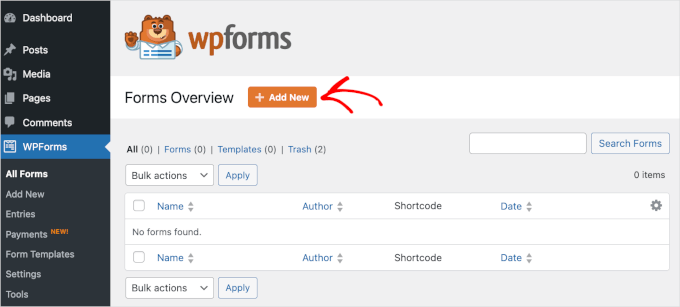
You’ll be asked to provide a name for your form and then choose how you want to build your form.
With WPForms, you can start with a blank canvas, use the AI Form Builder, or select a pre-made template. If you want to use WPForms AI, all you need to do is write a prompt, and the tool will generate the form for you.

For this tutorial, though, we’ll use a template.
WPForms comes with more than 2,000 templates to choose from. To narrow down the choice, you can use the search bar and type in “order.”
Once you’ve found the template you want to use, simply hover over it and click ‘Use Template.’ For example, we will use the ‘Billing / Order Form’ template.
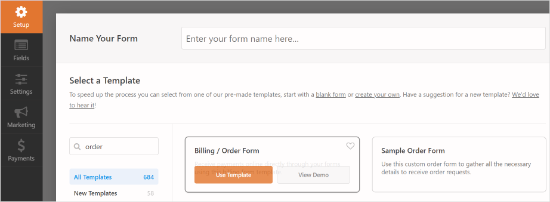
WPForms will now load your form with pre-selected fields. You can click to edit form fields or use the drag-and-drop feature to move them up and down. You can also add and remove form fields with just a click.
Let’s add a new form field that automatically lists options from your website content (like products or posts).
You can add a dropdown, multiple-choice, or checkbox field to your form to use dynamic choice options. Simply click on a field from the left column and drag it to add it to your form.
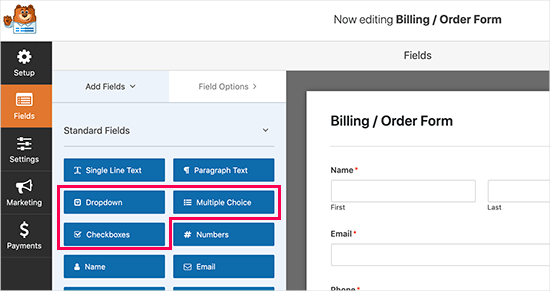
🧑💻 Pro Tip: You can use AI Choices to generate the options for your dropdown, multiple-choice, or checkbox field. Instead of manually typing each choice, you can enter a prompt like “Types of T-shirt materials” or “List popular cake flavors,” and WPForms will generate the options for you.
Next, you can click to edit the form fields.
Simply switch to the Advanced menu from the left column.
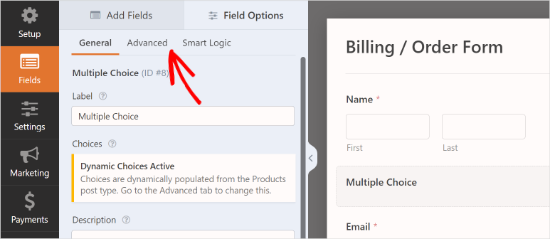
From here, you need to select ‘Dynamic Choices’.
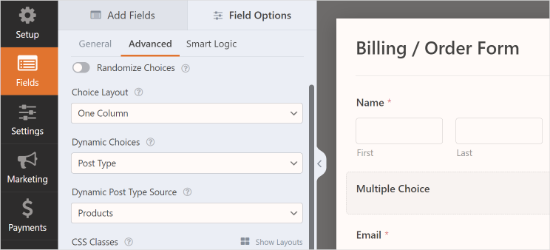
WPForms supports post types and taxonomies registered on your WordPress site.
For this tutorial, we will select ‘Post Type’ as the ‘Dynamic Choices’ and ‘Products’ as the ‘Dynamic Post Type Source.’
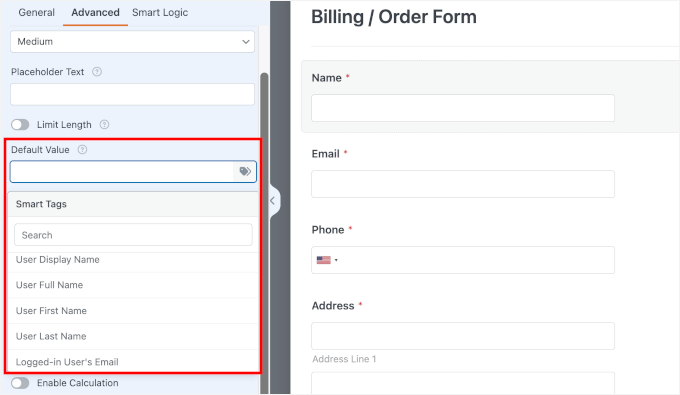
If you want to automatically fill in a user’s name or email when they’re logged in, just add a ‘Single Line Text’ field, edit the label, and open Advanced » Default Value.
In the tab, you can pick {User_First_Name} or {Logged-In_User's_Email} from the ‘Smart Tags’ list.
WPForms will now automatically load and display the fields in the form preview.
To embed the form, simply click the ‘Embed’ button at the top of the form builder. From here, you can select an existing page to embed the form or create a new page.
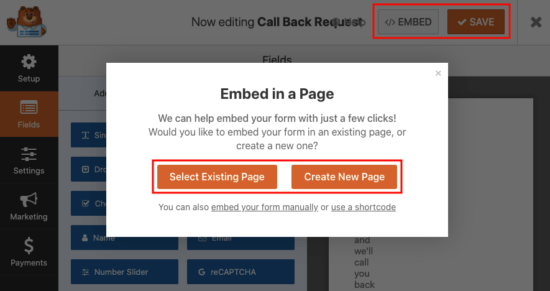
Alternatively, you can use the WPForms block to add the form to a WordPress post or page. Go ahead and edit the post or page where you want to add the form.
Once you are in the WordPress content editor, you can add the WPForms block to your post edit area. After that, just select the form you created earlier from the drop-down menu.

You can now save your post or page.
Next, you might want to visit your website to see your form with dynamic field values in action.

Method 2. Auto-Fill Form Fields Using URL Parameters
WPForms also allows you to dynamically fill form fields using URL parameters.
This feature allows you to create smart links that automatically pass down information to the form. This is perfect for email newsletters, where you can auto-fill a field based on which link the subscriber clicked.
First, you need to create a new form or edit an existing one in WPForms. For details, see our guide on how to create a contact form in WordPress.
Once you are done creating your form, you’ll want to switch to the ‘Settings’ tab in the left column and then select the ‘General’ tab.
On this screen, you need to click the toggle for the ‘Enable Prefill by URL’ option.
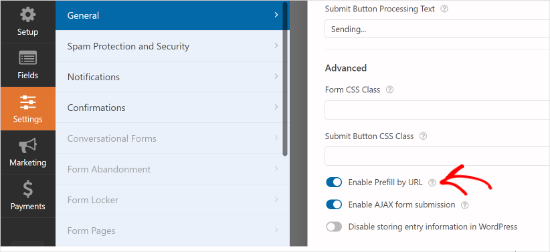
You can now save your form and exit the form builder. Your form is now ready to dynamically populate fields using URL parameters.
Creating Links with URL Parameters
WPForms accepts dynamic form fields passed through URL parameters in a specific format.
https://example.com/contact/?wpf15_1=value
Let’s break down the hidden code in this link:
- ? – The question mark tells the browser that the actual link is finished and the “special data” is starting.
- wpf – This prefix tells WordPress that the data belongs to WPForms.
- 15 – This is the specific ID number of the form you are targeting.
- _1 – This is the ID number of the specific field you want to fill.
- =value – Everything after the equals sign is the data that will appear in the form field.
Here is an example of a URL where we are passing a product title as a text field to a feedback form.
https://example.com/contact/?wpf15_2=Vintage%20Flower%20Vase
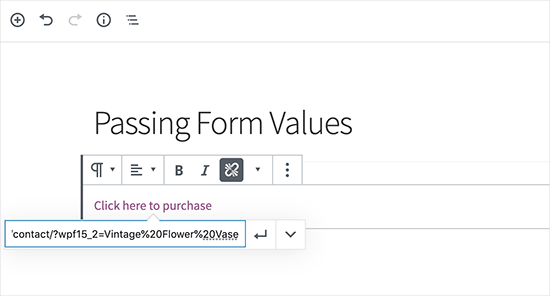
Here, do note how we have used %20 to indicate spaces between words in the product title.
Finding Form and Field IDs in WPForms
In order to create URL parameters, you will need to know the form and field IDs.
To find these values, simply edit your form, and you will see the form ID in your browser’s address bar.
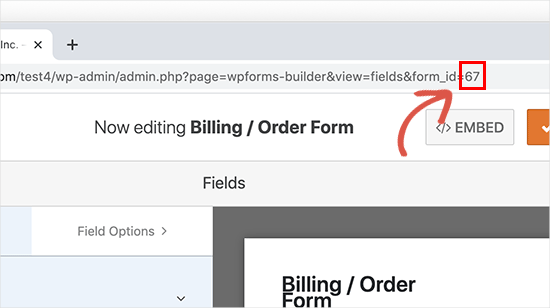
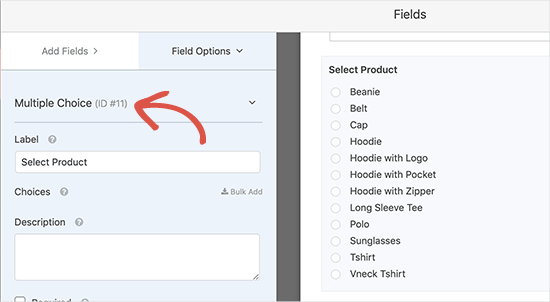
Similarly, in order to find the form field ID, you just need to click it to edit it.
You will see form field properties in the left column, along with the field ID at the top.
Now, what if you wanted to pass a value to a subfield?
Simply add the subfield identifier after the field ID in your URL, like this:
https://example.com/contact/?wpf15_3_city=london
For more details, you can see the WPForms developer documentation, which shows more examples of using different parameters for all types of form fields.
You can now use this feature in combination with your CRM software or email marketing service to send smart form links to your users. Most marketing platforms come with their own personalized MERGE tags that you can add in the smart URL to automatically fill in personal information in the form.
⚠️ Disclaimer: You can also use the dynamic field population feature with other form plugins like Formidable Forms, Gravity Forms, or others. However, we recommend using WPForms because it makes the whole process easy, and we know it well because we built the product.
For details, please see our comparison between WPForms vs Formidable Forms vs Gravity Forms.
Bonus Tip: Add Autocomplete for Address Fields
Another way to enhance your forms is by adding autocomplete address fields in WordPress. This feature makes it faster and easier for users to enter their addresses while reducing errors.
For example, in an online store, autocomplete can speed up checkout.
As customers start typing their address, suggested options appear based on their current location. These suggestions are often powered by Google Places and Google Maps API.
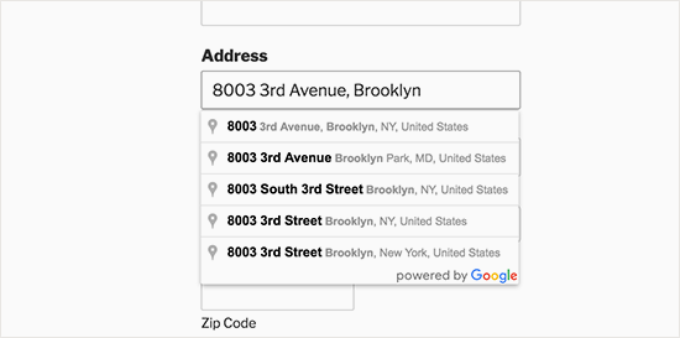
By helping buyers breeze through checkout, you can increase sales and encourage repeat customers.
To learn more, you can see our guide on how to set up autocomplete for address fields in WordPress.
FAQ: Dynamic Field Population in WordPress to Auto-Fill Forms
Now that you know how to set up dynamic field population in WordPress, let’s go over some common questions users have about how it works.
What is dynamic field population?
Dynamic field population is the process of automatically filling in form fields with information you already have about your users. This could be data from their user profile or details passed through a URL.
It streamlines the form-filling experience, making it faster, more user-friendly, and helps reduce form abandonment.
How secure is it to use URL parameters for dynamic field population?
Using URL parameters is generally secure as long as your site is running over HTTPS, which encrypts data in transit.
That said, you should always keep your WordPress site and form plugins up to date and follow basic security best practices to protect sensitive information.
Can I use dynamic field population with any form plugin?
Many premium form plugins support dynamic field population, including WPForms, which we recommend for its ease of use and flexibility.
Just be sure to check with your specific plugin for compatibility and configuration settings. WPForms, which we recommend, offers extensive support and documentation for implementing this feature.
What are the benefits of dynamic field population?
This feature improves the user experience by saving time and minimizing repetitive input. As a result, users are more likely to complete your forms, which can lead to higher conversion rates. It’s especially useful for eCommerce checkout pages, lead capture forms, and user registration.
More Guides to Improve WordPress Forms
We hope this article helped you learn how to use the dynamic field population in WordPress to auto-fill forms. You may also want to see our guides on:
- Best Online Form Builders
- How to Style and Customize Your WordPress Forms
- How to Create AMP Forms in WordPress
- How to Create Multilingual Forms in WordPress
- How to Create Conversational Forms in WordPress
- How to Track User Journey on WordPress Lead Forms
- Tips to Create More Interactive Forms in WordPress and Increase Conversions
- The Ultimate Guide to Using WordPress Forms
If you liked this article, then please subscribe to our YouTube Channel for WordPress video tutorials. You can also find us on Twitter and Facebook.


David R
Hi, Great article!
I was wondering if this will work with a QR code. In other words, can I create a QRcode from this URL with all form field parameters, and when scanned, will it direct the user to the page and fill in all fields?
Thank you.
WPBeginner Support
As long as it keeps the URL parameters it should work
Admin