


There’s nothing more frustrating than filling out a WordPress form, only to hit the back button by mistake and lose everything. We’ve all been there — and it’s usually enough to make someone give up right away.
For site owners, that small hiccup can mean lost sales and fewer signups. Visitors will leave annoyed and are far less likely to come back and try again.
The good news? There’s an easy fix: a confirm navigation popup. This simple warning gives users a second chance before they leave a page with an unsubmitted form.
In this guide, we’ll show you how to add this feature to your WordPress forms so you can create a smoother experience and boost your form completion rates.

🧑🏫 Summary: The easiest way to add a confirm navigation popup to your forms is by creating a simple custom plugin. This involves adding one PHP snippet and one JavaScript snippet, both of which are provided step-by-step in this guide.
What Is a Confirm Navigation Popup and Why Do You Need It?
A confirm navigation popup is a browser warning that appears when a user with unsaved changes in a form tries to leave a webpage.
You’ve likely seen this feature in action on the WordPress content editor screen. If you have unsaved changes and try to leave the page, a warning popup appears to prevent you from losing your work.
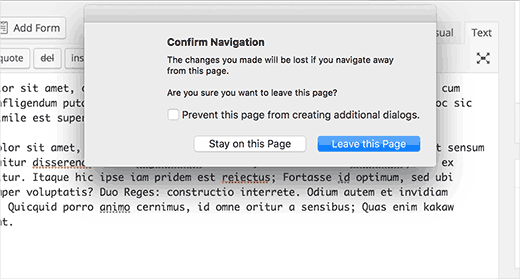
Adding this to your own forms is a small change with big benefits:
- Improves User Experience: It saves visitors from the frustration of accidentally losing their progress, showing that you value their time.
- Increases Conversion Rates: By preventing accidental abandonment, you give users a second chance to complete the form, which can increase leads.
- Builds User Trust: A thoughtful feature like this demonstrates professionalism and care, which can help build loyalty and encourage return visits.
With that in mind, let’s add this warning to your WordPress comments and other forms on your site.
Here’s everything we’ll cover in this guide:
Ready? Let’s get started.
Method 1: Show Confirm Navigation Popup for Unsubmitted Forms in WordPress
This method involves creating a simple, custom plugin.
Don’t worry if you’ve never coded before! We’ll walk you through every step of the process, and it’s a great way to see how WordPress plugins work.
Plus, you can also download the plugin at the end of this tutorial to install it on your website.
However, we highly recommend creating the plugin yourself to better understand how the code works. You can follow along on a local installation or staging site first.
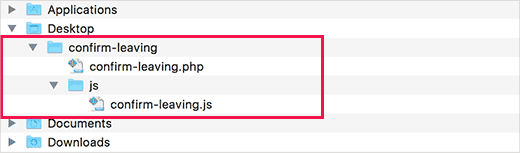
First, you need to create a new folder on your computer and name it confirm-leaving. Inside the confirm-leaving folder, you’ll create another folder and name it js.
Now, let’s open a plain text editor like Notepad and create a new file. Inside, simply paste the following code:
<?php
/**
* Confirm Leaving
* Plugin Name: Confirm Leaving
* Plugin URI: https://www.wpbeginner.com
* Description: This plugin shows a warning to users when try they forget to hit submit button on a comment form.
* Version: 1.0.0
* Author: WPBeginner
* Author URI: https://www.wpbeginner.com
* License: GPL-2.0+
* License URI: http://www.gnu.org/licenses/gpl-2.0.txt
*/
function wpb_confirm_leaving_js() {
wp_enqueue_script( 'Confirm Leaving', plugins_url( 'js/confirm-leaving.js', __FILE__ ), array('jquery'), '1.0.0', true );
}
add_action('wp_enqueue_scripts', 'wpb_confirm_leaving_js');
This PHP function uses wp_enqueue_script, which is the official WordPress method for adding JavaScript. This is the best practice because it helps prevent script conflicts with other plugins.
Now, save this file as confirm-leaving.php inside the main confirm-leaving folder.
Now, we need to create the JavaScript file that this plugin is loading. You can do this by creating a new file in your text editor and pasting this code inside it:
jQuery(document).ready(function($) {
$(document).ready(function() {
needToConfirm = false;
window.onbeforeunload = askConfirm;
});
function askConfirm() {
if (needToConfirm) {
// Put your custom message here
return "Your unsaved data will be lost.";
}
}
$("#commentform").change(function() {
needToConfirm = true;
});
})
This JavaScript detects if a user has started filling out the comment form. If they try to leave the page before submitting, it triggers the warning popup.
Go ahead and save this file as confirm-leaving.js inside the js folder you created earlier.
After saving both files, this is what your folder structure should look like:
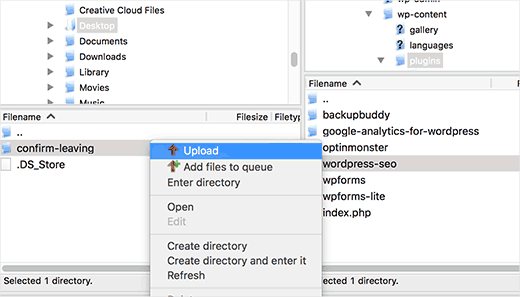
Now, you need to connect to your WordPress site using an FTP client. For step-by-step instructions, you can see our guide on how to use FTP to upload WordPress files.
Once connected, you’ll need to upload the confirm-leaving folder to the/wp-contents/plugins/ folder on your website.
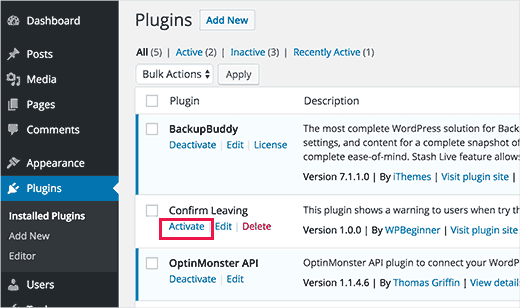
After that, you’ll want to log in to the WordPress admin area and head over to ‘Plugins.’
From here, you should see the ‘Confirm Leaving’ plugin in the list of installed plugins. You can then click on the ‘activate’ link below it.
That’s it. You can now visit any post on your website, type something in the comment form, and then try to leave the page.
Then, a popup will appear, warning you that you have unsaved changes.
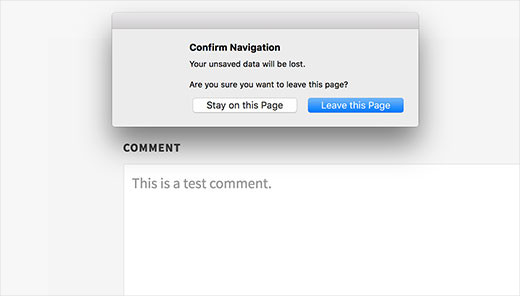
For security reasons, modern web browsers will display their own generic warning message (like “Leave site? Changes you made may not be saved.”) instead of the custom text from the code. The code’s purpose is simply to trigger this standard browser prompt.
Method 2: Add the Warning Popup to Other Forms in Your WordPress Site
You can use the same code to target any other form on your WordPress site, such as a contact form.
In this example, we are targeting a form made with the WPForms plugin, but these steps will work if you use a different contact form plugin on your website.
Don’t have a contact form and want to build one? Then you can check out our guide on how to create a contact form.
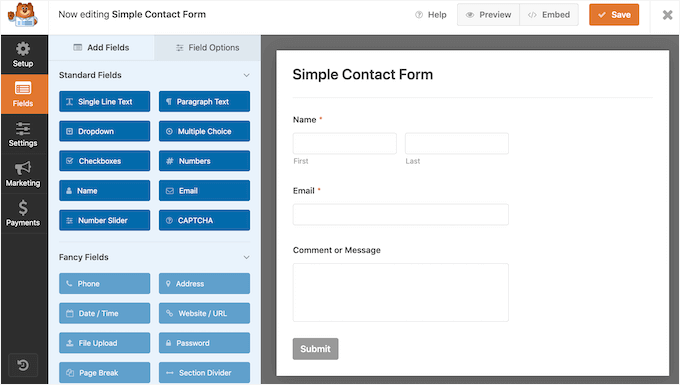
At WPBeginner, we use WPForms to embed many different forms, including our contact form, annual readers survey, and migration requests. If you’re curious about the tool and what it can do, you can head over to our complete WPForms review.
The first thing to do is to go to the page where you have embedded your contact form.
Then, you’ll take the mouse over to the first field in your contact form, right-click, and then select ‘Inspect’ from the browser menu.
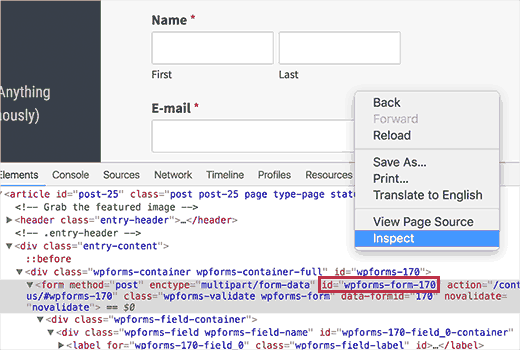
From here, you’ll want to locate the line that starts with the <form> tag to find the ID attribute. In this example, our form’s ID is wpforms-form-170.
Once you’ve found the tag, go ahead and copy the ID attribute.
Now, open your confirm-leaving.js file to edit the jQuery selector. You’ll need to add your form’s ID right after #commentform, separated by a comma. Be sure to add a # prefix to your new ID, just like the comment form has.
Your code will now look like this:
jQuery(document).ready(function($) {
$(document).ready(function() {
needToConfirm = false;
window.onbeforeunload = askConfirm;
});
function askConfirm() {
if (needToConfirm) {
// Put your custom message here
return "Your unsaved data will be lost.";
}
}
$("#commentform,#wpforms-form-170").change(function() {
needToConfirm = true;
});
})
If everything looks good, then you can save your changes to the confirm-leaving.js file and upload it back to your server, overwriting the old file.
Now, you can enter any text into any field of your contact form and then try to leave the page without submitting the form. A popup will appear with a warning that you have unsaved changes.
📥 Plugin Download: You can download the confirm-leaving plugin here, then install and activate the plugin as usual. If you need help, then you can go through our guide on how to install a WordPress plugin.
Do note that it targets the comment form, but you can edit the plugin to target your user registration form, surveys, feedback form, job application form, or any other forms.
Stop Losing Leads from Abandoned Forms

WPForms makes it easy to create powerful forms for your site. Plus, it also comes with built-in Form Abandonment tracking, so you can see exactly where users are dropping off and follow up to recover lost leads.
Bonus: Improve Your WordPress Form Performance
After you add the confirm navigation popup, it’s a good idea to track how often users abandon their forms. Knowing this data can help you find and fix issues that cause people to leave.
One of the best tools for tracking form abandonment is MonsterInsights. It’s the best Google Analytics plugin for WordPress. Its Forms addon (available in the Pro version) makes it easy to automatically track form views and submissions.
This way, you can see how users interact with your forms right from your dashboard.

At WPBeginner, we use MonsterInsights to track all of our important conversions, including forms, buttons, and affiliate links. Check out our complete MonsterInsights review to learn about all its features.
For more details, please see our guide on how to track and reduce form abandonment.
You can also run A/B split tests to see which version of your form performs better. For example, you could test different form styles or button text to see what encourages more completions.
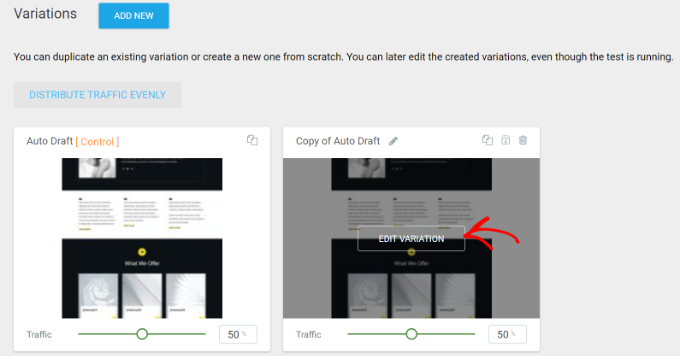
For example, you could change the wording of your confirm navigation popup or customize your form. By analyzing the results, you can determine what keeps users engaged and helps reduce abandonment rates.
Thrive Optimize is the best plugin for this task. It lets you run A/B split tests easily without any coding.
To learn more, see our guide on how to do A/B split testing in WordPress.
Frequently Asked Questions About Confirm Navigation Popups
Will adding this code slow down my website?
No, not at all. The JavaScript code is very lightweight and only runs when a user tries to leave a page with an altered form. It will have no noticeable impact on your site’s performance.
Can I change the message in the confirmation popup?
Unfortunately, no. For security reasons, modern browsers no longer allow websites to display a custom message in the confirmation popup. They will always show a generic, standard warning to the user.
Does this confirmation popup work on mobile browsers?
Yes, the onbeforeunload event is supported by most modern mobile browsers, including Chrome and Safari on both Android and iOS. The behavior will be the same as on a desktop.
Additional Guides for Using WordPress Forms
We hope this article helped you show the confirm navigation popup for your WordPress forms.
You may also want to check out these other guides and expert picks:
- How to Create a Contact Form with Multiple Recipients
- How to Send Confirmation Emails After WordPress Form Submissions
- Ways to Use Conditional Logic in Your WordPress Forms
- Best Online Form Builders (Expert Picks)
- The Ultimate Guide to Using WordPress Forms
If you liked this article, then please subscribe to our YouTube Channel for WordPress video tutorials. You can also find us on Twitter and Facebook.


Igor
Tried to use your code in bbpress forum. Unfortunately no popup message appears after user dose not post his comment. Tried all variations of changing id in JS file but still nothing appears.
Bob Garrett
Further to my previous query I have now tried using the form’s parent div id and modified the code. This almost works but…
The text shown by the pop-up is not the text entered in the code.
Even if the form is completed and submit hit, then going to another page still results in the warning.
How can I resolve this?
Tom Kelley
Have tried this vvvvv to no avail. Working with Gravity Forms. All else works well, but the warning still comes up when hitting the submit button on a completed form. Any advice?
WPBeginner Support
Nov 27, 2016 at 6:52 am
Hi Bonnie,
We tested the plugin with WPForms and it worked. You will need to edit the confirm-leaving.js file and replace #commentform with the wpforms container div id. Typically it is wpforms-12 where 12 is the ID of your form. You can also see it using the inspect element tool in your browser.
Bonnie Ramthun
I’m still trying to figure out how to make sure the popup DOESN’T appear when the user presses the “Submit” button. The confirm leaving popup shouldn’t appear if the user has entered all the information required, but this code makes it pop up every time.
I would so appreciate the help, if there is a solution available.
Swayam Dhawan
I Need the same function when someone navigate from particular page in website and while click on stay , they must navigate to home page of the website.
waiting for the response.
Bonnie Ramthun
I am so happy for your wonderful confirm navigation code! I need it desperately because many of my clients users can’t get it through their head that they need to press the “Submit” button on the form.
The code works perfectly, except for one problem. When I press the “Submit” button on my WPForms form, the confirm navigation code pops up. I would like the “confirm navigation” to happen only when the user doesn’t press the “Submit” button. I can’t figure out how to do this. Can you help?
WPBeginner Support
Hi Bonnie,
We tested the plugin with WPForms and it worked. You will need to edit the confirm-leaving.js file and replace #commentform with the wpforms container div id. Typically it is wpforms-12 where 12 is the ID of your form. You can also see it using the inspect element tool in your browser.
Admin
Will C
I have two separate multi-page gravity forms on my site. When this plugin is active, I get a confirmation popup when clicking “Next Step” on one of the forms (undesired), but not the other. Are you aware of any issues with gravity forms and “window.onbeforeunload”? Thanks
Nipa Sarker
Having same issues with buddy press create group steps.
Nipa Sarker
I ma using the code for buddy-press multi step create group from.It is working fine except while clicking on the next step button or save button it is showing the same alert.
I ma using the form id “#create-group-form” instead of the #commentform
Luis Zarza
Hi, nice post!
It helped a lot. But your solution won’t work while logged in. It only works for users that fill in the form and are logged out. I need it also to work for logged in users, please!
Could you provide a solution for that?
Thanks.
Luis Zarza
Sorry, it does actually works when you create the plugin. At first I did it only throwing the JS to the page I wanted without creating the plugin, because I didn’t want the script to be loaded on all the pages of my site.
Alain Aubry
Hi
Contact Form 7 does not use an ID in their form, how can I make this work?
WPBeginner Support
Contact Form 7 uses an ID with all the forms. The line that contains form ID will look something like this:
1-click Use in WordPress
In this example, the form’s ID attribute is
wpcf7-f85-p11-o1. Hope this helps.Admin
Betty L Van Fossen
I have two problems. One I get these pop up in my mail all the time,q it’s aggravating. I’m 89 in yrs.therefore a little short on patience and I start using my pointer to fast hitting other things, so I get myself in lots of problems. Two –guess(I know) I have to many cookies they say. What are the cookies –how do I eleminate them? What do you mean subscribe without commenting. I prefer the e-mail. O.K..to personal and meaningful conversation.
Betty L Van Fossen
Does Pop Ups work the same for e-mail as WordPress for removing?
WPBeginner Support
We are not sure what you mean. Can you please explain?
Admin
Betty L Van Fossen
Safari said I could not get in cause I had to many cookies. In the meantime I was on my e-mail and the pop ups came on, while on my e-mail they are always popping up. I got on google and asked for help on cookies and pop ups and gave me lots to choose from. Now word press got in here, what is word press. I’m not going to write a book,just NEED HELP. Answer by e-mail. I’m turning you off now I’m really tired now.
Betty L Van Fossen
I will wait for your reply in my e-mail as I’m tired so will turn off now.