


If you’ve ever tried sharing your blog posts on LinkedIn manually, then you know how time-consuming it can be. Switching between platforms, pasting content, and trying to keep a regular schedule takes more effort than it should.
I’ve been looking for ways to share more consistently on LinkedIn, and that’s when I realized WordPress could help. With the right setup, I don’t have to worry about missing posts or spending hours trying to stay on track.
In this guide, I’ll walk you through the method I’ve used so you can save a lot of time on social media scheduling.
Why Schedule LinkedIn Posts in WordPress?
Scheduling LinkedIn posts in WordPress helps you stay consistent and reach your audience at the right time. You can plan, publish, and promote posts directly from your WordPress dashboard without needing to switch platforms.
This saves you from the hassle of logging in to LinkedIn separately or copying and pasting your content.
It also makes it easier to hit those “golden hours” when there’s the most activity on LinkedIn—even if you’re busy working on your site.
Here are some key benefits of scheduling LinkedIn posts in WordPress:
- Stay consistent – Keep your publishing flow steady without juggling multiple apps.
- Post at the best times – Share updates when your audience is most active, even if you’re offline.
- Plan strategically – Align your LinkedIn posts with your WordPress content calendar so everything works toward your business goals.
- Reduce stress – Batch-create LinkedIn updates while writing your blog posts, instead of scrambling to post something at the last minute.
Plus, this approach works for a wide range of WordPress websites.
Here’s a quick overview of how you might be able to benefit, based on the type of website you run:
| Website Type | Ideas for Scheduling LinkedIn Posts |
| Business websites | Schedule company news, product launches, case studies, and industry insights. |
| Online stores | Schedule product spotlights, seasonal campaigns, and promotions. |
| Nonprofit and community websites | Announce events, share success stories, and attract supporters. |
| Portfolio websites | Share recent projects, client testimonials, or creative work. |
| Blogs and content sites | Consistently promote new articles, evergreen posts, and roundup content. |
| eLearning websites | Post online course resources, tips, and upcoming training schedules. |
The best part is that you can do all this right inside WordPress.
Here’s a quick overview of all the things I’ll cover in this guide:
How to Publish LinkedIn Posts Using Uncanny Automator
Uncanny Automator is ideal for sending WordPress posts to LinkedIn automatically as soon as they’re published. It works through “recipes,” which are automated workflows that trigger an action, like posting to LinkedIn.
For more information, see our full Uncanny Automator review.
Step 1: Install and Activate Uncanny Automator
First, you need to install the Uncanny Automator plugin on your WordPress site. The plugin offers both free and pro versions, but the free version includes everything you need for basic LinkedIn automation.
📝 Note: While the free plugin is perfect for this task, Uncanny Automator Pro unlocks more advanced workflows. For example, you could add a 24-hour delay before sharing a post or only share posts from a specific category.
To install the plugin, navigate to Plugins » Add New Plugins in your WordPress dashboard.

Then, you can search for “Uncanny Automator” in the plugin directory.
Once you’ve found it, click ‘Install Now’ and wait for the installation to complete, then click ‘Activate’ to enable the plugin.
If you need help, please see our complete guide on how to install a WordPress plugin.
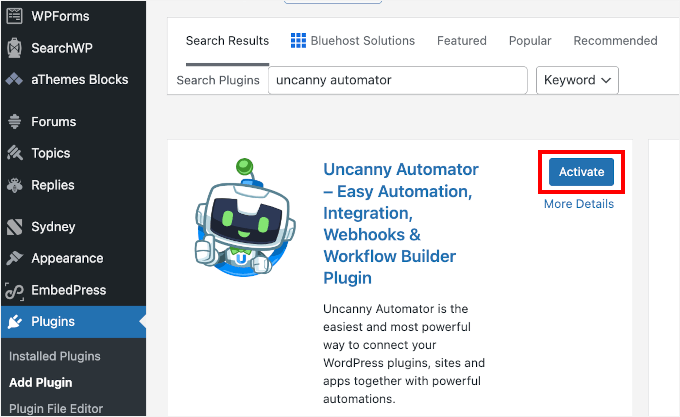
After activation, you’ll see a new Automator menu item in your WordPress dashboard. This is where you’ll create and manage all your automated workflows.
🔗 Related: Want more WordPress automation tips? See our beginner’s guides on WordPress email marketing automation and our expert picks for the best WordPress automation tools and plugins compared.
But first, let’s set up your free Uncanny Automator account, since you won’t be able to connect to LinkedIn without it.
Let’s head over to ‘Automator’ and click the ‘Connect your free account!’
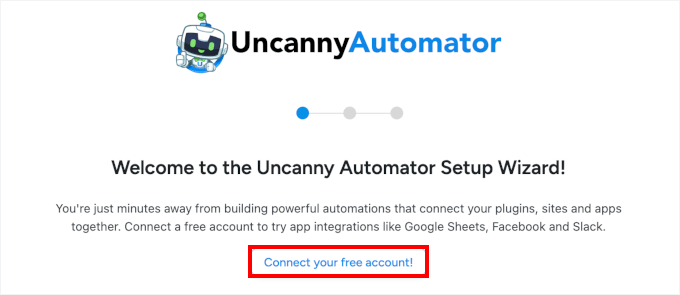
On the next screen, you’ll see a registration form. Simply fill in the required details, and you’ll be good to go.
Step 2: Create a New Recipe for LinkedIn Automation
With Uncanny Automator set up, you’re ready to create your first automation recipe.
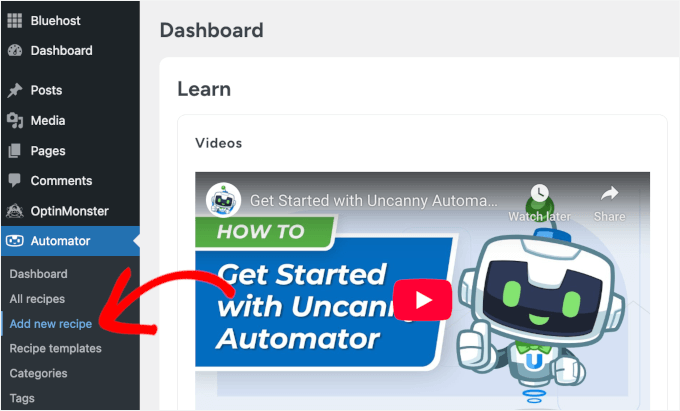
In your WordPress dashboard, go to Automator » Add new recipe.
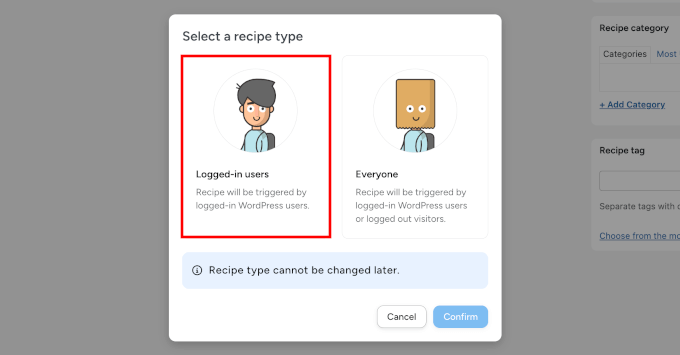
A popup will appear asking what type of recipe you’d like to create.
Here, you’ll want to select ‘Logged-in users’ from the options.
This makes sure the automation only runs when you or another trusted user publishes a post. It prevents accidental triggers from guest contributors or other user actions.
Next, you’ll need to give your recipe a descriptive name so it’s easy to recognize later.
Something like “Share New WordPress Blog Posts to LinkedIn” or “LinkedIn Automation” works well, since it reminds you exactly what the recipe does.
Plus, having a clear naming system really helps once you start creating more recipes for different platforms or content types.
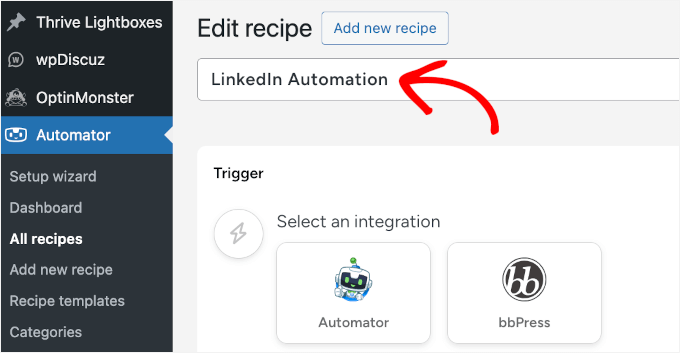
With that done, you can click ‘Save’ to proceed to the recipe configuration screen.
Step 3: Configure Your Automation Trigger
A trigger is what tells Uncanny Automator when to run your recipe. In this case, you’ll want it to fire whenever you publish a new blog post on your WordPress site.
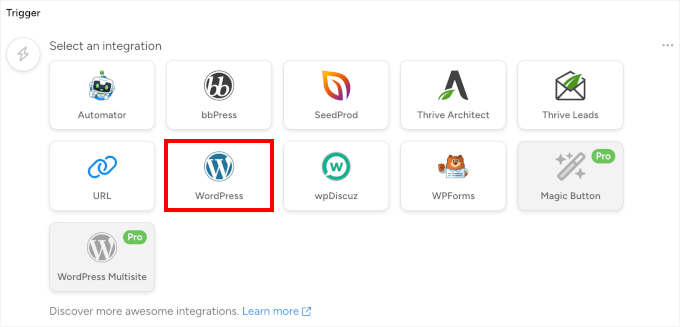
In the Trigger section, you’ll see a list of available integrations. Go ahead and choose ‘WordPress’ since the automation is based on WordPress activity.
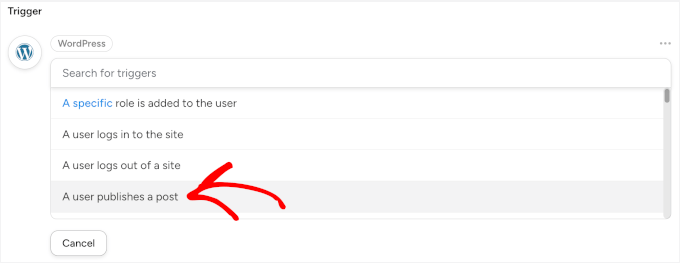
In the dropdown menu that appears, let’s select ‘A user publishes a post.’
This specific trigger ensures your recipe only runs when content goes from draft to published status.
Uncanny Automator will then prompt you to select which post type should trigger the automation.
If you only want to share regular blog posts, select ‘Post’ from the dropdown menu.

But if you also publish other content types like case studies or portfolios that you’d like to share on LinkedIn, select ‘Any post type’ instead. This gives you more flexibility as your content strategy grows.
Once you’ve configured your trigger settings, don’t forget to click ‘Save.’
Step 4: Configure Your LinkedIn Auto-Share Action
Now, you’re ready to set up LinkedIn auto-sharing. In this step, you’ll tell Uncanny Automator what should happen each time a post is published.
In the ‘Actions’ section, click ‘Add action’ to get started.
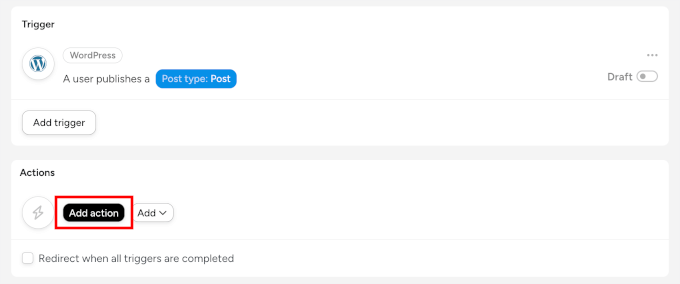
This will open the list of available integrations.
You can scroll down and select ‘LinkedIn’ from the menu.
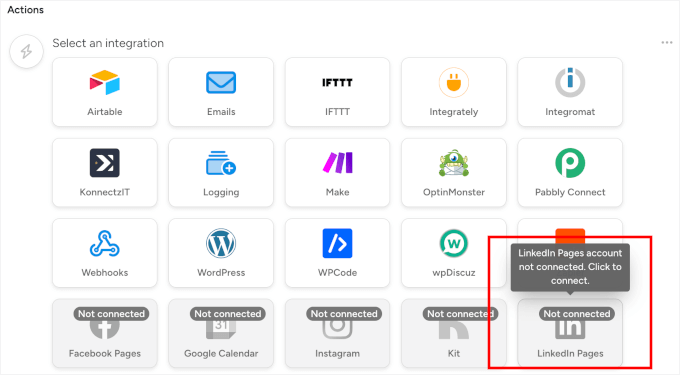
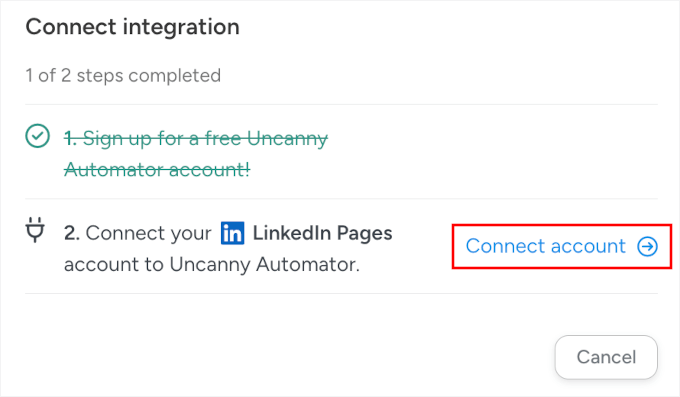
If this is your first time connecting LinkedIn to Uncanny Automator, you’ll see a ‘Connect account’ button in the popup that appears.
Go ahead and click it.
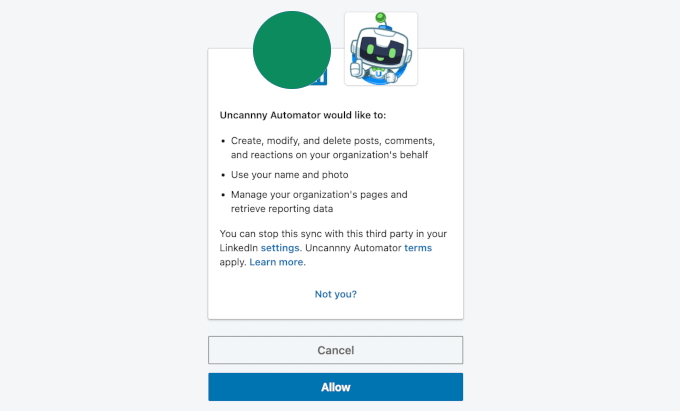
LinkedIn will then ask you to confirm that Uncanny Automator can post for you.
Click ‘Allow’ to grant the necessary permissions. This process is completely secure, and you can always manage or revoke this access from your LinkedIn account settings.
After connecting your LinkedIn account, Uncanny Automator will take you to the recipe editor.
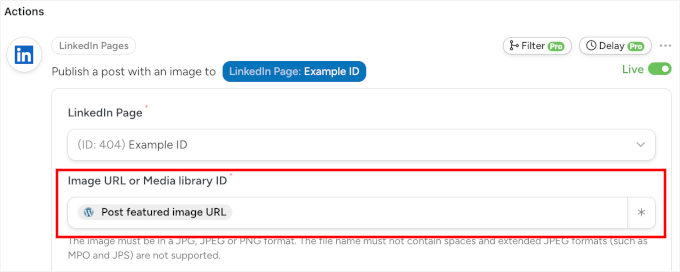
From here, let’s select ‘Publish a post with an image to a LinkedIn page’ from the action dropdown. This way, each LinkedIn post will have a featured image to help make it stand out.

You can then tell Uncanny Automator which image to use for your LinkedIn post. The best way to do this is to use the post’s featured image, so every new article will have its own unique visual.
To set this up, click the asterisk (*) button next to the ‘Image URL’ field. This will open a list of dynamic tokens. Search for ‘Post Featured Image URL’ and select it.
Now, your post’s featured image will be automatically included in your LinkedIn post.
🧑💻 Pro Tip: For the best results on LinkedIn, make sure your featured images are at least 1200 x 627 pixels. This ensures your image looks sharp and professional in the feed.
For more social media image sizes, see our complete social media cheat sheet.
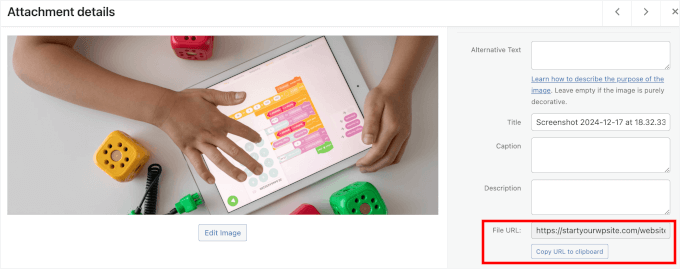
Alternatively, if you want every post to use the same default featured image, you can paste a specific image URL from your Media Library into this field instead of using a token.
No worries if you don’t know the URL because you can grab it from your Media Library.
All you have to do is open your WordPress media library in a new tab, click on the image you want to add, and copy the value from the ‘File URL’ field.
After setting the image, you can create a template for your post’s text in the ‘Content’ field. You can use a mix of your own words and dynamic tokens, which automatically pull information from your WordPress post.
To add tokens, click the asterisk (*) button and search for the one you need. For example, you might want to look for ‘Post Title’ and ‘Post URL’ and select them as your token.
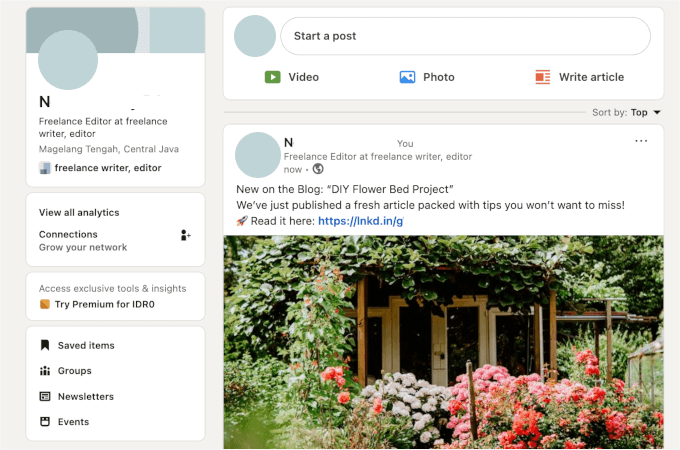
Here is a simple template you can use: “New on the Blog: {Post Title} We’ve just published a fresh article packed with tips you won’t want to miss! 🚀 Read it here: {Post URL}.”
If you want, you can add some hashtags, like WordPress #LinkedInTips. But be sure they are suitable for all of your automated LinkedIn posts.
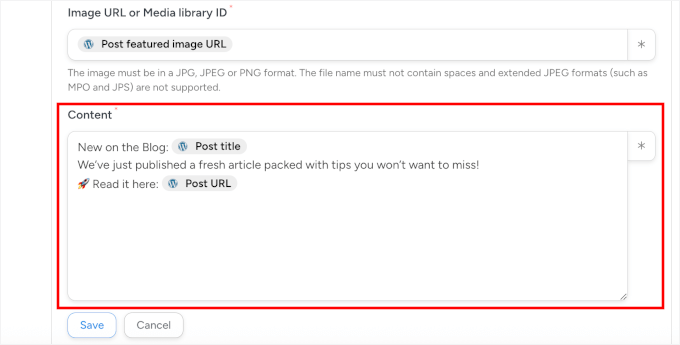
This way, your LinkedIn post will automatically include your post title and link, along with hashtags if you add them.
With that done, you can click ‘Save’ to store your LinkedIn auto-share action settings.
Step 5: Activate Your LinkedIn Automation Recipe
At this point, your recipe is complete and ready to automatically share your blog posts on LinkedIn.
But in the recipe editor, you’ll notice the switches are set to ‘Draft.’ That just means the automation is created but not active yet.
You can go ahead and switch all the toggles from ‘Draft’ to ‘Live.’
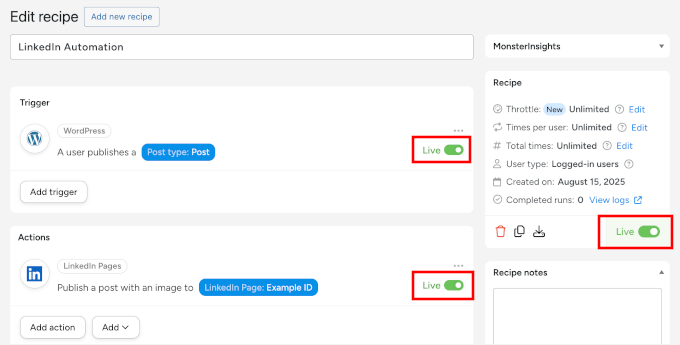
That’s it! Your recipe now runs in the background, taking care of LinkedIn whenever you publish new content.
Here’s what my demo automated LinkedIn post looks like:
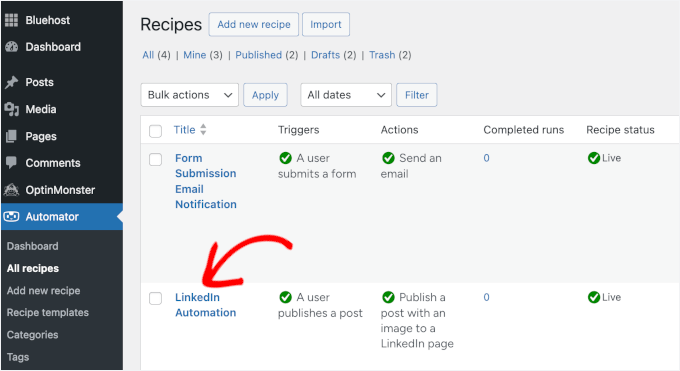
You can view all your active recipes by going to Automator » All Recipes in your WordPress dashboard.
From there, you can pause or update them anytime.
Bonus Tip: Grow LinkedIn Followers and Engagement with Giveaways
Running giveaways can also be a great way to grow your LinkedIn audience and boost engagement on your posts.
People love the chance to win something for free. And by tying the entry requirements to simple actions (like following your LinkedIn Page or engaging with a post), you can quickly expand your reach.
Here are a few smart goals you can set for your giveaway:
- Grow followers – Require entrants to follow your LinkedIn Page to participate.
- Boost post engagement – Ask participants to comment on or share your post on LinkedIn.
- Increase brand awareness – Encourage referring friends or colleagues who might be interested in your product or service.
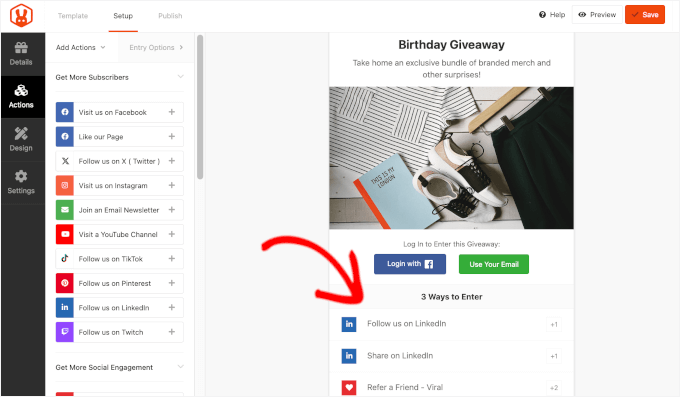
To run the giveaway, I recommend using RafflePress, which is the best WordPress contest and giveaway plugin.
We use it to run our annual WPBeginner birthday giveaway, and it’s been working super well for us. See our full RafflePress review for more insights about the plugin.
And for step-by-step instructions, you can see our guide on how to run a giveaway/contest in WordPress.
FAQs About How to Schedule LinkedIn Posts in WordPress
Still have questions? Here are answers to some of the most common questions I get about scheduling LinkedIn posts in WordPress.
How do I automatically post from WordPress to LinkedIn?
You can automatically post from WordPress to LinkedIn using Uncanny Automator. It integrates smoothly with LinkedIn and shares directly from your blog posts.
How can I keep up with posting daily on social media?
The trick is batching and scheduling. Instead of logging in every day, set aside one block of time each week to write and schedule your LinkedIn posts. With the right plugin, you can line up a whole week’s worth of content and let WordPress handle the publishing.
Can I use the same content across multiple platforms?
Yes, but with a twist. You can repurpose your WordPress blog post for LinkedIn, X (Twitter), or Facebook. Just make sure to adjust the tone, hashtags, or image size for each platform so your content feels native everywhere.
Can you add a LinkedIn feed to a WordPress site?
Yes, you can, but LinkedIn’s options are more limited than those of other social platforms. LinkedIn’s official tools don’t easily allow for dynamic, multi-post feeds like you can create for Instagram or Facebook.
The most reliable method is to manually embed individual posts by copying the embed code for a specific post directly from LinkedIn and pasting it into your WordPress post or page.
Keep Learning: Social Media and WordPress Tips
I hope this guide has helped you schedule LinkedIn posts in WordPress. However, this is just one way to boost your social media presence.
If you want to take your social media strategy even further, here are some more guides to help you get started:
- How to Embed TikTok Videos in WordPress
- How to Create a Custom Instagram Photo Feed in WordPress
- How to Add a Facebook Like Button in WordPress
- How to Promote Your Twitter Page in WordPress with a Popup
- How to Add Twitter Cards in WordPress
- How to Add Your Social Media Feeds to WordPress
- Beginner’s Guide to Social Commerce for WordPress Users
- The Complete Social Media Cheat Sheet for WordPress
If you liked this article, then please subscribe to our YouTube Channel for WordPress video tutorials. You can also find us on Twitter and Facebook.



Have a question or suggestion? Please leave a comment to start the discussion.